How to Fix A Game About Chopping Trees Crashing on Launch, Low FPS, and Lag Spikes: 2026 Performance Guide
When I first loaded A Game About Chopping Trees, I expected nothing more than a peaceful evening riding a handcar through quiet forests, listening to the satisfying sound of an axe sinking into wood. Instead, I was greeted by random crashes, brutal frame drops every time a tree collapsed, and enough stuttering to ruin the relaxing atmosphere that makes this game so special.
Judging by Steam discussions, Reddit troubleshooting threads, and player reports across gaming communities, I definitely wasn’t the only one. Launch week has been rough for plenty of PC players. The good news is that nearly all of these issues have practical solutions, and after experimenting with different fixes myself, I managed to get the game running smoothly.
If your adventure keeps crashing before the menu appears or your FPS disappears the moment you start chopping, this guide covers the fixes that have consistently worked for the community.
Why Does A Game About Chopping Trees Perform Poorly?
Unlike many cozy simulators, this game performs a surprising amount of real-time calculations.
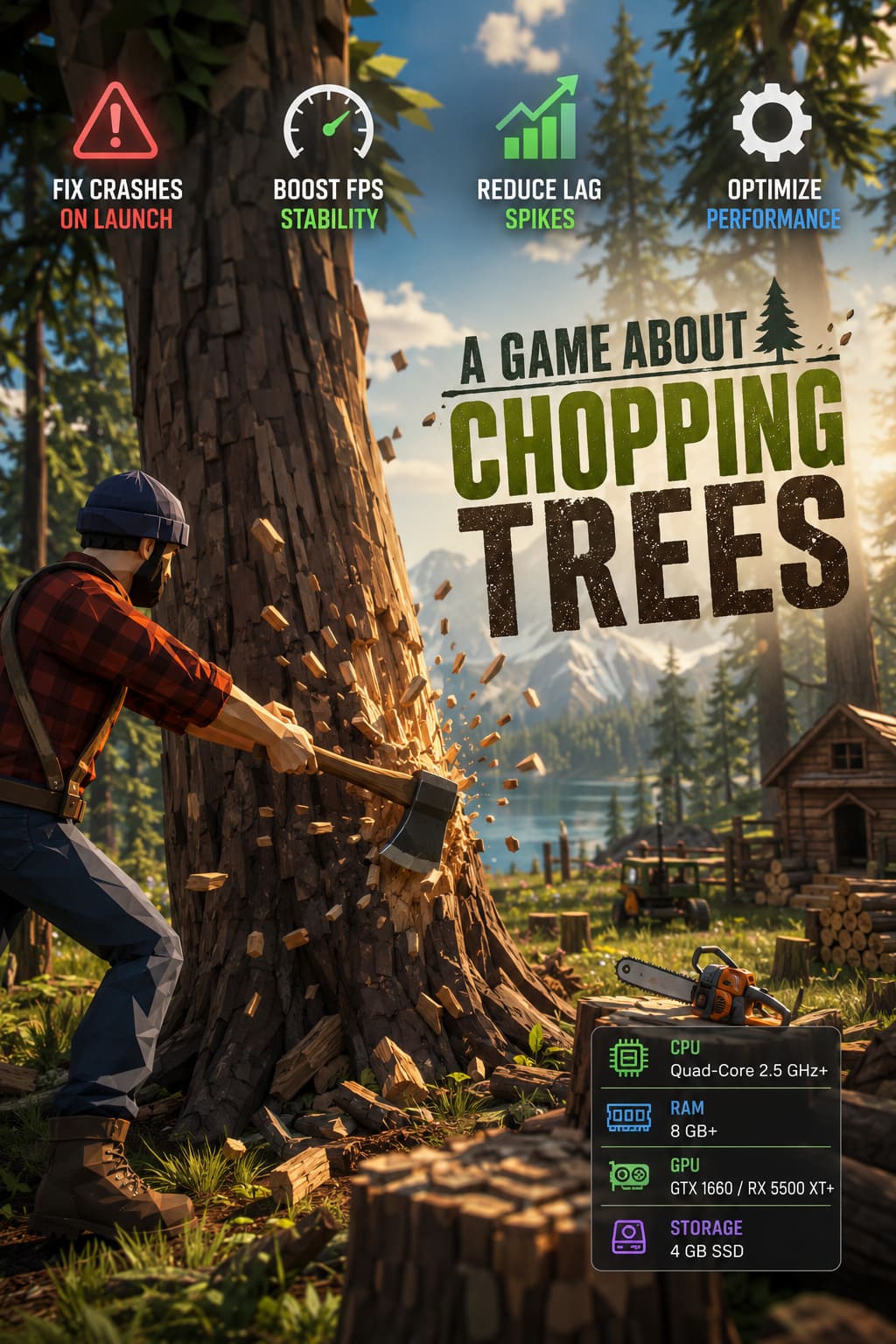
Every large tree isn’t simply playing a canned animation. The engine has to calculate dynamic physics, branch destruction, falling logs, foliage interaction, particle effects, and lighting updates.
While exploring the map may feel incredibly smooth, chopping down several large trees at once can suddenly overwhelm both your CPU and GPU.
Many launch problems also appear to come from corrupted shader caches or outdated configuration files generated after patches.
Fix Startup Crashes Before the Main Menu
If the game instantly closes after pressing Play, don’t immediately assume your hardware is at fault. Most launch crashes are software-related.
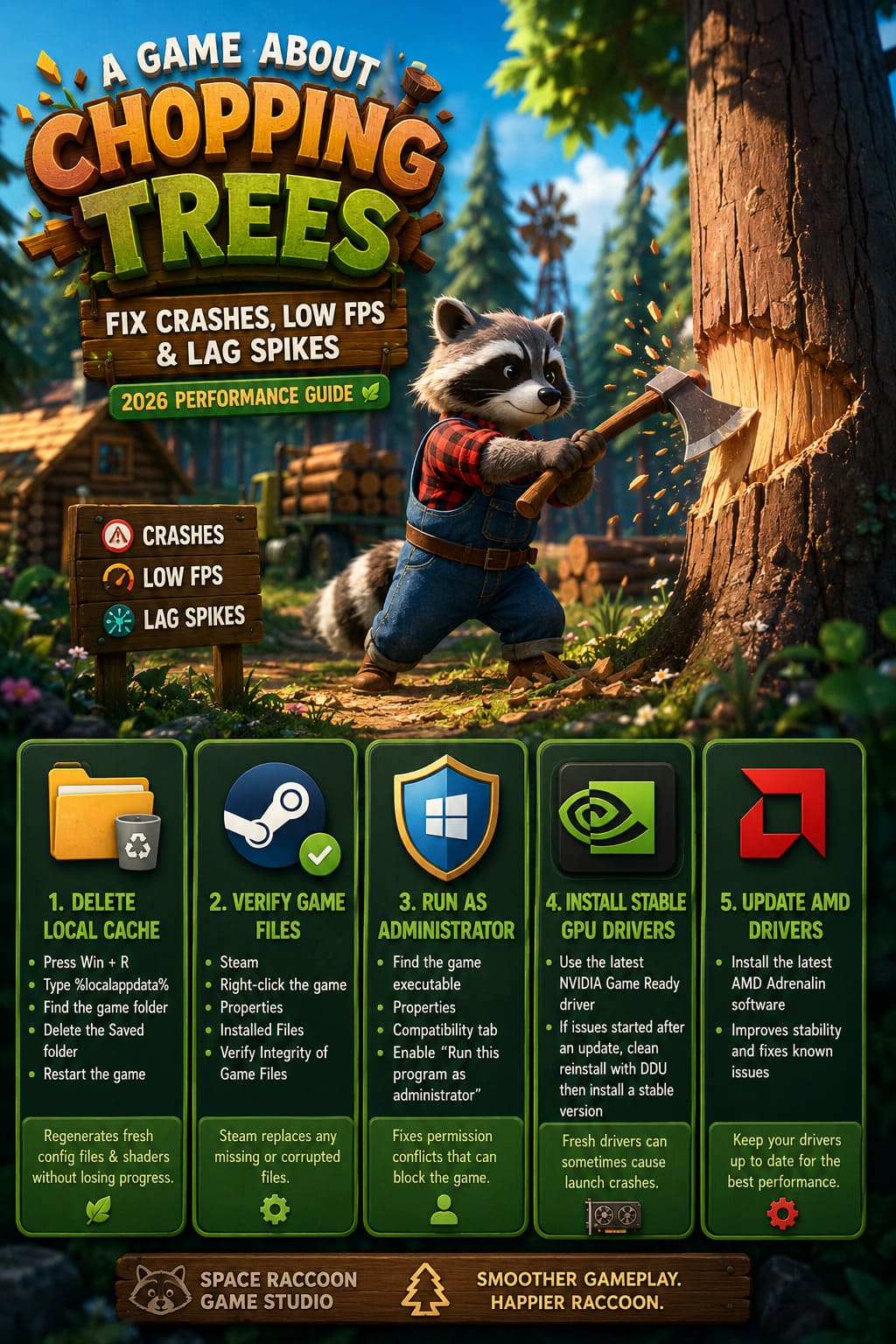
Delete the Local Cache
One of the first fixes worth trying is rebuilding the game’s local configuration.
Delete the cached data located inside the Local AppData directory.
- Close Steam completely.
- Press Windows + R.
- Type
%localappdata%. - Find the folder belonging to A Game About Chopping Trees or Space Raccoon Game Studio.
- Open the directory.
- Delete the Saved folder.
- Restart the game.
The game will regenerate fresh configuration files and shader caches automatically.
This doesn’t normally erase your world progression but does remove corrupted temporary files that often trigger startup crashes.
Verify Game Files Through Steam
Interrupted downloads or damaged files can create all kinds of strange launch problems.
Checking your installation only takes a few minutes.
- Open Steam.
- Right-click the game.
- Select Properties.
- Open Installed Files.
- Choose Verify Integrity of Game Files.
Steam compares every installed file with the official version and replaces anything that’s missing or corrupted.
Run the Game with Administrator Rights
Some indie releases struggle with Windows security permissions during their first launch.
To avoid permission conflicts:
- Browse the game’s installation folder.
- Locate the executable.
- Open Properties.
- Select the Compatibility tab.
- Enable Run this program as administrator.
- Save the changes.
It sounds simple, but surprisingly often this alone fixes launch failures.
Install Stable GPU Drivers
Fresh game releases sometimes behave unpredictably with brand-new graphics drivers.
If you’re using NVIDIA hardware, installing the latest stable Game Ready driver usually helps.
If crashes only began after updating your drivers, performing a clean reinstall using Display Driver Uninstaller (DDU) before installing a stable release has resolved issues for many players.
AMD users should also check for the newest Adrenalin software update.
How to Fix Massive FPS Drops While Chopping Trees
This was the biggest issue on my system.
Riding around the forest felt buttery smooth.
Swinging an axe? My frame rate absolutely collapsed.
The reason is fairly obvious after watching performance graphs. Tree destruction creates a huge spike in physics calculations while simultaneously increasing particle effects, shadow updates, and geometry rendering.
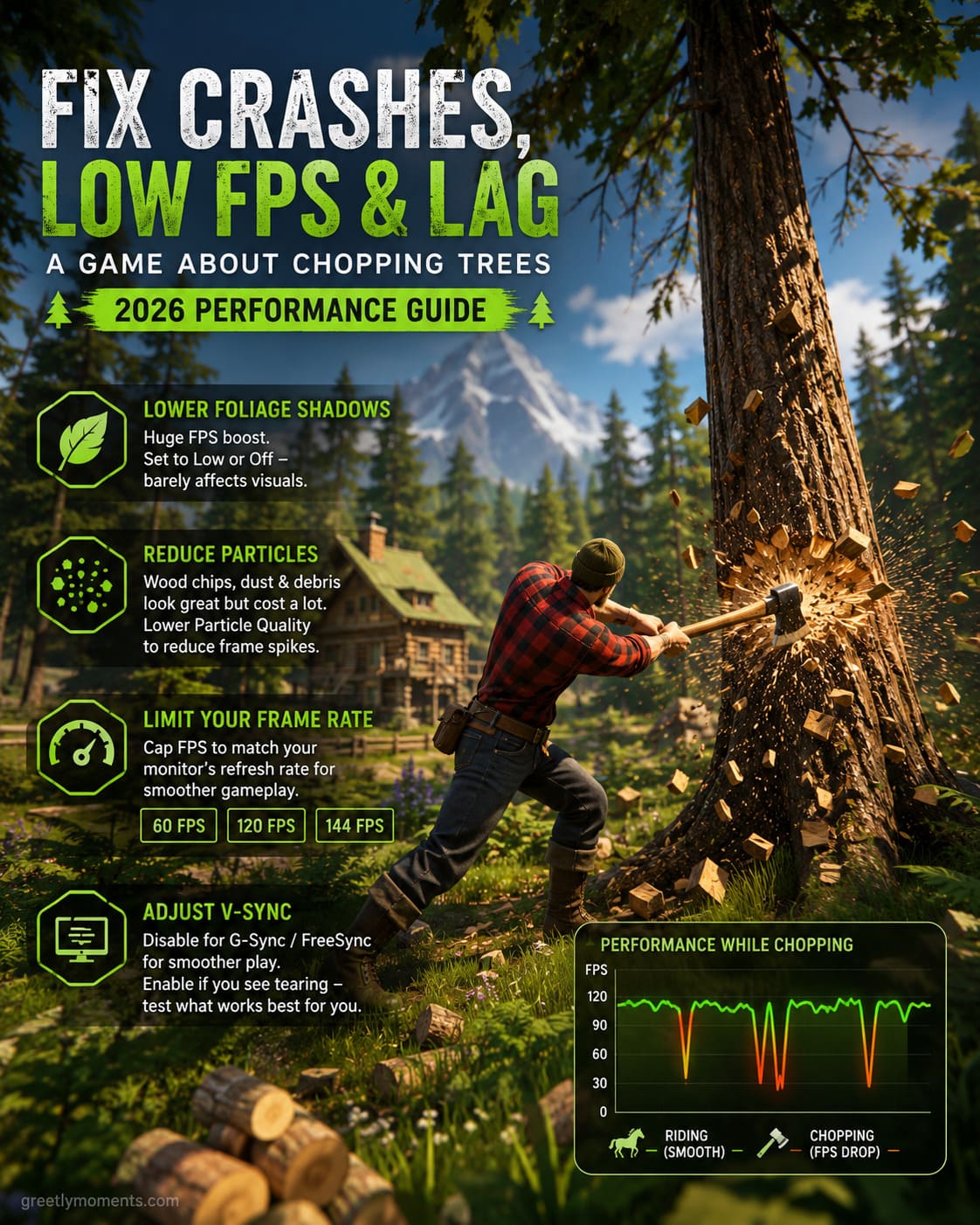
Lower Foliage Shadows
This setting had the biggest performance impact during my testing.
Every leaf, branch, and moving object can cast dynamic shadows.
Reducing Foliage Shadows to Low or disabling them completely dramatically improved frame consistency while barely affecting visual quality.
Reduce Particle Effects
Wood chips, flying bark, dust, and debris look fantastic.
They also consume GPU resources much faster than many players expect.
Dropping Particle Quality one level usually removes the worst frame spikes without making the game look noticeably worse.
Limit Your Frame Rate
Unlimited FPS sounds great on paper.
In reality, your graphics card may constantly run at maximum usage, leaving almost no headroom whenever heavy physics calculations occur.
Instead, use a frame cap that matches your monitor’s refresh rate.
- 60 FPS
- 120 FPS
- 144 FPS
Frame pacing immediately becomes much smoother.
Adjust V-Sync Properly
Players using G-Sync or FreeSync displays generally achieve smoother gameplay with V-Sync disabled.
If screen tearing becomes noticeable, enable it again and compare the results.
There isn’t one universal answer here since every monitor behaves a little differently.
Graphics Settings That Actually Matter
Many settings barely affect performance.
Others have an enormous impact.
Here’s the configuration that produced the best balance between image quality and stable frame rates.
| Setting | Recommended Value |
|---|---|
| Display Mode | Fullscreen |
| Resolution | Native Resolution |
| Anti-Aliasing | TAA or FXAA |
| Texture Quality | High (8 GB VRAM+) |
| Shadow Quality | Medium |
| Foliage Shadows | Low or Off |
| View Distance | Medium |
| Ambient Occlusion | Medium |
| Motion Blur | Off |
| Post Processing | Medium |
Disabling Motion Blur also makes fast handcar travel noticeably clearer.
Reduce World Simulation Lag
One interesting discovery from experienced players is that your own world can gradually become heavier over time.
Every abandoned stump and loose log remains part of the active simulation.
If dozens or even hundreds of physics objects remain scattered around your forest, performance slowly declines.
Good habits include:
- Remove leftover stumps.
- Collect logs instead of leaving them everywhere.
- Store harvested wood regularly.
- Avoid creating giant piles of physics-enabled objects.
Keeping your world clean helps maintain stable performance during longer play sessions.
Lower Draw Distance
Dense forests are expensive to render.
Even when you aren’t looking directly at distant terrain, your PC may still process thousands of trees.
Reducing View Distance from Ultra to Medium usually provides a worthwhile FPS increase without dramatically changing visuals.
If the game offers occlusion culling, make sure it’s enabled so hidden geometry isn’t rendered unnecessarily.
Advanced Windows Optimizations
Sometimes Windows itself becomes the bottleneck.
A few operating system tweaks can noticeably reduce micro-stuttering.
Enable Hardware-Accelerated GPU Scheduling
HAGS allows the graphics card to manage video memory more efficiently.
To enable it:
- Open Windows Settings.
- Go to System.
- Open Display.
- Select Graphics.
- Choose Default Graphics Settings.
- Turn on Hardware-Accelerated GPU Scheduling.
- Restart your PC.
Results vary depending on hardware, but many players report smoother frame pacing.
Force High Performance Graphics
Windows occasionally assigns games to power-saving modes.
Adding the game’s executable manually prevents that.
Navigate to Settings → Display → Graphics.
Add the game’s executable.
Select High Performance.
This ensures Windows prioritizes your dedicated graphics card.
A Game About Chopping Trees Beginner Guide: Progression Tips, Upgrades, and Secrets
Does Your PC Meet the Recommended Hardware?
Before chasing software fixes, it’s worth checking whether your system matches the game’s intended specifications.
| Component | Minimum | Recommended |
|---|---|---|
| Operating System | Windows 10/11 64-bit | Windows 10/11 64-bit |
| Processor | Quad-Core 2.5 GHz | Modern Quad-Core CPU |
| Memory | 8 GB RAM | 16 GB RAM |
| Graphics Card | GTX 1660 / RX 5500 XT | RTX 3060 / RX 6600 XT |
| DirectX | Version 11 | Version 12 |
| Storage | 4 GB | 4 GB SSD |
Running below these recommendations won’t necessarily prevent the game from working, but it significantly increases the likelihood of stuttering once physics-heavy moments begin.
A Game About Chopping Trees Multiplayer Co-Op Guide & Full Walkthrough (2026)
Final Thoughts
For a game centered around something as calming as chopping trees, A Game About Chopping Trees pushes modern PCs harder than many people expected. Dynamic physics, dense vegetation, particle-heavy destruction, and persistent world simulation combine to create performance challenges that aren’t immediately obvious during the first few minutes of gameplay.
Fortunately, most launch issues aren’t permanent. Clearing corrupted shader data, verifying the installation, updating or rolling back to stable graphics drivers, and adjusting a handful of graphics settings can transform the experience. In my own testing, lowering Foliage Shadows, trimming Particle Quality, capping the frame rate, and keeping the in-game world free of excessive debris produced the biggest improvements without sacrificing the cozy atmosphere that makes the game enjoyable.
The developers will almost certainly continue refining performance with future patches, but until then, these community-tested solutions offer the fastest route to a smoother adventure. Once everything is running properly, it’s much easier to appreciate the satisfying rhythm of exploring the wilderness, upgrading your handcar, and hearing that unmistakable crack as another towering tree finally comes down.