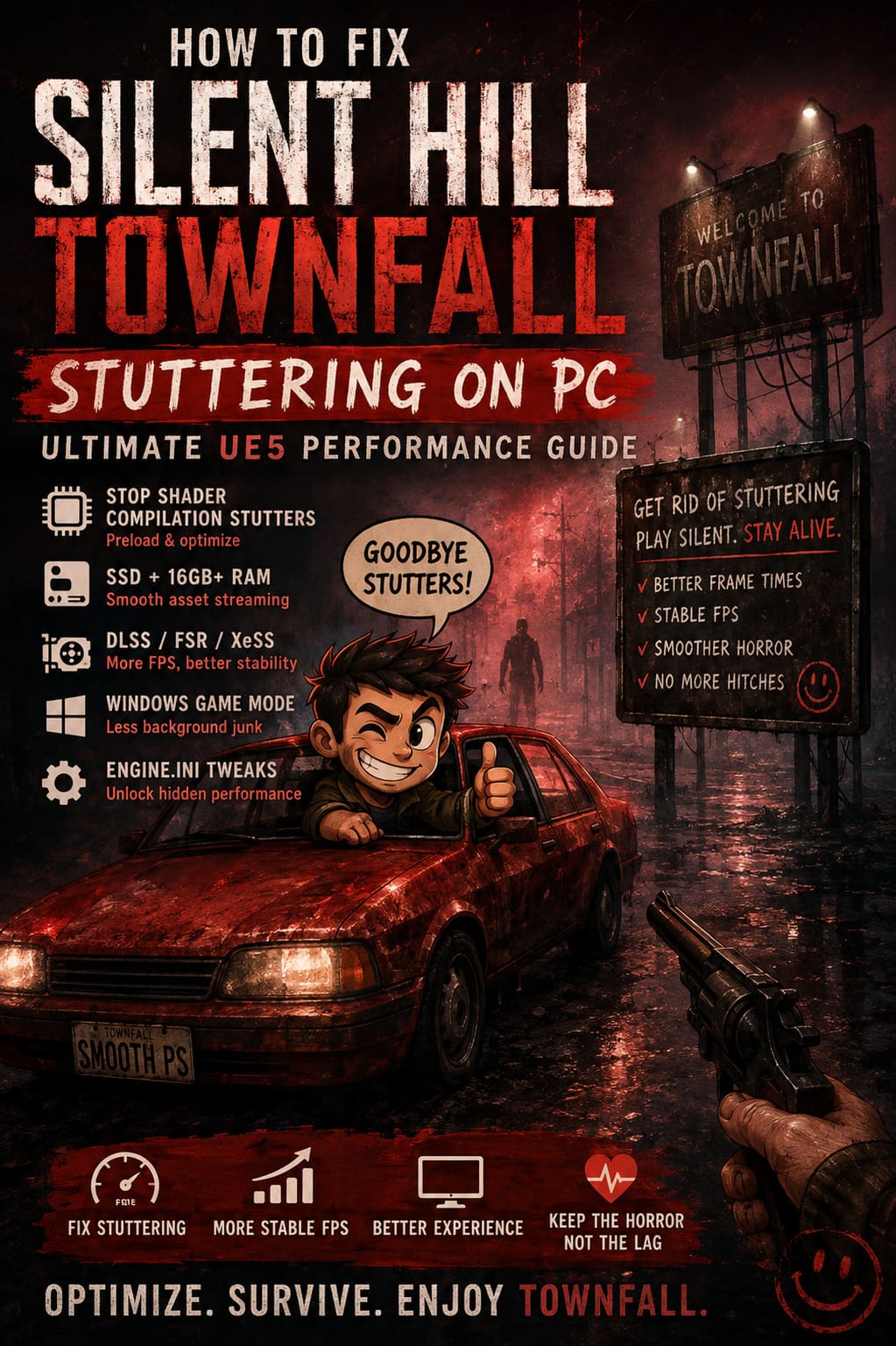
How to Fix Silent Hill Townfall Stuttering on PC: Ultimate UE5 Performance Guide
Silent Hill Townfall is supposed to make you uncomfortable for all the right reasons. The oppressive darkness, strange environments, unpredictable scares, and psychological horror should keep you tense from the first minute. What absolutely should not make your heart skip a beat is watching the frame rate suddenly collapse because the game decided to load a new room.
For PC players, stuttering can completely wreck a horror game. A 90 FPS experience that suddenly freezes for half a second feels far worse than simply playing at a locked 60 FPS. When you’re exploring a dark corridor and the camera catches a new asset, lighting effect, or shader, that little hitch can instantly pull you out of the experience.
Silent Hill Townfall’s use of Unreal Engine 5 makes this particularly interesting. UE5 can produce some spectacular environments, but technologies such as Lumen, Nanite, virtualized shadows, shader compilation, and aggressive asset streaming can also create nasty frame-time spikes. If you’ve spent enough time playing modern Unreal Engine games, you probably know the feeling: the average FPS looks fantastic, yet the game still feels strangely choppy.
The good news is that you don’t necessarily need a monster PC to improve the situation. A few carefully selected graphics changes, shader-cache adjustments, Windows optimizations, and configuration tweaks can make a surprisingly large difference.
Silent Hill Townfall PC Performance Optimization Guide: Fix Low FPS, Stutters, and Lag
Why Is Silent Hill Townfall Stuttering on PC?
Before throwing random settings at the problem, it helps to understand what you’re actually fighting.
The most common cause of Unreal Engine 5 stuttering is shader compilation. When the game encounters a shader it hasn’t prepared yet, the CPU and GPU may have to process it during gameplay. Instead of everything happening smoothly in the background, you get a sudden frame-time spike.
This is especially noticeable when you enter a new area for the first time, turn the camera quickly, trigger a new lighting effect, encounter a previously unseen material, start or finish a cinematic sequence, or move between heavily detailed environments.
Another major culprit is asset traversal stutter. UE5 constantly streams textures, geometry, lighting data, animations, and other assets as you move around the world. If your storage device, CPU, RAM, or VRAM cannot keep up with the streaming workload, you can get those infamous micro-freezes.
And here’s the annoying part: a high average FPS doesn’t mean your game is running smoothly. A system delivering 100 FPS can still feel terrible if frame times repeatedly jump from around 10 ms to 40, 60, or 100 ms.
Start With the In-Game Settings
Don’t immediately start editing configuration files. First, find out whether the stuttering is primarily GPU-related.
If you’re playing at maximum settings, the first options I’d lower are the ones that create a disproportionately large workload without giving you a massive visual improvement.
| Setting | Recommended Value | Performance Impact |
|---|---|---|
| Lumen / Global Illumination | High | High |
| Shadows | High | Medium-High |
| Effects | High | Medium |
| Textures | High | Low-Medium |
| View Distance | High | Medium |
| Upscaling | Quality | High |
Lumen is the big one. Real-time global illumination can look incredible in a dark horror game, but it can also hammer your GPU. Dropping it from Epic to High is often a much smarter move than destroying image quality by lowering every setting across the board.
I’d also experiment with shadow quality. Virtual Shadow Maps can be surprisingly expensive, particularly when you’re dealing with dense environments and dynamic lighting.
Textures are different. If your GPU has enough VRAM, keeping textures at High can preserve much of the game’s visual quality while having a relatively small impact on raw rendering performance.
Use DLSS, FSR, or XeSS
If your graphics card supports an upscaling technology, use it.
For Nvidia RTX GPUs, DLSS Quality is usually my first choice. AMD hardware can use FSR, while Intel Arc users can take advantage of XeSS where supported.
Quality mode is the sweet spot for most players because the internal resolution is reduced while the reconstruction algorithm produces an image that can still look close to native resolution.
The important thing here isn’t simply getting more FPS. Extra GPU headroom can also improve frame-time consistency.
If your GPU is constantly sitting at 98–100% utilization, even a small rendering spike can cause a noticeable hitch. Dropping the internal workload gives the GPU some breathing room.
The Engine.ini Tweaks Worth Testing
This is where things get more interesting.
Unreal Engine games often store configuration files inside the Windows user profile. Depending on the final release structure, the exact folder name can differ, so don’t panic if you don’t see a folder literally called Townfall.
Press Windows + R, enter %LOCALAPPDATA%, then look for the game’s installation-specific configuration directory and navigate toward Saved\Config\WindowsNoEditor.
If you find an Engine.ini file, back it up before changing anything. Seriously. It’s much easier to undo a tweak when you have the original sitting right there.
You can then test configuration commands designed to influence shader and texture behavior.
[/Script/Engine.RendererSettings]
r.ShaderPipelineCache.Enabled=1
r.ShaderPipelineCache.ReportFrameTime=0
r.ShaderPipelineCache.GameFileMaskEnabled=0
r.ShaderPipelineCache.LazyLoading=1
r.CreateShadersOnLoad=1
r.Streaming.PoolSize=0
r.Streaming.LimitPoolSizeToVRAM=1

[TextureStreaming]
r.Streaming.Boost=1.0
r.Streaming.FullyLoadUsedTextures=1
r.Streaming.HLODStrategy=2
Don’t blindly assume every command is beneficial on every system. Unreal Engine configuration variables can change between engine versions, and a setting that helps one PC can do absolutely nothing—or make another system worse.
The most interesting command here is r.CreateShadersOnLoad=1, because it can encourage shader preparation during loading rather than leaving as much work to happen during active gameplay.
If a particular configuration makes performance worse, remove it. Optimization isn’t about collecting a giant pile of tweaks from Reddit and hoping your PC magically becomes a supercomputer.
Give Your GPU a Healthy Shader Cache
Shader caching deserves special attention.
Your GPU driver stores compiled shader data so the system doesn’t have to repeatedly rebuild everything from scratch. If the cache is too restrictive, old data can be removed and later recreated, potentially producing additional stutters.
Nvidia Users
Open the Nvidia Control Panel and navigate to the program-specific 3D settings.
For Silent Hill Townfall, consider testing:
- Shader Cache Size: 10 GB or Unlimited
- Power Management Mode: Prefer Maximum Performance
- Vertical Sync: Let the application decide
I wouldn’t recommend changing twenty different Nvidia options at once. That’s how troubleshooting becomes guesswork.
Change one or two settings, launch the game, reproduce the same area where the stutter occurs, and compare the result.
If you’re using a frame limiter, I’d also test a sensible FPS cap. A stable 60 FPS can feel dramatically better than a wildly fluctuating 80–110 FPS.
AMD Adrenalin Settings
AMD users have a similar set of tools available through Radeon Software.
For troubleshooting, Radeon Anti-Lag can be worth testing. However, be careful with frame-generation features when your underlying frame rate is unstable.
AMD Fluid Motion Frames can make the FPS counter look fantastic, but generated frames don’t magically fix inconsistent base rendering. If the original frame delivery is already messy, adding generated frames can sometimes make the experience feel less consistent rather than more fluid.
For a horror game where camera movement and atmosphere matter more than bragging rights on a benchmark screenshot, I’d prioritize stable native frames over inflated FPS numbers.
Turn On Windows Game Mode
Windows has a few settings worth checking before you start tearing into the registry.
Go to Settings → Gaming → Game Mode and make sure Game Mode is enabled.
It’s not some secret FPS multiplier, but it can help Windows prioritize gaming workloads and reduce interference from background activity.
I’d also check Settings → System → Display → Graphics → Default graphics settings. Hardware-accelerated GPU scheduling can be tested here if your hardware and driver support it.
After changing HAGS, restart Windows before judging the result. GPU scheduling behavior can vary considerably between hardware combinations, so treat it as a test, not a guaranteed fix.
Disable Background Junk
This is boring advice, but it works.
Before launching Silent Hill Townfall, close unnecessary applications that constantly consume CPU, RAM, disk bandwidth, or GPU resources.
The usual suspects include browser tabs with video playback, launchers downloading updates, RGB utilities, recording software, overlays, cloud synchronization clients, and hardware-monitoring applications.
You don’t need to turn your PC into a laboratory machine every time you play a game. Just eliminate obvious resource hogs.
And if you’re troubleshooting severe stuttering, temporarily disable overlays from applications such as Discord, Steam, Xbox Game Bar, Nvidia’s overlay, or other recording utilities. Once you’ve identified the problem, you can turn them back on individually.
Install the Game on an SSD
This one isn’t optional if you’re chasing good UE5 streaming performance.
Do not run a modern Unreal Engine 5 game from a mechanical HDD if you can avoid it.
Hard drives are still perfectly useful for mass storage, backups, and older games. They’re simply not ideal for modern titles that constantly stream enormous quantities of assets.
An NVMe SSD is the preferred option, but even a decent SATA SSD can be dramatically better than an old spinning drive.
If your game is already on an SSD, make sure the drive isn’t almost completely full. Leaving some free space can help maintain consistent storage performance.
Check Your RAM Configuration
Modern UE5 games can be surprisingly memory-hungry.
16 GB of RAM should be considered a practical baseline, while 32 GB gives you considerably more breathing room when Windows and background applications are also consuming memory.
Dual-channel memory is also important. If your RAM is running in a suboptimal configuration, CPU-side performance can suffer, and those CPU limitations can appear as frame-time spikes rather than simply low average FPS.
If Task Manager shows your memory usage approaching the limit while playing, that’s a pretty strong clue that your system needs more breathing room.
Don’t Chase Maximum Graphics Settings
Here’s my biggest piece of advice after years of tweaking PC games: stop treating Ultra as the default setting you have to earn.
Ultra settings are often designed to showcase hardware, not necessarily provide the best gaming experience. In a horror game, I would much rather run High settings at a rock-solid frame rate than Ultra settings with constant traversal hitches.
A properly tuned High preset with Quality upscaling can look fantastic.
The difference between High and Ultra is frequently something you notice when staring at screenshots side by side. The difference between smooth frame pacing and constant hitching is something you notice every second you’re playing.
When a Driver Reinstall Is Worth It
If Silent Hill Townfall suddenly starts stuttering after several driver updates, or multiple games exhibit similar behavior, a clean graphics-driver installation becomes worth considering.
Display Driver Uninstaller, commonly known as DDU, can remove existing graphics-driver components before you install a fresh driver package.
For experienced PC users, the basic process is:
- Download the correct graphics driver.
- Download DDU from a reputable source.
- Boot into Windows Safe Mode.
- Run DDU and remove the existing display driver.
- Restart Windows.
- Install the fresh driver.
- Reboot again and test the game.
Don’t use DDU simply because one game has a few shader hitches. Shader compilation can be normal behavior in Unreal Engine titles, and reinstalling drivers won’t magically eliminate engine-level traversal stutter.
The Best Silent Hill Townfall PC Settings
If I were setting up a gaming PC specifically for Silent Hill Townfall, I’d start with this configuration:
| Option | My Starting Recommendation |
|---|---|
| Resolution | Native Monitor Resolution |
| Upscaling | DLSS / FSR / XeSS Quality |
| Global Illumination | High |
| Shadows | High |
| Textures | High |
| Effects | High |
| Motion Blur | Personal Preference |
| V-Sync | Test On/Off |
| Frame Rate | Stable Cap |
The important word is starting. Every PC is different.
A high-end RTX system with plenty of VRAM can obviously push considerably harder than an older mid-range card. Conversely, a theoretically powerful GPU can still stutter if the CPU, storage, RAM, or background software becomes the bottleneck.
Final Verdict
Silent Hill Townfall deserves to be experienced as an atmospheric horror game, not as a benchmark for how quickly your PC can produce frame-time graphs.
If you’re dealing with Silent Hill Townfall stuttering on PC, start with the simple stuff: move the game to an SSD, use Quality upscaling, reduce Lumen and shadow settings, enable an appropriate shader cache, close unnecessary background applications, and make sure Windows and your GPU drivers are behaving properly.
Then move into Engine.ini experimentation if the problem persists.
The biggest mistake is changing everything simultaneously. You won’t know what actually helped, and you can easily turn a small problem into a much bigger one. Change one variable at a time, reproduce the same stutter-heavy section, and watch frame times rather than obsessing over the average FPS counter.
That’s the real goal. You want Silent Hill Townfall to make you nervous because something is lurking around the corner—not because the screen just froze for half a second.