How to Fix Moo Who Black Screen on Launch: Complete Troubleshooting Guide
If there is one thing I hate about launching a new PC game, it is getting everything ready, sitting down with a drink, and then being greeted by a completely black screen. No menu. No music. No explanation. Just darkness.
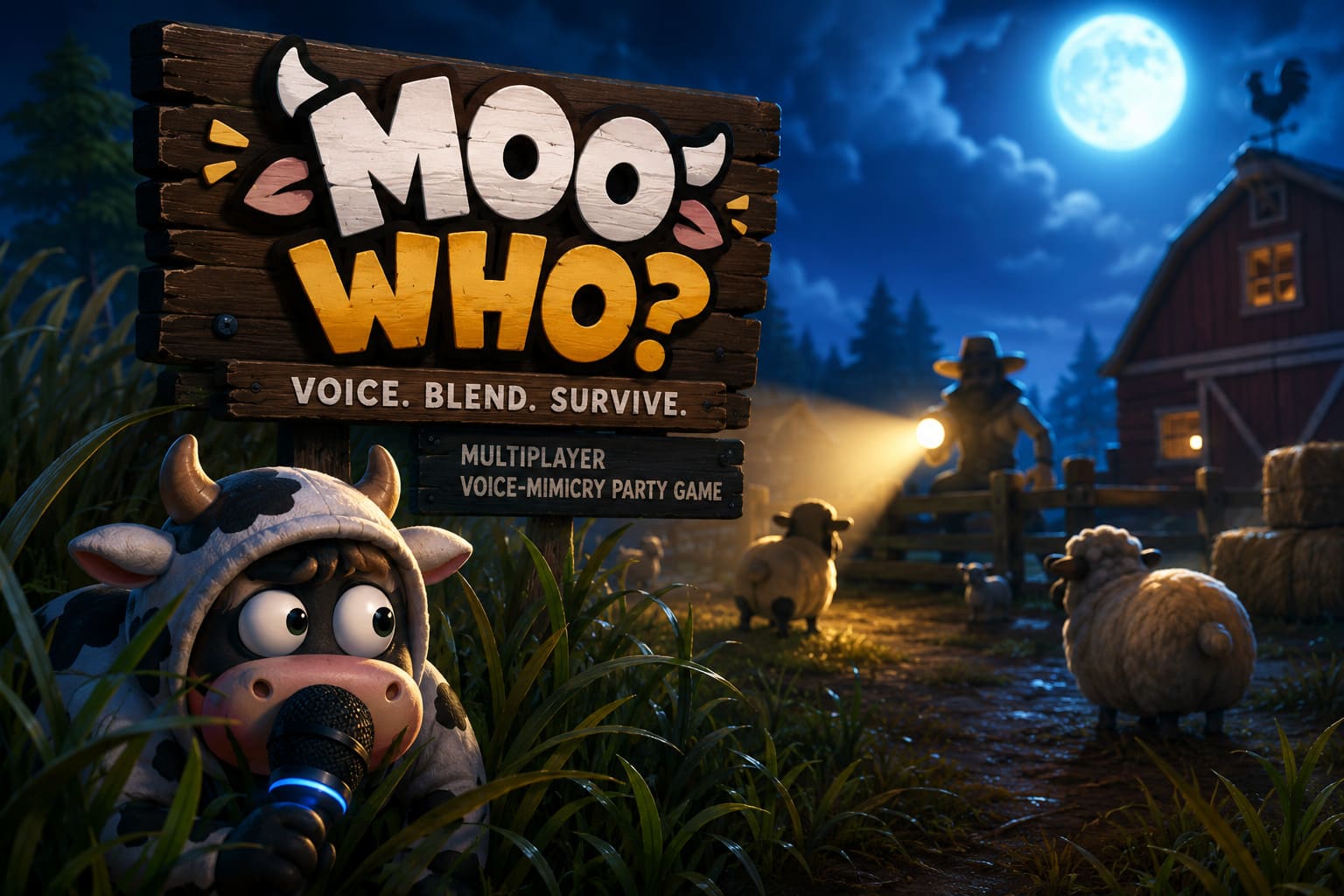
That is exactly the kind of problem some players are running into with Moo Who?, the multiplayer voice-mimicry game from SAT Productions. The concept is wonderfully ridiculous in the best possible way: you blend into an NPC herd, use your microphone, make convincing animal noises, and try not to get caught by the hunters. It is the sort of fresh multiplayer idea that can turn a normal evening into absolute chaos.
So, naturally, the last thing you want is for the game itself to refuse to show you anything.
If Moo Who? launches to a black screen, freezes immediately, shows a black window before crashing, or simply disappears after startup, don’t assume the game is completely broken. In many cases, this kind of launch problem comes from display settings, drivers, corrupted files, overlays, or a configuration file that has gone sideways.
I’ve put together the fixes I’d actually try myself, starting with the quick stuff before moving into the more technical solutions.
First: What Causes the Moo Who? Black Screen?
A launch-time black screen can have several causes, and there isn’t always one universal fix.
The most common possibilities are:
- GPU or audio drivers are outdated or behaving incorrectly.
- The game is trying to start at an unsupported resolution or refresh rate.
- Fullscreen mode is conflicting with your Windows display configuration.
- Steam downloaded a damaged or incomplete game file.
- Discord, Steam, NVIDIA, AMD, or another overlay is interfering with the game.
- The game’s local configuration has become corrupted.
- A DirectX rendering issue is preventing the game from initializing correctly.
- Windows permissions or compatibility settings are getting in the way.
The good news is that most of these are relatively painless to test.
Moo Who? Black Screen Fix #1: Try Alt + Enter
This is the first thing I’d try because it takes about two seconds.
Start Moo Who? normally. If the screen goes black but you can tell the game is still running, press:
ALT + ENTER
This Windows shortcut can switch a game between fullscreen and windowed mode.
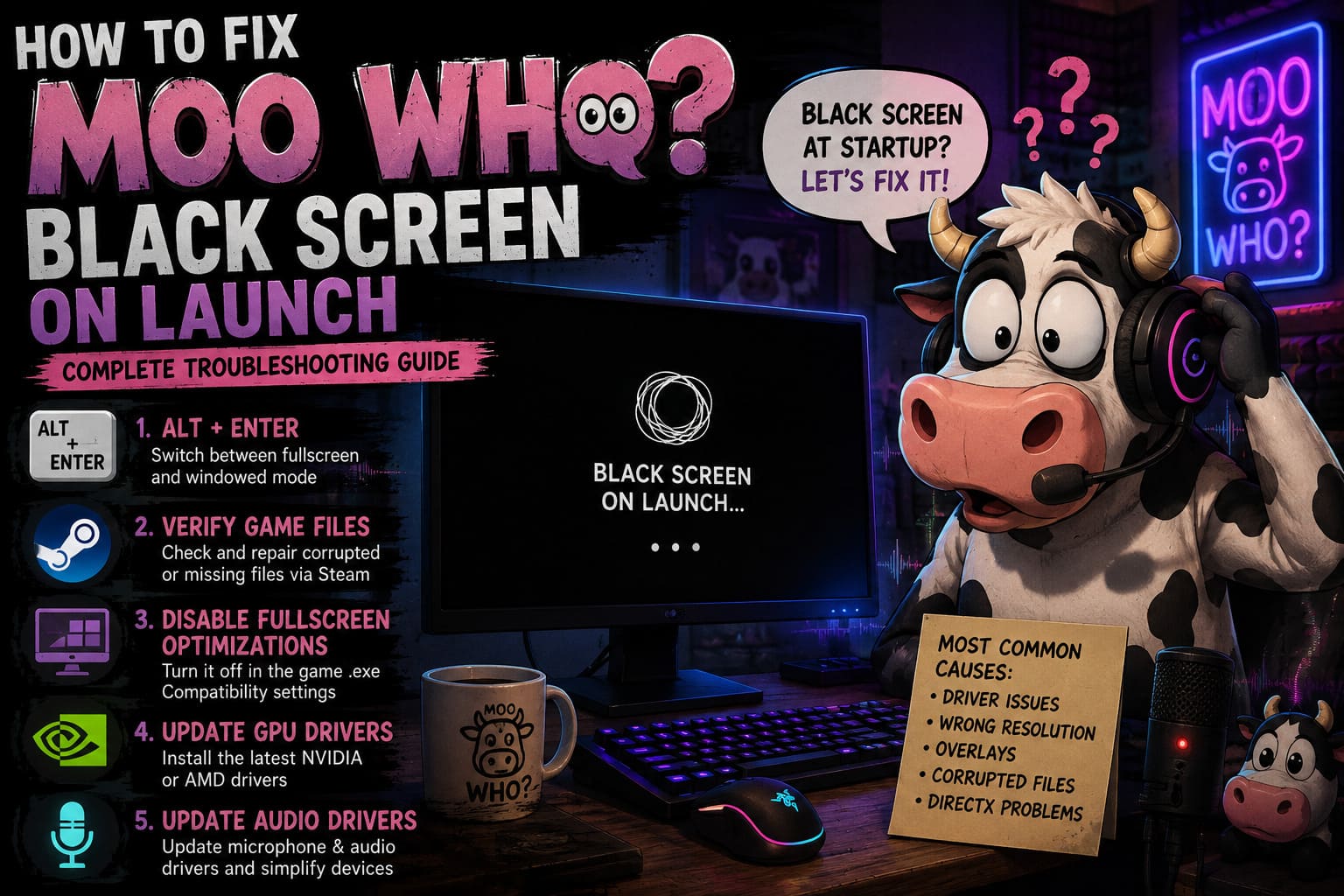
Why does that matter? Sometimes a game attempts to launch using a fullscreen resolution, refresh rate, or display configuration that doesn’t play nicely with your monitor.
If Moo Who? suddenly appears after pressing Alt + Enter, you’ve probably found the problem.
Once you’re back in the game, open the graphics settings and choose a resolution that matches your monitor. I’d also recommend trying Borderless Windowed instead of exclusive fullscreen if you continue experiencing problems.
For a new multiplayer game, I’d rather lose a tiny bit of theoretical fullscreen optimization than spend another ten minutes staring at a black rectangle.
Fix #2: Verify Moo Who? Game Files Through Steam
Before changing Windows settings, make sure your installation isn’t damaged.
Steam makes this surprisingly easy.
- Open Steam and go to your Library.
- Right-click Moo Who?.
- Select Properties.
- Open Installed Files.
- Select Verify integrity of game files.
- Let Steam finish the scan.
- Restart the game.
Steam will compare the files on your PC against the expected installation and replace anything missing or corrupted.
This is particularly useful if the game crashed during its first installation, Steam experienced a download error, or you interrupted an update.
If Steam says that some files needed to be reacquired, give it another launch afterward. Don’t start changing five other things at once. Test the game after each major fix so you know what actually solved it.
Fix #3: Disable Fullscreen Optimizations
Windows fullscreen features can occasionally create weird behavior with games that use their own display handling.
Here’s what I’d do:
- In Steam, right-click Moo Who?.
- Choose Manage > Browse local files.
- Find the game’s main executable.
- Right-click the
.exefile and select Properties. - Open the Compatibility tab.
- Check Disable fullscreen optimizations.
- Click Apply, then OK.
- Launch the game again.
You can also test Run this program as an administrator from the same compatibility screen.
I wouldn’t automatically recommend administrator mode for every game. But if the game is failing to access a required local file, configuration folder, or system resource, it can be useful as a diagnostic step.
Fix #4: Update Your GPU Drivers
This is boring advice. It is also advice that fixes an absurd number of PC gaming problems.
If you’re running an NVIDIA or AMD graphics card, make sure you’re using a current driver.
For NVIDIA hardware, update through the NVIDIA app or the appropriate official driver software.
For AMD hardware, check AMD Software: Adrenalin Edition for an available driver update.
After installing the driver, restart Windows before testing Moo Who? again.
And don’t overlook your integrated graphics driver if you’re playing on a laptop. A laptop can have both integrated and dedicated graphics hardware, and driver problems involving either one can cause strange startup behavior.
Fix #5: Don’t Forget Your Audio Drivers
This one is especially relevant to Moo Who? because the game’s whole identity revolves around voice and microphone interaction.
If the game initializes its audio and microphone systems during startup, an unstable audio driver or problematic input device could potentially contribute to launch problems.
Open Device Manager in Windows and check:
Audio inputs and outputs
and
Sound, video and game controllers
Update the relevant microphone and audio device drivers where appropriate.
I’d also disconnect unnecessary USB audio devices temporarily. If you have three microphones, a USB headset, a capture card, and an audio interface connected at the same time, simplify the setup and test again.
Sometimes the easiest troubleshooting solution is simply removing variables.
Fix #6: Turn Off Steam and Discord Overlays
Overlays are convenient until they aren’t.
Steam Overlay, Discord Overlay, NVIDIA’s overlay, AMD’s overlay, recording software, performance monitors, RGB utilities, and other background tools can all interact with a game’s rendering process.
For Steam, open the game’s properties and disable the Steam Overlay for Moo Who?.
For Discord, open Discord settings and turn off the in-game overlay.
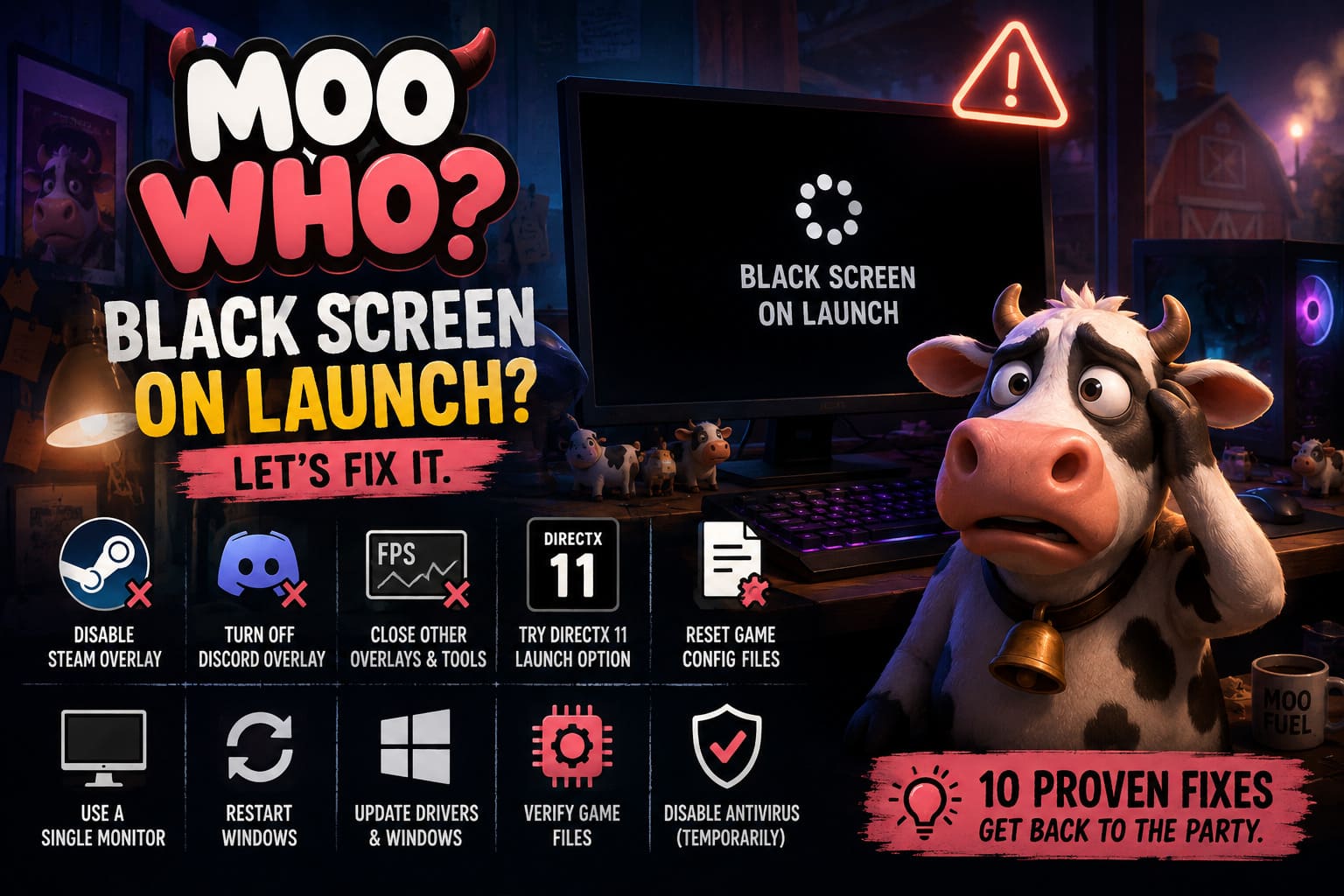
You can also temporarily close:
- GPU recording software
- FPS monitoring utilities
- RGB control applications
- Third-party game launchers
- Screen capture programs
You don’t have to uninstall anything. Just shut the software down and test the game.
If Moo Who? suddenly launches normally, turn the programs back on one at a time until you identify the culprit.
Fix #7: Try the DirectX 11 Launch Option
If the black screen appears to be a rendering problem, testing another graphics API can be worthwhile.
In Steam:
- Right-click Moo Who?.
- Select Properties.
- Stay on the General tab.
- Find Launch Options.
- Enter:
-d3d11
- Close the window.
- Launch the game.
This forces the game to attempt a DirectX 11 rendering path.
I wouldn’t treat this as a guaranteed solution. It depends on how the game handles its graphics API and launch arguments. But if the default rendering path is giving your hardware trouble, it is absolutely worth testing.
If the game launches successfully with this option, keep it temporarily and watch for future patches or driver updates.
Fix #8: Reset Moo Who?’s Configuration Files
This is one of my favorite fixes for games that suddenly stop launching after changing graphics settings.
A bad resolution or display configuration can cause a game to repeatedly start with settings your system doesn’t like.
Press:
Windows Key + R
Then enter:
%localappdata%
Look for a folder associated with Moo Who?, SAT Productions, or the game’s underlying engine/project.
Depending on the game’s current file structure, configuration data may be stored inside folders such as Saved, Config, or similar directories.
Before deleting anything, make a backup of the folder.
If you identify the game’s graphics or settings configuration, move the relevant configuration file somewhere safe rather than permanently deleting it.
Then launch Moo Who? again.
The idea is simple: force the game to create fresh default settings instead of loading the configuration that may have caused the black screen.
Fix #9: Test With a Single Monitor
This sounds oddly specific, but multi-monitor setups can cause display problems with games.
If you have two or three monitors connected, temporarily disconnect the secondary displays and launch Moo Who? using your primary monitor.
Also check your Windows display settings and make sure your main gaming monitor is correctly selected.
If you’re using an unusual refresh rate, HDR configuration, ultrawide resolution, or display scaling setup, temporarily switching to a standard configuration can help identify whether the problem is display-related.
Once the game works, restore your normal setup and test again.
Fix #10: Give Windows a Clean Restart
Before you go nuclear with reinstalling the game, restart your PC.
Seriously.
Not just closing Steam. Not just signing out. Restart Windows.
A driver, audio service, background process, or overlay can remain in a weird state after repeated crashes. A clean reboot eliminates a lot of those temporary problems.
After restarting, launch only Steam and Moo Who?. Don’t immediately open Discord, browser tabs, recording software, RGB utilities, and twenty other programs.
If the game works in this clean state, you’ve learned something useful.
Quick Moo Who? Black Screen Troubleshooting Table
| Problem | First Fix To Try | Alternative |
|---|---|---|
| Black screen immediately | Alt + Enter | Disable fullscreen optimizations |
| Game crashes after black screen | Verify Steam files | Update GPU drivers |
| Black screen after changing graphics | Reset configuration | Use windowed mode |
| Game launches without overlays | Disable Steam/Discord overlay | Close background utilities |
| Rendering failure | Try -d3d11 | Update GPU drivers |
| Microphone/audio-related startup issue | Update audio drivers | Disconnect extra audio devices |
| Multi-monitor black screen | Test one monitor | Use borderless windowed mode |
How to Fix Moo Who? Crashing on Startup: PC Troubleshooting Guide
What If Nothing Here Works?
If you’ve worked through all ten methods and Moo Who? still refuses to launch, don’t immediately assume your PC is the problem.
The game is a new release, and early patches can make a huge difference.
Check whether other players are reporting the same issue around the same time. If dozens of people suddenly encounter identical black-screen behavior after an update, that’s a pretty strong indication that you’re dealing with a game-side issue rather than a broken PC.
At that point, reinstalling Windows isn’t troubleshooting. It’s punishment.
Instead, make sure your system meets the game’s requirements, keep Windows and your GPU drivers updated, and monitor official developer announcements and Steam discussions for hotfix information.
Is Moo Who? Coming to PS5 and Xbox? Console Release Date Rumors and Facts
My Take: Don’t Let a Black Screen Ruin Moo Who?
Honestly, Moo Who? is exactly the kind of strange multiplayer experiment I want to see more often.
Not every game needs to be another massive open-world RPG with a 100-hour progression system. Sometimes you just want to jump into a lobby with friends, make ridiculous noises into a microphone, pretend to be an NPC cow, and laugh when somebody gets exposed because they made the wrong sound at the worst possible moment.
That’s why a launch problem like a black screen is particularly frustrating. The game itself is built around quick multiplayer sessions and spontaneous fun. You don’t want to spend your evening acting like unpaid technical support.
Start with the simple fixes: Alt + Enter, Steam file verification, driver updates, and disabling overlays. If those don’t work, move toward fullscreen compatibility settings, DirectX 11, configuration resets, and hardware isolation.
Most importantly, change one thing at a time.
That way, when Moo Who? finally boots into its menu instead of presenting you with a black void, you’ll know exactly what fixed it.
And then you can get back to the important stuff: hiding in the herd, making terrible animal noises, accusing your friends of being suspicious, and desperately trying not to be the obvious fake cow in the entire field.