How to Fix Moo Who? Crashing on Startup: PC Troubleshooting Guide
I’ve played plenty of rough-around-the-edges multiplayer games on launch day, and honestly, that first week can be a strange mix of excitement and frustration. You download a new game, grab your headset, call your friends, and then… Windows sends you straight back to the desktop.
That’s exactly the kind of problem some players are running into with Moo Who?, the ridiculous multiplayer social-stealth game from SAT Productions. The concept alone is enough to make me want to play it: you’re hiding inside an NPC herd, trying to blend in, while using your actual microphone to imitate animal sounds. It’s goofy, weird, and exactly the sort of fresh multiplayer idea I like seeing on PC.
The problem is that none of that matters if Moo Who? crashes on startup, freezes on a black screen, or dies immediately after the developer logo.
I went through the usual PC troubleshooting routine and put together the fixes I’d personally try before doing anything drastic like reinstalling Windows or spending hours randomly changing graphics settings. Some solutions are incredibly simple. Others go a little deeper.
Here’s how I’d approach it.
First: What Is Actually Causing Moo Who? to Crash?
Before changing twenty different settings at once, it helps to understand what the game is doing during startup.
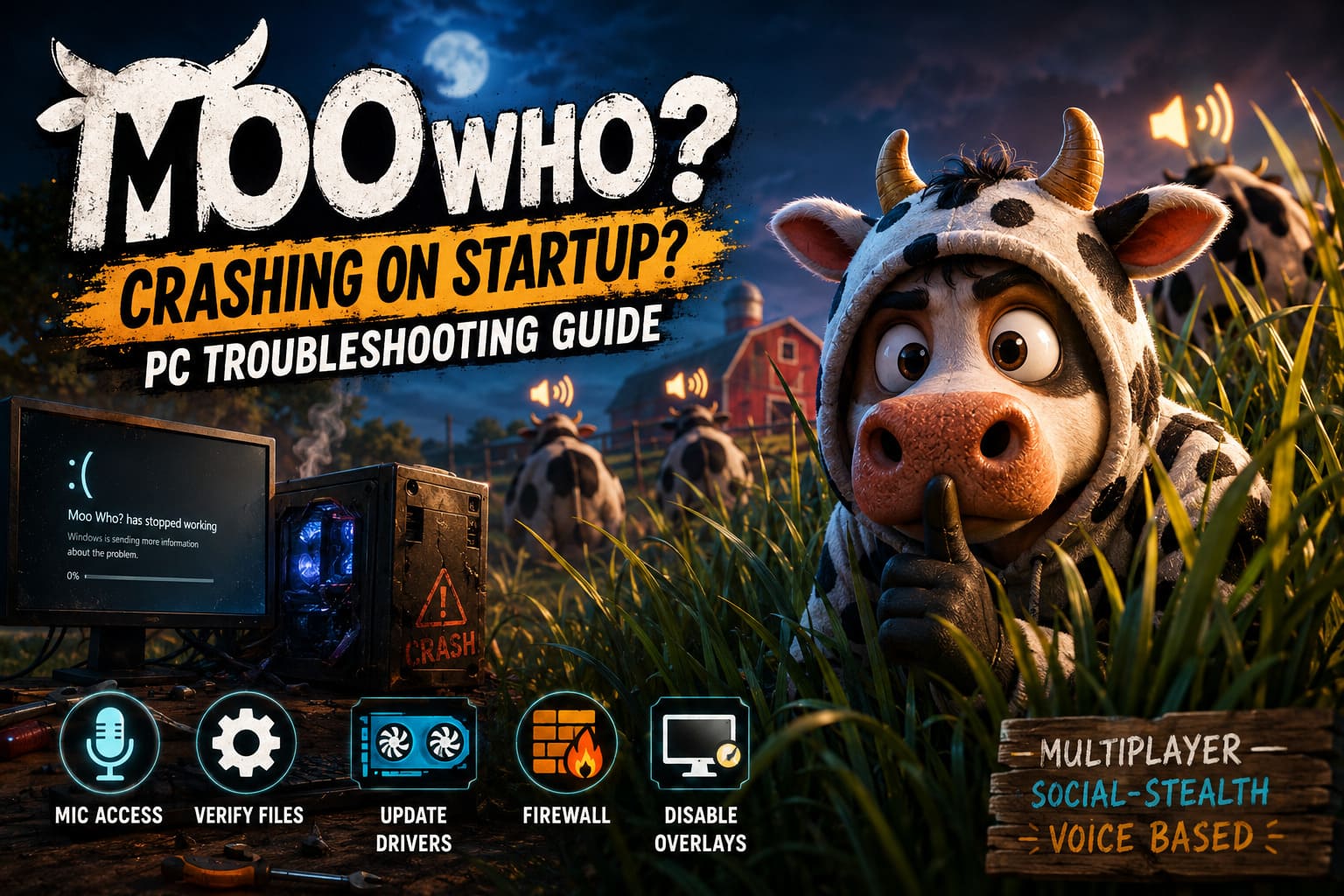
Moo Who? isn’t just loading a basic single-player environment. It potentially needs to initialize graphics rendering, microphone access, online services, Steam integration, multiplayer networking, and Windows security permissions almost simultaneously.
That gives you several possible failure points.
| Symptom | Likely Cause | First Fix I’d Try |
|---|---|---|
| Instant desktop crash | Corrupted files or drivers | Verify Steam files |
| Black screen | Graphics API/config issue | Try DX11 |
| Crash after logo | Audio or configuration conflict | Check microphone permissions |
| Fatal DLL/runtime error | Windows components | Repair Visual C++ |
| Crash only with overlays | Software conflict | Disable overlays |
| Multiplayer-related crash | Firewall/network permissions | Check Windows Firewall |
I wouldn’t assume your hardware is suddenly too weak. A brand-new game crashing during initialization can simply mean one component doesn’t like the way the game is talking to Windows.
And yes, the microphone is one of the first things I’d check here because of how central voice input is to Moo Who?.
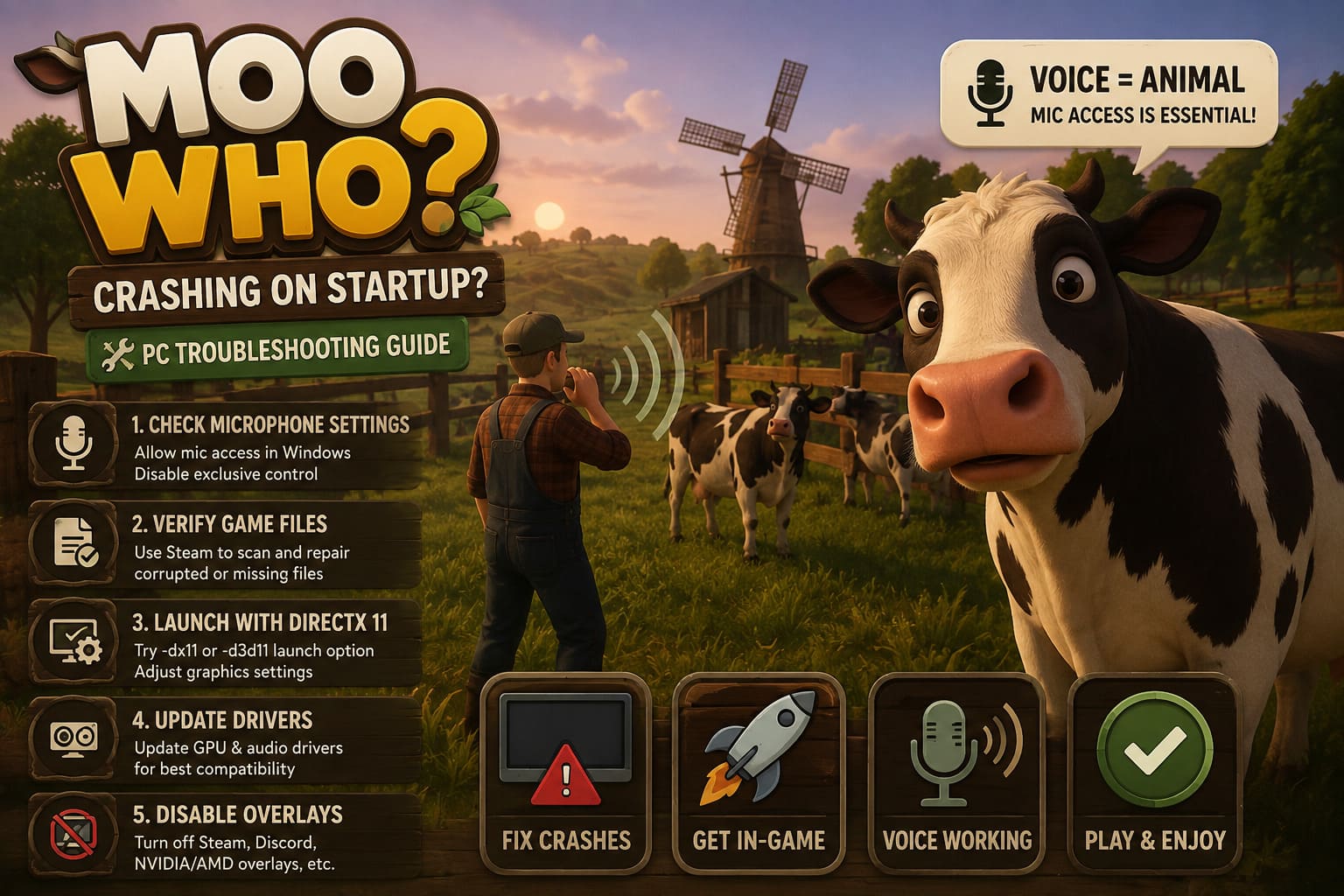
Fix #1: Make Sure Windows Actually Allows Moo Who? to Use Your Microphone
This is my first stop.
The entire animal-mimic mechanic depends on voice input, so if Windows blocks microphone access or another application has an awkward lock on the device, the game may have trouble initializing its audio system.
Open Windows Settings with Win + I.
Go to:
Privacy & Security → Microphone
Make sure these options are enabled:
- Microphone access
- Let apps access your microphone
- Let desktop apps access your microphone
The last one is particularly important for PC games because Moo Who? is a desktop application rather than a traditional Microsoft Store app.
I’d also close Discord, TeamSpeak, Voicemeeter, Sonar, Elgato software, and similar audio utilities temporarily. Not because they’re bad programs, but because virtual audio devices can create some seriously weird conflicts.
Disable Microphone Exclusive Mode
Right-click the speaker icon in Windows and open Sound settings.
Find your microphone under Input, then open its properties. From there, look for the classic sound control panel or advanced device properties.
Under the Advanced tab, disable:
Allow applications to take exclusive control of this device
Click Apply, restart Steam, and launch Moo Who? again.
If the game suddenly works, you’ve probably found an audio-device conflict rather than a graphics problem.
Fix #2: Verify Moo Who? Game Files in Steam
This is boring advice, but boring advice saves me a lot of time.
A damaged game file can cause a crash before you ever reach the main menu. This is especially worth trying after a new patch or an interrupted download.
In Steam:
- Open your Library.
- Right-click Moo Who?.
- Select Properties.
- Open Installed Files.
- Select Verify integrity of game files.
- Let Steam finish the scan.
If Steam discovers something missing or corrupted, it should replace the affected files automatically.
I’d absolutely do this before reinstalling the entire game. There’s no reason to download the whole thing again if Steam can repair a handful of broken files in a few minutes.
Still Crashing? Clear Steam’s Download Cache
If verification reports everything is fine but the game still refuses to launch, I’d try clearing Steam’s download cache.
Open:
Steam → Settings → Downloads → Clear Download Cache
You’ll generally need to sign back into Steam afterward.
This can help when stale download data or a failed update has left the client behaving strangely.
Fix #3: Try Launching Moo Who? with DirectX 11
This is one of my favorite troubleshooting tricks when a new PC game instantly crashes or gives me a black screen.
If Moo Who? is attempting to start through a graphics API that doesn’t play nicely with your current driver or hardware configuration, forcing another rendering path can sometimes get you into the game.
In Steam, open:
Moo Who? → Properties → General → Launch Options
Try:
-dx11
If that doesn’t work, you can also test:
-d3d11
Then launch the game.
If Moo Who? suddenly reaches the menu, that tells you something useful. Your installation probably isn’t completely broken; there may instead be a problem involving the default graphics API, driver, or shader initialization.
Once inside the game, I’d start with conservative settings:
- Windowed Fullscreen
- Medium graphics preset
- Motion effects reduced
- Reasonable anti-aliasing
- Lower shadows if necessary
After that, remove the launch command and see whether the game can start normally.
Fix #4: Update Your GPU and Audio Drivers
I’m a big believer in keeping drivers reasonably current, especially when playing new releases.
For NVIDIA, AMD, or Intel graphics, install the latest stable driver available for your hardware. If you recently upgraded your driver and Moo Who? started crashing afterward, though, don’t automatically assume newer is better. A rollback to a previously stable driver can sometimes solve launch problems.
For stubborn issues, a clean graphics driver installation is worth considering.
I’d also check your audio drivers.
Open Device Manager and inspect:
Audio inputs and outputs
and
Sound, video and game controllers
Update the relevant microphone and audio hardware if Windows reports an available driver.
If you’re using software such as Voicemeeter, Sonar, Razer audio tools, or another virtual mixer, make sure it is updated too.
Fix #5: Shut Down Overlays Before Launching
Overlays are convenient, but they’re also one of the first things I disable when troubleshooting a crash.
I’d temporarily turn off:
- Steam Overlay
- Discord Overlay
- NVIDIA in-game overlay
- AMD overlay
- MSI Afterburner/RivaTuner overlays
- Recording or performance-monitoring overlays
For Steam, go into the game’s properties and disable the Steam Overlay for Moo Who?.
Then completely close Discord and other overlay applications rather than simply minimizing them.
Why bother?
These tools inject themselves into the game’s rendering or input process. Most of the time they work perfectly. Occasionally, a new game and an overlay simply don’t get along.
If Moo Who? launches normally afterward, enable your programs one by one until you identify the troublemaker.
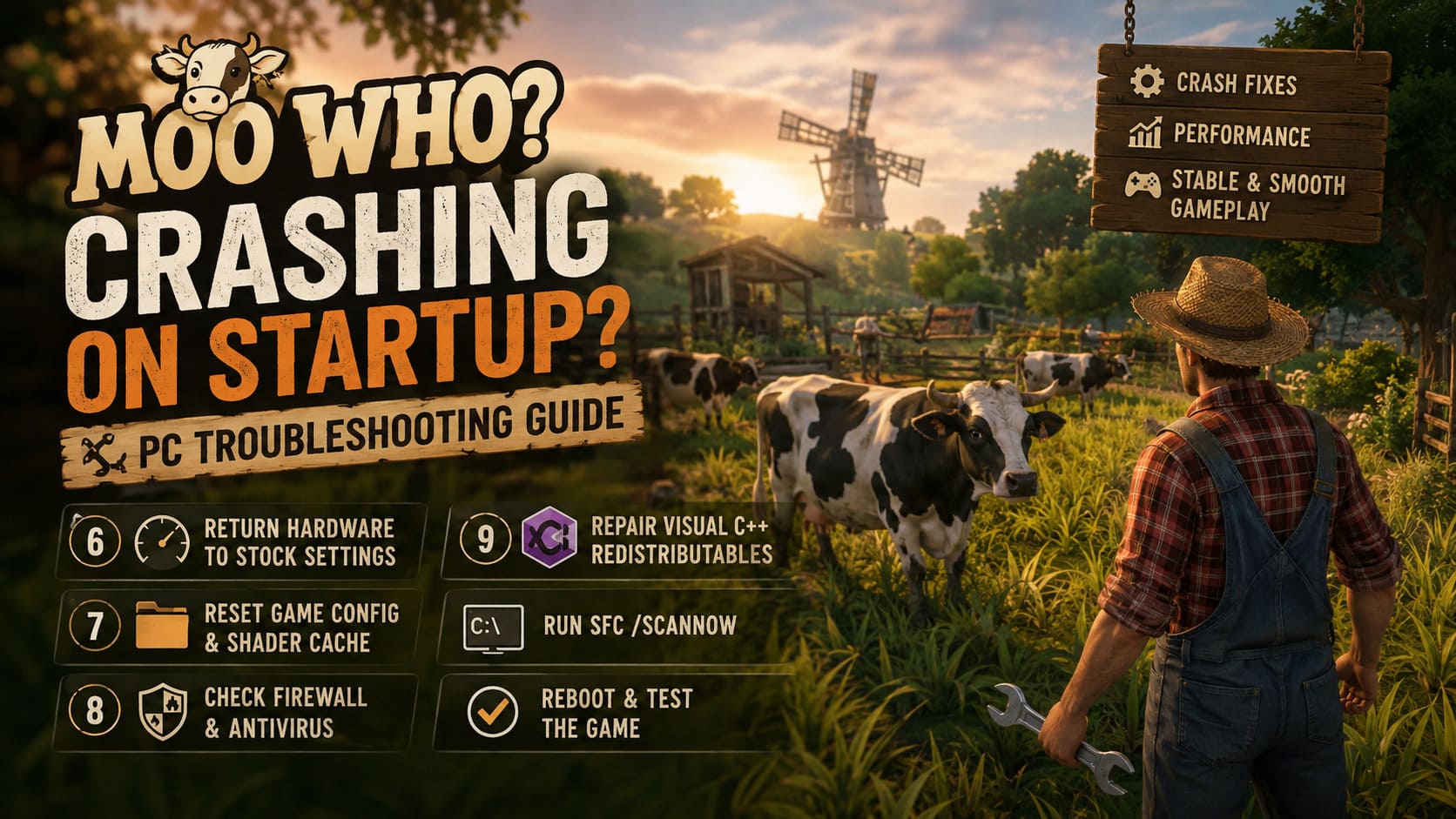
Fix #6: Temporarily Return Your Hardware to Stock Settings
If you’re running a CPU or GPU overclock, aggressive undervolt, or unusual RAM configuration, I’d temporarily return everything to standard settings.
A system can appear perfectly stable during normal desktop use and still crash when a new game creates a sudden CPU/GPU workload.
This includes:
- GPU overclocks
- CPU overclocks
- Aggressive undervolts
- Custom RAM timings
- XMP/EXPO profiles
You don’t have to permanently abandon your performance setup. This is simply a diagnostic test.
If Moo Who? launches perfectly at stock settings, you have a much more interesting clue than “the game is broken.”
Fix #7: Reset Moo Who? Configuration and Shader Data
Sometimes the game itself is fine and the problem is a corrupted configuration file created during an earlier failed launch.
Press:
Win + R
Then enter:
%LOCALAPPDATA%
Look for folders associated with Moo Who? or SAT Productions.
Depending on how the game stores its data, you may find folders containing configuration, crash reports, saved settings, or shader-related cache files.
I would back up the folder first rather than blindly deleting everything.
If you identify a configuration directory, temporarily rename it to something like:
Config_Backup
Then launch the game.
This forces the game to generate fresh settings.
Keep in mind that resetting configuration data can remove your custom graphics, audio, and control settings. I wouldn’t delete anything that clearly contains saves or progression unless you know exactly what it contains.
Fix #8: Check Windows Defender and Firewall
Security software can occasionally interfere with a new multiplayer game, particularly one that requires microphone access and online communication.
Open Windows Security and check your firewall settings.
Look under:
Firewall & network protection → Allow an app through firewall
Make sure Moo Who? is allowed through the appropriate network profiles.
If Windows Defender or another antivirus application has specifically quarantined a game file, restore it only if you are confident the file is legitimate and came from the official Steam installation.
I don’t recommend permanently disabling antivirus protection just to make a game launch. Adding a legitimate game installation to an appropriate exception is the safer approach.
Fix #9: Repair Microsoft Visual C++ and Windows System Files
If you’re seeing errors involving missing DLL files, 0xc000007b, or similar Windows runtime messages, I’d start looking outside the game itself.
Modern PC games commonly depend on Microsoft runtime components.
Install or repair the appropriate Microsoft Visual C++ Redistributables from Microsoft’s official distribution, particularly the x64 and x86 packages commonly used by modern games.
Then run Windows System File Checker.
Open Terminal as Administrator and enter:
sfc /scannow
Let the scan complete.
If Windows finds damaged system files, it will attempt to repair them.
I’d reboot afterward before testing Moo Who? again.
Is Moo Who? Coming to PS5 and Xbox? Console Release Date Rumors and Facts
My Recommended Order of Attack
If you’re staring at a black screen right now, don’t try every fix simultaneously. That makes troubleshooting much harder because you won’t know what actually solved the problem.
This is the order I’d personally use:
- Check microphone permissions
- Restart Steam and the PC
- Verify Moo Who? files
- Disable overlays
- Try
-dx11 - Update or clean-install GPU drivers
- Reset game configuration
- Check firewall/security software
- Repair Visual C++ and Windows files
- Test the game with overclocks disabled
The earlier steps are fast and relatively safe, so there’s little reason to jump straight into more complicated Windows repairs.
Moo Who Beginner Guide: Top Tips, Tricks, and Strategies to Survive the Farm
Final Thoughts
What I like about Moo Who? is that it isn’t trying to be another generic multiplayer shooter. The whole idea of hiding inside an NPC herd and using your actual voice to imitate animals is ridiculous in exactly the right way. Games with personality like this are the reason I still enjoy checking out new PC releases.
But launch-week crashes can kill that excitement quickly.
If Moo Who? crashes on startup, I’d start with the microphone permissions and Steam file verification before touching anything complicated. From there, testing DirectX 11, disabling overlays, resetting configuration files, and updating drivers covers most of the realistic PC-side causes.
And if none of that works, don’t immediately assume your PC is the problem. Sometimes a new multiplayer game simply needs a developer hotfix. Keep Steam updated, watch for patches, and check whether other players are reporting the same crash at the same point in the startup sequence.
For me, the best troubleshooting rule is simple: change one thing at a time, test the game, and keep track of what changed. It’s much faster than throwing twenty random fixes at the problem and hoping the cow gods are listening.
Once Moo Who? finally loads, though, the real challenge begins: convincing your friends that the suspiciously normal-looking cow standing next to them definitely isn’t you.