Crimson Desert Low FPS & Stuttering Fix: PC Performance Optimization Guide (2026 Update)
When I first jumped into Crimson Desert, I was blown away. Pearl Abyss has created one of the most visually ambitious open-world RPGs we’ve seen in years. Massive battles, breathtaking landscapes, dynamic weather systems, and some of the most detailed character models in modern gaming make Pywel feel alive in a way few games manage.
The problem? Even powerful gaming rigs can struggle to keep the experience smooth.
After spending dozens of hours testing settings, digging through community reports, benchmarking hardware, and comparing results from fellow players, I’ve discovered that most performance problems come from a handful of poorly optimized settings and engine quirks rather than a lack of raw hardware power.
If you’re battling random FPS drops, annoying micro-stutters, unstable frame pacing, or sudden slowdowns during combat, this guide covers everything you need to know to get Crimson Desert running the way it should.
Why Is Crimson Desert Running Poorly on PC?
Many players immediately blame their graphics card when performance tanks, but Crimson Desert’s biggest bottlenecks often come from elsewhere.
The game places an enormous load on both CPU and GPU resources simultaneously. Large settlements contain hundreds of active objects, NPCs, physics interactions, and environmental systems operating at the same time. During major battles, the engine can become heavily CPU-bound, causing frame-time spikes even when your GPU usage appears normal.
Another major culprit is shader compilation. Like many modern AAA releases, Crimson Desert builds shaders dynamically as new environments, enemies, and visual effects appear. The result is familiar to PC gamers: sudden freezes lasting a fraction of a second whenever the game encounters something for the first time.
Recent updates have also introduced several problematic graphics options that can destroy performance while providing little or no noticeable visual improvement.
First Things to Do Before Changing Settings
Before touching advanced options, try these simple fixes that have helped thousands of players.
Let Shader Compilation Finish
This sounds basic, but it’s surprisingly effective.
After launching the game for the first time or installing a major update, stay on the main menu for several minutes before loading your save.
Many players rush directly into gameplay, forcing shader compilation to occur during exploration and combat. That’s a guaranteed recipe for stuttering.
Verify Game Files
Corrupted files can create performance issues that look like hardware problems.
For Steam users:
- Open Steam Library.
- Right-click Crimson Desert.
- Select Properties.
- Open Installed Files.
- Click Verify Integrity of Game Files.
A quick verification can often solve mysterious FPS problems after patches.
Disable Steam Input
This one surprised me.
Several community investigations found that Steam Input can occasionally trigger unnecessary background polling, leading to unstable frame pacing and lower 1% lows.
Disable Steam Input through the game’s controller settings and test performance again.
Check Multi-Monitor Setups
If you’re using two or more displays, G-Sync or FreeSync on secondary monitors can sometimes create synchronization conflicts.
The symptoms usually appear as camera jitter or uneven mouse movement despite high FPS numbers.
Disabling variable refresh features on secondary displays has fixed this issue for many players.
Best Graphics Settings for Maximum FPS
One of the biggest mistakes players make is selecting the highest preset available and assuming it delivers the best experience.
In Crimson Desert, several “maximum” settings offer tiny visual gains while demanding huge amounts of performance.
The settings below provide the best balance between image quality and smooth gameplay.
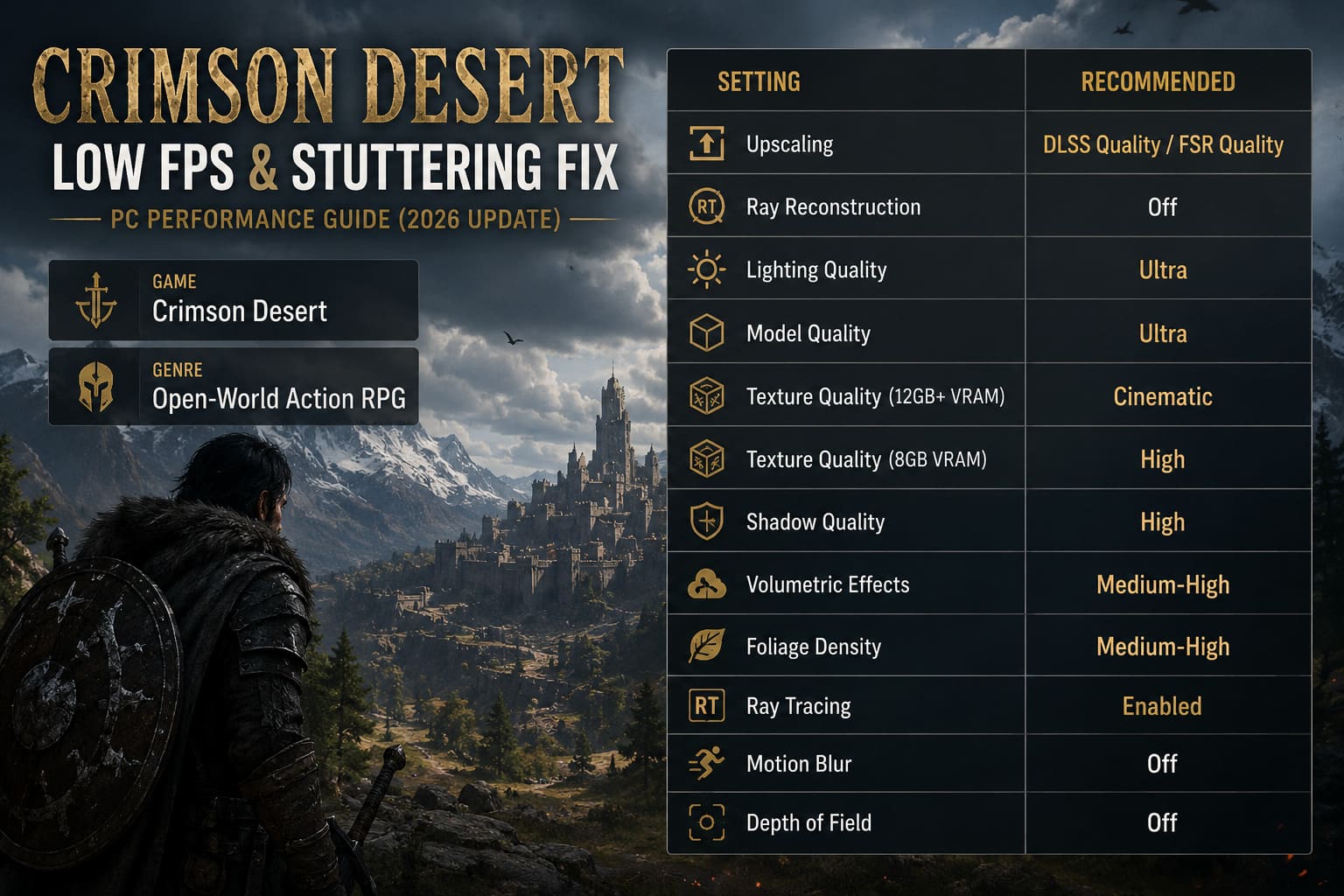
| Setting | Recommended Value |
|---|---|
| Upscaling | DLSS Quality / FSR Quality |
| Ray Reconstruction | Off |
| Lighting Quality | Ultra |
| Model Quality | Ultra |
| Texture Quality | Cinematic (12GB+ VRAM) |
| Texture Quality | High (8GB VRAM) |
| Shadow Quality | High |
| Volumetric Effects | Medium-High |
| Foliage Density | Medium-High |
| Ray Tracing | Enabled |
| Motion Blur | Off |
| Depth of Field | Off |
The Biggest FPS Killer: Ray Reconstruction
If I had to point to a single setting responsible for the majority of performance complaints, this would be it.
Ray Reconstruction sounds impressive on paper, but current implementations in Crimson Desert can dramatically reduce performance while offering only subtle visual improvements.
Many benchmark results show gains of 40–60 FPS simply by disabling this feature.
It’s the first setting I recommend turning off.
Hidden Accessibility Settings That Affect Performance
One of the strangest design choices in Crimson Desert is that several demanding graphical effects are tucked away inside the Accessibility menu.
Most players never even look there.
Make these adjustments immediately:
- Motion Blur: 0
- Camera Shake: 0
- Depth of Field: Off
- Particle Quality: 70–80%
The camera feels significantly more responsive after disabling these effects, especially during large-scale combat encounters.
Advanced Fixes for Persistent Stuttering
If performance still feels inconsistent after optimizing graphics settings, it’s time to address some engine-related issues.
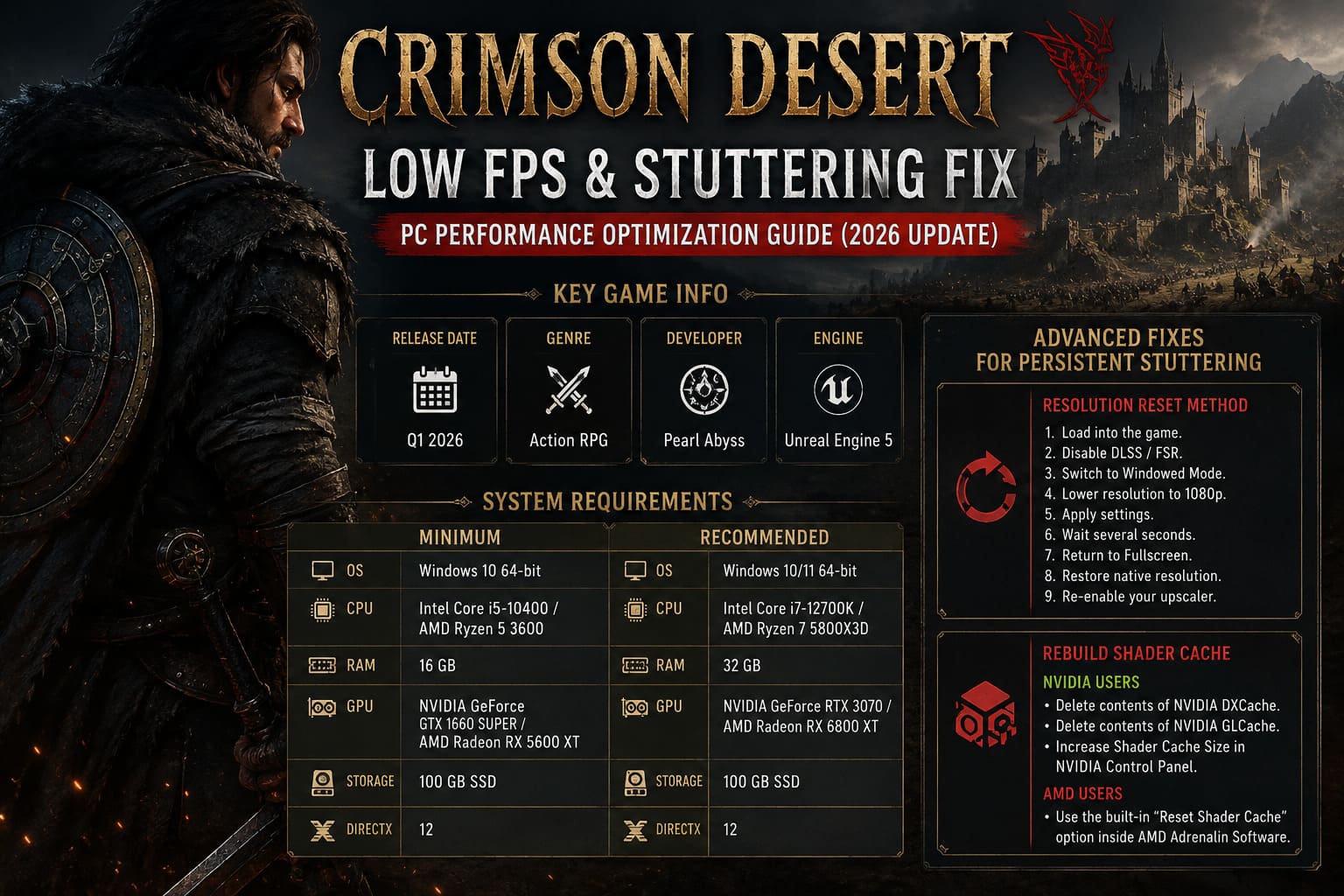
Resolution Reset Method
A strange bug affecting some systems causes unstable frame pacing at higher resolutions.
The workaround is surprisingly simple:
- Load into the game.
- Disable DLSS or FSR.
- Switch to Windowed Mode.
- Lower resolution to 1080p.
- Apply settings.
- Wait several seconds.
- Return to Fullscreen.
- Restore native resolution.
- Re-enable your upscaler.
Many players report smoother frame delivery immediately afterward.
Rebuild Shader Cache
Driver shader caches occasionally become corrupted after updates.
NVIDIA Users
- Delete contents of NVIDIA DXCache.
- Delete contents of NVIDIA GLCache.
- Increase Shader Cache Size in NVIDIA Control Panel.
AMD Users
- Use the built-in “Reset Shader Cache” option inside AMD Adrenalin Software.
This forces a clean rebuild and often removes persistent hitching.
Frame Rate Limiting for Smoother Gameplay
Here’s something many gamers overlook.
Higher FPS doesn’t always mean smoother gameplay.
An unstable frame rate bouncing between 80, 120, and 140 FPS often feels worse than a perfectly locked frame rate.
Using RTSS (RivaTuner Statistics Server), cap your FPS slightly below your monitor’s refresh rate.
Examples:
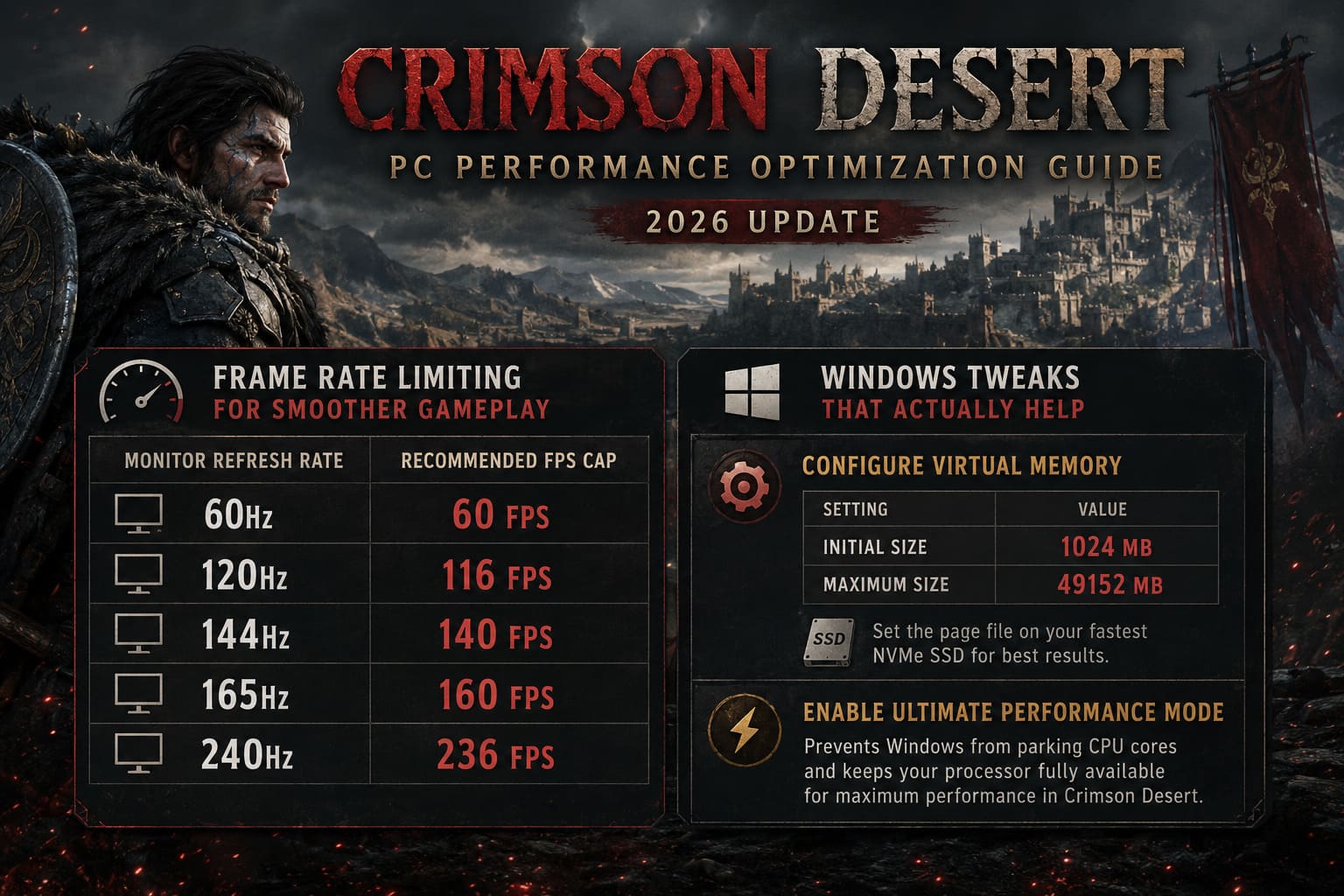
| Monitor Refresh Rate | Recommended Cap |
|---|---|
| 60Hz | 60 FPS |
| 120Hz | 116 FPS |
| 144Hz | 140 FPS |
| 165Hz | 160 FPS |
| 240Hz | 236 FPS |
This dramatically improves frame pacing consistency.
Windows Tweaks That Actually Help
Most Windows optimization guides are packed with nonsense. These two changes are among the few that genuinely produce measurable improvements.
Configure Virtual Memory Properly
Crimson Desert can consume large amounts of memory during extended play sessions.
A manually configured page file helps prevent sudden freezes caused by memory spikes.
For systems with 32GB RAM:
| Setting | Value |
|---|---|
| Initial Size | 1024 MB |
| Maximum Size | 49152 MB |
Install the page file on your fastest NVMe SSD whenever possible.
Enable Ultimate Performance Mode
Windows occasionally parks CPU cores to save power.
For a game as CPU-heavy as Crimson Desert, that’s the last thing you want.
Enable Ultimate Performance Mode through Windows power settings and ensure your processor remains fully available during gameplay.
Best Settings for Older PCs
Not everyone is gaming on an RTX 5090.
If you’re using hardware like:
- RTX 2060
- GTX 1660 Super
- RTX 3050
- Ryzen 5 2600
- Ryzen 5 3600
You’ll need more aggressive optimization.
Lowering shadows, foliage density, and volumetric effects provides the largest gains.
Texture quality should match your VRAM capacity. Exceeding available VRAM is one of the fastest ways to introduce severe stuttering.
Smart Use of Frame Generation
Frame Generation can be fantastic when used correctly.
The mistake many players make is enabling it while their base frame rate is already struggling.
My rule is simple:
Never enable Frame Generation below 40 native FPS.
If your actual performance sits under that threshold, generated frames tend to increase latency and create visual artifacts that make combat feel sluggish.
Build a stable baseline first. Then consider Frame Generation.
Final Verdict
Crimson Desert is one of the most technically impressive RPGs released in recent years, but it’s also one of the most demanding.
The good news is that most performance issues aren’t caused by weak hardware. They’re usually tied to shader compilation, problematic graphics options, engine bugs, or poorly configured settings.
After extensive testing, the biggest improvements consistently come from:
- Disabling Ray Reconstruction.
- Allowing shaders to compile fully.
- Optimizing volumetric effects.
- Locking frame rates with RTSS.
- Rebuilding shader caches.
- Using Quality-mode upscaling.
Apply those changes and you’ll immediately notice smoother combat, steadier frame times, and far fewer stutters while exploring the vast world of Pywel.
The game truly shines when it’s running properly—and once you eliminate the technical headaches, it’s much easier to appreciate just how ambitious Pearl Abyss’s latest adventure really is.