Aliens Fireteam Elite 2 High Ping: How to Fix Lag and Packet Loss (2026 Guide)
If there is one thing that can ruin an otherwise great co-op shooter faster than a room full of Xenomorphs, it is a connection that suddenly decides to fall apart.
I have played plenty of online shooters over the years, from fast arena games where a few milliseconds can decide a gunfight to slower co-op games where connection problems are usually less noticeable. Aliens: Fireteam Elite 2 sits somewhere in the middle. When everything is running properly, the combat feels frantic and satisfying. When the connection starts acting up, though, the entire experience can become a mess of teleporting enemies, delayed shots, abilities that trigger late, and players suddenly sliding across the floor.
The good news is that high ping and packet loss are not always caused by your internet speed. In fact, having a fast connection does not guarantee a stable multiplayer session.
After dealing with similar problems across countless multiplayer games, I would approach Aliens: Fireteam Elite 2 high ping and lag issues systematically instead of immediately changing a dozen router settings. Start with the simple fixes, test the connection, and only move toward advanced networking changes if the problem remains.
Why Is Aliens: Fireteam Elite 2 Lagging?
The first thing to understand is that download speed is not the same thing as connection quality.
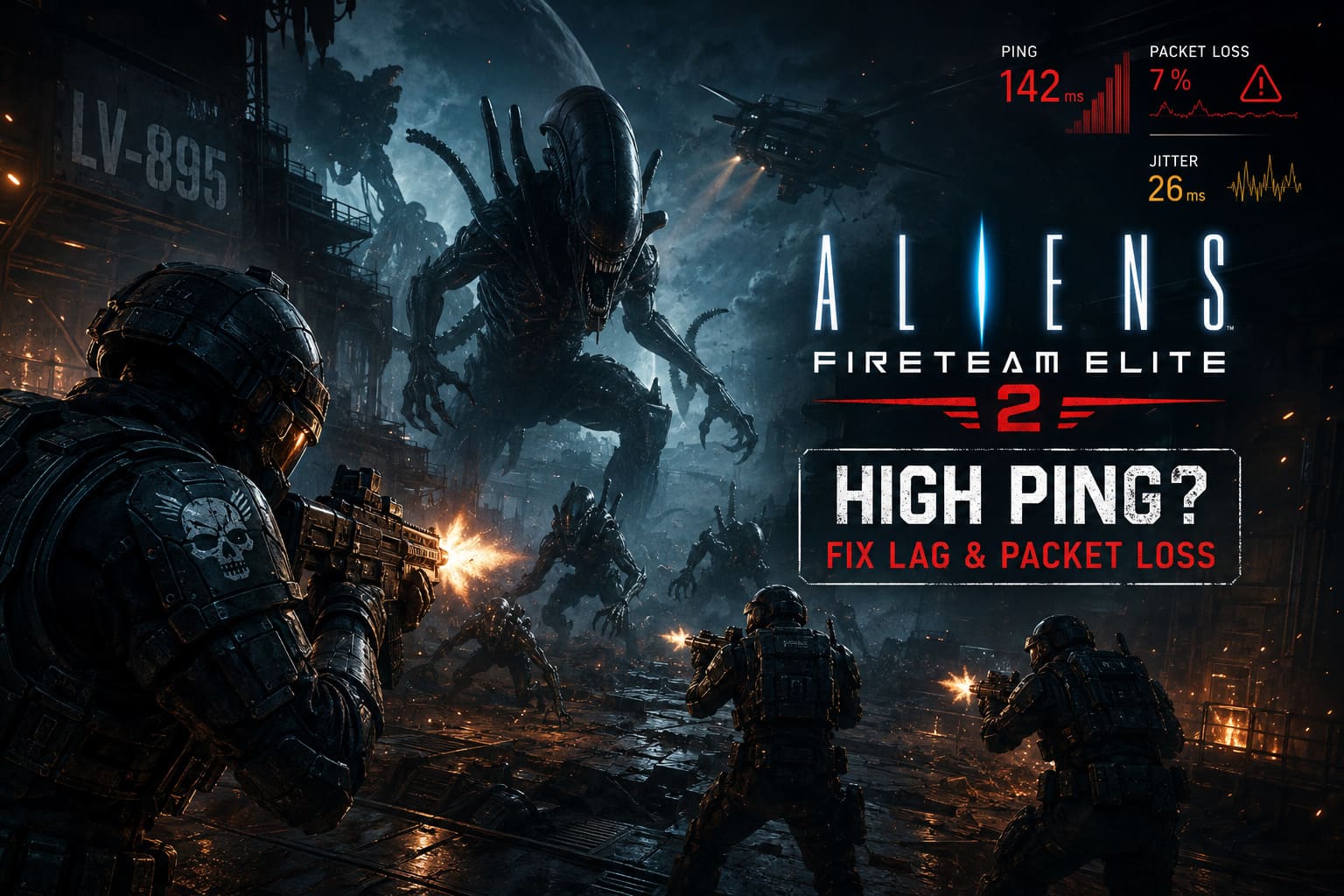
You can have a 500 Mbps or even gigabit connection and still experience packet loss, jitter, or unstable latency. Multiplayer games care much more about how consistently information travels between your system and the other players.
In a co-op game, this becomes especially noticeable because your squad is constantly exchanging gameplay information. Movement, enemy positions, damage, abilities, projectiles, and other events have to remain synchronized.
When something goes wrong, you might see:
- Xenomorphs suddenly teleport several feet.
- Your weapon appears to fire, but the damage registers late.
- Your character snaps backward or forward.
- Abilities take longer to activate.
- Teammates freeze and then suddenly move several meters.
- The game displays a host or connection error.
- You experience short freezes despite having high FPS.
That last one is important. Network lag and performance stuttering can look surprisingly similar. If your FPS counter is stable while enemies and players are behaving strangely, I would investigate the network before blaming your graphics settings.
1. Use Ethernet Before Changing Anything Complicated
This is still my number-one recommendation.
I have spent far too much time troubleshooting online games only to discover that the actual problem was Wi-Fi. Wireless connections are convenient, but convenience and consistency are not the same thing.
Wi-Fi can suffer from interference, walls, competing devices, signal congestion, and sudden fluctuations. You may not notice any of this while watching YouTube or browsing the web, but a multiplayer game can expose those small interruptions immediately.
If your gaming PC or console is close enough to the router, use Ethernet.
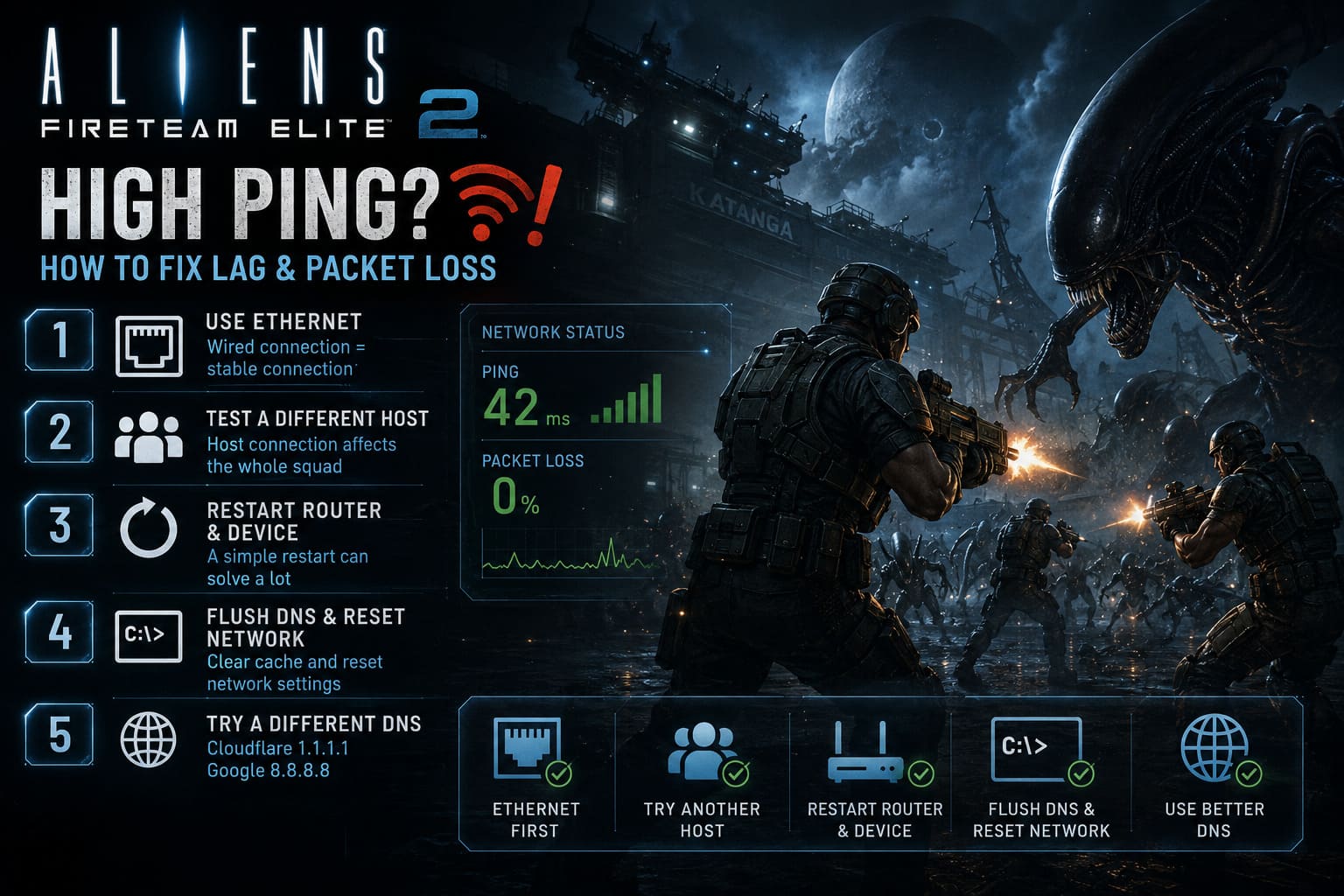
Connect the system directly to the router with a good-quality Ethernet cable and test the game again.
If the connection suddenly feels dramatically better, you have already identified the likely source of the problem.
If running a cable through the house is impossible, a quality wired networking alternative can be considered. I would still avoid relying on cheap Wi-Fi extenders for serious multiplayer gaming whenever possible.
2. Test a Different Squad Host
This is one of the most overlooked troubleshooting steps in co-op games.
If you normally play with the same group of friends and everyone starts experiencing lag whenever one particular person hosts, change the host.
The host’s connection quality, geographic location, routing, and local network conditions can affect the experience of the entire squad.
Try this simple experiment:
- Leave the current lobby.
- Have another player create the session.
- Invite the rest of the squad.
- Play the same mission under similar conditions.
- Compare the latency and stability.
If the game suddenly feels smooth, you have strong evidence that the original host’s connection was contributing to the problem.
I would especially test the player who has the most stable wired connection and the lowest real-world latency, rather than automatically choosing whoever owns the fastest PC.
A powerful graphics card does not compensate for bad networking.
3. Restart Your Router and Gaming Device
It sounds painfully basic, but it is worth doing.
Routers can occasionally develop temporary connection problems, especially if they have been running for weeks without a restart. Your PC or console can also accumulate networking issues after long periods of sleep, updates, or switching between different networks.
Turn off the game completely.
Then restart your router and your gaming device. Give the router enough time to reconnect to your ISP before launching the game again.
I would do this before changing DNS, forwarding ports, or modifying Windows networking settings. There is no reason to spend an hour configuring advanced options if a simple restart fixes the problem.
4. Flush DNS and Reset Windows Networking
If you are playing on PC and connection problems persist, resetting parts of Windows’ network configuration is a reasonable next step.
Open Command Prompt as Administrator and run these commands individually:
ipconfig /flushdns
ipconfig /registerdns
ipconfig /release
ipconfig /renew
netsh winsock reset
Restart Windows after completing the process.
This does not magically make your internet faster. What it can do is clear temporary DNS information, renew your network configuration, and reset the Windows Winsock layer.
I have used this type of reset many times when troubleshooting strange PC multiplayer behavior. It is particularly useful when a problem appears after a network change, driver update, VPN installation, or Windows update.
5. Try a Different DNS Provider
Changing DNS is another commonly suggested solution, although I would keep expectations realistic.
DNS primarily affects name resolution, not the actual speed of every gameplay packet. So if your problem is severe packet loss during a mission, changing DNS probably will not suddenly eliminate it.
Still, testing a different DNS provider is easy.
| Provider | Primary DNS | Secondary DNS |
|---|---|---|
| Cloudflare | 1.1.1.1 | 1.0.0.1 |
| 8.8.8.8 | 8.8.4.4 |
On Windows, you can change DNS through your active network adapter’s IPv4 properties.
On PlayStation 5 and Xbox Series X|S, DNS can also be configured manually through the network settings.
My advice is simple: test one configuration at a time. If changing DNS makes no measurable difference, switch back and continue troubleshooting elsewhere.
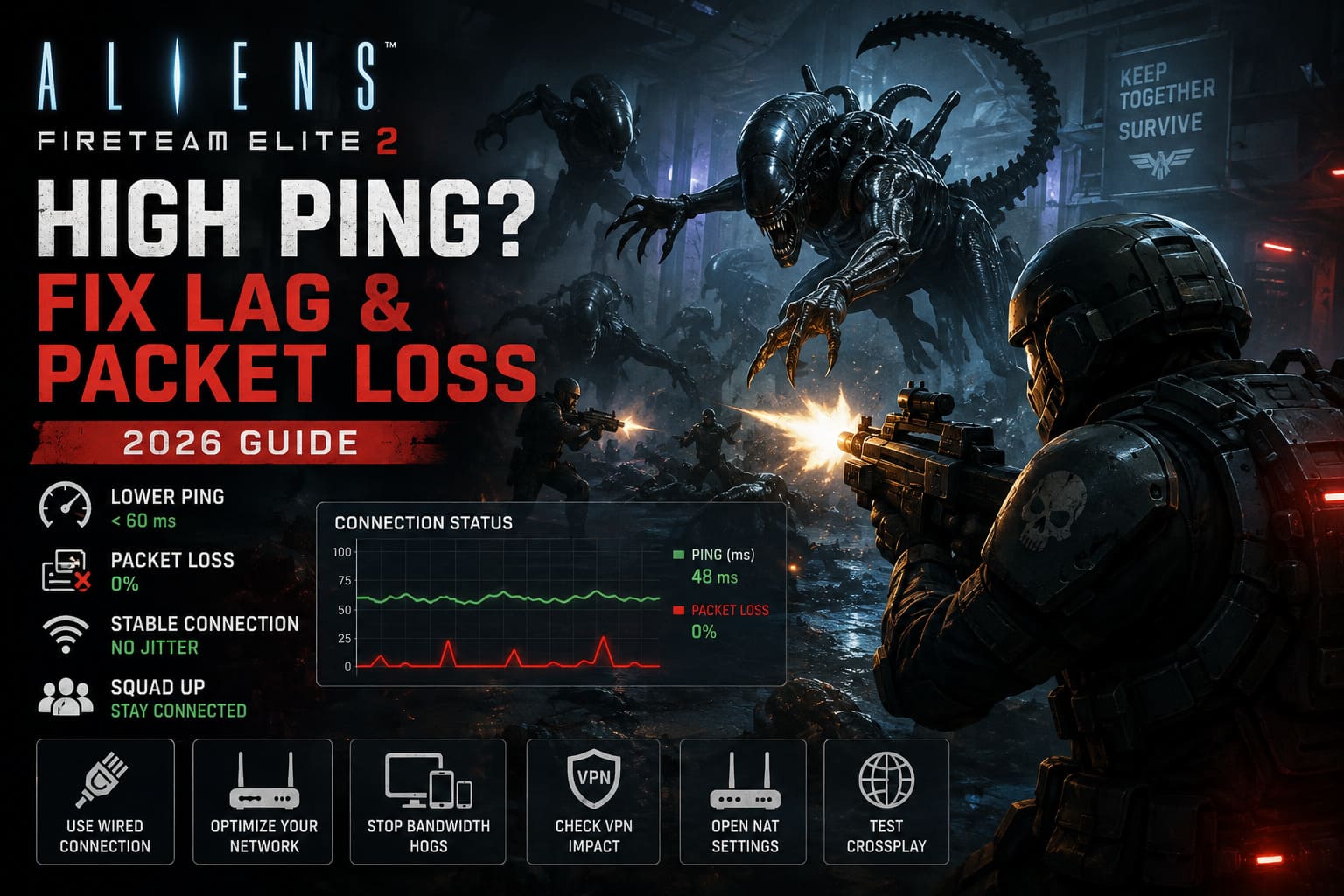
6. Check for Packet Loss Instead of Looking Only at Ping
This is where troubleshooting gets more interesting.
People often say, “My ping is only 50 ms, so my connection is fine.”
Not necessarily.
Imagine your latency is 40–50 ms most of the time, but several packets disappear every few seconds. The average ping might look perfectly respectable while the actual game feels terrible.
That is why packet loss and jitter deserve attention.
If you experience rubberbanding, sudden freezes, or enemies repeatedly jumping backward and forward, look for packet-loss indicators in the game if available and compare your connection with other online games.
If multiple games show the same problem, the issue is probably not exclusive to Aliens: Fireteam Elite 2.
7. Stop Other Devices From Eating Your Bandwidth
Another problem I frequently see in households is network congestion.
Someone starts uploading a large batch of photos. Another person begins streaming 4K video. A PC starts downloading a massive game update. A cloud-storage application begins synchronizing thousands of files.
Meanwhile, you are trying to fight a Xenomorph horde online.
You do not necessarily need enormous bandwidth for gaming, but you do need a stable connection with low congestion.
Before starting a serious co-op session, pause:
- Cloud backups.
- Large downloads.
- Game updates.
- Torrents.
- High-resolution video streams.
- Large file uploads.
On PC, open Task Manager with Ctrl + Shift + Esc and check which applications are using network resources.
Applications such as OneDrive, Steam, browser tabs, launchers, and backup utilities can occasionally consume more bandwidth than you realize.
8. Be Careful With VPNs
If you normally use a VPN, temporarily disable it and test the game again.
A VPN adds another routing layer between your system and the game session. Depending on the provider and server location, that can increase latency or introduce additional instability.
There are situations where a VPN can actually improve routing, especially when an ISP has a poor route to a particular destination. But I would never assume that a VPN is automatically better for gaming.
Test both configurations and keep whichever produces the more consistent results.
9. Check NAT and Router Restrictions
If you are constantly having trouble joining players, losing connections while entering missions, or failing to maintain multiplayer sessions, your router’s NAT configuration deserves attention.
Ideally, your console should report a reasonably open NAT status.
Before manually forwarding ports, however, check whether your router supports UPnP and whether it is functioning correctly. Manually forwarding ports can help in some situations, but it can also create unnecessary complexity if your router already handles multiplayer traffic correctly.
If you decide to use port forwarding, configure only the ports recommended by the game’s official documentation or your platform manufacturer. Do not blindly open random ports from a forum post.
10. Test Crossplay as a Troubleshooting Step
Crossplay is fantastic when it works well. It makes finding a squad much easier and keeps multiplayer communities alive longer.
But if you consistently encounter unusually high-ping public matches, it is worth testing the game with crossplay settings changed, assuming the game provides that option.
Play several matches rather than judging the result from one lobby.
If your connection suddenly becomes more stable, the issue may be related to the players you are being matched with rather than your own home network.
This is particularly important in games where the multiplayer architecture can result in different players having different networking responsibilities.
1666 Amsterdam Best PC Settings: Max FPS and 144Hz Performance Guide
My Recommended Troubleshooting Order
After dealing with networking problems in a lot of multiplayer games, I strongly recommend changing one thing at a time.
Here is the order I would personally follow:
| Step | Fix | Priority |
|---|---|---|
| 1 | Switch from Wi-Fi to Ethernet | Very High |
| 2 | Restart router and gaming system | Very High |
| 3 | Test another squad host | Very High |
| 4 | Stop background downloads and uploads | High |
| 5 | Check packet loss and jitter | High |
| 6 | Flush DNS and reset Windows networking | Medium |
| 7 | Test another DNS provider | Medium |
| 8 | Disable VPN temporarily | Medium |
| 9 | Check NAT and router settings | Medium |
| 10 | Test different crossplay settings | Optional |
Final Thoughts
Aliens: Fireteam Elite 2 high ping problems can be incredibly frustrating, especially when the game itself is running smoothly from a graphics-performance perspective.
But do not immediately assume that you need a faster internet package. In my experience with multiplayer games, connection stability is usually much more important than having enormous download speeds.
Start with Ethernet. Restart the router. Test another host. Stop background traffic. Then investigate packet loss, DNS, VPN routing, NAT, and other advanced settings.
And most importantly, do not change ten things at once. If you do, you will never know which fix actually solved the problem.
When the network is stable, co-op shooters like this are at their best. You can concentrate on positioning, ammo management, abilities, and surviving the next wave instead of wondering why a Xenomorph just teleported across the room.
That is exactly how it should be.