Wanderburg Game Lag with High Unit Count Solution: How to Fix Low FPS and Freezes
If there is one thing that can turn a fantastic roguelike run into a rage-inducing mess, it is watching your smooth 60 FPS suddenly collapse into a slideshow. Wanderburg has a particularly nasty version of this problem. Everything feels great while your rolling fortress is relatively small, but once your castle starts looking like a medieval junkyard on wheels and the battlefield fills with soldiers, enemies, fire, explosions, and other chaos, performance can take a serious hit.
I actually think this is one of the more interesting technical problems in Wanderburg because the game isn’t necessarily demanding in the traditional sense. You’re not staring at some enormous photorealistic open world with ultra-detailed textures. The visual style is deliberately minimalist. Yet the simulation underneath can become surprisingly busy when your fortress reaches its late-game potential.
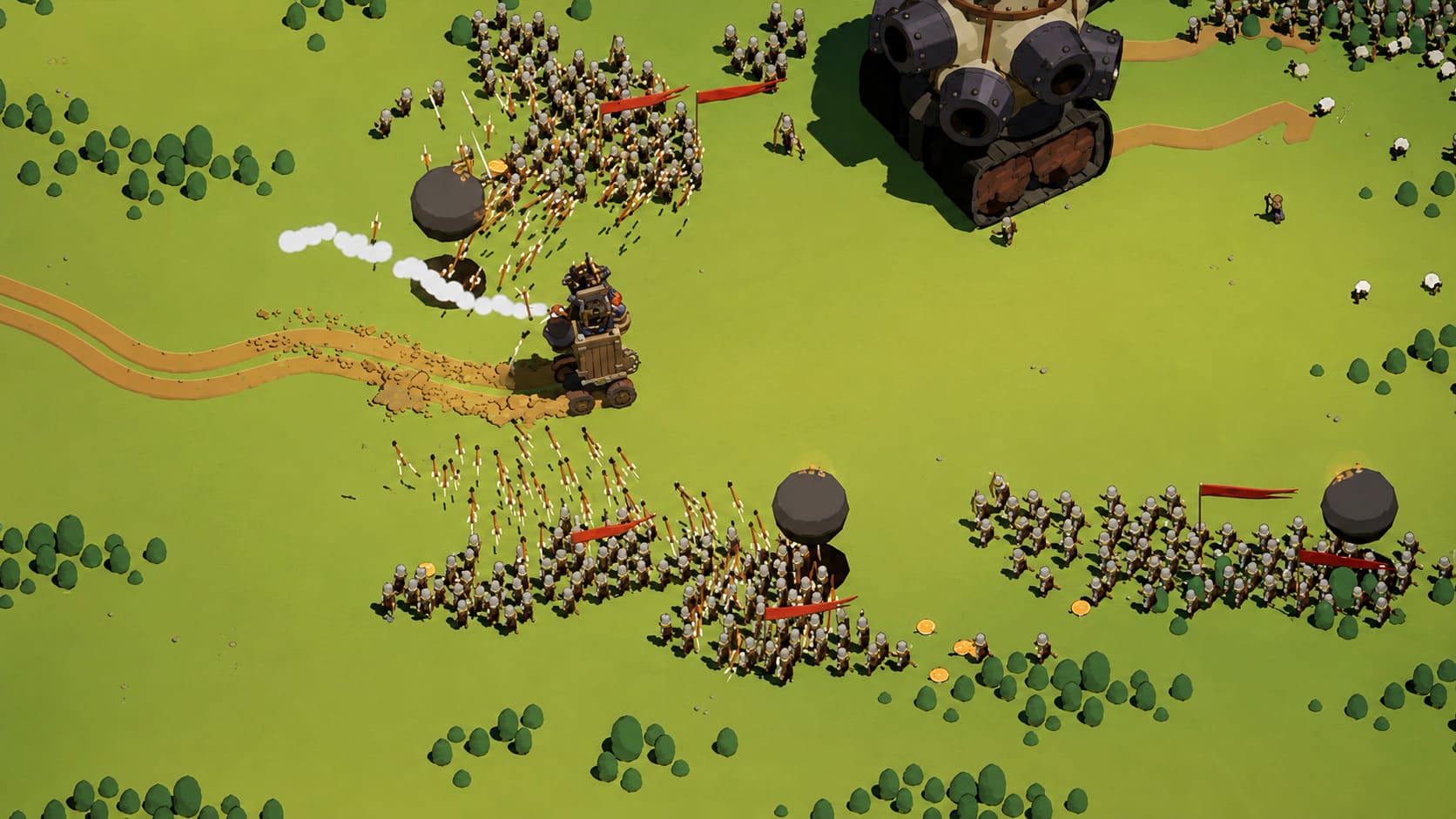
The biggest offender appears to be high unit counts, especially when Barracks and other spawning modules are combined with powerful elemental abilities and large enemy groups. At that point, Wanderburg has far more work to do than what is visible on your screen.
How to Repair Wanderburg Corrupted Save File: Fix Progress Loss
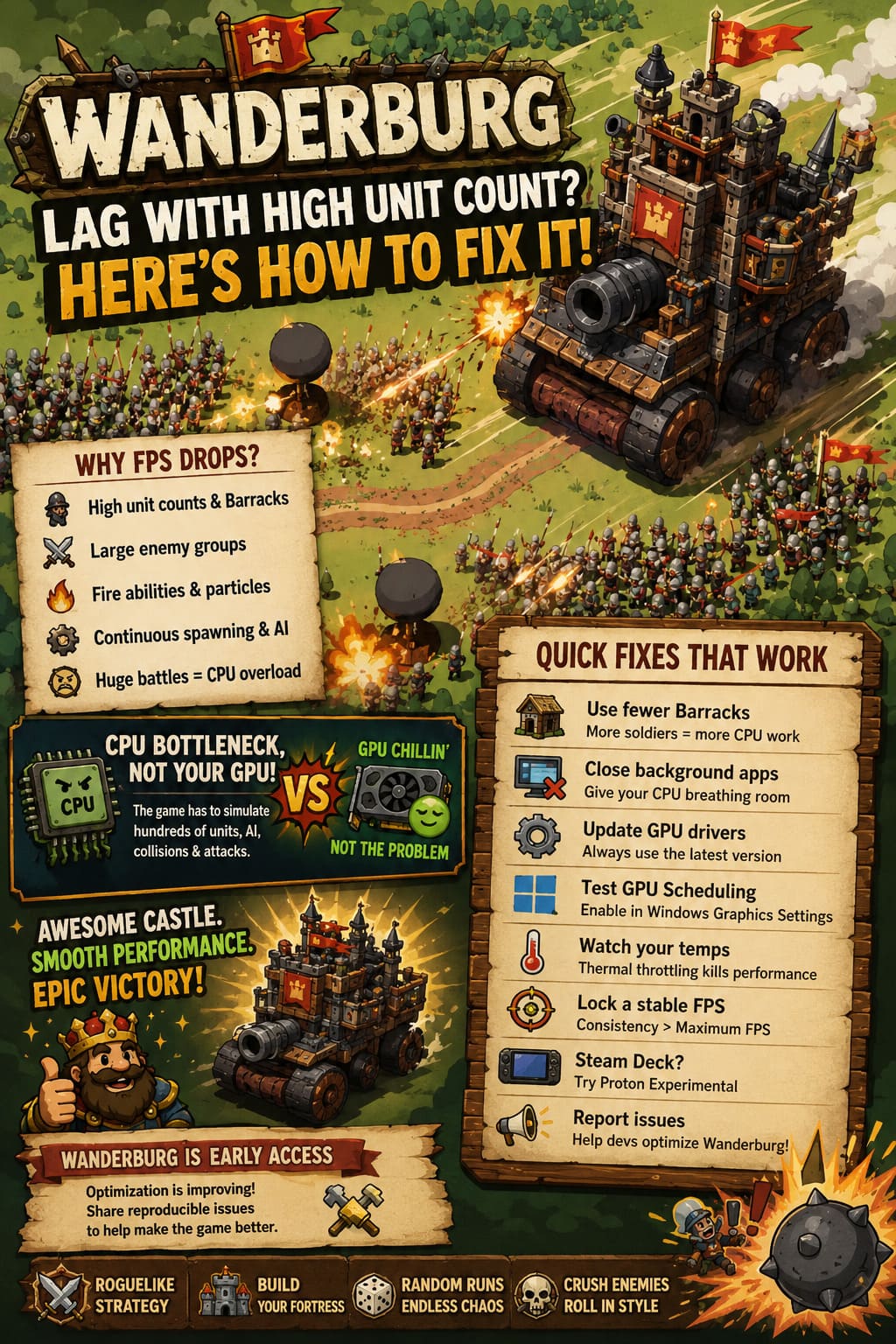
Why Does Wanderburg Start Lagging in the Late Game?
The important thing to understand is that low FPS in Wanderburg isn’t always a GPU problem.
When your giant fortress rolls into a crowded area, the game isn’t simply drawing more objects. It has to simulate them. Soldiers need to move, enemies need to react, collisions have to be calculated, attacks need to register, and your fortress itself is constantly interacting with the environment.
That’s where things can get ugly.
A player might look at the screen and think, ‘There aren’t even that many graphics on here.’ Meanwhile, the CPU could be desperately trying to keep track of dozens or hundreds of individual entities.
The Barracks Can Become a Performance Trap
The Barracks is a fantastic module from a gameplay perspective. Having your own little army running around while your giant castle rolls over enemies is exactly the kind of ridiculous strategy that makes Wanderburg fun.
But there’s a catch.
Every additional unit adds more simulation work. A few soldiers are basically nothing. A huge swarm of them fighting alongside another large enemy group is a completely different story.
Pathfinding, movement, targeting, collision detection and combat logic can pile up quickly. If you’ve stacked multiple Barracks because you thought, ‘More soldiers = more damage,’ you might eventually discover that more soldiers also equals more CPU work.
And when the CPU becomes the bottleneck, lowering your graphics settings may barely help.
Fire Abilities Can Make the Problem Even Worse
This is where things get particularly spicy.
High-level elemental abilities, especially effects involving fire and large numbers of simultaneous attacks, can create another layer of workload. The game has to deal with the units themselves while also handling visual effects, projectiles, damage events and whatever other interactions are happening around them.
So you can end up with something like this:
| Problem | What the Game Has to Process | Possible Result |
|---|---|---|
| Large friendly army | Unit AI and movement | CPU bottleneck |
| Large enemy groups | AI, targeting and collisions | FPS drops |
| Multiple Barracks | Continuous unit spawning | Increasing simulation load |
| High-level fire effects | Particles and combat events | Stutter |
| Huge battles | Everything happening simultaneously | Severe frametime spikes |
| Long sessions | Increasing memory pressure | Micro-stutters or freezes |
This is why Wanderburg can sometimes feel perfectly smooth for twenty minutes and then suddenly start choking during a particularly ridiculous encounter.
Personally, I find these situations almost funny the first few times. Your castle becomes this unstoppable medieval death machine, the screen fills with chaos, and then your PC basically says, ‘Okay, that’s enough.’
The First Fix: Stop Overloading Your Fortress
Before changing Windows settings, drivers or anything else, I’d start with the simplest solution: change the build.
If your FPS starts dropping whenever your army becomes enormous, experiment with fewer Barracks.
You don’t necessarily need to remove them completely. The idea is to find the point where the additional damage from more units isn’t worth the performance hit.
- Avoid stacking Barracks excessively during a single run.
- Reduce the number of automated unit-spawning modules.
- Don’t combine huge armies with the most demanding elemental effects if performance is already struggling.
- Consider using stronger direct-damage modules instead of relying entirely on unit swarms.
- Pay attention to what happens immediately before the FPS collapse.
That last point is important. Wanderburg encourages experimentation, and sometimes your most overpowered build is also your worst-performing build.
If removing one Barracks suddenly makes the game smooth again, you’ve found a pretty strong clue that the problem is simulation load rather than your GPU.
Close Background Programs Before Playing
This is boring advice, but it genuinely matters when a game is CPU-limited.
Modern PCs can multitask incredibly well, but that doesn’t mean you should have 40 Chrome tabs, Discord, a browser streaming video, hardware monitoring utilities, launchers and five other applications fighting for resources while Wanderburg is trying to simulate a miniature medieval war.
Press Ctrl + Shift + Esc to open Windows Task Manager and check what’s consuming CPU and memory.
You don’t need to aggressively shut down every process you don’t recognize. Just look for obvious resource hogs such as browsers with huge numbers of tabs, video applications, secondary launchers or other games.
If Wanderburg is already struggling with a high entity count, giving the CPU a little breathing room can make frametimes more consistent.
Should You Set Wanderburg to High Priority?
You can experiment with setting the game’s process priority to High through Task Manager’s Details tab.
I wouldn’t treat this as a magic FPS button, though. Windows already manages CPU scheduling reasonably well, and changing priority doesn’t suddenly create additional processing power.
Still, on some systems it can help reduce interference from background processes.
If it changes nothing, simply put the priority back to its normal setting. There’s no reason to obsess over it.
Update Your Graphics Drivers
Even if the CPU is the main culprit, keeping your GPU driver updated is still worthwhile.
New drivers can include game-specific optimizations, compatibility fixes and improvements to rendering behavior. If you’re using NVIDIA or AMD hardware, check your respective driver software and make sure you’re not running something ancient.
I’d also avoid blindly applying every ‘maximum performance’ tweak you find in random optimization videos.
Some PC optimization guides recommend changing dozens of obscure settings because it looks impressive. In reality, half of them make no noticeable difference, while others can create new problems.
For Wanderburg, I’d start simple:
Updated driver + sensible Windows settings + sensible in-game settings.
That’s usually enough.
Don’t Ignore Hardware-Accelerated GPU Scheduling
Windows includes Hardware-Accelerated GPU Scheduling, which can be enabled through the Graphics settings menu on supported systems.
It isn’t guaranteed to improve Wanderburg specifically, and I wouldn’t promise you a magical 20 FPS increase. But if you’re troubleshooting inconsistent frame pacing, it’s a setting worth testing.
Go to Windows Settings, search for Graphics Settings, and check whether Hardware-Accelerated GPU Scheduling is available.
Enable it, restart Windows, and test the game.
If performance becomes worse, turn it off again. Troubleshooting should be based on actual results from your machine rather than blindly following a checklist.
Steam Deck and Handheld Players Have a Different Battle
Wanderburg is particularly interesting on handheld hardware because devices such as the Steam Deck have considerably less CPU headroom than a powerful desktop gaming PC.
And that’s exactly the kind of hardware limitation that a high-unit-count simulation can expose.
If you’re playing on a Steam Deck and Wanderburg suddenly drops toward the 20 FPS range during enormous battles, don’t immediately assume something is broken.
Try experimenting with Steam’s compatibility options. Proton Experimental or a newer Proton-based configuration can sometimes behave differently depending on the game version and your hardware.
The Steam Deck’s performance overlay is also incredibly useful here. Watch the CPU and GPU behavior while the slowdown happens.
If the GPU isn’t heavily loaded while the CPU is getting hammered, you’ve got a pretty strong indication that the problem is simulation-related.
Try Locking Your Frame Rate
Here’s a trick I particularly like on handhelds: don’t always chase the highest possible FPS.
If your game constantly jumps between 60, 40, 30 and 20 FPS, the experience can feel much worse than a stable lower target.
A stable refresh-rate target can make inconsistent frametimes less noticeable. On a Steam Deck, experimenting with a 40–45 FPS range can sometimes produce a much smoother feeling than allowing the game to constantly bounce around.
You’re essentially telling the hardware:
“Give me consistency instead of trying to win a benchmark.”
For a game like Wanderburg, that can be a perfectly reasonable compromise.
Check Your Temperatures
Don’t forget the physical hardware.
If you’ve been playing for several hours and your PC suddenly starts performing worse, check CPU and GPU temperatures. Thermal throttling can reduce clock speeds when components get too hot.
Desktop PCs should have reasonable airflow, while handhelds need unobstructed ventilation.
Dust buildup can also become a surprisingly nasty problem over time.
If your fans suddenly go crazy during a huge Wanderburg battle and performance drops at the same time, temperature monitoring is worth doing.
The important distinction is that high temperatures aren’t necessarily the root cause. If your CPU is perfectly cool but the game still drops frames whenever 100+ units appear, you’re probably looking at a game-side simulation bottleneck instead.
Lowering Resolution May Not Fix Everything
This is another common misunderstanding.
Lowering resolution is useful when your GPU is the limiting factor. If your CPU is struggling to simulate hundreds of entities, going from 1440p to 1080p won’t magically make those soldiers think faster.
You can still reduce visual settings if effects are contributing to the problem, but don’t expect a resolution change to solve every late-game Wanderburg slowdown.
That’s why monitoring hardware usage is so valuable.
GPU near 99%? Lower graphics settings may help.
GPU sitting at 50–60% while the CPU is struggling? You’re probably dealing with a simulation bottleneck.
That distinction can save you a lot of pointless tweaking.
Wanderburg’s Early Access Status Matters
There’s another piece of the puzzle that players shouldn’t overlook: Wanderburg is an Early Access game.
That means optimization isn’t necessarily finished, and performance problems can change substantially between updates.
A build that struggles with huge armies today might perform considerably better after a future engine or simulation optimization pass. Conversely, a new update can occasionally introduce a regression.
That’s why reporting reproducible performance problems is genuinely useful.
If you can consistently reproduce a freeze by combining a certain number of Barracks with a specific elemental setup, that’s much more valuable to developers than simply saying, ‘The game lags.’
Record what happened.
Mention your hardware.
Explain which modules were active.
Describe when the slowdown started.
If the game provides an in-game reporting tool, use it.
My Recommended Wanderburg Performance Setup
If I were troubleshooting Wanderburg on my own machine, I’d keep the process pretty straightforward.
| Area | What I’d Do |
|---|---|
| Fortress build | Avoid excessive Barracks stacking |
| Combat effects | Limit extreme combinations of units and particles |
| Background apps | Close unnecessary CPU-heavy programs |
| Drivers | Keep GPU drivers updated |
| Windows | Test Hardware-Accelerated GPU Scheduling |
| Temperatures | Monitor CPU/GPU under heavy battles |
| Steam Deck | Experiment with Proton versions |
| Frame rate | Favor stable FPS over maximum FPS |
| Resolution | Lower it only if GPU usage is high |
| Reporting | Submit reproducible performance issues |
Final Thoughts
The biggest lesson is that Wanderburg’s late-game lag isn’t necessarily a sign that your gaming PC is too weak.
Sometimes you’re simply asking the game to simulate an absolutely absurd amount of stuff at once.
And honestly, that’s part of what makes the problem so frustrating. The whole point of Wanderburg is building this increasingly ridiculous fortress and pushing its mechanics as far as they’ll go. Being punished with a slideshow because your medieval death machine became too successful feels almost unfair.
Until the developers continue improving performance, the best approach is to find a balance between destructive power and simulation load. A slightly smaller army with a smarter module setup can be surprisingly close to an enormous swarm in actual effectiveness while being dramatically easier on your CPU.
Keep Wanderburg updated, experiment with your build, watch your CPU usage, and don’t assume every FPS drop is a graphics problem. Once you understand what is actually causing the slowdown, fixing it becomes much easier—and you can get back to doing what the game does best: driving an absurd castle across the battlefield and turning everything in front of it into medieval roadkill.