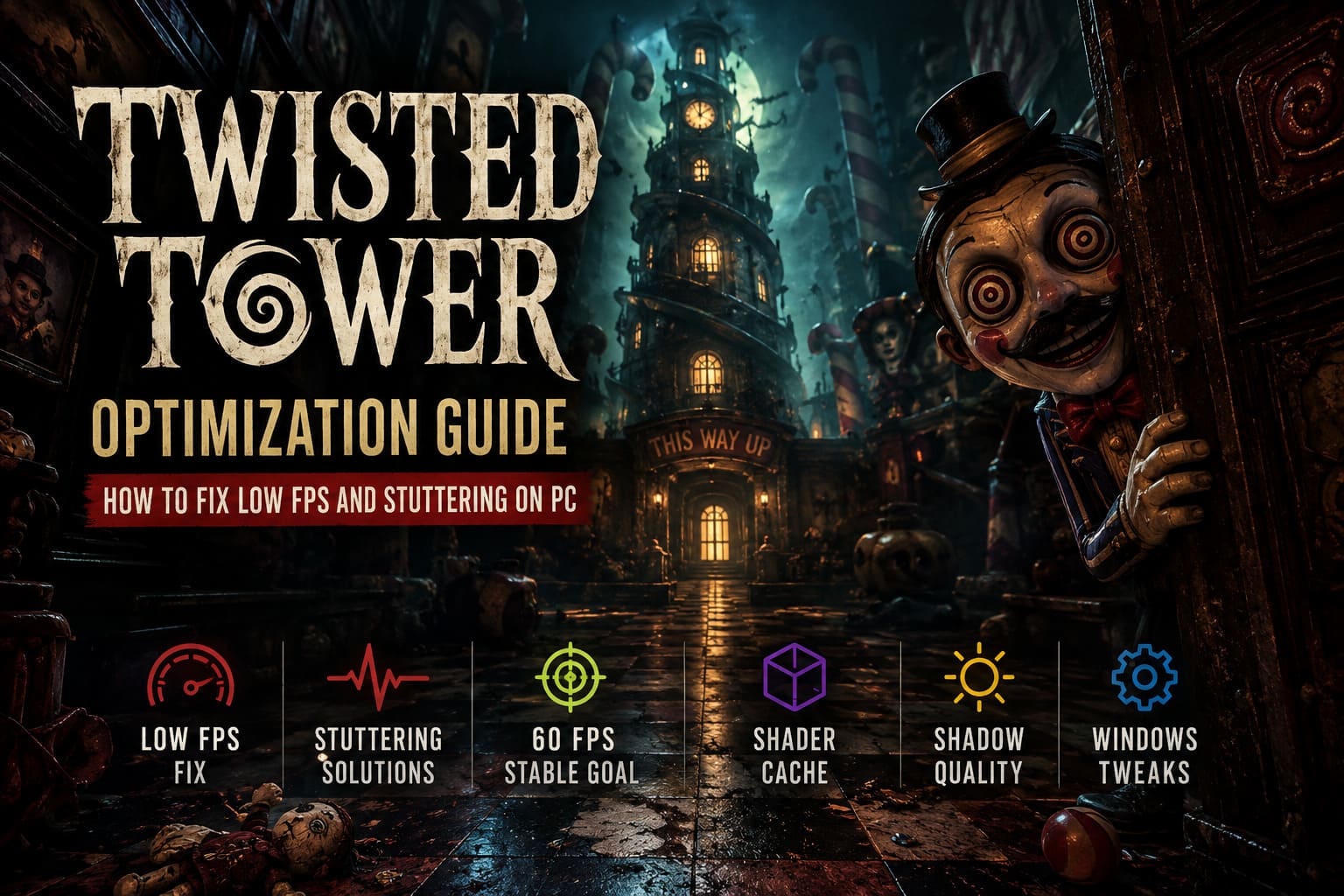
Twisted Tower Optimization Guide: How to Fix Low FPS and Stuttering on PC
If there is one thing that can ruin a great horror game faster than a bad jump scare, it is inconsistent performance. Twisted Tower has exactly the kind of visual style I love: creepy, colorful, strange, and packed with that dark fairytale atmosphere that makes every room feel like something terrible is waiting around the corner. The whole Bioshock-meets-Willy-Wonka vibe is fantastic.
But when the frame rate suddenly drops from a smooth 60 FPS to the 30s, the atmosphere takes a serious hit.
I spent a fair amount of time testing different settings and looking at the common performance complaints from players running everything from older RTX cards to much newer hardware. What stood out to me is that Twisted Tower does not always behave like a game that should be difficult to run. Even powerful PCs can experience sudden stutters when entering certain areas, during scripted sequences, or when complicated lighting effects appear on screen.
So, instead of simply telling you to lower everything to Low, I put together the settings and Windows tweaks I would personally use. The goal is simple: keep Twisted Tower looking good while making frame delivery much more consistent.
Why Does Twisted Tower Stutter on PC?
Before changing twenty different settings, it helps to understand what is actually causing the problem.
The biggest issue is that the game can occasionally struggle when it has to introduce new visual effects, lighting setups, or assets during gameplay. You might be walking through an area perfectly smoothly, then enter another room and suddenly get a short freeze.
That does not necessarily mean your GPU is too weak.
There are several possible causes behind the inconsistent performance.
1. Shader Compilation
One of the most annoying sources of stuttering is shader compilation. When the game encounters effects or materials that have not been processed yet, the engine may need to prepare them while you are playing.
This can create those classic micro-stutters that happen when entering a new room or triggering an event.
I personally find this much more noticeable than an ordinary low FPS situation. A stable 45 FPS can feel better than a game jumping between 80 and 35 FPS every few seconds.
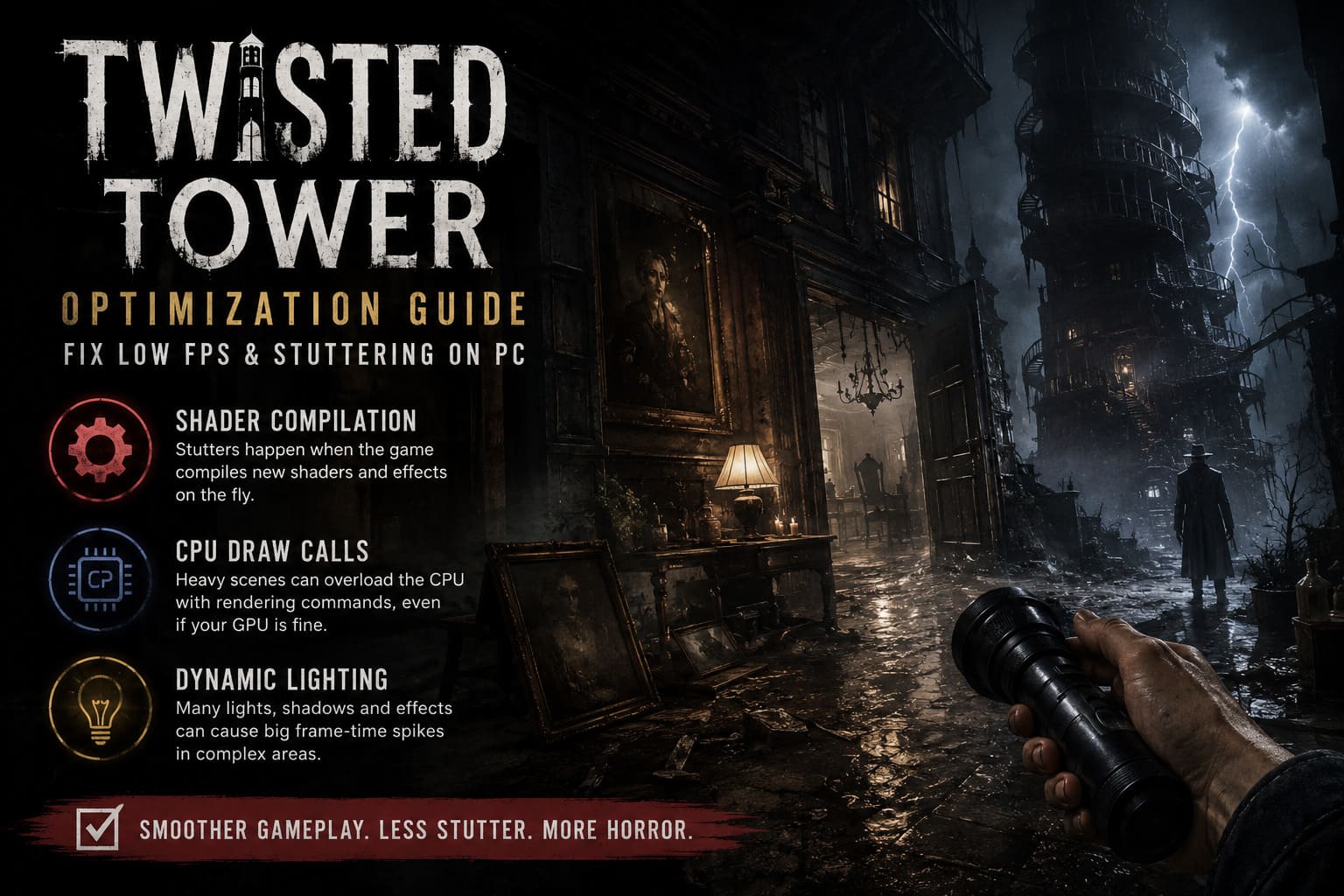
2. CPU-Side Draw Call Pressure
Twisted Tower can also put surprisingly heavy pressure on the CPU in certain scenes.
The GPU might not be the problem at all. Instead, the CPU is busy preparing rendering commands for the graphics card. This becomes particularly noticeable in areas filled with detailed geometry, dynamic objects, lights, and environmental effects.
That explains why lowering resolution does not always magically fix the problem.
3. Dynamic Lighting
The game’s lighting is one of the reasons it looks so good, but it is also one of the first things I would adjust if performance becomes unstable.
Certain indoor sequences with multiple lights, shadows, and environmental objects can produce huge frame-time spikes.
And honestly, I would rather sacrifice some shadow quality than play through a horror sequence that constantly freezes for half a second.
My Recommended Twisted Tower Graphics Settings
I would start with the following configuration before making more aggressive changes.
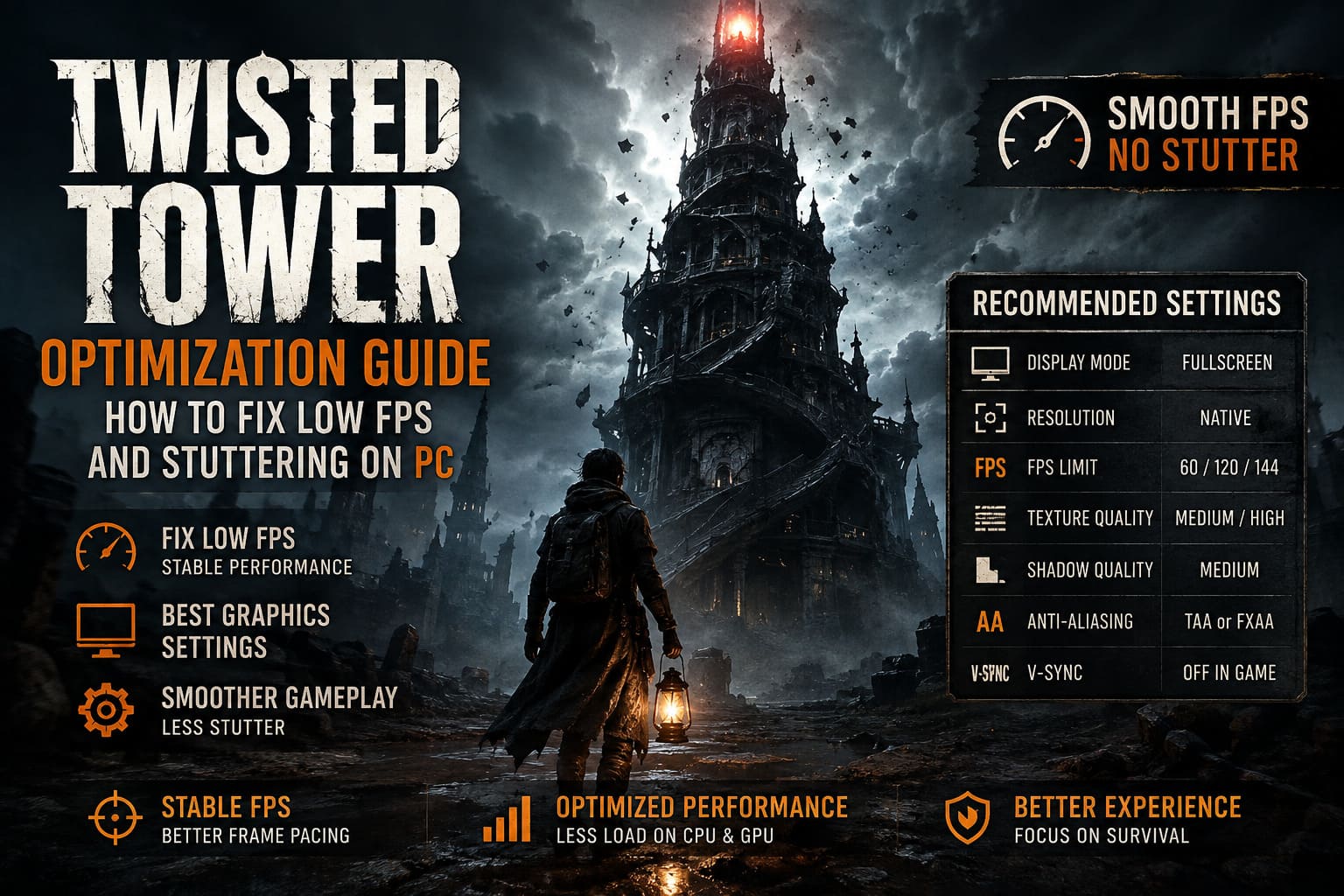
| Setting | My Recommendation | Why |
|---|---|---|
| Display Mode | Fullscreen | Better frame pacing |
| Resolution | Native | Keeps the image sharp |
| FPS Limit | 60 / 120 / 144 | Reduces unnecessary CPU load |
| Texture Quality | Medium / High | Depends on VRAM |
| Shadow Quality | Medium | Excellent performance-to-quality tradeoff |
| Anti-Aliasing | TAA or FXAA | Good image quality without excessive cost |
| V-Sync | Off In Game | Let the driver handle synchronization |
Fullscreen Is Still My First Choice
I recommend starting with Fullscreen rather than Borderless Windowed.
Borderless is convenient, especially if you constantly switch between applications, but when I’m trying to troubleshoot frame pacing, I prefer a proper fullscreen presentation.
If you’re still getting inconsistent performance afterward, test Borderless as well. PC configurations can behave differently, so there is no reason to blindly stick with one mode if your system prefers another.
Don’t Run Unlimited FPS
This is one of the easiest improvements to make.
If your monitor runs at 60 Hz, start with a 60 FPS cap. For a 120 Hz display, try 120 FPS. If you’re using 144 Hz, 144 FPS is a reasonable starting point.
An unlimited frame rate sounds attractive, but it can cause your hardware to constantly chase the highest possible number.
For a game like Twisted Tower, I would take stable frame delivery over a meaningless peak FPS number every time.
Textures: Don’t Automatically Use Ultra
Texture quality is one setting I usually leave relatively high because it can have a surprisingly small impact on performance compared with shadows and lighting.
If you have 8GB or more of VRAM, High is where I would start.
If your graphics card has less VRAM, Medium can be the smarter choice.
I don’t see much reason to sacrifice stability just to use Ultra textures, especially if the game starts pushing your VRAM allocation too hard. Once memory pressure becomes a problem, you can experience hitching that is far more distracting than slightly softer textures.
Shadows Are the First Setting I Lower
This is probably my favorite optimization trick for Twisted Tower.
Keep the overall image quality respectable, but move Shadow Quality to Medium.
Shadows are expensive because the game has to calculate how light interacts with the environment. In scenes with multiple dynamic light sources, the cost can climb quickly.
The good news is that Medium shadows still preserve the atmosphere.
And that’s important.
I don’t want to turn a stylish horror game into a blurry Low-quality mess just to gain frames. Medium shadows are a much better compromise.
Windows Tweaks That Are Actually Worth Testing
Once the game itself is configured, I would move on to Windows.
Use a High-Performance Power Plan
Windows can sometimes reduce CPU clocks when it believes your system does not need maximum performance.
For desktop PCs, I recommend testing the High Performance power plan.
Press Windows + R, enter control, and open:
Hardware and Sound → Power Options
From there, select High Performance if it is available.
You don’t necessarily need this setting forever. I mainly recommend it as a troubleshooting step. If your performance improves significantly, you have learned something useful about your system’s power management.
Memory Integrity: A Setting to Test Carefully
Windows Security includes virtualization-based security features such as Memory Integrity.
On some systems, these features can introduce additional overhead. If you are dealing with severe stuttering and have already tried the normal game settings, you can test whether disabling Memory Integrity changes anything.
Go to:
Windows Settings → Privacy & Security → Windows Security → Device Security → Core Isolation Details
Then check the status of Memory Integrity.
If you decide to turn it off, restart Windows and test the game again.
However, I would not blindly disable security features just because someone on a forum claims they gained 10 FPS. Security matters. Treat this as a troubleshooting experiment, not a universal optimization recommendation.
Give Twisted Tower High Priority
Another thing I like testing with CPU-heavy games is process priority.
Launch Twisted Tower and open Task Manager with:
Ctrl + Shift + Esc
Go to Details, locate the game’s executable, right-click it, and select:
Set Priority → High
Do not use Realtime.
Realtime priority is unnecessary and can cause problems with other Windows processes. High is more than enough for testing.
NVIDIA Control Panel Settings
If you’re using an NVIDIA GPU, there are a few driver settings I would experiment with.
Open NVIDIA Control Panel → Manage 3D Settings → Program Settings and select Twisted Tower.
My starting configuration would be:
- Power Management Mode: Prefer Maximum Performance
- Shader Cache Size: Unlimited
- Vertical Sync: On or Fast, if you’re managing synchronization through the driver
- Texture Filtering Quality: Leave at a quality-oriented setting unless you desperately need additional performance
The shader cache is particularly interesting.
If shader-related stuttering is your main issue, allowing the driver to retain a larger cache can help prevent the system from repeatedly preparing the same shaders.
It will not magically fix every hitch, but it is absolutely worth testing.
AMD Radeon Settings
AMD users have their own useful options.
Open AMD Software: Adrenalin Edition and create a profile for Twisted Tower.
I would start with:
- Radeon Anti-Lag: Enabled
- Texture Filtering Quality: Performance if additional GPU performance is needed
- Fluid Motion Frames: Test carefully and disable it if artifacts appear
- Avoid stacking multiple forms of upscaling or frame generation unless you know exactly how they interact
Personally, I prefer getting the game’s native frame rate stable first.
Artificially increasing the FPS number while the underlying frame delivery is inconsistent doesn’t solve the real problem.
Clear the DirectX Shader Cache
If Twisted Tower was previously running well and suddenly became extremely stuttery after updates, crashes, or driver changes, I would also try clearing the shader cache.
Search Windows for Disk Cleanup.
Select your Windows drive, usually C:, and find:
DirectX Shader Cache
Delete that cache and then restart the game.
The first launch afterward may actually feel worse temporarily because the game and drivers need to rebuild cached data.
Give it some time.
I would sit in the main menu for a couple of minutes before immediately starting to test complicated areas. After that, move around normally and see whether traversal stutters improve.
Don’t Forget Controllers and Overlays
This sounds unrelated to graphics, but peripherals and overlays can sometimes create weird behavior.
If you are playing with mouse and keyboard, try disconnecting controllers you aren’t using. I wouldn’t call this a guaranteed Twisted Tower fix, but it is an easy troubleshooting step.
I also recommend disabling unnecessary overlays temporarily:
- Steam Overlay
- Discord Overlay
- NVIDIA In-Game Overlay
- Xbox Game Bar
- MSI Afterburner / RTSS overlays
Don’t permanently uninstall anything.
Just disable them one at a time and test.
This is especially useful when trying to determine whether a stutter is actually caused by the game or by another program hooking into its rendering pipeline.
Watch Your CPU and GPU Temperatures
Finally, don’t overlook the obvious.
If your CPU is constantly approaching 90°C or higher, thermal throttling can become part of the problem.
Use a monitoring application such as HWMonitor to check CPU and GPU temperatures while playing.
If temperatures are excessive, clean dust from the case filters and fans and make sure the cooling system is working properly.
A performance problem that looks like a software optimization issue can sometimes be a cooling problem in disguise.
Twisted Tower Walkthrough: How to Beat All Deadly Traps, Mazes, and Mascots
My Final Twisted Tower Optimization Setup
After experimenting with everything above, this is the kind of configuration I would personally use for a balanced experience:
| Category | Recommended Setup |
|---|---|
| Resolution | Native Monitor Resolution |
| Display | Fullscreen |
| FPS Cap | Match Refresh Rate |
| Textures | High With 8GB+ VRAM |
| Shadows | Medium |
| Anti-Aliasing | TAA / FXAA |
| V-Sync | Driver Controlled |
| NVIDIA Power Mode | Prefer Maximum Performance |
| Shader Cache | Unlimited |
| Overlays | Disabled For Testing |
| Windows Power Plan | High Performance |
The important thing is not to change everything simultaneously.
If you disable five Windows features, change six driver options, lower every graphics setting, and suddenly gain 15 FPS, you have no idea which change actually helped.
I prefer a slower approach. Change one major setting, restart the game if necessary, test the same location, and compare the frame-time behavior.
How to Fix Twisted Tower Audio Cutting Out Bug: Full Guide (2026)
Final Thoughts
Twisted Tower is exactly the kind of game where I don’t want to destroy the visuals just to chase a benchmark number.
The atmosphere is a huge part of its appeal. The strange environments, dramatic lighting, detailed interiors, and creepy visual effects are what make the game memorable. So my approach is to reduce the settings that hurt performance the most while keeping the presentation intact.
For me, that means Medium shadows, sensible textures, a fixed FPS target, proper shader caching, and fewer background overlays.
If you’re seeing drops from 60 FPS into the 30–40 FPS range, don’t immediately assume your GPU is too old. Twisted Tower can become CPU-limited and frame-time unstable in specific scenes, which means throwing more graphics power at the problem isn’t always enough.
Start with the game’s shadows and FPS cap. Then work through Windows and driver settings. Clear the shader cache if the stuttering appeared after an update. Finally, check temperatures and background software.
With a little tuning, you can keep the bizarre horror atmosphere intact without having your PC constantly reminding you that something is wrong.
And honestly, when I’m playing a game this visually stylish, I’d rather be scared by what’s hiding inside the tower than by my frame-time graph.