How to Fix Resonance: A Plague Tale Legacy Controller Not Working on Steam
If you are launching Resonance: A Plague Tale Legacy on Steam, grabbing your controller, and then discovering that Sophia apparently has no idea what a gamepad is, you are definitely not alone. The frustrating part is that this is exactly the kind of game where I would rather use a controller than fight with mouse-and-keyboard controls. The exploration, combat, movement, and puzzle interactions are designed around that comfortable gamepad feel, so having your controller fail at the main menu can kill the excitement before the adventure even starts.
I have dealt with enough PC controller nonsense over the years to know that the problem is rarely as dramatic as it first appears. Usually, it comes down to Steam Input, Windows, Bluetooth, controller emulation software, or conflicting virtual devices fighting over the same input signal. The good news is that you don’t need to reinstall the entire game or start randomly deleting files. There are several practical fixes worth trying, and most of them take only a few minutes.
This guide covers the most useful solutions for Resonance: A Plague Tale Legacy controller not working on Steam, including Xbox controllers, DualSense, DualShock 4, and Switch Pro controllers.
How to Fix Resonance: A Plague Tale Legacy Memory Leak Error on Windows 11
Why Is My Controller Not Working in Resonance: A Plague Tale Legacy?
Before changing anything, it helps to understand what is actually happening.
Modern PC games can receive controller commands through several different systems. An Xbox controller normally communicates through Microsoft’s XInput standard, while PlayStation controllers can be handled directly by a game or translated through Steam Input. Steam Input essentially sits between your hardware and the game, converting button presses into an input format the game understands.
That is incredibly useful when everything cooperates. When it doesn’t, things can get messy.
You might see your controller working perfectly inside Steam but doing absolutely nothing once Resonance: A Plague Tale Legacy launches. In other cases, only certain buttons work, the sticks behave strangely, or the game displays an Xbox layout even though you are holding a PlayStation controller. Sometimes the controller works in the menus and then disappears as soon as gameplay begins.
The important thing is this: a controller being visible to Windows or Steam does not automatically mean the game is receiving its inputs correctly.
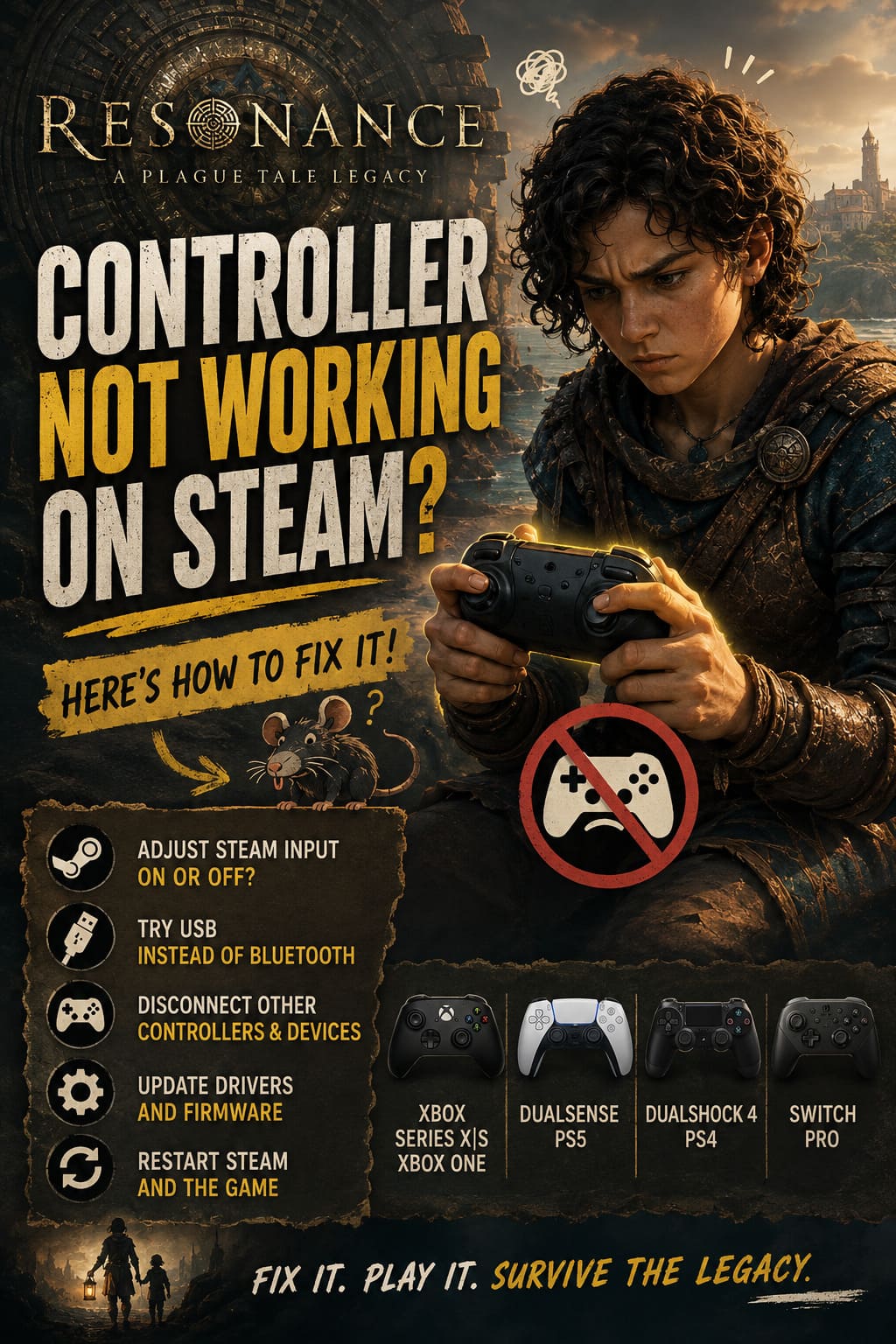
The Fastest Fix: Change Steam Input
If I had to choose one thing to try first, it would be the Steam Input setting for the game.
This is often the easiest way to solve a controller compatibility problem because it lets you choose whether Steam should translate your gamepad signals or leave the device alone.
How to Change Steam Input for Resonance
- Open Steam and go to your Library.
- Find Resonance: A Plague Tale Legacy.
- Right-click the game and choose Properties.
- Open the Controller section.
- Find the Steam Input override option.
- Change the setting and test the game.
If you are using a DualSense or DualShock 4, try enabling Steam Input first. Steam can translate the PlayStation controller into a format that the game recognizes more reliably.
If you are using an Xbox controller, try disabling Steam Input. Xbox pads already use the XInput standard that many Windows games expect, so allowing the game to communicate directly with the controller can remove an unnecessary layer.
Restart the game after changing the setting. I would also restart Steam rather than repeatedly launching and closing the game while testing different configurations.
Which Steam Input Setting Should You Try?
| Controller | First Setting to Try | Alternative |
|---|---|---|
| Xbox Series X/S | Steam Input Off | Steam Input On |
| Xbox One | Steam Input Off | Steam Input On |
| DualSense | Steam Input On | Steam Input Off |
| DualShock 4 | Steam Input On | Steam Input Off |
| Switch Pro | Steam Input On | Steam Input Off |
There isn’t a universal rule here. PC controller support can behave differently depending on drivers, firmware, USB versus Bluetooth, and other software installed on your machine. If the first setting does nothing, try the opposite setting before moving on.
Check Whether Steam Actually Sees Your Controller
Before blaming the game, make sure Steam itself recognizes the device.
Open Steam’s Settings and go to the Controller section. Your connected controller should appear in the detected-controller area.
If it doesn’t appear there, Resonance: A Plague Tale Legacy probably isn’t the real problem. The game cannot use a device that Windows or Steam isn’t detecting properly in the first place.
For a wired controller, disconnect the USB cable and reconnect it. If possible, try another USB port, preferably one directly connected to the motherboard rather than a cheap hub.
For Bluetooth controllers, remove the device from Windows Bluetooth settings and pair it again. A controller can sometimes remain technically connected while its input connection has become completely useless. We’ve all had that lovely Windows moment where something says Connected while behaving like it has never heard of your PC.
Try Steam Big Picture Mode
This sounds like a strange workaround, but it is worth testing.
Steam’s Big Picture interface is designed around controller use and can sometimes initialize a gamepad differently from the regular desktop Steam client.
Open Big Picture Mode, locate Resonance: A Plague Tale Legacy, and check the controller information before launching the game.
Look for the controller icon and verify that Steam has detected the gamepad. If a controller layout is available, check that your buttons are mapped correctly.
Then launch the game directly through Big Picture Mode.
This is not some magical performance trick, but it can help when the standard Steam desktop interface fails to establish the controller connection correctly during startup.
Disconnect Other Controllers and USB Devices
Here’s a fix that sounds almost too simple: unplug stuff.
PC gamers tend to have ridiculous numbers of peripherals connected at once. A controller, steering wheel, flight stick, arcade stick, HOTAS setup, drawing tablet, wireless dongle, secondary keyboard and several other USB devices can all be sitting there simultaneously.
Some games handle that perfectly. Others get confused about which device should be treated as the primary controller.
For testing, disconnect anything you don’t need.
Keep only your keyboard, mouse, and the controller you want to use. Launch Resonance: A Plague Tale Legacy and see whether it responds.
If it suddenly works, reconnect your peripherals one at a time until you find the device causing the conflict.
Close Controller Remapping Software
This is one of the biggest things I would check if you have experimented with different controller tools.
Applications such as DS4Windows, reWASD, JoyToKey, and x360ce can create virtual controller devices. That’s useful when a game doesn’t natively understand your hardware, but it can become a problem when Steam Input is doing essentially the same job.
Imagine your physical DualSense appears to Windows as one controller while DS4Windows creates a second virtual Xbox controller. Steam Input may then add another translation layer on top of that.
Suddenly the game has several devices competing for attention.
For troubleshooting, close your controller-mapping applications completely and test the game with Steam Input alone.
If you specifically want to use DS4Windows, make sure its configuration prevents the physical PlayStation controller and the emulated controller from appearing as two separate devices. Otherwise, you can end up with duplicated input, incorrect button prompts, or a game that refuses to behave consistently.
Test the Controller With USB Instead of Bluetooth
Wireless controllers are convenient, but Bluetooth adds another variable to the equation.
If your DualSense, Xbox controller, or another gamepad refuses to work correctly wirelessly, connect it with a USB cable and launch the game again.
This is a surprisingly useful diagnostic step.
If the controller works immediately over USB, the controller itself probably isn’t the problem. Your investigation should then move toward Bluetooth drivers, Windows pairing, firmware, interference, or power-management settings.
I personally prefer doing this test before spending half an hour changing random Steam settings. It quickly tells you whether the problem is related to the wireless connection.

Reset Corrupted Controller Configuration
Sometimes everything works beautifully until you change a bunch of controls, restart the game, and suddenly your controller behaves like it has been possessed.
If the gamepad worked previously but stopped after changing control settings, a corrupted local configuration is worth considering.
Start by completely closing Resonance: A Plague Tale Legacy and Steam.
Then locate the game’s local Steam userdata configuration. Depending on your installation and Steam account structure, the exact folder can vary, so don’t blindly delete random directories.
If you identify the game’s controller or settings files, rename the relevant configuration files rather than deleting them immediately. Adding something like _old to the filename gives you an easy backup.
Restart Steam and launch the game. If the game generates fresh settings, test the controller before changing any keybindings.
This approach is much safer than wiping an entire userdata directory because you preserve the original files in case something else needs to be restored.
Update Your Controller and Windows Drivers
If none of the Steam settings help, move lower down the stack and check Windows.
Open Device Manager and look under categories such as Human Interface Devices, Bluetooth, and Xbox-related peripherals. Your controller should not be showing a warning symbol.
Updating Windows is also worthwhile, particularly if you’re using a modern wireless controller.
Controller firmware can matter too. Xbox accessories and PlayStation controllers can receive firmware updates that improve compatibility, connection stability, and general device behavior.
Don’t overlook the Bluetooth adapter itself. If your controller repeatedly disconnects, freezes, or disappears from Steam, an outdated Bluetooth driver can be a much more likely culprit than the game.
Disable Overlays Temporarily
Overlays are another possible source of weird startup behavior.
Steam Overlay, Discord, GPU software overlays, recording tools, and other utilities can hook into games while they launch. Most of the time this works without drama, but when you’re already dealing with controller detection problems, eliminating unnecessary background hooks is sensible.
You don’t have to uninstall anything.
Just temporarily disable overlays and close unnecessary gaming utilities, then restart the game.
If your controller suddenly starts working, re-enable those programs individually to identify which one is interfering.
What If the Controller Works in Steam but Not in the Game?
This distinction is extremely useful.
If Steam detects your controller and the device responds correctly in Steam’s controller interface, your hardware is probably fine. Focus your troubleshooting on Steam Input, controller conflicts, remapping software, and the game’s own configuration.
If Steam doesn’t detect the controller at all, concentrate on Windows, USB, Bluetooth, firmware, and device drivers instead.
That simple split can save a lot of wasted time.
| Symptom | Most Likely Area to Check |
|---|---|
| Controller isn’t detected by Windows | USB, Bluetooth, driver, hardware |
| Steam detects it but game doesn’t | Steam Input or game compatibility |
| Only PlayStation controller fails | Steam Input or DS4Windows conflict |
| Xbox controller fails | XInput, Steam Input, driver |
| Controller works in menus but not gameplay | Game configuration or input conflict |
| Buttons are duplicated | Virtual controller software |
| Wireless controller keeps disconnecting | Bluetooth or firmware |
| Controller stopped after remapping | Local configuration files |
My Recommended Fix Order
If you don’t want to go through every possible solution, I’d approach the problem in this order:
- Check that Windows and Steam detect the controller.
- Change Steam Input for Resonance: A Plague Tale Legacy.
- Restart Steam completely.
- Disconnect other gamepads and unnecessary USB peripherals.
- Close DS4Windows, reWASD, JoyToKey, x360ce, and similar tools.
- Test the controller through USB if you’re currently using Bluetooth.
- Try launching the game through Steam Big Picture Mode.
- Reset corrupted controller/settings configuration if the problem started after changing controls.
- Update Windows, controller firmware, and relevant drivers.
- Temporarily disable overlays and background controller utilities.
This order starts with the fixes that are easiest to reverse and most likely to solve a Steam controller conflict.
Don’t Reinstall the Game Yet
This deserves its own section because reinstalling a game is one of those classic PC troubleshooting rituals that feels productive while frequently accomplishing absolutely nothing.
If Resonance: A Plague Tale Legacy launches normally, your graphics are fine, and the only problem is controller input, reinstalling the entire game should not be your first move.
A controller problem is much more likely to be connected to Steam Input, Windows device detection, virtual controller software, or a local configuration issue.
Reinstalling several dozen gigabytes of game data won’t magically repair a Bluetooth driver or stop DS4Windows from creating a virtual gamepad.
Save that nuclear option for later.
Final Thoughts
A controller refusing to work in Resonance: A Plague Tale Legacy on Steam is frustrating precisely because the game feels like it was made with a gamepad in mind. When you finally get everything running and then discover that Sophia won’t respond to a single button press, it can feel like the adventure has been defeated before you even reach the island.
Thankfully, most controller problems are fixable without doing anything extreme.
Start with Steam Input. For PlayStation controllers, enabling it is a strong first test; for Xbox controllers, disabling it can remove an unnecessary translation layer. From there, check whether Steam actually sees the device, eliminate virtual controller software, disconnect competing peripherals, and test USB instead of Bluetooth if you’re playing wirelessly.
If I were troubleshooting this on my own PC, I would not randomly change ten settings at once. I’d change one thing, restart the game, and test it. That way, when the controller finally springs back to life, you’ll know exactly what fixed it.
And once it works, leave the setup alone. There’s nothing worse than spending an evening fixing a controller, finally getting into the game, and then breaking everything again because you decided to experiment with three different input profiles at 1 a.m.