Echoes of Aincrad Overheating Xbox Series S: How to Fix Thermal Crashing
When I first launched Sword Art Online: Echoes of Aincrad, I expected to spend hours exploring every floor, fighting bosses, and getting lost in the world. Instead, after about an hour of gameplay, my Xbox Series S sounded louder than usual, the frame rate became inconsistent during large battles, and eventually the console shut itself down.
At first, I assumed it was just bad luck or perhaps an isolated hardware problem. After all, I’ve been gaming for years and my Series S has handled everything from Cyberpunk 2077 to Elden Ring, Forza Horizon 5, and countless Unreal Engine games without serious issues.
But after spending time reading community discussions, comparing experiences with other players, and testing different solutions myself, I realized that Echoes of Aincrad simply pushes the Series S harder than many recent titles.
The good news?
Most overheating issues aren’t caused by a defective console. In many cases they’re the result of poor airflow, accumulated dust, or settings that force the hardware to work harder than necessary.
Here’s everything I learned after several days of testing.
Why This Game Feels More Demanding Than Expected
I’ve played nearly every major JRPG released during the last decade, and Echoes of Aincrad definitely belongs among the more demanding titles for Xbox Series S.
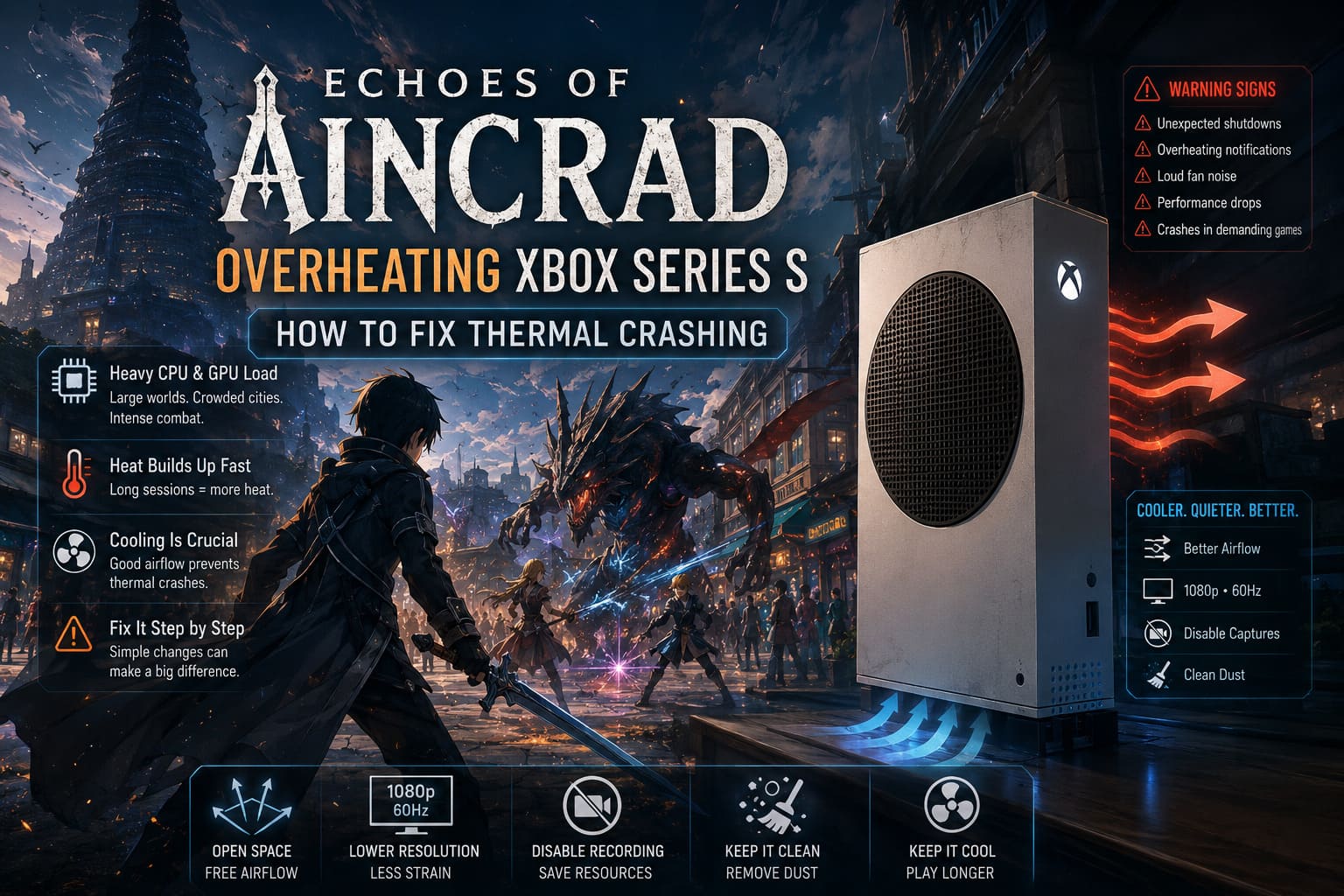
Large environments load continuously.
Cities are packed with NPCs.
Combat effects quickly fill the screen.
Lighting changes dynamically as you move through different areas.
None of these things are a problem individually, but together they keep both the CPU and GPU under constant load.
Unlike games where demanding scenes alternate with lighter gameplay, Echoes of Aincrad rarely gives the hardware much time to relax. During long dungeon sessions my console stayed under heavy load almost the entire time.
That naturally means more heat.
Remember: Warm Doesn’t Mean Broken
One thing worth mentioning is that the Xbox Series S normally runs warm.
Many people panic when they feel hot air coming from the large black exhaust vent, but that’s exactly where the console is supposed to push heat.
Hot air leaving the console actually means the cooling system is doing its job.
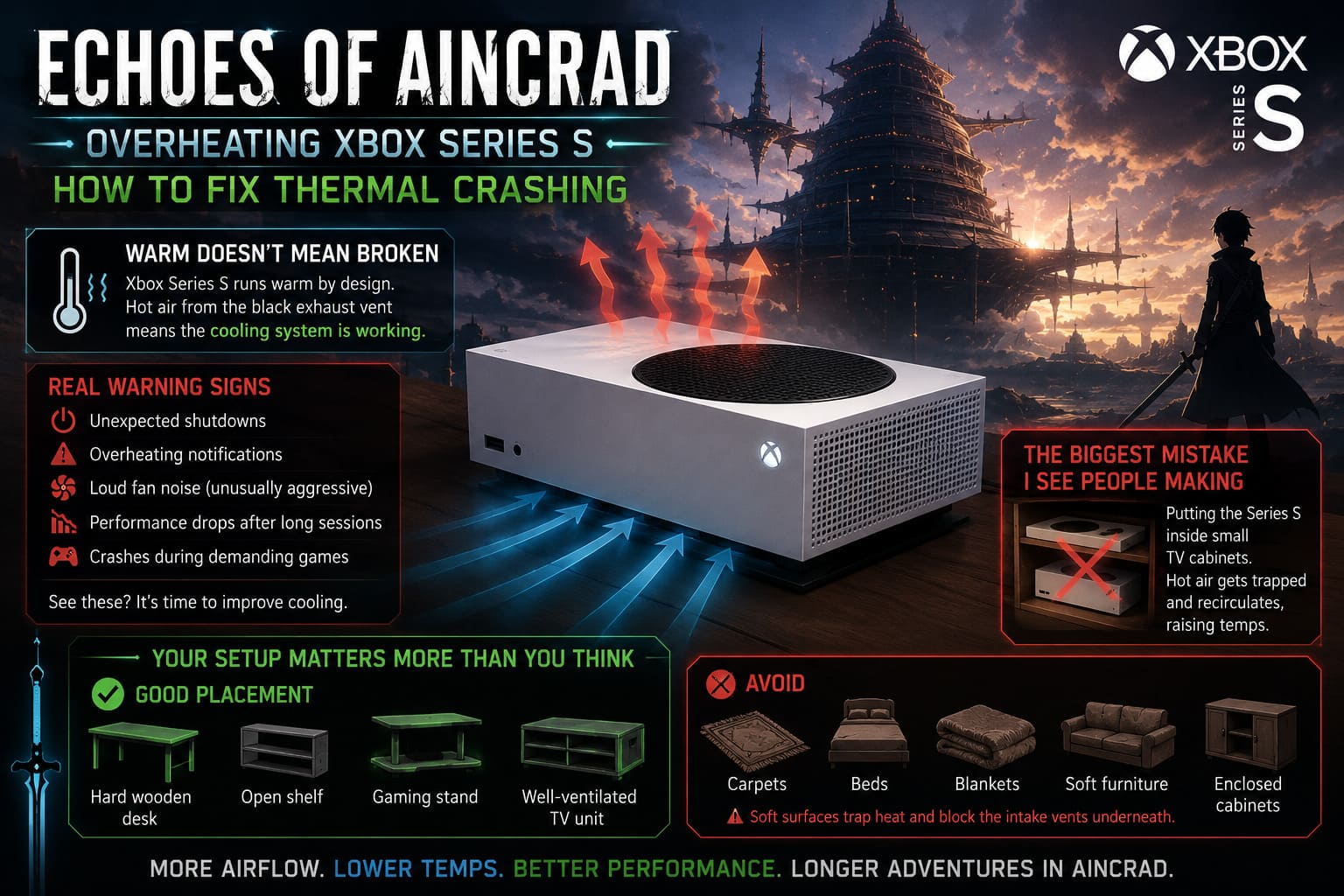
The real warning signs are:
- unexpected shutdowns
- overheating notifications
- loud fan noise that becomes unusually aggressive
- performance drops after long play sessions
- crashes that only happen during demanding games
If you’re seeing those symptoms, it’s time to improve cooling rather than assume the console is dying.
The Biggest Mistake I See People Making
This surprised me because I still see it everywhere.
People place the Series S inside tiny TV cabinets.
It looks clean.
It looks organized.
It’s terrible for airflow.
The console constantly pulls cool air in and pushes hot air out. If the hot air has nowhere to escape, it simply circulates around the console and gets pulled back inside.
Once I moved my Series S onto an open desk with several inches of free space around every side, temperatures noticeably improved.
It’s probably the easiest fix you’ll ever make.
Your Setup Matters More Than You Think
After experimenting with different positions, here’s what I recommend.
Good placement:
- hard wooden desk
- open shelf
- gaming stand
- well-ventilated TV unit
Avoid:
- carpets
- beds
- blankets
- soft furniture
- enclosed cabinets
Soft surfaces don’t just trap heat—they often block the intake vents underneath the console.
Horizontal or Vertical?
I’ve seen endless debates online about which position is better.
Honestly?
I don’t think there’s one universal answer.
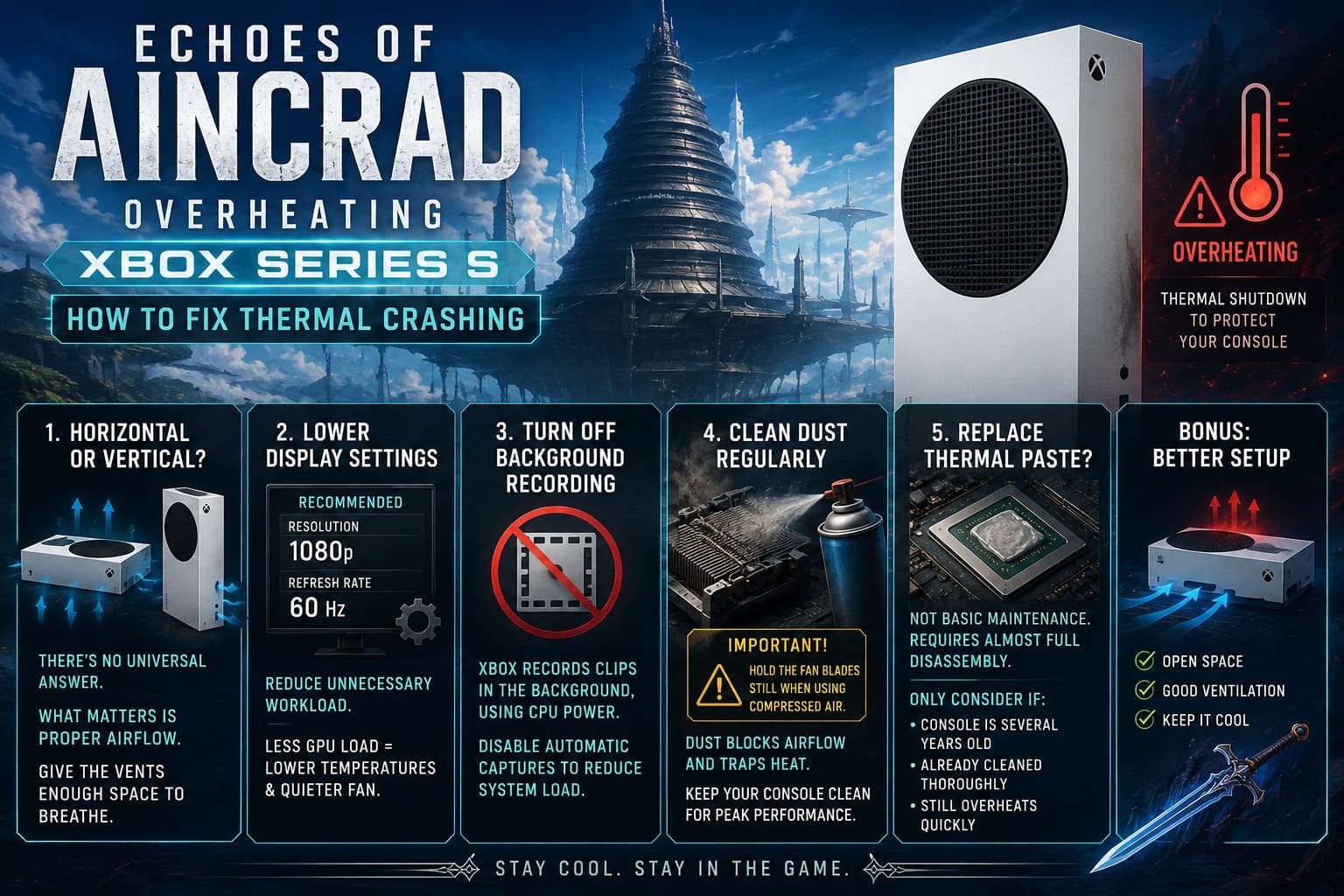
I personally noticed slightly better airflow with the console positioned horizontally because hot air escaped more naturally in my setup.
However, several friends reported lower temperatures after switching to vertical placement.
The important part isn’t the orientation itself.
It’s making sure every ventilation opening has enough room to breathe.
If one position isn’t working well in your room, simply try the other.
Lower Display Settings Can Make a Difference
This isn’t about making the game look worse.
It’s about reducing unnecessary workload.
If your display supports higher resolutions or 120 Hz output, the console has to process additional rendering tasks.
For longer gaming sessions I switched to:
- 1080p output
- 60 Hz refresh rate
The visual difference wasn’t dramatic while sitting on my couch, but my console definitely stayed quieter.
Sometimes a tiny reduction in GPU load is enough to keep temperatures below the shutdown threshold.
Turn Off Background Recording
This is one setting many players completely forget about.
Xbox continuously keeps gameplay clips ready for saving.
That means the system is encoding video while you’re playing.
Normally this isn’t a huge issue.
But during one of the most demanding games on the system, every little bit of CPU usage matters.
After disabling automatic game captures, I didn’t suddenly gain huge performance improvements, but the fan became slightly less aggressive during long sessions.
It’s a simple tweak that’s worth trying.
Dust Is the Silent Performance Killer
If your Xbox Series S is more than a year old, dust is almost certainly part of the problem.
I have a dog.
That means pet hair finds its way into everything.
When I finally opened my console for cleaning, I was honestly shocked.
The heatsink was partially blocked by a thick layer of dust that I couldn’t even see from the outside.
Cleaning it carefully with compressed air immediately improved airflow.
The fan also became noticeably quieter.
One important tip:
Always prevent the fan blades from spinning while using compressed air.
Letting the fan spin freely at high speed can potentially damage the bearings.
Should You Replace Thermal Paste?
This question appears constantly on Reddit.
My answer is simple.
Only if it’s actually necessary.
Replacing thermal paste isn’t basic maintenance.
It requires almost complete disassembly of the console.
If your Xbox is only one or two years old, fresh thermal paste probably won’t solve anything.
If it’s several years old, has already been cleaned thoroughly, and still overheats almost immediately, then replacing aged thermal compound might help.
Otherwise, I’d leave it alone.
Don’t Waste Money on Cheap Cooling Accessories
I’ve tested enough gaming accessories over the years to become skeptical of products promising “instant cooling.”
External USB fans that attach to the Series S usually don’t improve internal temperatures.
Some can even interfere with the airflow Microsoft designed.
Instead of buying another plastic accessory with RGB lighting, spend that money on:
- compressed air
- better room ventilation
- keeping the console clean
Those solutions actually work.
Echoes of Aincrad VRAM Optimization Guide: How to Fix Low FPS, Stuttering, and Crash on PC
My Recommended Troubleshooting Order
If your console keeps shutting down during Echoes of Aincrad, this is the exact order I’d follow.
- Move the console into an open space.
- Make sure no vents are blocked.
- Switch to 1080p at 60 Hz.
- Disable background game capture.
- Perform a complete shutdown instead of using sleep mode.
- Clean dust from the interior if the console is out of warranty.
- Consider thermal paste replacement only as a last resort.
Doing things in this order avoids unnecessary disassembly and solves the majority of overheating cases.
Echoes of Aincrad PS5 Performance vs Quality Mode: Which Should You Choose?
Quick Comparison of Common Solutions
| Solution | Difficulty | Cost | Expected Improvement |
|---|---|---|---|
| Improve airflow | Very Easy | Free | High |
| Change console position | Easy | Free | Medium |
| Lower resolution to 1080p | Easy | Free | Medium |
| Disable background recording | Easy | Free | Low to Medium |
| Internal dust cleaning | Medium | Low | High |
| Replace thermal paste | Advanced | Medium | High (only if old paste has degraded) |
Final Thoughts
After years of playing on different Xbox generations, PlayStation consoles, and gaming PCs, I’ve learned one simple truth: overheating is rarely caused by a single game alone.
Games simply expose weaknesses that already exist.
Echoes of Aincrad is one of those titles that keeps modern hardware working hard for long periods, especially on the compact Xbox Series S.
Fortunately, most overheating problems can be solved without replacing the console or spending money on questionable cooling gadgets.
Better airflow, regular cleaning, sensible display settings, and a little routine maintenance made a much bigger difference for me than any accessory ever has.
If your Series S is shutting down during boss fights or long dungeon runs, don’t panic. Work through the simple fixes first. Chances are you’ll be back climbing Aincrad without another thermal shutdown—and with a console that’s running quieter and healthier for every other game in your library as well.