How to Fix Controller Overlay Glitch in Assassin’s Creed Black Flag Resynced (PC Guide)
When I jump back into Assassin’s Creed IV: Black Flag, I’m reminded why this game still refuses to fade away. Even after all these years, sailing through the Caribbean, boarding enemy ships, and simply listening to the sea while the crew sings is an experience that many modern games still struggle to match. I’ve spent hundreds of hours replaying the game, testing community mods, graphics overhauls, and the popular Resynced setup that brings the classic closer to modern hardware.
Unfortunately, newer software doesn’t always play nicely with an older game engine.
One problem that kept ruining my sessions was a strange controller overlay glitch. Some launches were perfectly fine, while others turned into complete chaos. The game constantly swapped between keyboard icons and controller prompts, menus became difficult to navigate, and sometimes the camera behaved as if someone was moving a mouse across my desk.
After trying dozens of different suggestions from players across gaming communities and testing them myself, I found several methods that consistently solved the issue. If you’re dealing with the same problem, here’s everything I would recommend before giving up on your pirate adventure.
Why This Bug Happens in the First Place
In my experience, the problem rarely comes from the controller itself.
The real culprit is usually multiple programs trying to control your input at the same time.
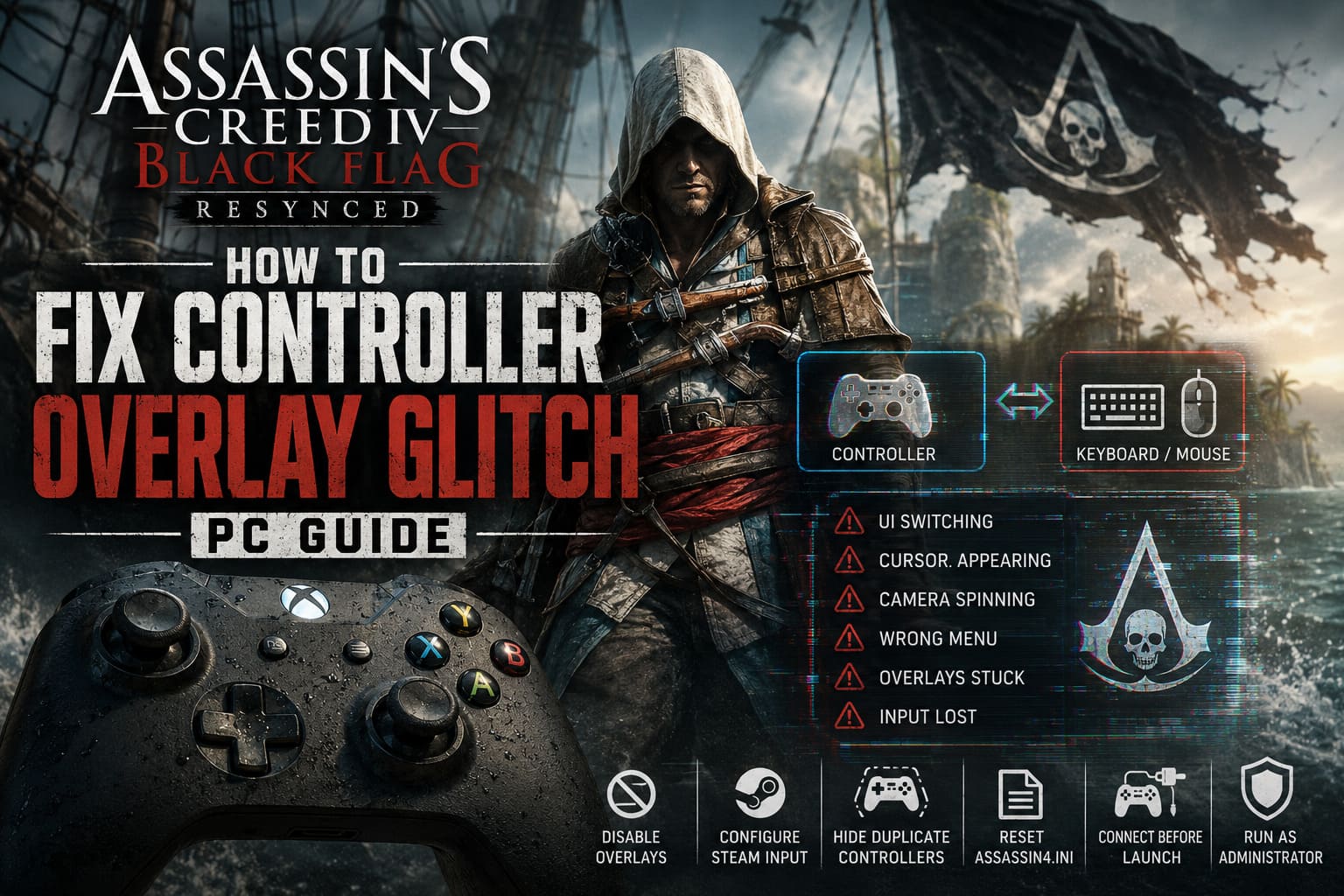
Black Flag was originally designed around much older versions of Windows and controller APIs. Modern PCs now have Steam Input, Ubisoft Connect, Discord Overlay, Xbox Game Bar, DS4Windows, and sometimes even motherboard utilities that monitor gaming devices.
When two or more of these applications decide to translate your controller simultaneously, the game starts receiving conflicting instructions.
Typical symptoms include:
- UI constantly switching between controller and keyboard prompts
- Mouse cursor appearing during gameplay
- Camera spinning by itself
- Buttons opening incorrect menus
- Transparent overlays remaining on the screen
- Random loss of controller input
The good news is that this almost always has a software solution.
My First Fix: Adjust Steam Input Properly
This was the biggest improvement for me.
Steam Input is an incredible feature for newer games, but older Ubisoft titles sometimes become confused when Steam tries to translate every button into additional keyboard commands.
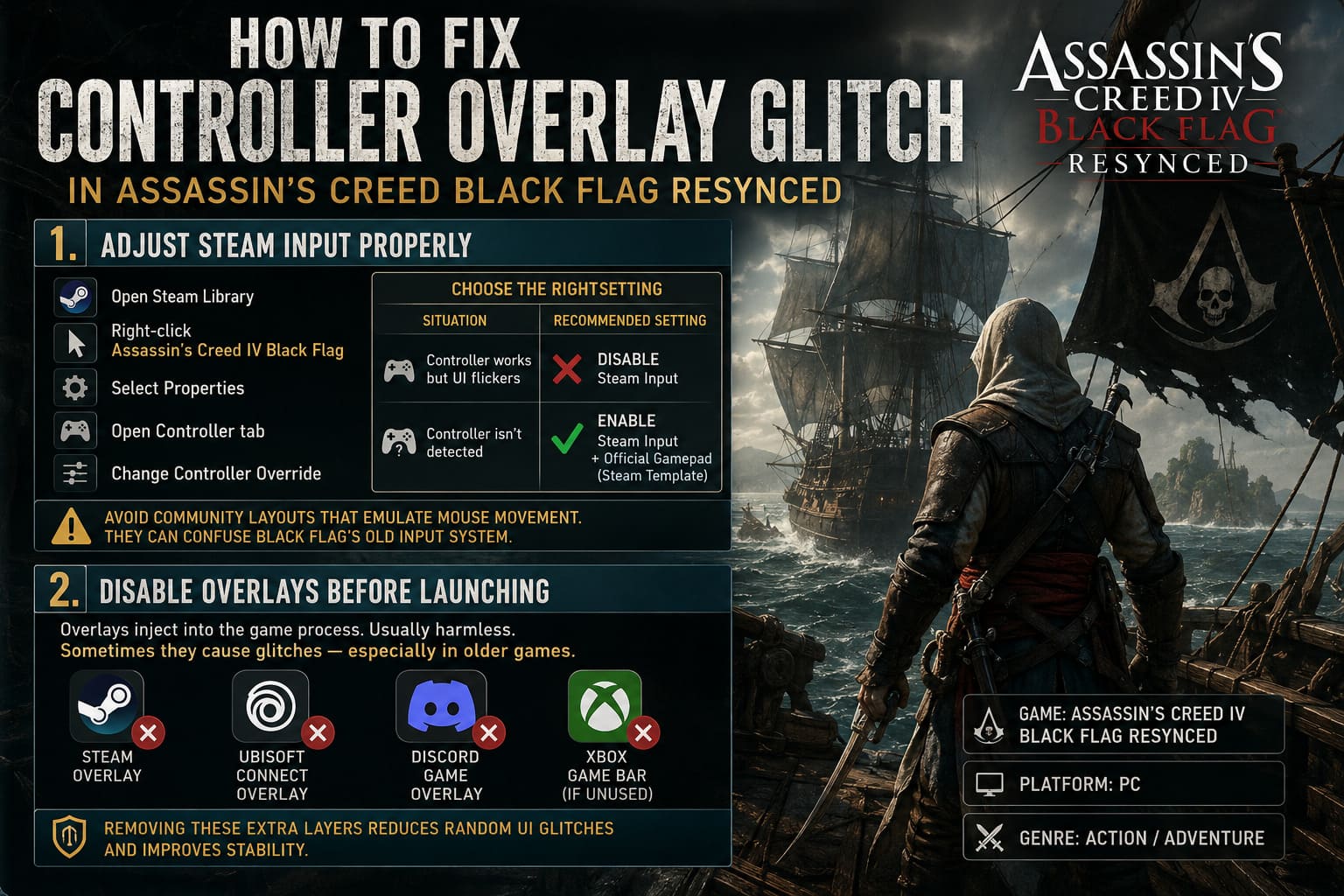
Here’s what I normally do:
- Open your Steam Library.
- Right-click Assassin’s Creed IV Black Flag.
- Select Properties.
- Open the Controller section.
- Change the controller override.
There are two possible outcomes.
| Situation | Recommended Setting |
|---|---|
| Controller already works but UI flickers | Disable Steam Input |
| Controller isn’t detected | Enable Steam Input and select the official Gamepad template |
One thing I avoid is community layouts that emulate mouse movement. They’re fantastic for some games but can completely confuse Black Flag’s older input system.
Disable Overlays Before Launching
If there’s one habit I’ve developed over the years, it’s avoiding unnecessary overlays whenever I’m streaming or benchmarking games.
Every overlay injects itself into the game process.
Usually that’s harmless.
Sometimes it isn’t.
I recommend temporarily disabling:
- Steam Overlay
- Ubisoft Connect Overlay
- Discord Game Overlay
- Xbox Game Bar (if you don’t actively use it)
This isn’t because any of these programs are “bad.” They’re simply adding another software layer that an older engine wasn’t built to handle.
In my testing, removing those extra layers noticeably reduced random UI glitches.
A Clean Configuration Can Solve Strange Problems
Older Ubisoft games love storing old controller profiles.
If you’ve ever connected an Xbox controller, a DualSense, a DualShock 4, or even a generic USB controller, the configuration file can become surprisingly messy over time.
I usually reset the configuration by locating the game’s Assassin4.ini file inside the Documents folder.
Instead of keeping years of accumulated settings, I let the game rebuild everything from scratch.
For PlayStation controller users, updating the controller bindings with a known working layout can also eliminate scrambled buttons and menu freezes.
After everything works correctly, I personally set the configuration file to Read-only.
That prevents launchers or accidental crashes from overwriting a working setup.
DS4Windows Can Accidentally Create Two Controllers
This one confused me for quite a while.
I was convinced Black Flag was reading my DualShock correctly.
Technically…
…it was reading two controllers.
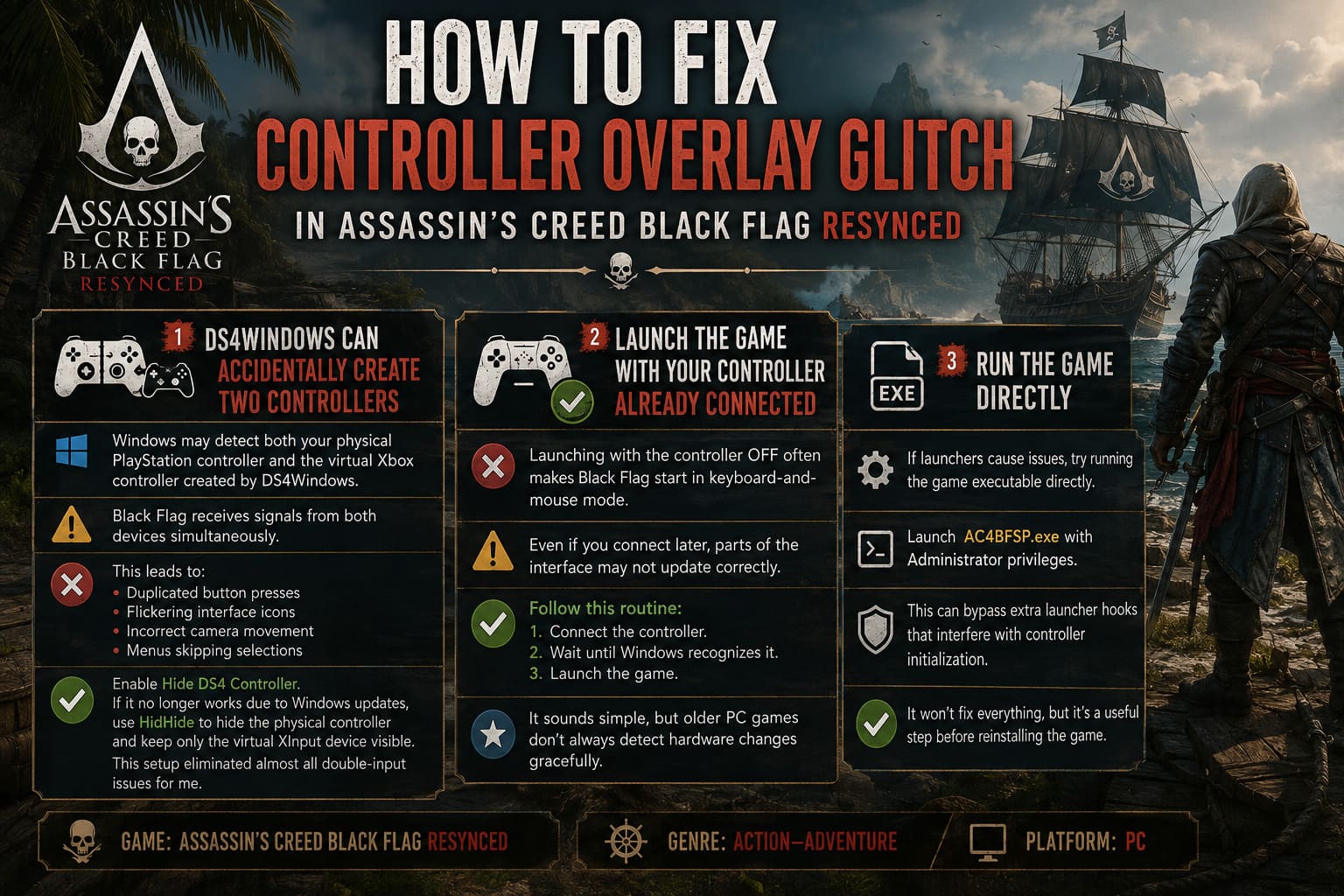
When using DS4Windows, Windows may detect both your physical PlayStation controller and the virtual Xbox controller created by the software.
Black Flag receives signals from both devices simultaneously.
That leads to:
- Duplicated button presses
- Flickering interface icons
- Incorrect camera movement
- Menus skipping selections
The easiest solution is enabling Hide DS4 Controller.
If that no longer functions because of modern Windows security updates, I strongly recommend using HidHide, which cleanly hides the physical controller while leaving only the virtual XInput device visible.
Since switching to this setup, I’ve had almost zero double-input issues across older Ubisoft games.
Launch the Game With Your Controller Already Connected
This sounds incredibly simple.
It also solved one of my most inconsistent bugs.
If I launched the game with my controller turned off, Black Flag often initialized itself as a keyboard-and-mouse session.
Even if I connected the controller afterward, parts of the interface refused to update correctly.
Now I always follow this routine:
- Connect the controller.
- Wait until Windows recognizes it.
- Launch the game.
It sounds obvious, but older PC games don’t always detect hardware changes gracefully.
Run the Game Directly
If launchers continue causing problems, I recommend trying the game executable directly.
Launching AC4BFSP.exe with Administrator privileges occasionally bypasses extra launcher hooks that interfere with controller initialization.
This won’t solve every issue, but it’s another useful troubleshooting step before reinstalling the game.
What Worked Best During My Testing
After experimenting with different hardware setups, these fixes consistently produced the best results.
| Fix | Difficulty | Effectiveness |
|---|---|---|
| Disable unnecessary overlays | Easy | ★★★★★ |
| Configure Steam Input correctly | Easy | ★★★★★ |
| Hide duplicate controllers with HidHide | Medium | ★★★★★ |
| Reset Assassin4.ini | Medium | ★★★★☆ |
| Launch with controller already connected | Very Easy | ★★★★☆ |
| Run executable as Administrator | Easy | ★★★☆☆ |
How to Claim Blackbeard’s Crimson Pack in Assassin’s Creed Black Flag Resynced (2026 Guide)
Extra Tips for Stable Gameplay
These aren’t mandatory, but they’ve helped keep my Black Flag installation stable over dozens of hours.
- Avoid switching controllers while the game is running. Hot-swapping devices sometimes causes the engine to lose track of active inputs.
- Use wired mode when troubleshooting. Bluetooth adds another variable to the equation, while USB removes possible wireless interruptions.
- Keep controller software updated. Whether you’re using Xbox Accessories, DS4Windows, or another utility, newer versions often improve compatibility with older DirectInput titles.
- Don’t run multiple mapping programs simultaneously. Launching Steam Input, DS4Windows, and reWASD together almost guarantees conflicting input layers.
Assassin’s Creed Black Flag Resynced Trophy Guide & Platinum Roadmap
My Final Thoughts
As someone who regularly revisits classic games on modern hardware, I’ve learned that older PC titles usually aren’t “broken”—they’re simply caught between generations of technology.
Assassin’s Creed IV: Black Flag still delivers one of the best pirate adventures ever made, and the Resynced community has given it a fresh life in 2026. But modern launchers, overlays, controller translation software, and Windows updates weren’t part of the game’s original design.
Fortunately, the controller overlay glitch is usually easier to fix than it first appears.
If I had to recommend only three things, they’d be:
- Configure Steam Input correctly.
- Disable unnecessary overlays.
- Prevent duplicate controller detection with HidHide or the DS4Windows Hide Controller feature.
Those three changes alone resolved nearly every controller issue I encountered.
Once everything is configured correctly, Black Flag becomes exactly what it should be: a smooth, immersive pirate adventure where the only thing demanding your attention is the next ship waiting on the horizon—not a menu that’s constantly switching between keyboard and controller icons.