How to Fix Last Pirates: Die Together Black Screen Error on Launch (2026 Guide)
If you have ever launched a game, heard the menu music, listened to your PC fans ramp up, and then stared at a completely black monitor, you already know how annoying this problem can be. Last Pirates: Die Together is supposed to throw you and your friends straight into ridiculous pirate chaos, not leave you watching a dead screen before the first match even begins.
The new co-op horror game from RetroStyle Games has plenty going for it. The physics are deliberately chaotic, the monsters can turn a routine treasure run into a complete disaster, and playing with up to four people creates exactly the kind of unpredictable nonsense that makes extraction games fun. But Early Access also means rough edges, and some PC players have reported black screen problems during launch, loading, or immediately after the opening sequence.
The symptoms can vary. Sometimes you get a black screen while the game continues playing ambient audio in the background. In other cases, proximity voice chat appears to work while absolutely nothing is visible. And then there is the especially irritating version where the game sits on a black screen for several seconds before crashing straight back to the desktop.
I have dealt with enough broken PC launches to know one thing: don’t immediately reinstall the entire game. There are several much faster fixes worth trying first.
This guide walks through the most useful troubleshooting steps, starting with the easy stuff and gradually moving toward Windows, GPU, security, and network-level fixes.
What Causes the Last Pirates: Die Together Black Screen?
A black screen does not automatically mean your graphics card is dying. In fact, with Unity-based games, the problem can come from several completely different areas of the PC.
The most common possibilities include:
| Potential Cause | Typical Symptom | Recommended Fix |
|---|---|---|
| Display Configuration | Black screen immediately after launch | Force windowed mode |
| Corrupted Game Files | Problem starts after an update | Verify Steam files |
| GPU Driver Issue | Crashes or missing rendering | Update drivers and clear shader cache |
| Windows Scaling Conflict | Black screen on high-resolution displays | Disable fullscreen optimization |
| Antivirus Interference | Audio works but visuals never appear | Add a security exclusion |
| Wrong GPU | Common on gaming laptops | Force dedicated GPU |
| Network/VPN Conflict | Black screen before menu | Test launch without network or VPN |
The good news is that most of these problems can be tested without touching anything dangerous in Windows.
Fix 1: Force Last Pirates Into Windowed Mode
This is the first thing I would try.
Fullscreen resolution conflicts are an old PC gaming headache. Ultra-wide monitors, 4K displays, unusual refresh rates, HDR configurations, and Windows scaling can occasionally cause a game to start with a display mode your system doesn’t handle correctly.
If the game is technically running but showing nothing, forcing it into a basic window can bypass the problem.
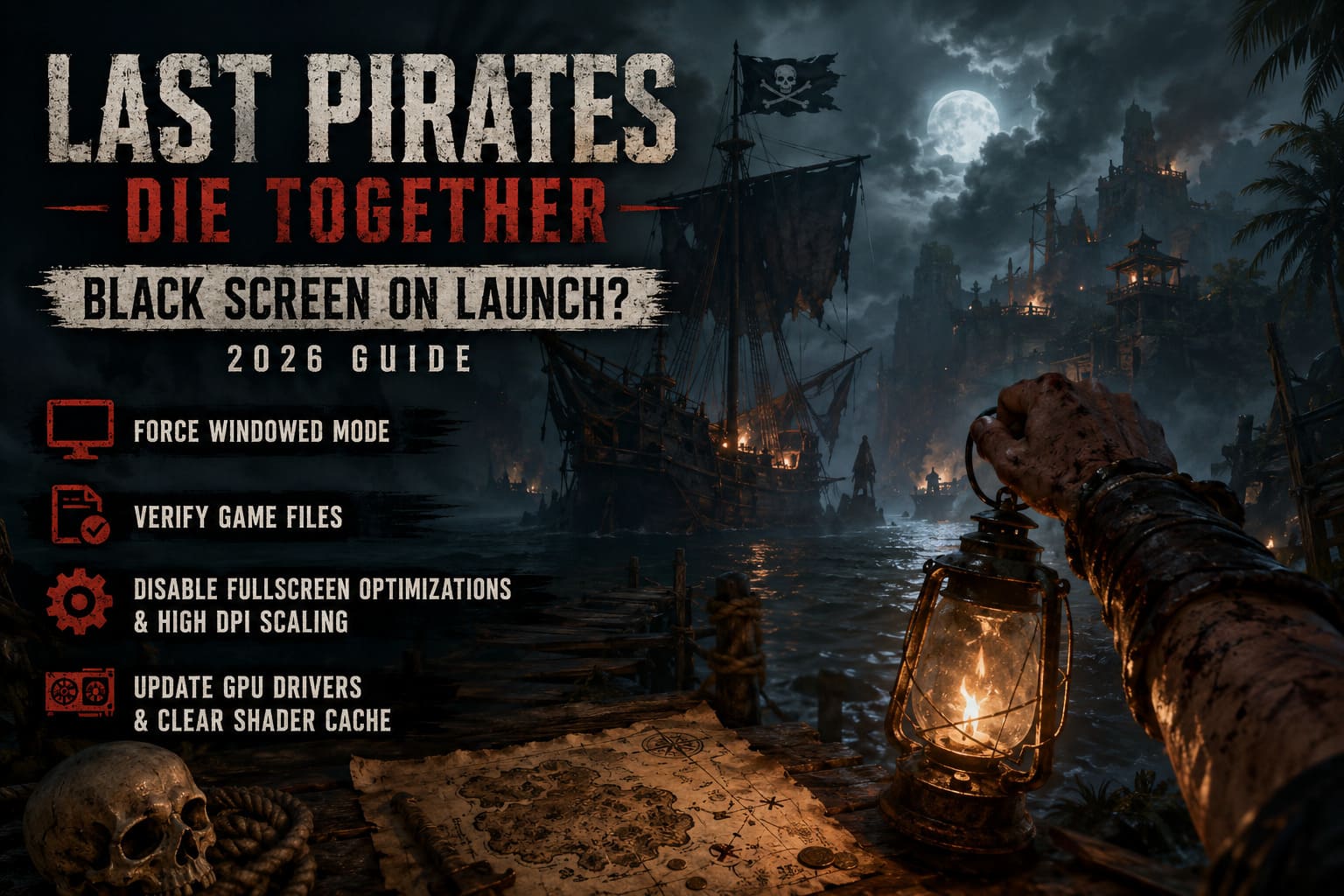
Open Steam Library, right-click Last Pirates: Die Together, and select Properties.
Stay on the General tab and find the Launch Options field.
Try:
-windowedIf that does not help, you can also force a conventional 1080p resolution:
-screen-width 1920 -screen-height 1080Launch the game again.
If you finally reach the main menu, don’t celebrate by immediately changing everything back. First, open the game’s video settings and switch to Borderless Windowed. Test another launch afterward.
Once everything is stable, remove the launch command from Steam.
Why this works
The game no longer has to negotiate your monitor’s preferred fullscreen resolution during startup. That’s particularly useful if you recently changed monitors, switched refresh rates, enabled HDR, or are running a 1440p/4K/ultra-wide setup.
Fix 2: Verify the Steam Game Files
Early Access games change constantly. Hotfixes, patches, new builds, and experimental content are normal.
That also means a broken or incomplete download can cause some very strange behavior.
A missing asset might prevent the opening scene from rendering correctly while other parts of the game continue loading. You can end up with audio, input, or networking working while the actual image never appears.
Steam already has a tool for this.
- Completely close Last Pirates: Die Together.
- Open Steam and go to your Library.
- Right-click the game.
- Select Properties.
- Open Installed Files.
- Select Verify integrity of game files.
- Let Steam complete the scan.
- If damaged or missing files are detected, allow Steam to download replacements.
- Restart Windows before testing the game again.
Don’t interrupt the verification process just because it appears to pause for a while. On slower drives, the scan can take some time.
If the black screen appeared immediately after a game update, this should be one of your priority fixes.
Fix 3: Disable Fullscreen Optimizations and High DPI Scaling
Windows has several compatibility features designed to make older applications behave better with modern displays.
The problem? Sometimes those “helpful” features become part of the problem.
Go to your Steam Library, right-click Last Pirates: Die Together, choose Manage, then select Browse local files.
Find the main game executable. The exact filename can vary between builds, so don’t blindly assume it will always have the same name.
Right-click the executable and choose Properties.
Open the Compatibility tab.
Enable:
Disable fullscreen optimizations
Then select Change high DPI settings.
Under High DPI scaling override, enable:
Override high DPI scaling behavior
Set the scaling behavior to:
Application
Click OK, then Apply.
Try launching the game again.
This fix is especially worth testing if you’re using a high-resolution monitor, Windows display scaling above 100%, or an unusual desktop resolution.
Fix 4: Update Your GPU Drivers and Clear the Shader Cache
Graphics drivers are boring right up until they break something. Then suddenly they become the most important software on your PC.
A damaged shader cache or outdated driver can cause games to hang during their first rendering pass. Unity titles can be particularly sensitive when a new build introduces updated shaders or visual effects.
NVIDIA GPUs
Open the NVIDIA driver software and check for the latest available Game Ready Driver for your graphics card.
If you have been experiencing black screens across several games, consider performing a clean driver installation rather than simply installing the new version over the old one.
Restart Windows when the installation finishes.
AMD GPUs
Open AMD Software: Adrenalin Edition and check for a current driver package.
If your installation has become unstable after several driver updates, the available reset/factory-reset option can help remove old configuration data before reinstalling the current package.
Clear the DirectX Shader Cache
Windows can retain cached shader data even after a game receives a significant update.
To clear it:
- Press the Windows key.
- Search for Disk Cleanup.
- Open the utility.
- Select your Windows drive.
- Find DirectX Shader Cache.
- Select it.
- Run the cleanup.
Don’t randomly tick every category just because you’re already in Disk Cleanup. If your goal is troubleshooting the shader cache, you only need the relevant cache entry.
Windows will rebuild necessary shader data when you launch your games again.
The first startup afterward can take a little longer. That’s normal.
Fix 5: Check Windows Security and Antivirus Interference
This one is less obvious, but security software can interfere with games in ways that don’t always produce a clean error message.
If Last Pirates: Die Together starts, produces sound, and then sits on a black screen, it’s worth checking whether Windows Security or another antivirus application is interfering with the game’s files or background processes.
Open Windows Security.
Go to:
Virus & threat protection → Manage settings → Exclusions → Add or remove exclusions
You can add the game’s installation folder as an exclusion if you have determined that security software is blocking the game.
Your Steam library may be located somewhere similar to:
C:\Program Files (x86)\Steam\steamapps\common\The exact location depends on where you installed Steam and the game.
If you use third-party antivirus software such as Bitdefender or Malwarebytes, check its quarantine and blocked-application history as well.
Don’t permanently disable your antivirus just to make a game launch. A targeted exclusion is a much better troubleshooting approach when you have identified a legitimate conflict.
Fix 6: Force the Dedicated GPU on Gaming Laptops
Laptop users have another potential problem: the game may be launching on the wrong GPU.
Modern gaming laptops frequently contain both an integrated graphics processor and a dedicated NVIDIA or AMD GPU. Windows normally handles this automatically, but automatic selection isn’t perfect.
Open Windows Graphics Settings.
Under the option for selecting an app, choose Desktop app, then browse to the Last Pirates executable.
Once the game appears in the list:
- Select the game.
- Click Options.
- Choose High Performance.
- Save the configuration.
- Launch the game through Steam.
This tells Windows to prioritize the dedicated graphics processor.
If you were accidentally launching the game on integrated graphics, the difference can be substantial.
And yes, even if other games automatically use your dedicated GPU, check this anyway. Windows application-specific graphics preferences can behave differently from one title to another.
Fix 7: Test Your VPN and Network Connection
This is the more unusual fix, but it becomes relevant if the black screen happens specifically while the game is trying to reach its multiplayer services.
Last Pirates: Die Together is built around co-op play, proximity voice chat, and online sessions. If the game gets stuck during its initial networking or authentication process, a display problem may actually be a symptom of something happening outside the rendering pipeline.
Start with a simple test.
Disconnect your VPN if you are using one.
Then launch the game.
If necessary, temporarily disconnect your internet connection and start the game again. The goal isn’t to play offline permanently. You’re testing whether the startup sequence behaves differently when network services aren’t immediately available.
If the game reaches an offline/error state instead of remaining completely black, that’s useful information.
Reconnect your internet and check your game’s matchmaking or regional settings once you’re back inside the menus.
Also make sure Windows date and time synchronization is enabled. Incorrect system time can cause authentication problems with online services, and multiplayer games are often less forgiving about clock discrepancies than you’d expect.
Extra Things I Would Try Before Reinstalling
If none of the main fixes worked, there are a few quick tests I’d run before deleting the entire installation.
First, close overlay software. Steam Overlay, Discord Overlay, Xbox Game Bar, GPU overlays, recording applications, FPS counters, and hardware-monitoring utilities can occasionally interfere with a game’s startup.
If you use several of these simultaneously, disable them temporarily and test the game with as clean a background environment as possible.
I’d also close aggressive performance-tuning applications and anything that injects an overlay into the game.
And don’t overlook the simplest test of all: restart Windows.
It sounds stupid. It isn’t.
A pending driver update, stuck graphics process, broken overlay hook, or hung background service can survive multiple game launches. A proper restart clears a surprising amount of junk.
The Best Order to Try These Fixes
You don’t need to perform every method randomly. I’d attack the problem in this order:
- Force windowed mode with
-windowed. - Verify Steam game files.
- Disable fullscreen optimizations and adjust DPI settings.
- Update GPU drivers and clear the DirectX Shader Cache.
- Disable overlays and background monitoring software.
- Force the dedicated GPU if you’re on a laptop.
- Check antivirus exclusions.
- Test without a VPN or network connection.
This order keeps the easy, low-risk fixes at the top and saves the more specific troubleshooting for later.
What If Last Pirates: Die Together Still Shows a Black Screen?
If you’ve gone through all of these steps and you’re still staring at a black display, don’t assume the problem is your hardware.
Early Access games can have build-specific bugs that simply aren’t fixable from the player’s side. If the same black screen appeared immediately after a particular patch, that detail is especially valuable.
Before reporting the issue, collect your basic system information:
- GPU model
- CPU model
- Windows version
- Monitor resolution and refresh rate
- Whether HDR is enabled
- Whether you use a VPN
- Whether audio continues during the black screen
- Whether the game crashes or stays running
- Which troubleshooting methods you’ve already attempted
Then report the issue through the game’s official community support channels, including the relevant Steam Community discussions or developer bug-report channels.
If you can provide logs or crash reports, include them. Developers can often identify a rendering initialization failure from information that looks completely meaningless to a normal player.
How to Fix Last Pirates Die Together Low FPS and Stuttering on PC
Final Thoughts
A black screen is probably one of the least exciting ways to experience a new co-op horror game. You buy into Last Pirates: Die Together for the ridiculous pirate physics, monsters, treasure runs, and four-player chaos. You don’t buy it to admire a perfectly rendered rectangle of darkness.
The good news is that many launch black-screen problems are caused by fairly mundane PC configuration conflicts. Windowed launch parameters, Steam file verification, GPU driver maintenance, Windows compatibility settings, antivirus checks, and dedicated-GPU selection cover most of the obvious bases.
I’d start with the windowed-mode trick and Steam’s file verification. They’re quick, reversible, and don’t require you to start tearing apart your Windows installation.
If you’re still stuck afterward, work down the list instead of randomly changing ten settings at once. That makes it much easier to figure out which change actually fixed the problem.
And when you finally hit that main menu and hear your crew getting ready for another doomed treasure run? That’s when the troubleshooting is over.
Now you can get back to the part where the monsters are the ones causing problems.