How to Fix 33 Days till Extraction Crash on Launch on Steam
Few things are more annoying than buying a new game, clearing your evening, launching Steam, and getting dumped straight back onto the desktop. You haven’t even reached the main menu, yet somehow your first boss fight is already Windows itself.
That is exactly the situation some players can run into with 33 Days till Extraction. Three Whales Studio’s sci-fi survival shooter has an interesting premise built around a brutal countdown, dangerous procedural environments, and its unusual tech-necromancy mechanics. But none of that matters if the game crashes before you can press Start.
If 33 Days till Extraction crashes on startup, don’t immediately assume your PC is too weak. Launch crashes are often caused by surprisingly boring things: damaged Steam files, GPU driver leftovers, shader-cache problems, overlays, Windows permissions, incompatible graphics APIs, or an overclock that was perfectly stable everywhere else.
I’ve dealt with enough PC game crashes to know that randomly changing ten settings at once usually makes things worse. The smarter approach is to start with the fixes that are quick and low-risk, then move toward more aggressive troubleshooting only if the crash refuses to disappear.
33 Days till Extraction Nintendo Switch Release Date Is Three Whales Studio Porting the Sci-Fi Roguelite to Handheld
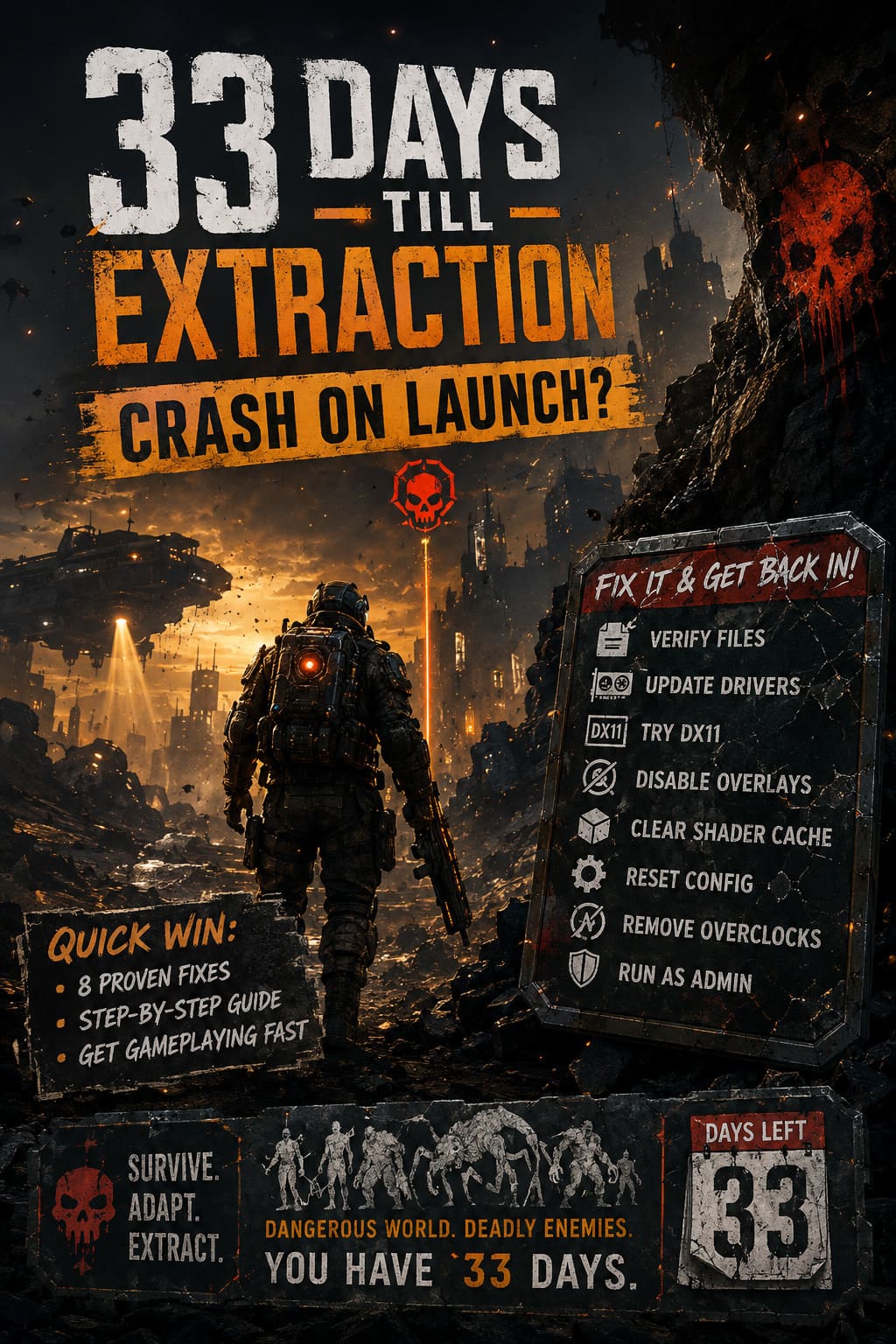
Quick Fix Checklist
| Fix | Difficulty | What It Targets |
|---|---|---|
| Verify Steam Files | Easy | Corrupted or missing files |
| Update GPU Drivers | Easy | Driver compatibility |
| Try DirectX 11 | Easy | DX12 initialization crashes |
| Run as Administrator | Easy | Windows permissions |
| Disable Overlays | Easy | Software conflicts |
| Clear Shader Cache | Medium | Corrupted shaders/configs |
| Reset Local Settings | Medium | Broken configuration data |
| Remove Overclocks | Medium | Hardware instability |
1. Verify the 33 Days till Extraction Game Files
This is where I’d start. It’s boring, but boring fixes are often the best fixes.
A game can end up with damaged files because of an interrupted download, a disk-writing error, a Steam update that went sideways, or simply one corrupted archive. You don’t need to reinstall the entire game to find out whether that’s the problem.
Open Steam and go to your Library. Find 33 Days till Extraction, right-click it, choose Properties, then open Installed Files and select Verify integrity of game files.
Steam will scan the installation and replace files it considers damaged or missing. Depending on your SSD and the size of the installation, this can take a while, so let the process finish instead of assuming Steam has frozen.
Once verification is complete, restart Steam and try launching the game again.
My advice: don’t skip this just because the game downloaded successfully. ‘Installed successfully’ doesn’t always mean ‘every file is healthy.’
2. Give Your GPU Driver a Fresh Start
Graphics drivers are one of the first places I look when a newly released PC game refuses to launch. A driver can work flawlessly in twenty other games and still have problems with a new engine or rendering configuration.
Check whether a newer driver is available for your NVIDIA or AMD GPU. Game-ready driver releases frequently contain compatibility improvements for recent titles, so running a driver that’s several months old isn’t ideal when troubleshooting a brand-new release.
If you’ve already updated recently but the crashes continue, consider performing a clean GPU driver installation. This is particularly useful if you’ve upgraded graphics cards, repeatedly installed driver versions, or have accumulated years of driver leftovers.
For advanced users, Display Driver Uninstaller (DDU) can completely remove existing graphics-driver components before installing a fresh package. I’d save this step for situations where the normal driver update doesn’t help rather than immediately reaching for DDU.
3. Try Launching With DirectX 11
Here’s one of those classic PC gaming tricks that refuses to die.
Many modern games default to DirectX 12, and DX12 can deliver excellent performance and advanced rendering features. The catch is that a particular combination of GPU, driver, Windows build, and game engine can sometimes produce a crash during initialization.
If 33 Days till Extraction is dying before the main menu appears, trying DirectX 11 is worth a shot.
In Steam:
- Open your Library.
- Right-click 33 Days till Extraction.
- Select Properties.
- Stay on the General tab.
- Find Launch Options.
- Enter
--use-d3d11if the game supports that argument. - Close the window and launch the game.
Some games use -dx11 instead, so command-line arguments are title-specific. If one option does nothing, check the game’s current documentation or community reports before assuming DX11 itself is broken.
If the game suddenly launches under DX11, you’ve learned something useful: the crash is likely tied to the default rendering path rather than the entire installation.
4. Run the Game With Administrator Rights
Windows security and permissions can occasionally get in the way of games trying to create configuration files, access protected folders, or initialize certain components.
From Steam, right-click the game, choose Manage, then Browse local files. Locate the main executable, right-click it, and open Properties.
Under Compatibility, you can test Run this program as an administrator. You can also experiment with Disable fullscreen optimizations, particularly if the crash happens during the transition from the launcher into fullscreen mode.
I wouldn’t leave compatibility options enabled forever without a reason. Treat them as troubleshooting switches: change one thing, test the game, and see whether the behavior changes.
5. Kill Steam, Discord, RTSS, and Other Overlays
Overlays are fantastic when they work and incredibly irritating when they don’t.
Steam Overlay, Discord Overlay, NVIDIA features, AMD software, MSI Afterburner, RivaTuner Statistics Server, recording tools, RGB utilities, and monitoring applications can all interact with a game while it launches. Most of the time you never notice these hooks. Occasionally, a new game absolutely hates one of them.
Start by disabling the Steam Overlay for 33 Days till Extraction. You can also temporarily close Discord’s overlay, MSI Afterburner, RTSS, OBS, and other applications that inject themselves into games.
This is especially worth testing if the game crashes before showing anything meaningful on screen.
If disabling everything suddenly fixes the problem, don’t turn every application back on simultaneously. Re-enable them individually until you find the culprit. That’s much faster than playing the ‘which program broke my game?’ lottery.
6. Clear the Shader Cache
Shader compilation is one of those invisible PC gaming processes that can cause very visible problems.
Games store compiled shader information so they don’t have to rebuild everything repeatedly. When those cached files become corrupted or incompatible after a driver or game update, the result can be anything from stuttering to bizarre graphical glitches—or a crash during startup.
Windows includes options for clearing the DirectX shader cache, while GPU software may also maintain its own cache.
You can use Windows’ temporary-file cleanup tools to remove the DirectX Shader Cache. After doing this, the first launch may take longer because the game needs to rebuild shader data.
Don’t panic if the game sits on a loading screen slightly longer than usual afterward. A fresh shader compilation can take time.
7. Reset 33 Days till Extraction Configuration Data
Sometimes the game itself isn’t broken. Your local configuration is.
A bad graphics setting, corrupted profile, failed update, or malformed configuration file can prevent the game from reaching the menu. This is especially frustrating because reinstalling the game may not always remove user-generated data stored separately from the installation directory.
Press Windows + R, type %localappdata%, and press Enter. Look for folders associated with 33 Days till Extraction or Three Whales Studio.
Before deleting anything, make a backup. Cloud saves and local settings aren’t always as predictable as we’d like, and there’s no reason to turn a crash problem into a missing-save problem.
If you’re certain the relevant folder contains only configuration or cache information, removing it can force the game to generate fresh settings the next time it starts.
I’d consider this a second-line fix, not the first thing to do.
8. Temporarily Remove Overclocks and EXPO/XMP
Now we’re getting into territory that mainly concerns enthusiasts.
Your CPU, GPU, and RAM can appear completely stable during normal gaming while failing under a specific workload. A new game can stress hardware in a different way, especially during shader compilation, asset decompression, or the first few seconds of engine initialization.
If you’re running a manual GPU overclock, CPU overclock, or aggressive RAM profile, return everything to stock settings temporarily.
That includes XMP or EXPO memory profiles. While these profiles are common and often perfectly stable, technically they are memory overclocking profiles. A marginally unstable RAM configuration can produce application crashes that look like software bugs.
Don’t start changing voltage settings at random. That’s a terrible troubleshooting strategy. Simply return the system to known-stable stock settings and test the game.
If the crash disappears, you’ve found a major clue.
What If Nothing Here Works?
If 33 Days till Extraction still crashes after all eight fixes, don’t immediately reinstall Windows. Seriously.
At that point, I’d start looking for evidence instead of blindly changing settings. Check the Windows Event Viewer for an application error around the exact time of the crash. Look for references to the game executable, graphics drivers, DirectX components, or specific DLL files.
It’s also worth checking whether other games are crashing. If multiple unrelated games are suddenly failing, the problem probably isn’t unique to 33 Days till Extraction. That’s when I’d start investigating GPU drivers, RAM stability, Windows corruption, storage health, temperatures, and background software.
If only 33 Days till Extraction crashes while everything else runs perfectly, the odds shift toward a game-specific compatibility problem.
My Recommended Order of Attack
If I were sitting at my own PC with the game crashing immediately, this is the order I’d use:
- Verify the Steam installation.
- Update the GPU driver.
- Disable every unnecessary overlay.
- Try the game’s supported DX11 launch option.
- Clear the shader cache.
- Reset local configuration files after making a backup.
- Test the executable with administrator privileges.
- Return CPU, GPU, and RAM settings to stock.
That sequence keeps the easy fixes at the front and avoids unnecessarily messing with BIOS settings or reinstalling drivers before there’s a reason.
Final Thoughts
A launch crash is a terrible first impression, especially when you’ve been waiting to play a new sci-fi game and Steam rewards your excitement with an instant desktop.
The good news is that most launch-crash troubleshooting doesn’t require anything drastic. Start with Steam’s file verification, make sure your GPU driver is current, shut down overlays, and test the game’s rendering API. Those steps cover a surprisingly large portion of PC launch problems.
If you’re still getting a crash after that, configuration files, shader caches, Windows errors, and hardware stability become much more interesting suspects.
And honestly, that’s the part of PC gaming I wish developers could make less painful. I don’t mind tweaking graphics settings once I’m in the game. Spending twenty minutes trying to convince an executable to acknowledge that my PC exists? That’s the boss fight nobody asked for.