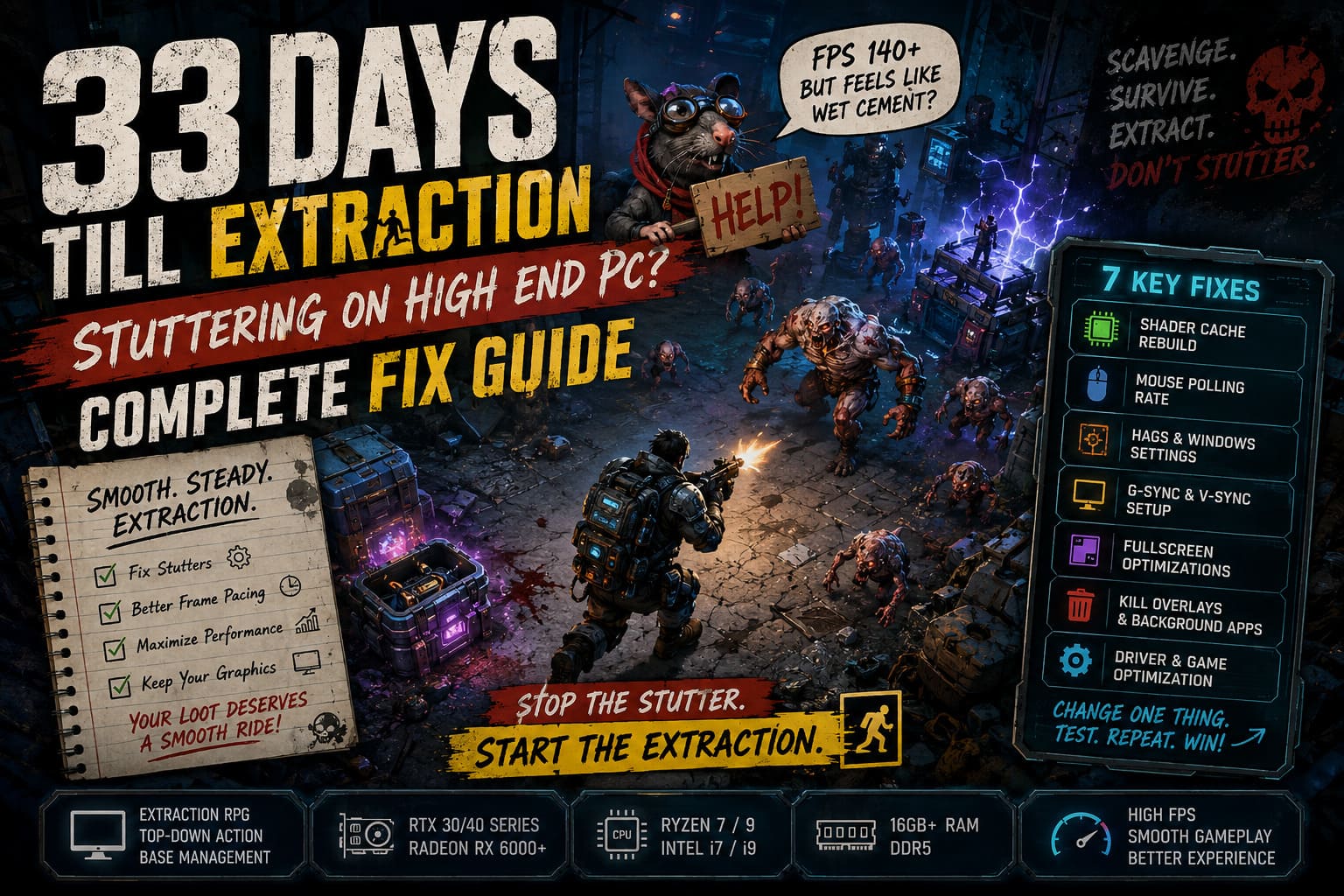
33 Days Till Extraction Stuttering on High End PC: Complete Fix Guide
There’s nothing more annoying in a PC game than watching your FPS counter proudly sit above 100 while the game still feels like it is running through wet cement. That is exactly the kind of problem some players are running into with 33 Days Till Extraction.
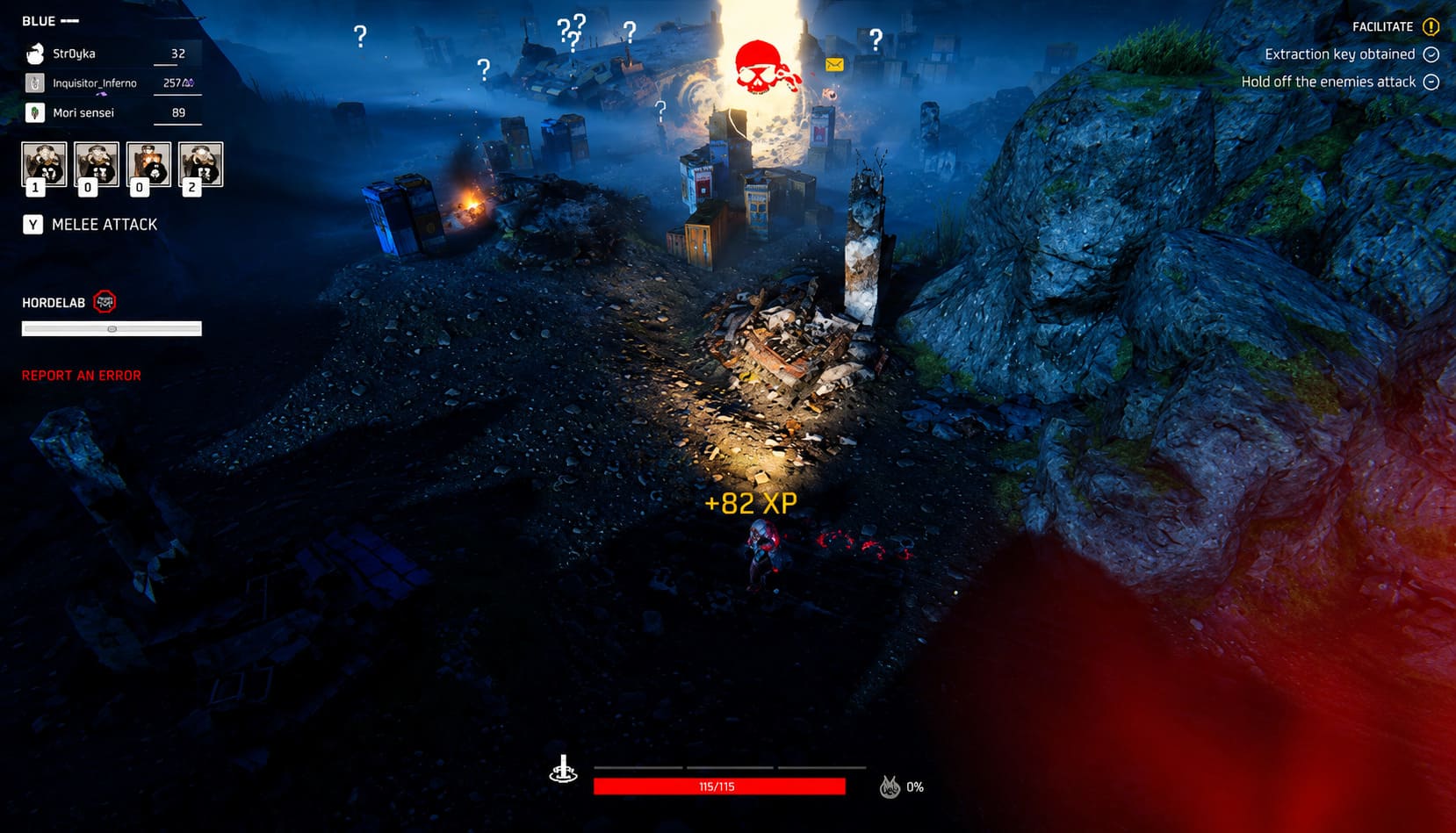
Three Whales Studio’s sci-fi extraction RPG has a pretty unusual gameplay formula. You’re juggling fast top-down combat, dangerous raids, base management, progression systems, and the game’s rather wild tech-necromancy mechanics. When everything clicks, the combat can feel fantastic. When frame pacing goes wrong, though, even a ridiculously expensive gaming PC can suddenly feel ancient.
I’ve spent plenty of time messing around with demanding PC games, and one thing I’ve learned is that high FPS does not automatically mean smooth performance. A game running at 140 FPS can still hitch horribly if the frame-time graph looks like a mountain range.
That seems to be the situation behind many reports of 33 Days Till Extraction stuttering on high-end PCs. Players with modern RTX graphics cards, Ryzen 7 and Ryzen 9 processors, fast DDR5 memory, and high-refresh monitors are still experiencing tiny freezes, sudden frame drops, and nasty hitches during combat.
The good news? There are several things worth trying before blaming your hardware.
How to Fix 33 Days till Extraction Crash on Launch on Steam
Why Is 33 Days Till Extraction Stuttering on a High-End PC?
The first thing I would avoid is immediately dropping every graphical setting to Low. If you have a powerful PC, you shouldn’t have to make the game look like a PS2 title just to get consistent frame pacing.
The problem appears to be more complicated than simple GPU performance. Several different systems can contribute to those annoying hitches.
| Possible Cause | What You May Notice | How Serious It Can Be |
|---|---|---|
| Shader Compilation | Stutters when new effects or enemies appear | High |
| DirectX 12 Frame Pacing | Random micro-freezes despite high FPS | High |
| Mouse Polling Rate | Stuttering while moving the cursor quickly | Medium/High |
| V-Sync / VRR Conflict | Uneven motion or inconsistent frame delivery | Medium |
| Background Overlays | Random hitches or inconsistent performance | Medium |
| Corrupted Shader Cache | Repeatable stutters in specific areas | Medium/High |
Shader Compilation Is a Big Suspect
Modern games rely heavily on shaders, and DirectX 12 titles can sometimes compile them at inconvenient moments. You might walk into a new area, trigger a spectacular ability, or suddenly encounter a large enemy group and—bam—your otherwise perfect frame rate takes a nosedive.
This is one of those problems that makes you wonder whether your GPU has suddenly decided to retire.
In reality, the hardware may be perfectly fine. The engine is simply doing work at the wrong moment.
Fix #1: Give Your GPU Driver a Better Profile
If you’re using an NVIDIA card, I would start with the NVIDIA Control Panel rather than immediately changing every setting inside the game.
Open NVIDIA Control Panel, go to Manage 3D Settings, choose Program Settings, and add the 33 Days Till Extraction executable if it isn’t already listed.
For testing, these are the settings I would look at:
- Power Management Mode: Prefer Maximum Performance
- Shader Cache Size: Unlimited or a large available value
- Threaded Optimization: On
- Vertical Sync: Configure according to your VRR setup rather than blindly enabling it everywhere
The important part here is not to copy someone’s entire NVIDIA profile from a forum. Change a few things, test the game, and see what actually makes a difference.
AMD users should do the same thing through Adrenalin. Try creating a dedicated game profile and pay particular attention to features that dynamically alter performance or resolution.
I personally prefer changing one variable at a time. It takes longer, but at least you know what fixed the problem instead of ending up with 14 mystery tweaks and no idea which one actually mattered.
Fix #2: Test Hardware-Accelerated GPU Scheduling
Windows has a feature called Hardware-accelerated GPU scheduling, usually shortened to HAGS.
It can improve performance in some systems, but PC gaming being PC gaming, it can also behave differently depending on the game, driver version, Windows build, and hardware combination.
Go to Windows Settings → System → Display → Graphics → Default graphics settings.
Find HAGS and check whether it is enabled.
If it is ON, try turning it OFF and restart Windows. Test 33 Days Till Extraction again.
If you were already running with HAGS disabled, do the opposite and test it enabled.
There is no universal “HAGS OFF = better gaming” rule. That’s the important part. Treat it as a troubleshooting switch rather than a magic performance setting.
I’d also keep Windows Game Mode enabled unless you have a specific reason not to use it.
Fix #3: Your 8000Hz Mouse Might Actually Be the Problem
This one sounds ridiculous until you see it happen.
High-polling-rate gaming mice can generate an enormous amount of input data. An 8000Hz mouse reports its position dramatically more often than a traditional 1000Hz device.
In competitive shooters, that can be useful. In some games, however, particularly those with unusual CPU workloads, extremely high polling rates can contribute to frame-time spikes.
If you’re using a mouse at 4000Hz or 8000Hz, try dropping it to 1000Hz.
You can usually change this in your mouse software, such as Logitech G HUB, Razer Synapse, or another manufacturer’s configuration utility.
Then launch the game and deliberately move the mouse rapidly across the screen during combat.
If the stuttering suddenly disappears, congratulations—you’ve found a rather bizarre culprit.
And honestly, unless you’re playing a hyper-competitive FPS where every microscopic input difference matters, 1000Hz is perfectly fine for most people.
Fix #4: Experiment With Fullscreen Optimizations
Windows’ display handling can occasionally create strange interactions with games.
Find the game’s executable through Steam:
Steam → Library → 33 Days Till Extraction → Manage → Browse local files
Locate the main .exe, right-click it, and select Properties.
Under Compatibility, experiment with:
Disable fullscreen optimizations
You can also inspect the High DPI settings and test the application’s scaling override if you’re dealing with unusual resolution or display-scaling behavior.
I wouldn’t automatically recommend keeping every compatibility option enabled forever. These settings are troubleshooting tools. If disabling fullscreen optimizations makes the game smoother, keep it. If it makes absolutely no difference, undo the change and move on.
Fix #5: Stop G-Sync and V-Sync From Fighting Each Other
This is another classic PC gaming headache.
If you own a 144Hz, 165Hz, 240Hz, or even faster monitor, make sure your variable refresh technology is configured consistently.
For an NVIDIA setup, for example, you might use:
- G-Sync enabled
- V-Sync enabled in the NVIDIA Control Panel
- In-game V-Sync disabled
- An FPS cap slightly below your monitor’s maximum refresh rate
So, with a 144Hz display, something around 141 FPS is a common starting point.
The exact configuration can vary depending on your monitor, driver, and personal setup, but the basic idea is simple: don’t let several different synchronization systems fight over who controls frame delivery.
If the game feels strangely jerky despite maintaining a high FPS number, this is absolutely worth investigating.
Fix #6: Rebuild the Shader Cache
If stuttering happens repeatedly in the same locations or whenever certain effects appear, I would seriously consider clearing the shader cache.
First, verify the game installation through Steam:
Steam → Properties → Installed Files → Verify integrity of game files
After that, Windows’ DirectX shader cache can be cleaned using Disk Cleanup.
Search for Disk Cleanup in Windows, select your system drive, and look for:
DirectX Shader Cache
Remove it and restart the game.
Don’t panic if performance isn’t immediately perfect afterward. The game may need to rebuild shader data, so the first run can actually feel worse for a little while.
I usually let a newly launched game sit at the main menu for a few minutes before jumping into the most demanding activity. It isn’t guaranteed to solve every shader problem, but it can give the engine some time to finish background work.
Fix #7: Kill the Overlay Jungle
This is probably the most underrated troubleshooting step.
A modern gaming PC can have an absurd number of applications running simultaneously: Steam Overlay, Discord Overlay, NVIDIA features, RGB software, hardware monitors, motherboard utilities, peripheral software, recording tools, browser tabs—you get the idea.
Every one of those programs can potentially interact with the game.
For testing, temporarily disable:
- Steam Overlay
- Discord Overlay
- Unnecessary recording software
- RGB control applications
- Hardware-monitoring utilities
- Extra GPU overlays
You don’t need to uninstall anything. Just close the stuff you don’t need and launch the game again.
If the stuttering disappears, start enabling your background applications one by one until you find the offender.
My Recommended 33 Days Till Extraction Settings
If you’re running a genuinely powerful PC, I wouldn’t sacrifice image quality unnecessarily.
Instead, I’d start with a balanced configuration and adjust only the settings that have a meaningful effect on frame pacing.
| Setting | My Starting Point | Why |
|---|---|---|
| Display Mode | Fullscreen | Usually the cleanest starting point |
| Shadows | High | Good visual quality without wasting resources |
| Volumetric Effects | Medium/High | Can be surprisingly expensive |
| Upscaling | DLSS/FSR Quality | Useful for maintaining consistent performance |
| V-Sync | Off In-Game | Let the driver/VRR handle synchronization |
| FPS Limit | Slightly below refresh rate | Helps maintain consistent VRR behavior |
I wouldn’t immediately switch everything to Ultra simply because your GPU has enough VRAM.
Some Ultra settings are notorious for demanding significantly more resources while making barely any visible difference during actual gameplay. Shadows and volumetric effects are particularly good candidates for dropping one step.
What If None of This Fixes the Stuttering?
Then there’s a good chance you’re looking at a game-side optimization problem rather than a hardware problem.
This distinction matters.
If your GPU is sitting at relatively low utilization, your CPU isn’t overheating, you have plenty of RAM available, and the game still produces bizarre frame-time spikes, throwing more expensive hardware at it isn’t going to magically repair the engine.
Early builds can have problems that simply require developer-side fixes.
Before spending money on a new graphics card, I’d check whether other players with similar hardware are reporting the same behavior. If thousands of people with completely different systems are experiencing identical stutters in the same situations, that’s a pretty strong clue.
Final Verdict
33 Days Till Extraction stuttering on a high-end PC is incredibly frustrating, especially when your hardware should have more than enough horsepower to handle a top-down game.
But don’t assume the FPS counter tells the whole story. Frame pacing, shader compilation, Windows scheduling, mouse polling, VRR configuration, overlays, and cached game data can all affect how smooth a game actually feels.
If I were troubleshooting the problem on my own machine, I’d start with the mouse polling rate, shader cache, VRR/V-Sync configuration, overlays, and HAGS before touching expensive hardware or completely destroying the game’s visual quality.
The most important rule is simple: change one thing at a time and test it properly. PC optimization gets messy very quickly when you apply ten random “FPS boost” tweaks from Reddit and then have no idea which one helped.
With the right configuration, a high-end gaming PC should deliver the smooth experience 33 Days Till Extraction deserves. And if the remaining stutters persist after all the sensible troubleshooting, it may simply be time for Three Whales Studio to do some optimization work on their end.