How to Fix Crimson Moon Black Screen on Startup on Epic Games Launcher
If you fire up Crimson Moon expecting dark fantasy, brutal Nephilim combat, and a trip through the ruined city of Gildenarch, the last thing you want is a completely black monitor. Unfortunately, a black screen during startup is exactly the kind of PC problem that can turn an exciting game night into 30 minutes of staring at Task Manager.
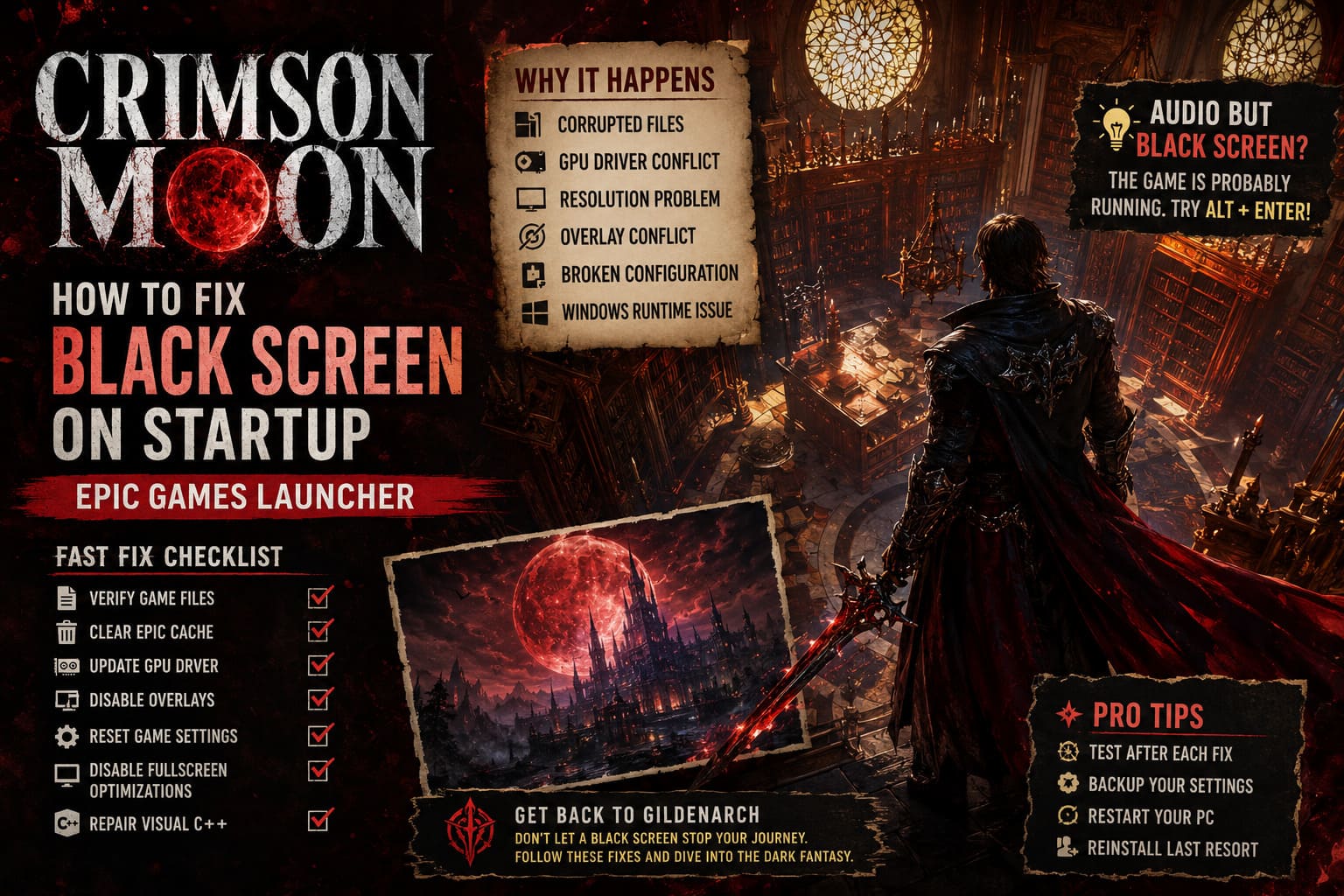
The good news is that a startup black screen usually doesn’t mean your installation is completely broken. In my experience with PC games, these problems are often caused by something annoyingly ordinary: corrupted files, a graphics driver conflict, a bad resolution setting, a launcher cache problem, or Windows compatibility settings getting in the way.
This guide focuses specifically on how to fix the Crimson Moon black screen on startup through the Epic Games Launcher. I’ve arranged the solutions from the easiest checks to the more involved fixes, so you don’t have to start deleting configuration folders before trying the obvious stuff.
Crimson Moon Low FPS Fix: How to Fix Lag, Stuttering, and Improve Performance on Steam
Why Is Crimson Moon Showing a Black Screen?
A black screen can happen at several different points. Sometimes the game launches but never displays an image. In other cases, you hear music or menu sounds while the monitor remains black. There are also situations where the screen goes black immediately after the publisher logo or intro sequence.
That distinction matters because audio with a black screen usually means the game is actually running. When that happens, I would look at resolution, fullscreen mode, overlays, or driver problems before assuming the installation itself is damaged.
| Possible Cause | Typical Symptom | Best First Fix |
|---|---|---|
| Corrupted game files | Game fails immediately | Verify files |
| Epic launcher cache | Strange launcher/game startup behavior | Clear webcache |
| GPU driver conflict | Black screen after update | Update or roll back driver |
| Resolution problem | Audio works but display is black | Alt + Enter |
| Fullscreen conflict | Game starts but never displays correctly | Disable fullscreen optimizations |
| Broken configuration | Problem returns after every launch | Reset local settings |
| Windows runtime issue | Startup fails before the game appears | Repair Visual C++ |
| Overlay conflict | Black screen with other apps running | Disable overlays |
Don’t try every solution simultaneously. Test the game after each major change. Otherwise, you won’t know which fix actually solved the problem.
1. Verify Crimson Moon Files in Epic Games Launcher
This is where I’d start. It’s quick, safe, and doesn’t mess with your personal settings.
Large modern games are surprisingly sensitive to damaged files. A failed update, interrupted download, storage hiccup, or corrupted asset can be enough to stop the rendering pipeline before the first frame appears.
To verify the installation:
- Open the Epic Games Launcher.
- Go to Library.
- Find Crimson Moon.
- Click the three dots next to the game.
- Select Manage.
- Choose Verify.
- Wait while Epic scans the installed files.
If Epic discovers missing or damaged data, it should download the necessary replacement files.
I’ve had plenty of PC games mysteriously start working after a file verification, even when there was no obvious reason for the installation to be broken. It’s one of those boring fixes that deserves to be tried before anything more complicated.
2. Clear the Epic Games Launcher Web Cache
If verifying the game doesn’t help, I’d move on to the Epic Games Launcher itself.
The launcher uses cached web data for parts of its interface and account-related functionality. A corrupted cache can cause bizarre behavior, and sometimes the problem appears to be the game when the launcher is actually the culprit.
First, completely close Epic Games Launcher. Don’t just click the X and assume it’s gone. Check the Windows system tray and exit Epic from there.
Then:
- Press Windows + R.
- Enter
%localappdata%. - Open EpicGamesLauncher.
- Open the Saved folder.
- Find folders beginning with webcache.
- Delete those webcache folders.
- Restart Windows.
- Open Epic Games Launcher again.
- Start Crimson Moon.
You aren’t deleting your installed games here. You’re clearing temporary launcher data that Epic can rebuild.
This is particularly worth trying if other Epic Games features have also been behaving strangely.
3. Check Your Graphics Driver
A game can be perfectly installed and still refuse to display anything because the GPU driver doesn’t play nicely with its renderer.
This is especially worth investigating if Crimson Moon worked previously and the black screen appeared after a graphics driver update. New drivers normally improve compatibility, but PC gaming has never followed the rule that ‘newer automatically means better.’
For NVIDIA GPUs, check your current driver through NVIDIA’s software or the manufacturer’s official driver download page. AMD users can check AMD Software: Adrenalin Edition, while Intel Arc users should check Intel’s graphics driver package.
What If the Latest Driver Caused the Problem?
If the timing is suspiciously obvious—game works Monday, GPU driver update Tuesday, black screen Tuesday night—I wouldn’t immediately blame the game.
Try reverting to a previous stable driver version.
A rollback can be especially useful when you’re dealing with a brand-new driver release. You can always update again when a newer version addresses the compatibility issue.
4. Repair Visual C++ and Windows Components
Sometimes the game isn’t reaching the point where its graphics engine can properly initialize.
Microsoft Visual C++ Redistributables are used by a huge number of Windows games. If the relevant runtime is missing or damaged, startup can fail in ways that don’t always produce a helpful error message.
Look for the supported Microsoft Visual C++ Redistributable for Visual Studio 2015–2022 packages and make sure both x64 and x86 versions are installed.
If the installer provides a Repair option, use it.
Afterward, restart your PC.
I’d also run Windows Update and install available system updates. You don’t necessarily need to install every optional update just because Windows offers it, but keeping the main operating system components current is sensible when troubleshooting a brand-new PC game.
5. Try Alt + Enter When the Screen Goes Black
Here’s one of my favorite quick tricks because it takes about two seconds.
Launch Crimson Moon and wait. If the screen is black but you can hear music, sound effects, or menu navigation, press:
Alt + Enter
This command switches many Windows games between fullscreen and windowed display modes.
If the game suddenly appears in a window, congratulations—you’ve probably found a display-mode problem rather than a completely failed launch.
Once you’re back in the game, check the video settings. I’d start with your monitor’s native resolution and Borderless Windowed mode.
Save the settings, restart the game, and see whether the problem disappears.
6. Disable Fullscreen Optimizations
Windows fullscreen behavior can occasionally cause headaches, particularly with games that don’t get along with the way Windows handles exclusive fullscreen and display transitions.
Find the game’s executable in its installation folder and right-click it.
Go to:
Properties → Compatibility
Then enable:
Disable fullscreen optimizations
Click Apply, then OK.
Try launching the game again.
I wouldn’t permanently change a pile of compatibility options at once. Start with fullscreen optimizations because it’s a relatively harmless change and directly targets display initialization problems.
7. Reset Crimson Moon’s Local Configuration
If the game launches incorrectly because of a corrupted graphics setting, verifying files may accomplish absolutely nothing.
Why? Because your settings aren’t necessarily stored with the game’s main installation files.
A bad resolution, rendering option, or corrupted configuration can survive reinstalls and file verification. Resetting the local configuration forces the game to generate fresh settings.
Before deleting anything, make a backup.
Press Windows + R and enter:
%localappdata%
Look for a folder associated with Crimson Moon or ProbablyMonsters.
If you find one, copy it somewhere safe, such as your desktop. Then remove the original configuration folder and launch the game again.
The exact folder name can vary depending on how the game stores its files, so don’t randomly delete unrelated folders from AppData.
When the game starts afterward, it should recreate its configuration files.
This is particularly useful if the black screen began after changing resolution, HDR, graphics quality, fullscreen mode, or another display option.
8. Disable Overlays and Background Utilities
If the previous fixes haven’t worked, I’d start looking at software sitting between the game and Windows.
Overlays can hook into games to display notifications, performance statistics, recording controls, chat, or other information. Most of the time they work perfectly. Sometimes they don’t.
For testing purposes, temporarily disable things such as:
- Epic Games overlay features
- Discord overlay
- NVIDIA or AMD performance overlays
- MSI Afterburner/RivaTuner overlays
- Screen-recording software
- RGB or hardware-monitoring utilities that inject overlays
You don’t have to uninstall anything. The goal is simply to determine whether Crimson Moon launches normally without third-party software interacting with the rendering process.
If the game suddenly works, enable your background applications one by one until you find the troublemaker.
What I Would Try First
If I were sitting at my PC with Crimson Moon stuck on a black screen, I wouldn’t randomly start changing Windows settings. I’d follow a simple order.
My troubleshooting sequence would be:
- Restart the PC.
- Verify Crimson Moon through Epic Games.
- Clear the Epic Games Launcher webcache.
- Press Alt + Enter if audio is playing behind the black screen.
- Update or roll back the GPU driver depending on when the problem appeared.
- Disable fullscreen optimizations.
- Disable overlays and monitoring utilities.
- Reset the game’s local configuration.
That order saves time because the first few fixes are quick and low-risk.
Black Screen After a Crimson Moon Update
If the game suddenly stopped working immediately after a patch, don’t assume your PC has somehow become incompatible overnight.
Game updates can introduce new shaders, rendering features, configuration requirements, or driver interactions. In that situation, file verification and a clean configuration reset are two of the first things I’d investigate.
I’d also check whether other players are reporting the same issue. If hundreds of people suddenly have identical black screens after the same patch, reinstalling Windows isn’t going to magically fix it. Sometimes the problem is simply on the developer’s side and requires a hotfix.
Don’t Reinstall the Entire Game Too Quickly
A full reinstall is the classic ‘nuclear option’ for PC troubleshooting.
It can work, but I wouldn’t start there. A reinstall takes significantly longer and may not touch the actual cause if the problem lives in your GPU driver, Windows configuration, launcher cache, or local AppData.
Verify first. Reset settings second. Reinstall last.
If you eventually do reinstall, make sure you’ve checked the game’s local configuration folders as well. Otherwise, you can end up reinstalling several dozen gigabytes only to launch the freshly installed game with the same broken configuration.
Final Thoughts
A Crimson Moon black screen on startup is frustrating precisely because the game can appear completely dead while the underlying problem is something incredibly small. A corrupted asset, incompatible driver, fullscreen setting, launcher cache, or busted configuration file can be enough to stop you before you even get a glimpse of Gildenarch.
I’d start with Epic’s Verify function, then clear the launcher cache and test Alt + Enter if you can hear the game running. From there, investigate GPU drivers, fullscreen optimizations, Visual C++ runtimes, overlays, and finally the local configuration.
The important thing is not to throw ten fixes at the problem simultaneously. Change one thing, launch the game, and see what happens. That’s slower by a few minutes, but it’s much easier to figure out what actually fixed your PC.
And once that black screen finally disappears and Crimson Moon throws you into its dark fantasy world, you’ll probably forget this whole troubleshooting session existed. Until the next PC game decides it doesn’t like your GPU driver, anyway.