How to Fix NBA 2K27 Crashing on Startup PC (Steam 2026 Guide)
There are few things more frustrating than finally sitting down to play a new NBA game, launching it through Steam, and watching absolutely nothing happen. No proper title screen. No basketball. Sometimes not even a useful error message. NBA 2K27 simply starts, hangs around for a few seconds, and disappears.
That has been the reality for a number of PC players dealing with NBA 2K27 crashing on startup. In some cases, the game gets as far as its anti-cheat initialization before closing. In others, Windows throws an 0xc0000005 Access Violation, while graphics-related failures can show up with codes such as 0x887A0005.
I’ve dealt with enough messy PC launches to know that there usually isn’t one magical fix. One person’s problem is a broken game file. Someone else has an anti-cheat service fighting with Windows. Another player has an overlay, driver profile, or shader cache causing the whole thing to fall over.
So instead of throwing twenty random tweaks at the wall, I’d work through the fixes below in order. Start with the easy stuff, then move toward Windows security and graphics troubleshooting if the basic checks don’t change anything.
Why Is NBA 2K27 Crashing Before It Even Starts?
The annoying part about startup crashes is that the game often doesn’t stay alive long enough to tell you what went wrong. That makes diagnosis harder than fixing a normal in-game crash.
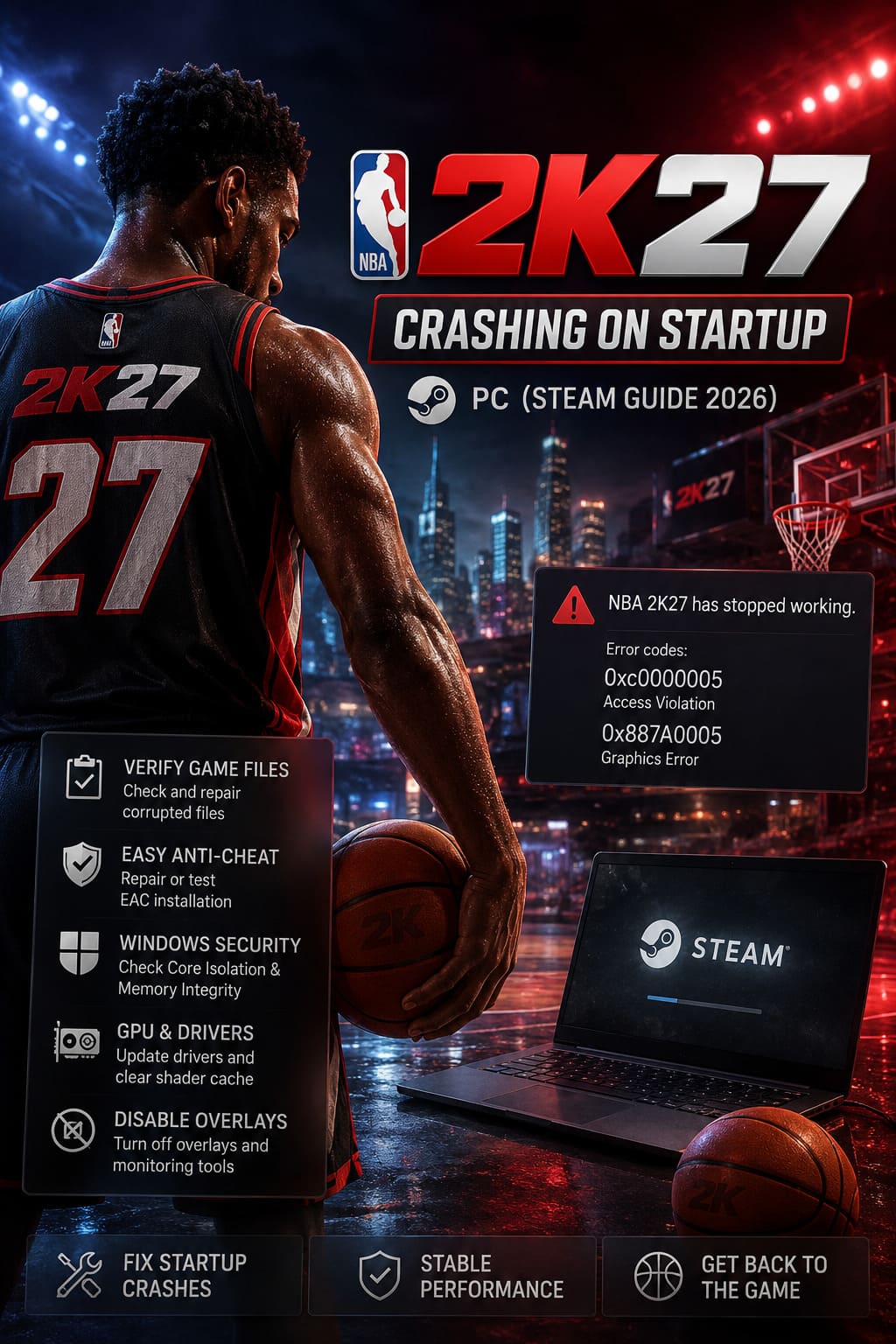
The most common suspects are Easy Anti-Cheat conflicts, corrupted Steam files, Windows security settings, GPU drivers, shader cache problems, overlays, and compatibility settings. A recent game update can also expose a problem that wasn’t there the day before.
| Possible Cause | Typical Symptom | What To Try |
|---|---|---|
| Corrupted Game Files | Game closes during startup | Verify Steam files |
| EAC Conflict | Process starts and immediately exits | Repair or test EAC |
| Windows Security | 0xc0000005 or instant termination | Check Memory Integrity |
| GPU/Shader Issues | 0x887A0005 or rendering crash | Update drivers and clear cache |
| Overlays | Crash before or during rendering | Disable third-party overlays |
1. Start With Steam as Administrator
This isn’t the most exciting solution in the world, but it’s one of the first things I try when a PC game refuses to launch properly.
Steam and the game need access to several folders during startup, including locations used for configuration files, saved data, logs, and shader-related information. If Windows permissions get in the way, the game can sometimes terminate before you ever see a window.
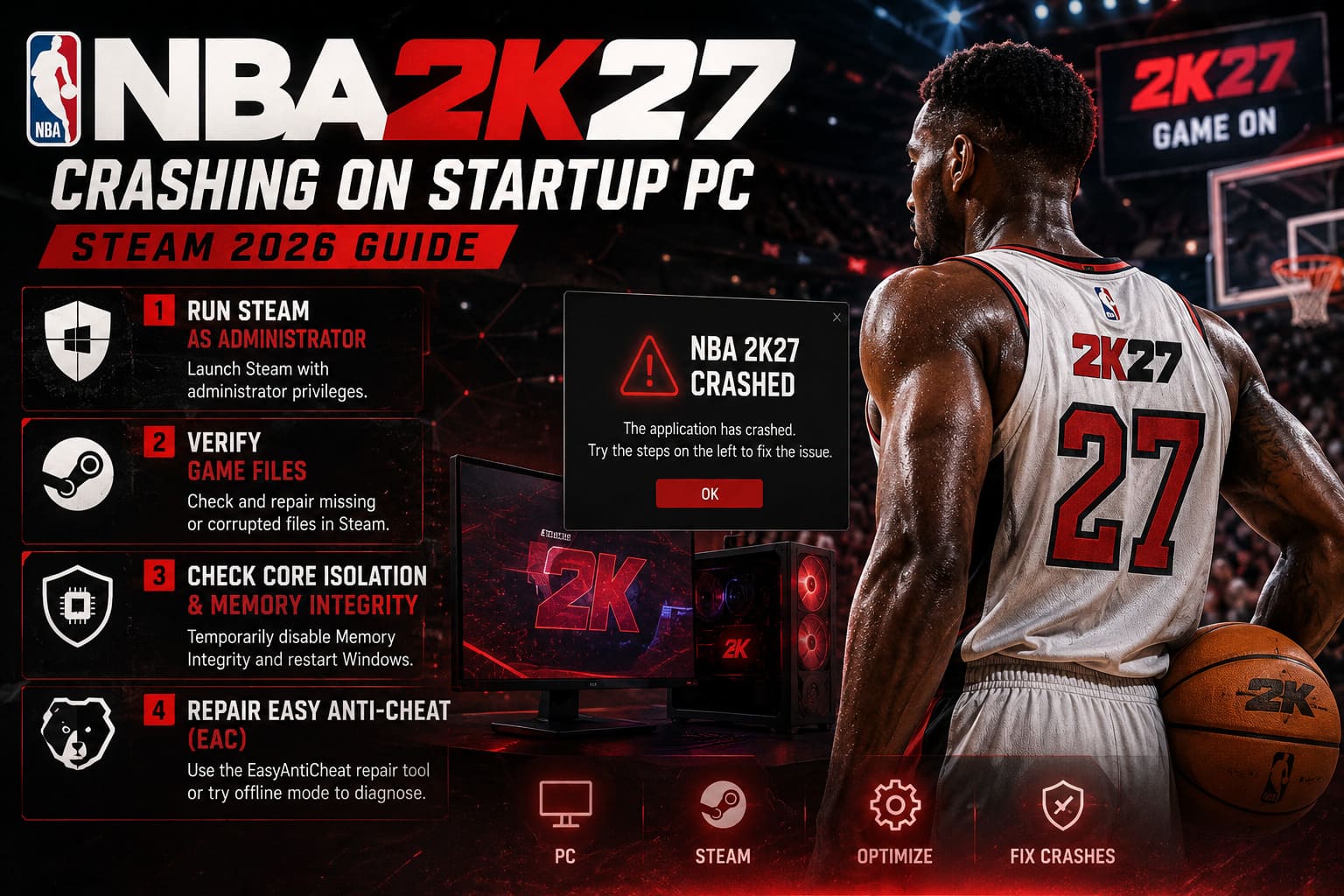
Try this:
- Completely exit Steam.
- Right-click the Steam shortcut.
- Select Run as administrator.
- Launch NBA 2K27 normally.
If this suddenly gets you into the game, you’ve found a permissions problem rather than a graphics performance problem.
2. Verify NBA 2K27’s Files Through Steam
If you’ve just downloaded a large update, this is where I would go next. Big games move around a ridiculous amount of data during patches, and occasionally something doesn’t land correctly.
Steam has a built-in verification system that compares your installed files against the expected game data. It’s simple, safe, and takes far less effort than reinstalling the entire game.
- Open your Steam Library.
- Right-click NBA 2K27.
- Select Properties.
- Open Installed Files.
- Choose Verify integrity of game files.
Let Steam finish completely. If it finds damaged or missing files, it should download replacements automatically.
My advice: don’t immediately start changing Windows settings before doing this. If one broken file is responsible for your crash, ten minutes of verification can save you an hour of unnecessary troubleshooting.
3. Check Windows Core Isolation and Memory Integrity
This one deserves more caution. Windows security features are useful, but compatibility issues can occasionally appear when games and anti-cheat systems interact with virtualization-based security.
If NBA 2K27 is producing an 0xc0000005 Access Violation or disappearing almost immediately after startup, check whether Windows’ Memory Integrity feature could be involved.
Search Windows for Core Isolation and open the corresponding security settings. From there, you can inspect the Memory Integrity option.
If you decide to temporarily disable it as a troubleshooting test, restart Windows afterward and test the game again.
Important: I wouldn’t leave Windows security features disabled permanently just because a game crashed once. If this test makes NBA 2K27 launch, that’s useful diagnostic information. You can then decide whether to keep the setting enabled and investigate the underlying compatibility problem.
4. Investigate Easy Anti-Cheat Before Reinstalling Everything
Anti-cheat software is one of those things you don’t really notice when it works. When it doesn’t work, though, it can become the first thing you see in the crash chain.
If NBA 2K27 starts a process, initializes its anti-cheat component, and then closes before showing the game window, EAC deserves some attention.
Look inside the game’s installation directory for the EasyAntiCheat folder. If an official repair option is provided there, use it to repair the installation.
If the Steam launcher provides an official offline or non-EAC testing option for your installation, that can also be useful diagnostically. If the game launches in that restricted mode but fails normally, you’ve narrowed the problem down considerably.
Don’t treat an offline test as a permanent solution, though. Online features obviously depend on the game’s normal authentication and anti-cheat systems.
5. Turn Off Fullscreen Optimizations and Test Compatibility Settings
Windows compatibility options are a bit of a lottery with modern games. Sometimes they fix something. Sometimes they make things worse. That’s why I recommend treating them as a test rather than blindly applying every checkbox available.
From Steam, browse to the local NBA 2K27 installation directory and locate the game’s main executable.
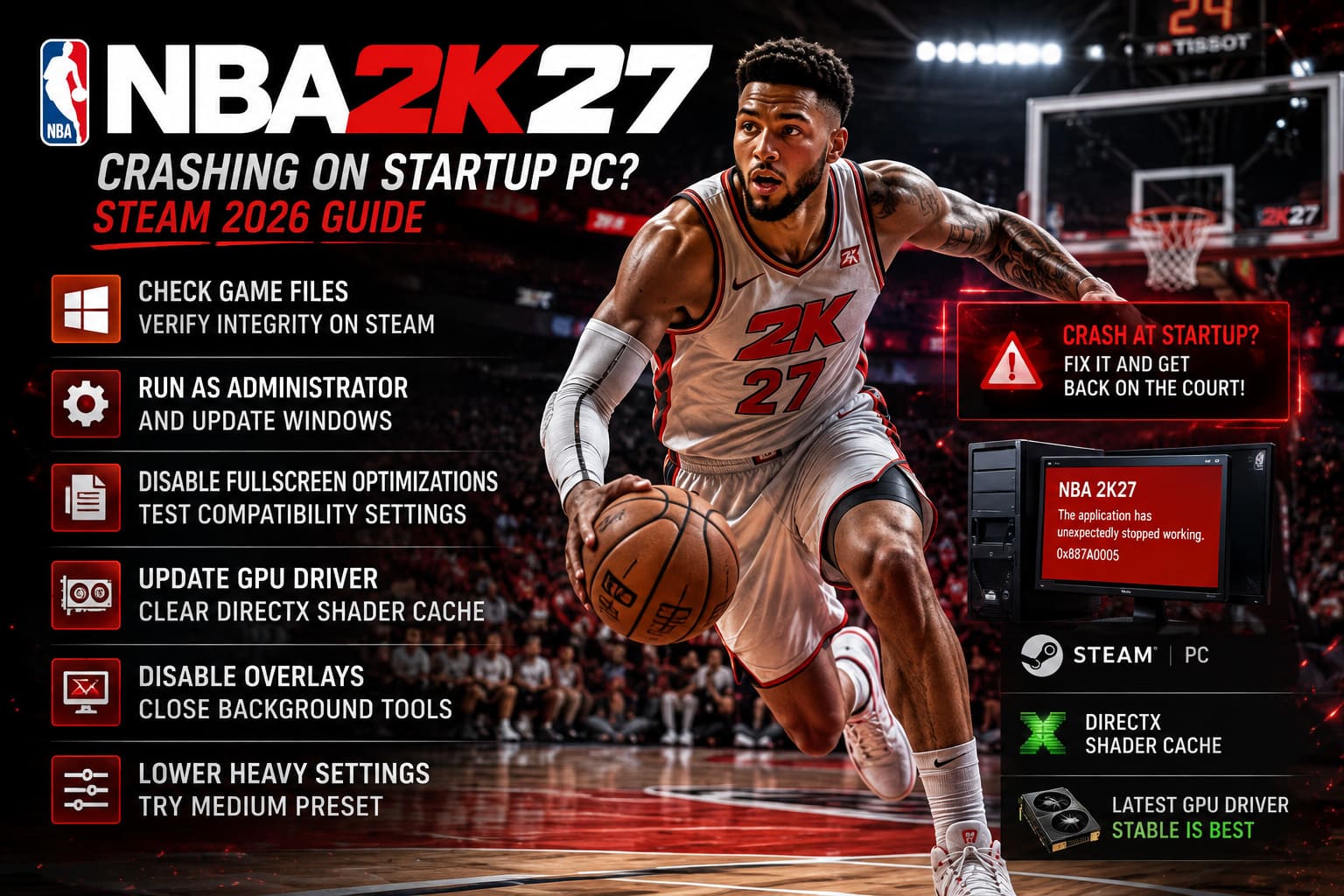
Right-click the executable, select Properties, and open the Compatibility tab.
Start by testing Disable fullscreen optimizations. If that changes nothing, you can experiment with compatibility mode, but I wouldn’t automatically assume Windows 7 or Windows 8 compatibility is better for a modern PC title.
Also, test one change at a time. If you activate five compatibility options simultaneously and the game suddenly launches, you won’t know which setting actually helped.
6. Update Your GPU Driver and Clear the DirectX Shader Cache
This is one of my favorite fixes when a game throws a graphics-related crash. Modern PC games generate and cache a lot of shader data, and old or corrupted cache files can occasionally create problems after an update.
If you see an error such as 0x887A0005, I’d pay particular attention to the graphics driver and shader cache.
- Install the latest stable driver for your NVIDIA, AMD, or Intel GPU.
- If you’ve had repeated driver problems, consider performing a clean driver installation.
- Open Windows Disk Cleanup.
- Select your system drive.
- Check DirectX Shader Cache.
- Delete the cached data and restart the PC.
The first launch afterward may take a little longer because the game has to rebuild shader data. That’s normal. Don’t panic if the loading process isn’t instant.
And I wouldn’t chase every experimental or beta GPU driver simply because it’s newer. Stable is usually the better choice when you’re troubleshooting crashes.
7. Disable Overlays and Background Monitoring Tools
This is one of those fixes that gets overlooked because everyone assumes their overlay is harmless. Usually it is. But when a game crashes during the transition from executable to rendered window, anything injecting itself into the process becomes worth testing.
Temporarily disable things such as Steam Overlay, Discord Overlay, NVIDIA or AMD overlays, recording software, FPS counters, RGB utilities, and hardware monitoring tools.
If you use overclocking or performance-monitoring software, return the GPU and CPU to their default settings while troubleshooting. Even a stable-looking overclock can become unstable when a new game changes its workload.
Launch NBA 2K27 with as little third-party software running as possible. If it works, start enabling your usual tools one at a time until you find the culprit.
8. If You Can Reach the Menus, Lower the Heavy Settings
This one obviously doesn’t help if NBA 2K27 crashes before displaying anything. But if you’re making it into the menus and only crashing when entering MyCareer, the Park, or an actual match, the problem may be different.
Start by lowering the overall graphics preset to Medium. Then reduce demanding settings such as crowd density.
Large crowds and detailed environments can put considerably more pressure on VRAM and GPU resources. If your system is close to its hardware limits, reducing these settings can help stabilize gameplay.
I would also avoid immediately cranking every setting to Ultra just because your GPU looks powerful on paper. NBA 2K27 is a new PC game, and launch optimization can be unpredictable. I’d rather have a stable 60 FPS than a gorgeous screenshot followed by a desktop crash.
NBA 2K27 System Requirements & Download Size: Can Your PC Handle It?
A Few Extra Checks Before You Reinstall NBA 2K27
Before deleting the entire installation and downloading everything again, run through these quick checks:
- Restart Windows after changing drivers or security settings.
- Disable overlays temporarily.
- Remove GPU/CPU overclocks while testing.
- Check Windows Update for pending system updates.
- Make sure Steam is fully updated.
- Don’t change ten settings at once. Test each fix separately.
What I Would Try First
If I were sitting at my desk with NBA 2K27 refusing to launch, I wouldn’t immediately start messing around with obscure Windows settings. I’d go through the problem in this order:
- Restart the PC and Steam.
- Verify NBA 2K27’s files.
- Disable overlays and monitoring software.
- Update the GPU driver.
- Clear the DirectX Shader Cache.
- Check Easy Anti-Cheat and repair it if necessary.
- Investigate Windows Memory Integrity if the crash points toward an access violation.
- Only then start experimenting with compatibility settings.
Final Thoughts
NBA 2K27 crashing on startup isn’t necessarily a sign that your PC can’t handle the game. That’s the first thing I’d keep in mind. A game that closes during anti-cheat initialization or before rendering even begins can be dealing with a software conflict rather than insufficient hardware.
Start with Steam’s file verification because it’s easy and doesn’t compromise system security. Then move toward GPU drivers, shader caches, overlays, and anti-cheat troubleshooting. Windows security settings should be treated as a diagnostic step rather than something you permanently disable without understanding the trade-off.
Personally, I’d also resist the temptation to download random “NBA 2K27 crash fix” executables or mystery DLL files from the internet. If a troubleshooting guide tells you to replace system files with something hosted on an unknown website, that’s a massive red flag.
PC gaming is at its best when you can install a new game, press Play, and simply get into the action. When that doesn’t happen, a methodical approach beats reinstalling Windows or throwing random launch commands at the game. Work through the fixes above one at a time, and you’ll have a much better chance of figuring out exactly what’s stopping NBA 2K27 from reaching the court.