Gothic 1 Remake Best Graphics Settings for 60FPS: Complete UE5 Optimization Guide
When I first launched Gothic 1 Remake, I was blown away by how faithfully it recreated the atmosphere of the original game. The Valley of Mines feels darker, harsher, and more alive than ever before. The camps are packed with activity, the forests look incredible, and the lighting system creates some of the most immersive scenes I’ve seen in a modern RPG.
But there’s one problem.
Like many Unreal Engine 5 releases, Gothic 1 Remake can be extremely demanding on PC hardware. Even systems that should comfortably handle modern games may experience random frame drops, stuttering, inconsistent frame pacing, and sudden performance dips in crowded locations.
After spending dozens of hours tweaking settings, testing different presets, and comparing results across multiple hardware configurations, I found a setup that delivers what matters most: a smooth and stable 60 FPS experience without ruining the visual atmosphere that makes Gothic special.
This is not a “turn everything to Low” guide. The goal is to keep the game looking beautiful while eliminating the biggest performance killers.
Why Gothic 1 Remake Is So Demanding
The biggest reason is simple: Unreal Engine 5.
The remake relies heavily on advanced rendering technologies that look fantastic but can overwhelm both CPUs and GPUs.
The game’s main performance challenges include:
- Heavy NPC AI calculations inside camps
- Lumen global illumination
- Advanced shadow rendering
- High VRAM usage
- Unreal Engine 5 asset streaming
- CPU bottlenecks during large-scale character interactions
The interesting thing is that lowering resolution alone often doesn’t solve the problem. Many of the worst stutters come from CPU-related tasks rather than pure GPU load.
The Old Camp is the perfect example. My graphics card still had room to spare, yet frame times would spike whenever dozens of NPCs were performing their daily routines simultaneously.
My Recommended 60 FPS Graphics Settings
After extensive testing, this is the configuration I personally recommend.
| Setting | Recommended Value | Impact on Performance |
|---|---|---|
| Display Mode | Borderless Windowed | Stable |
| Resolution | Native Resolution | Best Image Quality |
| V-Sync | Off | Better Latency |
| Frame Limit | 60 FPS | Consistent Frame Pacing |
| DLSS / FSR / XeSS | Quality Mode | High Gain |
| Frame Generation | Enabled (if available) | Very High Gain |
| Global Illumination | High | Best Balance |
| Shadows | Medium | Huge FPS Gain |
| Reflections | Low-Medium | Moderate Gain |
| View Distance | High | Minimal FPS Cost |
| Textures | High | Depends on VRAM |
| Foliage | Medium | Good Optimization |
| Effects | Medium | Moderate Gain |
| Post Processing | Low | Free Performance |
| Landscape | High | Keeps Visual Quality |
This preset keeps the game looking like a modern remake while recovering a significant amount of performance.
The Setting That Matters Most: Global Illumination
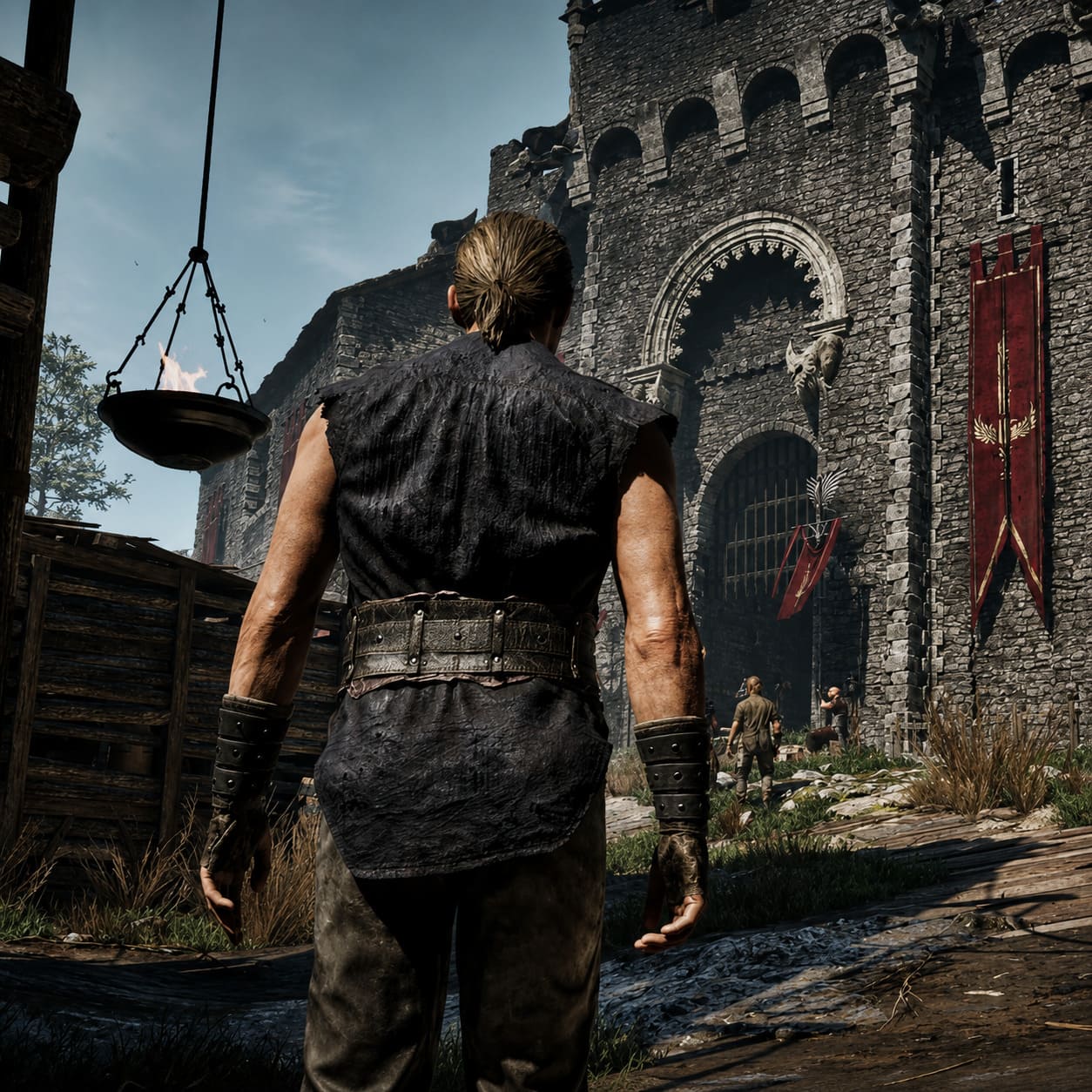
If there is one graphical feature that defines Gothic 1 Remake visually, it is Lumen Global Illumination.
The lighting system creates realistic bounce lighting, natural shadow transitions, and incredible atmosphere during sunrise, sunset, and nighttime exploration.
However, the highest settings are brutally expensive.
In my opinion:
High is the sweet spot.
Ultra-level presets look slightly better in side-by-side screenshots, but during actual gameplay the performance loss simply isn’t worth it.
Dropping GI from the highest options to High can provide a substantial performance improvement while preserving nearly all of the visual impact.
Going lower than High starts to remove the depth and mood that make the Colony feel alive.
Why I Always Lower Shadow Quality
Many players immediately reduce textures or resolution when chasing better FPS.
I do the opposite.
The first setting I reduce is Shadow Quality.
Shadows consume both GPU resources and CPU resources, especially in populated areas.
Medium shadows still look surprisingly good during gameplay, yet they dramatically reduce frame-time spikes.
In crowded camp locations, this setting alone can make the difference between:
- Stable gameplay
- Noticeable stuttering
- Random FPS drops
For anyone targeting 60 FPS, Medium shadows are probably the smartest compromise in the entire graphics menu.
Texture Quality Depends Entirely on VRAM
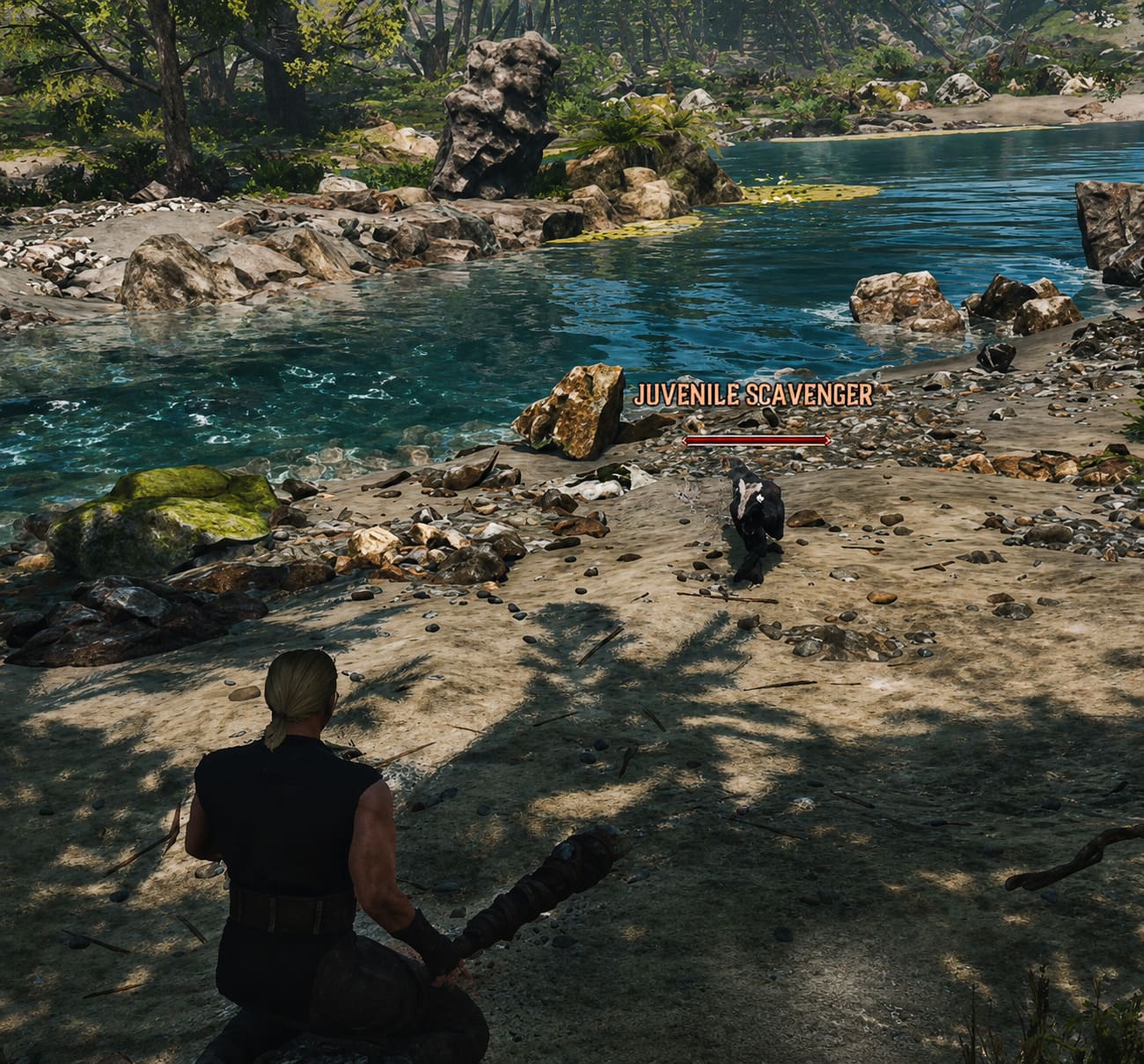
One mistake I see constantly is players running texture settings higher than their graphics card can realistically handle.
Modern Unreal Engine 5 games are extremely VRAM-hungry.
Here’s my general recommendation:
4-6 GB VRAM
Use Medium textures.
8 GB VRAM
High textures are usually safe.
12 GB+ VRAM
High or Ultra textures work comfortably.
When VRAM fills up, performance can collapse unexpectedly. Instead of losing 5 FPS, you may suddenly experience severe stuttering, freezing, or single-digit frame rates.
That’s why texture settings should always match your hardware rather than simply being pushed to maximum.
Foliage Settings Are More Important Than You Think
The Valley of Mines contains a huge amount of vegetation.
While dense foliage looks impressive in screenshots, during actual gameplay it often creates unnecessary visual clutter.
I prefer Medium foliage for two reasons:
- Better visibility during combat.
- Improved performance.
The visual difference is surprisingly small, but the game feels cleaner and more responsive.
For me, this setting improves both aesthetics and gameplay.
Upscaling Is Practically Mandatory
A few years ago I avoided upscalers whenever possible.
Today, that’s no longer realistic.
Modern UE5 games are built around technologies like:
- NVIDIA DLSS
- AMD FSR
- Intel XeSS
For Gothic 1 Remake, I strongly recommend:
1080p → DLSS Quality / FSR Quality
1440p → DLSS Balanced / FSR Balanced
4K → DLSS Performance (if necessary)
The image quality remains excellent while performance increases significantly.
If your GPU supports Frame Generation, enabling it can provide another major boost to smoothness.
Windows Tweaks That Actually Help
Many optimization guides recommend dozens of questionable tweaks.
I prefer focusing only on changes that consistently produce measurable results.
Enable Hardware-Accelerated GPU Scheduling
This helps reduce CPU overhead and improves compatibility with modern rendering technologies.
Use High Performance Power Mode
Windows power-saving features can occasionally interfere with consistent frame delivery.
A High Performance or Ultimate Performance profile ensures your CPU remains ready for demanding gameplay scenarios.
Keep Drivers Updated
This sounds obvious, but it matters.
Both NVIDIA and AMD regularly release game-specific optimizations that can improve stability and performance in major new releases.
My Thoughts on Engine.ini Tweaks
As someone who spends far too much time optimizing games, I usually approach Engine.ini modifications cautiously.
Some tweaks genuinely help.
Others are placebo.
The most useful changes are usually visual cleanup options:
- Disable motion blur
- Disable chromatic aberration
- Disable excessive depth of field
- Improve texture streaming behavior
Removing these post-processing effects not only improves image clarity but can also make the game feel noticeably sharper during combat and exploration.
Personally, I always disable motion blur in RPGs. I want to see every detail of the environment, especially in a world as atmospheric as Gothic.
Gothic 1 Remake Low FPS Fix: Boost Performance on NVIDIA & AMD PCs
Is 60 FPS Worth Prioritizing Over Maximum Graphics?
Absolutely.
As beautiful as Gothic 1 Remake looks, smooth gameplay matters more.
The original Gothic became legendary because of exploration, combat, progression, and immersion—not because of screenshot-quality graphics.
A locked 60 FPS transforms the experience:
- Combat feels more responsive.
- Camera movement becomes smoother.
- Exploration feels natural.
- Frame-time spikes become less distracting.
I would choose stable performance over Ultra settings every single time.
Gothic 1 Remake Ray Tracing Performance Hit & Best Settings Guide (2026)
Final Verdict
Gothic 1 Remake is one of the most visually impressive RPG remakes released in recent years, but it also showcases many of the optimization challenges associated with Unreal Engine 5.
The good news is that you don’t need a top-tier gaming PC to enjoy the game.
By focusing on the settings that truly matter—particularly Global Illumination, Shadows, Foliage, and Upscaling—you can dramatically improve performance while preserving the atmosphere that makes the world feel authentic.
After countless hours of testing, my personal recommendation is simple:
Keep Global Illumination on High, reduce Shadows to Medium, use Quality upscaling, avoid excessive post-processing effects, and prioritize frame stability over visual extremes.
Do that, and you’ll spend less time staring at FPS counters and more time surviving the brutal world of the Colony—the way Gothic was always meant to be played.