How to Fix Survival Log Crash on Launch and DirectX 11 Error on Windows 11
There’s nothing quite like finally sitting down with a new game you’ve been waiting for, getting comfortable, launching it… and watching Windows throw you straight back to the desktop.
That was my experience with Survival Log.
I’m the kind of player who genuinely enjoys pushing new games to their limits. Give me a beautiful open world, detailed lighting, demanding graphics settings, and an engine that makes my GPU work for its money, and I’m happy. I’d much rather play a technically ambitious new release than spend an evening looking at error messages.
Unfortunately, Survival Log crashing on launch can turn that excitement into a troubleshooting session pretty quickly.
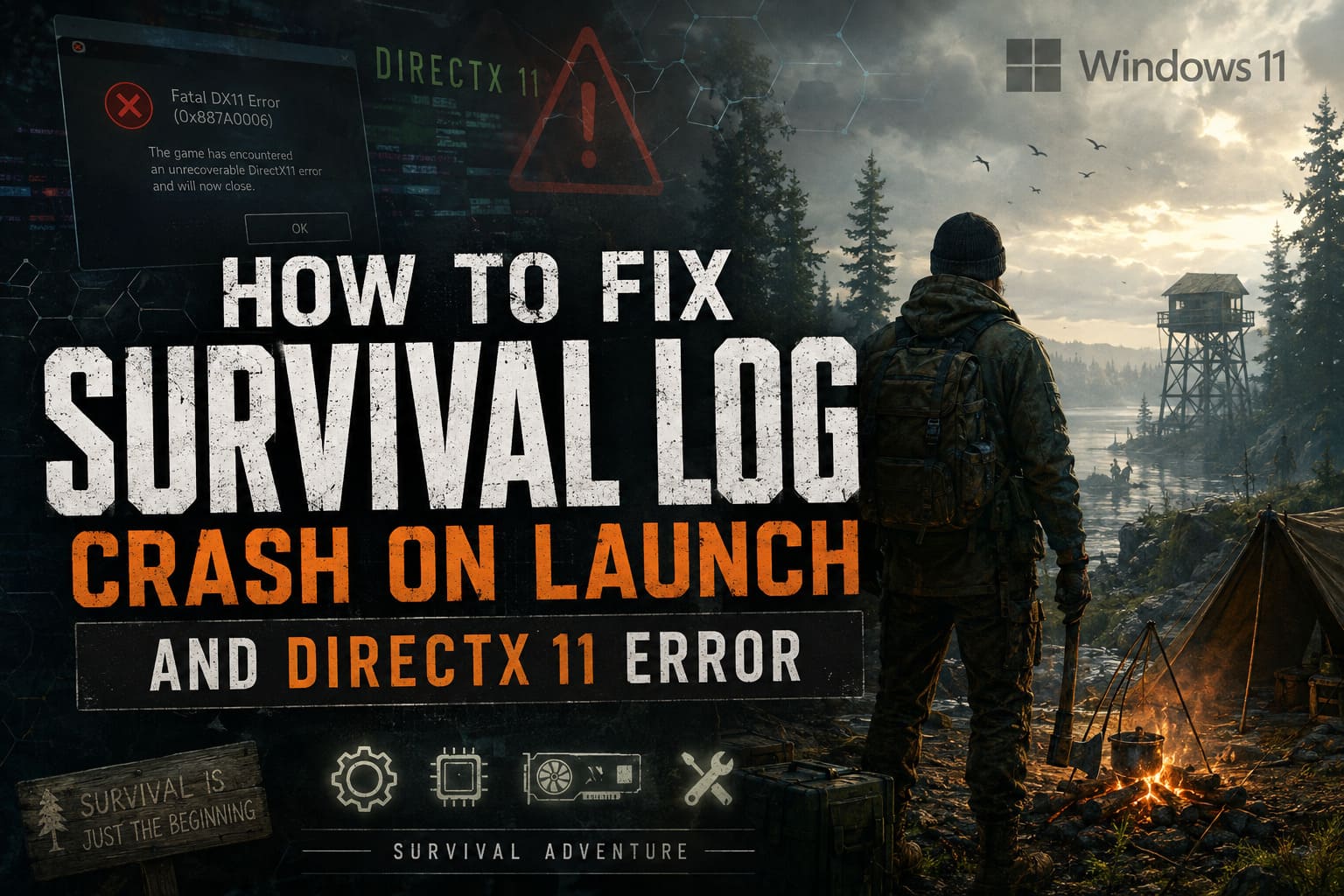
The most annoying version is the DirectX 11 error, especially when the game freezes during the splash screen, produces a black screen, or throws something along the lines of “Fatal DX11 Error (0x887A0006)” before disappearing.
After going through the usual PC-gaming fixes, I put together the troubleshooting steps I’d actually recommend trying. Some are incredibly simple, while others are worth keeping as a last resort.
And honestly, if you’re dealing with this problem, don’t immediately reinstall the entire game. There are several things worth checking first.
Why Does Survival Log Crash on Launch?
Before changing random settings, it helps to understand what might actually be going wrong.
A DX11 crash doesn’t necessarily mean your graphics card is dying or that Windows 11 somehow doesn’t support the game. In many cases, the problem is much less dramatic.
Here are the main suspects I would look at:
| Possible Cause | What It Can Do |
|---|---|
| Missing legacy DirectX components | Prevent the game from initializing correctly |
| Corrupted shader cache | Cause crashes during startup or loading |
| GPU driver problems | Trigger DX11 device errors and freezes |
| Overlay conflicts | Interfere with the game’s rendering pipeline |
| Unstable overclock | Cause GPU or memory-related crashes |
| Damaged game files | Stop the engine from loading required assets |
| Windows system corruption | Create unexpected graphics-related problems |
The good news is that most of these problems are fixable without replacing hardware or doing anything extreme.
1. Try a Different DirectX Launch Option
This is probably the first thing I would test because it takes less than a minute.
If you own Survival Log through Steam, open your Steam Library, right-click the game and choose Properties.
Look for the Launch Options field.
Depending on which rendering API the game supports, you can test:
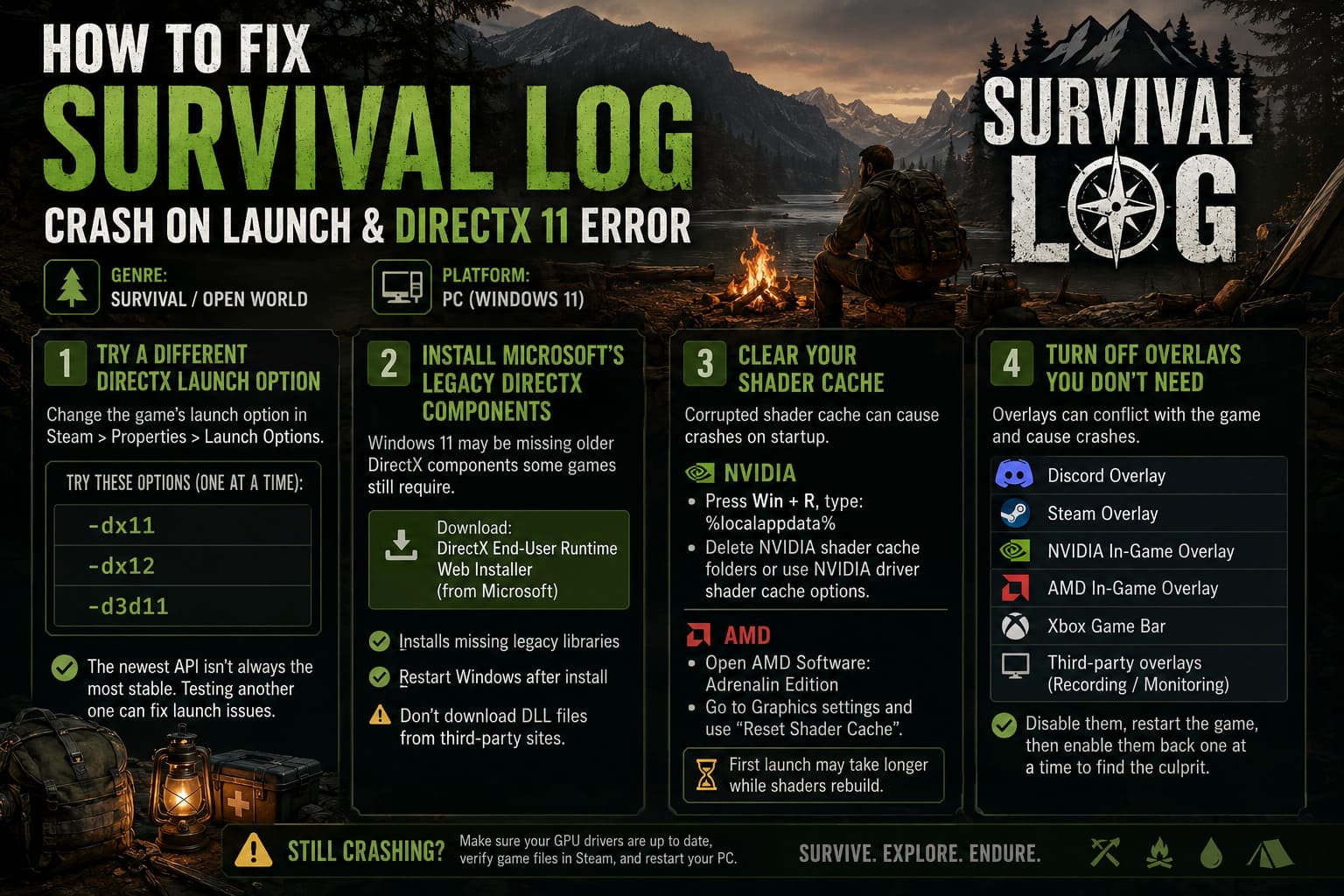
-dx11
If that doesn’t help, try:
-dx12
Some games also respond to:
-d3d11
Now, I wouldn’t blindly assume that DX12 is automatically better just because it’s newer. Game engines can behave very differently depending on the title, driver version, and hardware.
In my experience, the newest API isn’t always the most stable one. If Survival Log has a problem with one rendering path, forcing another can sometimes get you into the game long enough to change the graphics settings properly.
Try one option at a time rather than stacking several commands together.
2. Install Microsoft’s Legacy DirectX Components
This is one of those classic PC-gaming problems that keeps coming back.
Windows 11 includes modern DirectX technology, but that doesn’t mean every older DirectX component that a game might request is automatically installed.
That’s an important distinction.
Some games still depend on older runtime libraries, and missing components can cause startup failures even when your system reports that DirectX 12 is installed.
The safest approach is to get the DirectX End-User Runtime Web Installer directly from Microsoft, rather than downloading random DLL files from third-party websites.
Search Microsoft’s official download pages for DirectX End-User Runtime Web Installer, install it, and let it add any missing legacy components.
Then restart Windows.
Don’t download individual DLL files from sketchy “DLL download” websites. That’s a troubleshooting shortcut I would avoid completely.
3. Clear Your Shader Cache
This is one of my favorite fixes for strange game crashes because shader caches can become surprisingly troublesome after driver updates or game patches.
Modern games constantly compile and cache shaders. Normally, this makes subsequent loading faster.
But if the cached data becomes corrupted, you can end up with a game that crashes in exactly the same place every time.
NVIDIA
Open the Run dialog with:
Windows Key + R
Enter:
%localappdata%
Look for the NVIDIA-related cache directories and remove the cached shader data that can safely be regenerated.
You can also use the NVIDIA driver’s available shader-cache management options where applicable.
AMD
If you’re using an AMD Radeon card, open AMD Software: Adrenalin Edition and look through the graphics settings for the Reset Shader Cache option.
After clearing it, launch Survival Log again.
The first startup may take a little longer than normal because the game needs to rebuild its shaders.
That’s expected.
4. Turn Off Every Overlay You Don’t Need
This is another fix I always test when a new PC game starts behaving strangely.
Overlays are useful. I like being able to see FPS, chat notifications, recording controls, and other information without leaving the game.
But every overlay is also another piece of software interacting with the game.
For troubleshooting, I’d temporarily disable:
- Discord Overlay
- Steam Overlay
- NVIDIA or AMD in-game overlay
- Xbox Game Bar
- Third-party monitoring or recording overlays
Then restart the game.
If Survival Log suddenly launches normally, you have learned something valuable: the game itself may be fine, but one of those background hooks is causing the conflict.
Once everything works, you can turn the overlays back on one at a time and figure out which one is responsible.
5. Verify Survival Log’s Game Files
Before doing anything complicated, make sure the installation isn’t damaged.
Steam makes this particularly easy.
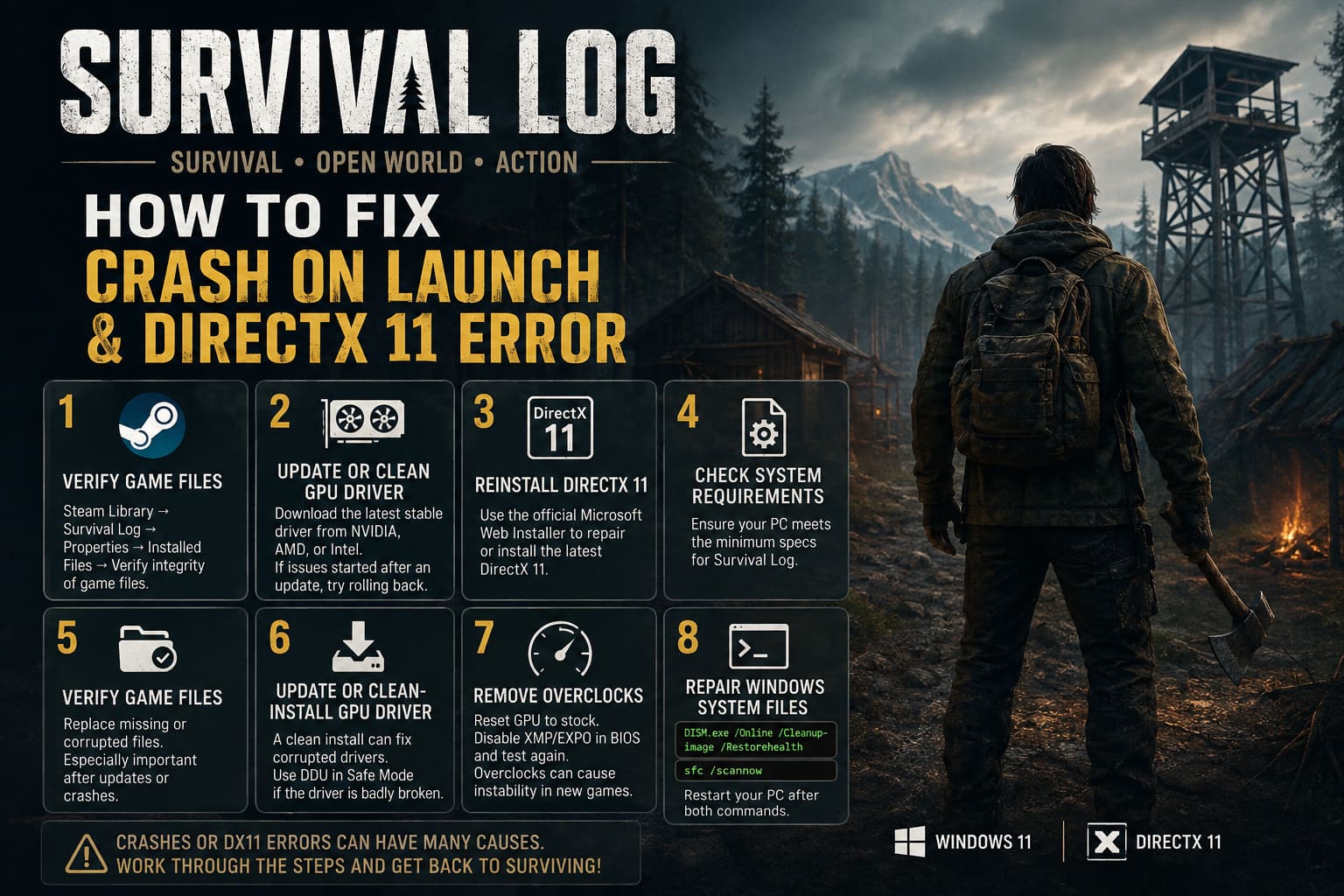
Go to:
Steam Library → Survival Log → Properties → Installed Files → Verify integrity of game files
Steam will compare your local installation against the expected files and replace anything missing or corrupted.
This is especially worth doing if:
- The game recently received a patch.
- Your PC crashed while the game was running.
- Steam previously reported a download problem.
- The crash started immediately after an update.
- You have moved the installation between drives.
Personally, I’d run this before reinstalling the entire game. A complete reinstall is slow, uses unnecessary bandwidth, and often doesn’t solve configuration or driver problems anyway.
6. Update or Clean-Install Your GPU Driver
If you’re getting a DX11 device error, your graphics driver deserves attention.
Go directly to the official website for your GPU manufacturer and download the current stable driver for your graphics card.
That means NVIDIA, AMD, or Intel depending on your hardware.
If the problem started immediately after a driver update, however, rolling back to the previous stable driver can actually make more sense than updating again.
This is something I think gamers sometimes overlook.
New drivers aren’t automatically perfect for every game on day one. A brand-new release can introduce a fix for one title while accidentally creating a problem somewhere else.
For particularly stubborn driver corruption, advanced users can use Display Driver Uninstaller (DDU) in Windows Safe Mode before reinstalling the driver.
I wouldn’t recommend DDU as the first thing everyone should do. It’s more of a “I’ve tried the normal fixes and the driver installation looks completely broken” option.
7. Temporarily Remove Overclocks
Here’s a fix that can be frustrating to hear because your system may appear perfectly stable everywhere else.
Maybe you’ve been running your GPU overclock for months.
Maybe your RAM has been using an XMP or EXPO profile without a single crash.
Then one new game arrives and suddenly everything falls apart.
Modern games can stress hardware in unusual ways, so a system that survives hours of one game doesn’t necessarily prove that every overclock is stable.
For testing, return your GPU to stock settings.
If you’ve enabled XMP or EXPO, temporarily disable the memory profile in your motherboard BIOS and test the game again.
If Survival Log suddenly becomes stable, you have a strong indication that the issue isn’t really a DirectX installation problem. Your system may simply need more conservative settings.
You can always experiment with the overclock again later.
8. Repair Windows System Files
If you’ve reached this point and nothing has worked, I’d start looking at Windows itself.
Open Command Prompt as Administrator and run:
DISM.exe /Online /Cleanup-image /Restorehealth
Let it finish completely.
After that, run:
sfc /scannow
These are built-in Windows tools designed to detect and repair certain types of corrupted system components.
Once both commands finish, restart your PC.
It’s not the most exciting solution in the world, but I’ve seen enough weird Windows gaming issues over the years to know that sometimes the boring fixes are the ones that save the evening.
My Recommended Order
If you don’t want to spend two hours changing everything at once, I’d approach the problem methodically.
Start with the easy stuff:
- Verify Survival Log’s files.
- Disable all overlays.
- Clear the shader cache.
- Test
-dx11, then-dx12if supported. - Install Microsoft’s legacy DirectX runtime.
- Update or roll back the GPU driver.
- Test the system without overclocking/XMP/EXPO.
- Run DISM and SFC.
The important part is changing one thing at a time.
If you change ten settings simultaneously and the game suddenly works, you won’t know which fix actually solved the problem.
What About Running the Game as Administrator?
You’ll sometimes see this suggested as a universal fix.
I wouldn’t put it at the top of my list.
Windows 11 permissions can occasionally cause problems when a game needs to write configuration, cache, or log files, but running every game as administrator isn’t something I recommend doing automatically.
If Survival Log can’t write to a required folder, then investigating permissions makes sense.
Otherwise, I’d prioritize file verification, shader-cache cleanup, driver troubleshooting, and overlay conflicts first.
Best Supermarket Items to Hoard in Survival Log: Complete 10-Hour Guide (2026)
One More Thing: Don’t Blame Your GPU Too Quickly
A DX11 error can look terrifying, especially when it contains a code such as 0x887A0006.
But an error like that doesn’t automatically mean your GPU is defective.
A game can trigger a graphics-device failure because of a driver issue, unstable overclock, corrupted shader data, background software, or an engine bug.
That’s why I wouldn’t start shopping for a new graphics card just because Survival Log crashes during startup.
I’ve played enough demanding PC releases to know that sometimes the newest, prettiest game is also the one that exposes a tiny software problem that other games never touch.
Final Thoughts From a Gamer
This is the part where I wish I could say there is one magical fix for every Survival Log DX11 crash.
Unfortunately, PC gaming doesn’t work that way.
The upside is that most launch crashes are worth troubleshooting before you consider drastic measures.
If I were sitting down to fix my own installation tonight, I’d start with file verification, disable every overlay, clear the shader cache, and test the DirectX launch options. Those are relatively quick and don’t involve changing anything permanent.
After that, I’d look at the GPU driver and system stability.
And if you’re running a heavily overclocked setup, don’t underestimate that possibility. A game that pushes a particular rendering or memory workload can expose instability that seemed completely invisible before.
The goal isn’t just to make Survival Log launch once. The goal is to find the actual reason it crashes so you can get back to what you installed the game for in the first place: playing it.
Because personally, I’d much rather spend my evening exploring a gorgeous new survival world than staring at a Windows error code.
And when a game finally boots after you’ve chased down that last annoying DX11 problem?
Honestly, that first loading screen feels pretty satisfying.