Gothic 1 Remake Ray Tracing Performance Hit & Best Settings Guide (2026)
When I first launched Gothic 1 Remake, I knew I was stepping into something special. I’ve spent decades playing PC RPGs, from the original Gothic and Morrowind to Cyberpunk 2077, Kingdom Come: Deliverance, and the latest Unreal Engine 5 showcases. Very few games manage to instantly trigger that feeling of returning to a beloved world while simultaneously making it feel completely new.
The Gothic 1 Remake accomplishes exactly that.
The problem? It also happens to be one of the most demanding PC games I’ve played in recent years.
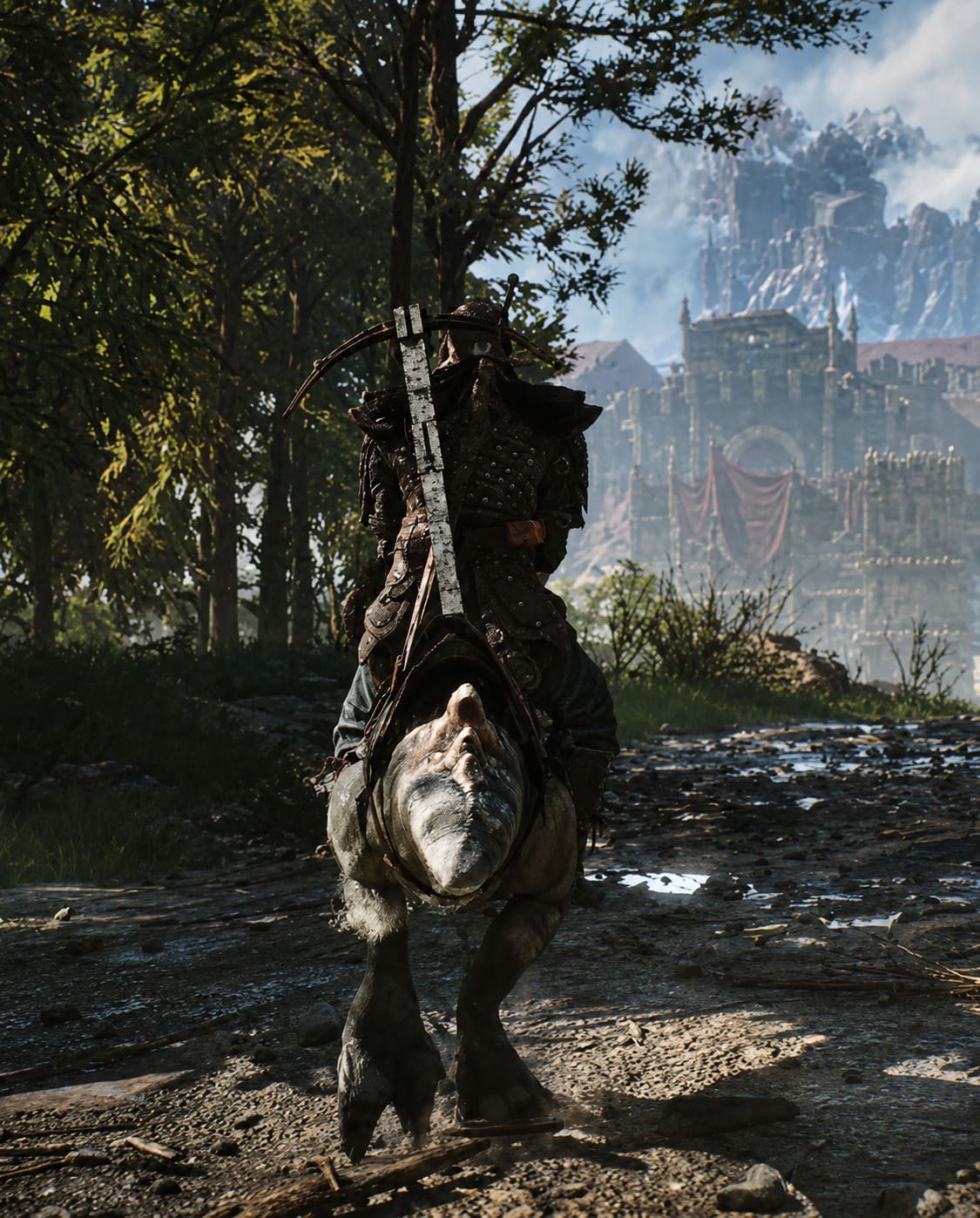
Built on Unreal Engine 5.4, the remake transforms the old Mining Colony into a visually stunning open-world environment packed with dense vegetation, realistic lighting, detailed terrain, and atmospheric effects that constantly remind you why Gothic became a cult classic in the first place. Unfortunately, all those visual improvements come at a serious performance cost.
After spending dozens of hours testing settings, comparing performance profiles, and experimenting across different hardware configurations, I found that many players are losing a huge amount of FPS for visual improvements that are barely noticeable during actual gameplay.
This guide focuses on the settings that truly matter and explains how to get the best balance between visuals and performance.

Why Gothic 1 Remake Is So Demanding
The biggest performance killer isn’t texture quality, draw distance, or particle effects.
It’s lighting.
Like many modern Unreal Engine 5 games, Gothic 1 Remake relies heavily on Lumen, Epic Games’ advanced global illumination technology. Rather than using traditional baked lighting, Lumen constantly calculates how light interacts with the environment in real time.
The results can look incredible:
- More realistic caves and interiors
- Natural light bouncing from surfaces
- Better atmospheric shadows
- Improved environmental depth
- Dynamic day and night transitions
However, all of those benefits require significant GPU power.
What surprised me most was how aggressively the highest presets impact performance. Unlike many games where Ultra settings only reduce FPS by 10-15%, Gothic 1 Remake can slash performance dramatically when pushing lighting settings to their limits.
The Biggest Mistake Players Are Making
After testing multiple presets, one thing became obvious.
Many players immediately select the highest graphics preset available simply because they own expensive hardware. In Gothic 1 Remake, that’s often a mistake.
The “Gothic” and “Alchemia Overdose” presets sound appealing, but during actual gameplay the visual improvements are often subtle while the performance loss is enormous.
In combat, exploration, and questing, I rarely noticed a meaningful difference between High and the maximum settings. What I did notice was losing a substantial amount of FPS.
For a game where melee timing, movement, and immersion matter, stable frame rates are far more valuable than tiny improvements in indirect lighting quality.
Performance Impact of Major Settings

The following table summarizes my experience with the most important graphics options.
| Setting | Visual Impact | FPS Impact | Recommendation |
|---|---|---|---|
| Global Illumination | Very High | Very High | High |
| Shadows | High | High | Medium-High |
| Effects | Medium | High | Medium |
| Foliage | Medium | Medium | Medium-High |
| Reflections | Low-Medium | Low | Medium |
| Textures | High | Low | Highest Possible |
| View Distance | High | Medium | High |
If you’re looking for instant FPS gains, focus on Global Illumination and Effects first.
These two settings provide the largest performance improvements with the smallest reduction in visual quality.
My Recommended Settings for Most Players
After extensive testing, I eventually settled on a configuration that preserved the atmosphere of the original game while maintaining smooth gameplay.
Display Settings
Display Mode: Fullscreen
Resolution: Native
V-Sync: Off
Frame Generation: Enabled if supported
I generally prefer Fullscreen because it tends to produce more consistent frame pacing than Borderless Windowed mode, especially in Unreal Engine 5 titles.
Upscaling
Modern upscaling technologies are no longer the compromise they once were.
In fact, they’re practically mandatory for demanding games like Gothic 1 Remake.
Recommended options:
- DLSS Quality for NVIDIA users
- FSR Quality for AMD users
- XeSS Quality for Intel users
At 1440p and 4K, image quality remains excellent while performance gains are substantial.
Personally, I found DLSS Quality nearly indistinguishable from native resolution during normal gameplay.
Graphics Settings Worth Lowering
Global Illumination
This is the most important setting in the game.
Set it to High.
High retains the impressive Lumen lighting system while avoiding the massive performance penalty of the Gothic and Alchemia Overdose presets.
Anything below High begins to noticeably hurt the atmosphere.
Effects Quality
One of the easiest settings to reduce.
Volumetric fog and environmental effects look impressive during screenshots, but they can consume a surprising amount of GPU resources.
Medium offers an excellent compromise.
Shadow Quality
Medium is the sweet spot.
High-quality shadows look great, but the visual difference isn’t dramatic enough to justify the performance cost in most situations.
I recommend avoiding Low because it can create distracting shadow updates and visual instability.
Graphics Settings Worth Keeping High
Not every setting needs to be reduced.
Some options have a minimal performance impact while significantly improving image quality.
Texture Quality
If your graphics card has sufficient VRAM, keep textures as high as possible.
Texture quality affects visual clarity far more than many players realize, especially when exploring settlements and interacting with NPCs.
View Distance
The Mining Colony is filled with large vistas and impressive environmental design.
Reducing view distance too aggressively can make the world feel smaller and less immersive.
High is usually the best balance.
Terrain and Shading
These settings contribute heavily to the overall appearance of the environment while having a relatively modest impact on frame rates.
I recommend leaving them at High whenever possible.
Hardware Expectations in 2026
One thing players need to understand is that Gothic 1 Remake is not particularly forgiving toward older hardware.
Even powerful systems can struggle when every option is pushed to the limit.
High-End Systems
RTX 5090, RTX 4090, and similar flagship GPUs deliver excellent results, but even these cards can experience significant frame drops when using maximum settings at native 4K.
Mid-Range Systems
Cards such as the RTX 4070 Super and RTX 3080 perform very well once DLSS or FSR is enabled.
In my opinion, this is where the game feels most balanced.
Older GPUs
Owners of RTX 2060-class hardware should absolutely use upscaling technologies.
The game remains playable and visually impressive, but expecting ultra settings would be unrealistic.
What Actually Matters for the Gothic Experience
After many hours in the colony, I reached an interesting conclusion.
The atmosphere of Gothic does not come from maximum graphics settings.
It comes from:
- The oppressive world design
- The dangerous wilderness
- The constant feeling of vulnerability
- The memorable camps and characters
- The harsh progression system
These elements remain intact whether you’re playing at 70 FPS or 170 FPS.
Chasing every last graphical feature often distracts from what makes Gothic special.
A stable, smooth experience enhances immersion far more than a barely noticeable improvement in lighting precision.
Gothic 1 Remake Bloodwyn Protection Money Choice: Consequences & Best Options Explained
Final Verdict
Gothic 1 Remake is one of the most visually impressive RPG remakes released in recent years, but it is also one of the most demanding. The game’s advanced Unreal Engine 5 lighting system can overwhelm even powerful GPUs when every setting is maxed out.
Fortunately, players don’t need to sacrifice visual quality to achieve strong performance.
My recommendation is simple: keep Global Illumination on High, lower Effects and Shadows to sensible levels, use DLSS or FSR whenever available, and prioritize smooth gameplay over benchmark screenshots.
After years of testing demanding PC games, I’ve learned that the best settings aren’t the highest settings—they’re the ones that let you forget about performance entirely and lose yourself in the world.
And when Gothic 1 Remake is running smoothly, the Mining Colony is every bit as immersive, brutal, and unforgettable as I hoped it would be.