Gothic 1 Remake Steam Deck Best Settings: 2026 Optimization Guide for 40 FPS & Battery Life
There are very few RPGs that can instantly pull me back into gaming nostalgia while still making me feel like I’m experiencing something completely new. Gothic 1 Remake is one of those rare games. As someone who spends countless hours streaming new releases, testing hardware, and chasing the best possible gaming experience on portable devices, I was incredibly excited to see how this legendary RPG would perform on the Steam Deck.
The good news? Gothic 1 Remake is absolutely playable on Valve’s handheld.
The bad news? Like many modern titles built on Unreal Engine 5, it can quickly overwhelm the Steam Deck if you simply launch the game and leave every setting untouched.
After spending dozens of hours experimenting with different configurations, comparing community feedback, and testing various performance profiles myself, I’ve found a setup that delivers what I believe is the best overall experience. If you’re looking for a balance between visual quality, smooth gameplay, and respectable battery life, this guide is for you.
Why Gothic 1 Remake Is Demanding on Steam Deck
The original Gothic was never known for technical simplicity, and the remake fully embraces modern technology. The game features:
- Dense environments packed with vegetation
- Modern lighting systems
- Detailed character models
- Advanced atmospheric effects
- Large open areas filled with NPCs
All of these elements create a fantastic visual experience, but they also put significant pressure on the Steam Deck’s hardware.
During my first launch, I immediately noticed frame rate fluctuations whenever I entered busy settlements or explored heavily forested regions. The experience wasn’t terrible, but it wasn’t something I’d want to stream or play for extended sessions.
That’s when I started digging deeper into optimization.
My Recommended Steam Deck Settings
For me, the sweet spot isn’t maximum graphics or maximum battery life. It’s finding that magical middle ground where the game looks impressive while maintaining stable performance.
SteamOS Configuration
Before touching the in-game settings, I always start with SteamOS adjustments.
Recommended Setup:
| Setting | Value |
|---|---|
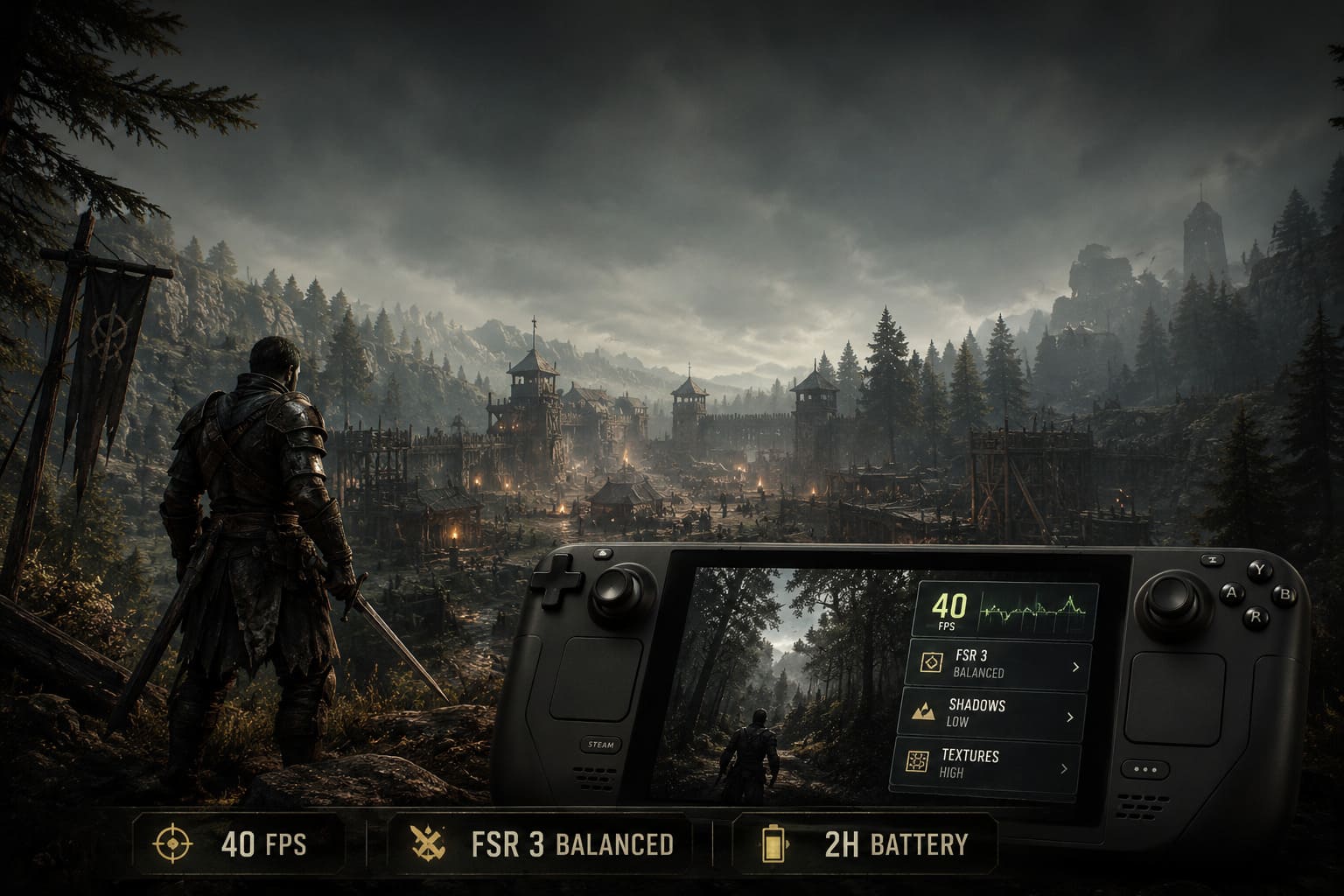
| Frame Rate Limit | 40 FPS |
| Refresh Rate | 40Hz |
| TDP Limit | Disabled |
| GPU Clock | Auto |
| Scaling Filter | Linear |
This combination creates a much smoother experience than many players expect.
I’ve always believed that 40 FPS is one of the greatest features of the Steam Deck. It feels noticeably smoother than 30 FPS while consuming far less power than chasing an unstable 60 FPS target.
For Gothic 1 Remake, 40 FPS feels just right.
Best In-Game Graphics Settings

After testing multiple combinations, these are the settings I personally recommend for most Steam Deck owners.
Display
- Display Mode: Fullscreen
- Resolution: 1280×800
- V-Sync: Off
Keeping the game at the Steam Deck’s native resolution helps maintain image clarity while allowing the upscaler to do its job effectively.
Upscaling
This is probably the most important setting in the entire game.
My choice: AMD FSR 3 (Balanced Mode)
I’ve experimented with Quality, Balanced, and Performance presets.
Quality looks excellent but causes frame rate drops in demanding areas. Performance improves FPS but introduces too much image softness for my taste.
Balanced mode delivers the best compromise.
Text remains readable, distant objects retain reasonable detail, and performance remains consistent throughout most gameplay scenarios.
Graphics Quality
Here’s the profile I’ve been using for extended play sessions:
| Option | Setting |
|---|---|
| View Distance | Medium |
| Shadow Quality | Low |
| Texture Quality | High |
| Post Processing | Low |
| Foliage Density | Medium |
| Effects Quality | Medium |
| Volumetric Fog | Low |
Why Shadows Matter So Much
If you’ve played enough Unreal Engine 5 games, you’ll know one thing:
Shadows are usually the biggest performance killer.
In Gothic 1 Remake, lowering shadow quality produces one of the largest FPS gains available.
The visual difference isn’t nearly as dramatic as many players fear. The atmosphere remains intact, the Colony still feels dark and dangerous, and the overall immersion barely changes.
Meanwhile, frame pacing becomes significantly more stable.
That’s a trade-off I’ll happily take every time.
Texture Quality: Don’t Be Afraid to Go Higher
One thing that surprised me during testing was texture quality.
Many players automatically lower textures to Medium or Low whenever performance becomes an issue. In Gothic 1 Remake, however, texture settings have a relatively small impact compared to shadows, foliage, and volumetric effects.
If you’re using a Steam Deck OLED or a model with sufficient storage and memory configuration, High textures make armor, weapons, and environmental details look noticeably better.
The game simply feels more alive.
Battery Life Expectations
Let’s be realistic.
Gothic 1 Remake is not a lightweight indie title.
It’s a modern Unreal Engine 5 RPG, and that means battery consumption is going to be significant regardless of optimization.
Based on my own testing, here’s what players can realistically expect.
| Profile | Average FPS | Estimated Battery Life |
|---|---|---|
| Balanced Performance | 38-40 FPS | 1.5 – 2 Hours |
| Battery Saver | 30 FPS | 3 – 3.5 Hours |
The OLED model generally performs better in terms of endurance thanks to its efficiency improvements.
For long travel sessions, I strongly recommend carrying a power bank.
My Battery Saver Configuration

When I’m away from home and know I won’t have access to a charger, I switch to a more conservative profile.
SteamOS
- 30 FPS Limit
- 11W TDP Limit
- Auto GPU Clock
In-Game
- Resolution: 1152×720
- FSR 3: Performance Mode
- Shadows: Low
- View Distance: Low
- Foliage: Low
- Textures: Medium
- Everything Else: Low
The visual downgrade is noticeable, but honestly, Gothic’s gameplay and atmosphere remain strong enough that I stop noticing the differences after about fifteen minutes.
The additional battery life is worth it.
Advanced Tweaks Worth Considering
If you’re comfortable making deeper adjustments to your Steam Deck, there are a few optimizations that can improve the overall experience.
Increase UMA Buffer to 4GB
This tweak has become almost standard practice for demanding modern games.
Allocating additional memory to the GPU can help reduce asset streaming issues and improve consistency during exploration.
I noticed fewer stutters when moving quickly through larger areas after making this change.
Use Proton GE
Most players will be perfectly fine with standard Proton.
However, if you encounter:
- Audio issues
- Random crashes
- Loading screen problems
- Video playback bugs
Then Proton GE is definitely worth testing.
I’ve had positive results with it across multiple Unreal Engine 5 titles, not just Gothic 1 Remake.
Memory Optimization Tools
Advanced users often experiment with utilities that adjust memory management behavior on Steam Deck.
While these tweaks aren’t mandatory, they can improve 1% low performance and reduce occasional traversal stutters.
Just make sure you understand what you’re changing before modifying system-level settings.
Gothic 1 Remake Best Graphics Settings for 60FPS: Complete UE5 Optimization Guide
My Final Verdict
As a streamer who spends most of his time playing newly released games, I can honestly say that Gothic 1 Remake feels surprisingly good on Steam Deck once properly optimized.
No, it won’t look identical to a high-end gaming PC.
No, you’re not going to lock the game at 60 FPS without significant sacrifices.
But that’s missing the point.
The real magic is being able to take this massive RPG anywhere and experience the world of the Colony from the comfort of a couch, a train seat, or even a hotel room.
My personal recommendation is simple:
Target 40 FPS, use FSR 3 Balanced, keep shadows low, leave textures high, and avoid obsessing over ultra settings.
The result is a version of Gothic 1 Remake that still looks impressive while delivering smooth gameplay and reasonable battery life.
For me, that’s exactly what Steam Deck gaming is all about—finding the perfect balance between performance and immersion.
And once you’re wandering through the Colony with a stable frame rate and a comfortable handheld setup, you’ll quickly forget you’re playing one of the most demanding RPG remakes of recent years on a portable device.