Divinum Steam Deck Performance Guide: Best Settings for Stable 60 FPS
There are some games where a few random frame drops are annoying. Then there are games like Divinum, where a tiny hitch at the wrong moment can absolutely wreck your flow.
This 2D dark fantasy action-adventure is built around speed. You are not standing around waiting for an opening. You are jumping, parrying, blocking, dashing through attacks, juggling enemies in the air, swapping between weapons, and stacking rune effects until the screen starts looking like a magical fireworks factory. When everything clicks, the combat feels ridiculously satisfying. When the frame pacing gets messy, that same combat can suddenly feel sluggish.
That is why getting Divinum running at a stable 60 FPS on Steam Deck is more important than simply making the game look pretty.
Sigil Games has confirmed Steam Deck Verified support ahead of the game’s global launch on August 28, 2026, which is already a strong sign for handheld players. Still, a Verified badge does not automatically mean every setting is perfect. The Steam Deck has a limited power envelope, and squeezing the best balance between performance, battery life, temperatures, and visual quality requires a little manual tuning.
After spending plenty of time tweaking handheld games, I would rather have a locked 60 FPS and slightly reduced shadows than a gorgeous screenshot that turns into a stuttery mess during a boss fight.
Here is the setup I recommend for Divinum.
Why 60 FPS Matters So Much in Divinum
Divinum’s combat system is clearly designed around responsiveness.
Fjor, the game’s protagonist, is a warrior born under the celestial blessing of the Guardian. Her journey takes her through forgotten caves, sinister swamps, ancient catacombs, and sacred ruins as an outside threat begins tearing apart her northern homeland.
The locations look atmospheric, but the combat is where the game really earns its teeth.
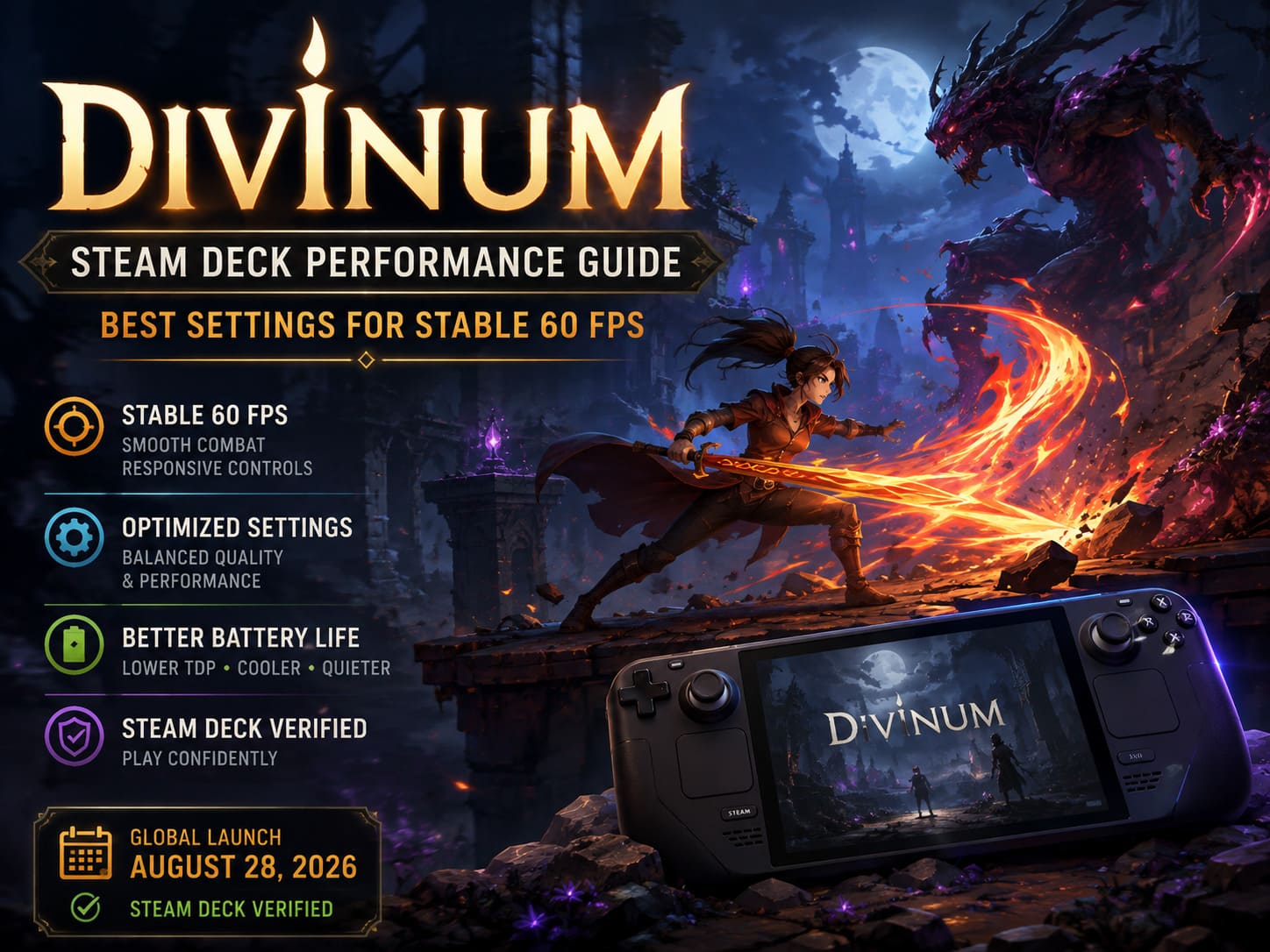
Divinum takes inspiration from classic character-action games such as Devil May Cry, but translates that philosophy into a 2D action-adventure format. There is no traditional enemy contact damage to constantly punish you for touching an opponent. Instead, the game encourages aggressive movement and deliberate reactions.
You can:
- Launch enemies into the air and continue with aerial combos.
- Switch between two primary weapons.
- Use active special abilities.
- Parry and block incoming attacks.
- Perform rapid phase dashes.
- Combine rune modifiers into specialized combat builds.
That final point is especially important for Steam Deck performance. A simple encounter with a couple of enemies is not necessarily the hardest workload. Once multiple enemies, elemental effects, explosions, lightning arcs, particles, and environmental effects start firing simultaneously, the GPU and CPU have much more work to do.
A stable frame rate keeps those mechanics feeling predictable.
Divinum Steam Deck Recommended Settings
The Steam Deck’s 1280×800 display is an excellent match for Divinum. There is no reason to chase unnecessary resolution scaling when the game can already look sharp at the panel’s native resolution.
Here is my recommended starting configuration:
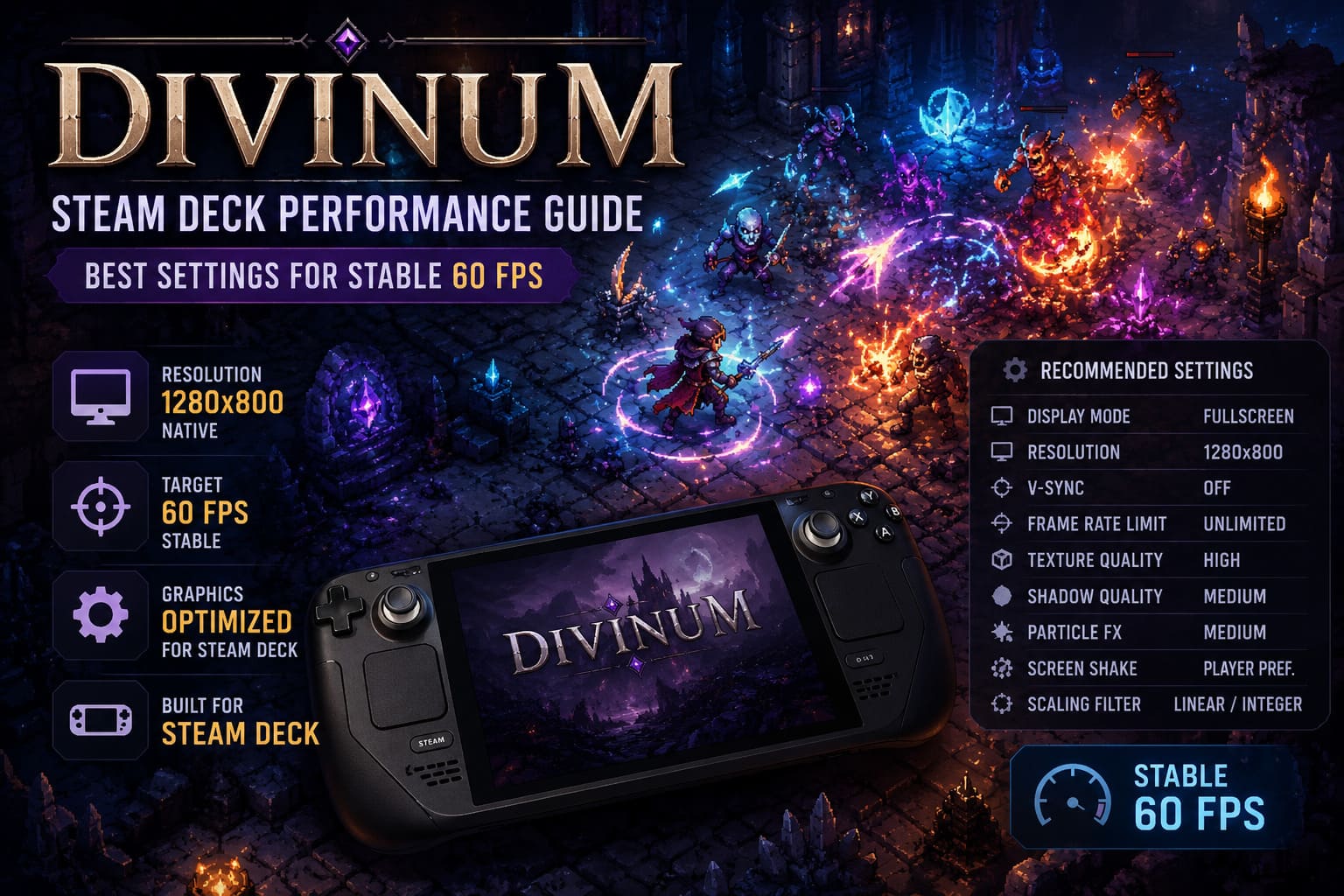
| Setting | Recommended Value |
|---|---|
| Display Mode | Fullscreen |
| Resolution | 1280×800 |
| V-Sync | Off |
| Frame Rate Limit | Unlimited In-Game |
| Texture Quality | High |
| Shadow Quality | Medium |
| Particle FX | Medium |
| Screen Shake | Player Preference |
| Scaling Filter | Linear or Integer |
Fullscreen and Native Resolution
Start with Fullscreen and 1280×800.
Native resolution is the easy win here. The Steam Deck’s screen is already 1280×800, so running Divinum at that resolution keeps its visual presentation clean without asking the hardware to perform unnecessary scaling work.
For a game with detailed pixel-art environments, blurry scaling is particularly irritating. You want those environmental details, character silhouettes, and effects to stay crisp.
I would leave the resolution alone unless you are troubleshooting a serious performance problem.
Keep Textures on High
This is one of those settings I would not sacrifice first.
Divinum’s detailed environments are part of its visual identity, and the game’s relatively modest hardware requirements mean texture quality is not where I would look for major performance savings.
Keep Texture Quality on High.
If you start seeing performance issues, lower shadows and particle effects before touching textures. On a handheld screen, the visual difference from reduced textures can be surprisingly noticeable, while the performance benefit may not justify the downgrade.
Shadows: Medium Is the Sweet Spot
Shadow Quality: Medium is where I would leave things.
Dynamic lighting and shadows can become surprisingly expensive when you are moving through darker environments filled with changing visual elements. Catacombs, ruins, and other heavily atmospheric locations can put more pressure on the system than a relatively empty combat room.
Medium shadows preserve enough depth to keep the environments looking good without wasting power on effects that are not nearly as important as combat responsiveness.
If your particular Deck struggles to maintain 60 FPS, this is one of the first settings I would reduce further.
Particle Effects: The Most Important Setting
If there is one setting I would tell every Steam Deck player to watch, it is Particle FX.
Divinum can become absolutely ridiculous once your rune setup starts producing elemental reactions. A basic attack can turn into a screen full of effects when several enemies are caught in an AoE chain.
Start at Medium.
If you notice brief drops during large enemy groups, bosses, or elaborate rune combinations, move Particle FX to Low.
You are not losing the actual mechanics of your build. You are simply reducing the visual workload created by all those simultaneous effects.
For me, this is a much better trade than lowering the entire game’s resolution.
Steam Deck Performance Tweaks
Once the in-game settings are configured, open the Steam Deck’s Quick Access Menu using the physical three-dot button.
This is where you can control the hardware side of the equation.
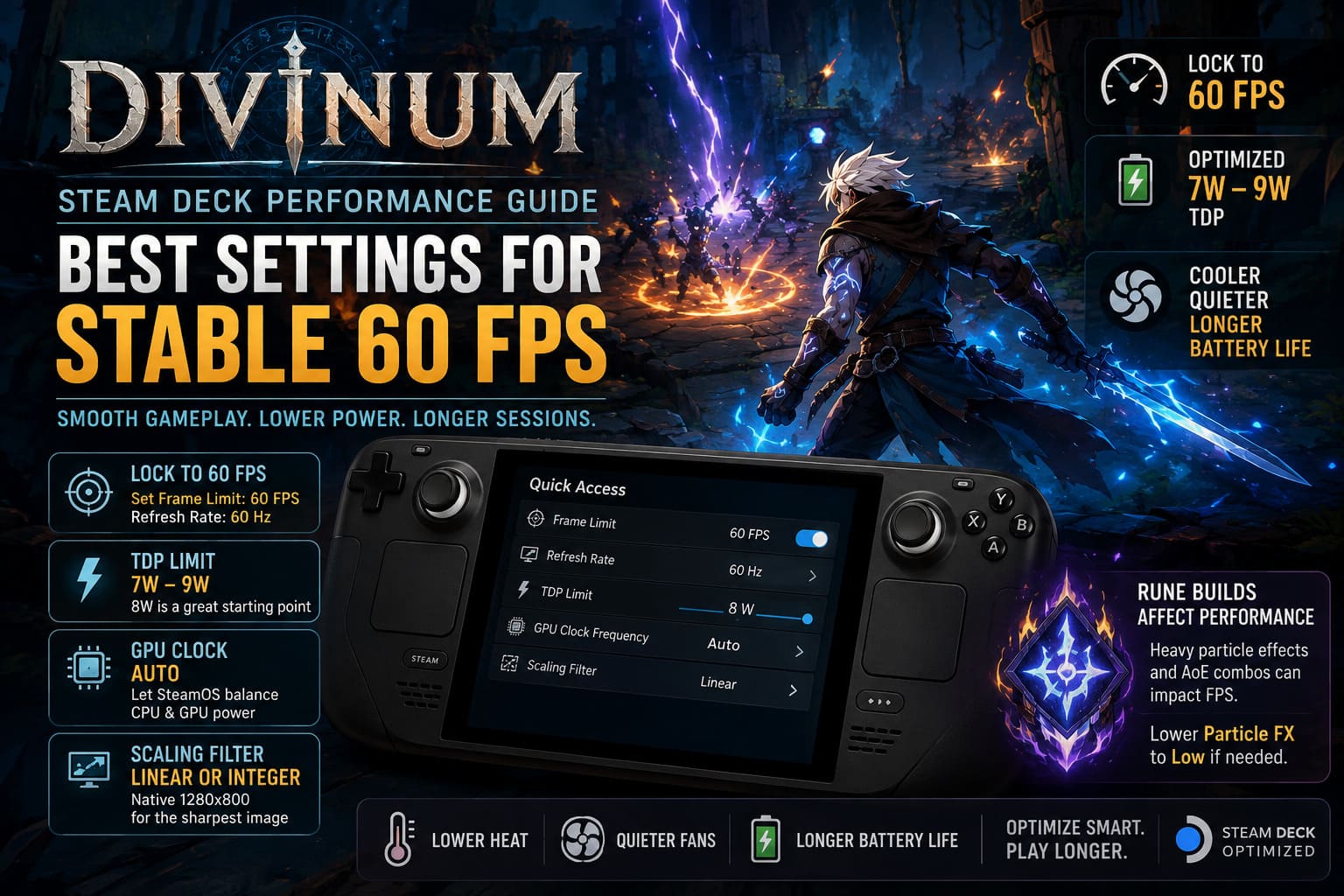
Lock the Deck to 60 FPS
Set the Steam Deck’s frame-rate limiter to 60 FPS and the display refresh rate to 60 Hz.
The goal is straightforward: give the game a consistent target rather than allowing it to render unnecessarily high frame rates.
Running a 2D action game at 80, 90, or higher FPS when the display and gameplay target are effectively 60 FPS is simply wasted power.
A clean 60 FPS presentation is what matters.
Try an 8W TDP Limit
This is the tweak I would experiment with rather than treating it as an absolute rule.
Set the TDP Limit to around 7W-9W, with 8W being a very good starting point.
Divinum is not a massive open-world 3D game. It does not need the Steam Deck’s full 15W APU budget simply to push a 2D action title at 60 FPS.
A lower TDP can reduce heat, fan noise, and battery consumption while still providing plenty of performance.
The important part is testing your own Deck. If 8W maintains a stable 60 FPS in the areas where you normally experience the heaviest action, keep it there. If you encounter repeated drops, increase the limit slightly.
I would rather run at 9W with perfect frame pacing than force 7W just because the number looks impressive.
Leave GPU Clock on Auto
There is very little reason to manually lock the GPU clock for Divinum.
Keep GPU Clock Frequency on Auto.
SteamOS can dynamically balance the available power between the CPU and GPU depending on what the current scene needs. Manual clock tuning can make sense for certain demanding games, but Divinum does not immediately strike me as a title where you need to micromanage the APU.
Let the system do its job.
Use Linear or Integer Scaling
Since we are already using the native 1280×800 resolution, advanced upscaling is unnecessary.
Keep the scaling filter at Linear or Integer.
There is no real reason to introduce FSR-style scaling when the game is already rendering at the Deck’s native panel resolution. With Divinum’s crisp 2D presentation, unnecessary scaling can actually make the image look less clean.
Rune Builds Can Change Performance
This is the part many graphics guides completely overlook.
Performance in Divinum is not only about the environment. Your rune build matters.
Runes are not boring little percentage buffs that sit quietly in the background. They can dramatically alter active skills and encourage very different combat styles.
You might create a fragile glass-cannon build designed around perfect parries and aggressive execution windows. Or you can build Fjor into a walking elemental disaster, covering the battlefield in explosions, lightning, and area-of-effect attacks.
The second approach looks fantastic.
It can also become much harder for the Steam Deck to process.
A combination involving chain-lightning effects, ground explosions, multiple enemies, and repeated active skills can create a huge number of individual sprites and visual effects at the same time.
If your performance is flawless during normal exploration but suddenly dips when your favorite rune combo goes completely nuclear, don’t immediately blame the hardware.
Drop Particle FX from Medium to Low.
That is usually the first adjustment I would make.
Steam Deck Battery Life: Don’t Waste Your Wattage
One of the best things about optimizing Divinum is that you do not necessarily need maximum power to get a great experience.
A full-power Steam Deck configuration can provide excellent performance, but there is little reason to burn through battery capacity if the game already runs comfortably at a lower TDP.
With a suitable configuration around 7W-9W, you can potentially reduce heat and fan noise while improving battery endurance considerably compared with running the APU at its full 15W budget.
For long handheld sessions, that matters.
There is a huge difference between playing comfortably for several hours and constantly hunting for a charger because the system is spending power it does not actually need.
Common Divinum Steam Deck Problems
Even with Steam Deck Verified status, PC games can occasionally have weird launch or shader behavior. Linux and Proton compatibility are excellent these days, but “excellent” does not mean “magically immune to bugs.”
Shader Micro-Stutters
If you notice tiny hitches when entering a new biome or encountering an effect for the first time, check whether Steam has completed its background shader pre-caching work.
Shader compilation can cause temporary stutters, particularly when new visual effects are encountered.
Let Steam finish its updates before deciding that your graphics settings are broken.
Game Won’t Launch or Shows a Black Screen
If Divinum refuses to launch correctly or produces a black screen, try changing the Proton compatibility layer.
Go to the game in your Steam Library, open Properties, select Compatibility, enable the option to force a compatibility tool, and test:
- Proton Experimental
- Proton 9.0
You do not necessarily need to keep changing Proton versions once the game works. Find the configuration that launches reliably and stick with it.
Controller Input Feels Wrong
Divinum is designed around controller-first action gameplay, so strange input behavior is immediately noticeable.
If you experience delayed inputs, duplicate presses, or unexpected button mappings, check your Steam Deck controller configuration.
Use the game’s official controller template rather than experimenting with a community layout unless you actually need custom bindings.
For a combat-heavy game where timing matters, a weird controller profile can feel like a performance problem even when your FPS counter is perfectly stable.
Divinum Best Rune Builds Guide 2026: Active Skills and Modifiers Meta
My Final Divinum Steam Deck Setup
If I were setting up a Steam Deck specifically for Divinum today, this is the configuration I would start with:
| Category | My Pick |
|---|---|
| Resolution | 1280×800 |
| Frame Rate | 60 FPS |
| Refresh Rate | 60 Hz |
| Textures | High |
| Shadows | Medium |
| Particle FX | Medium |
| TDP | 8W |
| GPU Clock | Auto |
| V-Sync | Off |
| Scaling | Linear/Integer |
If the game remains locked at 60 FPS, stop tweaking.
Seriously.
There is a tendency among PC gamers to keep changing settings simply because the options exist. If Divinum is running smoothly, the image looks sharp, temperatures are reasonable, and your battery life is where you want it, you are done.
Only start lowering settings if you actually encounter a problem.
Divinum 2026 Full Story Explained: Lore, Ending, and Dark Secrets Revealed
Conclusion: The Best Way to Play Divinum on Steam Deck
Divinum feels tailor-made for handheld play, and its Steam Deck Verified status makes it an especially attractive choice for anyone who wants a fast action game they can pick up anywhere.
The trick is not to chase maximum graphical quality. The real goal is consistent frame pacing and responsive controls.
Keep the game at its native 1280×800 resolution, leave textures on High, use Medium shadows, and pay particular attention to Particle FX. Pair that with a 60 FPS/60 Hz cap and an experimental 7W-9W TDP range, and you have a strong performance baseline without forcing the Steam Deck to run flat-out.
Most importantly, remember that Divinum’s rune system can change the performance profile of the game. A build that turns Fjor into an elemental blender may stress the hardware far more than a simple melee-focused setup.
For most players, though, the 8W + 60 FPS + Medium Particle FX combination is the setup I would try first.
That is the beauty of optimizing games on Steam Deck: you do not need every slider pushed to the floor or every watt squeezed from the APU. You just need to find the point where the hardware disappears and the game takes over.
And with Divinum, that point is a smooth 60 FPS where every parry, aerial combo, phase dash, and rune-powered explosion lands exactly when your fingers expect it to.