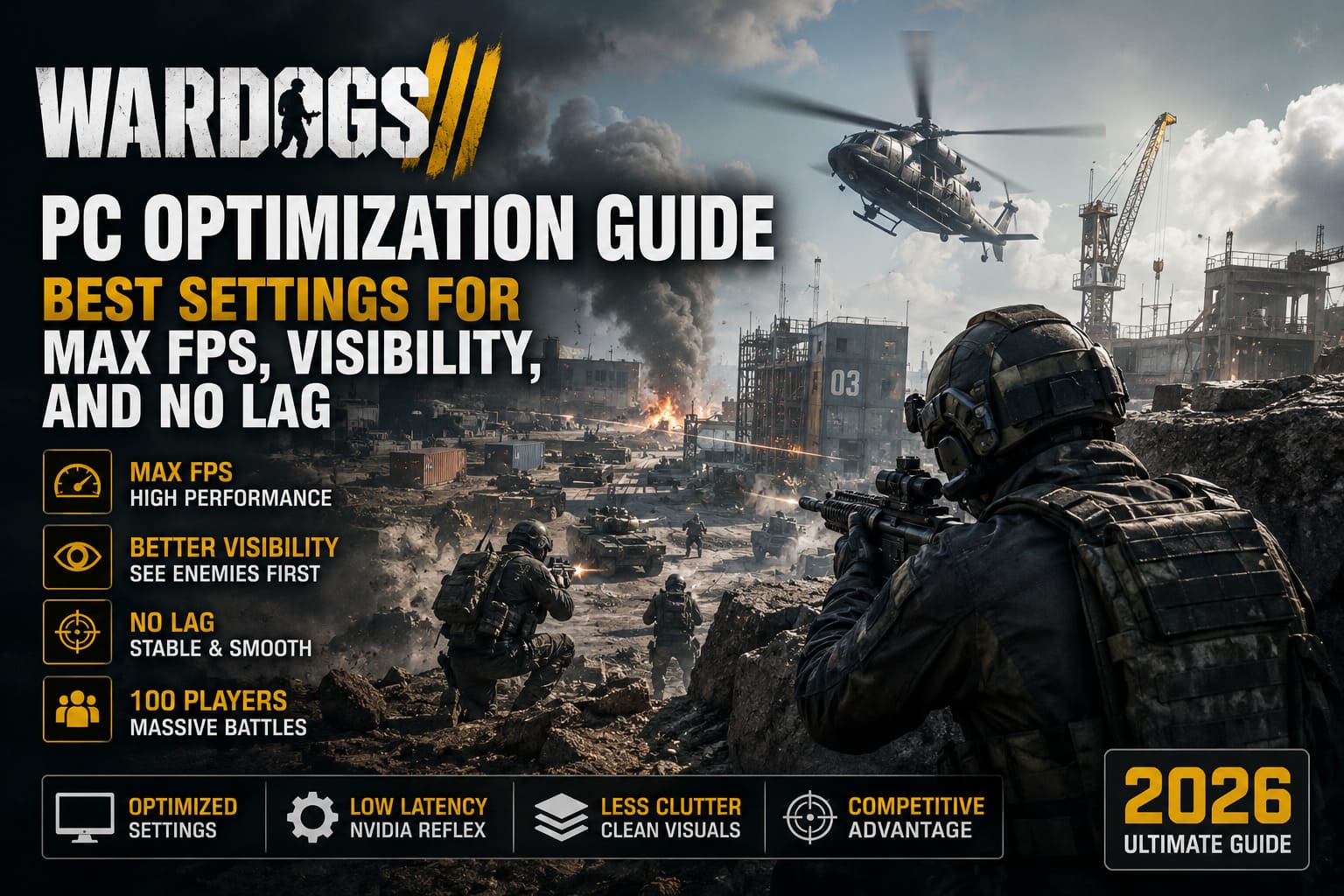
WARDOGS PC Optimization Guide: Best Settings for Max FPS, Visibility, and No Lag (2026)
WARDOGS is the kind of shooter that can make a perfectly capable gaming PC suddenly look like it needs an upgrade.
With 100 players sharing the same battlefield, vehicles tearing through objectives, buildings being constructed and demolished in real time, and three teams constantly fighting over dynamic Control Zones, there is an absurd amount of stuff happening at once. When a battle gets properly messy, WARDOGS can push both your CPU and GPU hard enough to expose every weak point in your setup.
That is why simply dragging every graphics option down to Low isn’t necessarily the answer.
I’ve always hated the “set everything to Potato and hope for the best” approach, especially in competitive shooters. Sure, your FPS counter might look prettier, but if distant cover disappears, enemy silhouettes turn into mush, and explosions fill half the screen with visual garbage, those extra frames aren’t doing you much good.
The better approach is to cut the expensive effects that don’t help gameplay while preserving the settings that actually improve visibility.
This WARDOGS PC optimization guide focuses on exactly that. The goal isn’t just maximum FPS. It’s a combination of high frame rates, stable frametimes, low input latency, strong visibility, and fewer stutters during the huge battles that make WARDOGS special.
WARDOGS PC Optimization: Quick Settings Overview
If you don’t want to spend an hour experimenting with every individual option, start here.
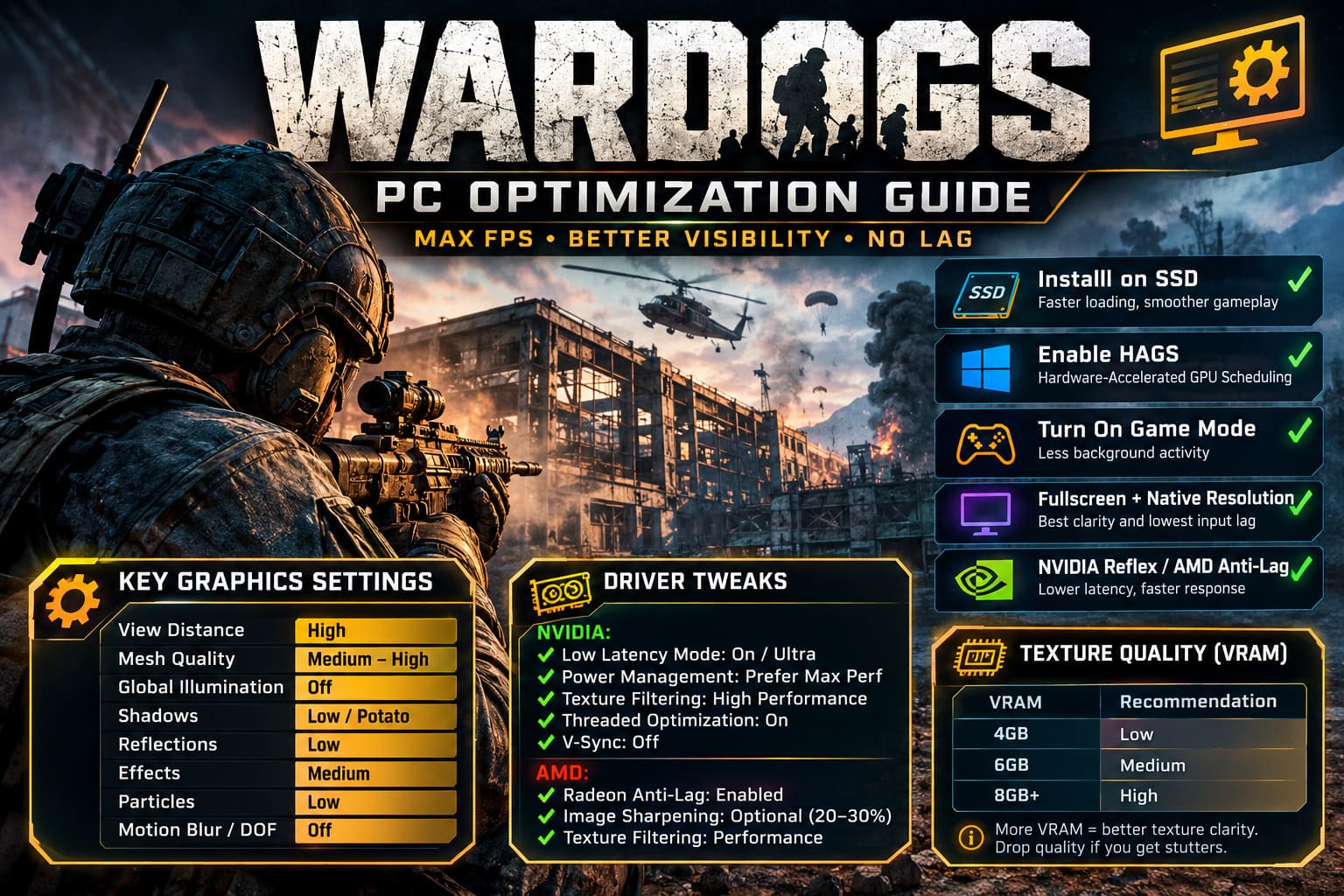
| Setting | Recommended Value |
|---|---|
| Display Mode | Fullscreen |
| Resolution | Native Monitor Resolution |
| V-Sync | Off |
| NVIDIA Reflex | Enabled + Boost |
| View Distance | High |
| Mesh Quality | Medium–High |
| Global Illumination | Off |
| Shadows | Low / Potato |
| Reflections | Low |
| Effects | Medium |
| Particles | Low |
| Post-Processing | Low |
| Motion Blur | Off |
| Depth of Field | Off |
| Lens Flare / Bloom | Off |
| Texture Quality | High with 8GB+ VRAM |
| Upscaling | DLSS / FSR Quality |
| Frame Generation | Off for Competitive Play |
| FOV | 95 |
| ADS FOV | Affected |
| PiP Scopes | Disabled |
Those are the settings I’d use as a starting point before touching anything more exotic.
1. Get Windows and Your PC Ready First
Before blaming WARDOGS for every hitch, make sure Windows isn’t quietly sabotaging your performance.
A lot of players jump straight into the graphics menu, but if the game is installed on the wrong drive, background recording is running, or Windows is using the wrong GPU preference, you’re already fighting uphill.
Install WARDOGS on an SSD
This one isn’t optional if you’re chasing consistent frametimes.
WARDOGS constantly streams assets because its environments aren’t static shooting galleries. Buildings, terrain, destruction effects, objects, audio and other resources have to be loaded while you’re moving through the battlefield.
An old mechanical HDD can turn that asset streaming into a stutter festival.
- Sudden frametime spikes
- Delayed asset loading
- Audio delays
- Texture or object pop-in
- General hitching while moving through the map
A SATA SSD is a reasonable baseline, while an NVMe drive is even better. If WARDOGS is currently sitting on an ancient HDD, move it before doing anything else.
Enable Hardware-Accelerated GPU Scheduling
Windows’ Hardware-Accelerated GPU Scheduling (HAGS) can reduce some CPU-side scheduling overhead by allowing more of the GPU scheduling work to be handled by the graphics processor.
To enable it:
- Open Windows Search.
- Type Graphics Settings.
- Open the graphics settings panel.
- Enable Hardware-Accelerated GPU Scheduling.
- Add the WARDOGS executable through the Browse option.
- Set its graphics preference to High Performance.
- Restart Windows.
It’s not some magical 40 FPS button, but on a properly configured gaming PC, every bit of unnecessary overhead is worth removing.
Turn On Windows Game Mode
Go to:
Settings → Gaming → Game Mode
Make sure Game Mode is enabled.
I’d also recommend disabling unnecessary background capture features. Windows recording constantly writing footage to your storage drive is exactly the sort of background activity you don’t need during a 100-player firefight.
Check Your Power and Chipset Configuration
Keep your AMD Ryzen or Intel chipset drivers current. Modern CPUs rely heavily on proper scheduling, and a large multiplayer sandbox can hammer multiple cores simultaneously.
For Windows power settings, Balanced is generally a perfectly sensible choice. Don’t blindly assume that an extreme High Performance profile is faster.
On some systems it can simply mean:
more heat → more power consumption → thermal throttling → worse sustained performance.
That’s a pretty lousy trade.
2. NVIDIA and AMD Driver Settings for WARDOGS
Your GPU control panel can make a noticeable difference, particularly when you’re trying to squeeze out lower latency rather than just higher average FPS.
NVIDIA Settings
For WARDOGS, I’d use these as a baseline:
| NVIDIA Option | Recommended Setting |
|---|---|
| Low Latency Mode | On / Ultra |
| Power Management | Prefer Maximum Performance |
| Texture Filtering – Quality | High Performance |
| Threaded Optimization | On |
| Vertical Sync | Off |
Prefer Maximum Performance is particularly useful if your GPU likes aggressively dropping clocks during lighter sections of the game.
WARDOGS isn’t consistently GPU-heavy. One moment you’re staring across an empty valley and the next you’re in the middle of a collapsing building with vehicles, smoke, players and explosions everywhere. Keeping the GPU ready to perform can help avoid unnecessary clock fluctuations.
If your version of the NVIDIA software exposes NVIDIA Reflex inside WARDOGS, prioritize the game’s Reflex option rather than stacking multiple latency features without knowing what each one is doing.
AMD Radeon Settings
AMD users should look at:
- Radeon Anti-Lag: Enabled
- Radeon Image Sharpening: Optional
- Texture Filtering Quality: Performance
If your upscaled image looks slightly soft, Radeon Image Sharpening around 20–30% can be worth testing.
Don’t crank sharpening to absurd levels, though. That crunchy oversharpened look makes distant geometry harder to read rather than easier.
3. Display Settings That Actually Matter
WARDOGS’ Display menu is where you establish your basic performance and latency baseline.
Fullscreen vs Windowed Fullscreen
I’d start with Fullscreen.
Windowed Fullscreen is convenient and works well for many players, but if you’re experiencing weird desktop interference, cursor issues, inconsistent frame pacing or other Windows-related nonsense, exclusive Fullscreen is worth testing.
Use Your Native Resolution
Run your monitor’s native resolution whenever your hardware allows it.
For example:
- 1920×1080 for a 1080p display
- 2560×1440 for a 1440p display
- 3840×2160 for a 4K display
Dropping resolution is an obvious FPS trick, but WARDOGS has plenty of long sightlines through industrial environments and mountain terrain.
Lowering resolution can make distant players significantly harder to identify.
If you’re on genuinely low-end hardware, dropping resolution may be necessary. Otherwise, I’d rather sacrifice expensive effects than destroy the clarity of the entire image.
V-Sync
Set V-Sync to Off.
Competitive players generally want the lowest possible input latency, and V-Sync can add latency depending on the configuration.
If you don’t have G-Sync or FreeSync and tearing is driving you insane, then V-Sync becomes a reasonable compromise. But for a competitive setup, I’d start with it disabled.
NVIDIA Reflex
If available, use:
NVIDIA Reflex: Enabled + Boost
The Boost option is particularly interesting when you’re heavily CPU-bound during huge objective fights.
That is exactly where WARDOGS gets ugly: dozens of players, destruction, vehicles, physics and effects all fighting for CPU time.
4. The Best WARDOGS Graphics Settings for Maximum FPS
Here’s where things get interesting.
You don’t need to turn everything down.
In fact, some Low settings can actively make the game worse to play.
Keep View Distance High
This is one of the settings I’d refuse to sacrifice unless absolutely necessary.
WARDOGS has large battlefields, open industrial spaces and long-range engagements. Reducing View Distance can compromise the readability of terrain, cover and distant objects.
And in a tactical shooter, spotting the enemy half a second earlier can matter more than another 15 FPS.
View Distance: High
Keep it there.
Mesh Quality: Medium to High
Mesh quality controls how detailed the physical geometry of the world appears.
I’d stay around Medium or High depending on your hardware.
This keeps:
- Walls
- Windows
- Structural edges
- Defensive positions
- Buildings
looking clean without throwing excessive geometry at your GPU.
Going all the way down can also create ugly geometry popping, which is absolutely not what you want when you’re trying to determine whether that shape 200 meters away is a player or a chunk of scenery.
Global Illumination: Off
This is one of my favorite cuts in the entire configuration.
Global Illumination: Off
Dynamic lighting calculations can become brutally expensive in a game filled with destructible environments.
Turning it off frees GPU resources and can also make darker areas easier to read.
For competitive play, I don’t need WARDOGS to look like a cinematic screenshot. I need to see the guy hiding inside the warehouse.
Shadows: Low or Potato
Shadows are another classic performance hog.
Set them to:
Low / Potato
Higher-quality shadows can look fantastic, but they don’t provide enough gameplay value to justify their cost during large battles.
Lower shadows also reduce some of the heavy visual clutter inside darker industrial areas.
Reflections: Low
Screen-space reflections can consume GPU resources for surprisingly little competitive benefit.
Unless you’re particularly obsessed with beautiful reflections on wet surfaces, keep them low.
Reflections: Low
Easy performance win.
Effects: Medium
Don’t destroy this setting completely.
Medium effects preserve the readability of:
- Muzzle flashes
- Explosions
- Smoke
- Weapon effects
- Combat activity
Going too low can make combat feedback look strangely weak.
At the same time, Maximum effects during a giant destruction sequence can hammer your GPU.
Medium is the sweet spot.
Particles: Low
This is another setting I would absolutely cut.
Destruction creates dust, debris and particles everywhere.
When an entire building comes apart, you don’t need your GPU spending extra milliseconds rendering thousands of decorative particles.
Particle Quality / Spawn Rate: Low
Cleaner screen, flatter frametimes.
That’s a win-win.
5. Kill the Cinematic Effects
Competitive WARDOGS does not need cinematic camera effects.
I’d turn these off immediately:
| Visual Effect | Competitive Setting |
|---|---|
| Motion Blur | Off |
| Depth of Field | Off |
| Lens Flare | Off |
| Bloom | Off |
| Post-Processing | Low |
Motion Blur should be the first thing to go.
There is no universe where artificial blur helps me track an enemy during a fast mouse flick.
Depth of Field is equally unnecessary. Your entire combat viewport should remain sharp instead of having the engine decide which parts of the screen deserve your attention.
Lens flare and bloom are mostly visual decoration. When the sun or an explosion is already occupying your screen, I don’t need another filter making everything brighter.
Post-processing should stay Low to avoid softening the image with unnecessary cinematic effects.
6. Texture Quality Depends on Your VRAM
Textures are slightly different from most graphics settings.
If your GPU has enough VRAM, high-quality textures can provide a substantial improvement in image clarity without necessarily destroying your FPS.
My basic rule:
| VRAM | Texture Recommendation |
|---|---|
| 4GB | Low |
| 6GB | Medium |
| 8GB+ | High |
With 8GB or more VRAM, I’d happily use High textures.
Enemy uniforms, environmental surfaces and distant objects benefit from better texture clarity.
If you’re getting VRAM-related stutters, however, drop the texture quality. A beautiful texture is worthless if your GPU runs out of memory and starts hitching like crazy.
7. DLSS, FSR and Upscaling Settings
Upscaling is one of the easiest ways to recover performance without completely destroying image quality.
For most players, I’d start with:
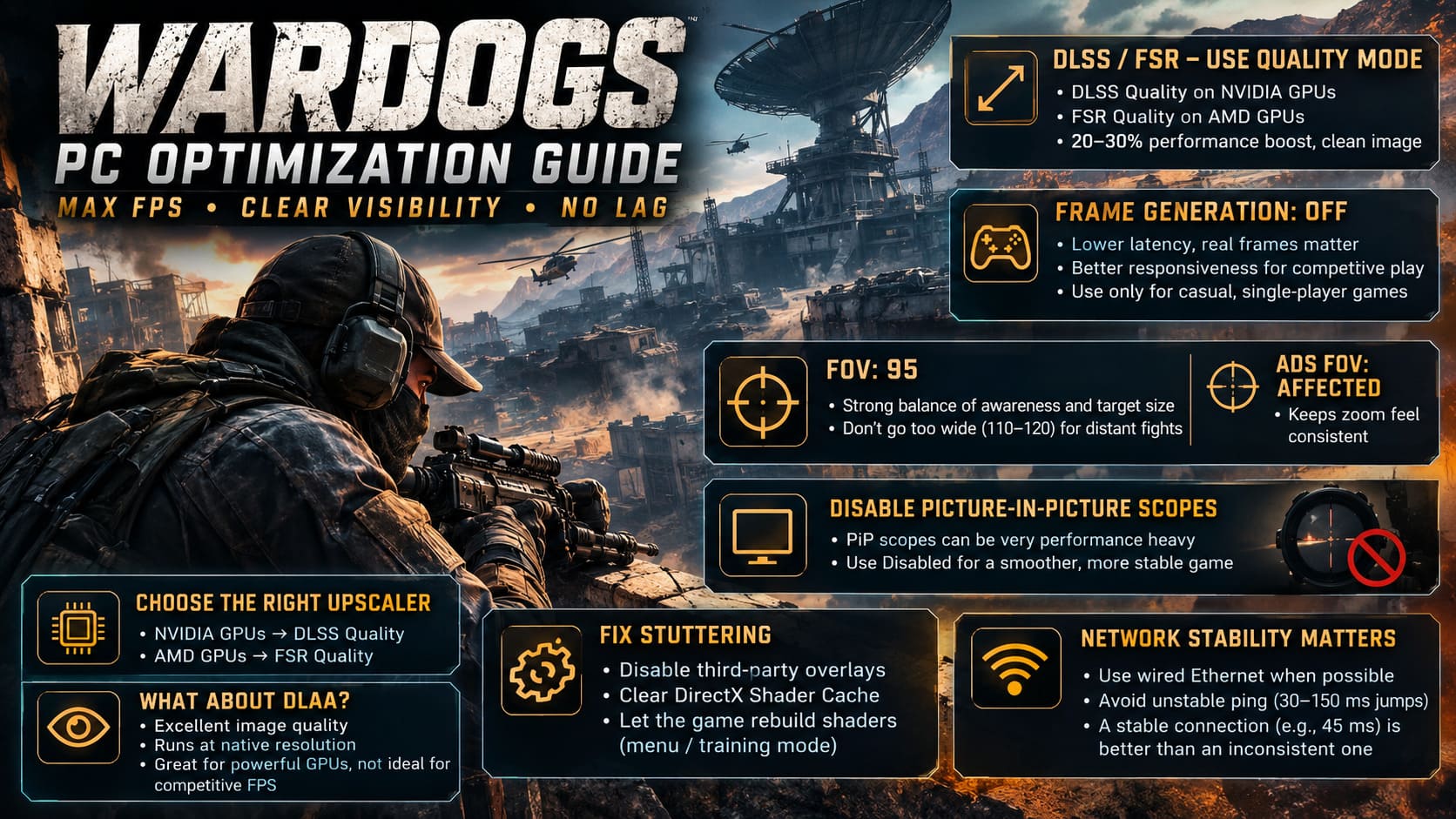
DLSS Quality on NVIDIA GPUs.
FSR Quality on AMD GPUs.
Quality mode gives the reconstruction algorithm enough information to maintain a relatively clean image while rendering fewer pixels internally.
A properly configured Quality preset can provide a meaningful performance improvement, often around the 20–30% range depending on the hardware, resolution and scene.
Don’t immediately jump to Performance mode just because it produces a bigger FPS number.
At 1080p and 1440p, aggressive upscaling can make distant objects look mushy.
And distant objects are kind of important in WARDOGS.
What About DLAA?
DLAA is an option if you’re running a powerful GPU and care more about image quality than maximum performance.
It can look excellent, but you’re paying for native-resolution rendering.
For competitive FPS, I’d rather have a stable high-refresh-rate experience.
8. Disable Frame Generation for Serious Competitive Play
Frame Generation is impressive technology.
It can make an FPS counter jump dramatically, and visually the game can feel much smoother.
But there’s a catch.
Generated frames aren’t the same thing as reducing the underlying input-to-render pipeline.
For a casual single-player game, that’s often a perfectly acceptable trade.
For a competitive tactical shooter with fast kills?
I’d rather have lower latency and fewer real frames than a gigantic FPS counter built partly from generated frames.
My recommendation:
Frame Generation: Off
If you’re playing casually and value visual smoothness more than competitive responsiveness, feel free to experiment with it. But for serious WARDOGS matches, I wouldn’t make it my default.
9. The Best FOV for WARDOGS
This is one of those settings where players love to argue.
Some people automatically push FOV to 110 or 120 because “higher is better.”
Not always.
WARDOGS has long-range engagements across industrial valleys and open terrain. An excessively wide FOV makes the world appear more zoomed out, which also makes distant enemy models smaller.
I’d start at:
FOV: 95
It provides a strong balance between peripheral awareness and target size.
If you’re constantly fighting indoors, a higher FOV might make sense. If you’re spending most of your time engaging targets at distance, 95 is a much more attractive middle ground.
ADS FOV: Affected
Set ADS FOV to Affected.
This keeps your weapon’s zoom behavior tied more naturally to your overall FOV and gives low-magnification optics a more consistent feel.
It’s one less variable to mentally compensate for during fights.
10. Disable Picture-in-Picture Scopes
This setting deserves special attention.
Picture-in-Picture (PiP) scopes can be brutally expensive.
The basic reason is simple: the game effectively has to render the world again inside the scope.
So you’re not just looking through a magnified version of what was already rendered. You’re asking the engine to perform additional rendering work.
On a game with massive multiplayer battles and destruction happening everywhere, that’s nasty.
If aiming through a sniper optic suddenly causes your FPS to fall off a cliff, PiP is one of the first things I’d investigate.
PiP Scopes: Disabled
For competitive play, the performance gain is far more valuable than the extra visual realism.
11. Fix Stuttering Before Blaming Your GPU
WARDOGS can produce situations where what looks like a graphics problem is actually related to shader compilation, overlays, storage or network conditions.
Disable Third-Party Overlays
Temporarily disable overlays from:
- Discord
- Steam
- RivaTuner Statistics Server
- RGB/peripheral software
- Other background monitoring utilities
Early-access games are especially sensitive to weird software conflicts.
Don’t assume an overlay is harmless just because it uses barely any GPU.
When you’re troubleshooting micro-stutters, eliminate variables.
Clear the DirectX Shader Cache
If stuttering suddenly becomes much worse after a driver update or game patch, your shader cache is worth checking.
You can clear the DirectX Shader Cache through Windows Disk Cleanup or the appropriate graphics software.
After doing so, don’t immediately launch into a packed 100-player battle.
Give WARDOGS time to rebuild its shaders in the menu or training environment.
The first run may still stutter while everything recompiles. That’s normal.
12. Network Stability Can Look Like Bad Performance
Here’s another trap.
You can have perfectly stable FPS and still feel like WARDOGS is running terribly.
Rubber-banding, delayed hit registration, teleporting players and sudden movement corrections can all look like “laggy FPS” to the naked eye.
If your actual issue is network instability, lowering Shadows from Medium to Potato isn’t going to save you.
For serious matches:
Use wired Ethernet whenever possible.
Wi-Fi can be perfectly usable, but Ethernet removes a whole category of potential interference and packet-loss problems.
If you’re experiencing persistent routing issues, services such as network path optimizers can sometimes help by routing traffic through more stable nodes. The important part is not simply choosing the server or route with the lowest initial ping.
A stable 45 ms connection is far preferable to a connection that jumps between 30 and 150 ms.
Final WARDOGS Competitive PC Setup
If I were sitting down to build a clean WARDOGS competitive configuration today, this is where I’d land:
| Category | Recommended Setup |
|---|---|
| Installation | SSD / NVMe |
| Windows Game Mode | On |
| HAGS | On |
| Display Mode | Fullscreen |
| Resolution | Native |
| V-Sync | Off |
| NVIDIA Reflex | Enabled + Boost |
| View Distance | High |
| Mesh Quality | Medium–High |
| Global Illumination | Off |
| Shadows | Low / Potato |
| Reflections | Low |
| Effects | Medium |
| Particles | Low |
| Post-Processing | Low |
| Motion Blur | Off |
| Depth of Field | Off |
| Lens Flare / Bloom | Off |
| Textures | High with 8GB+ VRAM |
| DLSS / FSR | Quality |
| Frame Generation | Off |
| FOV | 95 |
| ADS FOV | Affected |
| PiP Scopes | Disabled |
WARDOGS Steam Overlay Fix: How to Turn Off Overlay and Fix Beta Crashes
The Bottom Line
WARDOGS is not a game where “everything on Low” automatically equals the best competitive setup.
That’s the biggest takeaway.
Keep View Distance high because spotting enemies matters. Keep Mesh Quality around Medium–High so the battlefield remains readable. Spend your performance budget on the things that actually affect gameplay, then butcher the expensive cinematic fluff: global illumination, shadows, reflections, excessive particles, motion blur, depth of field and unnecessary post-processing.
On the latency side, V-Sync should stay off, Reflex should be enabled when available, and Frame Generation is better left disabled for serious competitive matches.
Then take care of the boring stuff that players love to ignore: install WARDOGS on an SSD, keep Windows and chipset drivers healthy, disable troublesome overlays, clear shader cache when appropriate, and use Ethernet if your network is acting weird.
The payoff isn’t just a higher FPS number.
The real goal is consistent frametimes when the battlefield turns into absolute chaos.
WARDOGS Drone Guide: How to Master FPV Kamikaze Drones in Bulkhead’s Shooter
Because that’s where WARDOGS gets interesting. When 100 players converge on a Control Zone, buildings start collapsing, vehicles roll in, smoke fills the streets and everyone starts shooting at everything that moves, you don’t want your PC suddenly deciding it’s time for a slideshow.
You want the game to stay responsive.
You want distant targets to remain visible.
And most importantly, when you lose a gunfight, you want to know it was because the other player outplayed you—not because your frame time exploded at exactly the wrong moment.