Best Graphics Settings for 60fps Silent Hill Townfall: Ultimate PC Optimization Guide
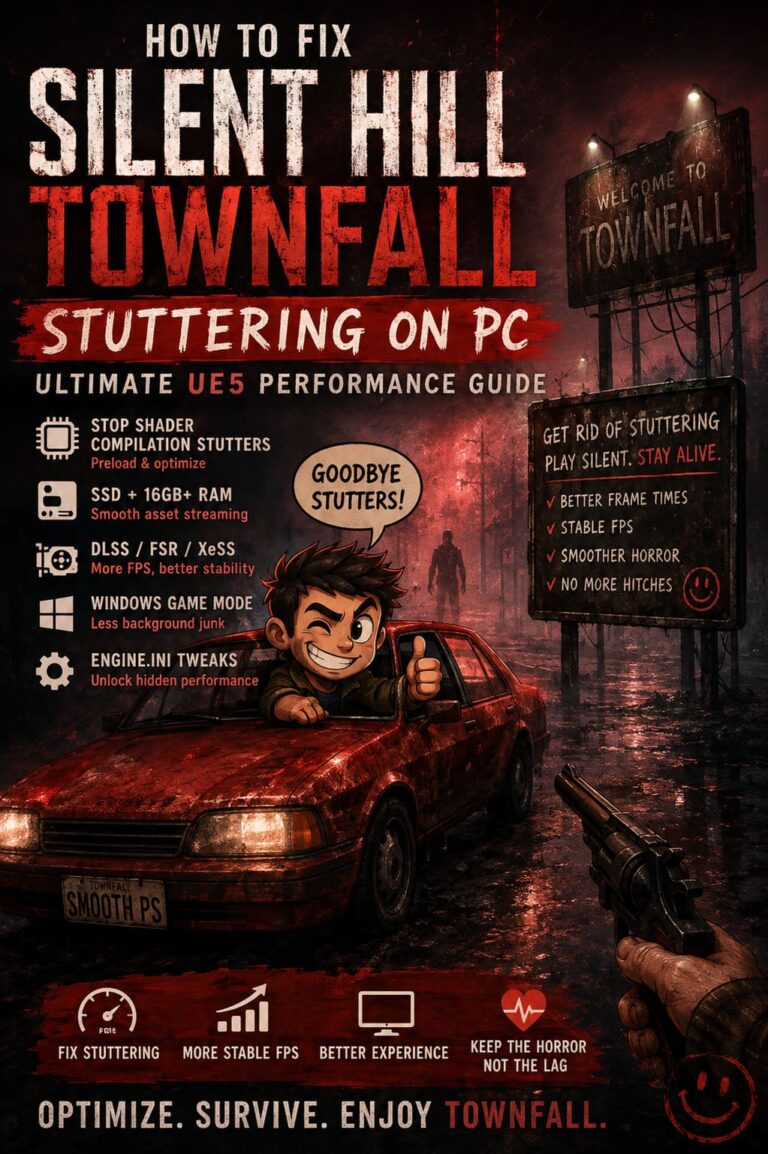
If there is one thing I absolutely hate in a horror game, it is watching a terrifying moment get ruined by a random frame drop. Silent Hill Townfall is built around atmosphere, tension, darkness, fog, and the kind of visual detail that makes you stop walking because you are convinced something moved in the corner of the screen. When that atmosphere is interrupted by stuttering or unstable frame times, the whole experience takes a hit.
Developed by Screen Burn and published by Konami and Annapurna Interactive, Silent Hill Townfall uses Unreal Engine 5 to create its unsettling version of St. Amelia. The game pushes modern lighting, volumetric effects, reflections, shadows, and environmental detail hard enough that simply selecting the highest preset is not always the smartest way to play. In fact, if your goal is a stable 60 FPS on PC, some settings need to come down while others should stay surprisingly high.
After looking at the game’s demanding visual features, the hardware requirements, and the settings that actually matter for performance, this is the configuration I would start with. The idea is simple: keep the horror intact while cutting the settings that waste performance for barely noticeable visual gains.
How to Fish (Dazed Games) Money Guide: How to Get Rich Fast (2026)
Why Silent Hill Townfall Can Be Difficult to Run at 60 FPS
Silent Hill Townfall is not the kind of game that behaves like a lightweight competitive shooter. It is asking your PC to constantly render dark environments, dynamic lighting, thick fog, reflections, detailed interiors, particle effects, and complicated shadows.
Unreal Engine 5 is doing a lot of work behind the scenes. Lumen lighting is particularly expensive, especially when you combine it with reflections and detailed environments. Volumetric fog is another major performance factor because the game relies on atmospheric effects as part of its visual identity rather than treating fog as a simple cosmetic filter.
The result is a game where GPU usage can jump dramatically when you enter a visually complicated area. You might be cruising at 70 FPS in a relatively simple corridor and suddenly drop into the 50s when several lighting sources, fog layers, shadows, and reflective surfaces appear together.
That is why I would not blindly chase maximum graphics quality. A consistent 60 FPS feels much better than an unstable 80 FPS that repeatedly falls into the 40s.
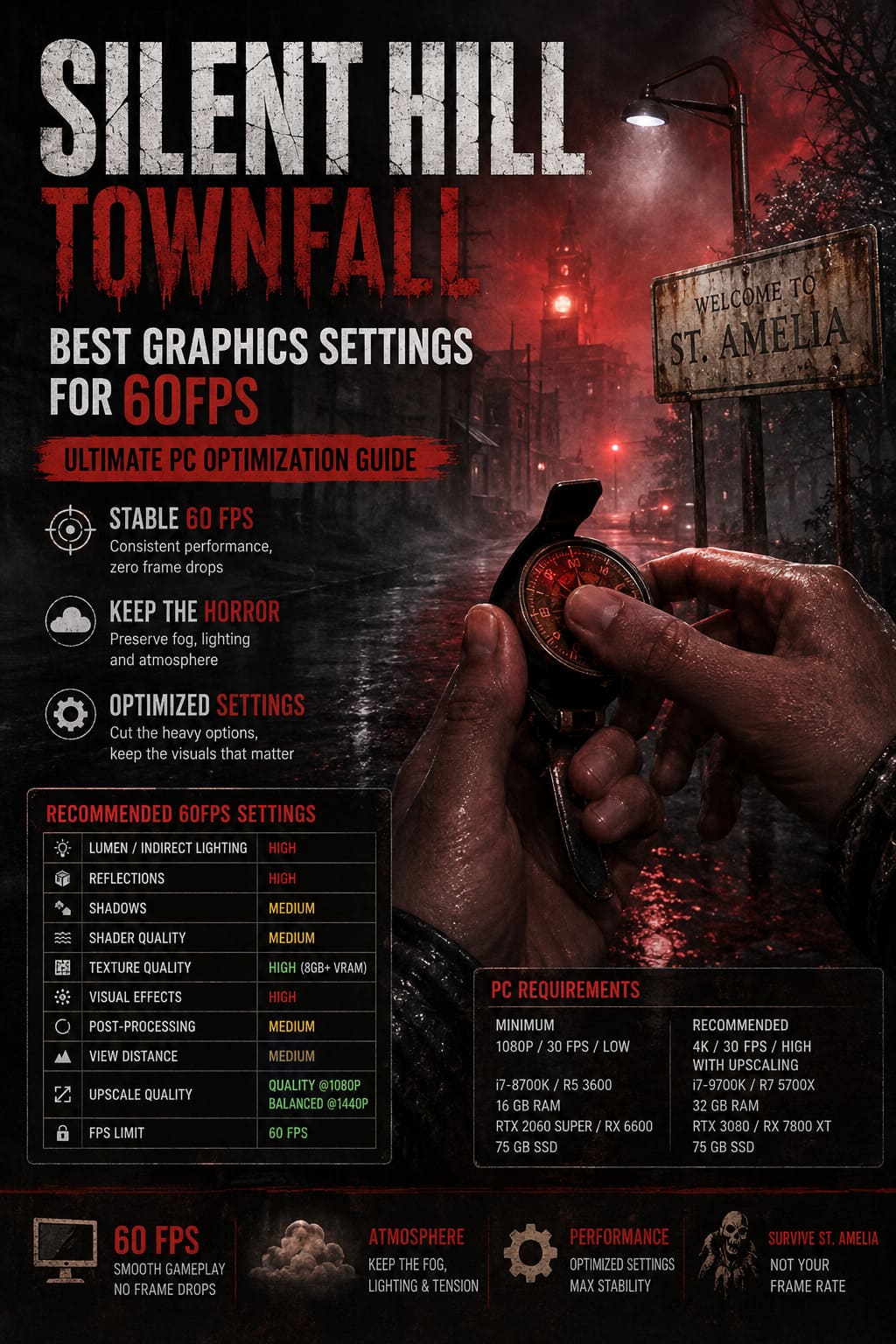
Silent Hill Townfall PC Requirements
The listed requirements give us a pretty good idea of what kind of hardware the game expects.
| Specification | Minimum | Recommended |
|---|---|---|
| OS | Windows 11 x64 | Windows 11 x64 |
| CPU | Intel Core i7-8700K / Ryzen 5 3600 | Intel Core i7-9700K / Ryzen 7 5700X |
| RAM | 16 GB | 32 GB |
| GPU | RTX 2060 Super / RX 6600 | RTX 3080 / RX 7800 XT |
| DirectX | Version 12 | Version 12 |
| Storage | 75 GB SSD Recommended | 75 GB SSD |
| Target | 1080p / 30 FPS / Low | 4K / 30 FPS / High with Upscaling |
The interesting part is the target performance. The recommended hardware is positioned around 30 FPS at 4K with upscaling, not native 4K at 60 FPS. That tells you immediately that trying to run every setting at maximum while demanding a locked 60 FPS is unrealistic for a lot of systems.
For 1080p and 1440p players, however, there is plenty of room to optimize. You do not need to make the game look ugly to get there.
My Recommended 60 FPS Settings
Here is the configuration I would use first. It prioritizes frame-time stability while keeping the visual elements that make Silent Hill Townfall actually look like Silent Hill.
| Graphics Setting | Recommended Value |
|---|---|
| Display Mode | Fullscreen |
| Resolution | Native Monitor Resolution |
| V-Sync | Off |
| Frame Rate Limit | 60 FPS |
| Upscaling | DLSS / FSR / XeSS / TSR |
| Upscaling Quality | Quality at 1080p, Balanced at 1440p |
| Sharpness | 0.5–0.7 |
| Lumen / Indirect Lighting | High |
| Reflections | High |
| Shadows | Medium |
| Shader Quality | Medium |
| Texture Quality | High with 8GB+ VRAM |
| Texture Quality | Medium with 6GB or less VRAM |
| Visual Effects | High |
| Post-Processing | Medium |
| View Distance | Medium |
The important thing here is that High does not automatically mean bad performance. Some settings have a much smaller impact than others, so there is no reason to reduce everything to Medium just because you are chasing FPS.
Display Settings
Start with Fullscreen mode. Borderless can work perfectly well on modern Windows systems, but exclusive fullscreen is still a good starting point when troubleshooting performance and input latency.
Use your monitor’s native resolution whenever possible. If you have a 1920×1080 display, stay at 1080p. For 2560×1440, native 1440p with an upscaler is the sweet spot for many modern GPUs.
I recommend turning V-Sync off initially. If screen tearing becomes distracting, you can enable it or use your GPU driver’s preferred synchronization method. The important thing is to avoid introducing unnecessary input latency when the game is already struggling with frame-time consistency.
For most players targeting 60 FPS, set the frame-rate limit to 60 FPS. A hard cap can make the GPU work less aggressively and can produce more consistent frame pacing than letting the game render as fast as possible.
DLSS, FSR, XeSS, and TSR: Use Them
This is probably the easiest performance win available.
If you have an NVIDIA RTX card, start with DLSS Quality. AMD users should try FSR Quality, while Intel GPU owners can experiment with XeSS. Unreal Engine’s TSR is also worth testing if you prefer its image reconstruction.
At 1080p, Quality mode should be your first choice because aggressive upscaling can become obvious at lower resolutions. At 1440p, Balanced mode becomes much more attractive, particularly if your GPU cannot maintain 60 FPS in the game’s heavier areas.
Do not immediately jump to Performance mode. Yes, it can produce a big FPS increase, but horror games are especially sensitive to image quality. Fine details in fog, dark textures, wires, distant objects, and environmental clutter can become noticeably softer.
A good upscaler can give you a significant performance boost while preserving most of the image quality. That is a much better trade than simply destroying every graphics setting.
Lumen Lighting: High Is the Sweet Spot
Lumen is one of the settings I would be careful with.
Unreal Engine 5’s lighting system is responsible for a huge portion of the game’s atmosphere. Reflections from wet surfaces, indirect light bouncing around dark rooms, and subtle illumination changes are exactly the kind of details that make Silent Hill Townfall look convincing.
But Epic Lumen is difficult to justify if your goal is 60 FPS.
Set indirect lighting or Lumen quality to High first. The visual difference compared with Epic can be surprisingly difficult to notice during normal gameplay, especially when the environment is dark and filled with fog.
Dropping this setting one step can free up valuable GPU resources without making St. Amelia suddenly look like a decade-old PC game.
Shadows Should Be Medium
If I had to choose one setting to reduce first, shadows would be near the top of my list.
High-quality shadows can become expensive in Unreal Engine 5, particularly when the environment contains multiple light sources. Silent Hill Townfall’s interiors and Otherworld sections can create plenty of situations where shadow calculations pile up.
Set Shadow Quality to Medium.
The difference is not nearly as painful as dropping textures or lighting, while the performance gain can be substantial on mid-range hardware. More importantly, Medium shadows can help reduce those nasty moments where your average FPS looks fine but frame times suddenly spike.
For a 60 FPS target, consistent frame pacing matters more than having razor-sharp shadows on every wall.
Keep Visual Effects on High
This is one setting I would not immediately lower.
Silent Hill Townfall depends heavily on fog, particles, atmospheric effects, and environmental effects. If you drop Visual Effects too aggressively, you risk stripping away some of the visual character that makes the game work.
The fog is not just decoration. It controls visibility, creates tension, hides environmental transitions, and makes ordinary spaces feel threatening.
Set Visual Effects to High unless your GPU is seriously struggling. If you need another performance boost after adjusting the major settings, then experiment with Medium, but I would sacrifice shadows first.
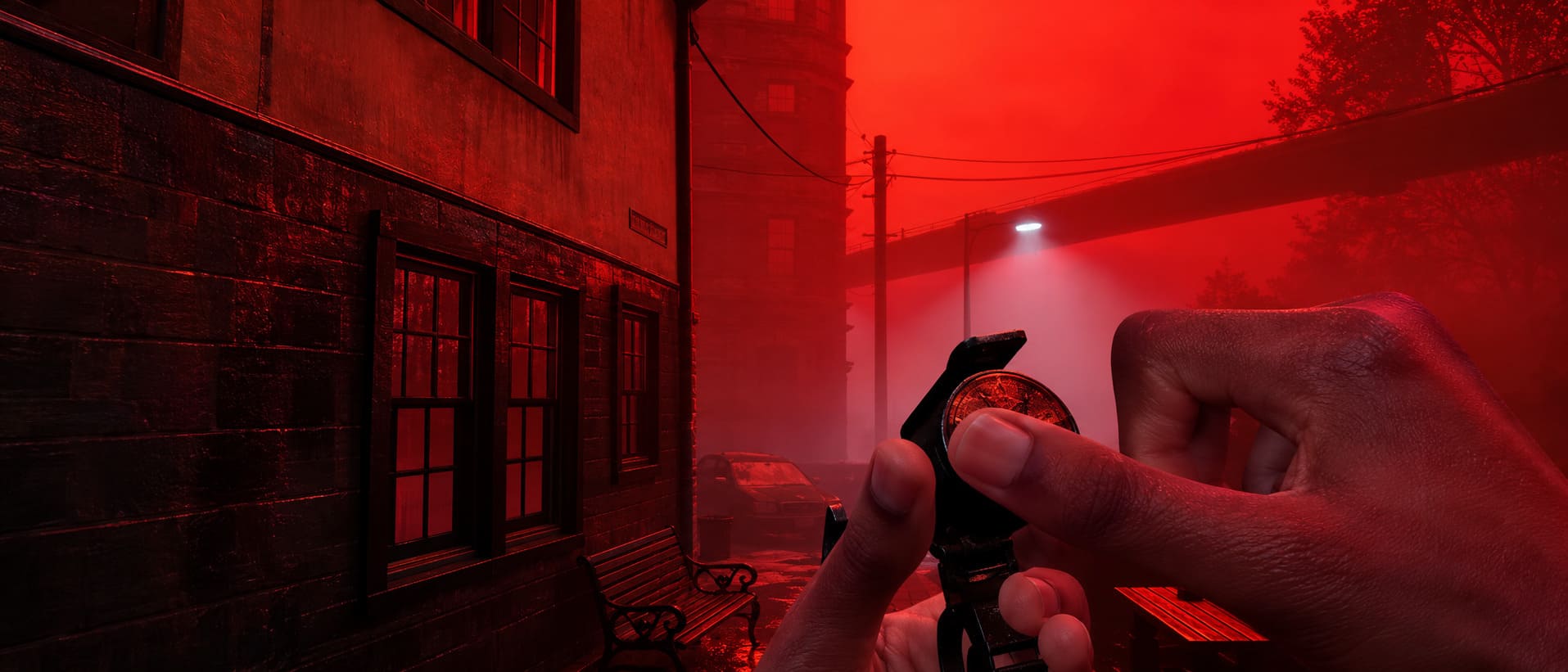
Shader Quality: Medium Is Enough
Shader processing can become a source of stutters in modern Unreal Engine games, especially while exploring new areas.
I recommend Medium Shader Quality for a balanced configuration. Lowering this setting can help weaker GPUs and systems that experience sudden frame-time spikes when entering new locations.
The important thing is not expecting shader quality to magically double your FPS. Its bigger benefit is helping the game behave more consistently in demanding situations.
If your PC has plenty of GPU horsepower but still suffers from occasional traversal stutter, this is one setting worth testing.
Texture Quality Depends on VRAM
Textures are different from many other graphics settings because they primarily depend on available VRAM.
If your graphics card has 8GB of VRAM or more, I would keep Texture Quality on High. If you have 6GB or less, Medium is the safer choice.
There is no reason to lower texture quality from High to Medium on a card that has enough VRAM available. You are giving up visible image quality without necessarily solving the real performance problem.
On the other hand, if your VRAM is being saturated, keeping textures too high can lead to hitching, asset streaming problems, and ugly frame-time spikes. In that situation, Medium is absolutely the better option.
Post-Processing and View Distance
Set Post-Processing to Medium.
This gives you a cleaner image while reducing some of the expensive effects that can accumulate in darker scenes. If you dislike excessive motion blur or depth-of-field effects, Medium is also a nice compromise for gameplay clarity.
View Distance can safely go to Medium for most systems. Silent Hill Townfall frequently puts you inside buildings, corridors, streets surrounded by fog, and relatively enclosed environments. Maximum draw distance simply is not providing enough visible benefit to justify the performance cost on most hardware.
Windows Tweaks That Can Help
Graphics settings are only half of the optimization process.
First, make sure Hardware-Accelerated GPU Scheduling is enabled in Windows 11. Go to Windows Settings, open System, select Display, then Graphics, and look for the default graphics settings section. Enable Hardware-Accelerated GPU Scheduling if your system supports it, then restart the PC.
Your graphics driver should also be current. If you have recently upgraded your GPU or have been installing drivers repeatedly, a clean installation can be useful when dealing with unexplained crashes, flickering, or sudden performance problems.
Do not underestimate shader compilation, either. Unreal Engine games can produce stutters while building or loading shaders, and these problems are sometimes mistaken for insufficient GPU power. Give the game time to finish its initial shader work instead of immediately assuming your hardware cannot handle it.
What Settings Should You Lower First?
If you are sitting at 45–55 FPS and desperately trying to reach a stable 60, do not start randomly switching everything to Low.
Use this order instead:
- Lower Shadow Quality from High to Medium.
- Reduce Lumen or Indirect Lighting from Epic to High.
- Set Shader Quality to Medium.
- Move View Distance to Medium.
- Use DLSS, FSR, XeSS, or TSR in Quality or Balanced mode.
- Reduce Post-Processing if you still need more performance.
- Only then consider lowering Visual Effects.
This approach keeps the game’s atmosphere intact while targeting the settings that are most likely to cost you performance.
Best Settings for Different PC Classes
If you are running an RTX 3060-class GPU or something around that performance level, I would aim for 1080p, upscaling Quality, Medium shadows, Medium shaders, High textures, and High visual effects. That is a much more sensible target than trying to brute-force Epic settings.
For stronger 1440p hardware, use 1440p with DLSS or FSR Quality/Balanced, High Lumen, High reflections, Medium shadows, and High textures. This should preserve the majority of the game’s visual punch while giving your GPU some breathing room.
High-end GPUs can obviously push the settings further, but I still would not recommend maxing every option simply because the hardware allows it. Horror games benefit enormously from stable frame pacing, and a locked 60 FPS experience can feel far better than an inconsistent 80–100 FPS.
Final Verdict
The best Silent Hill Townfall PC settings are not about making the game look as ugly as possible for an FPS counter. The goal is to cut expensive settings that provide little visible benefit while protecting the fog, lighting, textures, and environmental detail that make the game frightening.
My personal starting point would be High Lumen, High reflections, High textures, High visual effects, Medium shadows, Medium shaders, Medium post-processing, and Medium view distance, combined with DLSS or FSR. Lock the game to 60 FPS and then adjust from there based on your GPU and resolution.
If your PC struggles, resist the temptation to immediately drop everything to Low. Silent Hill Townfall is a game where atmosphere is half the experience, and destroying the visual effects just to gain a few extra frames defeats the purpose. Tune the expensive settings intelligently, keep the signature horror effects intact, and you can get a much smoother game without turning St. Amelia into a blurry gray corridor simulator.