How to Optimize Silent Hill Townfall DLSS 3 Frame Generation Settings for Maximum FPS
Silent Hill has never been about making players comfortable, and Silent Hill Townfall looks determined to continue that tradition from a completely different angle. Instead of relying purely on familiar third-person horror mechanics, the game puts you inside a grim first-person nightmare where darkness, heavy fog, unsettling interiors, and strange visual distortions constantly fight for your attention. The problem is that all of those effects can also fight your GPU.
For PC players, getting Silent Hill Townfall running smoothly is almost as important as surviving whatever is hiding in the fog. A game this dependent on atmosphere can feel dramatically worse when the frame rate suddenly collapses during an intense sequence. If you’re using an NVIDIA RTX 40-series or RTX 50-series graphics card, DLSS 3 Frame Generation can be one of the most useful tools in your performance arsenal, but only if you pair it with sensible settings.
I’ve spent enough time tweaking PC games to know that simply turning every NVIDIA feature to ‘On’ isn’t a real optimization strategy. Frame Generation can produce fantastic results, but a badly configured setup can introduce latency, strange ghosting, inconsistent frame pacing, or that weird feeling where the FPS counter looks amazing while the game somehow feels sluggish. That’s exactly what we want to avoid here.
Best Graphics Settings for 60fps Silent Hill Townfall: Ultimate PC Optimization Guide
Why Silent Hill Townfall Can Be So Demanding on PC
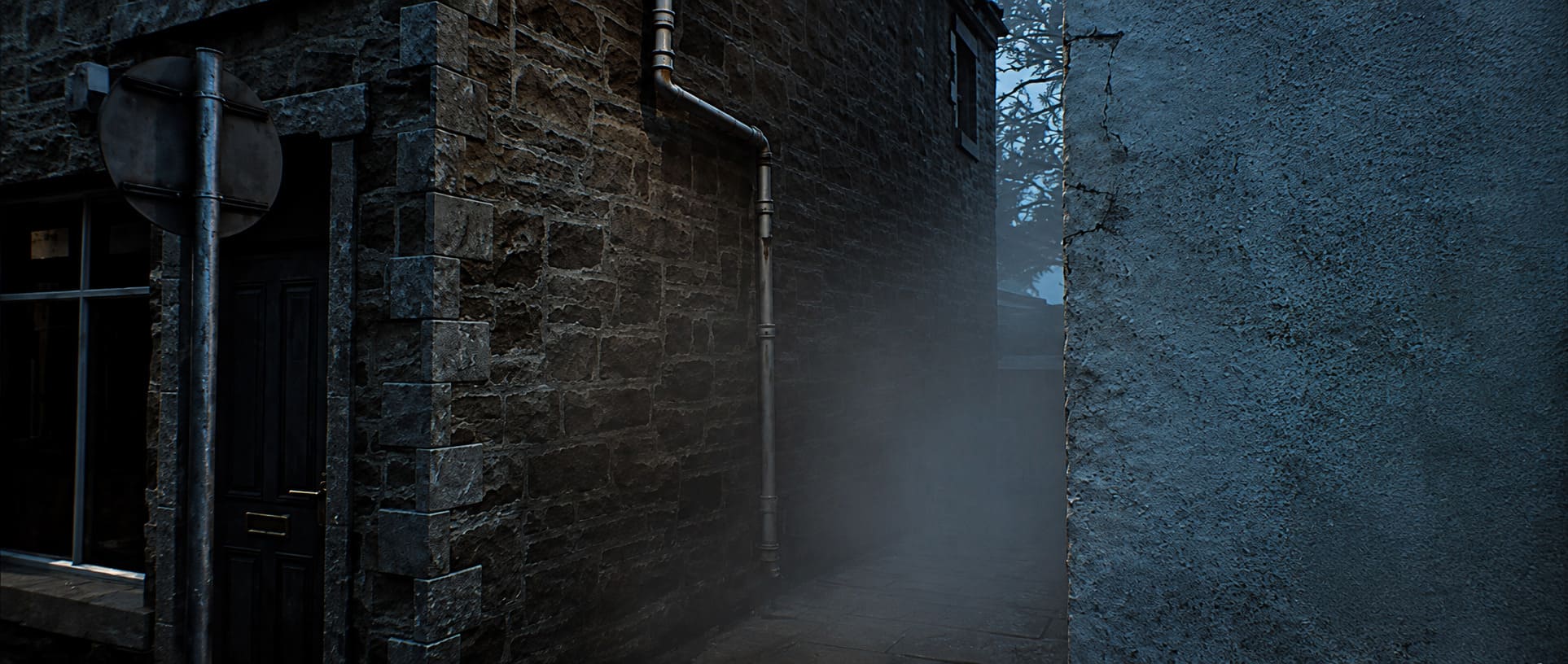
The visual design of Silent Hill Townfall is not exactly friendly to weaker hardware. The game combines dense environmental detail with dark lighting, volumetric effects, reflections, dynamic illumination, and thick fog that can completely change how a scene is rendered.
Fog is particularly nasty from a performance perspective. It isn’t simply a gray filter sitting over the screen. Modern volumetric fog interacts with lighting, geometry, shadows, and the player’s position, meaning a seemingly empty corridor can still be surprisingly expensive to render.
The first-person perspective makes this even more noticeable. You are constantly looking around, examining objects, moving through enclosed environments, and dealing with visual effects designed to distort your perception. When the game suddenly transitions between different realities or throws a dense atmospheric effect at the screen, GPU utilization can spike hard.
That’s where DLSS becomes incredibly useful.
The Best DLSS 3 Settings for Silent Hill Townfall
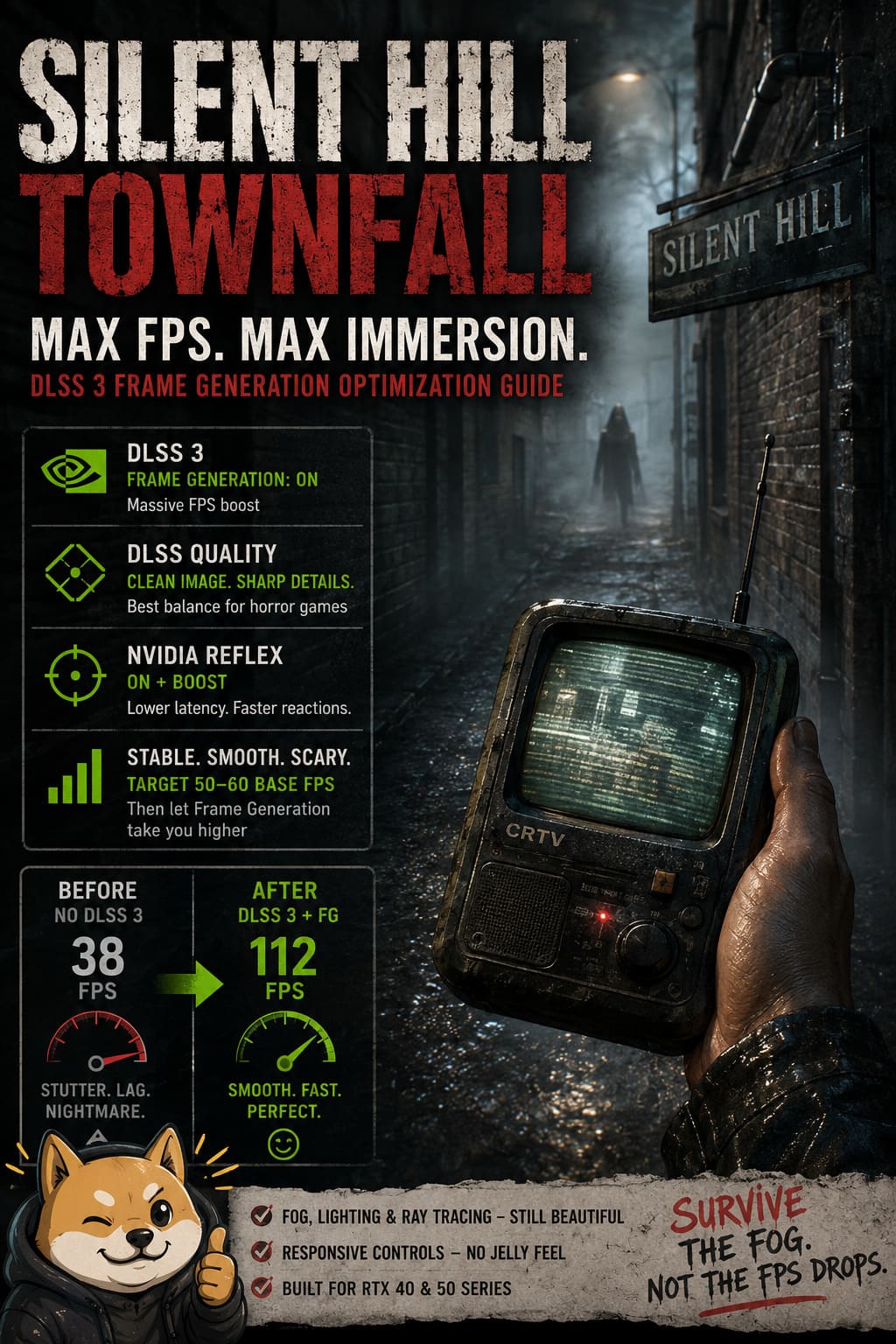
If your PC is equipped with compatible NVIDIA hardware, my preferred starting point is DLSS Quality + Frame Generation + NVIDIA Reflex. It gives you a strong combination of image quality, responsiveness, and performance without turning the entire game into a blurry mess.
| Setting | Recommended Value | Why |
|---|---|---|
| Display Mode | Fullscreen | Best choice for consistent performance and latency |
| Resolution | Native Monitor Resolution | Gives DLSS the correct input resolution |
| V-Sync | Off In-Game | Avoids conflicts with Frame Generation |
| DLSS Super Resolution | Quality | Excellent balance between clarity and FPS |
| DLSS Frame Generation | On | Major increase in displayed frame rate |
| NVIDIA Reflex | On + Boost | Helps reduce latency |
| Ray Tracing | High or Medium | Adjust based on GPU headroom |
| Texture Quality | High | Usually worth keeping high on modern RTX cards |
DLSS Quality should be your first choice, especially at 1440p. It provides a much cleaner image than the more aggressive Performance modes, and horror games benefit enormously from keeping small environmental details sharp. When you’re trying to figure out whether that shape in the darkness is an actual enemy or just a pile of junk, you don’t want your upscaler turning everything into mush.
At 4K, you have more flexibility. DLSS Quality is still preferable if your GPU can handle it, while Balanced becomes a reasonable option if you’re trying to maintain a higher refresh rate.
Don’t Enable Frame Generation Before Fixing Your Base FPS
This is one of the biggest mistakes I see with DLSS 3.
Frame Generation isn’t magic. If your game is producing an unstable 30 FPS before generated frames are added, turning the feature on doesn’t suddenly transform the underlying performance into a genuinely responsive 120 FPS experience.
Think of Frame Generation as a performance multiplier for an already decent foundation.
For a good experience, I’d aim for roughly 50–60 real rendered FPS before enabling Frame Generation. Once your base performance is stable, generated frames can push the visible frame rate much higher while keeping the game feeling considerably smoother.
If you’re sitting at 35–40 FPS without Frame Generation, lower the expensive settings first. Ray tracing, volumetric effects, shadows, and other lighting-related options are the obvious suspects.
NVIDIA Reflex Is Not Optional in My Setup
If Frame Generation is enabled, NVIDIA Reflex should be enabled as well.
Frame Generation creates additional frames between traditionally rendered frames, but those generated frames don’t magically reduce the time required for your original input to reach the game. That’s why Reflex matters.
Set NVIDIA Reflex to On + Boost if the option is available. The Boost mode can keep the GPU operating in a way that helps maintain responsiveness during demanding scenes.
This is particularly valuable in a horror game because mouse movement needs to feel immediate. When you’re turning around because you heard something behind you, the last thing you want is the camera feeling like it’s attached to a rubber band.
How to Reduce DLSS Frame Generation Stutter
Micro-stuttering is usually more annoying than a consistently lower frame rate. A locked 60 FPS can feel excellent, while an unstable 100 FPS can feel terrible.
Start by making sure your NVIDIA graphics driver is fully updated. Driver releases can include game-specific fixes, shader improvements, DLSS updates, and fixes for rendering problems that aren’t obvious until you’re several hours into a game.
Windows should also have Hardware-Accelerated GPU Scheduling enabled when you’re using a compatible Frame Generation configuration.
After changing HAGS, restart the computer. Don’t just close the game and assume the setting has been applied correctly.
Another important point is refresh-rate management. If you’re using a high-refresh monitor with G-SYNC or another adaptive-sync technology, proper frame pacing can make a larger difference than simply chasing the highest possible FPS number.
The V-Sync Trick: Game Settings vs NVIDIA Control Panel
This is where PC optimization gets slightly more interesting.
For many DLSS Frame Generation setups, a useful configuration is to leave V-Sync disabled inside the game while managing synchronization through the NVIDIA Control Panel when using compatible adaptive-sync hardware.
Open the NVIDIA Control Panel and find the profile for Silent Hill Townfall. Under the program-specific settings, configure your synchronization and latency options rather than relying entirely on the game’s internal implementation.
I generally prefer a setup where the frame rate stays just below the monitor’s maximum refresh rate. For example, on a 144Hz display, targeting around 140 FPS can produce a cleaner experience than constantly slamming against the 144 FPS ceiling.
The exact limit depends on your monitor and VRR setup, so don’t blindly copy someone else’s number.
What to Do About Ghosting and CRTV Image Artifacts
This is probably one of the more irritating side effects you can encounter with modern reconstruction technologies.
DLSS relies heavily on motion data to reconstruct an image. That works brilliantly for many types of movement, but tiny text, screens, thin lines, and unusual animated surfaces can occasionally expose weaknesses in reconstruction.
A handheld CRTV-style device is exactly the kind of object that can make these problems obvious. If text appears smeared, edges trail behind movement, or certain interface elements look strangely soft, don’t immediately assume your GPU is failing.
First, experiment with the DLSS quality mode. Quality is my recommended starting point because it gives the reconstruction algorithm more source information to work with. If you’re already using an aggressive Performance mode, moving up to Balanced or Quality can make a noticeable difference.
It’s also worth checking that the game is using its current DLSS components and that your NVIDIA driver installation is healthy. I wouldn’t start replacing game files with third-party utilities unless you’re genuinely troubleshooting a persistent problem. In many cases, a clean driver update and sensible in-game settings are all you need.
Recommended Settings for Different RTX GPUs
Not every RTX card should be treated the same way. A setting that makes perfect sense on an RTX 4090 can be completely unreasonable on an RTX 4060.
| GPU Class | Resolution | DLSS Mode | Frame Generation | Ray Tracing |
|---|---|---|---|---|
| RTX 4060 / 4060 Ti | 1080p–1440p | Quality / Balanced | On | Medium |
| RTX 4070 / 4070 Super | 1440p | Quality | On | High |
| RTX 4070 Ti / Super | 1440p–4K | Quality | On | High |
| RTX 4080 / Super | 4K | Quality | On | High |
| RTX 4090 / 5090 Class | 4K | Quality | On | High / Max |
These aren’t hard rules. They’re starting points.
If you’re using an RTX 4060 Ti at 1440p and the game is struggling, don’t be afraid to reduce ray tracing or volumetric quality. I’d much rather play at a stable high frame rate with slightly reduced lighting quality than stare at gorgeous fog while the game periodically turns into a slideshow.
My Ideal Silent Hill Townfall PC Configuration
If I were setting up the game on a modern RTX gaming PC, I’d begin with native monitor resolution, Fullscreen, DLSS Quality, Frame Generation On, Reflex On + Boost, and in-game V-Sync Off.
Then I’d benchmark the most demanding area of the game rather than judging performance from an empty hallway. Horror games can have enormous differences between quiet interiors and effects-heavy sequences.
If the base frame rate stays around 55–60 FPS or higher, I’d leave the configuration alone and enjoy the game. If it drops below that regularly, I’d reduce ray tracing and volumetric effects before touching texture quality.
Texture quality is one of those settings I hate lowering unless absolutely necessary. Modern RTX cards with enough VRAM can usually handle high-quality textures without the same performance penalty associated with lighting and volumetric effects.
Final Verdict: Chase Stability, Not Just the FPS Counter
Silent Hill Townfall is exactly the kind of game where performance problems can destroy the atmosphere. A stutter during a competitive shooter is annoying; a stutter right as a horrifying silhouette appears through the fog can completely ruin the moment.
That’s why DLSS 3 Frame Generation is worth using when your hardware supports it, but it should be treated as the final piece of the performance puzzle rather than a magic button.
Start with a healthy native frame rate, use DLSS Quality, enable Frame Generation, turn on Reflex, keep an eye on frame pacing, and adjust ray tracing when your GPU starts gasping for air. If you’re running an RTX 4070-class system at 1440p, this combination should give you a particularly strong balance between visual quality and smoothness.
And honestly, that’s what I want from a horror game. I don’t need an FPS counter screaming 160 if the controls feel delayed and the image is full of ghosting. Give me stable frames, sharp details, responsive controls, and thick fog that doesn’t bring my GPU to its knees. Let the monsters scare me—not the performance graph.