How to Fix DLSS 3 Frame Generation Ghosting in Resonance: A Plague Tale Legacy
If there is one thing that can instantly ruin an otherwise gorgeous PC game for me, it is bad ghosting. I can forgive a slightly muddy texture, a frame-rate dip in a crowded area, even the occasional shader-stutter. But when I turn the camera and Sophia’s hair, foliage, shadows, or HUD elements start dragging themselves across the screen like they’re stuck in another dimension, my immersion is gone.
That is exactly why DLSS 3 Frame Generation can be such a weird beast in Resonance: A Plague Tale Legacy. On paper, it is one of the best technologies available to PC gamers. With a compatible GeForce RTX GPU, Frame Generation can dramatically increase the number of displayed frames and make demanding games feel significantly smoother. In practice, though, the technology is not completely immune to visual artifacts, and ghosting, smearing, and trailing effects can become painfully obvious in certain scenes.
The good news? You don’t necessarily have to choose between beautiful graphics and smooth performance. There are several settings worth experimenting with before giving up on DLSS 3 entirely.
How to Fix Micro Stuttering in Resonance: A Plague Tale Legacy (PC Optimization Guide)
Why Does DLSS 3 Frame Generation Cause Ghosting?
First, it is worth understanding what is actually happening.
Frame Generation doesn’t simply make your GPU render more frames the traditional way. It uses information from previously rendered frames, motion data, optical-flow information, and Nvidia’s AI technology to generate an additional frame between traditionally rendered images.
That’s an incredibly clever trick. When it works properly, the result can feel almost magical. The camera becomes smoother, character movement looks more fluid, and a demanding game suddenly feels far more responsive visually.
The problem is that the generated frame is still a prediction.
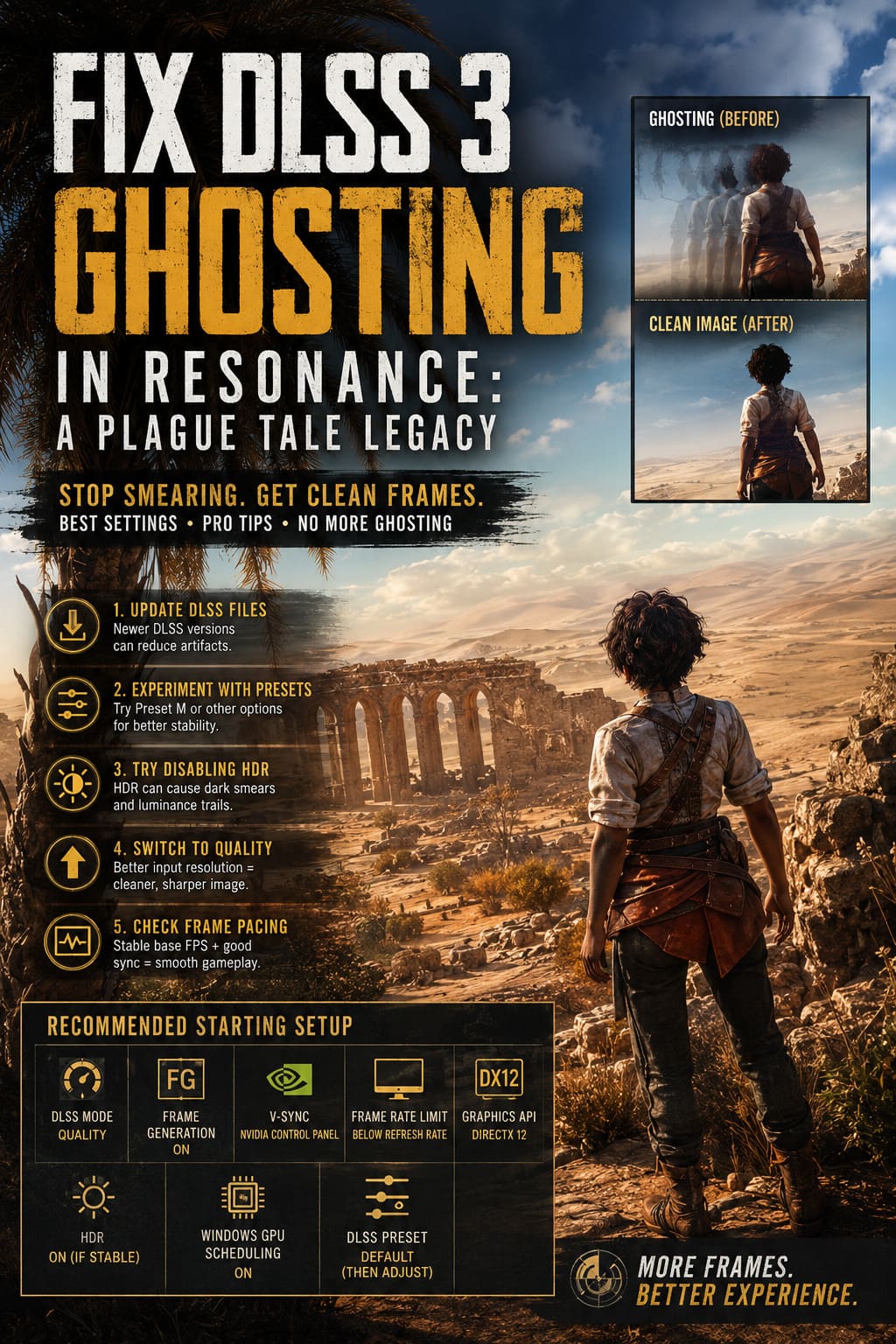
If the engine provides poor motion-vector information, or if an object moves in a way the algorithm has difficulty interpreting, the generated frame can contain errors. Instead of a clean outline, you might see a faint duplicate or a blurry trail.
In Resonance: A Plague Tale Legacy, these problems are particularly irritating because the game appears to rely heavily on detailed environments, atmospheric lighting, vegetation, character animation, and complex effects. Fast camera movements can expose weaknesses that aren’t obvious when you’re simply walking through a scene.
The usual suspects include:
- Character hair and fine geometry
- Dense vegetation and foliage
- Torchlight and moving shadows
- Thin object edges
- HUD and other interface elements
- Fast camera rotations
And honestly, seeing a ghost image following Sophia around is one of those things I notice immediately.
Fix #1: Update the DLSS Files
This would be my first thing to investigate before messing around with ten different Windows settings.
Game developers don’t always ship the newest possible versions of Nvidia’s DLSS libraries. That’s not necessarily a mistake; development builds have to be tested and locked down at some point. However, newer DLSS versions can sometimes improve image reconstruction, temporal stability, and artifact handling.
If your installation contains older DLSS libraries, replacing them with a newer compatible version may help.
The general process looks like this:
- Close the game completely.
- Locate the game’s installation folder.
- Find the DLSS-related DLL files used by the game.
- Make a backup of the original files before changing anything.
- Obtain compatible, reputable versions of the required Nvidia DLSS libraries.
- Replace the game’s existing files.
- Launch the game and test the same scene where the ghosting was previously visible.
For Steam, getting to the installation folder is usually straightforward: open the game’s properties, go to the installed files section, and choose the option to browse the local files.
I’d strongly recommend keeping the original DLLs somewhere safe. If the game crashes, refuses to launch, or behaves strangely after the replacement, restoring the original files is much easier than troubleshooting a mystery problem.
Don’t blindly download random DLL files from shady websites. That’s not optimization; that’s asking for trouble.
Fix #2: Experiment With DLSS Presets
This is where things get more interesting for people who enjoy squeezing every last bit of quality out of a PC game.
DLSS can use different internal presets that influence how image reconstruction behaves. The default configuration supplied by a game isn’t necessarily going to produce identical results on every title or every scene.
Advanced users sometimes experiment with tools such as DLSS configuration utilities to force a different preset.
One option worth investigating is Preset M, particularly if your biggest complaint is temporal instability and trailing around moving objects. Depending on the game and DLSS implementation, another preset may also produce better results.
There is no universal ‘magic preset’ that fixes every game, though. That’s important.
I would treat this as an experiment rather than blindly assuming that one particular preset is objectively superior. Change one thing at a time, load the same save, rotate the camera through the same area, and compare.
That’s how you avoid falling down the PC optimization rabbit hole where you’ve changed fifteen settings and no longer know which one actually helped.
Fix #3: Try Disabling HDR
This one sounds strange, but HDR can sometimes complicate troubleshooting because you’re dealing with another layer of image processing.
If your ghosting looks more like dark smears, strange luminance trails, or black shadows dragging behind objects, temporarily disable HDR and see what happens.
Turn HDR off in Windows and inside the game if it provides its own HDR option. Then restart the game and test the exact same scene.
If the artifact disappears, you’ve learned something useful.
If it doesn’t, simply turn HDR back on and move to the next test. There’s no reason to sacrifice an HDR display permanently just because one troubleshooting experiment failed.
I’d also check your monitor’s response-time or overdrive setting. Extremely aggressive overdrive can produce its own visual artifacts, including inverse ghosting. That can look surprisingly similar to problems caused by rendering technology.
In other words, don’t automatically blame DLSS for every trail you see.
Fix #4: Switch From Performance to Quality
This is probably the simplest experiment on the entire list.
If you’re running DLSS Performance, try moving to Balanced or Quality.
Why?
Because the higher-quality modes generally provide the reconstruction algorithm with more useful source information. When the internal rendering resolution is extremely low, fine details become harder to reconstruct cleanly, especially during movement.
For me, DLSS Quality is usually the sweet spot when image quality matters. If your GPU has enough headroom, it can be a much better compromise than pushing Performance mode just to chase a higher number in the corner of the screen.
A game running at 140 FPS with ugly trails isn’t necessarily more enjoyable than one running at 100 FPS with a clean image.
Sometimes PC gamers forget this because we’ve been trained to worship the FPS counter.
Fix #5: Check Your Frame Pacing
Frame Generation is not a magical substitute for a strong base frame rate.
This is something I wish more optimization guides emphasized. If the game is struggling badly before Frame Generation is enabled, adding generated frames won’t necessarily make the underlying experience perfect.
Ideally, get the game running at a healthy native rendering rate first. Then enable Frame Generation.
Also pay attention to your display’s refresh rate and synchronization settings. A sensible configuration can include V-Sync managed through the Nvidia Control Panel, while avoiding conflicting synchronization options inside the game.
For a high-refresh monitor, limiting the frame rate slightly below the display’s maximum refresh rate can also help maintain a more consistent presentation.
The exact cap depends on your monitor, GPU, and synchronization technology, so I wouldn’t treat ‘three frames below refresh rate’ as an unbreakable law. Think of it as a useful starting point.
My Recommended Starting Configuration
If I were sitting down with Resonance: A Plague Tale Legacy and trying to find the best combination of image quality and smoothness, this is where I’d start:
| Setting | Recommended Starting Point |
|---|---|
| DLSS Mode | Quality |
| Frame Generation | Enabled |
| V-Sync | Nvidia Control Panel |
| In-Game V-Sync | Disabled if using driver-level V-Sync |
| Frame Rate Limit | Slightly below monitor refresh rate |
| Graphics API | DirectX 12 |
| HDR | Enabled unless it causes artifacts |
| Windows GPU Scheduling | Enabled for testing |
| DLSS Preset | Default first, then experiment if necessary |
The key word here is starting point.
There is no configuration that will magically work identically for every RTX system. Your GPU, monitor, Windows version, driver, refresh rate, and even the specific scene you’re looking at can change the result.
Don’t Throw DLSS 3 Away Too Quickly
I’ve seen plenty of PC players switch off Frame Generation the moment they notice ghosting, and I understand the reaction. Nobody wants to stare at a beautiful game world while every moving object leaves a transparent clone behind it.
But DLSS 3 is still an extremely useful piece of technology when the underlying game implementation behaves properly.
The trick is to troubleshoot methodically.
Update your GPU drivers. Check the game’s DLSS files. Test Quality instead of Performance. Disable HDR temporarily. Experiment with presets only after you’ve established a baseline. Check your monitor’s overdrive. And, most importantly, compare the same scene after every change.
Don’t change six settings at once and then convince yourself that you’ve fixed something.
For a game as visually ambitious as Resonance: A Plague Tale Legacy, I’d much rather spend ten minutes finding a clean DLSS configuration than permanently disable Frame Generation and leave a pile of performance on the table.
The best PC experience isn’t the one with the biggest FPS number. It’s the one where the world looks sharp, movement feels smooth, and you stop noticing the technology working underneath the game.
That is the goal: not just more frames, but better-looking frames.