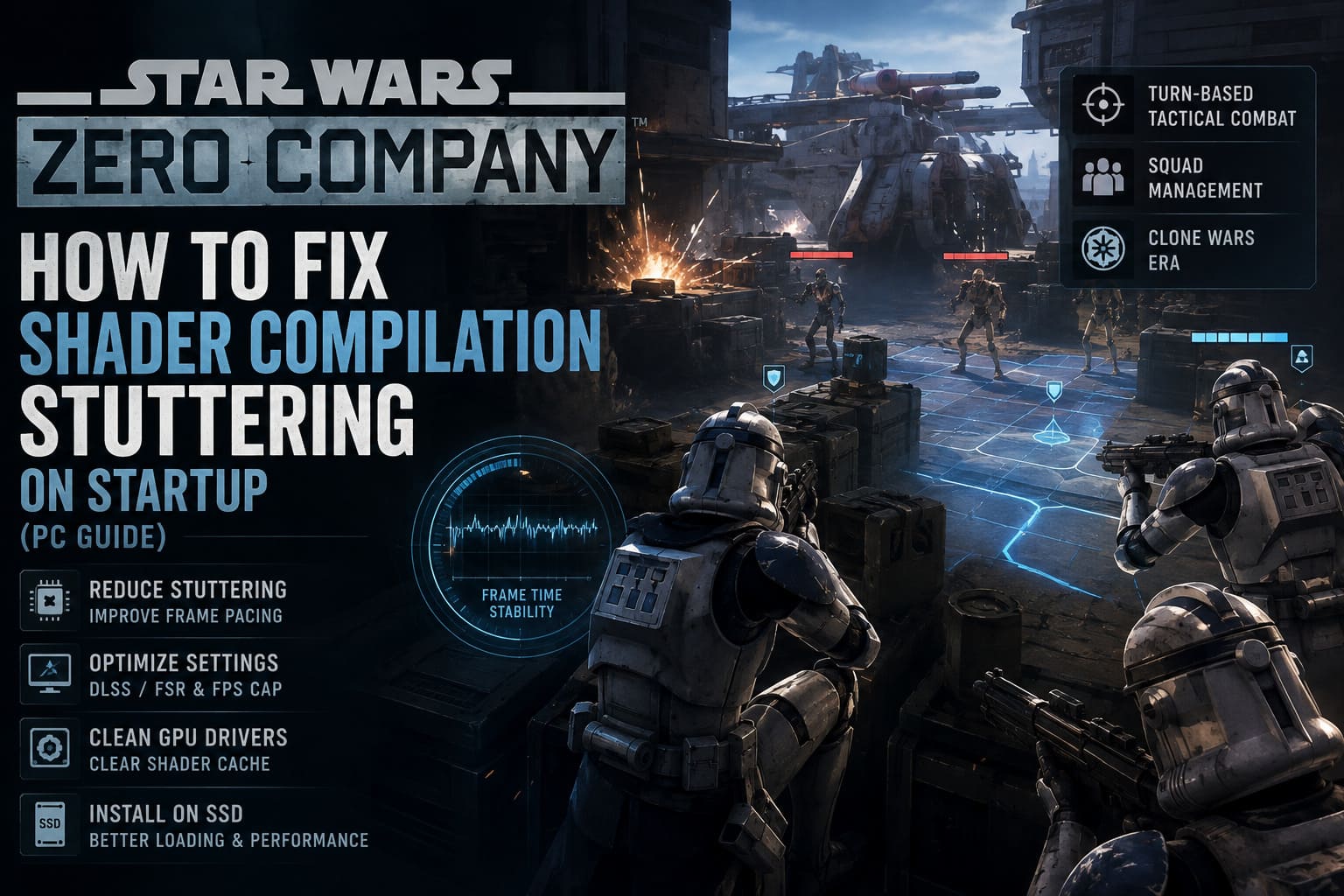
How to Fix Star Wars Zero Company Shader Compilation Stuttering on Startup (PC Guide)
There are few things that annoy me more than a great-looking new game running badly for reasons that have nothing to do with my hardware.
I was especially excited to jump into Star Wars Zero Company. The Clone Wars setting, turn-based tactical combat, character customization, and that XCOM-style squad management are exactly the kind of things that can keep me glued to my monitor for hours. And when a game looks this good, I want to enjoy the atmosphere rather than stare at frame-time graphs.
Unfortunately, PC performance can get messy.
One of the biggest problems players can run into is shader compilation stuttering. You might be cruising through a mission at a perfectly respectable frame rate, only for an explosion, new particle effect, environmental asset, or transition into a tactical area to trigger a sudden hitch. Sometimes it’s a tiny micro-stutter. Other times, it feels like the game briefly freezes.
I’ve dealt with this kind of problem in plenty of modern PC releases, and my approach is pretty simple: I don’t want to destroy the game’s visual quality just to gain a few frames. I’d rather find the settings and Windows tweaks that improve frame pacing while keeping the game looking the way the developers intended.
So, if Star Wars Zero Company is stuttering during startup or repeatedly hitching during gameplay, these are the things I’d try first.
Why Does Star Wars Zero Company Stutter on PC?
Before changing everything in Windows, it’s worth understanding what you’re actually trying to fix.
Modern games have an enormous number of shaders. These little programs tell your GPU how different materials, lighting effects, particles, shadows, surfaces, and other visual elements should be rendered.
The problem is that a game doesn’t necessarily have every possible shader combination ready to go before you start playing.
When Star Wars Zero Company encounters a visual effect that hasn’t been prepared yet, the PC may need to process additional shader data. That’s when you can get a nasty frame-time spike.
This is why shader stuttering often feels so strange. Your average FPS might look completely fine. You could even be sitting comfortably above 60 FPS, but suddenly the frame time jumps and the image freezes for a fraction of a second.
And that’s much more noticeable than going from 100 FPS to 90 FPS.
The situations where I notice it most
- Entering a new tactical map or area
- Seeing a new particle or environmental effect
- Explosions and other heavy combat effects
- The first encounter with certain visual assets
- Launching the game after a driver update
- Playing immediately after a major game patch
The frustrating part is that even a very powerful gaming PC isn’t completely immune to poor shader-management implementation. Your RTX-class GPU and high-end CPU can’t magically eliminate a hitch caused by the game engine waiting on work that hasn’t been prepared efficiently.
That’s why I wouldn’t immediately assume your PC is too weak.
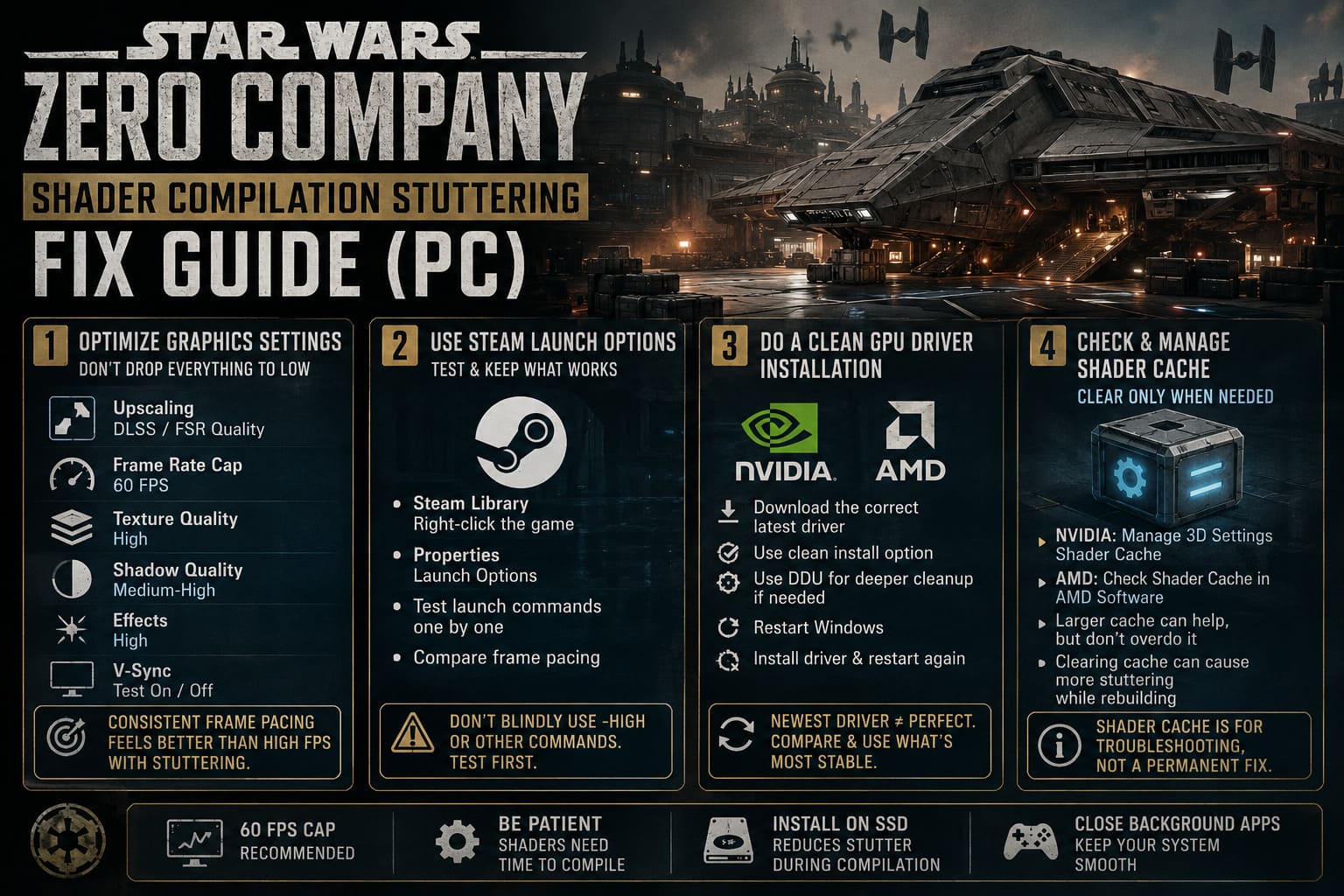
1. Don’t Start by Destroying Your Graphics Settings
This is probably my biggest piece of advice.
When a new PC game stutters, the first reaction is usually:
“Turn everything to Low.”
I don’t recommend doing that immediately.
If the problem is shader compilation, lowering texture quality, shadows, or other settings may not eliminate the underlying hitch. You could end up with an ugly-looking game that still stutters.
Instead, I’d make targeted changes and test the game after each one.
I also prefer using Quality or Balanced upscaling rather than immediately dropping the entire graphics preset.
For NVIDIA RTX hardware, try DLSS if it is available. For compatible AMD hardware, FSR can be useful.
My starting point would be:
| Setting | Recommended Starting Point |
|---|---|
| Upscaling | DLSS / FSR Quality |
| Frame Rate | 60 FPS cap |
| Texture Quality | High |
| Shadow Quality | Medium-High |
| Effects | High |
| Motion Blur | Personal preference |
| V-Sync | Test On/Off depending on your display |
The goal isn’t necessarily maximum FPS. Consistent frame pacing feels better to me than a wildly fluctuating 120–160 FPS.
2. Try the Steam Launch Options Carefully
You’ll see plenty of PC optimization guides recommending launch commands such as -USEALLAVAILABLECORES -high -fullscreen.
These commands are often presented as a magic solution. I wouldn’t go that far.
The -USEALLAVAILABLECORES argument is particularly common in Unreal Engine optimization guides, but modern games already have their own CPU scheduling and threading systems. Depending on the engine and version, an old launch parameter may do very little—or potentially cause unexpected behavior.
That said, if you’re troubleshooting, it’s reasonable to test the launch configuration.
On Steam:
- Open your Steam Library.
- Right-click STAR WARS Zero Company.
- Select Properties.
- Find the Launch Options field.
- Test the launch parameters individually rather than immediately throwing ten commands into the box.
- Start the game and compare frame pacing.
Personally, I wouldn’t blindly keep -high enabled just because an optimization guide says it’s better.
Windows already does a good job managing CPU priorities, and forcing a game into a high-priority process can sometimes create worse behavior with background services, browsers, or other applications.
Test first, keep only what actually improves your system.
That’s a much better PC optimization philosophy than collecting launch commands like Pokémon.
3. Give Your GPU Driver a Clean Start
This is one of the troubleshooting steps I take seriously.
Graphics drivers maintain shader-related data and other cached information. After a major driver update or game update, old data can occasionally become part of the troubleshooting equation.
If Star Wars Zero Company suddenly starts stuttering badly after a driver update, I’d consider performing a clean driver installation.
For NVIDIA users, download the appropriate current Game Ready Driver for your GPU and use the clean-install option when available.
If the problem is particularly stubborn, Display Driver Uninstaller (DDU) can be used to remove the existing display driver before installing a fresh one.
My preferred order is:
- Download the correct current driver first.
- Disconnect from unnecessary background applications.
- Use DDU if a normal clean installation hasn’t helped.
- Restart Windows.
- Install the fresh GPU driver.
- Restart again.
- Launch Zero Company and give the game time to rebuild any required shader data.
One important point: don’t assume that the newest driver automatically guarantees perfect performance.
Sometimes a driver update fixes one game while introducing a problem somewhere else. If a stutter appeared immediately after a driver update, comparing behavior with a known-stable driver can also be useful.
4. Check Your Shader Cache
This is another area where PC players can accidentally make things worse.
Both NVIDIA and AMD systems use shader caching to avoid repeatedly compiling the same data. Clearing the cache can be useful for troubleshooting corrupted or problematic cache files, but it isn’t something I’d recommend doing every time the game stutters.
In fact, after clearing it, you can temporarily experience more stuttering because the cache has to be rebuilt.
For NVIDIA users, open the NVIDIA Control Panel and check the shader cache settings under Manage 3D Settings.
If your driver provides a larger shader-cache allocation option, using a larger cache can be worth testing for a game that generates a lot of shader data.
However, I wouldn’t obsess over choosing an “Unlimited” option just because it sounds faster.
The important thing is giving the system enough room to retain useful cached data without constantly flushing it.
For AMD users, check the shader-cache controls available in AMD Software: Adrenalin Edition.
And remember: clearing the cache isn’t a permanent stutter fix. It is mainly a troubleshooting step.
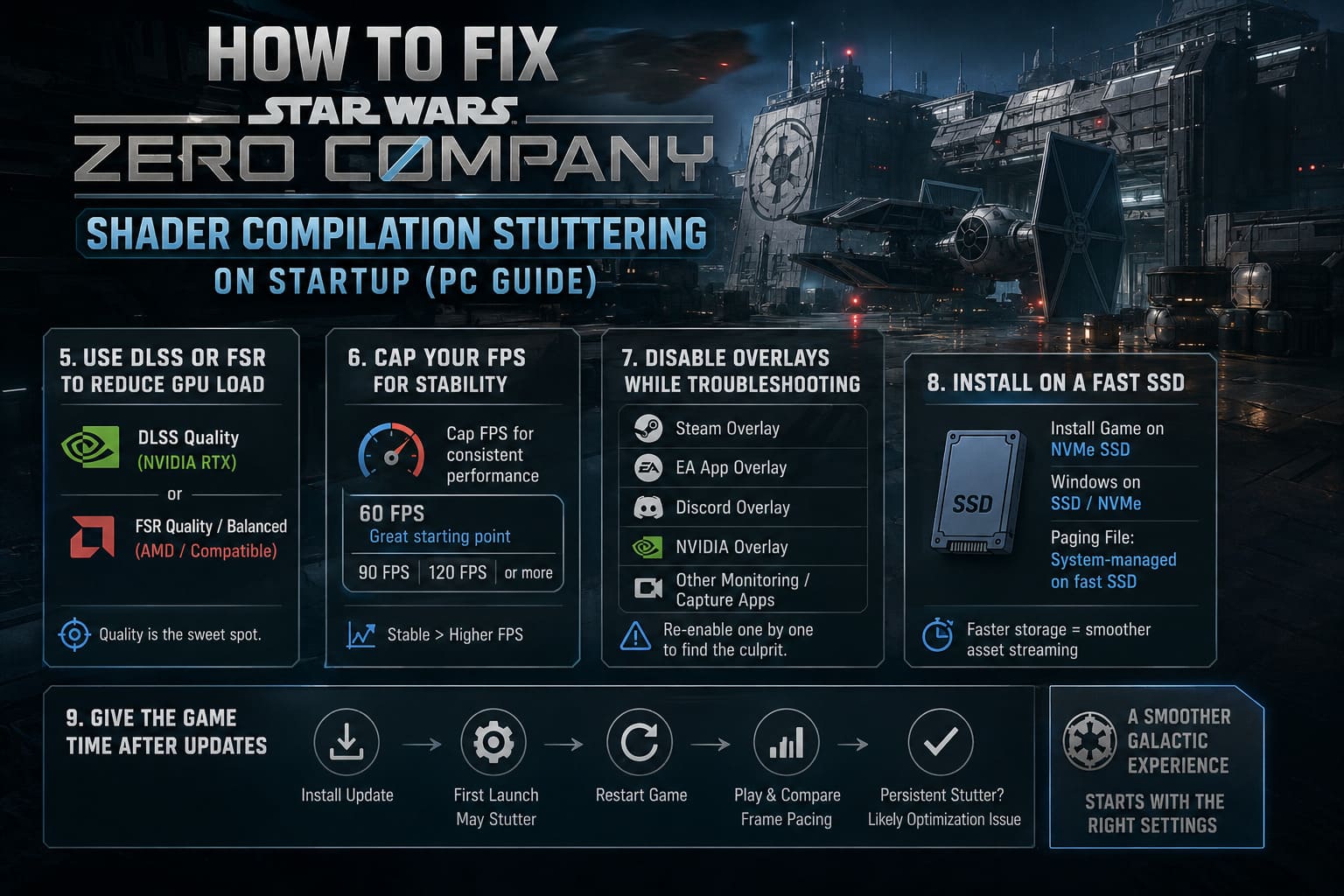
5. Use DLSS or FSR to Give Your GPU Some Breathing Room
This is where I think modern upscaling technology becomes genuinely useful.
DLSS and FSR aren’t magic shader-compilation fixes, but they can reduce the overall rendering workload. That gives your GPU more headroom when the game suddenly has additional work to perform.
I’d start with:
DLSS Quality on a supported NVIDIA RTX card.
Or:
FSR Quality/Balanced on compatible hardware.
I wouldn’t immediately choose Ultra Performance unless you’re dealing with extremely demanding hardware limitations.
The visual difference between Quality and more aggressive modes can be noticeable, especially in a tactical game where you’re often looking across detailed environments and character models.
For me, Quality is the sweet spot.
6. Cap Your FPS Instead of Chasing the Highest Number
This is one of the easiest changes to overlook.
If your PC is constantly pushing as many frames as possible, GPU utilization can remain extremely high. When a demanding effect appears, there may be very little performance headroom available.
Try an FPS cap.
For example:
60 FPS is a sensible starting point if your priority is stability.
If your hardware comfortably handles the game, you can experiment with 90, 120, or another target appropriate for your display.
The important thing is consistency.
I’d much rather play a tactical game at a stable 60 FPS with clean frame pacing than bounce between 75, 110, 86, 130, and 62 FPS while constantly feeling little hitches.
7. Turn Off Overlays While Troubleshooting
This is another classic troubleshooting step that costs almost nothing.
If you’re experiencing weird stutters, crashes, or freezes, temporarily disable overlays from applications such as:
- Steam
- EA App
- Discord
- NVIDIA’s recording/overlay software
- Other hardware-monitoring or capture applications
I don’t necessarily recommend leaving every overlay disabled forever.
I use overlays myself, especially for screenshots, recording, or checking performance. But when diagnosing a PC game, removing additional software hooks makes the troubleshooting process much cleaner.
If the stuttering disappears, you can turn the overlays back on one at a time and figure out which one is responsible.
8. Install Zero Company on a Fast SSD
If you’re still running modern games from an old mechanical HDD, this is the point where I’d seriously consider upgrading.
Large modern games constantly stream textures, geometry, audio, and other assets.
An NVMe SSD won’t magically eliminate shader compilation. That’s important.
But faster storage can help the overall asset-streaming pipeline and reduce loading-related delays.
I’d recommend:
Game installation: NVMe SSD
Windows installation: SSD/NVMe
Paging file: System-managed on a fast SSD
I generally don’t recommend micromanaging Windows virtual memory unless you have a specific reason to do so.
For most players, letting Windows manage the paging file is the safest starting point.
If your system has an SSD and an old HDD, there’s little reason to deliberately force Windows to use the slow mechanical drive for the paging file.
9. Give the Game Time After Major Updates
This is something I’ve learned from playing a ridiculous number of PC releases.
After a major game patch or GPU driver update, the first few launches can behave differently.
If the game is rebuilding cached data, the initial experience can be rougher than subsequent sessions.
So if you install an update and immediately jump into a mission and experience several stutters, don’t necessarily panic.
Restart the game.
Play through the same area again.
Compare the frame pacing.
If the exact same effect causes a severe hitch every single time, that’s much stronger evidence that you’re dealing with an underlying optimization issue rather than temporary cache preparation.
My Star Wars Zero Company PC Setup
If I were setting up Zero Company on a modern gaming PC today, I’d start with a conservative configuration rather than applying every “FPS boost” trick I could find.
| Category | My Starting Configuration |
|---|---|
| Resolution | Native monitor resolution |
| Upscaling | DLSS/FSR Quality |
| FPS Cap | 60 FPS initially |
| Textures | High |
| Shadows | Medium-High |
| Effects | High |
| GPU Driver | Current stable driver |
| Storage | NVMe SSD |
| Overlays | Disabled while testing |
| Windows Power Plan | Default/Balanced or appropriate performance mode |
Then I’d test.
If everything is smooth, I increase the FPS cap.
If performance is unstable, I lower individual GPU-heavy settings rather than destroying the entire preset.
That’s the approach I prefer because Star Wars Zero Company is the kind of game where visual atmosphere matters. The Clone Wars environments, effects, lighting, and character details are part of the experience. There’s no point turning the whole game into a blurry Low preset just to make an FPS counter look impressive.
Star Wars Zero Company Best Squad Build: Top Authored and Custom Operator Combinations (2026 Guide)
The Reality: Some Stuttering May Not Be Your PC’s Fault
This is probably the most important takeaway.
If you’ve got a modern CPU, plenty of RAM, a capable GPU, and the game is installed on a fast SSD, yet Zero Company still produces identical hitches whenever a specific effect appears, don’t automatically blame your hardware.
Shader compilation and asset-streaming problems are often engine-side issues.
You can optimize around them.
You can improve frame pacing.
You can reduce the severity of the spikes.
But you can’t completely rewrite the game’s rendering pipeline from the Windows Control Panel.
That’s why I’d keep an eye on patches from Bit Reactor and Electronic Arts. A proper engine-side optimization can accomplish more than a dozen questionable launch commands ever will.
Star Wars Zero Company Best Squad Build: Top Authored and Custom Operator Combinations (2026 Guide)
Final Thoughts
I’ve been playing PC games long enough to know that the difference between a game that runs at 100 FPS and one that feels smooth isn’t always visible in the FPS counter.
Frame pacing is king.
Star Wars Zero Company has the kind of gameplay I can easily lose an evening to, so the occasional first-time shader hitch isn’t enough to ruin the experience for me. What does become annoying is repeated stuttering every time the same visual effect appears.
If you’re dealing with that problem, I’d start with the boring-but-effective stuff: update or clean-install the GPU driver, check your shader cache, use sensible DLSS/FSR settings, cap the frame rate, disable overlays during testing, and make sure the game is installed on a fast SSD.
Don’t blindly apply every “FPS boost” command you find online.
Test one change at a time.
And most importantly, don’t sacrifice the entire visual quality of a game you bought to solve a problem that may ultimately require an engine-level fix.