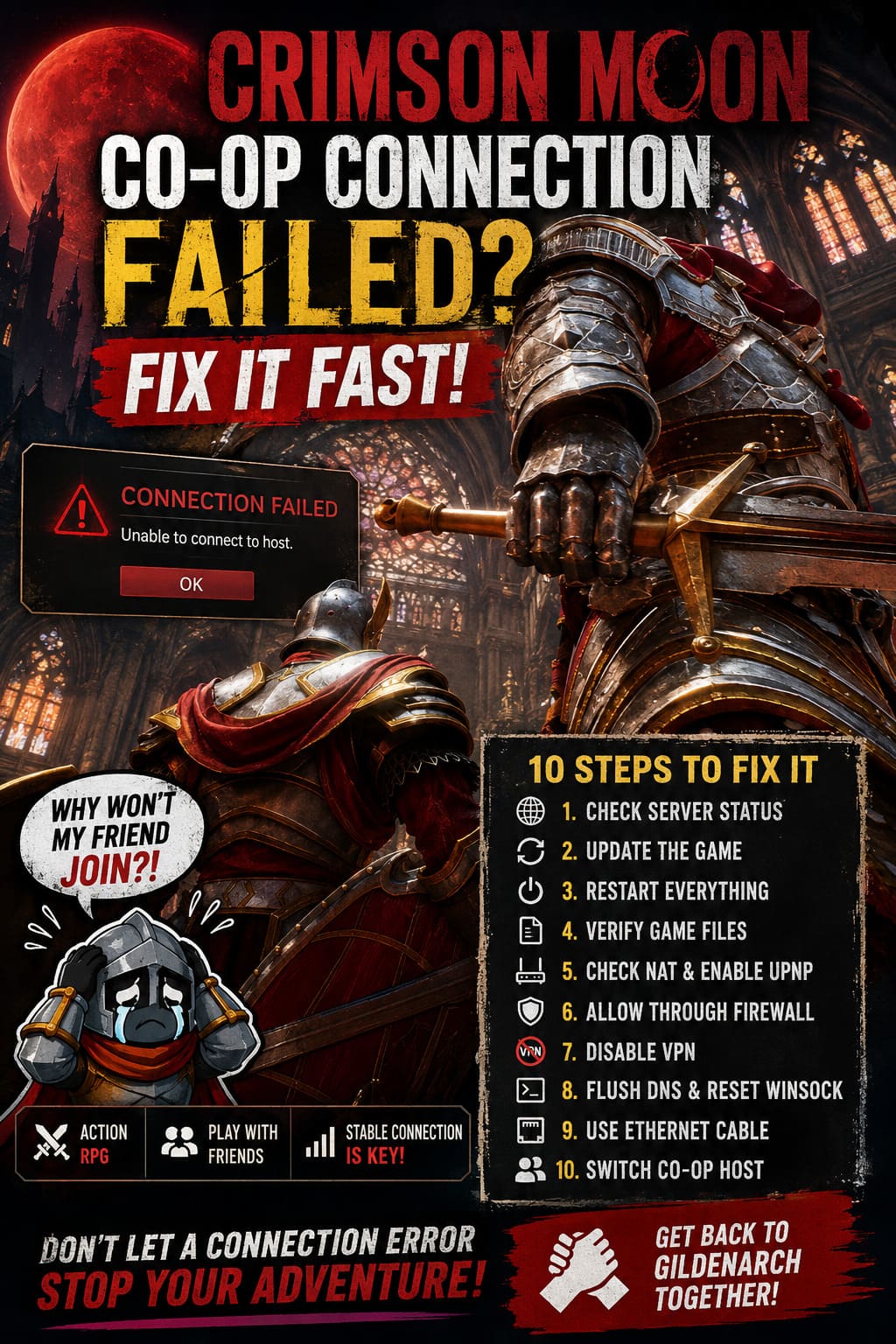
How to Fix Crimson Moon Co-Op Connection Failed Error: Complete Troubleshooting Guide
There are few things more annoying in an action RPG than getting everything ready for a co-op session, sending an invite to your friend, and then watching Crimson Moon throw a connection error in your face. You have the game running, your friend is online, the boss is waiting, and somehow the two of you still can’t get into the same session. I’ve been on the receiving end of enough multiplayer errors over the years to know how quickly this can turn an exciting gaming night into an hour of restarting routers.
Crimson Moon’s co-op connection failed error can come from several different places. Sometimes the servers are having a rough day, while other failures are caused by NAT restrictions, firewall rules, outdated game files, DNS problems, or a stubborn router. The good news is that you don’t need to start changing random settings immediately. A logical troubleshooting order makes it much easier to figure out where the problem actually lives.
This guide covers the most useful ways to fix Crimson Moon multiplayer connection problems, with a focus on PC players. Some of these solutions are ridiculously simple, but don’t skip them. In online gaming, the boring fixes often work before the complicated ones ever get a chance.
How to Fix Crimson Moon Black Screen on Startup on Epic Games Launcher
Why Is Crimson Moon Co-Op Not Connecting?
Before changing anything, it helps to understand what can break the connection between two players. A co-op session isn’t just a direct line from your PC to your friend’s PC. Authentication services, matchmaking, your router, NAT configuration, Windows networking, security software, and the game client can all become part of the chain.
| Possible Problem | Typical Symptom | What Usually Helps |
|---|---|---|
| Server congestion | Matchmaking fails or times out | Wait and check server status |
| Different game versions | Friend cannot join or invite fails | Install the latest update |
| Strict NAT | Players cannot connect directly | Enable UPnP or adjust router settings |
| Firewall blocking | Invites fail or sessions disconnect | Allow the game through Windows Firewall |
| Corrupted files | Crashes, failed loading, strange multiplayer behavior | Verify game files |
| DNS/network issue | Timeouts or failed server discovery | Flush DNS and reset Winsock |
| VPN interference | High latency or failed matchmaking | Disable the VPN temporarily |
1. Check Whether Crimson Moon Servers Are Working
Don’t start rebuilding your entire network if the problem is actually happening on the developer’s side. During a busy launch period, major update, weekend event, or unexpected outage, authentication and matchmaking services can become overloaded. When that happens, your connection can be perfectly healthy and the game can still refuse to establish a session.
Check the developer’s official announcements and community channels for reports of maintenance or widespread multiplayer problems. If dozens of players are suddenly reporting the same co-op error, I would honestly stop troubleshooting for a while and wait. There is no router setting in the world that can repair a server that isn’t accepting connections.
2. Make Sure Both Players Have the Same Game Version
This is one of the first things I check whenever a multiplayer game suddenly stops working. Both players need to be running the same version of Crimson Moon, particularly after a patch has been released. Even a small version mismatch can prevent matchmaking because the clients may no longer be compatible.
Completely close the game and check for pending updates through your platform. Your friend should do the same. Don’t assume the update installed automatically just because the launcher says the game is ready to play.
3. Restart Crimson Moon, Your PC, and Your Router
Yes, this is the classic ‘turn it off and on again’ advice. I’ve probably used it hundreds of times, and frustratingly, it keeps working. Temporary network sessions can get stuck, background services can misbehave, and routers can end up with weird routing states after running for weeks without a proper restart.
For the cleanest restart, completely close Crimson Moon, shut down your PC, unplug your router and modem, wait around a minute, then reconnect everything. Give the network equipment enough time to reconnect to your internet service before launching the game again.
Once Windows is back online, start Crimson Moon and test the co-op invitation again. If it suddenly works, you just saved yourself a lot of unnecessary configuration work.
4. Verify Crimson Moon Game Files
Corrupted or incomplete files aren’t always obvious. A game can launch normally while one damaged file causes an unusual feature such as matchmaking or online authentication to behave incorrectly. This is especially worth checking if the co-op error appeared after a crash, interrupted update, or unexpected shutdown.
Steam
Open your Steam Library, right-click Crimson Moon, select Properties, open Installed Files, and choose Verify integrity of game files. Steam will compare your installation with the expected files and replace anything that is missing or damaged.
Epic Games Store
In your Epic Games Library, locate Crimson Moon, open its options menu, choose Manage, and select Verify. Let the launcher finish the scan before starting the game again.
This process doesn’t normally delete your saves, so it is a very low-risk troubleshooting step. Personally, I’d do this before messing with advanced Windows networking.
5. Check Your NAT Type
NAT can be a real multiplayer headache. Network Address Translation controls how devices on your home network communicate with the wider internet. When NAT restrictions are too aggressive, games can struggle to establish peer-to-peer or session-based connections.
An Open NAT is generally the least troublesome configuration for multiplayer gaming. Moderate NAT can work perfectly well, but Strict NAT is much more likely to cause problems with joining friends, hosting sessions, or receiving direct connections.
Check the network diagnostic section on your platform or router. If your NAT is restrictive, look for a router setting called UPnP. Enabling UPnP allows compatible applications to request the network ports they need automatically.
I wouldn’t immediately start manually forwarding random ports from internet guides unless you know exactly what Crimson Moon requires. Incorrect port forwarding can create more problems than it solves.
6. Allow Crimson Moon Through Windows Firewall
Windows Firewall is there for a good reason, but occasionally it can interfere with games after an update or when the executable changes. If Crimson Moon doesn’t have the appropriate firewall permissions, multiplayer traffic can be blocked even though your internet connection itself works perfectly.
Open Windows Defender Firewall from the Start menu and select Allow an app or feature through Windows Defender Firewall. Click Change settings, locate Crimson Moon, and make sure the appropriate network permissions are enabled.
If the game isn’t listed, you can use Allow another app to add its executable manually. After changing the permission, restart the game rather than simply returning to the title screen.
7. Temporarily Disable Your VPN
VPNs are fantastic for certain situations, but multiplayer games don’t always appreciate them. A VPN changes your network route and can send your traffic through a distant server, adding latency and sometimes creating NAT complications.
If you’re using a VPN while playing Crimson Moon, disconnect it temporarily and test co-op again. This is particularly worth trying when normal online features work but joining another player consistently fails.
If the game suddenly connects without the VPN, you’ve found the likely culprit. From there, you can experiment with a different VPN server or split tunneling instead of leaving the VPN permanently disabled.
8. Flush DNS and Reset Windows Networking
When Windows has cached outdated DNS information or the Winsock networking catalog has developed a problem, online games can occasionally behave strangely. Resetting these components is quick and gives your system a fresh start.
Open Command Prompt as administrator and run the following commands one at a time:
ipconfig /flushdns
netsh winsock reset
After running them, restart your computer. Don’t skip the reboot after the Winsock reset, because Windows needs to reload the networking configuration before you test Crimson Moon again.
9. Try Ethernet Instead of Wi-Fi
A fast Wi-Fi connection isn’t necessarily a stable gaming connection. You can have excellent download speeds while still experiencing small bursts of packet loss, interference, or latency spikes. In a fast-paced action RPG, those tiny interruptions can be enough to break a multiplayer session.
If possible, connect your PC directly to the router using an Ethernet cable. You don’t need gigabit internet to benefit from this; you’re mainly looking for a more consistent connection with less wireless interference.
If co-op works perfectly over Ethernet but fails repeatedly on Wi-Fi, you’ve narrowed the problem down considerably. From there, improving the wireless signal or changing router settings is much more sensible than blaming the game.
10. Switch the Co-Op Host
This is one of my favorite troubleshooting tricks because it takes almost no effort. If Player A cannot connect to Player B, have Player B create the session and send the invitation instead.
If the second player can host successfully, the game servers probably aren’t completely broken. The problem may be specific to the original host’s NAT, firewall, router, ISP routing, or local network configuration.
That distinction is incredibly useful. Instead of both players spending an evening changing settings on perfectly good PCs, you can focus your troubleshooting on the machine that actually appears to be causing the connection failure.
Crimson Moon Co-Op Troubleshooting Checklist
If you want the fastest possible route through the fixes, I’d handle them in this order:
- Check for server outages or maintenance.
- Update Crimson Moon on both systems.
- Restart the game, PC, and router.
- Verify the game installation.
- Check NAT and enable UPnP if appropriate.
- Allow Crimson Moon through Windows Firewall.
- Disable VPN software temporarily.
- Flush DNS and reset Winsock.
- Test with an Ethernet connection.
- Swap the co-op host.
What If Nothing Fixes the Connection Error?
If you’ve worked through every step and Crimson Moon still refuses to connect, don’t start randomly changing ten more Windows settings. At that point, the useful information is the exact error message, when the failure happens, whether either player can host successfully, your NAT status, and whether other multiplayer games work normally.
Try another online game on both systems as a comparison. If everything else works, the problem becomes much more likely to be specific to Crimson Moon or its matchmaking infrastructure. If several games are failing, look toward your router, ISP, firewall, or broader network configuration instead.
Final Thoughts
The Crimson Moon co-op connection failed error is the kind of problem that can make an otherwise brilliant gaming session feel unnecessarily painful. The important thing is not to start changing advanced settings blindly. Work from the simplest possibilities toward the more technical ones, and you’ll usually find the source much faster.
My personal order would be server status, updates, restart, file verification, NAT, firewall, VPN, and finally Windows network resets. If none of those work, swapping the host is an excellent diagnostic test before going deeper. Hopefully, you and your co-op partner can get back into Gildenarch quickly, because fighting through a gothic nightmare with a friend is considerably more fun than staring at a connection error screen.