How to Fix Onimusha: Way of the Sword Audio Cut Out and Stuttering Bugs (Japanese Voice Fix)
Onimusha: Way of the Sword is finally here, and honestly, it feels great to see Capcom bringing this legendary samurai series back into the spotlight. The combination of brutal sword combat, dark supernatural elements, feudal Japan, and the unmistakable presence of Miyamoto Musashi makes this one of the most interesting action games of September 2026.
Unfortunately, the launch isn’t completely clean on PC. Some players are running into an especially annoying problem that has nothing to do with sword mechanics or graphics settings: audio stuttering, crackling, dialogue cutouts, desynchronization, and missing Japanese voice lines.
And yes, this is exactly the kind of bug that can ruin a great cinematic moment. You’re walking through a beautifully recreated version of Edo-period Kyoto, the soundtrack is building, Musashi is about to deliver some dramatic line, and suddenly the voice starts sounding like a broken radio. In some cases, the Japanese dialogue disappears completely while subtitles continue normally.
If you’re dealing with this problem, don’t immediately assume that your headset or sound card is dying. There are several things worth checking first. I’ve put together the fixes that make the most sense for Onimusha: Way of the Sword audio problems on PC, starting with the easiest solutions and moving toward the more technical ones.
What Does the Onimusha: Way of the Sword Audio Bug Look Like?
The audio problem isn’t identical for everyone. That’s actually what makes troubleshooting it slightly frustrating. Different hardware configurations seem to produce different versions of the same underlying issue.
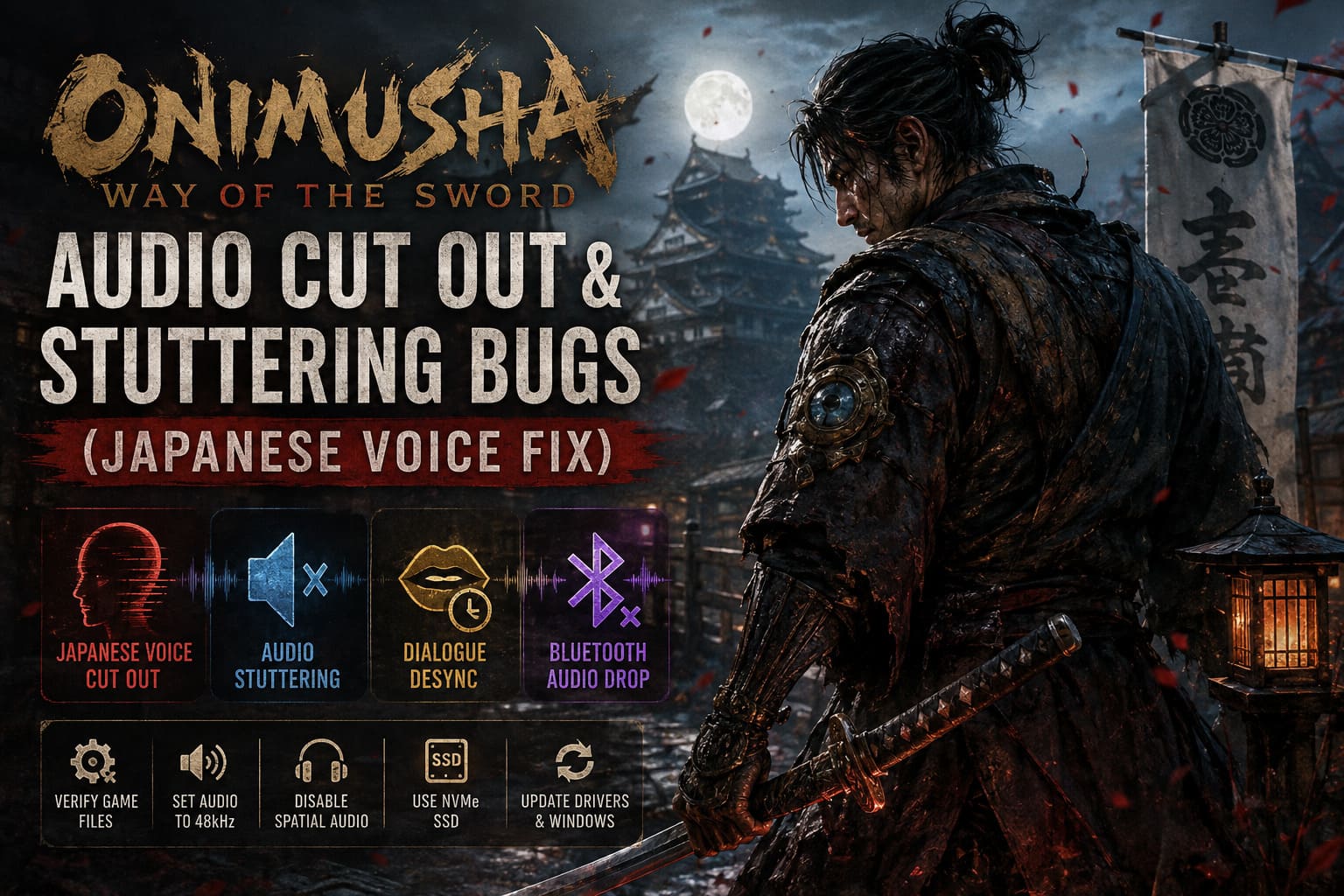
| Problem | Typical Symptoms |
|---|---|
| Japanese Voice Cutout | Japanese dialogue disappears while subtitles and other game sounds continue working. |
| Audio Stuttering | Voices, music and effects repeatedly skip, crackle or freeze during gameplay. |
| Dialogue Desync | Character voices gradually fall behind facial animations during cutscenes. |
| Bluetooth Audio Drop | Wireless headphones switch to poor-quality audio or lose sound entirely. |
The most irritating version, in my opinion, is the Japanese voice bug. If you’re playing with Japanese audio and English subtitles, the voice track is a huge part of the experience. Onimusha has always had that classic samurai-film atmosphere, and losing character dialogue halfway through a cutscene completely kills the mood.
Why Is Onimusha: Way of the Sword Audio Stuttering?
There isn’t one universal cause. On PC, audio problems can come from the interaction between the game, Windows audio settings, drivers, storage performance, Bluetooth profiles and background software.
One possible culprit is audio device detection and hardware polling. Games constantly communicate with Windows and connected peripherals, and problematic USB devices, virtual mixers or drivers can occasionally cause interruptions that are noticeable as tiny audio freezes.
CPU load can also matter. High-quality voice assets need to be streamed and processed while the game is simultaneously handling AI, animation, physics, rendering and world streaming. If the system is already struggling with frame-time spikes, the audio pipeline can suffer too.
Storage speed is another important factor. Modern AAA games stream enormous amounts of data while you move through the world. If Onimusha is installed on an aging HDD, traversal-related freezes can become much more obvious, and those short freezes may also manifest as broken or delayed audio.
Finally, unusually high Windows audio formats such as 24-bit/192kHz aren’t necessarily useful for gaming. In fact, they can introduce compatibility problems with certain games and audio devices. A boring 48kHz configuration is often the smarter choice.
How to Fix Onimusha: Way of the Sword Audio Problems
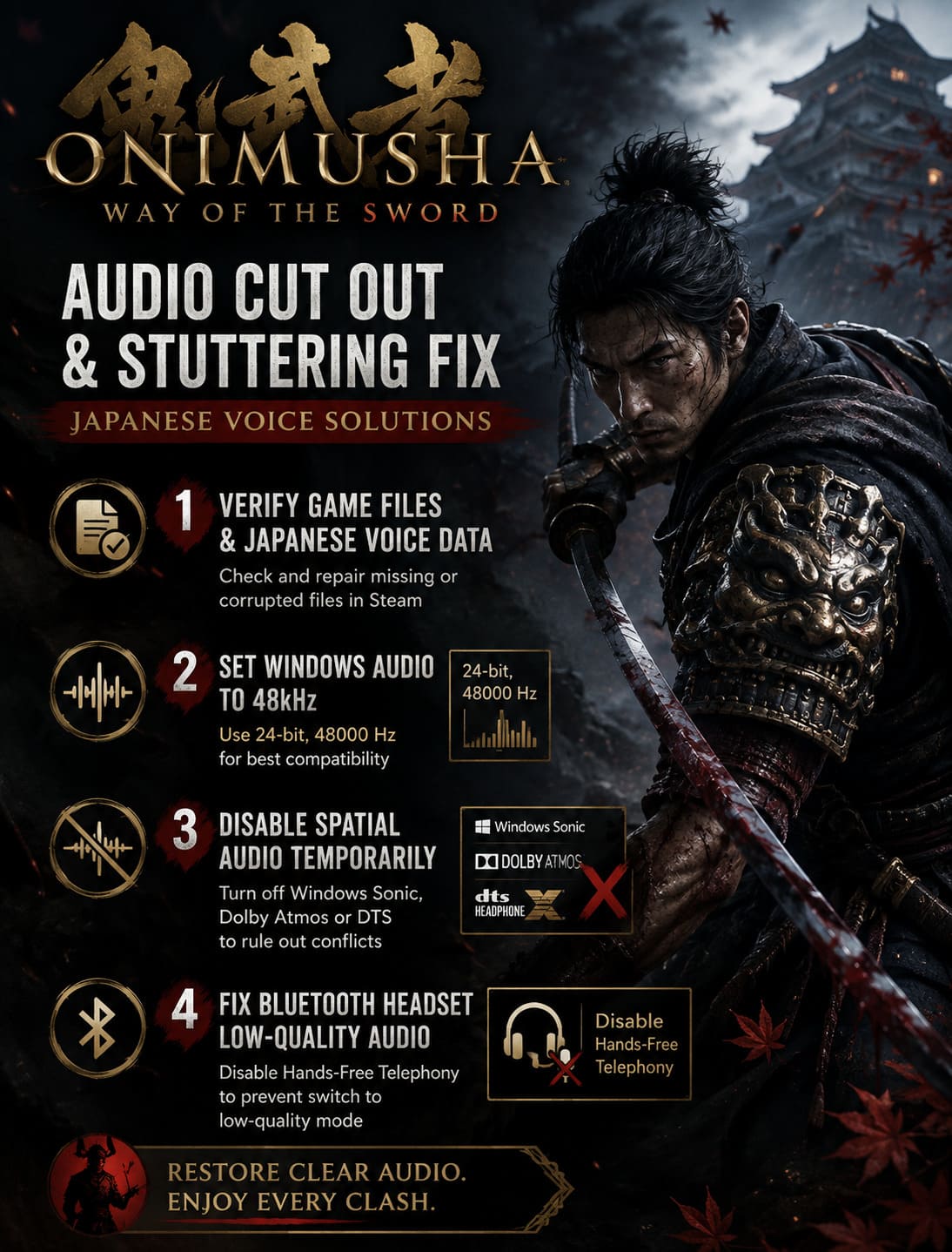
1. Verify the Game Files and Japanese Voice Data
If your Japanese voices are completely missing, start here. Don’t spend an hour messing with Windows settings before confirming that the game actually has all of its required audio files.
Steam installations can occasionally end up with corrupted or incomplete files, particularly after preload downloads, interrupted updates or localization packages being installed incorrectly.
- Open Steam and go to your Library.
- Right-click Onimusha: Way of the Sword.
- Select Properties.
- Open Installed Files.
- Select Verify Integrity of Game Files.
- Wait until Steam finishes scanning and repairing the installation.
If Steam finds damaged or missing files, it should automatically download replacements. Depending on the installation and language data involved, this can mean downloading a sizeable package, so don’t panic if the verification isn’t instant.
After the repair finishes, launch the game and check the Japanese voice setting again. This is the first fix I’d try for a complete voice-track disappearance.
2. Set Windows Audio to 48kHz
This is probably the most underrated fix on the entire list. If your Windows audio device is running at an unusual sample rate, bring it back to a conventional gaming configuration.
- Press Windows + R.
- Type mmsys.cpl and press Enter.
- Open the Playback tab.
- Right-click your active speakers or headphones.
- Select Properties and open Advanced.
- Set the format to 24-bit, 48000 Hz or 16-bit, 48000 Hz.
- Click Apply and then OK.
I’d personally start with 24-bit/48kHz. There’s little reason to run your Windows gaming output at 192kHz unless you have a specific audio-production reason for doing it.
3. Disable Spatial Audio Temporarily
While you’re in the audio settings, check whether Windows Sonic, Dolby Atmos or DTS Headphone:X is enabled.
These technologies can be fantastic when everything cooperates, but when you’re troubleshooting crackling, dialogue cutouts or strange positional audio, you want to eliminate extra processing from the equation.
Turn spatial audio off temporarily and test Onimusha using standard stereo output. If the problem disappears, you’ve found a compatibility issue rather than a broken game installation.
4. Fix Bluetooth Headphones Switching to Low-Quality Audio
Bluetooth headsets are particularly annoying on Windows because they can operate in different profiles. When an application activates the headset microphone, Windows may switch from high-quality stereo playback to a hands-free communications mode.
The result can be spectacularly bad: suddenly your beautiful samurai soundtrack sounds like it is being transmitted through a cheap walkie-talkie.
- Open the Control Panel.
- Go to Hardware and Sound.
- Open Devices and Printers.
- Find your Bluetooth headset.
- Right-click it and choose Properties.
- Open the Services tab.
- Disable Hands-Free Telephony.
- Apply the change and restart Windows.
There is an important trade-off here: disabling the hands-free profile can prevent the headset’s built-in microphone from working through that Bluetooth connection.
If you need voice chat while gaming, use a separate microphone or another communication device. For pure game audio, however, this can make a surprisingly big difference.
5. Check for USB or Device Manager Conflicts
This one sounds strange until you’ve actually encountered a hardware polling problem. If Windows is repeatedly detecting or refreshing a device, the resulting interruptions can sometimes line up with game stutters.
Run Device Manager while the game is running and watch it for a little while. If the device list repeatedly refreshes or flickers, start disconnecting unnecessary peripherals.
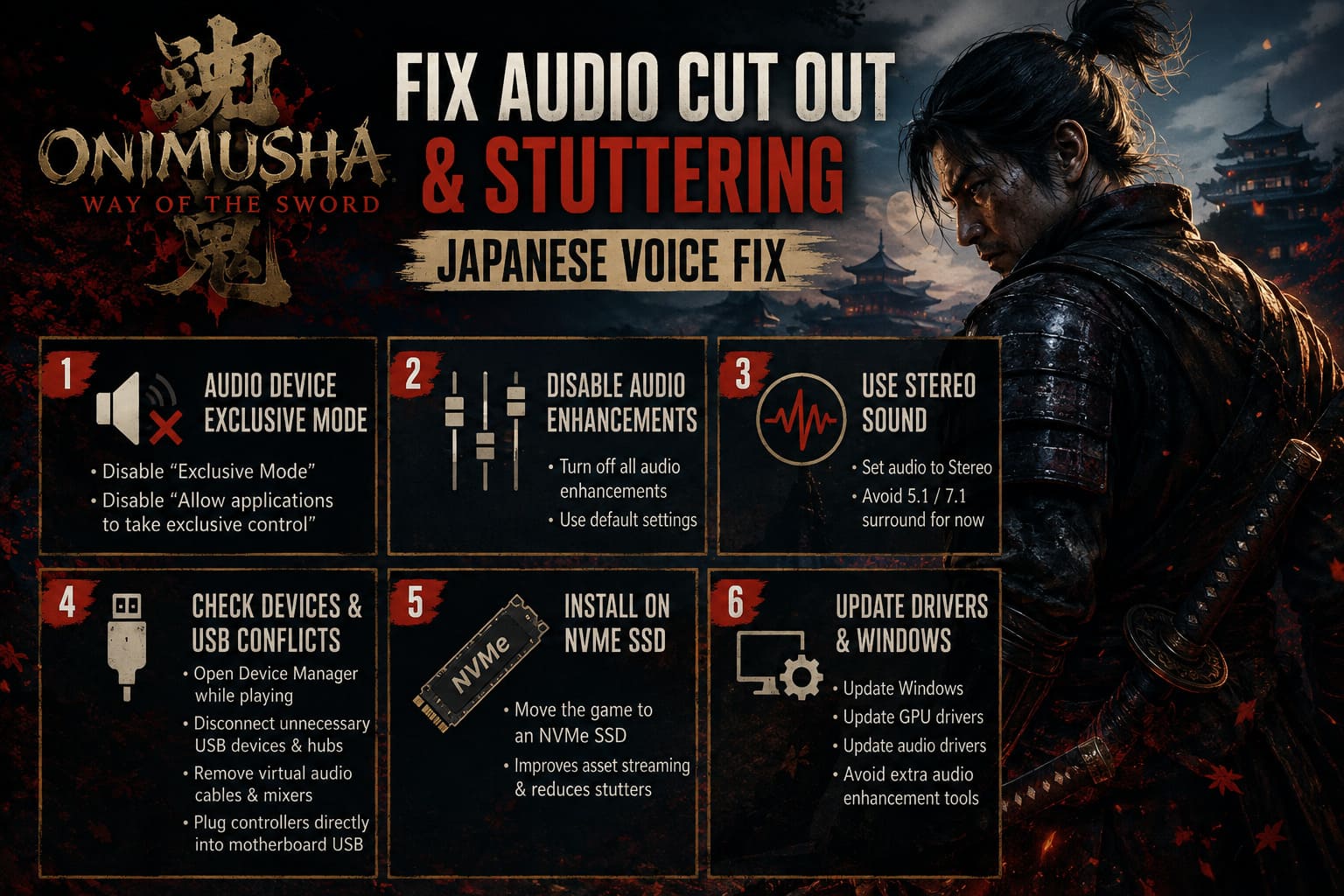
Temporarily remove things such as:
- Extra game controllers.
- USB hubs.
- Unnecessary external USB devices.
- Virtual audio cables.
- VoiceMeeter or similar virtual mixer hardware.
- Other peripherals that aren’t needed to play the game.
If your controller is connected through an extension hub, try plugging it directly into the motherboard’s USB port instead. It isn’t glamorous troubleshooting, but eliminating variables is often much faster than randomly changing ten Windows settings at once.
6. Move Onimusha to an NVMe SSD
If the game is installed on an HDD, I’d seriously consider moving it.
Onimusha: Way of the Sword is a modern AAA game with aggressive asset streaming. As you move through Kyoto, the engine has to constantly pull textures, animations, environmental data, effects and audio assets from storage.
A slow mechanical drive can become a bottleneck, particularly during fast traversal or major area transitions. If your audio stutters at exactly the same moment that the game briefly freezes or drops frames, storage performance deserves attention.
On Steam, open Settings → Storage, select your faster NVMe SSD and move the game installation there.
This won’t magically increase your GPU’s FPS, but it can reduce the little traversal hitches that sometimes accompany streaming-heavy games.
7. Update GPU, Audio and Windows Drivers
Don’t overlook the boring stuff. Launch-window games are moving targets, and driver updates can fix problems that weren’t obvious during development.
Make sure Windows Update has installed the latest available updates. Then check the official driver package for your GPU manufacturer and install the newest compatible NVIDIA or AMD graphics driver.
If you’re using a dedicated DAC, external sound card or specialized Realtek audio solution, check the manufacturer’s driver page as well.
I’d also avoid installing five different audio enhancement utilities while troubleshooting. Equalizer suites, virtual surround programs, motherboard audio utilities and virtual mixers all add another layer between the game and your headphones.
Onimusha Way of the Sword Low End PC Optimization Guide: Best Graphics Settings for High FPS
What Fix Should You Try First?
If I were troubleshooting this on my own gaming PC, I wouldn’t randomly apply every fix simultaneously. You want to know what actually solved the problem.
| Symptom | First Fix to Try | Next Step |
|---|---|---|
| Japanese voices missing | Verify game files | Check language/audio installation |
| Crackling and popping | Set 48kHz audio | Disable spatial audio |
| Bluetooth sound becomes terrible | Disable Hands-Free Telephony | Use separate microphone |
| Audio freezes with FPS drops | Check storage and CPU load | Move game to NVMe SSD |
| Random audio interruptions | Check USB devices | Remove virtual audio software |
| Cutscene audio is delayed | Verify files and drivers | Test with standard stereo output |
Don’t Ignore the Connection Between Audio and Stuttering
One thing I’d pay particular attention to is whether the audio problem happens at exactly the same time as a frame-time spike.
If the game freezes for half a second and the sound freezes with it, this isn’t necessarily an audio-device problem. It can be a broader performance or streaming issue.
Watch your GPU usage, CPU usage, RAM consumption and frame-time graph while reproducing the problem. If everything goes sideways at the same moment, reducing demanding graphics settings may help indirectly.
In other words, don’t obsess over your headphones if the entire game is hitching.
How to Fix Low FPS, Stuttering, and Lag in Onimusha: Way of the Sword (PC Performance Guide)
Final Thoughts
Onimusha: Way of the Sword deserves better than having its dramatic samurai moments interrupted by robotic dialogue and crackling sound. The good news is that most of the practical fixes are straightforward.
For missing Japanese voices, I’d start with Steam file verification. For crackling and random audio glitches, set Windows to 48kHz and temporarily disable spatial processing. If you’re using Bluetooth, check the Hands-Free Telephony profile immediately. And if your audio problems appear alongside traversal freezes, investigate your storage drive and consider moving the game to an NVMe SSD.
I’d also keep an eye on future updates. Launch versions of large AAA games rarely stay untouched for long, especially when players are reporting repeatable audio, streaming and localization issues. A proper game-side fix is always preferable to stacking Windows workarounds on top of one another.
For now, though, these troubleshooting steps should get most PC players much closer to the experience Onimusha is supposed to deliver: clean sword impacts, atmospheric music, punchy combat effects and, most importantly, Japanese voices that actually stay audible when the story gets good.