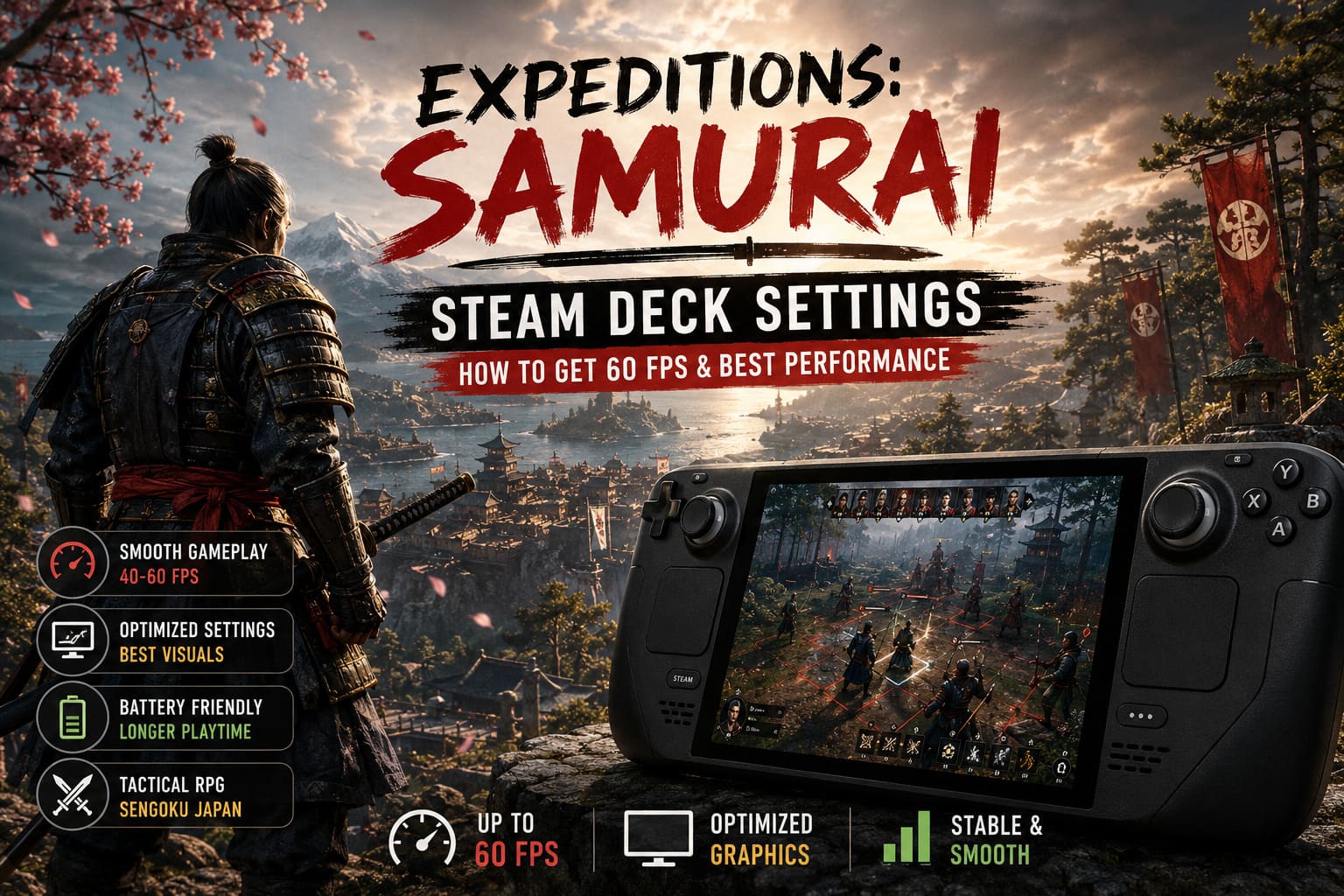
Expeditions: Samurai Steam Deck Settings – How to Get 60 FPS and Best Performance
I’ve played tactical RPGs on handhelds for years, from classics that barely stressed the hardware to modern releases that push every part of the Steam Deck to its limits. After spending time with Expeditions: Samurai, one thing became obvious almost immediately: this isn’t the kind of strategy game where you simply select the “Medium” preset and forget about it.
The game looks fantastic. Dense forests, detailed armor, cinematic dialogue scenes, dynamic lighting, and large tactical battlefields all come together to create one of the most visually ambitious entries in the Expeditions series. The downside is equally obvious—the Steam Deck has to work surprisingly hard to keep everything running smoothly.
The good news is that Valve’s handheld is absolutely capable of delivering an enjoyable experience. You simply need to know which settings actually matter and which visual effects aren’t worth the performance cost. After experimenting with multiple configurations, these are the settings I would personally recommend.
Can Steam Deck Handle Expeditions: Samurai?
Yes—but expectations matter.
If you’re expecting a perfectly locked 60 FPS in every single area, you’ll probably be disappointed. Some of the larger environments, especially villages with numerous NPCs or battles featuring weather effects, naturally put more pressure on the GPU.
That doesn’t mean the game performs poorly.
In fact, I think Expeditions: Samurai feels excellent on the Steam Deck because tactical combat doesn’t demand ultra-high frame rates the way competitive shooters do. Camera movement is slower, combat is deliberate, and exploration rewards consistency far more than raw FPS numbers.
Personally, I found a stable 40 FPS profile to be the sweet spot, while 60 FPS works well during lighter sections if you’re willing to sacrifice some visual quality.
Unlock Every Graphics Option First
One of the first things I noticed was that the game doesn’t always expose every graphics option on the Steam Deck.
Fortunately, there’s an easy workaround.
Open the game’s launch options inside Steam and enter:
SteamDeck=0 %command%
This simple launch parameter makes the game behave more like it’s running on a desktop PC, unlocking additional graphics controls that are otherwise hidden.
I also recommend using Proton Experimental. During testing it offered the most consistent behavior and fewer random issues than older Proton versions.
My Recommended In-Game Settings
These settings delivered the best balance between image quality and performance during my testing.
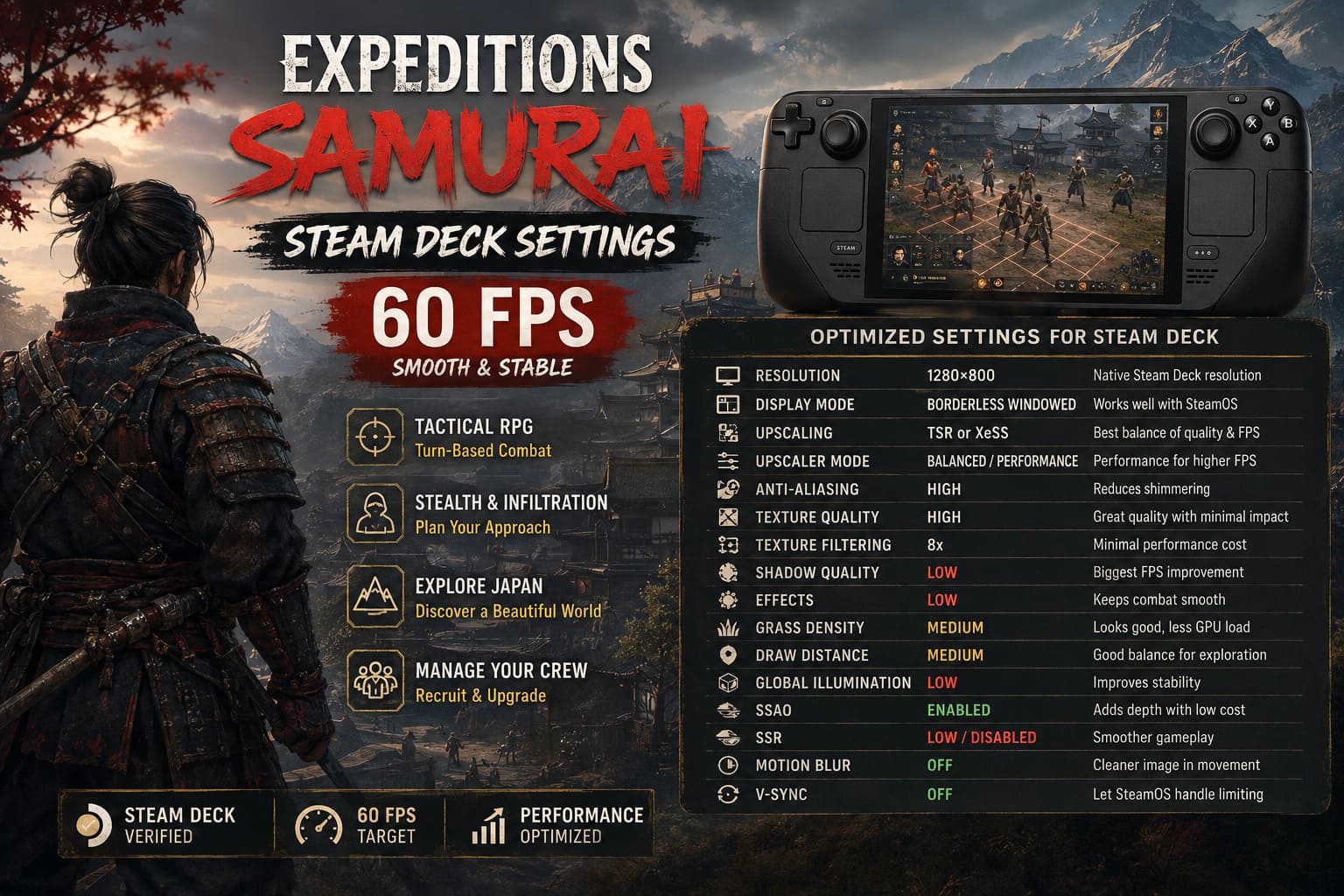
| Setting | Recommendation | Reason |
|---|---|---|
| Resolution | 1280×800 | Native Steam Deck resolution with excellent image clarity. |
| Display Mode | Borderless Windowed | Works well with SteamOS overlays. |
| V-Sync | Off | Let SteamOS control frame limiting instead. |
| Upscaling | TSR or XeSS | Provides the best balance between image quality and FPS. |
| Upscaler Mode | Balanced or Performance | Performance for higher FPS, Balanced for cleaner visuals. |
| Anti-Aliasing | High | Reduces shimmering after upscaling. |
| Texture Quality | High | The Steam Deck handles textures surprisingly well. |
| Texture Filtering | 8x | Minimal performance impact. |
| Shadow Quality | Low | The biggest FPS gain in the entire graphics menu. |
| Effects | Low | Keeps combat smooth during larger encounters. |
| Grass Density | Medium | Looks good without overwhelming the GPU. |
| Draw Distance | Medium | A good compromise for exploration. |
| Global Illumination | Low | Improves stability significantly. |
| SSAO | Enabled | Adds depth without a large FPS penalty. |
| SSR | Low or Disabled | Worth sacrificing for smoother gameplay. |
| Motion Blur | Off | The image looks cleaner during camera movement. |
The Graphics Settings That Actually Matter
After trying numerous combinations, I kept returning to the same conclusion.
Shadows are the biggest performance killer.
Dropping Shadow Quality from High to Low produced a much larger improvement than reducing texture quality or anisotropic filtering. Since you’re usually looking at the battlefield from a tactical perspective, softer shadows are barely noticeable during gameplay.
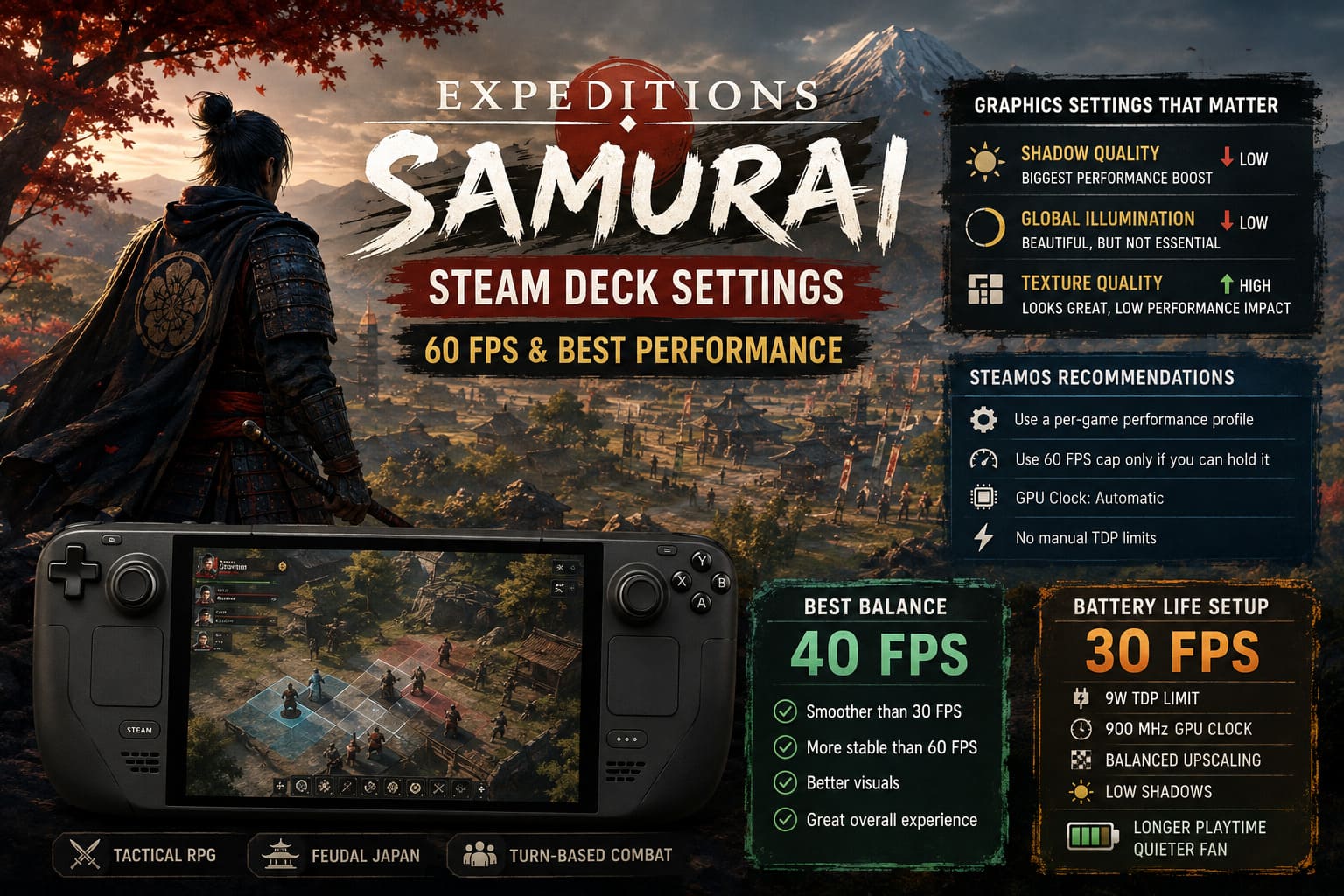
The second setting I’d adjust is Global Illumination. While beautiful, it isn’t essential on a seven-inch display. Lowering it frees enough GPU resources to make combat noticeably smoother.
Meanwhile, texture quality can remain surprisingly high. Thanks to the Steam Deck’s unified memory architecture, detailed armor, weapons, and environments continue to look sharp without causing serious performance problems.
SteamOS Settings I Recommend
SteamOS offers several useful options that can dramatically improve the overall experience.
- Enable a per-game performance profile.
- Use a 60 FPS cap only if your chosen settings can consistently maintain it.
- Leave GPU Clock on Automatic.
- Disable manual TDP limits for maximum performance.
I generally avoid forcing manual GPU clocks unless I’m specifically trying to maximize battery life.
My Favorite Profile: 40 FPS
If someone asked me for only one recommendation, I’d immediately suggest a 40 FPS profile.
It’s one of those frame rate targets that simply feels right on the Steam Deck.
You gain noticeably smoother camera movement than 30 FPS while avoiding the constant fluctuations that sometimes occur when chasing 60 FPS in demanding scenes.
With a 40 FPS cap you can also afford to increase several visual settings, making forests, villages, and battlefields appear much richer without sacrificing responsiveness.
For me, this is where Expeditions: Samurai feels the most balanced.
Battery Life Setup
When traveling, battery life becomes more important than visual perfection.
These adjustments worked extremely well:
- 30 FPS frame limit
- 9W TDP limit
- 900 MHz GPU clock
- Balanced upscaling mode
- Low shadows
Using this configuration, the fan remained considerably quieter while the game stayed consistently playable. Since Expeditions: Samurai is a slower-paced tactical RPG, I never felt disadvantaged playing at 30 FPS during longer sessions.
Is Expeditions: Samurai on Xbox Game Pass? 2026 Release Date and Platform Guide
What About Co-op?
The addition of drop-in cooperative play is one of my favorite new features in the series, but it does add extra workload to the system.
When both players trigger different events simultaneously or split up across larger maps, I noticed occasional frame drops that weren’t present during solo play.
If you mainly play online with friends, I recommend lowering the internal rendering resolution slightly and relying on the upscaler to recover image quality. Even a small reduction gives the GPU extra breathing room during heavier encounters.
A stable frame rate is far more valuable during coordinated tactical battles than slightly sharper grass textures.
Expeditions: Samurai Nintendo Switch Release Date – Switch Port News & Rumors
Final Thoughts
After spending plenty of time experimenting with settings, I came away genuinely impressed with how well Expeditions: Samurai runs on the Steam Deck. It certainly demands more tweaking than many strategy games, but once everything is dialed in, the experience feels remarkably natural on a handheld.
If your goal is absolute visual quality, a stable 40 FPS profile is difficult to beat. If you enjoy smoother exploration and don’t mind lowering shadows and effects, 60 FPS is achievable in many areas. And for long trips away from a charger, a carefully tuned 30 FPS configuration delivers excellent battery life without ruining the tactical experience.
My biggest piece of advice is simple: don’t chase every graphical effect. The game’s outstanding art direction shines through even with several settings reduced, and the smoother gameplay you’ll gain is far more noticeable than ultra-detailed shadows or expensive reflections. Once you find the profile that matches your priorities, Expeditions: Samurai becomes one of those strategy games that’s genuinely enjoyable to play anywhere.