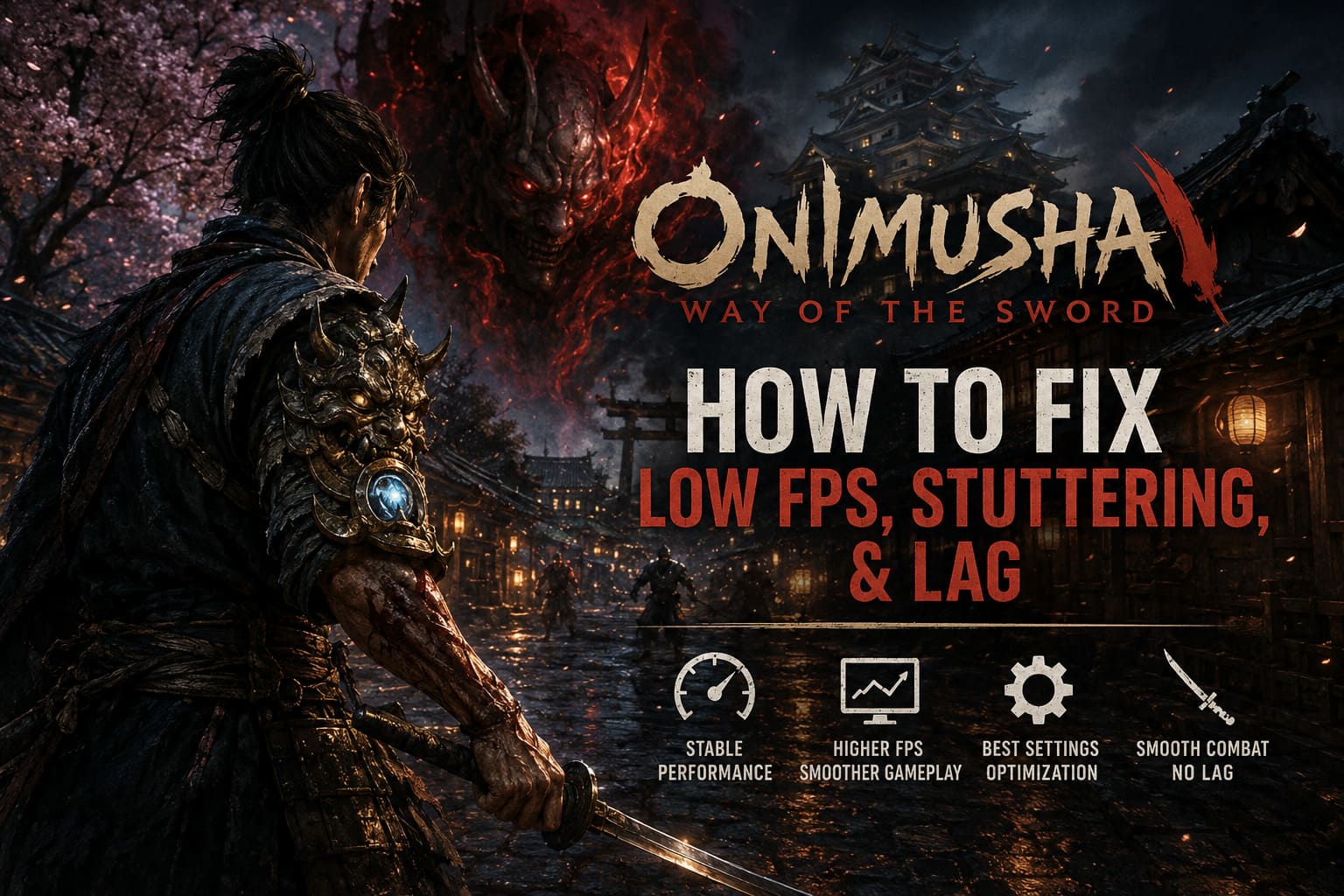
How to Fix Low FPS, Stuttering, and Lag in Onimusha: Way of the Sword (PC Performance Guide)
There are some games where a little stutter is annoying, and then there are games like Onimusha: Way of the Sword, where a tiny performance hiccup can completely ruin the moment. When you’re waiting for the perfect opening to deflect an enemy attack, a sudden frame-time spike is the last thing you want to see.
I’ve been looking forward to this game for a long time. The return of Capcom’s samurai series, the dark version of Edo-period Kyoto, the sword combat, and that fantastic RE Engine presentation all make it exactly the kind of modern single-player game I enjoy streaming. I want to crank up the graphics, admire the environments, and then spend an hour fighting enemies without thinking about my FPS counter.
Unfortunately, the PC version isn’t always that smooth out of the box.
During testing and tweaking, I noticed the usual collection of problems: micro-stuttering, inconsistent frame pacing, sudden FPS drops, and occasional lag when moving into new areas. The frustrating part is that some of these problems can appear even when your average FPS looks perfectly healthy.
So instead of simply telling you to lower everything to Low, I went through the settings that actually make sense for a modern gaming PC. Here’s how I approached Onimusha: Way of the Sword PC optimization, and which changes I’d make first.
Why Onimusha: Way of the Sword Can Stutter on PC
The first thing to understand is that not every stutter is caused by a weak GPU. This is important because I’ve seen people immediately start lowering resolution or texture quality when the real problem is somewhere else.
Onimusha: Way of the Sword uses Capcom’s RE Engine, and that engine is capable of producing some spectacular visuals. At the same time, games built around modern asset streaming and shader systems can occasionally produce noticeable frame-time spikes.
In my experience, there are three areas I’d look at first:
- Asset streaming: Moving quickly between areas can cause temporary CPU or storage-related spikes as new environments and objects are loaded.
- Shader compilation: New effects, enemies, locations, and combat abilities can sometimes introduce small pauses while shaders are prepared.
- Frame-generation and overlay conflicts: Features such as Frame Generation, NVIDIA Reflex, Steam Overlay, Discord Overlay, and similar background software can sometimes make frame pacing less consistent.
The important point is that average FPS doesn’t tell the entire story. I’d much rather play at a locked and consistent 60 FPS than see a counter bouncing between 90 and 140 FPS while the game occasionally freezes for a fraction of a second.
First: Make Sure Your PC Is Ready
Before touching advanced settings, check the basics. The biggest one is storage.
Install Onimusha: Way of the Sword on an SSD. If you’re still using an old mechanical HDD for modern games, this is one of the first things I’d change. An HDD can become a serious bottleneck when a game is constantly streaming new assets.
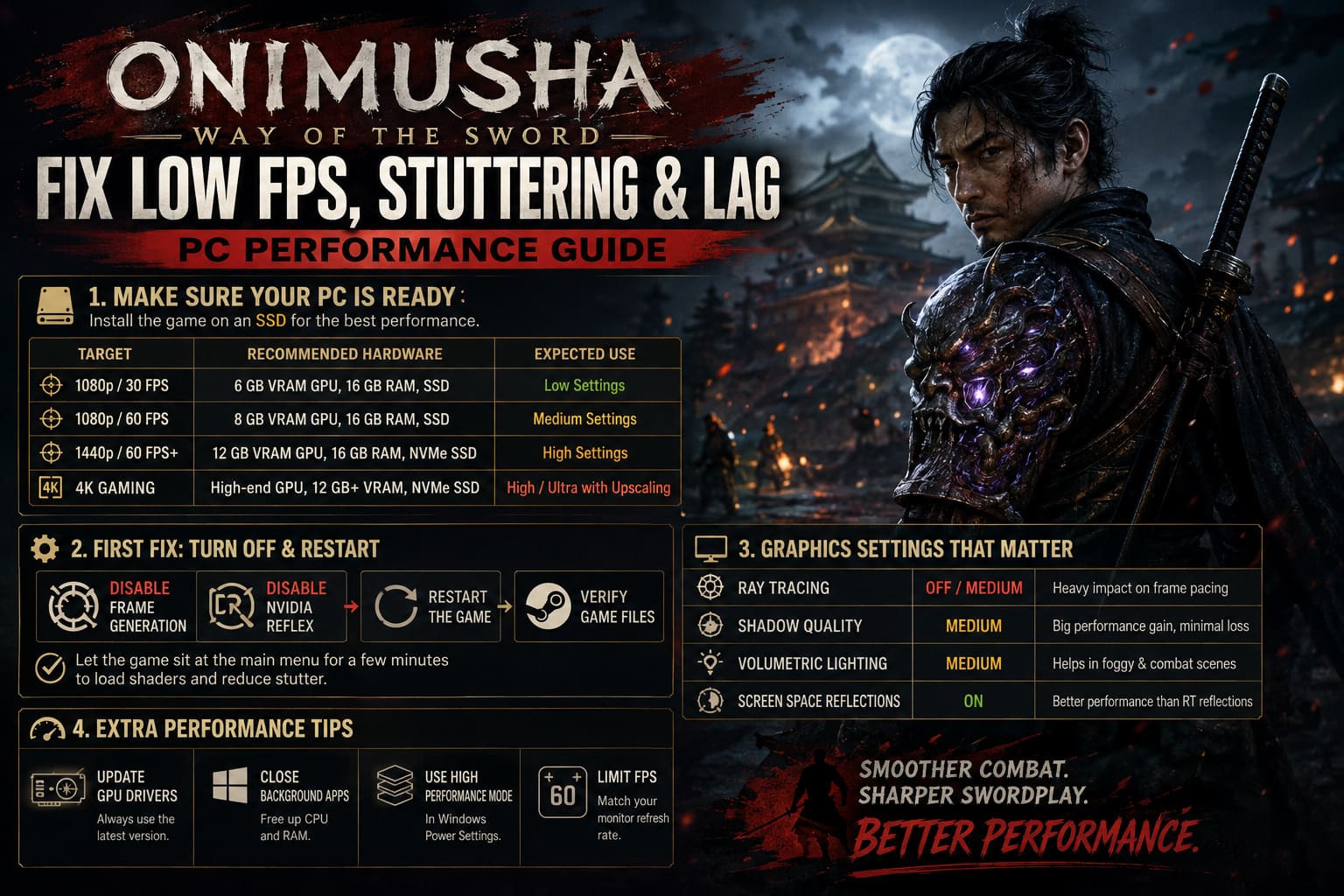
| Target | Recommended Hardware | Expected Use |
|---|---|---|
| 1080p / 30 FPS | 6 GB VRAM GPU, 16 GB RAM, SSD | Low settings |
| 1080p / 60 FPS | 8 GB VRAM GPU, 16 GB RAM, SSD | Medium settings |
| 1440p / 60 FPS+ | 12 GB VRAM GPU, 16 GB RAM, NVMe SSD | High settings |
| 4K Gaming | High-end GPU, 12 GB+ VRAM, NVMe SSD | High/Ultra with upscaling |
These aren’t magical requirements, of course. Hardware combinations vary enormously. But if you’re trying to diagnose stuttering, you want to eliminate obvious bottlenecks before blaming the game.
My First Fix: Turn Off Frame Generation and Reflex
This is where I’d start if you’re experiencing strange micro-stutters.
Go into the game’s graphics options and temporarily disable Frame Generation and NVIDIA Reflex. Then completely restart the game.
I’m not saying you should permanently play without these technologies. Quite the opposite. Frame Generation can be fantastic when you already have a strong base frame rate, and Reflex can make a noticeable difference to responsiveness. But when you’re troubleshooting inconsistent frame pacing, you want as few variables as possible.
After disabling them, I’d also verify the game files through Steam. It’s a simple step, but there’s no reason to spend an hour experimenting with complicated Windows tweaks if a damaged or incomplete installation is sitting underneath everything.
Once that’s done, launch the game and let it sit at the main menu for a few minutes. I know this sounds ridiculously simple, but when you’re troubleshooting shader-related issues, giving the game a little time before immediately jumping into combat is worthwhile.
The Graphics Settings I Would Actually Change
This is the part where I disagree with the classic PC troubleshooting advice of “just lower everything.”
Onimusha: Way of the Sword is a beautiful game. If I spend money on a modern GPU, I want to see what Capcom’s artists actually built. The goal should be to reduce the settings that have a large performance cost while keeping the visual features that make the game look special.
| Setting | My Recommendation | Why |
|---|---|---|
| Ray Tracing | Off or Medium | Can heavily affect frame pacing |
| Shadow Quality | Medium | Good performance improvement with limited visual loss |
| Volumetric Lighting | Medium | Helps during foggy and combat-heavy scenes |
| Screen Space Reflections | On | Better performance than expensive ray-traced reflections |
Ray tracing is the first thing I’d sacrifice. Yes, it looks impressive. But if enabling it turns a smooth 60 FPS experience into something with frequent frame-time spikes, I don’t think it’s worth it in a fast sword-fighting game.
I’d also keep an eye on shadow quality. Ultra shadows are one of those settings that look great in screenshots but can have a surprisingly large performance cost in actual gameplay.
Don’t Ignore Frame Pacing
Here’s another mistake I see constantly: people chase the highest possible FPS number.
If your PC can render 82 FPS in one room, 67 FPS in another, and suddenly drops to 48 FPS during combat, the game can feel worse than a properly capped 60 FPS experience.
For my setup, I’d rather establish a frame rate that the PC can maintain consistently and then build the graphics settings around that target.
If you’re using a 144 Hz or 240 Hz monitor, experiment with a sensible frame-rate cap rather than leaving the game completely unrestricted. Something like 60, 90, or 120 FPS can make sense depending on your hardware.
If you’re still getting inconsistent frame times, an external limiter such as RTSS can be useful because it gives you more control over frame pacing.
Try DirectX Launch Options — But Don’t Assume One Is Better
Another troubleshooting option worth testing is the DirectX API.
In Steam, open the game’s Properties and look for Launch Options. You can test:
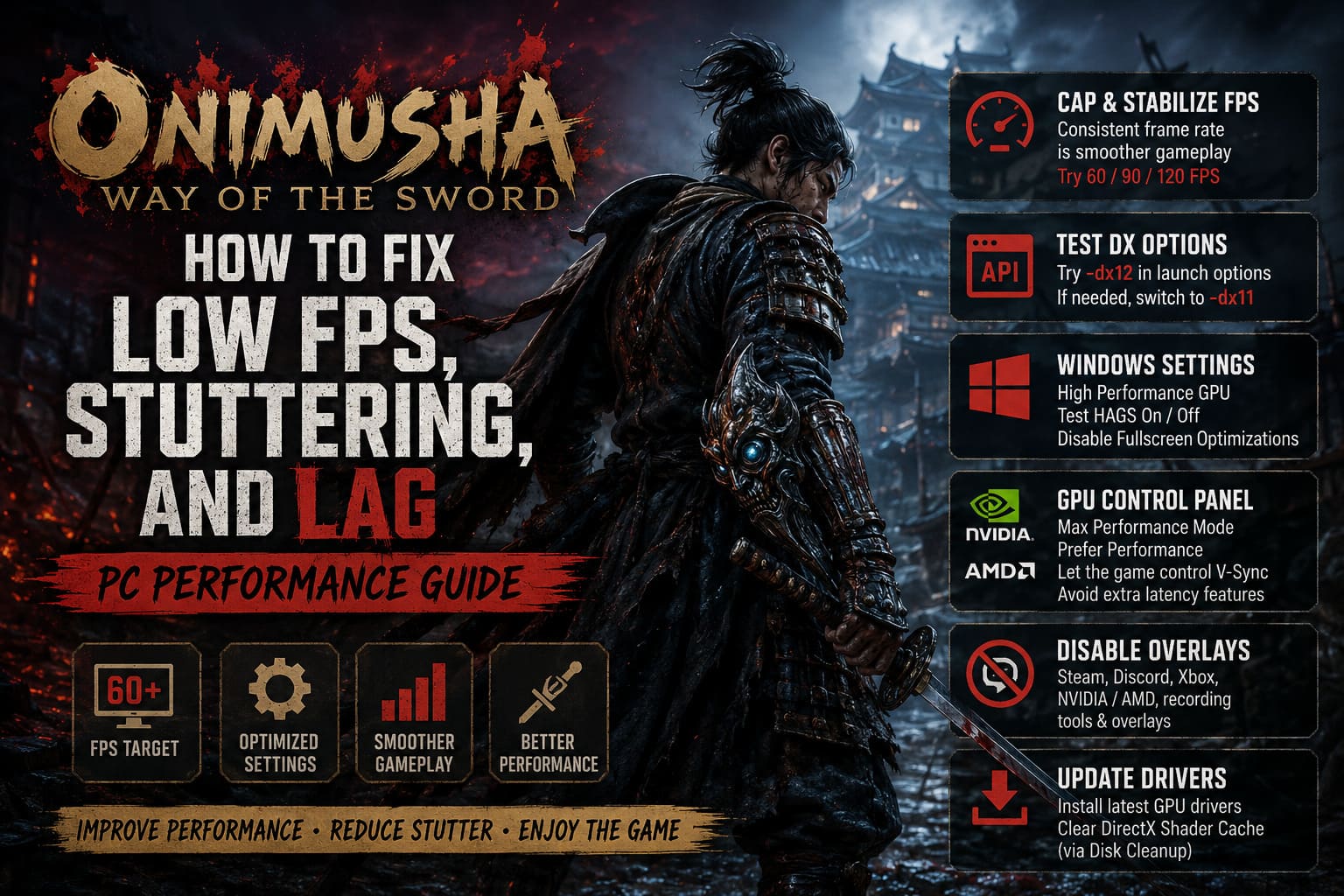
-dx12
If that doesn’t help, remove it and test:
-dx11
I wouldn’t blindly recommend one API to everyone. Different GPU generations, drivers, Windows configurations, and game builds can behave differently.
The important thing is to test one option at a time. If you change five things simultaneously and suddenly the game runs better, you won’t know which change actually solved the problem.
Windows Settings Worth Checking
Windows has several graphics-related options that can influence how games behave.
First, open Windows Graphics Settings and make sure the game is assigned to the High Performance GPU if you have more than one graphics processor.
I’d also test Hardware-Accelerated GPU Scheduling (HAGS). It can help some systems, but because PC configurations vary, I wouldn’t treat it as a guaranteed fix. If your problems started after a Windows or driver change, testing HAGS on and off is perfectly reasonable.
Fullscreen optimization settings are another thing worth experimenting with if you’re experiencing strange presentation or frame-pacing behavior. Right-click the game executable, open Properties, go to Compatibility, and test Disable Fullscreen Optimizations.
Again, don’t change everything at once. PC troubleshooting becomes much easier when you can identify exactly what helped.
NVIDIA and AMD Settings I Would Use
If you’re running NVIDIA hardware, open NVIDIA Control Panel and create a dedicated profile for Onimusha: Way of the Sword.
- Set Power Management Mode to Prefer Maximum Performance.
- Keep texture filtering at Performance if you’re desperate for additional GPU headroom.
- Let the game control V-Sync unless you have a specific reason to override it.
- Avoid stacking multiple latency and frame-generation technologies while troubleshooting.
For AMD users, the same basic philosophy applies. Create a game profile in AMD Software and consider using Radeon Anti-Lag if input latency is your priority. I would also avoid unnecessary sharpening or image-processing effects while diagnosing performance problems.
Disable Every Overlay You Don’t Need
This is one of the easiest tests, and personally, it’s one of the first things I do when a PC game behaves strangely.
Temporarily disable the Steam Overlay, Discord Overlay, Xbox Game Bar, NVIDIA/AMD overlays, recording software, and other monitoring utilities.
I’m not saying these applications are inherently bad. I use overlays and recording tools myself. But when a game is already struggling with frame pacing, there’s no reason to have five different programs hooking into the rendering pipeline.
After you find a stable configuration, you can enable your usual applications again one by one.
Don’t Forget Drivers and Shader Cache
Before doing anything drastic, install the latest graphics driver for your GPU. Game Ready drivers and current AMD drivers often include optimizations or fixes for new releases.
You can also clear the Windows DirectX Shader Cache through Disk Cleanup. This removes old cached shader data and allows Windows to rebuild it.
I wouldn’t do this every time the game stutters, though. Clearing caches constantly can actually make the next few launches feel worse because the shaders have to be rebuilt again.
My Recommended Onimusha: Way of the Sword PC Profile
If I wanted a balance between image quality and smooth combat, I’d start here:
- Resolution: Native monitor resolution
- Ray Tracing: Off or Medium
- Shadows: Medium
- Volumetric Lighting: Medium
- Reflections: Screen Space
- Frame Generation: Off while troubleshooting
- NVIDIA Reflex: Test Off first
- FPS Cap: 60/90/120 depending on your hardware
- Installation: SSD, preferably NVMe
Once everything feels stable, I’d start increasing individual settings. Texture quality is one of the first things I’d experiment with if you have plenty of VRAM, while ray tracing would be one of the last things I’d turn back on.
How to Fix Onimusha: Way of the Sword Fatal Error Memory Allocation Block
Final Thoughts: Smooth Swordplay Beats a Pretty FPS Counter
After spending time tweaking PC games, I’ve learned that the “best” graphics settings aren’t necessarily the settings with every slider pushed to Ultra. Especially in a game like Onimusha: Way of the Sword, responsiveness matters more than having slightly prettier shadows.
I’d much rather have a stable frame rate, clean frame pacing, and responsive parries than stare at an FPS counter showing 100+ FPS while the game occasionally freezes for a split second.
If you’re dealing with low FPS, stuttering, lag, or inconsistent frame times, start with the simple stuff: make sure the game is installed on an SSD, update your GPU driver, disable overlays, test Frame Generation and Reflex without them, and reduce the expensive graphics options such as ray tracing and volumetric effects.
Then move into the more advanced Windows, DirectX, and driver-level tweaks.
And honestly, that’s the way I’d approach this game as a streamer. I want Onimusha: Way of the Sword to look incredible when I’m exploring Kyoto, but when a Genma jumps into the fight, I want the game to respond instantly. That’s the kind of performance that actually makes a modern game feel good.
Stable FPS. Consistent frame times. Responsive combat. Get those three things right, and the impressive visuals of Onimusha can finally do what they were designed to do without getting in the way of the gameplay.