Phantom Blade Zero High CPU Usage & 100% Spike: How to Fix PC Stuttering
There are few things more annoying than launching a game that looks absolutely incredible, only to discover that your processor is fighting for its life before you’ve even reached the good stuff. Phantom Blade Zero is exactly the kind of game that can make a powerful PC sweat. Its fast Kung-Fu combat, detailed environments, heavy effects, and Unreal Engine 5 technology create some seriously demanding scenes, and CPU usage can climb much higher than many players expect.
I’ve spent enough time tweaking demanding PC games to know the difference between a game that is simply hardware-hungry and one that becomes genuinely unpleasant because of inconsistent frame times. When Phantom Blade Zero starts pushing CPU usage toward 100%, the problem isn’t always the average FPS. The real killer is what happens between frames: sudden spikes, tiny freezes, uneven camera movement, delayed input, and those irritating moments where everything feels sluggish despite the FPS counter looking respectable.
If you’re seeing 100% CPU usage in Phantom Blade Zero, don’t immediately start dropping your resolution or destroying the visual quality. That’s often the wrong direction. A CPU bottleneck needs a different approach, and a few targeted changes can make a surprisingly large difference.
Phantom Blade Zero AMD Adrenalin Driver Crash: 7 Working Fixes for PC
Why Phantom Blade Zero Can Push CPU Usage So High
Phantom Blade Zero is built around a modern Unreal Engine 5 pipeline, and that matters. Modern games aren’t just asking your GPU to draw pretty pictures anymore. The CPU has to juggle game logic, world streaming, animation, physics, AI behavior, asset preparation, draw calls, and communication with the graphics card.
Fast-paced combat makes this even more noticeable. When you’re fighting several enemies, moving through a detailed environment, triggering effects, and rapidly changing camera angles, the processor suddenly has a lot more work to do.
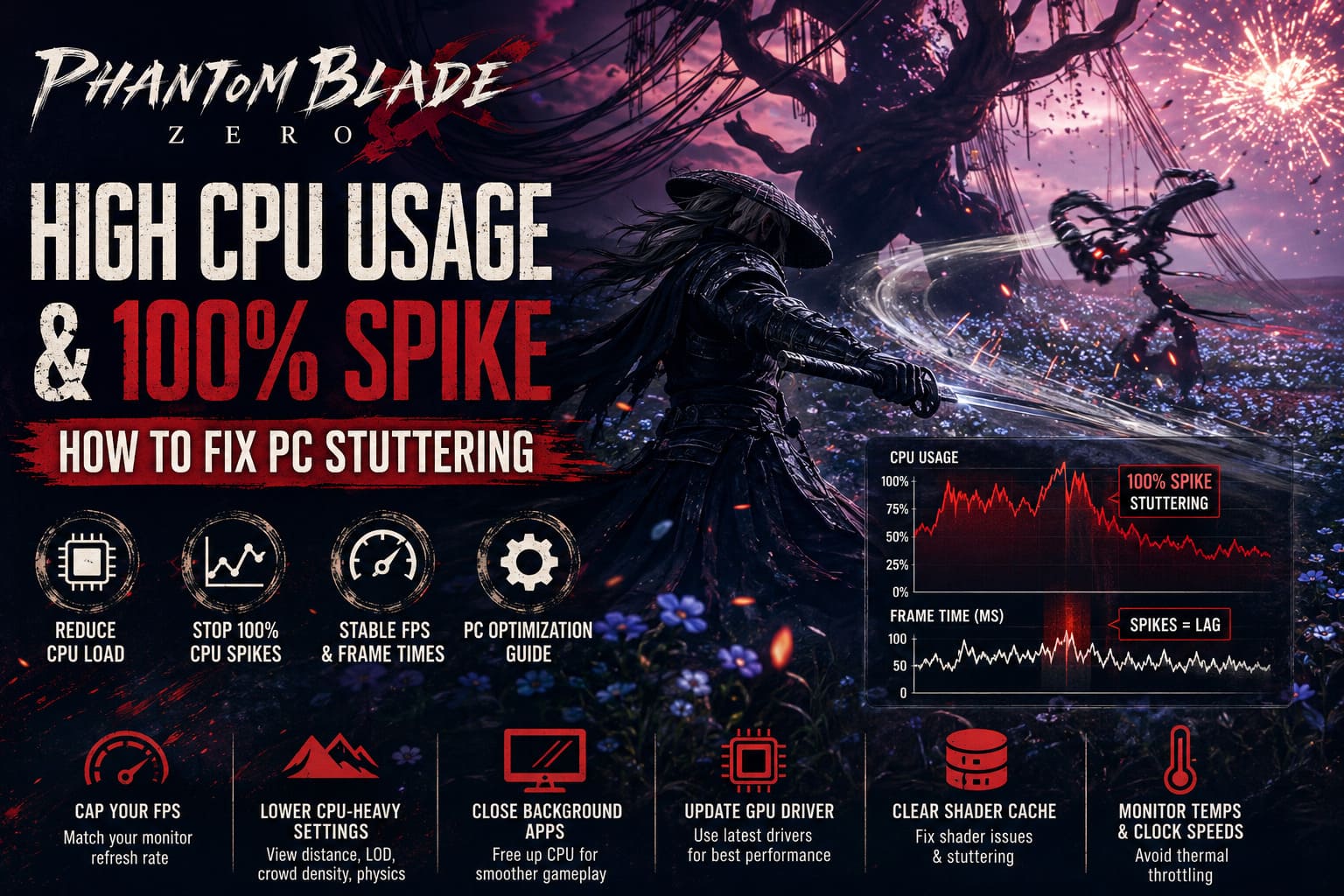
There is also a major difference between high CPU usage and problematic CPU usage. Seeing 80–90% utilization isn’t automatically a disaster. The trouble begins when CPU utilization repeatedly hits 95–100%, clocks drop because of heat, or frame times become unstable. If your GPU is sitting at 60–70% while the CPU is completely saturated, that’s a classic sign that the processor is holding the system back.
First Fix: Cap Your FPS
This is the first thing I’d try before touching half the settings in the game.
An unlocked frame rate can make your CPU work unnecessarily hard. If your system is capable of rendering 150 FPS but your monitor is running at 60Hz, you’re asking the hardware to calculate a mountain of extra frames that you aren’t going to see.
A sensible FPS cap gives the processor some breathing room and can make frame delivery considerably more consistent.
| Monitor Refresh Rate | FPS Cap To Try |
|---|---|
| 60Hz | 60 FPS |
| 75Hz | 75 FPS |
| 120Hz | 120 FPS |
| 144Hz | 141–144 FPS |
| 165Hz | 160–165 FPS |
| 240Hz | 200–240 FPS |
I personally prefer a slightly conservative cap when a game has CPU spikes. I’d rather have a rock-solid 90 or 120 FPS than watch the counter bounce all over the place while the processor sits at 100%.
If Phantom Blade Zero doesn’t give you the exact frame-rate control you need, you can also use your GPU software. NVIDIA users can set a Max Frame Rate through NVIDIA Control Panel, while AMD users can experiment with Radeon Chill and related frame-rate controls.
The important part is simple: don’t let the game render hundreds of frames just because your PC can do it.
Lower the Settings That Actually Affect the CPU
This is where a lot of PC players go wrong.
When someone sees performance problems, the instinct is usually to lower resolution, textures, shadows, and other obvious graphics options. That makes sense when the GPU is the bottleneck. It doesn’t necessarily help when the CPU is already maxed out.
If your processor is struggling, concentrate on settings that influence the number of objects, characters, calculations, and world elements the CPU has to manage.
Look for options related to:
- View Distance or Draw Distance
- Level of Detail
- Crowd or NPC Density
- World Detail
- Physics Quality
- Destruction Effects
- Simulation Quality
You don’t need to turn everything down to Low. That’s one of the fastest ways to make a beautiful game look mediocre for little benefit.
I’d start by moving CPU-heavy settings from Ultra to High, then from High to Medium only if the problem remains. You can often recover some CPU headroom without making the game look dramatically worse.
Texture quality is a different story. If you have a graphics card with plenty of VRAM, lowering textures isn’t normally the first move for a CPU bottleneck.
Don’t Ignore Background Programs
Sometimes the game isn’t the only thing eating your processor.
A browser with 30 tabs open, Discord, recording software, RGB utilities, motherboard monitoring tools, launchers, update services, and overlays can all take small pieces of CPU time. Individually, they may look harmless. Put enough of them together while running a demanding Unreal Engine 5 game and the available headroom disappears.
Press Ctrl + Shift + Esc to open Windows Task Manager and sort the Processes list by CPU usage.
Before launching Phantom Blade Zero, close programs you don’t actually need. Pay particular attention to:
- Browser windows with lots of active tabs
- Video recording and streaming software
- Hardware monitoring utilities
- RGB control software
- Extra game launchers
- Third-party overlays
- Cloud synchronization applications
I’m not suggesting that you turn Windows into a sterile gaming machine every time you want to play. That’s overkill. The goal is simply to remove obvious CPU hogs while troubleshooting the problem.
Set Phantom Blade Zero to High Performance in Windows
Windows can occasionally make the wrong choice about which GPU or performance profile an application should use, particularly on laptops with integrated and dedicated graphics.
You can manually assign Phantom Blade Zero to the high-performance GPU through Windows.
Go to:
Settings → System → Display → Graphics
Find Phantom Blade Zero in the application list or add its executable manually. Open its graphics options and select High Performance.
This is especially useful on gaming laptops. Hybrid graphics systems have additional routing overhead, and making sure the game is assigned to the dedicated GPU eliminates one possible source of confusion.
Don’t expect this setting alone to magically turn a 100% CPU problem into a 40% CPU problem. It is more of a system-level sanity check, but it’s easy to do and worth eliminating from the troubleshooting list.
Update Your GPU Driver Before Blaming the Game
Driver updates can have a bigger impact on new PC releases than people give them credit for.
A newly released game may expose problems with shader compilation, frame pacing, memory management, or specific rendering features that older drivers weren’t designed around. NVIDIA and AMD regularly release optimized drivers for major games, so running an ancient driver while troubleshooting performance doesn’t make much sense.
Download the latest driver directly from your GPU manufacturer’s official software or website. If you’ve been upgrading drivers repeatedly and Phantom Blade Zero still behaves strangely, consider performing a clean driver installation.
This is especially worth trying if the game started stuttering after several driver updates or if you have recently changed graphics cards.
Clear the DirectX Shader Cache
Shader problems can create some seriously weird behavior.
If a game’s shader cache becomes corrupted or something goes wrong during shader preparation, you can experience stuttering, unusual CPU spikes, or inconsistent performance. It doesn’t mean the hardware is broken. Sometimes the temporary files simply need to be rebuilt.
Windows provides a straightforward way to clear the DirectX Shader Cache through Disk Cleanup.
Search Windows for Disk Cleanup, choose your system drive, and look for the DirectX Shader Cache option. Clear it and then launch the game again.
The first run afterward may not instantly feel perfect because the game can rebuild shader-related data. Give it a little time rather than assuming the process failed after the first few minutes.
Watch CPU Temperature and Clock Speeds
Here’s something many players overlook: 100% CPU usage isn’t always the original problem.
Sometimes the processor is running at maximum utilization because the game is demanding. Other times, high temperatures cause the CPU to reduce its clock speed, which makes the performance problem even worse.
Use a reliable monitoring application to watch:
- CPU temperature
- CPU utilization
- CPU clock speed
- GPU utilization
- GPU temperature
- RAM usage
- Frame time
If CPU temperature is climbing into uncomfortable territory and clock speeds are dropping during gameplay, you may be dealing with thermal throttling rather than a simple software bottleneck.
Desktop users should check that the CPU cooler is working properly and that airflow isn’t restricted by dust. Laptop users have fewer options, but keeping the vents clear and using an appropriate performance mode can still help.
Give Your RAM and Storage a Quick Check
Modern games are increasingly sensitive to memory and storage behavior. If you’re running with limited RAM while having browsers, Discord, launchers, and other applications open, Windows may start juggling memory more aggressively.
That doesn’t automatically mean you need to buy more RAM. Check Task Manager first.
If memory usage is consistently near the system limit while Phantom Blade Zero is running, close unnecessary applications and see whether the stuttering changes.
Storage can also matter because modern games constantly stream assets. Installing a demanding title on a slow or heavily occupied drive isn’t ideal. An SSD with reasonable free space is a much better environment for a large Unreal Engine 5 game.
What I Would Change First
If this were my own PC and Phantom Blade Zero suddenly started hammering the CPU at 100%, I wouldn’t spend an hour changing twenty settings at random. I’d work through the problem in a controlled order.
First, cap the FPS. Then lower CPU-heavy settings such as view distance and world detail. After that, close background applications and check CPU temperatures while playing. If the problem remains, I’d update the GPU driver, clear the shader cache, and check whether the game is correctly assigned to the dedicated GPU.
That order matters because it lets you see what actually helped instead of changing everything at once.
Final Thoughts on Phantom Blade Zero PC Performance
Phantom Blade Zero is the kind of game that can expose weaknesses in a PC that handles most other titles without breaking a sweat. That’s not necessarily a bad thing, but it does mean optimization becomes more important when the processor starts hitting its ceiling.
The biggest mistake is assuming that every performance problem is a GPU problem. If your CPU is pinned at 100% while GPU utilization remains relatively low, lowering resolution probably isn’t going to save you. You need to reduce the amount of work the processor is being asked to perform and give it enough headroom to maintain consistent frame times.
Start with the FPS cap, tune CPU-focused graphics options, clean up background processes, and keep an eye on temperatures. Those are the fixes I’d reach for first, and they’re much less painful than blindly dropping every visual setting to Low.
When the game finally settles into a stable frame-time rhythm, the difference is obvious. Phantom Blade Zero’s combat is built around speed and precision, so smooth performance isn’t just about making the benchmark number look pretty. Consistent frame delivery can genuinely make the combat feel sharper, more responsive, and much easier to read.