Stardew Valley Crash on Launch Windows 11: 2026 Guide to Fix Instability and Startup Freezes
There are games you install, play for a few weekends, and eventually forget. Then there’s Stardew Valley. It doesn’t matter how many AAA releases come out every year—I always end up returning to Pelican Town. That’s exactly why it’s so frustrating when you click Play, see the game attempt to launch, and then… nothing. Maybe the ConcernedApe logo flashes for a second. Maybe Steam says “Running” before instantly switching back to “Play.” Either way, your farm stays locked behind a startup crash.
I’ve dealt with this problem more than once on different Windows 11 systems, and after spending way too many hours digging through Reddit discussions, community forums, and troubleshooting videos, I noticed something important:
Most launch crashes come from just a handful of repeat issues.
The good news? They’re usually fixable without reinstalling Windows or replacing your hardware.
This guide isn’t just another copy-paste checklist. It’s the approach I personally recommend after testing multiple fixes on modern Windows 11 PCs.
Why Stardew Valley Suddenly Stops Launching
Although Stardew Valley looks simple compared to modern games, it’s built on software components that have existed for years. Windows 11 keeps evolving, graphics drivers constantly change, and background applications love injecting themselves into games.
Sometimes those changes don’t play nicely together.
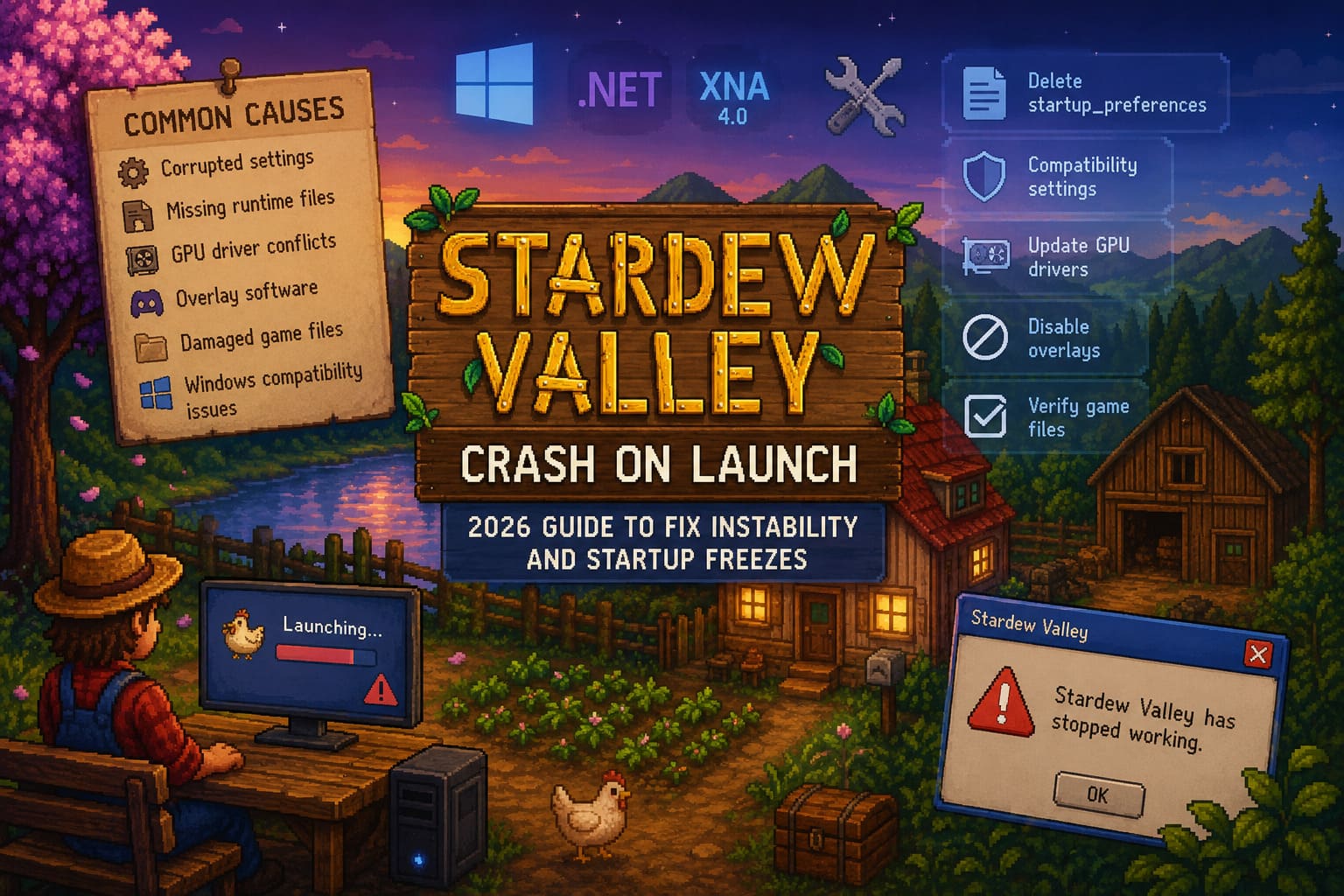
Some of the most common causes include:
| Problem | How It Affects the Game |
|---|---|
| Corrupted settings | Game crashes before reaching the main menu |
| Missing runtime files | Startup process fails immediately |
| GPU driver conflicts | Black screen or instant desktop return |
| Overlay software | Causes memory or rendering crashes |
| Damaged game files | Launch freezes or endless loading |
| Windows compatibility issues | Game never fully initializes |
In my experience, it’s rarely the game itself that’s broken. Usually something around it prevents Windows from letting it start correctly.
Fix #1 – Delete the Configuration File
If I had to recommend only one solution, this would be it.
Stardew Valley stores startup preferences separately from the game itself. When that file becomes corrupted—sometimes after changing monitors, resolutions, or graphics settings—the game may refuse to launch altogether.
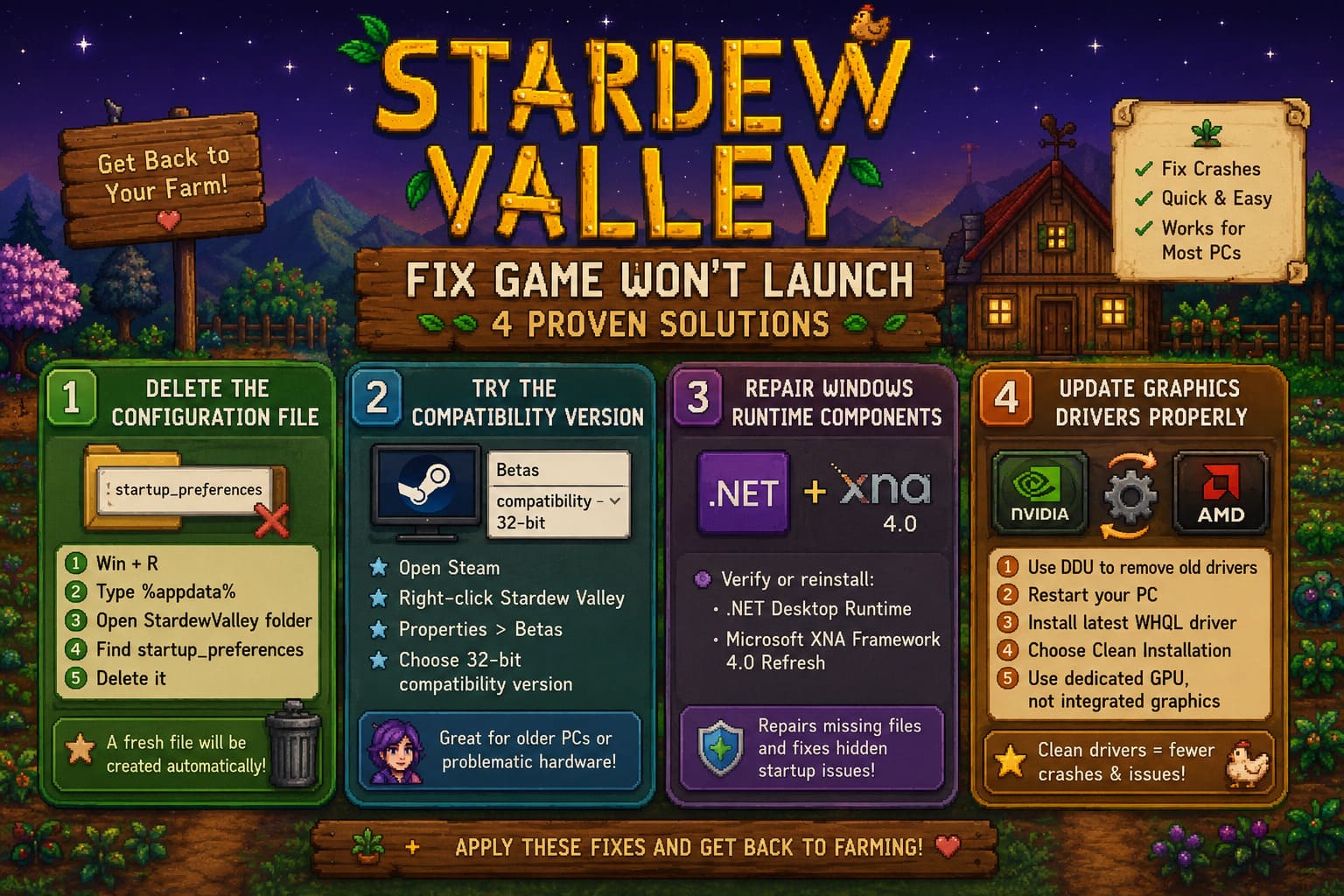
Here’s what I do:
- Press Windows + R.
- Type
%appdata%. - Open the StardewValley folder.
- Find startup_preferences.
- Delete it.
Don’t worry.
The game automatically creates a fresh version the next time it starts successfully.
I’ve seen this solve startup crashes in less than a minute.
Fix #2 – Try the Compatibility Version
Not everyone knows this exists.
Steam includes a compatibility branch designed for systems that struggle with newer builds.
Changing to it takes only a minute:
- Open Steam.
- Right-click Stardew Valley.
- Open Properties.
- Select Betas.
- Choose the 32-bit compatibility version.
Steam downloads a small update.
If newer engine changes are causing your startup problem, this version often bypasses them completely.
It’s especially useful on older laptops or unusual hardware combinations.
Fix #3 – Repair Windows Runtime Components
Modern Windows installs many frameworks automatically.
Unfortunately…
Not always the ones older games expect.
Stardew Valley depends on Microsoft’s runtime environment, and damaged installations can silently break startup.
The two components I always verify are:
- .NET Desktop Runtime
- Microsoft XNA Framework 4.0 Refresh
Even if they’re already installed, running the installer again can repair missing files without affecting anything else.
It sounds boring compared to tweaking graphics settings, but runtime repairs solve far more crashes than most people realize.
Fix #4 – Update Graphics Drivers Properly
Installing the newest GPU driver isn’t always enough.
Over the years I’ve learned that leftover driver files create some surprisingly weird issues.
If you’ve upgraded your graphics card recently—or switched between AMD and NVIDIA—I strongly recommend doing a clean installation.
The process looks like this:
- Remove old drivers using Display Driver Uninstaller (DDU).
- Restart the PC.
- Install the latest WHQL graphics driver.
- Choose Clean Installation if available.
Afterward, make sure Windows isn’t trying to launch Stardew Valley using integrated graphics.
Many gaming laptops still default to the weaker GPU for lightweight games.
Forcing the dedicated GPU often removes random startup crashes.
Fix #5 – Turn Off Overlays
This is probably my biggest pet peeve.
Every application today wants to display an overlay.
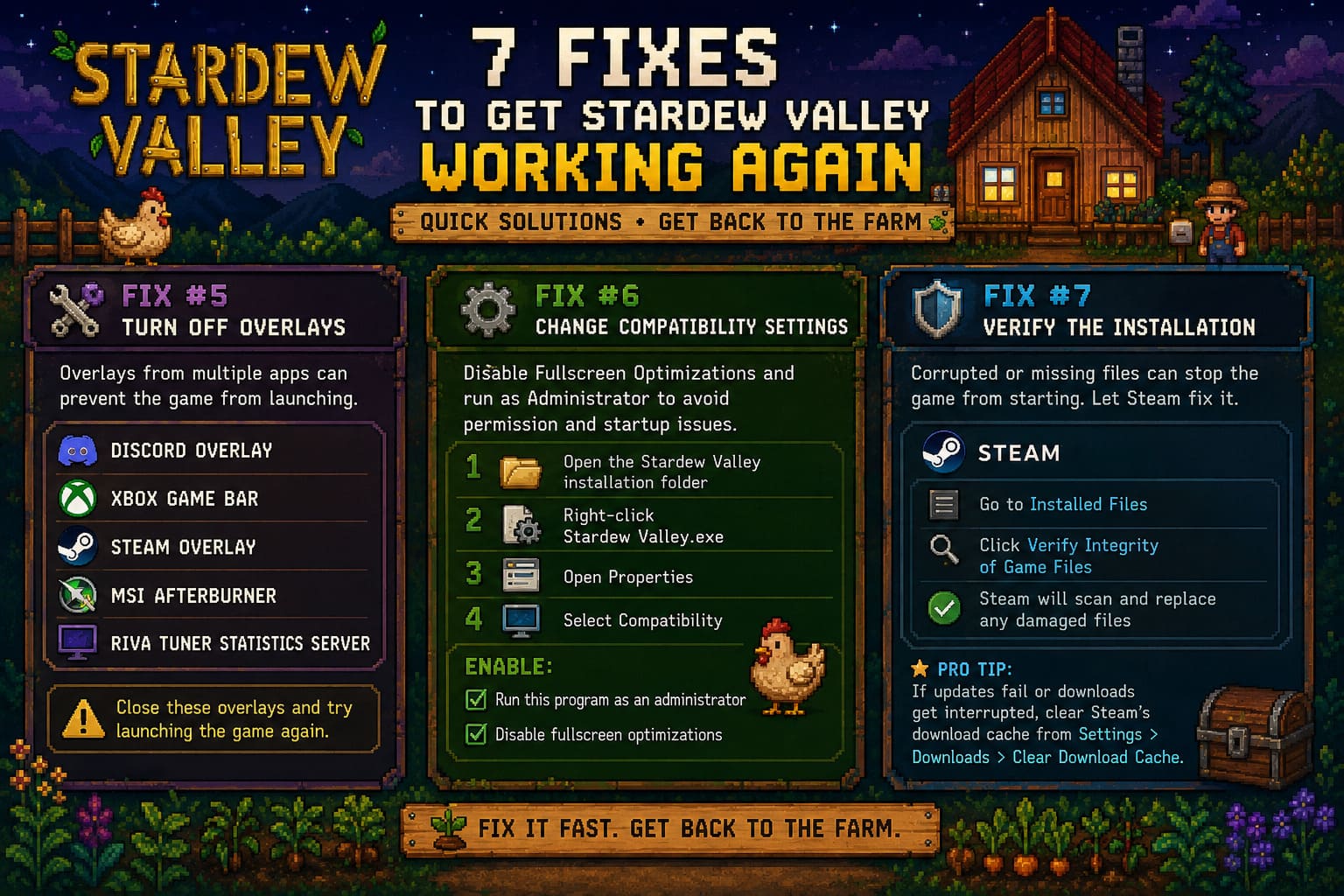
Discord.
Steam.
Xbox Game Bar.
MSI Afterburner.
RTSS.
RGB software.
Performance monitors.
Screenshot tools.
Individually they seem harmless.
Combined?
They can become a nightmare.
I’ve personally had RTSS prevent Stardew Valley from launching until I completely disabled application detection.
Before assuming the game is broken, temporarily close:
- Discord Overlay
- Xbox Game Bar
- Steam Overlay
- MSI Afterburner
- RivaTuner Statistics Server
If the game suddenly starts working, you’ve already found the culprit.
Fix #6 – Change Compatibility Settings
Windows 11 introduced new fullscreen optimization methods.
Most of the time they’re great.
Occasionally they confuse older games.
I usually make two quick changes:
- Enable Run as Administrator.
- Enable Disable Fullscreen Optimizations.
To do that:
- Open the Stardew Valley installation folder.
- Right-click Stardew Valley.exe.
- Open Properties.
- Select Compatibility.
These settings don’t magically fix every crash, but they eliminate permission problems that can stop the game before it even opens.
Fix #7 – Verify the Installation
Game updates occasionally leave behind corrupted files.
It doesn’t happen often.
But when it does, verifying the installation is much faster than reinstalling everything.
Inside Steam:
- Open Installed Files.
- Click Verify Integrity of Game Files.
Steam compares every installed file with the latest official version and replaces anything that’s damaged.
While you’re there, I also recommend clearing Steam’s download cache if recent updates failed or downloads were interrupted.
My Personal Troubleshooting Order
Whenever Stardew Valley refuses to launch, I don’t randomly try fixes.
I follow the same order every time because it’s the fastest.
| Priority | Solution | Success Rate |
|---|---|---|
| ⭐⭐⭐⭐⭐ | Delete startup preferences | Very High |
| ⭐⭐⭐⭐⭐ | Verify game files | Very High |
| ⭐⭐⭐⭐ | Disable overlays | High |
| ⭐⭐⭐⭐ | Repair .NET and XNA | High |
| ⭐⭐⭐ | Clean GPU drivers | Medium |
| ⭐⭐⭐ | Compatibility branch | Medium |
| ⭐⭐ | Administrator mode | Moderate |
Usually I don’t even reach step five before the game starts working again.
Don’t Forget About Mods
This deserves its own section.
If you’re using SMAPI or multiple Stardew Valley mods, don’t immediately blame Windows.
I’ve lost count of how many times an outdated mod caused startup crashes after a game update.
Whenever troubleshooting, I recommend launching the vanilla game first.
If the original game starts correctly, your mods—not Windows—are probably responsible.
After that, update each mod individually instead of reinstalling everything at once.
It saves a lot of frustration.
Stardew Valley Cooking Glitch: How to Fix Infinite Ingredient Exploits (2026 Guide)
A Few Extra Tips That Can Save You Hours
Sometimes the smallest things make the biggest difference.
Here are a few habits I’ve picked up over the years:
- Restart your PC after installing runtime components.
- Avoid launching multiple game clients simultaneously.
- Keep Windows fully updated, but don’t ignore optional graphics driver updates.
- If you recently changed monitors or resolution scaling, delete the settings file again.
- Test the game before reinstalling it. Reinstalling rarely fixes configuration problems.
These aren’t miracle solutions, but together they eliminate many strange launch behaviors.
Does Stardew Valley Support Cross Platform Multiplayer PC and Switch in 2026?
Final Thoughts
One of the reasons Stardew Valley has remained popular for so many years is how incredibly stable it usually is. That’s why startup crashes feel so unusual when they happen.
After helping friends troubleshoot their systems—and fixing my own more times than I’d like to admit—I can confidently say that most Windows 11 launch problems come down to corrupted settings, outdated runtime components, graphics driver conflicts, or overlay software.
The biggest mistake players make is jumping straight to a full reinstall.
In reality, deleting a single configuration file or repairing Microsoft’s runtime libraries often gets the game running again in just a few minutes.
If you’re still stuck after trying everything above, don’t panic. Start with a completely clean launch: remove mods, verify the game files, disable every overlay, and let Stardew Valley create fresh settings from scratch. More often than not, that’s all it takes to hear that familiar opening music again—and finally get back to tending your crops, exploring the mines, and enjoying another relaxing season in Pelican Town.