Factory Town 2 Paradise Performance Guide: Fix Big Factory FPS Drops and Steam Cloud Sync Errors
When I jump into a new automation game, I already know what’s going to happen. The first few hours are calm, relaxing, and almost therapeutic. Then I tell myself, “I’ll build just one more production line,” and suddenly it’s three in the morning, my island has become an industrial paradise, and my PC is trying its absolute best to keep up.
That’s exactly what happened to me in Factory Town 2: Paradise.
The game is fantastic. Building giant logistics chains, connecting islands, experimenting with transport routes, and watching thousands of resources move exactly where they should is incredibly satisfying. The sequel expands almost every system from the original while keeping that addictive “I’ll optimize this one more time” feeling alive.
Unfortunately, there’s another thing that grows together with your factory—performance problems.
After spending dozens of hours expanding my settlements, I started noticing heavy FPS drops. At one point the game felt smooth while exploring, but the moment I zoomed over my biggest industrial district, frame rates fell dramatically. Later I also encountered Steam Cloud synchronization issues after switching between two different PCs.
After testing different solutions and comparing notes with other players, I found several methods that consistently improved both performance and save reliability.
Here’s everything that actually worked for me.
Why Factory Town 2 Starts Slowing Down
Many people immediately blame their graphics card whenever performance drops.
In my experience, that’s usually not the real problem.
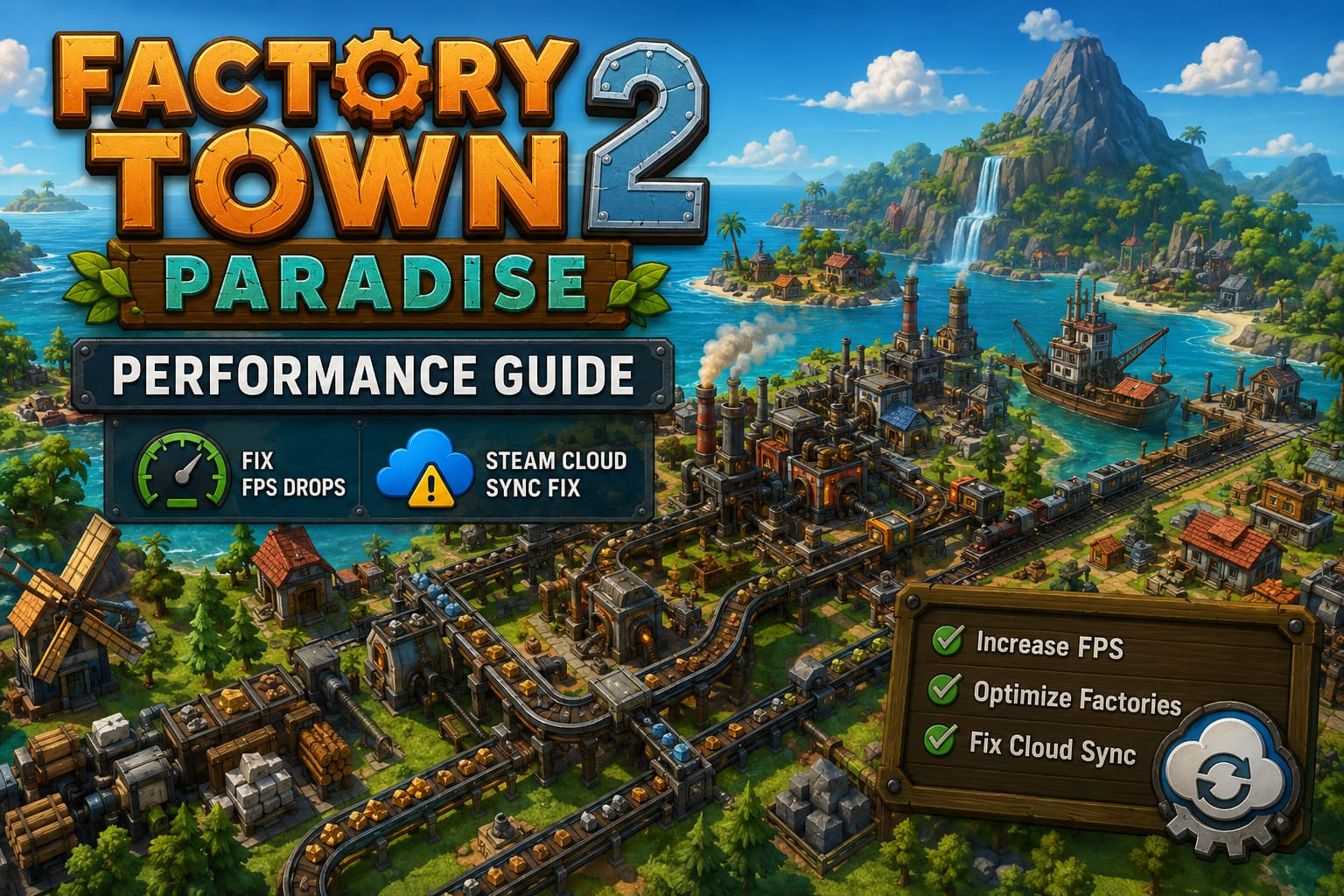
Automation games don’t behave like traditional action games. Instead of rendering explosions or cinematic scenes, the engine is constantly calculating thousands of independent systems at once.
Every second the game needs to process:
- Every resource moving across conveyors or transport systems
- Worker pathfinding
- Vehicle routes
- Production buildings
- Storage inventories
- Market transactions
- Lighting calculations
- Visual effects
- AI behavior
The larger your world becomes, the more calculations your processor performs every single frame.
That’s why lowering texture quality alone often changes almost nothing.
Your CPU becomes the real bottleneck.
My Biggest Performance Improvement
The single best improvement came from something incredibly simple:
I stopped chasing unlimited FPS.
Like many PC players, I originally left the frame rate uncapped.
That sounds great in theory.
In practice, my CPU was constantly running at maximum load while simultaneously trying to simulate an enormous factory.
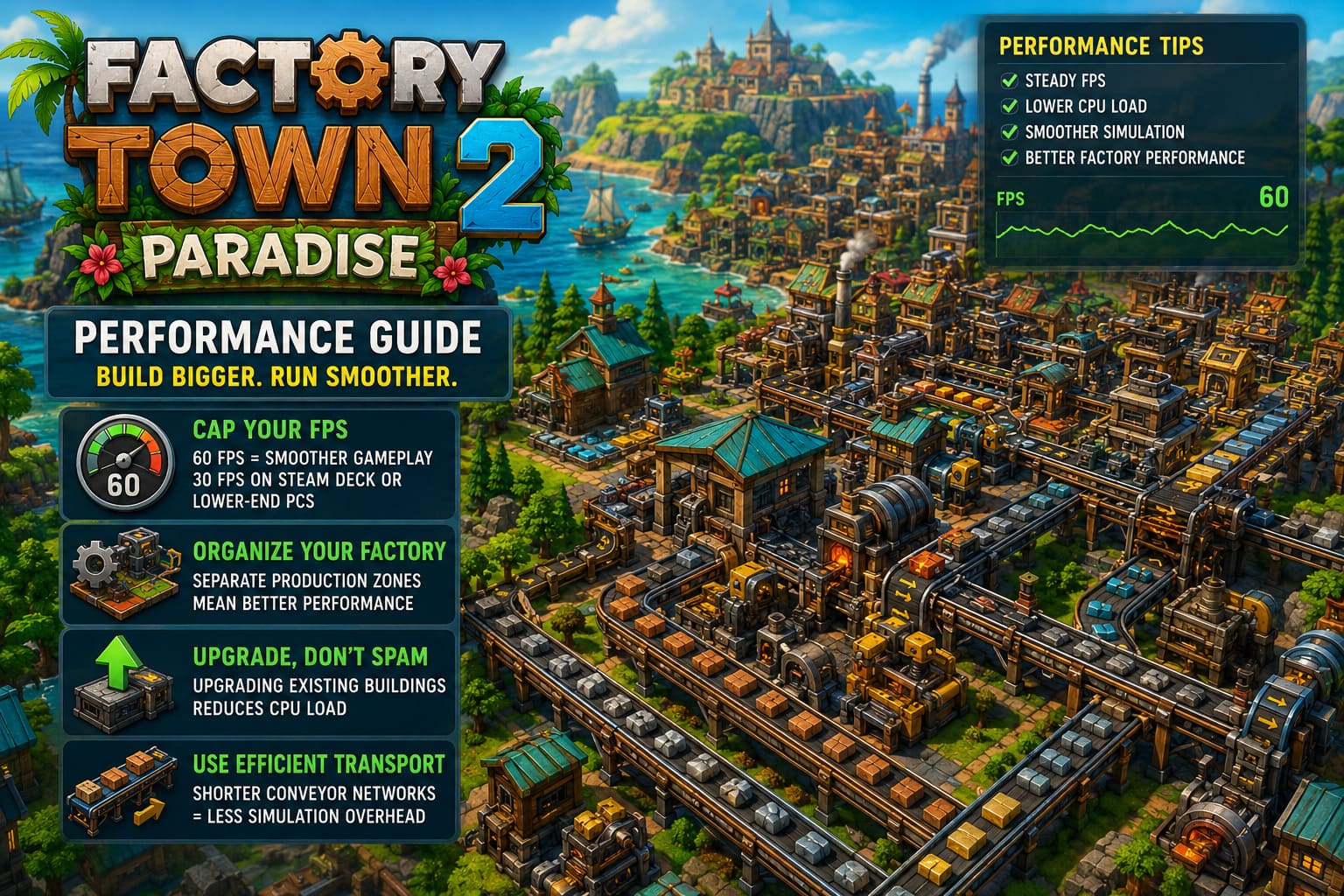
After limiting the game to 60 FPS, everything became noticeably smoother.
The average FPS barely changed, but frame pacing improved dramatically.
Instead of huge spikes every few seconds, gameplay felt consistent.
If you’re playing on a Steam Deck or older hardware, even a 30 FPS cap can create a much smoother experience than constantly fluctuating between 25 and 70 FPS.
Large Factories Need Better Organization
One thing I learned after rebuilding part of my island is that factory design affects performance more than I expected.
At first I created one gigantic industrial district.
Everything happened in one place.
Every conveyor crossed another conveyor.
Every production chain connected to the next.
It looked impressive.
It also became the slowest part of the map.
After reorganizing everything into several independent production zones, performance improved noticeably.
Instead of one enormous cluster, I now have separate areas dedicated to specific resources.
That doesn’t just look cleaner—it also reduces the overwhelming amount of activity happening in one location.
Don’t Build More Buildings Than You Need
This became another surprisingly effective optimization.
Instead of creating ten identical processing buildings, I started upgrading the existing ones whenever possible.
Fewer active structures generally mean fewer calculations.
It’s an easy habit to overlook because automation games naturally encourage expansion.
Sometimes smarter expansion is better than bigger expansion.
Long Conveyor Networks Can Become Expensive
Watching endless conveyor belts snake across the entire island looks amazing.
Unfortunately, every moving item represents another object the simulation needs to track.
Whenever possible, I replaced extremely long conveyor routes with higher-capacity transportation systems.
Moving resources in bulk reduces the amount of individual path calculations happening simultaneously.
The difference became especially noticeable once my settlement reached late-game scale.
Graphics Settings That Actually Helped
Visual settings won’t magically eliminate CPU bottlenecks.
However, they can reduce additional rendering work.
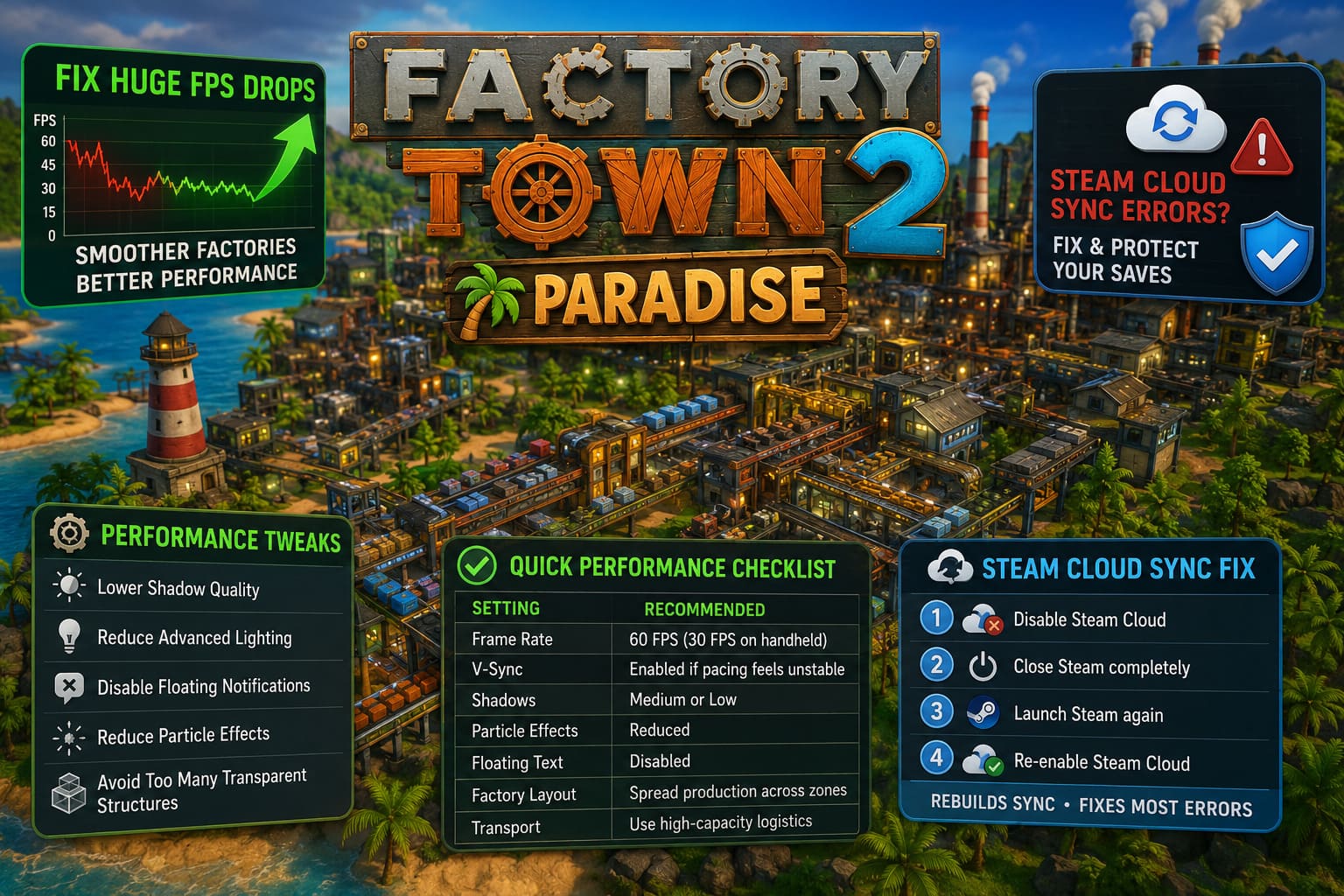
The options that gave me the best results were:
- Lower shadow quality
- Reduce advanced lighting
- Disable unnecessary floating notifications
- Reduce particle effects
- Avoid excessive transparent structures in one location
None of these individually transformed performance.
Together, however, they made large industrial areas much smoother.
Quick Performance Checklist
| Setting | Recommended |
|---|---|
| Frame Rate | 60 FPS (30 FPS on handheld devices) |
| V-Sync | Enabled if frame pacing feels unstable |
| Shadows | Medium or Low |
| Particle Effects | Reduced |
| Floating Text | Disabled |
| Factory Layout | Spread production across multiple zones |
| Transport | Prefer high-capacity logistics over endless conveyors |
Steam Cloud Sync Errors Are Just as Frustrating
Losing performance is annoying.
Losing access to your save is terrifying.
When Steam suddenly displays “Unable to Sync”, it’s easy to assume your progress is gone forever.
Fortunately, that’s rarely the case.
Most synchronization failures happen because Steam can’t properly compare your local save with the version stored online.
Sometimes Windows security software interferes.
Sometimes backup applications lock the save files.
Occasionally Steam simply gets confused after a crash or network interruption.
Fortunately, several fixes are surprisingly simple.
Reset Steam Cloud
This is always the first thing I recommend trying.
Disable Steam Cloud for the game.
Close Steam completely.
Launch Steam again.
Then enable Steam Cloud once more.
That forces Steam to rebuild the synchronization process instead of repeatedly using a broken state.
It only takes a minute, and in many situations it’s enough.
Clear Steam’s Download Cache
This solution sounds unrelated.
It isn’t.
Steam’s cache stores various networking information that can occasionally interfere with downloads, updates, and cloud synchronization.
After clearing the cache, Steam restarts and rebuilds everything from scratch.
If you’ve recently experienced download issues together with Cloud errors, this step is definitely worth trying.
Verify the Installation
Whenever strange behavior appears after an update, I almost always verify the installation before doing anything else.
Steam compares every installed file with the official version and automatically replaces anything that’s damaged or missing.
It’s one of those maintenance tools that’s incredibly useful yet often forgotten.
Check Security Software
Modern antivirus software has become much more aggressive than it used to be.
Folder protection, ransomware prevention, and real-time monitoring occasionally block games from updating save files correctly.
If you also use synchronization software like OneDrive or Dropbox, conflicts become even more likely.
Adding Steam and your Factory Town 2 save folder to your security exceptions can prevent future synchronization failures.
How to Fix Factory Town 2: Paradise Crash on Launch (PC Troubleshooting Guide)
What Worked Best For Me
| Problem | Solution That Helped Most |
|---|---|
| Heavy FPS drops | Limiting FPS to 60 |
| Large factory lag | Separating production into multiple districts |
| Random stuttering | Lowering shadows and particle effects |
| Steam Cloud errors | Resetting Cloud synchronization |
| Save problems | Verifying game files |
| Repeated sync failures | Checking antivirus and backup software |
Factory Town 2 Paradise Volcano Guide: How to Earn Volcano Favor and Summon New Islands Fast
My Personal Advice After Many Hours
Factory Town 2 rewards ambitious players.
The better your logistics become, the larger your factories grow.
Ironically, that success also creates the biggest technical challenge.
I’ve found that optimization should become part of your building philosophy rather than something you worry about after performance collapses.
Think ahead.
Keep production organized.
Avoid creating one massive industrial super-cluster.
Use smarter transportation methods whenever possible.
Your future self—and your CPU—will appreciate it.
As for Steam Cloud, I never ignore synchronization warnings anymore.
Before continuing a long play session, I always make sure Steam has finished syncing properly. Spending a few extra seconds checking that status is much better than discovering hours later that your latest progress never uploaded.
Despite these occasional technical hiccups, I’m still having an incredible time with Factory Town 2: Paradise. Few automation games capture that satisfying feeling of watching an entire economy function exactly as you designed it. Every upgraded production chain, every optimized transport route, and every carefully planned expansion feels rewarding. With a handful of performance tweaks and a little maintenance on Steam’s side, the experience becomes far smoother, letting you focus on what really matters—building the biggest, smartest, and most efficient tropical factory empire you can imagine.