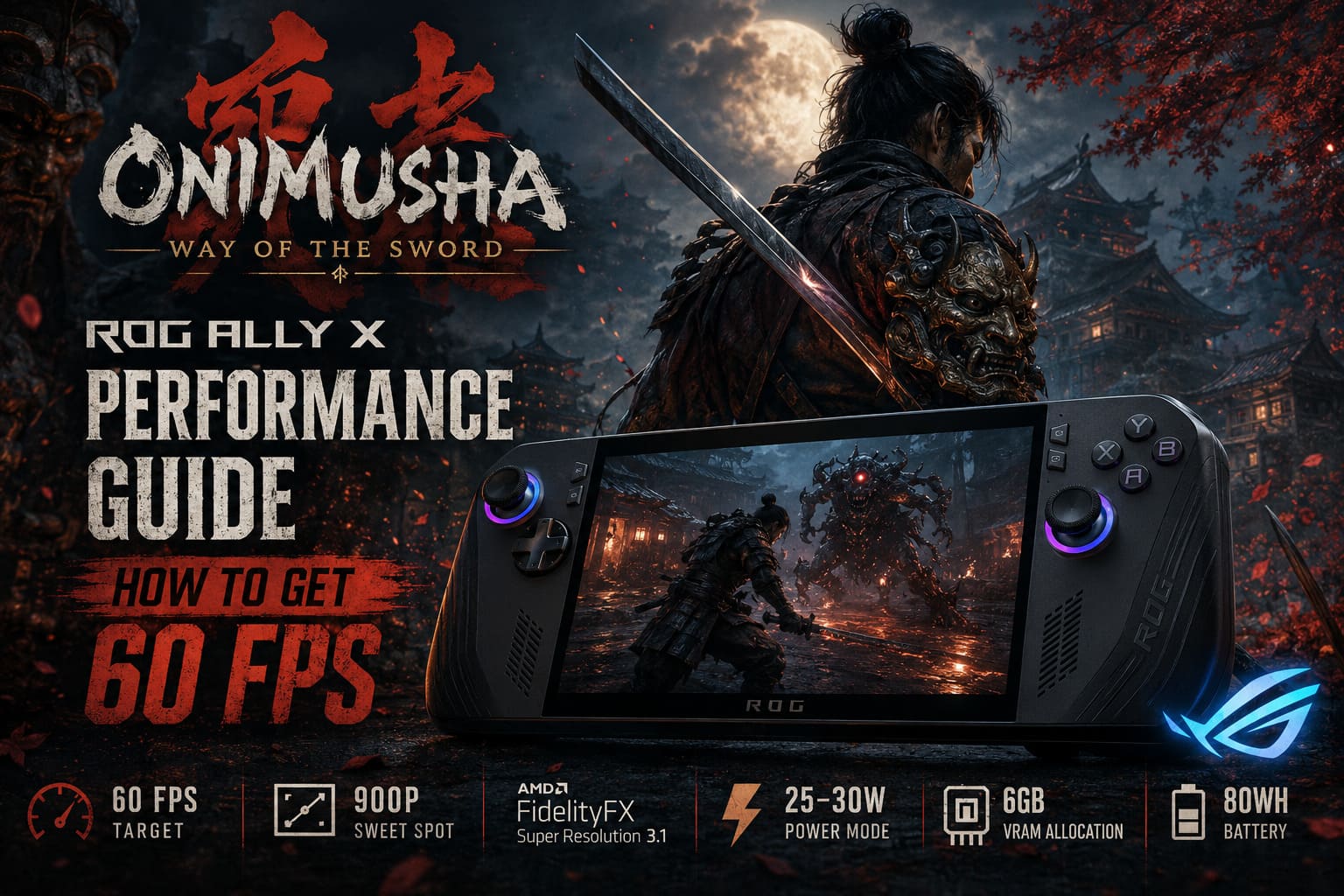
Onimusha Way of the Sword ROG Ally X Performance Guide: How to Get 60 FPS Optimized Settings
There is something particularly satisfying about playing a fast action game on a handheld. When everything works, you get the same responsive combat you would expect from a desktop PC, except you can take it anywhere. When the game struggles, though, every dropped frame becomes painfully obvious.
That is exactly why Onimusha: Way of the Sword is an interesting test for the ASUS ROG Ally X.
Capcom’s return to the Onimusha franchise is not a lightweight nostalgia project. Way of the Sword is built around the RE Engine, packed with detailed environments, aggressive enemies, supernatural effects, cinematic lighting, and combat that depends on timing. Miyamoto Musashi is expected to react quickly, and mechanics such as Issen counters and Reflex Dodges simply feel better when the frame rate is stable.
So, can the ROG Ally X actually run Onimusha: Way of the Sword at 60 FPS?
Yes — but there is an important catch.
You should not expect to run the game at native 1080p with high-end settings and magically hold 60 FPS. The sensible approach is to lower the internal rendering resolution, use modern upscaling, tune the expensive graphical options, and give the Z1 Extreme enough power to breathe.
After looking at how demanding modern RE Engine games can be on handheld hardware, I would treat 900p with aggressive optimization as the sweet spot, while 720p remains the fallback option for players who care more about frame rate than image quality.
Why the ROG Ally X Is a Good Match for Onimusha
The ROG Ally X has a significant advantage over many handheld PCs: it combines a powerful AMD Ryzen Z1 Extreme APU with 24GB of LPDDR5X memory.
The processor itself features 8 cores and 16 threads, while its integrated RDNA 3 graphics architecture provides enough GPU horsepower to handle demanding modern games when settings are chosen intelligently.
The additional RAM is particularly useful here.
Unlike a traditional desktop gaming PC with dedicated graphics memory, the ROG Ally X shares memory between the CPU and integrated GPU. That means the way you configure the system’s memory allocation can affect how comfortably demanding games handle their assets.
The Ally X also has an 80Wh battery, which is a huge upgrade for a handheld of this class. It does not suddenly turn a demanding AAA game into an all-day battery experience, but it gives you considerably more flexibility when using higher power profiles.
And that’s important because Onimusha is exactly the kind of game where running at 15W simply isn’t the same experience as giving the APU 25W or 30W.
Onimusha: Way of the Sword ROG Ally X Performance
The first mistake I would avoid is chasing 1080p at all costs.
The ROG Ally X’s 1080p display makes native resolution look attractive, but the Z1 Extreme has to render every frame at that resolution before all the other graphical effects are applied.
Here’s how I would break down the expected performance targets:
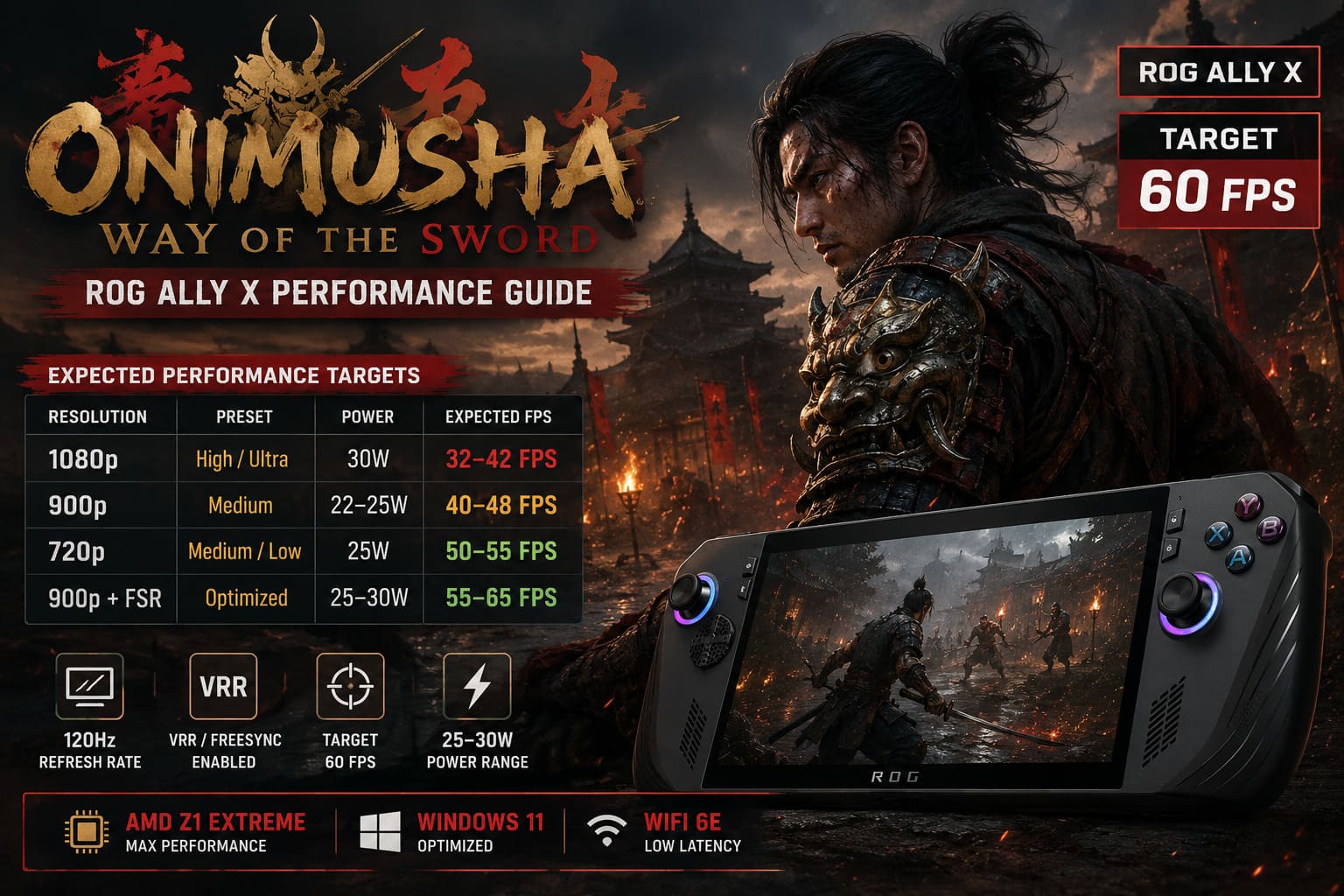
| Resolution | Graphics Preset | Power Target | Expected Performance |
|---|---|---|---|
| 1080p | High/Ultra | 30W | Around 32–42 FPS |
| 900p | Medium | 22–25W | Around 40–48 FPS |
| 720p | Medium/Low | 25W | Around 50–55 FPS |
| 900p + FSR | Optimized | 25–30W | Around 55–65 FPS |
These figures are best treated as performance targets rather than guarantees, because frame rates will vary depending on the area, enemy density, effects on screen, and future game updates.
At native 1080p, the problem becomes obvious during busy encounters. The game can look excellent, but the frame rate has too much work to do.
For an action game based around precise counters, I would take a stable 60 FPS with slightly reduced image quality over a beautiful 40 FPS presentation every single time.
My Recommended 60 FPS Settings for ROG Ally X
If the goal is a responsive experience rather than a screenshot-friendly one, this is the configuration I would start with.
Display Settings
- Resolution: 1600×900
- Display Mode: Fullscreen or Borderless
- Refresh Rate: 120Hz
- V-Sync: Off
- Target: 60 FPS
- VRR/FreeSync: Enabled on the Ally X
The 120Hz display is useful because it gives the handheld plenty of refresh-rate headroom. More importantly, variable refresh rate can make inconsistent frame pacing feel considerably less distracting.
I would personally avoid locking yourself to 30 FPS unless battery life is the priority. Onimusha’s combat is simply better suited to a higher refresh rate.
Graphics Settings
The goal here is simple: preserve the things you actually notice while cutting settings that consume a lot of GPU power for relatively little visual benefit.
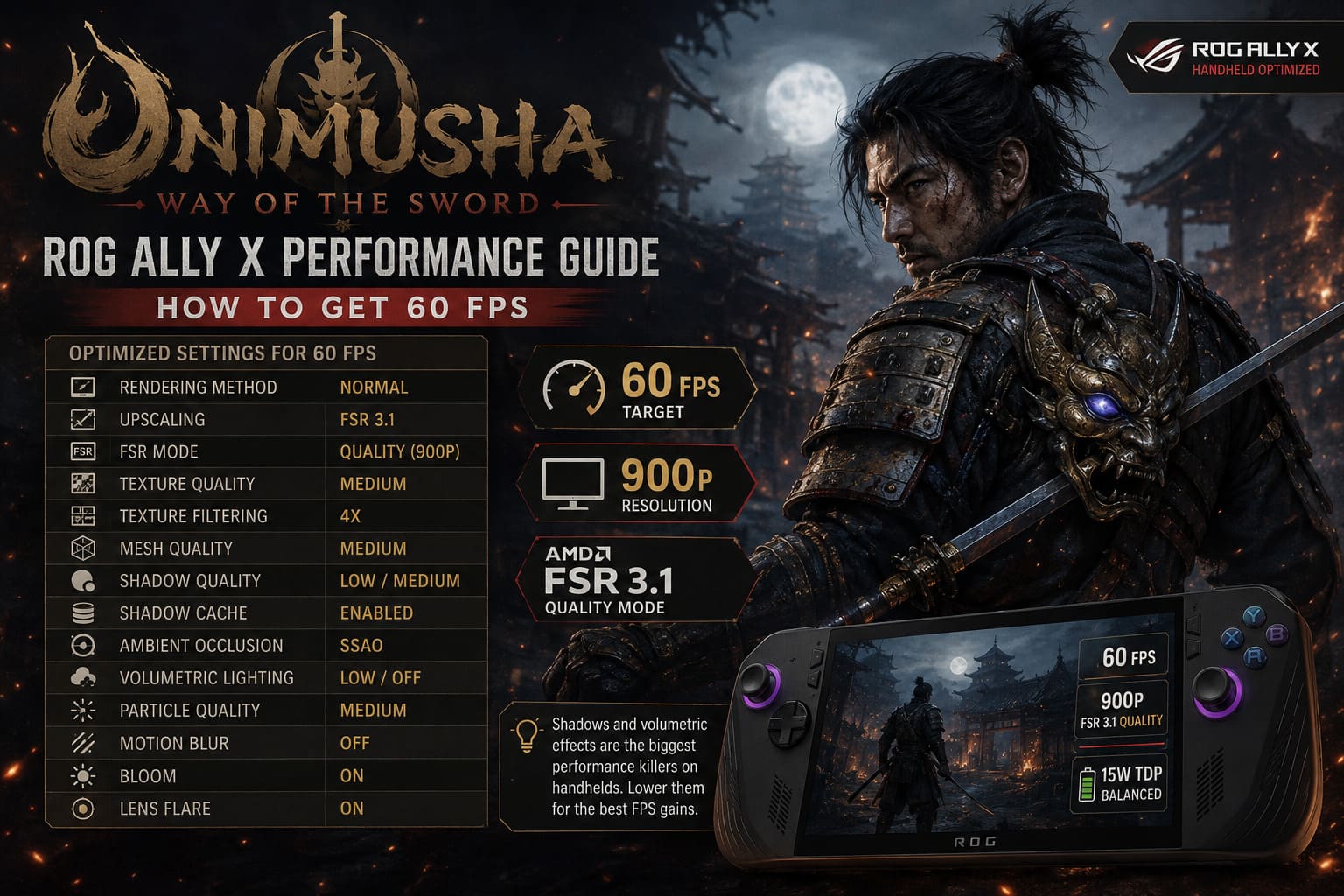
| Setting | Recommended Value | Reason |
|---|---|---|
| Rendering Method | Normal | Better image clarity |
| Upscaling | FSR 3.1 | Major performance improvement |
| FSR Mode | Quality at 900p | Best balance |
| Texture Quality | Medium | Good detail without excessive memory use |
| Texture Filtering | 4x | Small performance cost |
| Mesh Quality | Medium | Reduces GPU workload |
| Shadow Quality | Low/Medium | One of the easiest FPS gains |
| Shadow Cache | Enabled | Helps reduce streaming stutter |
| Ambient Occlusion | SSAO | Cheaper than heavier AO options |
| Volumetric Lighting | Low/Off | Significant GPU savings |
| Particle Quality | Medium | Keeps combat effects intact |
| Motion Blur | Off | Cleaner movement |
| Bloom | On | Small performance cost |
| Lens Flare | On | Mostly aesthetic |
There is one setting I would pay particular attention to: shadows.
Modern engines can make shadows look fantastic, but the performance cost often isn’t worth it on a handheld screen. Dropping shadows from High to Medium or Low can provide a surprisingly useful performance improvement without destroying the overall presentation.
Volumetric effects are another easy target.
Onimusha’s supernatural atmosphere relies heavily on fog, particles, lighting and other visual effects. Unfortunately, these are exactly the kinds of effects that can hammer an integrated GPU. Keeping volumetric lighting at Low is a reasonable compromise.
Why 900p Is the Sweet Spot
I’ve always found 900p to be an underrated resolution for handheld PCs.
At 7 inches, you simply don’t need to obsess over native 1080p in every game. On a desktop monitor, the difference between 900p and 1080p is obvious. On a small handheld display, the gap becomes much harder to notice when a good upscaler is doing its job.
That’s why 1600×900 combined with FSR 3.1 Quality makes so much sense for Onimusha.
You get a considerably lighter rendering workload while retaining a relatively sharp image.
If performance still isn’t where you want it, move to 1280×720. I would only do this after reducing the expensive graphics settings, though. A good 900p image at 60 FPS is preferable to a blurry 720p presentation that only exists to chase a number.
FSR 3.1: The Most Important Setting
Upscaling is basically mandatory if you’re trying to get the best possible performance from a handheld.
Instead of rendering every frame at the full output resolution, FSR renders the game internally at a lower resolution and reconstructs a higher-resolution image.
For the ROG Ally X, I would use:
900p output + FSR 3.1 Quality
If performance remains unstable:
900p output + FSR 3.1 Balanced
And if you’re really struggling:
720p + FSR 3.1 Quality/Balanced
There is always a visual compromise when using aggressive upscaling. That’s unavoidable. The trick is finding the point where you stop noticing the compromise during actual gameplay.
For me, that’s around 900p.
Should You Use Frame Generation?
This is where things become more complicated.
Frame generation can make a game appear dramatically smoother, but generated frames are not the same thing as additional native frames. Your underlying input response is still tied to the game’s real rendered frames.
That’s particularly relevant in Onimusha.
This is a sword-fighting game. Timing matters.
If you have a stable 50–60 FPS native rendering baseline, frame generation can be useful. If the game is actually running at 25–30 FPS and you’re simply generating additional frames to make the counter look like 60 FPS, I would be much more cautious.
For combat-heavy games, I prefer a strong native frame rate before relying heavily on frame generation.
Smooth-looking movement is nice. Responsive controls are more important.
What About Lossless Scaling?
Windows handheld owners can also experiment with third-party scaling and frame-generation solutions such as Lossless Scaling.
The basic idea is to run the game at a lower native frame rate and let the external software generate additional frames.
This can be useful if you’re trying to reduce power consumption, but I would consider it an optional experiment rather than the foundation of your Onimusha setup.
For example, if the game can comfortably maintain around 30–40 FPS at a lower power profile, additional frame generation may make the presentation look substantially smoother.
But again, don’t confuse visual fluidity with input responsiveness.
For a slow-paced RPG, I might be more forgiving. For Onimusha’s precision combat, I would rather have 60 real frames than an artificially inflated number accompanied by extra latency or visual artifacts.
How Much VRAM Should You Allocate?
The ROG Ally X gives you more memory to work with than the original Ally, and that is useful for demanding games.
If you’re experiencing texture-streaming problems, sudden pauses, or unusual stuttering, experimenting with the GPU memory allocation can be worthwhile.
A 6GB VRAM allocation is a sensible starting point.
Moving to 8GB may help in some scenarios, but I wouldn’t automatically assume that more VRAM equals more FPS. The Ally X uses shared system memory, so reserving too much for graphics can reduce the amount available to Windows and the game itself.
My advice is simple:
Start with 6GB, test the game, and only move higher if you have a specific memory-related problem.
Don’t change five system-level settings simultaneously. That makes troubleshooting unnecessarily difficult.
Power Mode Matters More Than People Think
If you’re trying to hold 60 FPS, power mode matters.
At around 25W, the Z1 Extreme has enough breathing room to deliver significantly better performance than it can at 15W.
For plugged-in gaming, 30W Turbo is the obvious choice if maximum performance is the goal.
For battery gaming, I would experiment around 22–25W first.
A lower 17W profile can make sense if you’re willing to accept a lower native frame rate and use upscaling or frame generation, but I wouldn’t expect a demanding game like Onimusha to maintain a genuinely locked 60 FPS at that power level.
Battery Life Expectations
There is no magic setting that turns a demanding AAA action game into a battery-efficient indie title.
At higher power levels, the 80Wh battery helps, but the APU is still consuming substantial power.
| Power Profile | General Expectation |
|---|---|
| 30W Turbo | Roughly 1.5–2 hours |
| 22–25W | Around 2–2.5 hours |
| 15–17W | Potentially around 3 hours or more |
Actual battery life will depend on brightness, refresh rate, background processes, game settings, frame generation, and how hard the APU is working.
If I’m playing a game like Onimusha, I would personally accept shorter battery life in exchange for better responsiveness. This isn’t a game where I want to squeeze every possible minute out of the battery while compromising the combat.
My Final ROG Ally X Setup
If I wanted to sit down with the Ally X and start playing without spending an hour obsessing over settings, this would be my starting configuration:
- 900p resolution
- 120Hz refresh rate
- VRR enabled
- 25W or 30W power mode
- FSR 3.1 Quality
- Medium textures
- Medium mesh quality
- Low/Medium shadows
- SSAO
- Low volumetric lighting
- Medium particles
- Shadow Cache enabled
- Motion Blur Off
- Bloom On
- Lens Flare On
- 6GB VRAM allocation
Then I would play for 15–20 minutes in actual combat before changing anything.
That’s important because the opening areas of a game rarely tell you the whole performance story. Dense environments, large enemies, particle-heavy attacks and rapid traversal are where a handheld configuration gets properly tested.
Onimusha Way of the Sword Boss Guide: Hardcore Strategies to Defeat Every Genma Boss
Final Verdict: Can the ROG Ally X Run Onimusha at 60 FPS?
The ROG Ally X is capable of delivering a very good 60 FPS-oriented experience with Onimusha: Way of the Sword, but native 1080p isn’t the right target.
The sweet spot is clearly lower.
A carefully tuned 900p configuration with FSR 3.1, medium-quality textures, reduced shadows and lower volumetric effects gives the Z1 Extreme a much more realistic workload. With a 25W or 30W power profile, reaching the 55–65 FPS range becomes a reasonable performance goal, although demanding scenes can still produce dips.
And honestly, that’s the compromise I would choose.
Onimusha doesn’t need ultra-quality shadows or maximum volumetric effects to look impressive. The art direction, character models, environments and combat animations are doing most of the visual heavy lifting. Sacrificing a little graphical fidelity to keep the controls responsive makes far more sense in a game built around split-second reactions.
If your priority is smooth combat, start at 900p and work from there.
Don’t chase Ultra settings just because the hardware technically allows them. The ROG Ally X is at its best when you treat it like a performance-focused handheld rather than a tiny desktop PC.
For Onimusha: Way of the Sword, that means accepting a few graphical compromises in exchange for what matters most: fast reactions, consistent frame pacing and a combat system that feels as sharp as Musashi’s blade.