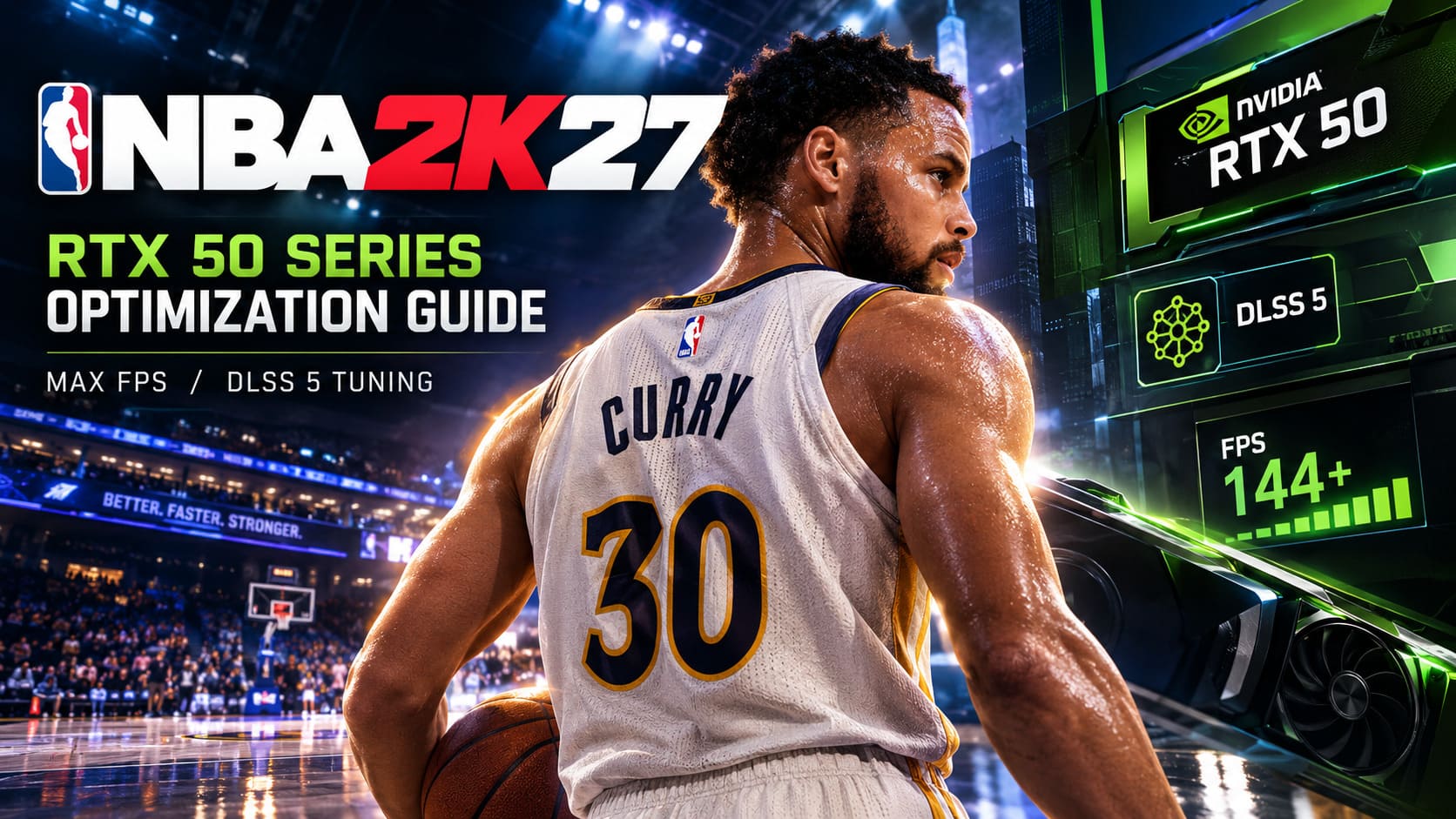
NBA 2K27 RTX 50 Series Optimization Guide: Max FPS and DLSS 5 Tuning
After spending a ridiculous amount of time tweaking PC games over the years, I have learned one thing: the most impressive graphics settings are not always the settings you actually want to use. NBA 2K27 is a perfect example of that.
On an RTX 50 Series GPU, the game can look absolutely incredible. The new lighting, reflections, detailed arenas, player models, crowds, and NVIDIA’s latest neural rendering technology can make a basketball game look almost like a live television broadcast. The problem is that turning every new feature on can also make your frame rate fall off a cliff.
That matters even more in NBA 2K27 than it does in a typical single-player game. When I’m playing a competitive match, I would much rather have a stable 144 FPS with responsive controls than see a beautiful reflection on the court while my input feels delayed.
So, after looking at how the game’s settings interact with modern RTX 50 Series hardware, I’ve put together the configuration I would personally use. This NBA 2K27 optimization guide focuses on real gameplay performance: higher base FPS, fewer stutters, cleaner visuals, and lower input latency.
DLSS 5 Looks Great, But There Is a Catch
The headline feature for NVIDIA hardware this year is DLSS 5 with 3D-Guided Neural Rendering. On paper, it sounds like exactly the sort of technology PC gamers should be excited about. It adds another layer of AI processing to improve lighting, shadows, clothing details, and subtle visual information around characters.
And honestly, when you’re playing a cinematic MyCAREER sequence or simply walking around an arena, the results can be impressive.
But there is a major distinction between looking smooth and actually rendering more frames.
DLSS 5 can introduce a substantial fixed performance cost before frame generation even enters the equation. This means the FPS counter can become misleading if you only look at the final generated frame rate.
This is especially important with Multi-Frame Generation. Seeing something like 200+ FPS sounds fantastic, but if the game engine is actually producing only around 70–80 base frames and AI-generated frames are filling the gaps, the experience is not equivalent to native 200 FPS gameplay.
For a casual player, that distinction may not matter much. For someone trying to green a difficult shot online, it absolutely can.
My Recommended NBA 2K27 Settings for RTX 50 GPUs
If you’re using an RTX 5060, 5070, 5080, or 5090, I recommend starting with a high-quality baseline rather than immediately enabling every NVIDIA feature available.
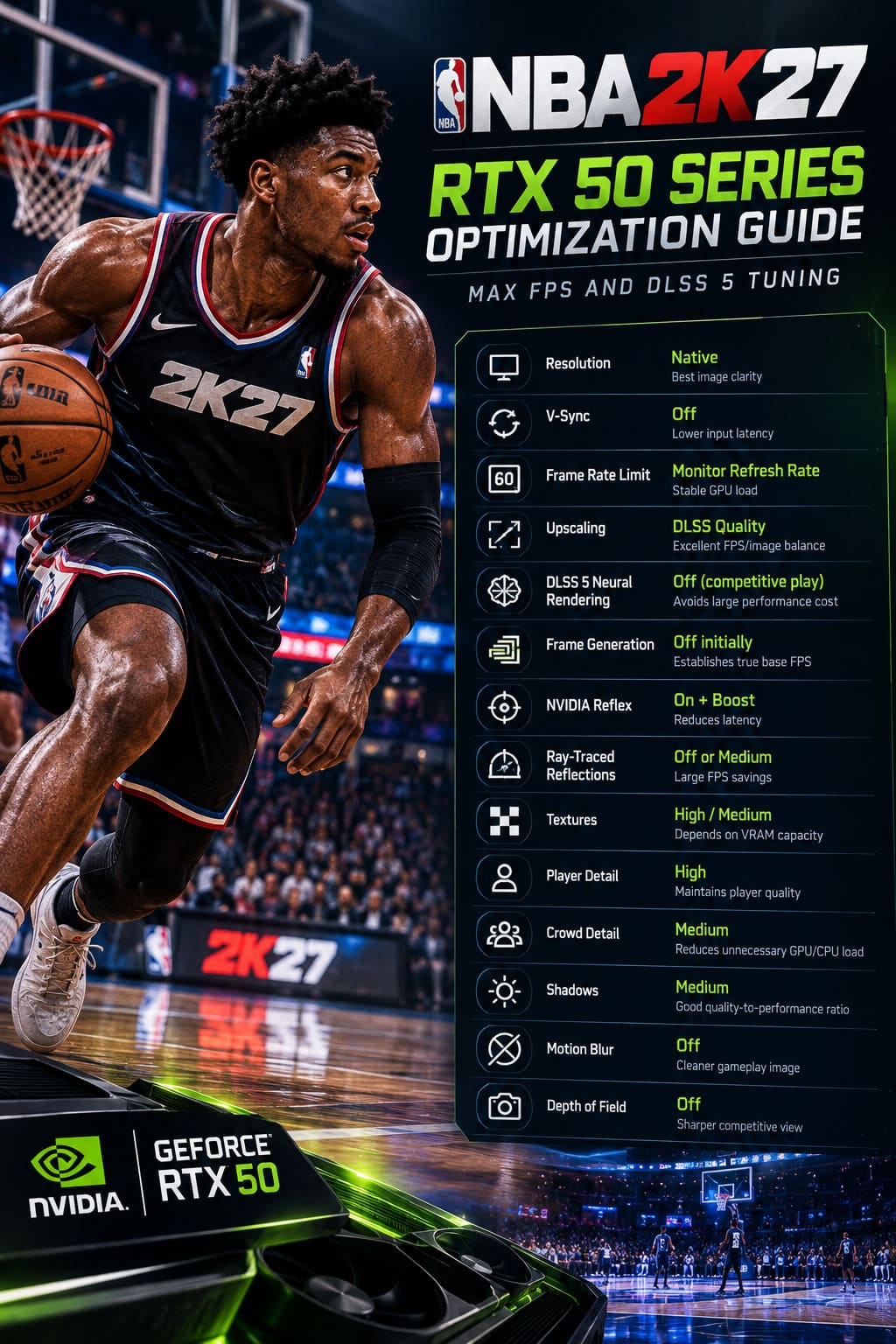
| Setting | Recommended Configuration | Why |
|---|---|---|
| Resolution | Native | Best image clarity |
| V-Sync | Off | Lower input latency |
| Frame Rate Limit | Monitor Refresh Rate | Stable GPU load |
| Upscaling | DLSS Quality | Excellent FPS/image balance |
| DLSS 5 Neural Rendering | Off for competitive play | Avoids large performance cost |
| Frame Generation | Off initially | Establishes true base FPS |
| NVIDIA Reflex | On + Boost | Reduces latency |
| Ray-Traced Reflections | Off or Medium | Large FPS savings |
| Textures | High / Medium | Depends on VRAM capacity |
| Player Detail | High | Maintains player quality |
| Crowd Detail | Medium | Reduces unnecessary GPU/CPU load |
| Shadows | Medium | Good quality-to-performance ratio |
| Motion Blur | Off | Cleaner gameplay image |
| Depth of Field | Off | Sharper competitive view |
Native Resolution Is Still Worth Using
One mistake I see constantly in PC optimization guides is immediately recommending a lower resolution. I don’t think that is the best approach for NBA 2K27, especially with an RTX 50 Series card.
If you have a 1440p monitor, start at 2560×1440. If you’re playing on a 4K display, start at 3840×2160. Let DLSS handle the internal rendering workload instead of making the entire image look softer by manually dropping your display resolution.
Basketball games benefit heavily from image clarity. Player outlines, jersey numbers, court markings, shot meters, and small animations all need to remain readable. Excessive resolution reduction can make these details look noticeably muddy.
Why I Recommend Turning Ray Tracing Down
Ray-traced reflections are one of those settings that look amazing in screenshots but are surprisingly easy to forget about during an actual game.
NBA 2K27’s polished courts provide plenty of reflective surfaces, which means ray tracing can consume a considerable amount of GPU resources. During normal gameplay, however, I would rather spend those resources maintaining a consistent frame rate.
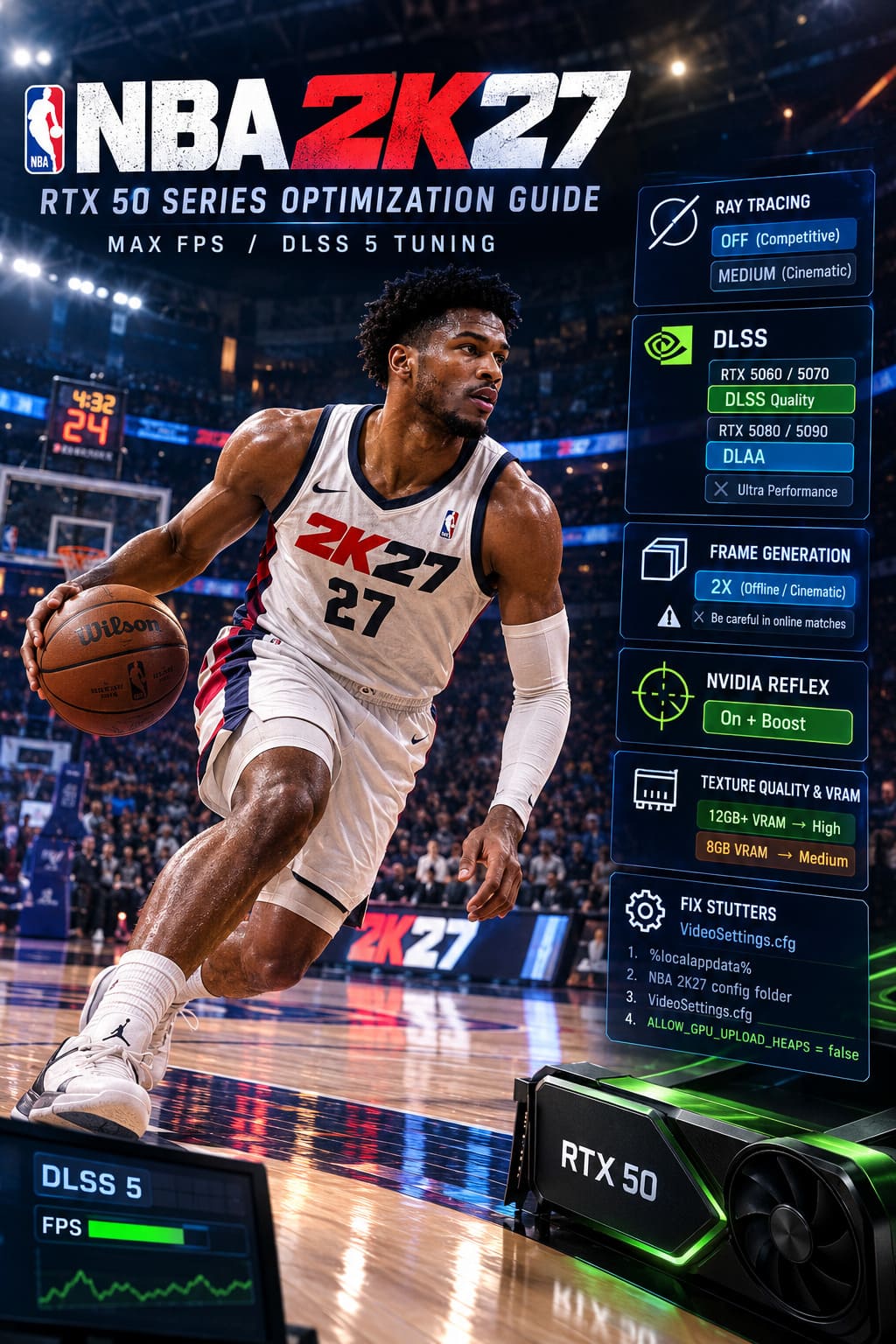
My preference is Off for competitive gaming or Medium for a more cinematic experience.
If lowering reflections gives you an immediate performance improvement, that’s one of the easiest wins available. You’re unlikely to notice the difference nearly as much as you will notice a sudden FPS drop during a busy possession.
DLSS Quality vs. DLAA
This is where your GPU matters.
On an RTX 5060 or RTX 5070, I would start with DLSS Quality. It provides a useful performance boost without making the game look excessively soft.
If you’re running an RTX 5080 or RTX 5090 and your base FPS is already comfortably above your monitor’s refresh rate, DLAA becomes much more attractive. You get excellent image quality while allowing the GPU to do more of the heavy lifting.
I would avoid Ultra Performance unless you’re dealing with a very demanding 4K setup where you simply cannot maintain the desired frame rate. In a basketball game, aggressive upscaling can make court markings and player details look worse than necessary.
Frame Generation: Useful, But Not My First Choice
Frame Generation is not inherently bad. In fact, it can be excellent when used correctly.
My problem is using it before optimizing the underlying game.
First, disable Frame Generation and see what the game can actually produce. If you’re already getting a stable 120–160+ FPS, adding generated frames may provide little practical benefit and can introduce additional latency.
For offline modes, cinematic gameplay, or simply chasing a high FPS number, 2X Frame Generation can make sense. I would be much more cautious with aggressive Multi-Frame Generation modes in competitive online matches.
If I’m playing The Park, Rec, or another mode where timing and responsiveness matter, I want the highest possible base frame rate before I worry about generated frames.
NVIDIA Reflex Should Stay Enabled
If there is one NVIDIA feature I would leave enabled on a competitive RTX 50 Series setup, it is NVIDIA Reflex.
Use On + Boost if your system supports it and temperatures remain reasonable. Reflex is particularly useful when your GPU is under heavy load because it helps reduce the rendering queue and improves the relationship between your inputs and what appears on screen.
In a game where a tiny timing difference can determine whether a shot becomes a green release, that’s more valuable to me than another layer of visual polish.
The RTX 50 Series VRAM Question
Texture quality deserves a little more attention than most settings.
If your GPU has 12GB or more of VRAM, High textures are a sensible choice. With an 8GB card, I would be more conservative and use Medium if you encounter stutters or sudden asset-loading problems.
The important thing is not simply the average FPS. You also want to watch for 1% lows. A game that averages 160 FPS but periodically drops to 50 FPS can feel considerably worse than one that stays around 120–130 FPS consistently.
Fixing Potential Stutters with VideoSettings.cfg
If your RTX 5070, RTX 5080, or RTX 5090 is producing excellent average FPS but you still experience strange pauses during transitions and presentation sequences, there is another setting worth testing.
Some players have reported improved consistency after changing the GPU upload heap option in the game’s configuration file.
- Press Windows + R.
- Enter %localappdata% and press Enter.
- Navigate to the NBA 2K27 configuration folder.
- Find VideoSettings.cfg.
- Open the file with Notepad.
- Look for ALLOW_GPU_UPLOAD_HEAPS.
- If available, test the value set to false.
- Save the file and restart the game.
I would treat this as a troubleshooting step rather than a universal magic fix. Configuration tweaks can behave differently depending on your hardware, driver version, and game build. If the game becomes less stable afterward, simply revert the change.
Windows Tweaks That Are Actually Worth Doing
You don’t need one of those enormous “200 Windows gaming tweaks” lists to optimize NBA 2K27. Most of them are unnecessary.
There are a few simple things I would check first:
- Enable Windows Game Mode.
- Keep your NVIDIA driver updated.
- Allow shader compilation to finish before playing.
- Close unnecessary overlays and background applications.
- Use a performance-oriented power profile if your system is aggressively downclocking.
Shader compilation is particularly important. If the game is still processing shaders in the background while you’re trying to play, temporary stutters can appear even on very powerful hardware.
I also recommend giving the game a few minutes at the main menu after a major driver or game update. It is boring, but it is better than blaming your GPU for stutters caused by unfinished shader work.
NBA 2K27 MyPLAYER Body Type Guide: How to Unlock and Change Your Appearance
What I Would Use for Competitive NBA 2K27
If I were setting up an RTX 50 Series PC specifically for competitive NBA 2K27, my priorities would be very straightforward:
- Native monitor resolution
- DLSS Quality
- DLSS 5 Neural Rendering Off
- Ray-Traced Reflections Off
- Medium shadows and crowd detail
- Motion Blur and Depth of Field Off
- NVIDIA Reflex On + Boost
- Frame Generation Off initially
Then I would measure the actual frame rate and 1% lows before changing anything else.
Once the base experience is stable, you can experiment with 2X Frame Generation if you still want a higher displayed frame rate. The key is knowing what your system is genuinely rendering before AI-generated frames enter the picture.
NBA 2K27 VC Guide: How to Farm Virtual Currency Fast Without Microtransactions
Final Thoughts
NBA 2K27 is one of those PC games where “maximum settings” and “best settings” are two completely different things.
The RTX 50 Series is powerful enough to produce an exceptional experience, but that doesn’t mean every new NVIDIA feature should be switched on simultaneously. DLSS 5 and Multi-Frame Generation are impressive technologies, but they can hide the underlying performance cost if you judge the system only by the FPS counter.
For me, competitive NBA 2K27 is all about consistency. I’d happily sacrifice some reflections, crowd detail, and neural rendering effects if it means my controls remain responsive and the frame rate stays locked to my display.
If you’re playing primarily MyCAREER or enjoying NBA 2K27 as a visual showcase, feel free to push the graphics further. Turn on DLSS 5, increase reflections, and experiment with Frame Generation. That’s where the technology becomes much more enjoyable.
But if you’re heading into an important online game, I would keep things simple: maximize base FPS, minimize latency, and remove unnecessary visual effects. In my experience, that combination produces a much better gaming experience than chasing an enormous AI-generated FPS number.