How to Fix Star Wars Zero Company Nvidia Driver Crashes, Black Screen, and Low FPS on PC
The Clone Wars are finally back in the hands of PC strategy fans, and Star Wars Zero Company wastes absolutely no time throwing you into firefights, squad management, and tactical decisions that can turn ugly in seconds. Unfortunately, for some PC players, the biggest enemy at launch isn’t a Separatist army. It’s the desktop.
Since launch, players have been running into a familiar collection of PC problems: Nvidia driver crashes, black screens, sudden FPS drops, stuttering, CPU spikes, and crashes when loading or moving through larger tactical environments. Nothing kills the mood quite like spending ten minutes setting up the perfect ambush only to have Windows suddenly decide that your graphics driver has had enough.
I’ve spent enough hours troubleshooting PC games to know the drill. When a big Unreal Engine title starts behaving badly, randomly changing twenty graphics settings at once usually makes things worse. You want to attack the problem systematically: driver first, game files second, background software third, and graphics settings last.
Here’s the setup I’d use for a GeForce-powered PC running Star Wars Zero Company, with a particular focus on stability rather than chasing a meaningless benchmark number.
Why Star Wars Zero Company Can Hammer Your PC
The interesting thing about tactical games is that they don’t always stress hardware in the same way as traditional shooters.
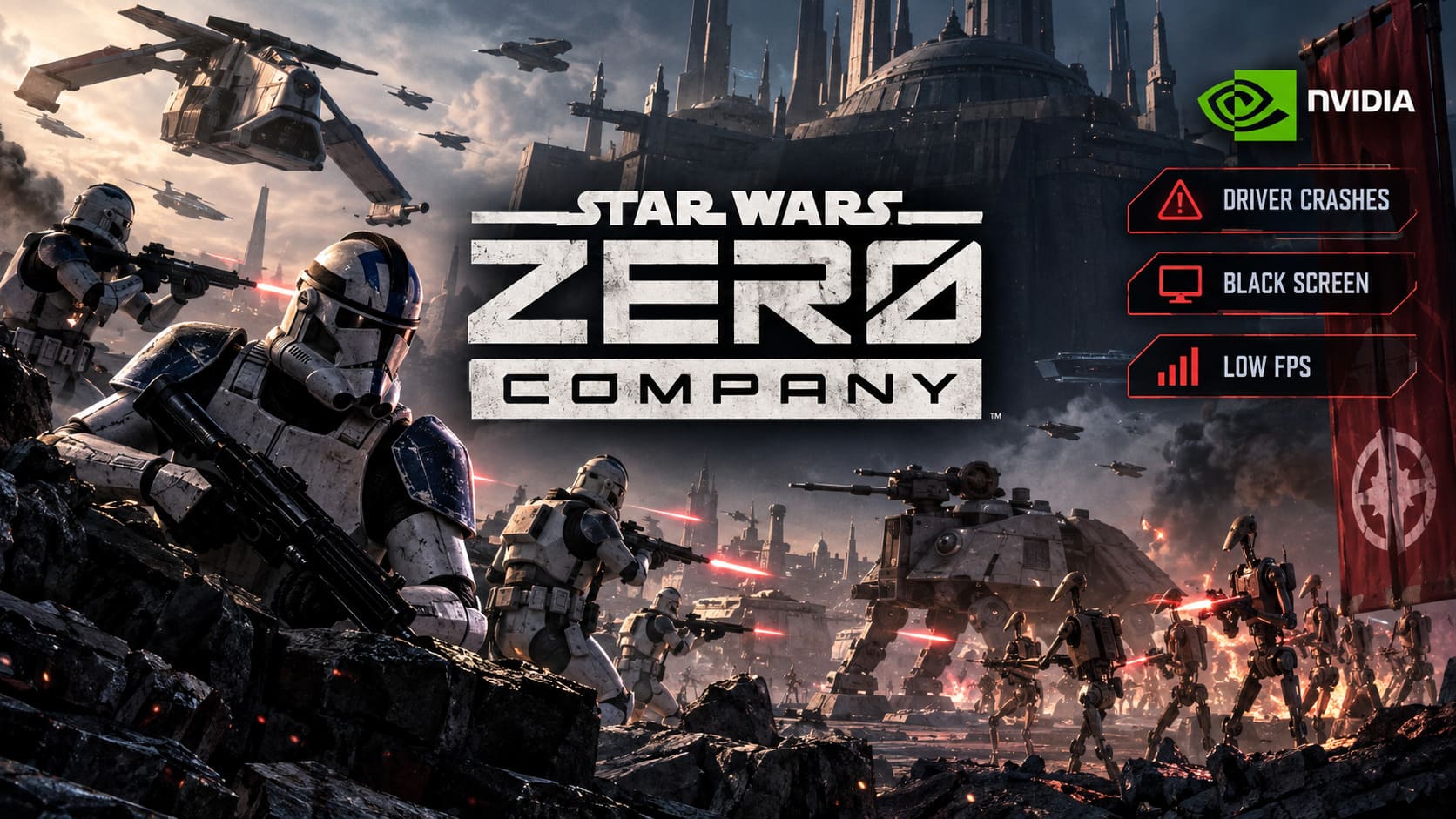
You’re not constantly looking at a small corridor with a handful of enemies. The camera can pull back across a relatively large battlefield, reveal additional units and effects, stream environmental assets, and then suddenly zoom into an action sequence. That can create nasty little workload spikes.
With Unreal Engine 5 involved, the game can simultaneously put pressure on your GPU, CPU, VRAM, shader compilation and asset streaming.
That matters because a PC doesn’t necessarily crash when average GPU usage is too high. Sometimes it’s the sudden transition from one workload to another that exposes a driver, cache, overlay, or configuration problem.
And that’s why I wouldn’t start by immediately dropping every setting to Low.
If your hardware is capable of running the game properly, the goal should be stable frame pacing and a clean driver environment, not making your Clone Wars battlefield look like it came from a game released in 2009.
1. Start With the Nvidia Driver
If you’re using an Nvidia GeForce GPU, the first thing I’d investigate is the driver.
For launch-day games, Nvidia frequently provides Game Ready driver support with game-specific profiles and optimizations. If you’re experiencing crashes while using an older driver, updating should be your first move before you start digging through obscure Windows settings.
The important part is not simply installing the newest driver over the top of everything you’ve had installed for months.
If you’ve jumped between multiple Nvidia driver versions, experimented with beta software, changed GPU profiles, or installed other Nvidia components, a clean installation can be worth the extra few minutes.
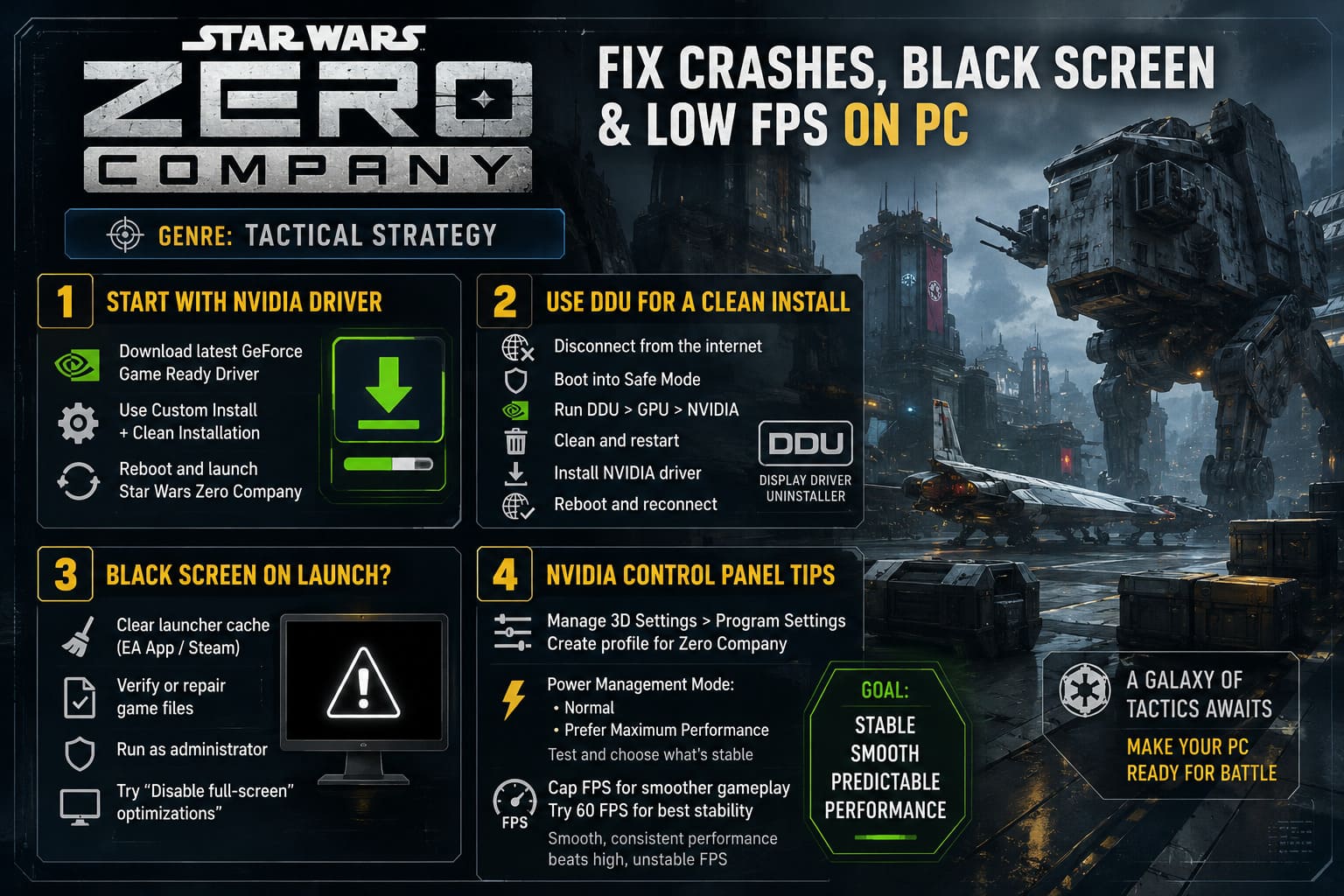
The basic process is:
- Download the appropriate current GeForce Game Ready driver for your GPU.
- Keep the installer ready before removing the existing driver.
- Use Display Driver Uninstaller (DDU) if you suspect the existing installation is corrupted.
- Restart Windows after the cleanup.
- Install the Nvidia driver using the Custom installation option.
- Select the clean-install option where available.
- Reboot again before launching Star Wars Zero Company.
I particularly recommend this route if you’ve recently changed Nvidia GPU generations or have been experiencing driver crashes across several games, not just Zero Company.
2. Use DDU If Normal Driver Updates Aren’t Enough
For a completely fresh driver installation, DDU is one of the most useful tools in a PC gamer’s troubleshooting toolbox.
Before starting, download both the DDU utility and your desired Nvidia driver installer.
Then:
- Disconnect the PC from the internet.
- Boot Windows into Safe Mode.
- Open DDU and select GPU > NVIDIA.
- Choose Clean and restart.
- Allow Windows to reboot normally.
- Install the Nvidia driver you downloaded earlier.
- Reconnect to the internet once the installation is complete.
Why disconnect the internet?
Because Windows Update can sometimes decide that your computer desperately needs a display driver while you’re halfway through cleaning the old one. That’s the last thing you want.
If you’re dealing with a game that refuses to launch, crashes during loading, or produces a black screen immediately after startup, a clean driver environment is one of the easiest variables to eliminate.
3. Black Screen on Launch? Don’t Blame the GPU Immediately
A black screen looks terrifying, but it doesn’t automatically mean your graphics card is dying.
Before you start changing BIOS settings or reinstalling Windows, work through the boring fixes first.
Clear the launcher cache
If you’re using the EA App, open its settings and use the App Recovery / Clear Cache option.
Steam users can also clear the Steam download cache from the client’s settings.
This won’t magically fix every graphics problem, but corrupted launcher data can cause some spectacularly stupid behavior.
Verify the game files
For Steam:
Library > Star Wars Zero Company > Properties > Installed Files > Verify integrity of game files
For the EA App, use the game’s Repair option.
This is especially useful if the game crashed while updating, your PC shut down unexpectedly, or you’ve recently moved the installation between drives.
Try administrator privileges
If the game consistently fails during startup, you can also test running the executable as administrator.
Find the game’s executable, open Properties > Compatibility, and enable Run this program as an administrator.
You can also test Disable full-screen optimizations if you’re dealing with strange fullscreen behavior.
I wouldn’t permanently change every compatibility setting you find online, though. Change one thing, test it, and keep track of what actually helped.
4. Nvidia Control Panel: Keep It Simple
This is where PC gamers sometimes go completely off the rails.
You don’t need 47 Nvidia Control Panel tweaks to make a strategy game work.
Open Nvidia Control Panel > Manage 3D Settings > Program Settings and create a profile specifically for Star Wars Zero Company.
The setting I’d pay the most attention to is Power Management Mode.
Depending on your GPU and how the game behaves, you can test:
- Normal
- Prefer Maximum Performance
If the game becomes more stable with maximum performance enabled, great. If your system becomes hotter, louder, or less stable, revert it.
Don’t assume the most aggressive setting is automatically the best setting.
Cap your FPS
This is another fix I genuinely like for demanding PC games.
If your monitor runs at 144Hz but Zero Company is bouncing between 80 and 140 FPS, you may actually get a smoother experience by setting a sensible frame-rate limit.
Try 60 FPS first if stability is the priority.
For a tactical turn-based game, I’d happily sacrifice some peak FPS for consistent frame pacing. This isn’t an esports shooter where dropping from 144 to 100 FPS is suddenly the difference between victory and defeat.
The goal is smooth, predictable performance.
5. Kill the Overlays
If you’ve ever watched a game crash the exact second you receive a Discord notification, you’ll know why I’m suspicious of overlays.
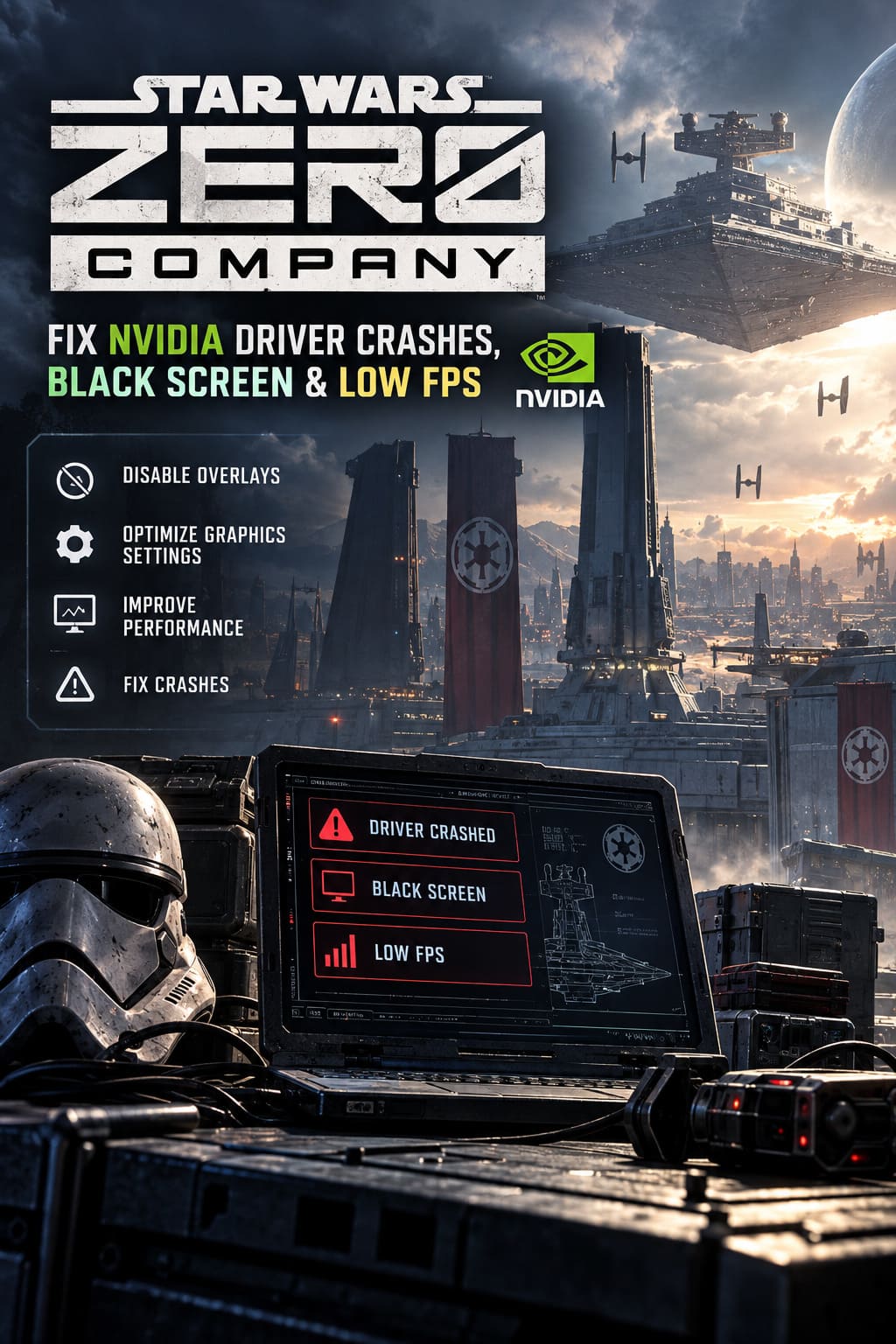
For troubleshooting, disable them all.
- EA App in-game overlay
- Nvidia App in-game overlay
- Steam overlay
- Discord overlay
Then close unnecessary monitoring and tuning software as well.
That includes applications such as MSI Afterburner, RivaTuner Statistics Server, ASUS Armoury Crate and other utilities that inject overlays, monitoring hooks, performance profiles, or visual filters into games.
You don’t necessarily have to uninstall these programs.
Just remove them from the equation while testing.
If Star Wars Zero Company suddenly becomes rock solid, you’ve found a much more useful clue than “Unreal Engine is broken.”
6. The Graphics Settings I’d Actually Use
This is where I prefer a sensible compromise.
I don’t recommend blindly switching everything to Ultra just because your GPU technically supports it. At the same time, turning everything down to Low defeats the purpose of owning a powerful gaming PC.
| Setting | Recommended Starting Point |
|---|---|
| DLSS Super Resolution | Quality |
| DLSS Frame Generation | On, if supported and stable |
| Nvidia Reflex | On |
| Shadows | High |
| Effects | High |
| Texture Quality | High/Ultra depending on VRAM |
| FPS Limit | 60 or monitor-matched |
DLSS
If you have a compatible RTX card, DLSS Super Resolution is one of the first settings I’d enable.
At 1440p and 4K, the Quality preset is usually the sweet spot. You get considerably more rendering headroom without making the game look like it has been smeared with Vaseline.
If you’re using a lower-end RTX card, Balanced can also make sense.
Frame Generation
Frame Generation can be particularly interesting in a turn-based tactical game.
The small increase in latency is generally less noticeable here than it would be in a competitive first-person shooter. If your hardware supports it and the game remains stable, I’d absolutely test it.
But there’s an important distinction:
Frame Generation can make a game look smoother; it doesn’t magically fix poor underlying frame times.
If the game is genuinely stuttering because of CPU bottlenecks, shader compilation, asset streaming, or driver problems, generating extra frames isn’t going to cure the root cause.
Fix the foundation first.
Shadows and Effects
If you’re still getting violent FPS drops during large battles, lower Shadows and Effects before destroying texture quality.
These settings can have a surprisingly large impact while making a much smaller visual difference than you’d expect.
I’d rather play at High shadows with stable performance than Ultra settings that turn every tactical camera movement into a mini slideshow.
7. What If the Game Still Crashes?
If you’ve gone through the driver cleanup, file verification, overlay shutdown and graphics optimization and the game still crashes, don’t start randomly changing Windows registry values.
Instead, isolate the failure.
Pay attention to when the crash happens.
| Crash Timing | What I’d Investigate First |
|---|---|
| Immediately at launch | Driver, launcher cache, overlays |
| During loading | Game files, shader/cache issues |
| When entering a mission | GPU driver, VRAM, overlays |
| During camera movement | GPU load, FPS cap, graphics settings |
| After extended play | Temperatures, power stability, overclocking |
| Random desktop crash | Driver, unstable GPU/CPU/RAM settings |
Also remove any GPU or CPU overclock temporarily.
Even if your overclock has been “stable for years,” a new game can expose instability that every other title somehow missed. That’s not unusual.
The same applies to aggressive RAM profiles. If you’re troubleshooting crashes, return the machine to a known-stable configuration before blaming the game.
Star Wars Zero Company Xbox Series X Review: The New King of Sci-Fi Turn-Based Tactics
My Recommended Zero Company Stability Setup
If I were sitting down tonight to play a long Clone Wars campaign and wanted the fewest headaches possible, I’d keep things boring:
Latest compatible Nvidia Game Ready driver → clean install if necessary → verified game files → overlays disabled → reasonable FPS cap → DLSS Quality → Reflex On → High shadows/effects.
That’s it.
No registry voodoo. No twenty launch commands copied from a random forum post. No mysterious “ultimate Unreal Engine optimization” pack that promises to double FPS by deleting three Windows folders.
Start with the basics and only move to more aggressive troubleshooting when you have evidence that you need it.
Final Verdict
Star Wars Zero Company is exactly the kind of game that makes PC performance problems extra frustrating. The whole appeal is sitting down, planning a move, positioning your squad and watching a carefully constructed strategy unfold. A driver crash in the middle of that process doesn’t just interrupt the game—it completely wrecks the rhythm.
The good news is that many of the fixes are straightforward.
Get your Nvidia driver situation under control. Use DDU if the installation looks suspicious. Verify the game files. Clear launcher caches. Disable every overlay while troubleshooting. Put a sensible FPS cap on the game, then use DLSS and Nvidia Reflex to get the best balance between image quality and performance.
And don’t obsess over Ultra settings.
A stable 60 FPS tactical game with clean frame pacing is infinitely more enjoyable than a gorgeous 110 FPS setup that crashes every second mission.
The Clone Wars are chaotic enough. Your PC doesn’t need to join the battle.