Water You Doing? Low FPS Fix: How to Boost Performance and Stop Stuttering
If there is one thing that can instantly ruin a great co-op session, it is watching your FPS collapse at exactly the moment everything gets chaotic. Water You Doing? is built around that kind of chaos: waves crashing against the boat, players desperately repairing damage, harpoons flying everywhere, and physics objects bouncing around like they have a personal grudge against your crew. It is hilarious when everything works. When performance tanks, though, the same spectacle turns into a slideshow.
The problem is particularly frustrating because Water You Doing? does not look like the sort of game that should completely bully a modern gaming PC. The visual style is relatively approachable, but the combination of dynamic water simulation, physics interactions, destruction, environmental effects, and multiplayer synchronization can create some surprisingly heavy workloads. You might have a perfectly capable GPU and still see nasty frame drops whenever the ocean gets busy.
I have seen this kind of performance problem plenty of times in physics-heavy games. The important thing is not to immediately throw every graphics setting to Low and call it a day. You want to find the settings that are actually hammering your hardware while keeping the game looking good. Here is the approach I would use to tackle low FPS, frame-time spikes, micro-stuttering, and inconsistent performance in Water You Doing?.
Will Water You Doing? Be on Xbox Game Pass? Release Date, Platforms, and Everything We Know
Start With Water and Physics Settings
The first place I would look is the game’s water quality. This is not surprising considering that the ocean is practically one of the main characters. Rendering moving waves, reflections, foam, splashes, and interactions between water and objects can become extremely expensive when several systems are happening simultaneously.
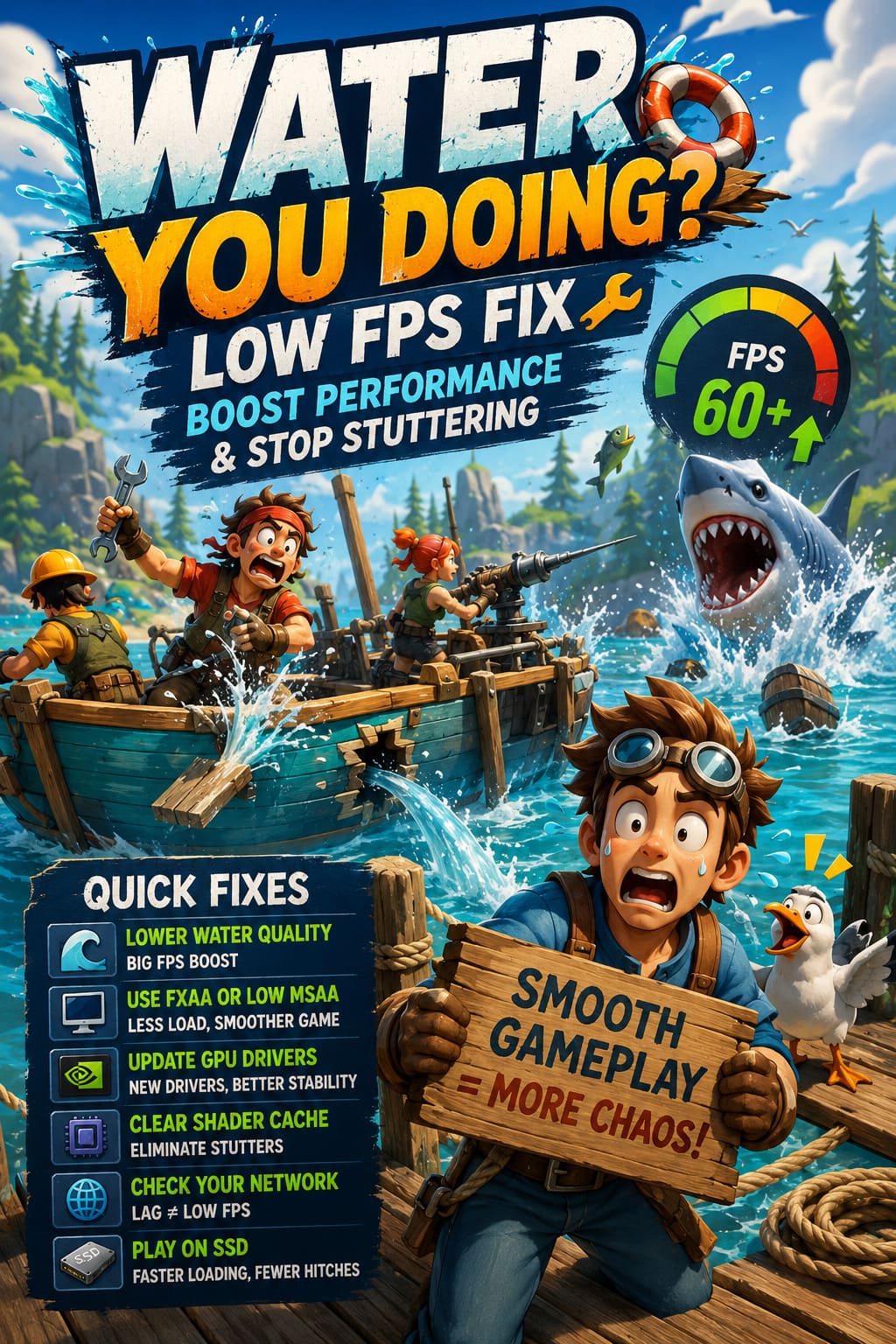
Open the game’s Video or Display settings and look for options related to Wave Quality, Water Quality, Water Simulation, or similar effects. If you are currently running Ultra or High, drop the setting to Medium first rather than immediately going all the way to Low.
The visual difference should be relatively small during normal gameplay, while the performance improvement can be much more noticeable during hectic moments. If your FPS suddenly becomes stable when you lower water quality, you have probably found one of your biggest bottlenecks.
There is also a strange troubleshooting trick worth trying if your FPS behaves inconsistently. Change the wave setting from High to Low, apply the changes, restart or return to the menu if necessary, and then set it back to Medium. Sometimes a graphics option does not behave properly until the game rebuilds part of its rendering state.
Reduce Anti-Aliasing Before Destroying the Entire Graphics Preset
Anti-aliasing is another setting that can quietly eat performance. Temporal anti-aliasing can produce a cleaner image, but depending on the game’s implementation, it may also contribute to GPU load and make motion feel less responsive.
If you are using an expensive TAA option or a particularly demanding preset, experiment with FXAA or a lower MSAA level. FXAA is not perfect and can make the image look slightly softer, but I would happily accept a tiny reduction in sharpness if it means keeping the boat at a stable frame rate during a four-player disaster.
A stable 60 FPS usually feels dramatically better than bouncing between 90 and 45 FPS every time somebody shoots a harpoon into a wave.
Experiment With V-Sync and Your Monitor Refresh Rate
V-Sync can be useful, but it can also make performance problems feel worse. If the game cannot consistently maintain your monitor’s refresh rate, traditional V-Sync may introduce noticeable frame pacing issues.
Try disabling V-Sync inside Water You Doing? and test the game without it. If tearing becomes annoying, you can experiment with enabling synchronization through your GPU’s control panel instead.
Your monitor refresh rate is worth checking too. If you normally run a 144Hz or 240Hz display, temporarily testing the game at 60Hz or 120Hz can help determine whether the problem is related to frame pacing rather than raw GPU performance.
This is not necessarily a permanent solution. Think of it as a diagnostic test. If the game suddenly feels smoother at a lower refresh rate, you have learned something useful about where the problem is coming from.
Update Your Graphics Driver
This is boring advice, but it is boring because it works often enough to remain relevant. New games can expose driver bugs, shader compilation problems, and rendering issues that were never noticeable in older titles.
Download the latest driver directly from your NVIDIA or AMD software ecosystem rather than relying entirely on Windows Update. If you have been updating drivers over the same Windows installation for a long time, consider performing a clean installation.
A clean driver install can eliminate old profiles and configuration leftovers that occasionally interfere with newer games. I would especially try this if Water You Doing? started stuttering after a GPU driver update or if other games are suddenly behaving strangely too.
Clear the DirectX Shader Cache
Shader compilation is one of the biggest sources of those infamous ‘why did my game freeze for half a second?’ moments. A game can compile shaders when you encounter new effects, materials, lighting conditions, or environmental objects.
If the shader cache becomes corrupted or behaves badly, you may notice stutters when new water effects appear, when entering a different area, or when multiple visual effects suddenly hit the screen.
Windows provides a simple way to clear the DirectX Shader Cache:
- Open Windows Search and type Disk Cleanup.
- Select your main Windows drive.
- Find DirectX Shader Cache in the cleanup options.
- Select it and run the cleanup.
- Restart your PC before launching the game again.
Do not panic if the first launch afterward feels slightly different. The game may need to rebuild shader data, so give it a little time before deciding whether the change helped.
Give Windows the Right Performance Profile
Windows can sometimes make surprisingly questionable decisions about which GPU profile a game should use, especially on systems with multiple graphics devices.
Go to Settings > System > Display > Graphics and add the game’s executable if it does not already appear in the list. Open its options and select High Performance.
This is especially important on laptops, but desktop users can benefit too. You want to make absolutely sure the game is running on the dedicated GPU rather than an integrated graphics solution.
Try Hardware-Accelerated GPU Scheduling
Windows also includes Hardware-Accelerated GPU Scheduling, commonly known as HAGS. Depending on your hardware and driver combination, enabling it can reduce certain scheduling overheads and improve frame consistency.
You can find the option under the Windows graphics settings. Turn it on, restart your PC, and test Water You Doing? again.
If performance gets worse rather than better, simply switch it back off. PC optimization is annoyingly personal. A setting that helps one system can do absolutely nothing on another.
NVIDIA Control Panel Tweaks Worth Testing
NVIDIA users have a few additional options worth experimenting with. Open the NVIDIA Control Panel and locate Water You Doing? under Manage 3D Settings > Program Settings.
For a performance-focused profile, consider setting Power Management Mode to Prefer Maximum Performance. You can also experiment with Texture Filtering – Quality set toward Performance.
Frame rate limiting is another useful tool. Instead of allowing the GPU to render hundreds of unnecessary frames, set a sensible cap. For example, if your PC can comfortably maintain 90 FPS, locking the game around that number may produce a smoother experience than letting the frame rate jump between 70, 110, and 85 FPS.
Personally, I would rather have consistent frame pacing than a meaningless FPS number. A locked 60 or 90 FPS that stays there feels far better than a graph that looks like a roller coaster.
Do Not Confuse Network Lag With Low FPS
This is a big one in a multiplayer game.
Sometimes what feels like stuttering is actually network instability. If your character suddenly snaps backward, other players teleport around the boat, objects appear to move strangely, or actions take a moment to register, you may be dealing with latency or packet loss rather than a GPU problem.
Try playing with a wired Ethernet connection instead of Wi-Fi. Wireless networking can be perfectly good, but interference, signal strength, congestion, and packet loss can create problems that are particularly noticeable in fast multiplayer sessions.
If the game uses a host-based multiplayer structure, the person hosting the lobby can also make a major difference. A player with a weak CPU or unstable connection may effectively turn the entire session into a lag simulator.
Try switching the host to the person with the strongest PC and most reliable internet connection. It is a surprisingly easy test and can immediately reveal whether your ‘FPS problem’ is actually a multiplayer synchronization issue.
Verify the Game Files
If you’ve adjusted settings, updated drivers, cleared the cache, and still get terrible performance, it is time to check the installation itself.
On Steam, open your Library, right-click Water You Doing?, select Properties, open Installed Files, and choose Verify integrity of game files.
This checks the installation for damaged or missing files and replaces anything that is broken. It is not a magical performance button, but if a corrupted asset or installation file is causing problems, verification can save you from reinstalling the entire game.
Install the Game on an SSD
Do not overlook storage.
Modern games constantly stream textures, models, effects, sounds, and other assets while you move through their environments. A traditional mechanical hard drive can become a serious bottleneck when a game expects fast asset streaming.
If Water You Doing? is installed on an old HDD, moving it to an SSD is one of the upgrades I would prioritize. You may not see a gigantic average-FPS increase, but loading, asset streaming, hitching, and sudden frame-time spikes can improve significantly when the storage subsystem is no longer struggling.
What Settings Should You Lower First?
If you want the quickest possible optimization pass, I would use this order rather than randomly turning everything down.
| Setting | Recommended Starting Point | Performance Impact |
|---|---|---|
| Water/Wave Quality | Medium | High |
| Anti-Aliasing | FXAA or Low MSAA | Medium |
| Shadows | Medium | Medium-High |
| Effects | Medium | Medium |
| View Distance | Medium-High | Medium |
| Textures | High | Low-Medium |
Textures are usually one of the last settings I would reduce if you have enough VRAM. Lowering them can make the game look noticeably worse without necessarily fixing the actual CPU or GPU bottleneck.
Water, shadows, effects, and anti-aliasing are much better places to start.
My Recommended Troubleshooting Order
If I were sitting at your PC trying to fix Water You Doing? before another co-op session, I would not spend an entire evening changing twenty settings at once. That makes it impossible to know what actually fixed the problem.
I would first lower water and wave quality, then test anti-aliasing and V-Sync. After that, I would update the GPU driver, clear the shader cache, and restart Windows. If the issue remained, I would check whether the problem follows me into single-player or offline testing.
If single-player is smooth but multiplayer becomes a disaster, investigate the network and host. If FPS collapses specifically when the ocean becomes busy, focus on water, effects, shadows, and CPU usage. If the game stutters whenever new areas or assets appear, investigate shader compilation and storage.
That distinction matters because not every stutter is caused by the GPU.
Final Verdict
Water You Doing? is exactly the kind of game where technical problems are especially noticeable because its entire appeal comes from unpredictable chaos. When the boat is breaking apart, everyone is screaming, waves are throwing objects across the deck, and somebody is desperately trying to repair a leak, you need consistent frame delivery. Watching that whole moment turn into a 25-FPS slideshow is about as fun as falling through the boat yourself.
The good news is that you do not necessarily need a monster PC to get better performance. Start with the water and physics-heavy settings, clean up your graphics driver and shader cache, make sure Windows is using the correct GPU, and investigate network stability before blaming your hardware.
Most importantly, don’t chase the highest possible FPS number. Chase stable frame times. A smooth, consistent experience at 60 or 90 FPS will make Water You Doing? feel dramatically better than a wildly fluctuating 120 FPS that collapses whenever the ocean decides to throw another physics tantrum at your crew.