How to Fix Sally Face Episode One Crashing on Startup on Windows 11 (2026 Guide)
There are few things more annoying than booting up a game you genuinely want to play, seeing the launch window appear for half a second, and then watching Windows quietly throw it back to the desktop.
That is exactly the kind of headache some players can run into with Sally Face – Episode One: Strange Neighbors on Windows 11.
And honestly, it feels particularly unfair here. Sally Face is not some enormous modern AAA game pushing a GPU to its limits. It is a compact psychological horror adventure with a deliberately strange visual style, memorable characters, and an atmosphere that can get under your skin without needing photorealistic graphics. Yet older PC games can become surprisingly temperamental when they’re moved onto newer versions of Windows.
If Sally Face crashes immediately after pressing Play, gets stuck on a black screen, closes during initialization, or throws a generic Unity crash window, don’t immediately assume the installation is dead. In most cases, there are several practical things worth trying before you start tearing your hair out.
I’ve put together this 2026 troubleshooting guide around the fixes that make the most sense for an older Unity-based game running on modern Windows 11 hardware. Some solutions are extremely simple. Others dig into graphics preferences and local configuration files.
The important part: don’t change ten things simultaneously. Work through the fixes one at a time so you actually know what solved the problem.
Why Is Sally Face Crashing on Startup on Windows 11?
The annoying thing about PC troubleshooting is that the same symptom can have completely different causes.
A startup crash can be related to:
- Windows compatibility behavior
- GPU selection on laptops and hybrid systems
- Corrupted Unity configuration files
- Broken local saves
- Display scaling
- Steam Overlay conflicts
- Damaged game files
- Antivirus interference
- Other background overlays and monitoring software
The age of the game matters too. Modern Windows systems have changed considerably since many older Unity builds were released. A game that behaved perfectly on an older PC can suddenly become fussy about fullscreen behavior, scaling, graphics devices, or configuration data.
Here’s a quick breakdown of what you’re dealing with:
| Problem | Common Symptom | First Fix to Try |
|---|---|---|
| Compatibility conflict | Instant desktop crash | Compatibility Mode |
| GPU assignment | Black screen or immediate crash | High-performance GPU |
| Corrupted configuration | Game used to work, now crashes | Reset LocalLow data |
| Display scaling | Black screen or broken image | Set Windows scaling to 100% |
| Overlay conflict | Crash during launch | Disable Steam Overlay |
| Damaged files | Missing assets or startup failure | Verify game files |
| Memory instability | Random Unity-related crashes | Windows Memory Diagnostic |
Now let’s get into the fixes.
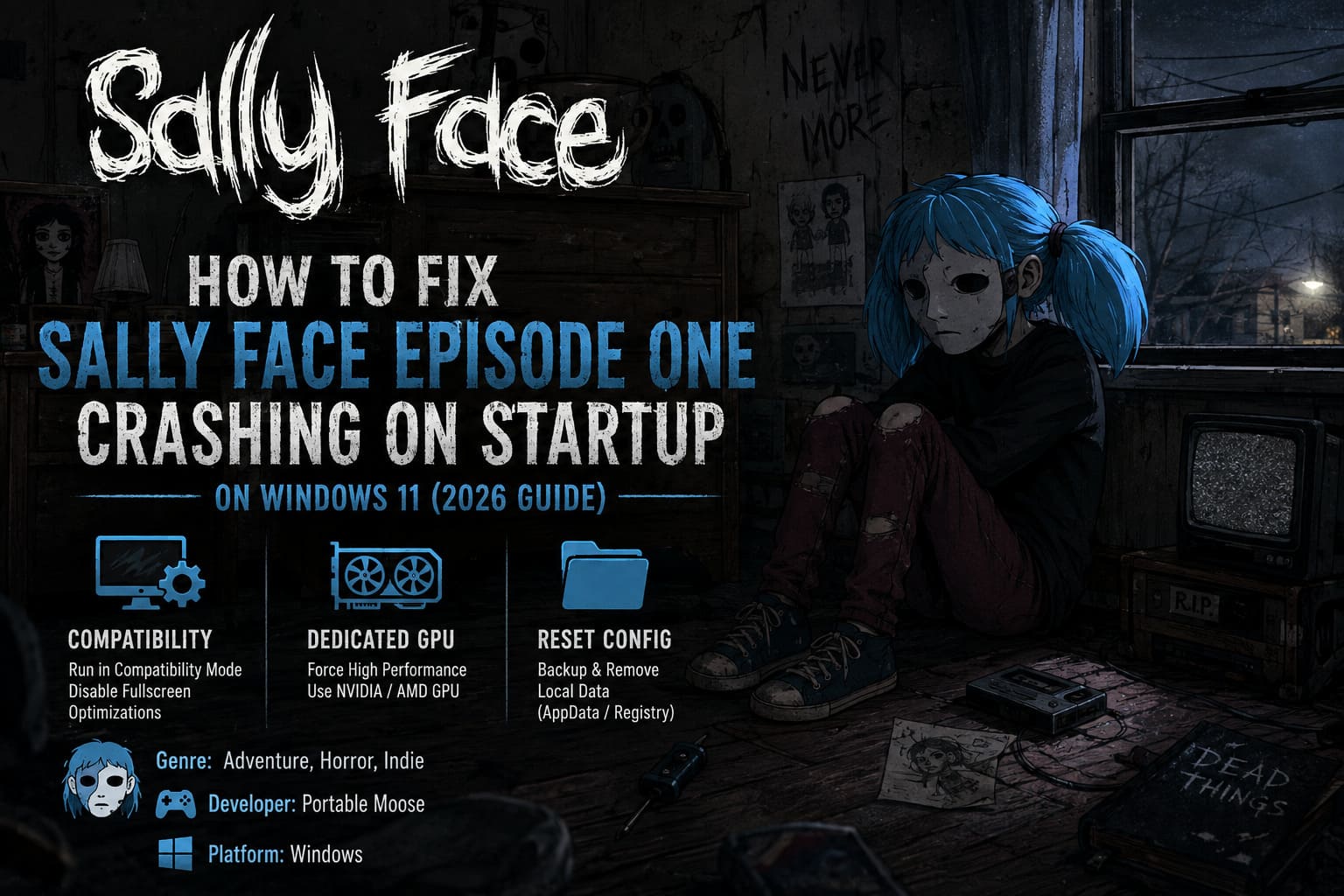
Method 1: Run Sally Face in Compatibility Mode
This is the first thing I’d try because it takes roughly a minute and doesn’t require touching anything complicated.
Windows 11 has plenty of modern desktop behavior that older games simply weren’t designed around. Fullscreen optimizations and compatibility handling can occasionally create problems for older Unity titles.
Here’s what to do:
- Open Steam and go to your Library.
- Right-click Sally Face.
- Select Manage > Browse local files.
- Find the game’s main executable, usually named something similar to Sally Face.exe or SallyFace.exe.
- Right-click the executable and select Properties.
- Open the Compatibility tab.
- Enable Run this program in compatibility mode for.
- Start with Windows 10. If that doesn’t help, Windows 8 is another option worth testing.
- Enable Disable fullscreen optimizations.
- Click Apply, then OK.
- Launch the game again.
I wouldn’t randomly enable every compatibility option you see. That’s a classic PC troubleshooting trap. Change only what you need and test the result.
If Sally Face suddenly starts behaving after this, you’ve probably found a compatibility conflict rather than a broken installation.
Method 2: Force Sally Face to Use Your Dedicated GPU
This one is especially relevant if you’re playing on a gaming laptop or a desktop PC with integrated graphics plus a dedicated NVIDIA or AMD GPU.
Windows 11 normally handles GPU selection automatically. Most of the time that’s great. Older games, however, don’t always play nicely with modern hybrid graphics systems.
If Sally Face launches into a black screen, freezes immediately, or simply disappears, forcing Windows to use the dedicated GPU is worth trying.
Set the GPU manually
- Press the Windows Key.
- Search for Graphics settings.
- Open the Windows Graphics settings page.
- Under the app options, select Desktop app if necessary.
- Click Browse.
- Navigate to your Sally Face installation folder.
A typical Steam installation may be located at:
C:\Program Files (x86)\Steam\steamapps\common\Sally Face\
- Select the game’s executable.
- Add it to the graphics application list.
- Select Sally Face and click Options.
- Change the graphics preference from Let Windows decide to High performance.
- Confirm that Windows identifies your dedicated NVIDIA or AMD GPU underneath the selection.
- Click Save.
- Restart the game.
This is one of those fixes that sounds almost too basic, but GPU assignment problems can create some incredibly confusing symptoms.
Method 3: Reset Sally Face’s Local Configuration
Here’s where things get more serious.
If Sally Face worked previously and has suddenly started crashing, corrupted local configuration data is a much more interesting suspect.
Unity games commonly store configuration and player data inside Windows’ AppData directories. If something becomes corrupted, the game can repeatedly crash while trying to load the same broken information.
Before deleting anything, make a backup.
Back up your local Sally Face folder
Press:
Windows Key + R
Then enter:
%USERPROFILE%\AppData\LocalLow\Steve Gabry\
Press Enter.
Look for the Sally Face folder.
Copy that folder somewhere safe, such as your Desktop or another backup location.
Once your backup exists, you can test whether the local configuration is causing the crash.
- Close Sally Face completely.
- Close Steam as well.
- Open
%USERPROFILE%\AppData\LocalLow\Steve Gabry\. - Locate the Sally Face folder.
- Move it somewhere safe first, rather than immediately destroying it.
- Launch the game again.
If the game starts normally, you’ve got a strong indication that something inside the previous local data was causing the problem.
What about the Registry?
Unity can also maintain configuration information in the Windows Registry.
You can inspect:
HKEY_CURRENT_USER\Software\Unity\UnityEditor\Steve Gabry\Sally Face
However, be careful here. The Windows Registry isn’t a place to casually delete random folders.
If you’re comfortable using Registry Editor and you’ve already backed up your data, you can remove the Sally Face-specific configuration key and allow the game to recreate its settings.
If you’re not comfortable with regedit, I’d honestly skip this part. There is no prize for making a simple game crash into a full Windows troubleshooting adventure.
Method 4: Fix Windows 11 Display Scaling
This is a surprisingly sneaky one.
If the game appears to launch, you can hear audio, but the display stays completely black, Windows display scaling is worth investigating.
Modern monitors frequently use scaling values such as 125%, 150%, or higher. This is perfectly normal for Windows applications, particularly on high-resolution displays.
Older games can occasionally behave badly when their expected resolution and Windows’ scaling behavior don’t line up.
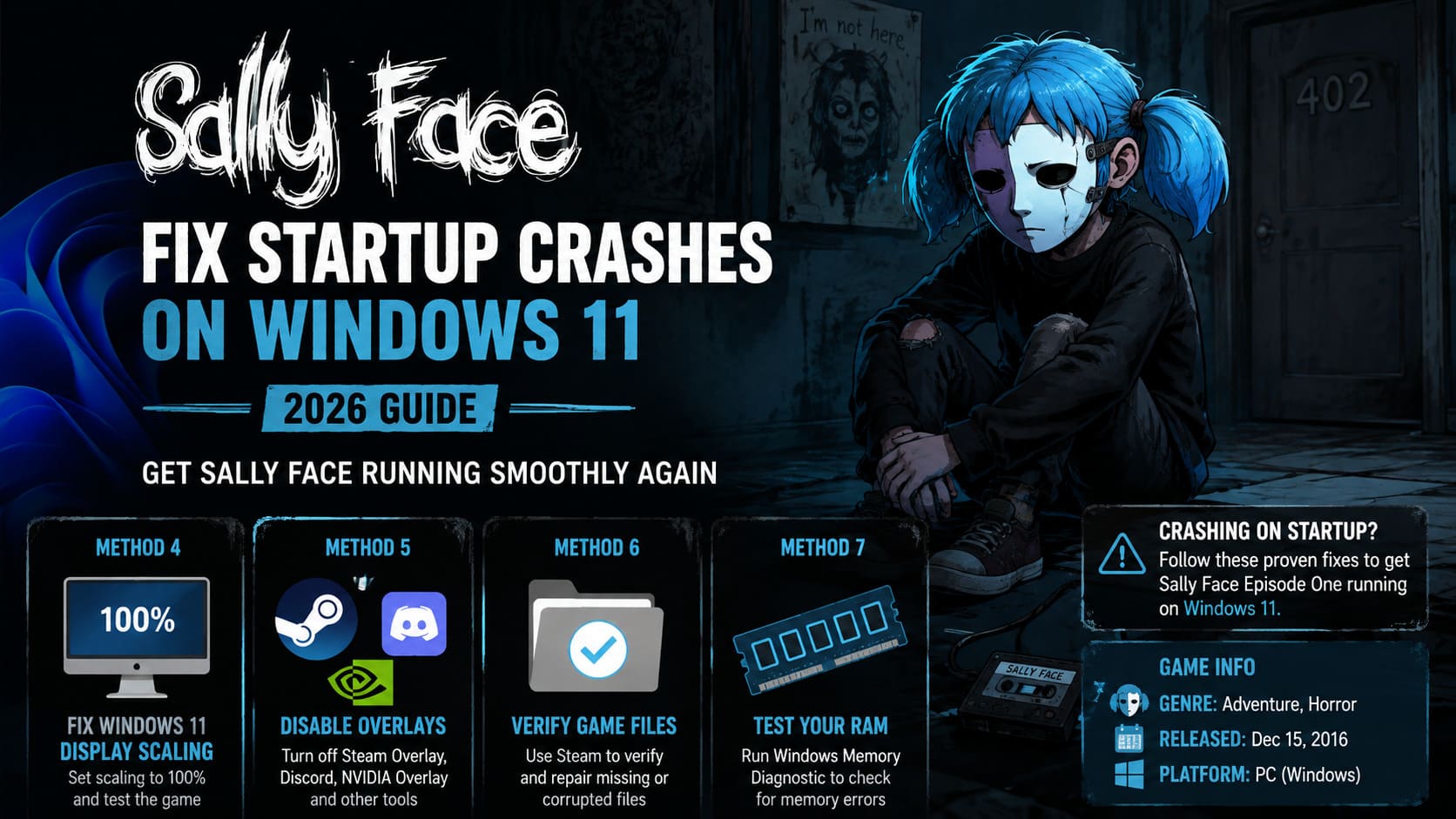
Temporarily switch Windows scaling to 100%
- Right-click an empty section of your Windows desktop.
- Select Display settings.
- Find Scale & layout.
- Look at the current Scale percentage.
- Temporarily change it to 100%.
- Launch Sally Face again.
You don’t necessarily need to keep Windows at 100% permanently. This is primarily a troubleshooting test.
If the game suddenly displays correctly, you’ve narrowed the problem down considerably.
NVIDIA scaling settings
NVIDIA users can also experiment with the NVIDIA Control Panel.
Open the control panel and navigate to the display scaling options under the appropriate display section.
Depending on your hardware and driver version, options can include:
- Aspect ratio
- No scaling
- Scaling performed by the GPU
- Overriding scaling behavior used by games
The exact wording can vary between driver versions, so don’t worry if your NVIDIA Control Panel doesn’t look identical to an older tutorial.
The goal is simple: prevent Windows and the game from fighting over how the image should be scaled.
Method 5: Turn Off Steam Overlay and Other Overlays
I’ll admit this is one of my favorite troubleshooting steps because it’s so easy to test.
Overlays are useful, but they also hook into games while they’re running. Older engines can sometimes react badly to those integrations.
If you have Steam Overlay, Discord, NVIDIA’s overlay, MSI Afterburner, RivaTuner, OBS, or similar software running, temporarily shut them down.
Disable Steam Overlay
- Open Steam.
- Go to your Library.
- Right-click Sally Face.
- Select Properties.
- Stay on the General tab.
- Find the Steam Overlay option.
- Turn Enable the Steam Overlay while in-game off.
- Close the window.
- Launch Sally Face.
Also close unnecessary overlay-heavy applications before testing.
For example:
- Discord Overlay
- MSI Afterburner
- RivaTuner Statistics Server
- OBS Studio
- GPU recording utilities
- Other game overlays
You don’t need to permanently uninstall these programs. You’re simply eliminating variables.
If the game launches after closing them, congratulations: you’ve found a conflict without having to reinstall Windows or sacrifice a goat to the Unity gods.
Method 6: Verify Sally Face’s Steam Files
If compatibility settings and graphics configuration aren’t doing anything, stop modifying Windows for a moment and check the game itself.
A damaged or incomplete installation can cause crashes before you even reach the main menu.
Steam has a built-in tool specifically for this.
Verify the installation
- Open Steam.
- Go to your Library.
- Right-click Sally Face.
- Select Properties.
- Open Installed Files.
- Click Verify integrity of game files.
- Wait for Steam to finish the scan.
- Allow Steam to replace anything it identifies as missing or corrupted.
- Restart Steam and test the game again.
This is absolutely worth doing before a full reinstall.
A reinstall takes considerably longer and doesn’t necessarily fix a configuration problem sitting somewhere in AppData or Windows.
Check your antivirus too
Security software can occasionally interfere with older executables.
Check the quarantine or detection history in Windows Security or your third-party antivirus.
If Sally Face’s executable or a required game file has been quarantined, that’s an obvious lead.
Don’t blindly disable your antivirus. If you determine that a legitimate game file was incorrectly flagged, use the security software’s proper exclusion or restoration mechanisms and only for files you trust.
Method 7: Test Your RAM With Windows Memory Diagnostic
This is the least game-specific method in the guide, and I’d save it for situations where you’re seeing crashes across multiple applications rather than only Sally Face.
If Unity crash logs or Windows itself are showing signs of memory-related errors, checking your RAM is sensible.
Run Windows Memory Diagnostic
- Open Windows Search.
- Type Windows Memory Diagnostic.
- Launch the utility.
- Choose Restart now and check for problems.
- Windows will reboot.
- The diagnostic environment will test your system memory.
- Once the process finishes, Windows will restart normally.
If the diagnostic reports memory errors, don’t treat Sally Face as the real problem. The game may simply be exposing an underlying hardware or system stability issue.
That’s an important distinction.
Sally Face Episode 1 100% Walkthrough: Complete All Achievements & Secrets Guide (2026)
What Should You Try First?
Don’t work through these methods in random order.
If I were sitting down at my own PC with Sally Face crashing immediately, I’d go through the fixes like this:
- Verify the game files.
- Disable Steam and other overlays.
- Run the executable with compatibility settings.
- Force the dedicated GPU.
- Test Windows scaling at 100%.
- Reset the LocalLow configuration after making a backup.
- Investigate RAM only if crashes suggest a broader system problem.
That order keeps the low-risk fixes at the front and saves the more invasive troubleshooting for later.
Is Sally Face Episode 1 Worth Playing in 2026? Retro Review and Status Report
Final Thoughts
Sally Face remains one of those indie games that can leave a surprisingly long shadow. Its crude-looking art style is intentional, its characters are memorable, and its horror works because the game understands that unsettling ideas don’t need blockbuster production values.
That’s why it’s frustrating when Windows 11 becomes the thing standing between you and Episode One.
The good news is that an immediate crash doesn’t automatically mean the game is incompatible with your PC. In many cases, you’re dealing with a compatibility quirk, an incorrect GPU assignment, broken local configuration data, display scaling, or an overlay interfering with an older Unity build.
Start with the harmless fixes. Verify the installation, kill overlays, test compatibility mode, and check the GPU assignment. If Sally Face still refuses to cooperate, move on to the LocalLow reset and display-scaling checks.
And remember one important rule when troubleshooting older PC games: change one thing at a time. If you simultaneously delete configuration files, alter GPU settings, change compatibility modes, disable every Windows feature imaginable, and reinstall the game, you’ll have no idea what actually fixed it.
With a little patience, you should be able to get past that annoying startup crash and return to the bizarre, creepy world of Sally Face without turning the troubleshooting process into its own horror episode.