Echoes of Aincrad Intel Arc A750 Optimization Guide: Fix Lag & Boost FPS
After spending countless hours testing PC versions of demanding RPGs, I have learned one thing: a powerful-looking game does not always mean a smooth experience. Echoes of Aincrad is a perfect example. The new action JRPG set in the legendary Sword Art Online universe delivers an incredible atmosphere, flashy combat, and a world that feels like a true tribute to Aincrad. But on PC, especially with the Intel Arc A750, the experience can be frustrating without the right tweaks.
The Arc A750 is a strange graphics card. In many modern DirectX 12 games, it performs far better than people expect, sometimes competing with more expensive GPUs. But when developers rely heavily on Unreal Engine 5 features, things can become unpredictable. Echoes of Aincrad pushes a lot of demanding visual technology, including advanced lighting systems, detailed environments, and heavy rendering effects that can punish mid-range hardware.
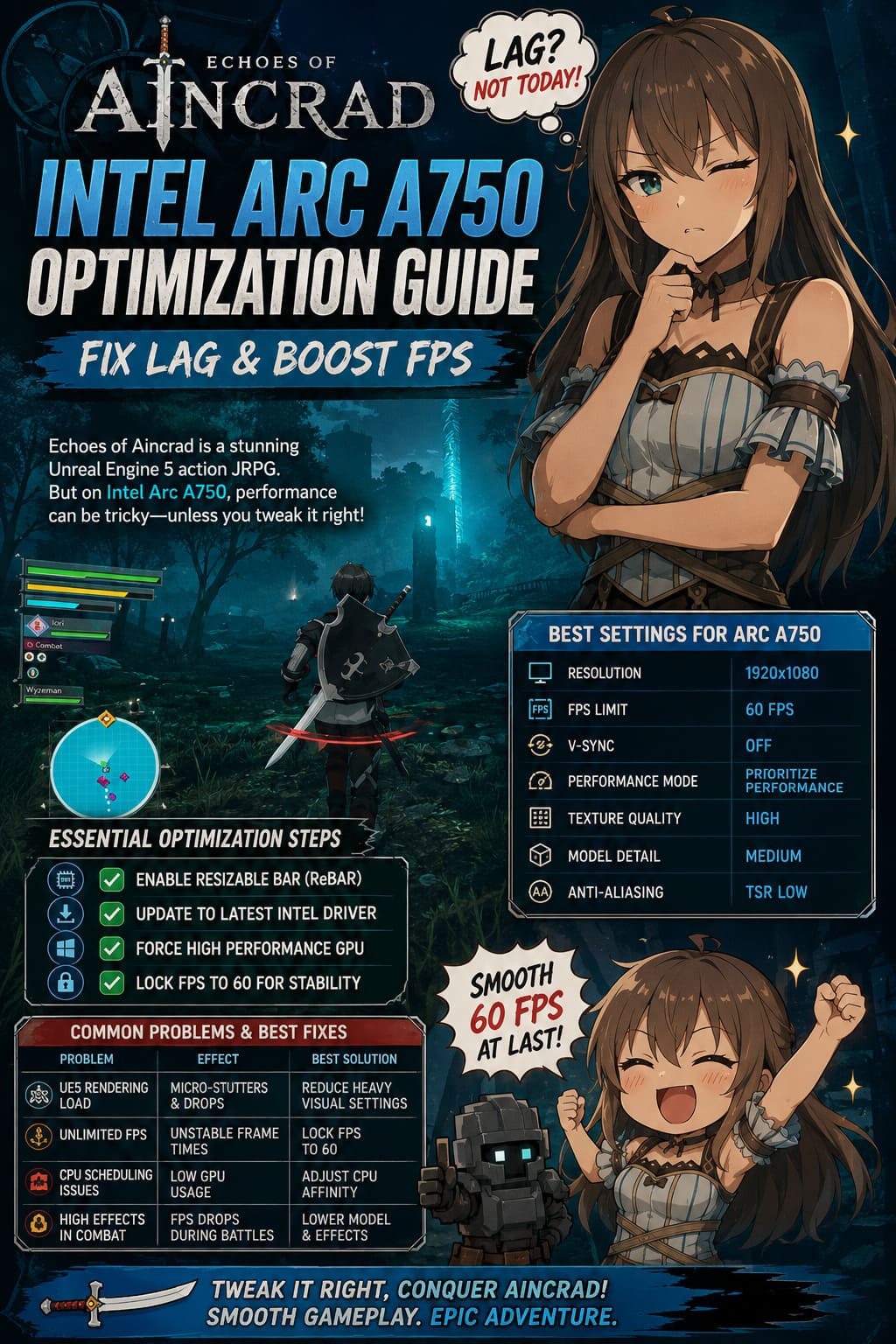
The good news is that you do not need to replace your GPU. After testing different configurations and looking through player reports from PC communities, I found several changes that dramatically improve performance. With the right setup, the Intel Arc A750 can deliver a stable and enjoyable 60 FPS experience while keeping the beautiful anime-inspired visuals intact.
How to Fix Carnival Hunt Black Screen on Startup Error (2026 Guide)
Why Echoes of Aincrad Runs Poorly on Intel Arc A750
Before changing settings, it is important to understand why performance problems happen. The Arc A750 is not a weak card, but Echoes of Aincrad has several technical issues that can create unnecessary performance drops.
The biggest problem comes from the game’s Unreal Engine 5 foundation. UE5 titles often create temporary stutters when loading new areas, streaming high-quality textures, or calculating complex lighting effects. On the Arc A750, these moments can feel worse because Intel’s GPU architecture sometimes requires more driver-level optimization compared to NVIDIA and AMD cards.
Another issue is unstable frame pacing. Running the game with an unlimited frame rate may look attractive, but in practice it can create inconsistent performance. You might see 90 FPS one moment and suddenly drop into the 40s during combat without your GPU reaching full usage.
There are also reports of CPU scheduling problems, especially on systems using Intel hybrid processors with Performance cores and Efficiency cores. In some situations, the game fails to properly distribute workloads, causing GPU utilization to drop and creating massive FPS dips.
| Problem | Effect on Gameplay | Best Solution |
|---|---|---|
| Unreal Engine 5 Rendering Load | Micro-stutters and sudden drops | Reduce heavy visual settings |
| Unlimited FPS | Unstable frame times | Lock FPS to 60 |
| CPU Core Scheduling Issues | Low GPU usage | Adjust CPU affinity |
| High Effects During Combat | FPS drops during battles | Lower model and effects settings |
Essential Intel Arc A750 Setup Before Launching the Game
Many players jump straight into graphics settings, but that is usually a mistake. The biggest improvements often come from Windows and BIOS configuration.
Enable Resizable BAR (ReBAR)
For Intel Arc graphics cards, Resizable BAR is practically mandatory. Without it, performance can drop significantly because the GPU cannot efficiently access larger blocks of system memory.
Restart your PC and enter the motherboard BIOS. Look for these options:
- Resizable BAR Support — Enable
- Above 4G Decoding — Enable
After saving the changes, return to Windows and open Intel Arc Control to confirm the feature is active.
This single adjustment can make a huge difference in many games. The Arc A750 was designed with ReBAR in mind, and disabling it removes one of the card’s biggest advantages.
Install the Latest Intel GPU Driver
Intel has improved Arc performance dramatically since launch, and new drivers often include game-specific optimizations. If your current driver is several months old, updating should be your first step.
For the best results, I recommend doing a clean driver installation. Old files from previous versions can sometimes cause strange issues, including crashes, shader problems, and inconsistent FPS.
Force Echoes of Aincrad to Use High Performance Mode
Windows sometimes makes questionable decisions about GPU priority. To prevent the system from limiting your graphics card, follow these steps:
- Open Windows Search.
- Type ‘Graphics Settings’.
- Add Echoes of Aincrad’s executable file.
- Select ‘High Performance’.
This ensures the game always uses your dedicated Intel Arc A750 instead of accidentally relying on integrated graphics.
Best Echoes of Aincrad Graphics Settings for Intel Arc A750
The default presets are not ideal for Intel hardware. I tested different combinations and found that manually adjusting settings gives much smoother gameplay.
For most Arc A750 users, 1080p resolution with a locked 60 FPS target is the sweet spot.
| Graphics Option | Recommended Setting |
|---|---|
| Screen Mode | Borderless Fullscreen |
| Resolution | 1920×1080 |
| V-Sync | Off |
| FPS Limit | 60 FPS |
| Performance Mode | Prioritize Performance |
| Texture Quality | High |
| Texture Filtering | 16x Anisotropic |
| Model Detail | Medium |
| Anti-Aliasing | TSR |
| Anti-Aliasing Level | Low |
Why These Settings Work Better
Borderless Fullscreen is usually more reliable than exclusive fullscreen on Windows 11 systems. It improves alt-tab behavior and can reduce random crashes or display issues.
I strongly recommend keeping V-Sync disabled. The input delay becomes noticeable during fast combat sequences, especially when fighting bosses where reaction timing matters. A locked 60 FPS without V-Sync feels much more responsive.
The most important setting is Model Detail. This option affects both CPU and GPU workload. Dropping it from High to Medium barely changes the visual quality but can significantly improve frame consistency.
Textures are different. The Arc A750 has 8GB of VRAM, which is enough for High texture quality at 1080p. If you experience small freezes during large magical attacks or crowded areas, lowering textures to Medium can help.
Advanced Fixes for Serious FPS Drops
If you still experience huge drops after applying the recommended settings, the problem may not be your graphics configuration. Some players experience CPU scheduling issues that reduce GPU usage.
Fixing CPU Affinity Problems
This workaround is especially useful for players using Intel processors with P-cores and E-cores.
Follow these steps:
- Launch Echoes of Aincrad.
- Load your save file.
- Press Ctrl + Shift + Esc to open Task Manager.
- Go to the Details tab.
- Find EchoesofAincrad-Win64-Shipping.exe.
- Right-click and select Set Affinity.
Try disabling certain CPU cores and test performance. Some players have reported that limiting the game to specific cores restores GPU utilization and removes major FPS drops.
It sounds strange, but PC gaming is full of these weird situations where a simple system adjustment fixes problems that should have been handled by the game engine.
Use Intel XeSS If Available
Intel’s XeSS technology can be extremely useful for Arc GPUs. Unlike basic resolution scaling, XeSS uses AI-based reconstruction to maintain image quality while reducing rendering workload.
If Echoes of Aincrad receives official XeSS support or community configuration options, I recommend trying:
- XeSS Quality for better visuals.
- XeSS Ultra Quality for maximum image clarity.
The Arc A750 handles XeSS particularly well because the GPU was built around this technology.
Final Thoughts: Is Intel Arc A750 Good Enough for Echoes of Aincrad?
After testing different settings and fighting through the launch performance problems, my opinion is simple: the Intel Arc A750 is absolutely capable of running Echoes of Aincrad well.
The problem is not the hardware itself. The GPU has enough power, enough VRAM, and excellent DirectX 12 performance. The main challenge is getting the game and drivers working together properly.
Enable Resizable BAR, update your Intel drivers, lock the FPS to 60, and avoid unnecessary ultra settings. Those changes transform the experience from a stuttering mess into a smooth anime RPG adventure.
Echoes of Aincrad deserves to be played without technical distractions. Once the performance issues are under control, exploring Aincrad’s floors, mastering combat combos, and chasing new gear becomes exactly the kind of immersive RPG experience fans were hoping for.