Resonance: A Plague Tale Legacy Best Settings for Stable 60FPS on PC
If there is one thing I have learned from spending way too many hours tweaking PC games, it is that a gorgeous game can become a nightmare when its graphics menu is left completely untouched. Resonance: A Plague Tale Legacy is exactly that kind of game. Asobo Studio has built another visually ambitious adventure packed with atmospheric environments, dense ruins, dramatic lighting and enormous vistas, but all that eye candy comes with a serious appetite for GPU and CPU resources.
The good news is that you do not need a monster PC to make the game run well. With the right combination of settings, a sensible FPS cap and carefully chosen upscaling, a stable 60 FPS is a realistic target for a large range of modern gaming PCs. I would much rather sacrifice a little shadow quality or distant foliage than watch the frame rate collapse during a sword fight, especially in a game where parries, dodges and fast counter-attacks demand responsive controls.
This guide focuses on the settings that actually matter. Instead of simply recommending an ‘Ultra’ preset and hoping for the best, I have broken down the options that tend to consume the most performance while keeping the visual compromises as small as possible.
How to Fix Resonance: A Plague Tale Legacy Controller Not Working on Steam
Resonance: A Plague Tale Legacy PC Requirements
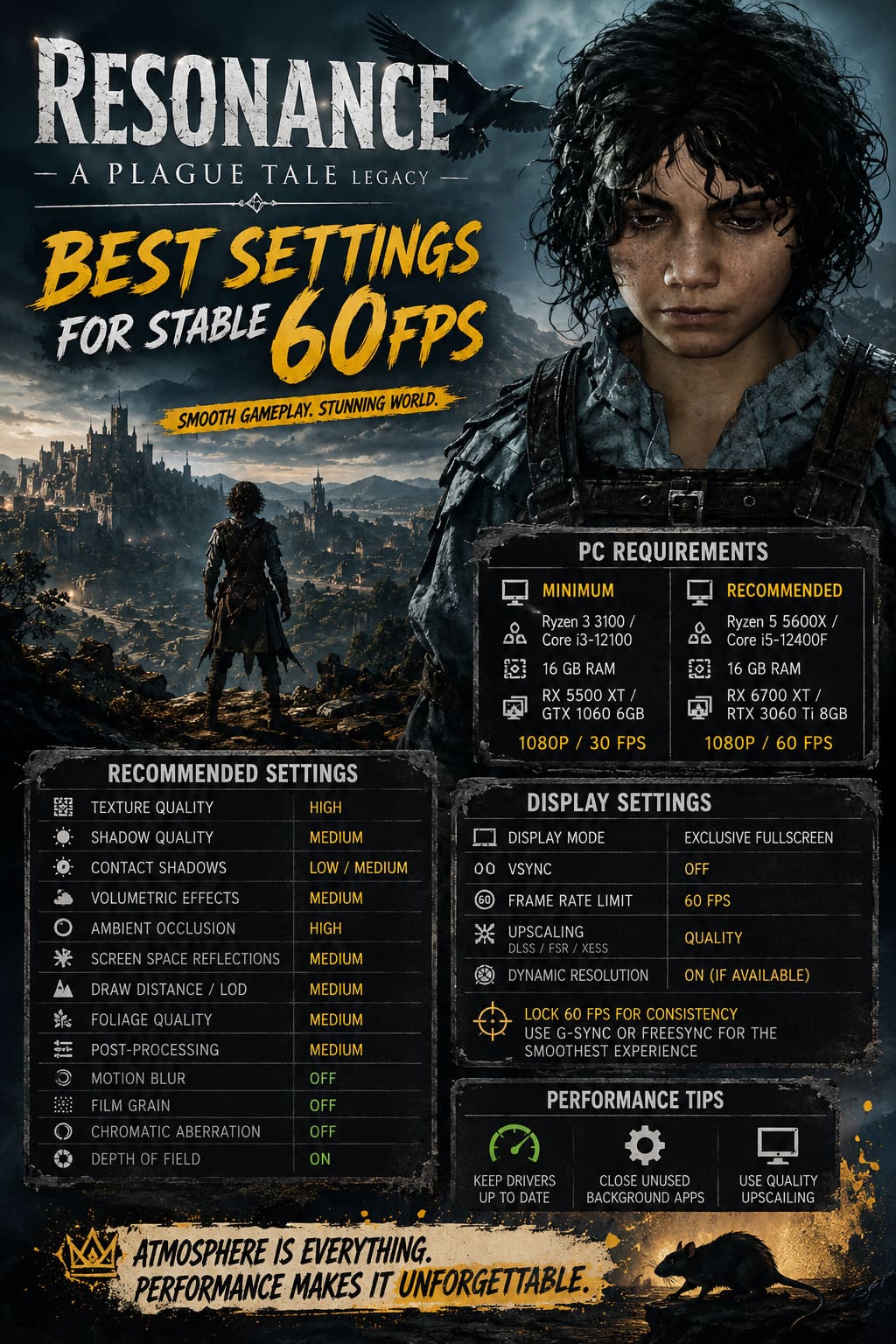
Before changing anything, it is worth knowing what kind of hardware the game expects. The minimum specifications are aimed at roughly 1080p gameplay with modest settings, while the recommended configuration targets 60 FPS at higher visual quality.
| Target | CPU | RAM | GPU | Resolution |
|---|---|---|---|---|
| Minimum | Ryzen 3 3100 / Core i3-12100 | 16 GB | RX 5500 XT / GTX 1060 6GB | 1080p / 30 FPS |
| Recommended | Ryzen 5 5600X / Core i5-12400F | 16 GB | RX 6700 XT / RTX 3060 Ti 8GB | 1080p / 60 FPS |
Sixteen gigabytes of RAM should be considered the practical starting point. The GPU is more important once you start increasing resolution and visual quality, while the CPU can become a limiting factor in large environments with plenty of geometry, NPC activity and long draw distances.
If you are using something around an RTX 3060, RTX 4060, RX 6600 XT or RX 7600, I would not blindly select the High or Ultra preset. A custom profile makes much more sense.
The Biggest Performance Killers
Not every graphics option deserves the same attention. Some settings barely affect performance while others can take a surprisingly large bite out of your frame rate.
1. Draw Distance and Level of Detail
This is one of the first settings I would reduce.
Resonance: A Plague Tale Legacy features huge environments, ancient architecture and distant scenery that can stretch across the horizon. Keeping every object at maximum detail far away from Sophia forces the CPU and GPU to process an enormous amount of geometry.
My recommendation: Medium or High.
High is a good choice if your CPU has plenty of headroom. Medium is particularly useful on mid-range systems where the game becomes CPU-bound. The visual difference during normal gameplay is surprisingly small, while the performance improvement can be substantial.
I would absolutely avoid Ultra unless you have plenty of performance to spare.
2. Shadow Quality
Shadows are another classic performance hog, and they are particularly interesting in a game where light and darkness are central to the gameplay.
Ultra-quality shadows can look fantastic when standing still and staring at the environment, but during actual gameplay I rarely find the difference worth the performance hit.
Recommended setting: Medium.
High is fine for a powerful GPU, but Medium gives you a much better performance-to-quality ratio. You still retain convincing environmental shadows without wasting a huge amount of rendering power on details you probably will not notice while sprinting through a dangerous area.
3. Contact Shadows
Contact Shadows add small shadow details where objects meet surfaces. They can make rocks, vegetation and environmental objects feel more grounded, but they are not something I would prioritize when chasing 60 FPS.
Try Low or Medium.
If you are struggling to maintain your target frame rate, this is one of the easiest settings to reduce without making the entire game look noticeably worse.
4. Volumetric Effects
This is where the game gets expensive.
Fog, mist and atmospheric lighting are a huge part of the visual identity of the A Plague Tale series. When everything is working together, the environments can look ridiculously good. Unfortunately, volumetric effects can also hammer GPU performance during visually dense scenes.
Medium is the sweet spot.
I would rather keep Ambient Occlusion high and reduce volumetric quality than do the opposite. The game still retains its moody atmosphere, while your GPU gets some breathing room.
5. Screen Space Reflections
Water and reflective surfaces can look excellent with high-quality SSR, but the performance cost is not always justified.
Set Screen Space Reflections to Medium.
You will still get convincing reflections, particularly during exploration, but you avoid spending unnecessary GPU resources on expensive reflections that can disappear from view as soon as you move the camera.
My Recommended 60 FPS Settings
For a typical mid-range gaming PC, I would start with the following configuration and then adjust only if necessary.
Display Settings
| Setting | Recommendation |
|---|---|
| Display Mode | Exclusive Fullscreen |
| Resolution | Native monitor resolution |
| V-Sync | Off |
| Frame Rate Limit | 60 FPS |
| Upscaling | Quality |
| Dynamic Resolution | Use if available |
I prefer an in-game 60 FPS cap when I am specifically targeting consistency. Letting the GPU run at 90, 110 or 140 FPS when the system constantly jumps between those numbers can create less consistent frame pacing than simply locking the game to a sensible target.
If you have G-Sync or FreeSync, use it. Variable refresh rate makes a locked 60 FPS target feel considerably smoother, especially when the game occasionally dips into the mid-to-high 50s.
Graphics Settings for a Balanced 60 FPS
| Graphics Option | Recommended Setting |
|---|---|
| Texture Quality | High |
| Shadow Quality | Medium |
| Contact Shadows | Low / Medium |
| Volumetric Effects | Medium |
| Ambient Occlusion | High |
| Screen Space Reflections | Medium |
| Draw Distance / LOD | Medium |
| Foliage Quality | Medium |
| Post-Processing | Medium |
| Motion Blur | Off |
| Chromatic Aberration | Off |
| Film Grain | Off |
| Depth of Field | On |
There is one setting here I would actually push higher if your VRAM allows it: Textures.
Texture quality often has a much smaller impact on raw FPS than shadows, volumetrics or geometry. If your graphics card has 10GB or more of VRAM, High or even Ultra textures can make sense. With 6GB cards, High is safer, while Medium may be necessary if you see VRAM-related stuttering.
I would keep Ambient Occlusion on High. Dropping it too far can make environments lose depth and look strangely flat, particularly around walls, rocks and objects sitting close together.
Why I Turn Off Motion Blur, Film Grain and Chromatic Aberration
This is personal preference, but after playing a lot of third-person action games, I usually disable these effects.
Motion Blur goes first.
Fast camera movement and melee combat become much easier to read when the image remains sharp. Parrying an attack is already about timing; I do not need artificial blur making the screen look like someone smeared Vaseline over my monitor.
Chromatic Aberration is another easy cut. It creates colored fringing around certain edges and is supposed to give the image a cinematic quality. Personally, I find it distracting.
Film Grain gets the axe too. The environments already have plenty of texture and atmosphere. Adding digital noise on top of everything simply makes the image less clean.
Depth of Field is the exception. I like keeping it enabled because it contributes to the cinematic presentation during conversations and narrative scenes without constantly interfering with gameplay.
DLSS, FSR and XeSS: The Easy Performance Win
If your graphics card supports modern upscaling, this is probably the most useful tool in your entire settings menu.
For 1080p, I recommend starting with Quality mode rather than Performance. At native 1080p, aggressive upscaling can make thin geometry, hair and distant objects look soft or introduce shimmering.
At 1440p, Quality upscaling becomes even more attractive. You can often gain a significant amount of performance while retaining a surprisingly close approximation to native resolution.
The basic strategy is simple:
- 1080p: Try Quality first.
- 1440p: Quality is usually an excellent choice.
- 4K: Quality or Balanced can make sense depending on your GPU.
- Performance mode: Save it for situations where you genuinely need the extra frames.
I would much rather run High textures, Medium shadows and Quality upscaling than drop the entire game to a Low preset.
What About Frame Generation?
Frame Generation can take an already playable experience and make it feel dramatically smoother, but there is a catch.
If your GPU supports a compatible frame-generation technology, you can potentially turn a baseline around 45–50 FPS into a much higher displayed frame rate. That sounds incredible, and visually it can be, but frame generation does not magically make the underlying game respond like a native 90 FPS game.
Your base FPS matters.
I would avoid enabling frame generation if your native performance is already hovering around 25–30 FPS. The generated frames can improve visual smoothness, but input response can still feel sluggish.
For an action-heavy game with parries and dodges, I would aim for roughly 40–45 FPS or higher before enabling frame generation. Once the base frame rate is healthy, the technology becomes far more useful.
1440p Settings: What I Would Change
If you have a stronger PC and a 1440p monitor, you can push several settings higher.
My preferred starting point would be:
- Textures: High
- Shadows: High
- Contact Shadows: Medium
- Volumetrics: Medium
- Ambient Occlusion: High
- SSR: Medium
- LOD: High
- Foliage: High
- Upscaling: Quality
- Motion Blur: Off
- Film Grain: Off
- Chromatic Aberration: Off
The important part is not obsessing over Ultra. The jump from High to Ultra can be surprisingly expensive for relatively minor visual gains.
That is one of those PC gaming lessons that becomes obvious after years of tweaking settings: Ultra is not automatically the best experience.
Windows Tweaks Worth Trying
The graphics menu is only half the battle. Before launching the game, make sure your system is not fighting itself.
Keep Background Apps Under Control
Browsers with dozens of tabs, recording applications and other CPU-heavy software can interfere with frame pacing. Discord itself is usually not a disaster, but hardware acceleration and unnecessary background processes can consume resources.
If you are troubleshooting stutters, close everything you do not need and test again.
Update Your GPU Driver
Always check for current NVIDIA or AMD drivers when a major game launches. Driver updates can contain shader optimizations, bug fixes and game-specific improvements that are impossible to reproduce with an outdated installation.
Test Hardware-Accelerated GPU Scheduling
Hardware-Accelerated GPU Scheduling can improve scheduling behavior on some modern Windows systems. It is worth testing, although I would not treat it as a magical FPS switch.
If enabling it makes your particular system less stable, turn it back off. PC optimization is often about finding what works for your exact hardware rather than blindly following a universal tweak list.
How I Would Optimize the Game From Scratch
If I installed Resonance: A Plague Tale Legacy today and wanted a stable 60 FPS, I would not spend an hour changing every individual option.
I would do it in this order:
- Select the native resolution and enable Quality upscaling.
- Set a 60 FPS cap.
- Put textures on High.
- Reduce shadows to Medium.
- Set volumetrics to Medium.
- Set LOD to Medium or High.
- Set SSR to Medium.
- Keep Ambient Occlusion High.
- Disable Motion Blur, Film Grain and Chromatic Aberration.
- Test a demanding area before increasing anything.
Then I would raise individual settings one at a time. If performance suddenly drops, you know exactly which setting caused it.
This approach is much better than randomly moving sliders around and wondering why the game suddenly starts stuttering.
Final Verdict: The Best 60 FPS Setup
Resonance: A Plague Tale Legacy is the kind of game where visual quality matters. The dark environments, ancient architecture, dramatic lighting and atmospheric effects are a huge part of the experience, so I would never recommend destroying the graphics just to chase a benchmark number.
The trick is knowing which settings to sacrifice.
For most mid-range PCs, the winning combination is High textures, Medium shadows, Medium volumetrics, Medium SSR, Medium LOD and High Ambient Occlusion, combined with Quality upscaling and a 60 FPS cap. That setup preserves most of the visual punch while removing several of the biggest performance bottlenecks.
And honestly, that is the configuration I would choose even if my PC could push Ultra. A perfectly consistent 60 FPS during a frantic combat encounter feels far better than watching the counter bounce between 75 and 48 while the game looks only marginally better.
Resonance: A Plague Tale Legacy does not need to run at Ultra to look spectacular. It needs sensible settings, stable frame pacing and enough performance headroom to let its atmosphere do the heavy lifting.