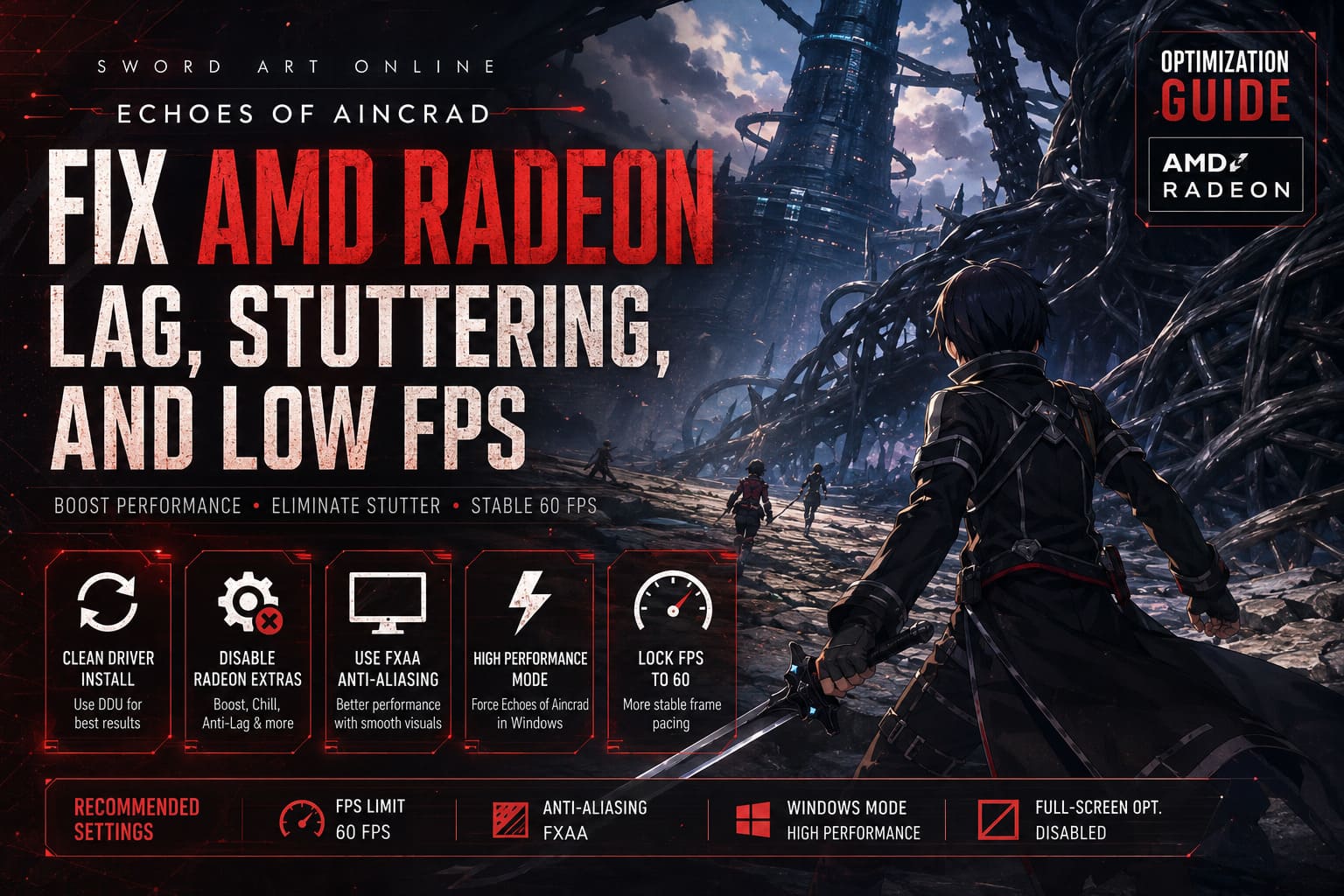
How to Fix Echoes of Aincrad AMD Radeon Lag, Stuttering, and Low FPS
Sword Art Online Echoes of Aincrad finally brings the legendary Aincrad setting to PC, giving fans the chance to experience one of anime gaming’s most recognizable worlds in a proper action RPG format. The idea is fantastic: exploring massive floors, fighting bosses with friends, and living the fantasy of being trapped inside a virtual MMO. Unfortunately, the PC version has stumbled hard in one important area — optimization.
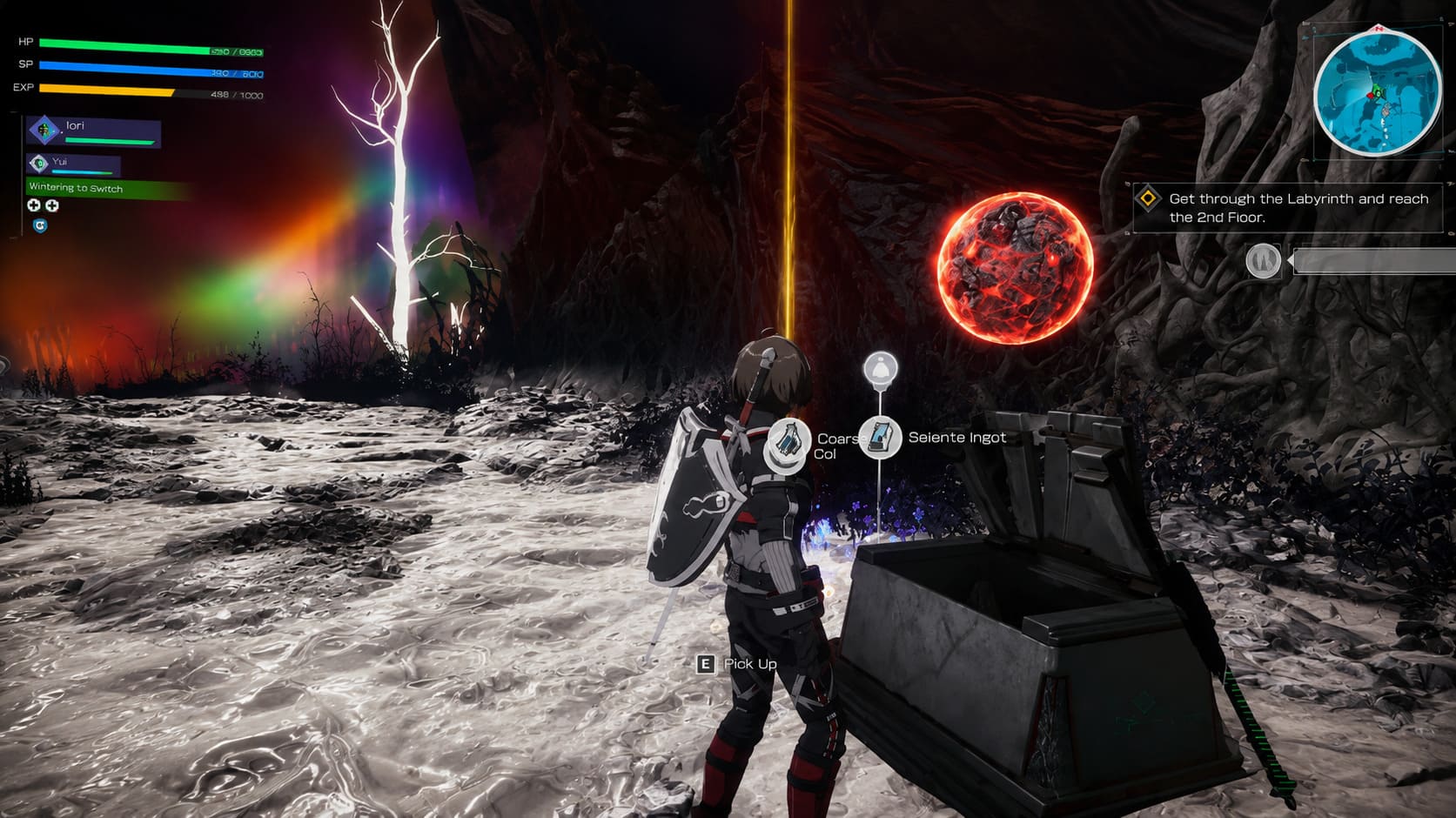
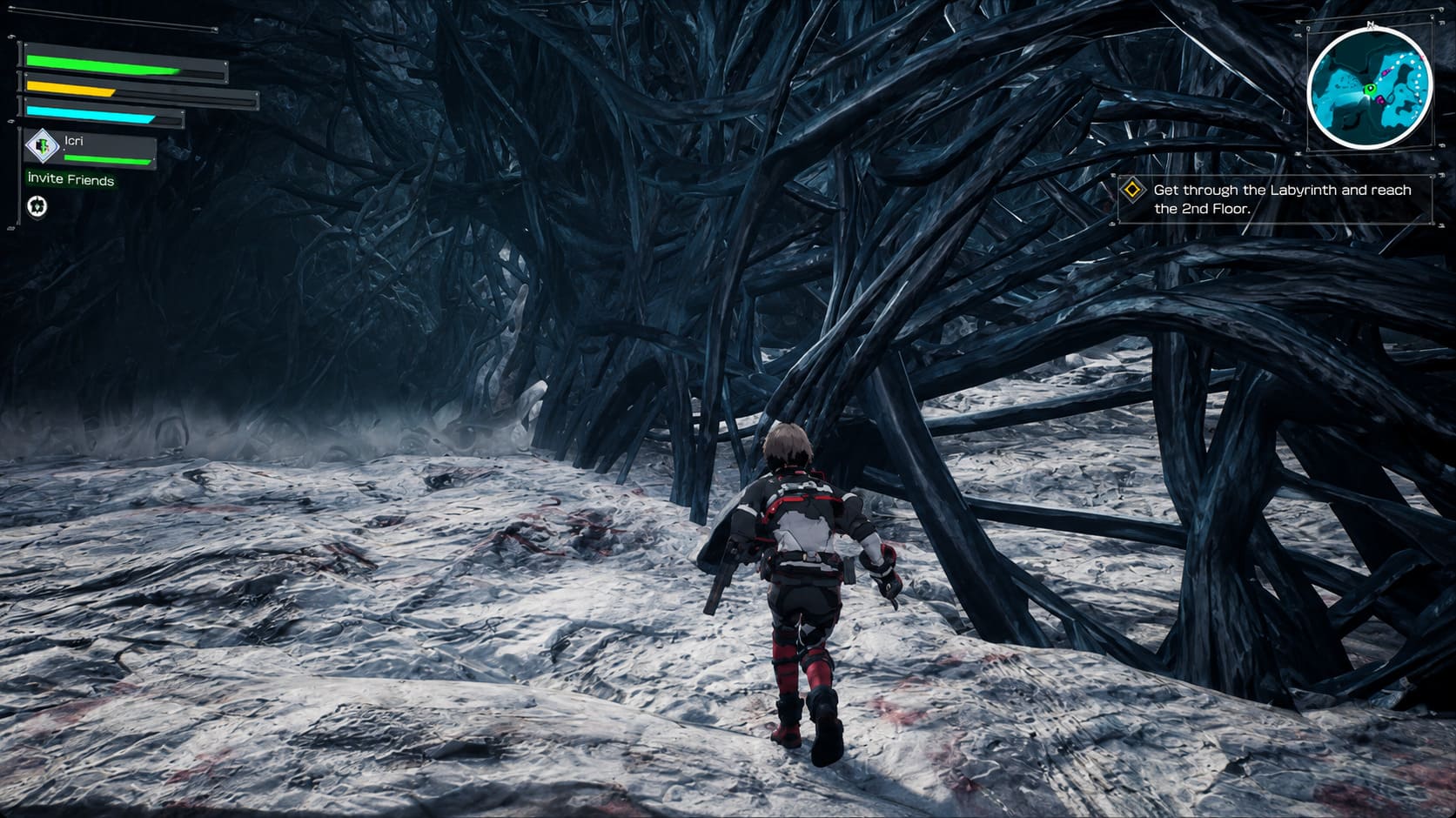
Many AMD Radeon users have reported frustrating performance issues since launch. Players with capable GPUs are seeing random FPS drops, aggressive stuttering, unstable frame pacing, and situations where GPU usage suddenly falls into extremely low numbers. The worst cases happen during boss encounters, crowded locations like the Town of Beginnings, and large mission zones where the game should be pushing your hardware instead of barely using it.
The strange part is that some systems with powerful Radeon RX graphics cards are performing worse than expected. The problem does not always come from weak hardware. Echoes of Aincrad appears to have issues with how it communicates with certain AMD GPU architectures, creating a messy situation where the CPU gets hammered while the graphics card sits underutilized.
After testing countless PC games and dealing with my share of terrible launches, I have seen this exact pattern before. A game releases, players blame their hardware, and after a few days the community discovers that the real enemy is broken optimization. Thankfully, there are several fixes that can noticeably improve the experience.
Echoes of Aincrad NVIDIA Reflex Low Latency On or Off for Best Performance
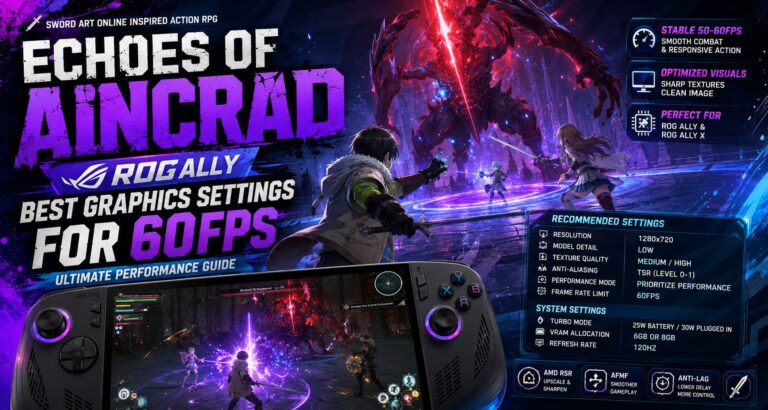
This guide covers the best methods to reduce AMD Radeon lag, eliminate stuttering, and improve FPS stability in Sword Art Online Echoes of Aincrad.
| Problem | Possible Cause | Recommended Fix |
|---|---|---|
| Sudden FPS Drops | Poor GPU utilization | Force high-performance mode |
| Combat Stuttering | Shader and driver conflicts | Clean AMD driver installation |
| Low GPU Usage | Engine optimization issues | Adjust Windows graphics settings |
| Frame-Time Spikes | Radeon features conflict | Disable Adrenalin extras |
| Unstable FPS | Uncapped frame rendering | Lock game to 60 FPS |
1. Perform a Clean AMD Driver Installation Using DDU
One of the first things every Radeon player should try is a completely fresh graphics driver installation. Simply updating AMD drivers over an existing installation is not always enough, especially when dealing with a new release that has shader compilation problems.
Old driver files, corrupted shader caches, and leftover registry entries can create strange conflicts. A game like Echoes of Aincrad depends heavily on smooth shader loading, and outdated cache files can produce horrible micro-stutters every few seconds.
The best solution is using Display Driver Uninstaller (DDU).
- Download DDU and boot Windows into Safe Mode.
- Completely remove existing AMD graphics drivers.
- Restart your PC.
- Install the latest stable AMD Software Adrenalin Edition driver.
- Launch Echoes of Aincrad and allow the game to rebuild shader caches.
A clean driver installation gives the game a fresh environment without old software conflicts. Some Radeon users have also reported better results by installing a slightly older stable driver instead of the newest release. Sometimes the latest driver is not automatically the best choice for a specific game.
2. Disable Problematic AMD Adrenalin Features
AMD Software Adrenalin Edition includes several excellent gaming features, but not every game handles them correctly. Echoes of Aincrad appears to struggle with some Radeon technologies, causing inconsistent frame pacing and random performance spikes.
Open AMD Adrenalin, go to your Echoes of Aincrad profile, and disable these options:
Radeon Boost
Dynamic resolution scaling sounds useful, but in this game it can create visual instability and sudden performance changes during combat.
Radeon Chill
Although designed to save power and control temperatures, Chill can introduce unwanted frame fluctuations and input delay.
Radeon Anti-Lag
Anti-Lag works brilliantly in competitive shooters, but action RPGs with inconsistent engine timing can sometimes suffer from worse frame pacing.
Instant Replay and AMD Overlay
Background recording features consume additional resources. Turning them off can improve 1% low FPS performance, especially during large battles.
After disabling these features, restart the game completely. Do not simply return to the menu because some settings require a full application restart.
3. Switch Anti-Aliasing Settings for Better Performance
Echoes of Aincrad does not offer the same level of graphics customization as many modern PC games. Like many console-focused releases, some visual settings are simplified, which can make optimization harder.
The biggest performance killer for many Radeon users is anti-aliasing.
Heavy solutions like Temporal Anti-Aliasing (TAA) or Unreal Engine’s advanced upscaling methods can create additional GPU pressure. Mid-range AMD cards may struggle, especially when combined with high resolutions.
Try switching anti-aliasing to FXAA.
FXAA is not the sharpest option available. The image may appear slightly softer, but the performance improvement can be significant. Personally, I would always take stable combat performance over slightly cleaner edges. A boss fight ruined by stuttering is far more annoying than a tiny visual downgrade.
If the image quality looks strange afterward:
- Confirm your monitor resolution matches your Windows display settings.
- Avoid unnecessary upscaling options.
- Test AMD driver-level sharpening if you want extra clarity.
4. Force Echoes of Aincrad Into Windows High Performance Mode
Windows sometimes decides how much power a game receives, and it does not always make the correct choice. This can result in your Radeon GPU running below its potential.
If you notice GPU usage dropping unexpectedly, force the game into maximum performance mode.
- Open Windows Settings.
- Go to System → Display → Graphics.
- Select Browse under desktop applications.
- Find the Echoes of Aincrad executable file.
- Add the game to the list.
- Select the game and click Options.
- Choose High Performance.
- Save changes.
This tells Windows to prioritize the game and prevents unnecessary power-saving behavior.
For players experiencing situations where their GPU sits around 20–40% usage while FPS collapses, this adjustment can make a noticeable difference.
5. Lock Your FPS to a Stable 60 Frames Per Second
One of the biggest mistakes PC players make is assuming unlimited FPS always equals a better experience. In reality, unstable frame rates often feel worse than a lower but consistent target.
Echoes of Aincrad appears to have CPU-heavy behavior, meaning pushing extremely high refresh rates can create unnecessary stress.
Instead of chasing 120 FPS or 144 FPS, try locking the game to 60 FPS.
You can do this through:
- AMD Adrenalin frame limiter.
- Third-party FPS limiters.
- In-game settings if available.
A stable 60 FPS provides smoother frame delivery, fewer spikes, and better responsiveness during difficult encounters.
I would rather play a perfectly consistent 60 FPS boss battle than watch the counter jump between 45 and 100 FPS while the game feels like it is freezing.
Keep V-Sync disabled unless screen tearing becomes unbearable. V-Sync can add input delay, which is especially noticeable in action combat.
6. Disable Windows Full-Screen Optimizations
Windows compatibility features can sometimes interfere with Unreal Engine games. Full-screen optimization was designed to improve performance, but in some titles it creates additional overlays and inconsistent frame behavior.
To disable it:
- Open Steam Library.
- Right-click Sword Art Online Echoes of Aincrad.
- Select Manage → Browse Local Files.
- Find the main executable file.
- Right-click and choose Properties.
- Open the Compatibility tab.
- Enable Disable Full-Screen Optimizations.
- Enable Run This Program as Administrator.
- Apply changes.
This removes some Windows-level interference and gives the game cleaner access to system resources.
Best AMD Radeon Settings for Echoes of Aincrad
| Setting | Recommended Option |
|---|---|
| Radeon Boost | Disabled |
| Radeon Chill | Disabled |
| Radeon Anti-Lag | Disabled |
| Instant Replay | Disabled |
| FPS Limit | 60 FPS |
| Anti-Aliasing | FXAA |
| Windows Graphics Mode | High Performance |
| Full-Screen Optimization | Disabled |
Final Thoughts: Can AMD Radeon Players Fix Echoes of Aincrad Performance?
Sword Art Online Echoes of Aincrad has a lot going for it, but the current PC optimization leaves AMD Radeon users fighting an unnecessary battle outside the game itself. The frustrating part is knowing that many players have hardware powerful enough to run the game smoothly, yet poor optimization creates artificial problems.
The fixes above will not magically transform the game engine, but they can greatly improve stability. A clean driver install, disabling conflicting Radeon features, locking FPS, and forcing high-performance settings are the biggest changes worth trying.
Hopefully future patches improve Radeon compatibility and fix the deeper engine problems. Until then, these adjustments are the best way to enjoy Aincrad without constant freezes, stutters, and frustrating FPS drops. The world of Sword Art Online deserves better performance, and with a few tweaks, the experience can become much closer to what fans expected at launch.