Echoes of Aincrad ROG Ally Best Graphics Settings for 60FPS: Ultimate Performance Guide
I have spent enough time testing demanding games on handheld PCs to know one thing: a great game can quickly become frustrating when performance gets in the way. Echoes of Aincrad is exactly the type of title that pushes portable hardware to its limits. The combination of Unreal Engine 5 visuals, huge Sword Art Online-inspired environments, flashy weapon skills, and dense combat effects creates an amazing atmosphere, but it also makes devices like the ASUS ROG Ally work extremely hard.
When I first launched Echoes of Aincrad on the ROG Ally, the experience was a mixed bag. Walking through smaller areas felt fine, but once large zones loaded, enemies appeared, and multiple abilities filled the screen with effects, performance could collapse. Frame rates would jump around, textures sometimes looked softer than expected, and combat moments that should feel fast and precise started feeling delayed.
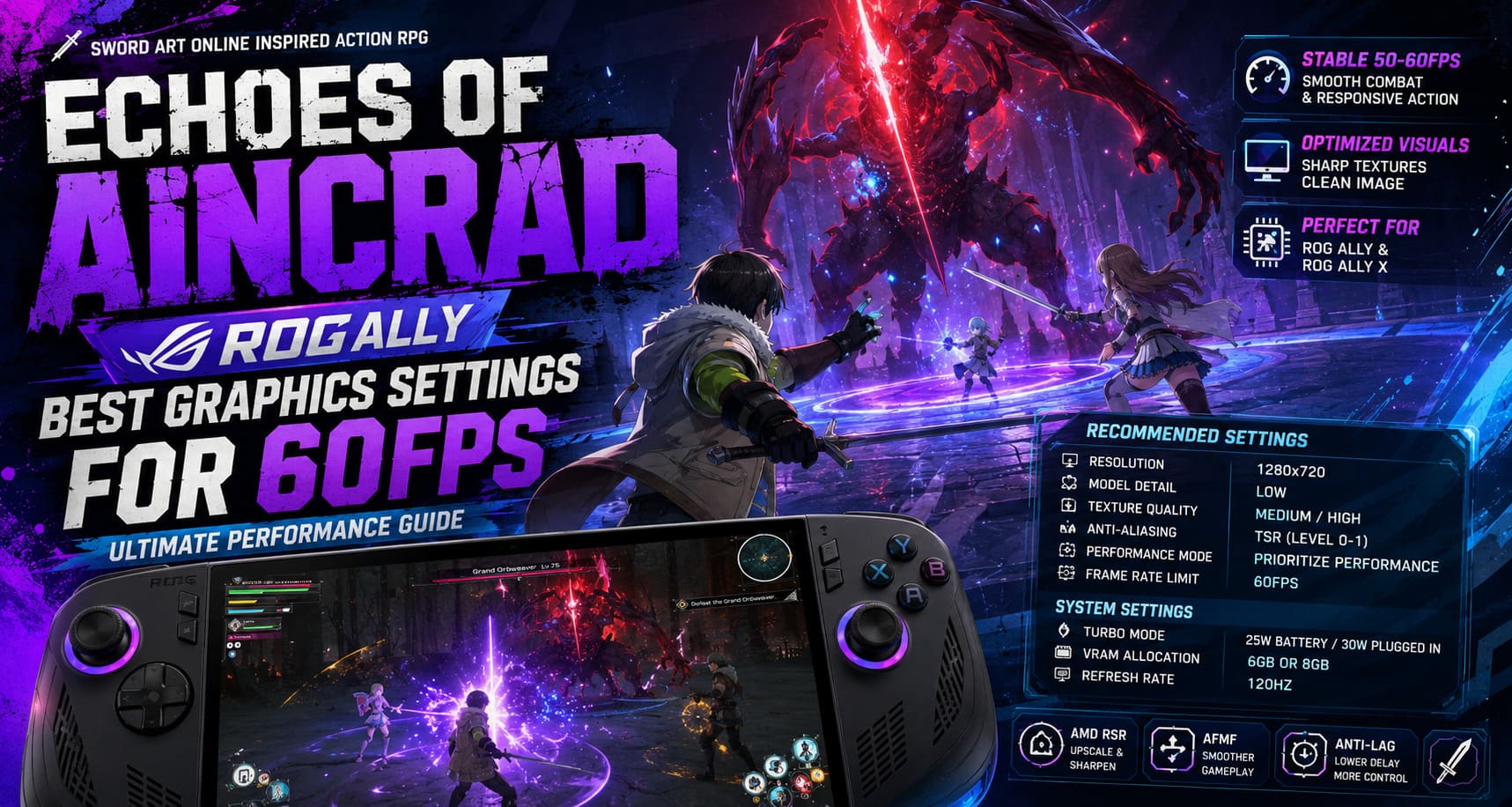
The good news is that the ROG Ally is absolutely capable of delivering a great experience. It just needs the right balance between visuals, power settings, and AMD optimization. After experimenting with different profiles, resolution combinations, and community-tested tweaks, this setup became the sweet spot for achieving a stable 60FPS target on both the ASUS ROG Ally Z1 Extreme and ROG Ally X.
Best Proton Version for Echoes of Aincrad on Steam Deck Performance Optimization Guide
Why Echoes of Aincrad Struggles on ROG Ally
Echoes of Aincrad is not a lightweight game designed around older hardware. The Unreal Engine 5 foundation brings impressive lighting, detailed environments, and cinematic effects, but handheld PCs have much less GPU headroom compared to desktop gaming machines.
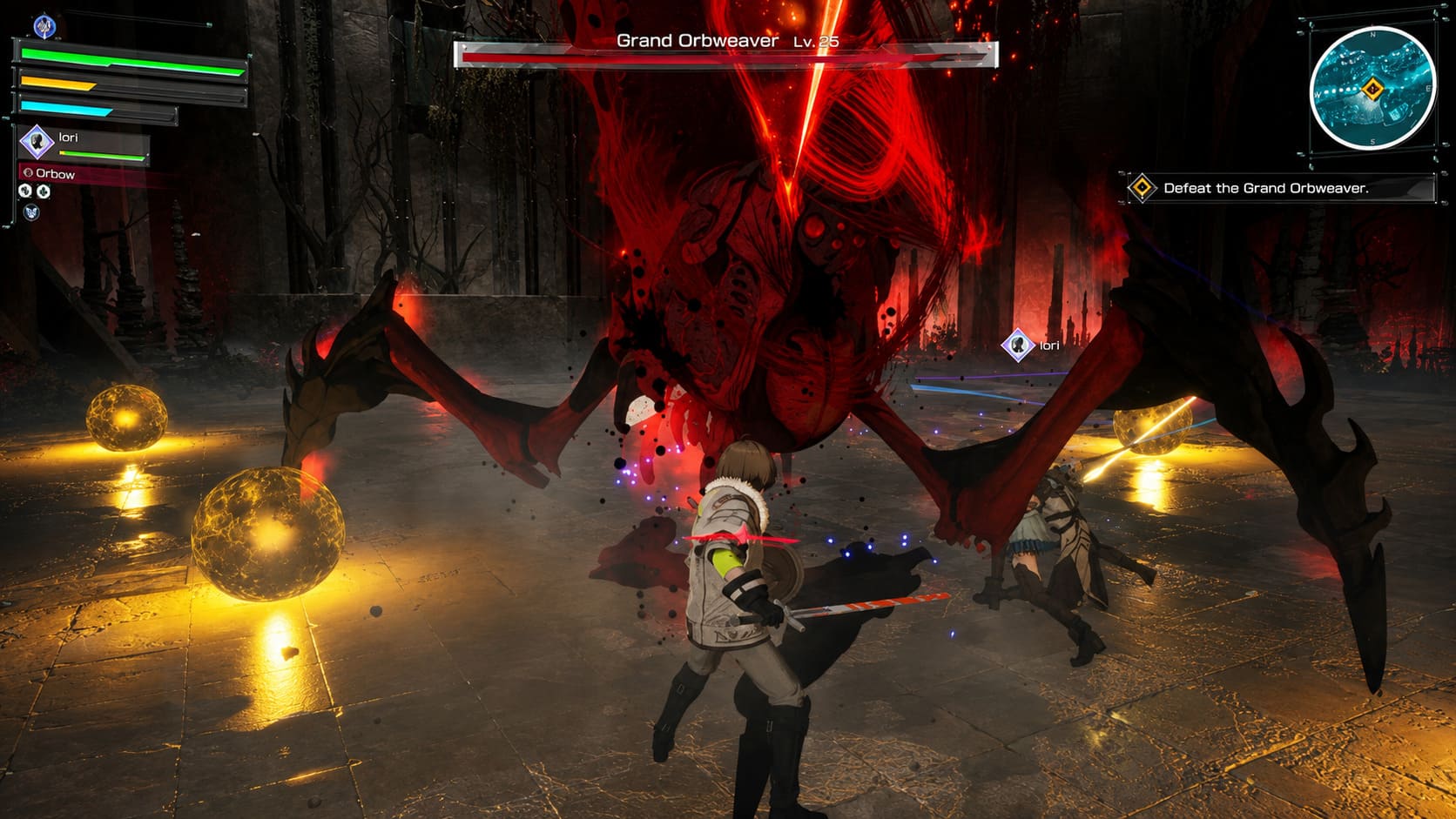
The biggest performance problems usually appear during three situations: exploring large areas, fighting groups of enemies, and entering locations with heavy particle effects. Sword skills, boss attacks, and environmental effects can create sudden GPU spikes that instantly destroy smooth frame pacing.
Another issue comes from the game’s default image processing. Echoes of Aincrad relies heavily on TSR (Temporal Super Resolution), Unreal Engine’s built-in upscaling solution. While TSR helps performance, the default implementation can make the image appear softer than many players expect. Character faces, menus, and distant objects may look slightly blurry, especially on the ROG Ally’s sharp 1080p display.
The solution is not simply lowering every option. A bad configuration can make the game look worse without fixing the real problems. The goal is to remove unnecessary performance drains while keeping the beautiful anime-inspired world intact.
Recommended ASUS ROG Ally System Settings
Before touching the in-game graphics menu, the handheld itself needs to be prepared. Echoes of Aincrad benefits massively from giving the Z1 Extreme chip enough power and memory access.
| Setting | Recommended Option |
|---|---|
| Operating Mode | Turbo Mode |
| Power Limit | 25W Battery / 30W Plugged In |
| Display Resolution | 1280×720 |
| VRAM Allocation | 6GB or 8GB |
| Refresh Rate | 120Hz |
| Windows Power Mode | Best Performance |
The first important change is switching to Turbo Mode. Running the game at the standard 15W Performance profile is simply not enough for consistent results. Unreal Engine 5 titles need additional CPU and GPU power because they constantly stream assets and process visual effects.
VRAM allocation is another setting many players ignore. The default 4GB configuration can cause annoying stutters when moving between areas or entering larger combat encounters. Increasing the allocation to 6GB or 8GB gives Echoes of Aincrad more breathing room and reduces sudden performance drops.
The 720p system resolution might sound strange because the ROG Ally has a beautiful 1080p panel, but native 1080p rendering is extremely demanding. A lower internal resolution combined with AMD upscaling produces a much better overall experience.
Best Echoes of Aincrad Graphics Settings for 60FPS
After configuring the handheld, launch the game and adjust the graphics options. This setup focuses on smooth gameplay while maintaining a clean image.
| Graphics Option | Best Setting |
|---|---|
| Resolution | 1280×720 |
| Screen Mode | Fullscreen |
| V-Sync | Off |
| Performance Mode | Prioritize Performance |
| Model Detail | Low |
| Texture Quality | Medium or High |
| Texture Filtering | 4x or 8x |
| Anti-Aliasing | TSR |
| Anti-Aliasing Level | 0-1 |
| Frame Rate Limit | 60FPS |
The biggest performance improvement comes from changing Model Detail to Low. This option affects character models, environmental objects, and rendering complexity. Surprisingly, the visual downgrade is much smaller than expected, while the FPS improvement can be noticeable during busy fights.
Texture Quality is where you can keep some visual quality. The ROG Ally has fast memory, so lowering textures does not provide a huge performance gain compared to other settings. Keeping textures on Medium or High helps armor, weapons, and character designs remain sharp.
I strongly recommend disabling V-Sync. On handheld devices, V-Sync often creates unnecessary input delay. Echoes of Aincrad has fast combat mechanics, and delayed reactions during parries or weapon skills can be the difference between winning and getting destroyed.
AMD Adrenalin Settings for Better Image Quality and Stability
The ROG Ally’s AMD software is one of its biggest advantages. Proper driver settings can improve both performance and visual clarity.
AMD Radeon Super Resolution (RSR)
Enable AMD Radeon Super Resolution when running the game at 720p. RSR takes the lower internal resolution and improves the final output on the Ally’s 1080p screen.
- RSR: Enabled
- Sharpness: 70-80%
This gives the game a cleaner appearance without forcing the GPU to render everything at native 1080p.
AMD Fluid Motion Frames
AMD Fluid Motion Frames can help when performance drops below a perfect 60FPS. In demanding boss battles, the native frame rate may sometimes fall into the 35-45FPS range.
With AFMF enabled, the system can generate additional frames and create a smoother-looking presentation. It is not identical to true native FPS, but on a handheld screen it can make movement feel significantly better.
For competitive reaction-based games I usually avoid frame generation, but Echoes of Aincrad is a single-player action RPG where smoother visuals are often worth the small compromise.
AMD Anti-Lag
Enable AMD Anti-Lag. Upscaling technologies and frame generation can sometimes introduce extra processing delay. Anti-Lag helps keep controls feeling responsive, especially during fast sword clashes and defensive timing mechanics.
Advanced Engine.ini Tweaks for Maximum Optimization
For players who enjoy tweaking every possible setting, Unreal Engine configuration files provide additional options.
Close Echoes of Aincrad completely, then open the Windows Run menu and navigate to:
%localappdata%\EchoesofAincrad\Saved\Config\WindowsClient\
Open the Engine.ini file with Notepad.
Many PC players experiment with Unreal Engine commands to reduce effects like motion blur, improve clarity, and adjust rendering behavior. These tweaks are not required for most users, but they can help players who dislike the default image processing.
After editing the file, save the changes and consider setting it to Read Only through Windows properties. This prevents the game from automatically replacing your custom settings during updates.
Always create a backup before changing configuration files. One wrong line can create unexpected problems.
Real Performance Results on ROG Ally
After applying these settings, Echoes of Aincrad becomes a completely different experience on ASUS handheld hardware.
Dungeon areas become much more stable, combat feels responsive, and large environments no longer cause constant frame drops. In most situations, the game stays close to the 60FPS target, with heavier areas usually hovering around 50-60FPS depending on effects and enemy numbers.
The biggest improvement is not just the average frame rate. It is the consistency. A stable 50-60FPS experience feels far better than a game jumping between 80FPS and 25FPS every few seconds.
The combination of 720p resolution, Turbo Mode, increased VRAM allocation, optimized graphics settings, and AMD RSR creates the ideal balance for Echoes of Aincrad on the ROG Ally.
Final Thoughts: The Best Way to Play Echoes of Aincrad on ROG Ally
Echoes of Aincrad is one of those games that shows both the strengths and weaknesses of handheld gaming PCs. The hardware is impressive, but modern Unreal Engine 5 games require some patience and tuning.
After testing different configurations, this setup delivers what I personally want from a portable JRPG: smooth combat, sharp enough visuals, and stable performance without constantly watching the FPS counter.
If you are playing on the ROG Ally or ROG Ally X, do not settle for the default settings. A few minutes of optimization can completely change the experience and make your journey through Aincrad feel much closer to the way it was meant to be played.