How to Fix Audio Crackling During Emissions in STALKER 2 (PC Guide)
I’ve spent enough time in S.T.A.L.K.E.R. 2: Heart of Chornobyl to know that an Emission is supposed to be one of the moments when you stop worrying about small technical details and start worrying about surviving. The sky changes, the Zone becomes hostile, the soundscape gets heavier, and suddenly you are looking for somewhere to hide.
Unfortunately, that atmosphere can fall apart pretty quickly when your headset starts producing crackling, popping, buzzing, or distorted audio.
What makes this particular problem annoying is that the sound can be perfectly normal for hours. Then an Emission starts, the bass kicks in, the wind becomes aggressive, NPCs start reacting, and suddenly your headphones sound like they’re connected to a dying radio.
I’ve dealt with plenty of PC audio problems over the years, and this one is especially frustrating because it can be difficult to tell whether the game, Windows, the audio driver, or the hardware is responsible. In many cases, though, you don’t need to replace your headset or start messing with complicated system settings.
The good news is that several relatively simple changes can make STALKER 2’s Emissions sound normal again.
Here are the fixes I would try first.
Why Do Emissions Trigger Audio Crackling in STALKER 2?
An Emission isn’t just a visual weather effect. When one begins, the game suddenly has a lot more work to do.
You get environmental audio, deep low-frequency effects, wind, atmospheric noises, NPC reactions, music or ambient layers, spatial positioning, and other sound effects all happening at approximately the same time.
At the same moment, the game is also dealing with things such as:
- NPC behavior and shelter-seeking
- Environmental changes
- Physics calculations
- Streaming assets
- Heavy CPU activity
- Spatial audio processing
- Large numbers of simultaneous sound effects
That combination can expose weaknesses in a PC’s audio configuration.
One of the biggest things I would look at is Windows’ default audio format. If your headset is configured for something like 24-bit/192kHz, there’s little practical benefit for gaming, while the higher processing requirements can potentially make problems more noticeable when the system is already under heavy load.
Another possible culprit is multiple layers of audio processing. Your headset software might be adding surround effects, Windows might be using spatial sound, and the game itself might be processing positional audio. When all of those systems try to manipulate the same signal, things can get messy.
So rather than immediately blaming STALKER 2, I recommend simplifying the entire audio chain first.
Fix 1: Change Windows Audio to 48kHz
If I had to pick one solution to test first, this would be it.
You don’t need an audiophile setup to play STALKER 2, and 24-bit/48kHz is already more than enough for gaming. Some players have also had success with 16-bit/44.1kHz.
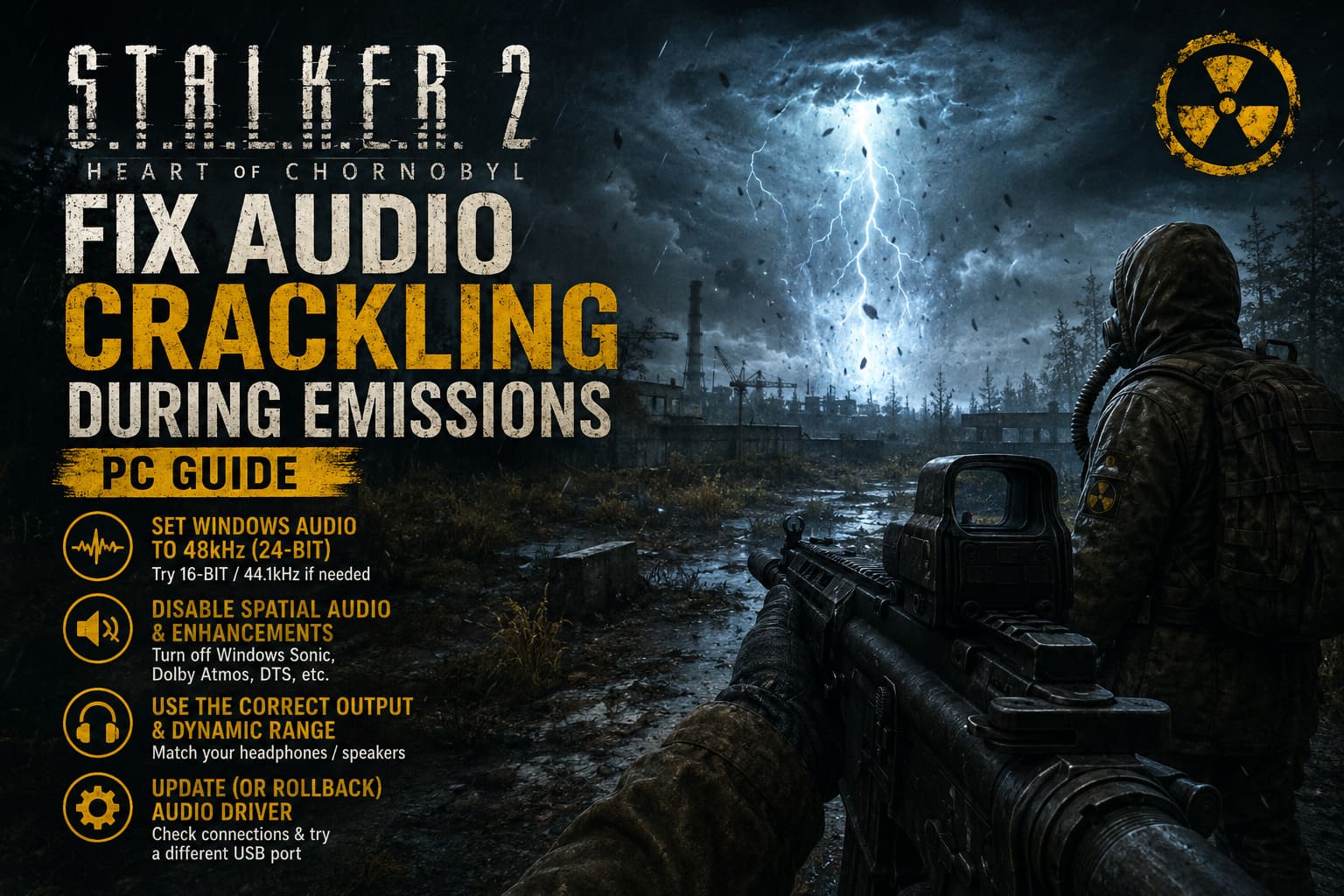
To change the setting:
- Press Windows + R.
- Type
mmsys.cpland press Enter. - Open the Playback tab.
- Find your active headphones or speakers.
- Right-click the device and select Properties.
- Open the Advanced tab.
- Find Default Format.
- If you’re using something like 24-bit/96kHz or 24-bit/192kHz, switch to 24-bit, 48000 Hz.
- If the problem continues, test 16-bit, 44100 Hz.
- Click Apply and restart STALKER 2.
Personally, I would start with 24-bit/48kHz. It is a sensible middle ground and avoids unnecessarily aggressive audio processing while retaining excellent quality.
Don’t obsess over the numbers here. You’re playing a game, not mastering a studio album.
Fix 2: Turn Off Windows Spatial Audio and Enhancements
This is another setting I would check before touching drivers.
Windows can apply additional processing through features such as Windows Sonic, Dolby Atmos, DTS Headphone:X, and device-specific enhancements.
Those features aren’t automatically bad. In fact, some can sound excellent. The problem is that stacking several processing systems on top of each other can create unexpected behavior.
Go back to:
Windows + R → mmsys.cpl → Playback → Your Device → Properties
Then check the available options.
If you see an Enhancements tab, try enabling:
Disable all enhancements
Then open the Spatial Sound tab and temporarily turn spatial processing off.
If you’re currently using Windows Sonic, Dolby Atmos, or DTS, test STALKER 2 without it.
The important word here is test. If disabling spatial sound fixes the Emission crackling, you’ve found the source. You can then experiment later to determine which processing option works best.
Fix 3: Make Sure STALKER 2 Uses the Correct Output Type
This sounds almost too simple, but I’ve seen plenty of games behave strangely when the selected audio device doesn’t match the hardware being used.
Launch STALKER 2 and open the game’s Sound settings.
Check the available output configuration and make sure it matches your actual setup.
If you’re using headphones, don’t leave the game configured as though you’re using a speaker system.
Also pay attention to the Dynamic Range option if the game provides different profiles.
If extremely deep bass causes your headset to distort during an Emission, try a less aggressive dynamic range option instead of the highest-quality or studio-style setting.
I actually prefer testing this before doing anything complicated. If the crackling disappears when the dynamic range is reduced, the problem may be related to how aggressively the lowest frequencies are being reproduced.
And yes, that giant Emission rumble sounds fantastic when everything works correctly. When it doesn’t, it can turn your headset into a vibrating tin can.
Fix 4: Update or Change the Audio Driver
Drivers are another obvious suspect, particularly if the problem appears only when your system is under heavy load.
Open Device Manager by right-clicking the Windows Start button.
Then:
- Expand Sound, video and game controllers.
- Locate your audio device.
- Right-click it.
- Select Update driver.
- Install the latest compatible driver from your hardware manufacturer if one is available.
- Restart the PC.
If you’ve recently updated your audio driver and the problem appeared afterward, the opposite approach may be worth trying: roll back to the previous driver.
This is particularly relevant for USB headsets and specialized gaming audio devices because their software often includes additional virtual surround, equalizer, microphone, and enhancement layers.
Don’t Ignore Your USB Connection
If you’re using a USB headset, try moving it to another port.
I’d recommend plugging it directly into a motherboard USB port rather than relying on a front-panel connection.
This isn’t guaranteed to solve the problem, but it is an easy test. Under heavy GPU and CPU activity, poorly isolated or problematic connections can sometimes produce interference or unstable behavior.
It costs nothing to try another port.
Fix 5: Check for DPC Latency Problems
This is the more technical possibility.
When a game pushes the CPU hard, some drivers can introduce excessive Deferred Procedure Call (DPC) latency. Audio is particularly sensitive to these interruptions because the system has to continuously deliver data to the playback device.
If the audio buffer isn’t supplied quickly enough, you can hear:
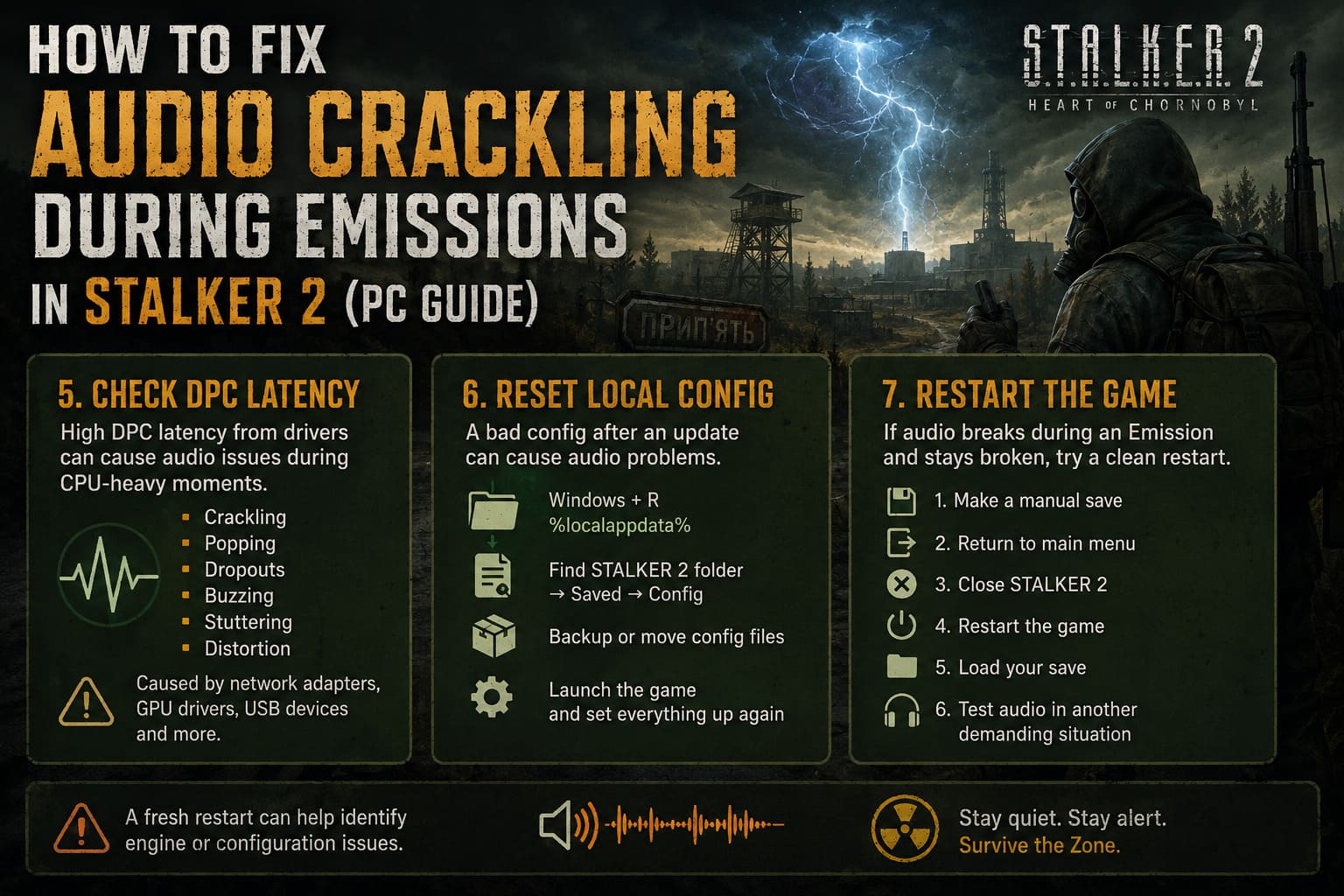
- Crackling
- Popping
- Short audio dropouts
- Buzzing
- Stuttering
- Distortion
If STALKER 2 runs perfectly during normal exploration but audio becomes problematic only during demanding Emissions, system latency is worth investigating.
Network adapters, GPU drivers, USB devices, and other hardware can all contribute to latency problems.
I wouldn’t start here unless the simpler fixes fail, though. There is no reason to spend an evening diagnosing DPC latency if changing the audio format to 48kHz fixes everything in five minutes.
Fix 6: Reset STALKER 2’s Local Configuration
Sometimes a game update leaves behind a configuration that doesn’t play nicely with the current version.
Before deleting anything, make a backup.
Close STALKER 2 completely, then press:
Windows + R
Enter:
%localappdata%
Look for the STALKER 2-related folder and navigate toward its saved configuration files.
If you find the game’s Saved → Config directory, you can move the configuration files somewhere safe rather than immediately deleting them.
The reason I prefer moving them is simple: if something goes wrong, you can restore the originals.
After resetting the configuration, launch the game again and configure your settings from scratch.
This will also reset other preferences, so don’t be surprised if graphics and control settings need to be changed again.
Fix 7: Reload the Game After an Emission Breaks the Audio
Here’s the least glamorous solution, but sometimes it’s the one that works.
If the crackling begins during an Emission and continues even after the event is finished, the game may simply be stuck in a bad audio state.
Before doing anything drastic:
- Create a manual save.
- Return to the main menu.
- Completely close STALKER 2.
- Restart the game.
- Load your save.
- Trigger or wait for another demanding situation and test the audio.
I know restarting a game isn’t exactly satisfying when you’re in the middle of something important. But I’ve learned over the years that a clean restart can tell you a lot about a technical problem.
If the audio is immediately normal after restarting but breaks again during the next Emission, you have a much stronger indication that you’re dealing with an engine or configuration issue rather than permanently damaged hardware.
The Settings I’d Try First
If you don’t want to go through seven different troubleshooting procedures, this is the order I’d personally use:
| Priority | Setting | What I’d Try |
|---|---|---|
| 1 | Windows Audio Format | 24-bit/48kHz |
| 2 | Spatial Sound | Off |
| 3 | Audio Enhancements | Disabled |
| 4 | Game Output Type | Match Your Headset/Speakers |
| 5 | Dynamic Range | Lower Setting |
| 6 | Audio Driver | Update or Roll Back |
| 7 | Configuration | Reset After Backup |
The first three take only a few minutes and are the least invasive.
How to Fish Multiplayer Not Working? Fix the Create Session Bug and Join Errors Now
Don’t Immediately Blame Your Headset
One thing I want to emphasize is that crackling during Emissions doesn’t automatically mean your headphones are broken.
If music, YouTube, Discord, and other games sound perfectly clean, but STALKER 2 produces distortion specifically during Emissions, there’s a good chance the problem is software-related.
Try the same game with another headset or your monitor’s speakers if possible.
If the problem follows the game rather than the hardware, that gives you a useful clue.
Likewise, if another headset completely eliminates the problem, investigate your original device’s driver, sample rate, USB connection, and enhancement software before assuming the game itself is responsible.
Final Thoughts
For me, Emissions are some of the best moments in STALKER 2 precisely because the audio is so important. The distant rumble, sudden changes in the atmosphere, wind, warnings, and increasingly chaotic soundscape make the Zone feel genuinely dangerous.
That’s why audio crackling during these events is more than a minor annoyance. It can completely destroy one of the game’s strongest atmospheric effects.
I’d start with the boring fixes first: set Windows to 24-bit/48kHz, disable extra spatial processing, turn off unnecessary enhancements, and make sure STALKER 2 is configured for the correct output device.
If that doesn’t work, move on to drivers, USB connections, latency investigation, and finally a configuration reset.
You shouldn’t need an expensive sound card or a completely new headset just to survive an Emission without your headphones sounding like they’re being fed through a broken amplifier.
And if you’ve already tried everything here and the problem happens exclusively during Emissions, I’d keep an eye on future STALKER 2 patches and community reports. When a bug is this specific to a particular in-game event, sometimes the cleanest solution ultimately has to come from the developer rather than another Windows checkbox.