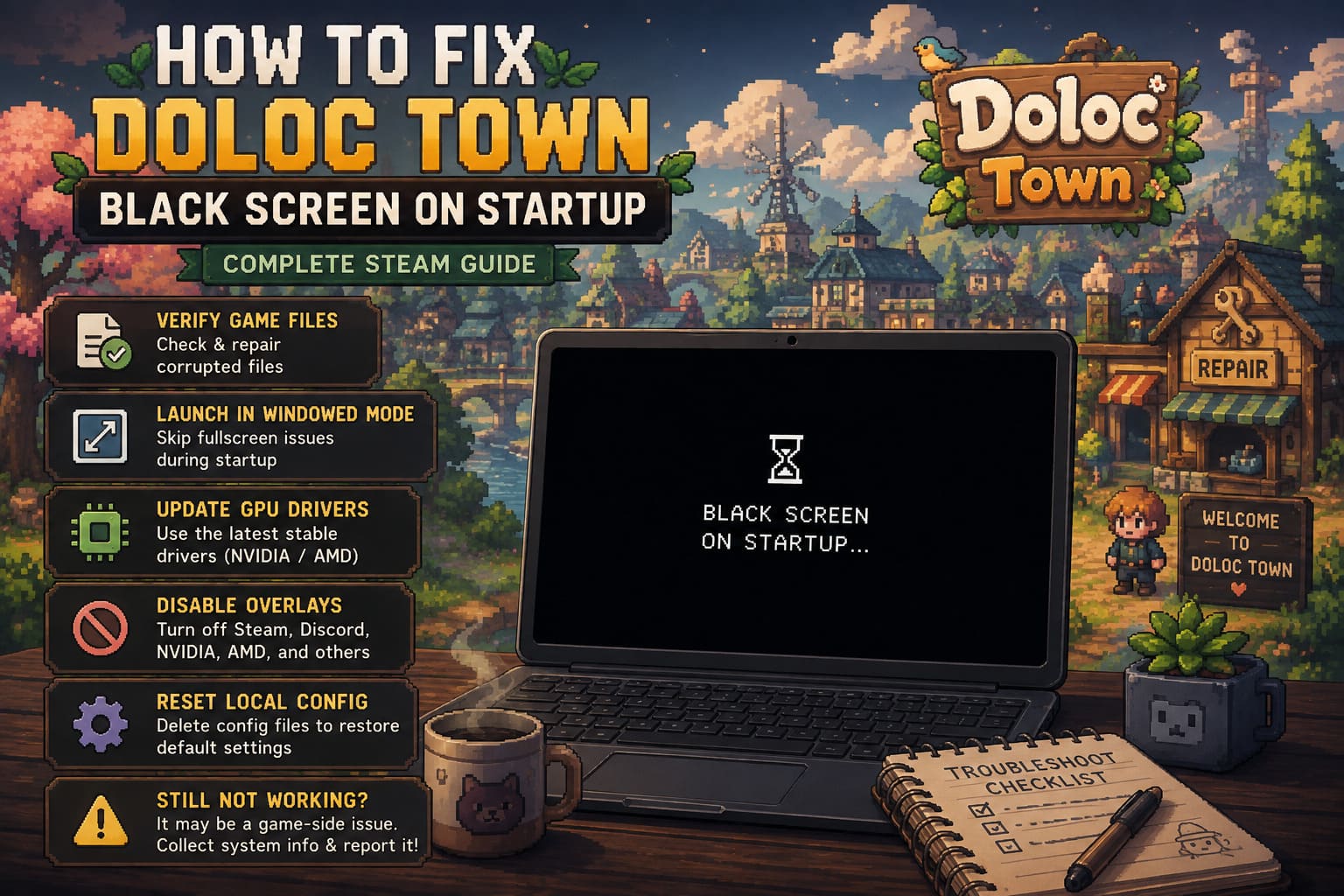
How to Fix Doloc Town Black Screen on Startup: Complete Steam Guide
Doloc Town is the kind of game I can easily lose an evening to. After playing countless farming sims, survival games, pixel-art adventures, and the occasional brutally stubborn indie title, I have a soft spot for games that combine relaxing progression with a little bit of chaos. Doloc Town manages to do exactly that with its post-apocalyptic setting, mutated crops, scavenging, crafting, and unpredictable weather.
Unfortunately, getting into the game isn’t always as relaxing as actually playing it.
Since the game’s 1.0 release, some PC players have run into a particularly annoying problem: Doloc Town launches to a black screen and never reaches the main menu. Sometimes the screen goes black immediately. Other players make it through the Unity logo or introductory developer screens before everything freezes. In the worst cases, the game window remains open but completely stops responding.
I’ve run into plenty of black-screen problems across different PC games over the years, and the frustrating part is that they rarely have one universal cause. One game might be fighting with your GPU driver, another might hate your monitor’s resolution, while a third simply doesn’t like an overlay running in the background.
With Doloc Town, there are several things worth trying before assuming the installation is broken.
This Doloc Town black screen fix guide walks through the troubleshooting methods I’d personally try, starting with the quick solutions and gradually moving toward the more involved ones.
Doloc Town Black Screen Fixes at a Glance
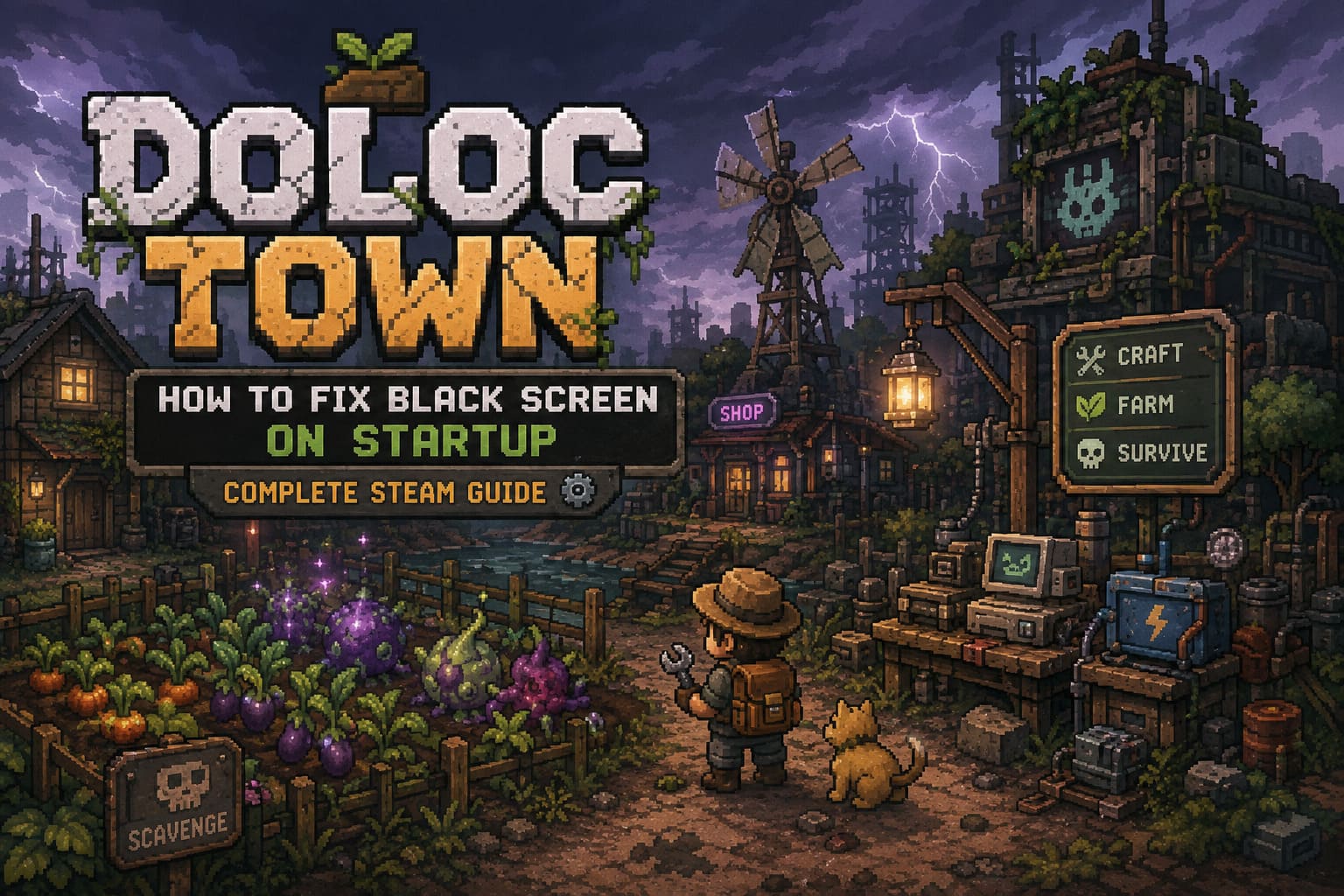
| Fix | Difficulty | What It Targets |
|---|---|---|
| Verify Game Files | Easy | Corrupt or Missing Files |
| Force Windowed Mode | Easy | Resolution Problems |
| Disable Fullscreen Optimizations | Easy | Windows Display Conflicts |
| Reinstall GPU Drivers | Moderate | Driver And Shader Issues |
| Disable Overlays | Easy | Overlay Conflicts |
| Reset Configuration | Moderate | Corrupt Settings |
| Contact Support | Advanced | Possible Engine Bugs |
If you’re impatient like me and just want to play, start with the first two methods. They take only a few minutes and are the least disruptive.
1. Verify the Integrity of Doloc Town’s Game Files
This is always my first stop when an indie PC game suddenly refuses to launch.
Large updates can occasionally leave behind a damaged or incomplete file. It doesn’t necessarily mean Steam failed to download the game correctly. A single corrupted asset, DLL, or resource file can be enough to prevent the game from completing its startup sequence.
For a game like Doloc Town, where the engine has to initialize a lot of visual assets before reaching the menu, this is one of the simplest things to rule out.
How to verify Doloc Town files
- Completely close Doloc Town.
- Open Steam and go to your Library.
- Right-click Doloc Town.
- Select Properties.
- Open Installed Files.
- Select Verify integrity of game files.
- Wait for Steam to complete the scan.
If Steam finds anything wrong, it should automatically download replacement files.
Once the process finishes, I’d recommend restarting Windows before launching the game again. It isn’t always necessary, but I’ve found that a proper restart is worthwhile after repairing a problematic game installation.
If Doloc Town still opens to a black screen, move on rather than repeatedly verifying the files. There is no benefit in running the same repair ten times if the actual problem is display initialization.
2. Force Doloc Town to Start in Windowed Mode
This is probably the most useful trick if you can hear the game running but see nothing.
A black screen can happen when a game tries to initialize fullscreen mode using a resolution, refresh rate, or display configuration that doesn’t play nicely with Windows.
I’ve seen this happen particularly often on PCs with multiple monitors, high-refresh-rate displays, ultrawide monitors, or unusual desktop resolutions.
Fortunately, Steam gives us a simple way around it.
Force windowed mode
Open Steam, find Doloc Town in your Library, right-click it, and select Properties.
Stay on the General tab and find the Launch Options field.
Enter:
-windowed
Then close the Properties window and launch the game.
If that doesn’t work, you can also try:
-window
For a standard Full HD display, another option is:
-windowed -w 1920 -h 1080
If Doloc Town finally appears in a window, that’s a very good sign. Go into the game’s graphics settings and select a resolution that matches your monitor. I’d personally try Borderless Fullscreen afterward instead of immediately jumping back to exclusive fullscreen.
Once everything works, remove the launch option from Steam.
3. Disable Windows Fullscreen Optimizations
If windowed mode helps but fullscreen continues to cause problems, Windows itself may be getting involved.
Modern versions of Windows use a fullscreen optimization layer designed to make games transition between different display modes more efficiently. Most of the time, you never notice it.
Occasionally, however, a game simply doesn’t cooperate.
To test this:
- Open your Steam Library.
- Right-click Doloc Town.
- Select Manage → Browse local files.
- Locate the game’s main executable.
- Right-click the
.exefile. - Select Properties.
- Open the Compatibility tab.
- Enable Disable fullscreen optimizations.
- Click Apply and then OK.
You can also test Run this program as an administrator.
I wouldn’t immediately recommend compatibility mode unless the other options fail. If you still can’t get past the black screen, however, Windows 8 or Windows 7 compatibility modes are worth experimenting with as a last-resort compatibility test.
Just remember to undo compatibility changes if they don’t help. I’ve seen players stack five different Windows compatibility settings together and then forget which one actually caused the next problem.
4. Give Your GPU Drivers a Proper Refresh
Graphics drivers are one of those boring PC maintenance tasks that become very interesting the moment a game refuses to render.
If your NVIDIA, AMD, or Intel driver is outdated—or if an update went sideways—Doloc Town can potentially fail during its initial rendering process.
I’d start with the simple approach: check your GPU manufacturer’s official driver software and install the latest stable driver available for your hardware.
If the problem appeared immediately after a driver update, the situation is slightly different. In that case, a clean driver installation may be more useful than simply installing another update over the top.
When a clean installation is worth trying
Consider using Display Driver Uninstaller (DDU) if:
- Several games have recently developed graphical problems.
- You have changed GPU manufacturers.
- A previous driver installation failed.
- The black screen appeared immediately after a driver update.
- Games are freezing during their startup splash screens.
The general process is to boot Windows into Safe Mode, use DDU to remove the existing graphics driver, restart, and install a fresh driver package.
This is more work than clicking “Update Driver,” so I wouldn’t do it solely because Doloc Town takes an extra few seconds to launch. But if you’re seeing graphics problems across multiple games, a clean GPU driver installation becomes much more convincing as a solution.
5. Turn Off Steam, Discord, and Other Overlays
Here’s another fix I use frequently when troubleshooting PC games.
Overlays are convenient. Steam’s overlay lets you browse guides, Discord lets you communicate with friends, NVIDIA and AMD software can capture footage, and tools such as RivaTuner provide useful performance information.
The downside is that every one of these programs wants to interact with the game while it’s rendering.
Usually, everything works perfectly.
Sometimes, two pieces of software decide they both want control at exactly the wrong moment.
Temporarily disable these tools
Start with the Steam Overlay:
- Open Steam.
- Go to Settings.
- Select In Game.
- Disable Enable the Steam Overlay while in-game.
Then temporarily disable Discord’s game overlay as well.
If you’re still getting a black screen, close additional background software such as:
- OBS Studio
- RivaTuner Statistics Server
- NVIDIA recording features
- AMD recording features
- MSI Afterburner
- Other performance-monitoring overlays
You don’t have to uninstall anything. The goal is simply to determine whether another application is interfering with Doloc Town’s startup rendering.
If the game suddenly works, enable your applications one at a time afterward. That’s much easier than guessing which program caused the conflict.
6. Reset Doloc Town’s Local Configuration
This is the fix I’d save for later because it involves your local game settings.
A damaged configuration file can cause surprisingly strange behavior. Resolution, display mode, graphics settings, controller preferences, and other startup information can all be stored outside the actual Steam installation.
If one of those files becomes corrupted, reinstalling the game may not necessarily fix the problem because the broken configuration can remain on your PC.
How to reset the configuration
Press:
Windows Key + R
Then enter:
%appdata%
Press Enter.
Look for a folder associated with Doloc Town or its developer/publisher.
If you don’t find it there, check:
%localappdata%
and the LocalLow directory as well.
Before deleting anything, I strongly recommend making a backup.
Instead of immediately destroying the folder, move it to your desktop and rename it something like:
Doloc Town Backup
Now launch the game.
If the black screen disappears, you’ve probably found the culprit. Doloc Town should generate a fresh configuration automatically, allowing you to start with default settings.
The downside is that you may need to configure your graphics and controls again.
That’s a small price to pay for getting back into the game.
7. If Nothing Works, It May Actually Be a Game-Side Problem
This is the part of troubleshooting that PC gamers don’t always like hearing.
Sometimes your computer isn’t the problem.
If you’ve verified the files, tested windowed mode, disabled overlays, refreshed the GPU drivers, and reset the configuration, but Doloc Town still consistently freezes before the menu, there may be an engine-level compatibility issue affecting your particular hardware combination.
That’s especially possible with a recently released 1.0 build.
Games can behave differently depending on the combination of GPU, Windows version, drivers, monitor configuration, background applications, and display settings. Two PCs that look almost identical on paper can behave completely differently in practice.
If you’ve reached this point, don’t keep randomly changing Windows settings.
Instead, collect useful diagnostic information.
A good bug report should include your:
- GPU model
- CPU model
- Windows version
- GPU driver version
- Monitor resolution
- Whether you use multiple monitors
- Whether the game reaches the Unity logo
- Whether you can hear audio behind the black screen
- Any error message or crash behavior
You should also gather DxDiag information and the game’s player/log files if the developers request them.
Submitting detailed information is far more useful to a developer than simply saying, “Game doesn’t work.”
My Recommended Order of Attack
After troubleshooting dozens of PC games over the years, I try not to turn every technical problem into a three-hour project.
For the Doloc Town black screen issue, this is the order I’d personally follow:
- Verify the Steam game files.
- Launch using
-windowed. - Try a forced 1920×1080 window if necessary.
- Disable fullscreen optimizations.
- Turn off Steam and third-party overlays.
- Update or clean-install GPU drivers.
- Reset Doloc Town’s local configuration.
- Contact the developers if the problem remains.
The first five steps are relatively safe and reversible. I wouldn’t jump straight into deleting folders or using DDU unless the simpler solutions have failed.
Is Doloc Town 1.0 Worth Buying in 2026? Full Review & Community Verdict
Final Thoughts
The frustrating thing about a Doloc Town black screen on startup is that the game can appear completely broken even when the underlying installation is fine. A display-mode conflict can look like a crash. An overlay problem can look like corrupted files. A bad configuration can make a perfectly capable PC appear unable to run the game.
That’s why I recommend working through the fixes systematically rather than changing everything at once.
In my experience, verifying the installation and forcing the game into windowed mode are the two fixes I’d try first. They’re quick, they don’t involve deleting anything important, and they immediately tell you whether you’re dealing with a basic installation or display-initialization problem.
If those don’t work, move toward overlays, fullscreen compatibility settings, GPU drivers, and finally the local configuration.
And if you’ve gone through all of that with no improvement, don’t assume your PC is suddenly too weak for Doloc Town. A new release can have very specific hardware or software compatibility bugs that only become obvious once thousands of different PC configurations start running it.
Keep Steam and your graphics drivers updated, watch for Doloc Town hotfixes, and keep your diagnostic information handy if you need to contact support.
Hopefully, you won’t have to spend much time looking at that black screen. The wasteland has crops to grow, equipment to repair, and mutated weather to survive.