How to Fix Ground Branch Server Connection Timeout and Microphone Not Working Errors (2026 Guide)
I’ve spent hundreds of hours playing tactical shooters, and very few games deliver the same level of tension as Ground Branch. Every movement matters, every corner can hide danger, and good communication is often more valuable than perfect aim. That’s exactly why technical issues feel so frustrating in this game. Losing connection in the middle of a mission or realizing your teammates can’t hear you completely ruins the experience.
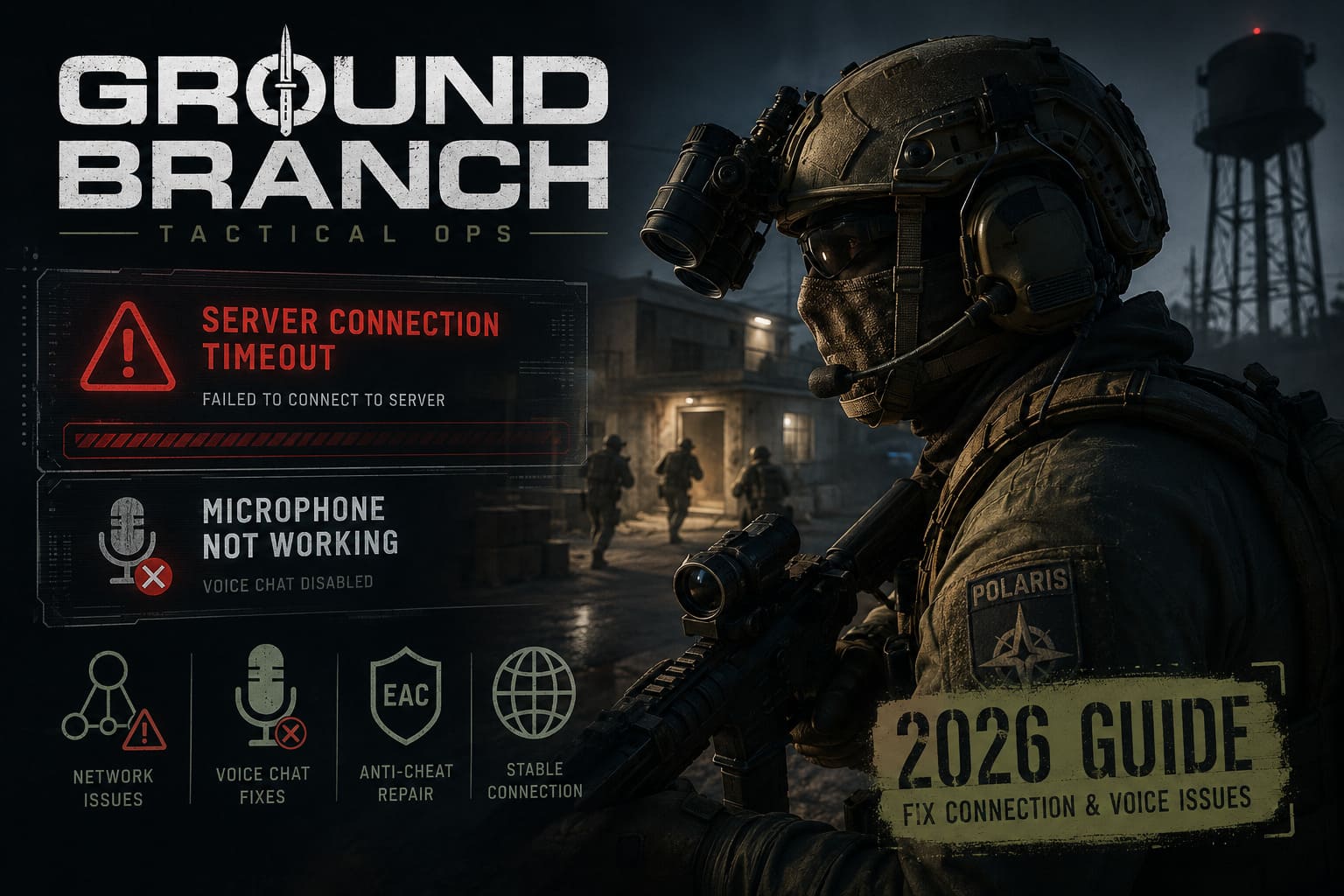
During the past several months I’ve been testing different updates, reading Steam discussions, following community reports, and trying countless fixes myself. While not every solution works for every PC, I’ve found several methods that consistently solve the two biggest problems players continue to report in 2026:
- Server Connection Timeout
- Microphone or VOIP Not Working
Instead of throwing random fixes at your computer, I recommend working through these solutions step by step. Most players won’t even need to finish the entire guide before the issue disappears.
Why These Problems Keep Appearing
Ground Branch isn’t a simple arcade shooter. Every multiplayer session depends on multiple services communicating correctly. Steam, Easy Anti-Cheat, Epic Online Services, Windows networking, and your local hardware all need to work together. If just one part of that chain fails, you can easily end up staring at a timeout message or wondering why your teammates can’t hear your callouts.
| Issue | Most Common Cause | Difficulty to Fix |
|---|---|---|
| Server Connection Timeout | Network routing, EOS authentication, Steam cache | Easy-Medium |
| Voice Chat Not Working | Windows microphone settings, Steam audio routing | Easy |
| Random Disconnects | Network instability or corrupted game files | Medium |
| Squad Can’t Hear You | Wrong default communication device | Easy |
Because the game relies on several online services working together, even a small Windows configuration issue can prevent you from joining servers or speaking through the built-in radio system.
Fixing the Server Connection Timeout Error
When I first started getting timeout errors, I assumed the servers were simply overloaded. That wasn’t the case. After testing different solutions over multiple evenings with friends, I realized the problem usually came from my own PC rather than the game itself. If you’re seeing connection failures before loading into a server or getting kicked back to the menu, these are the first fixes I’d recommend.
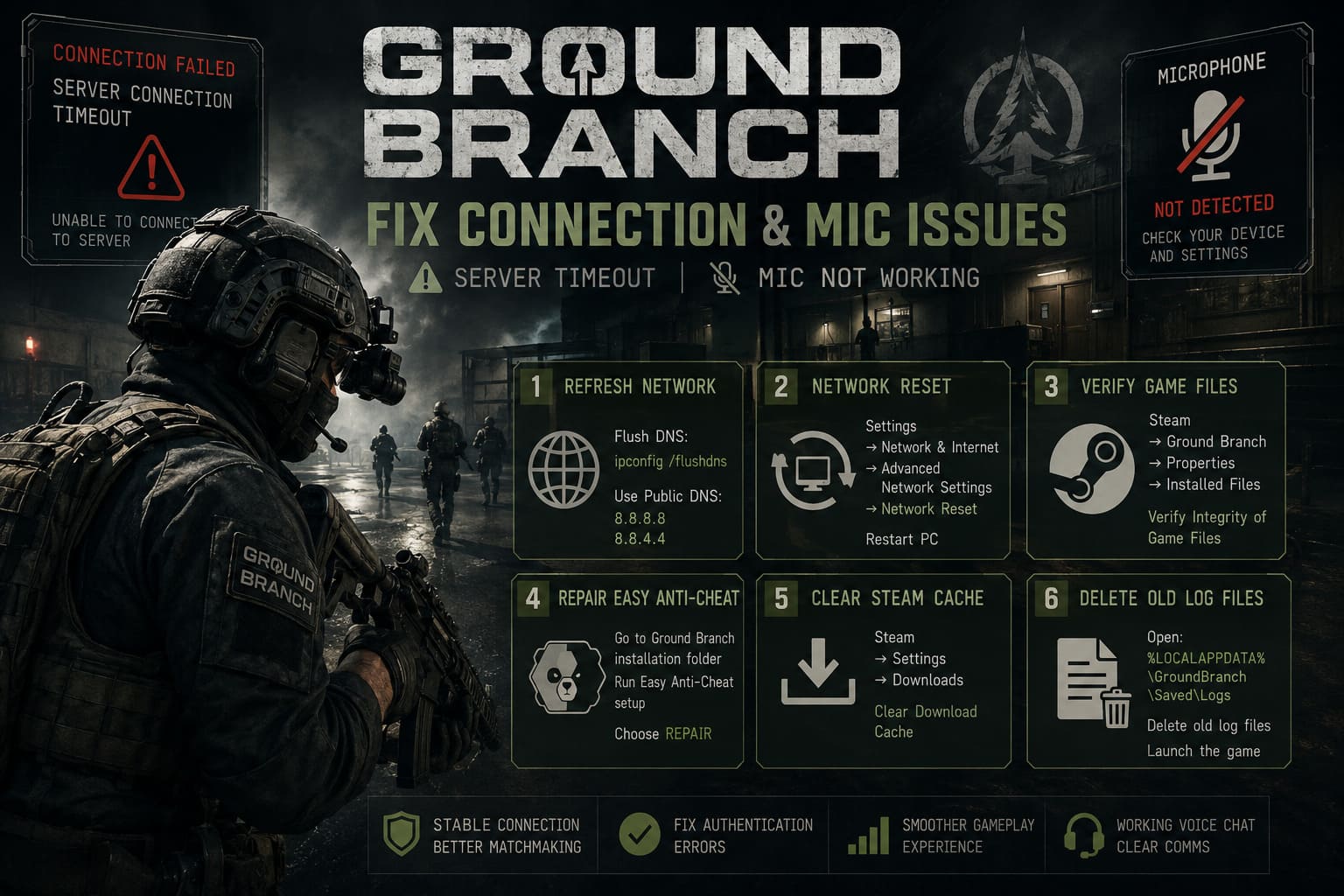
1. Refresh Your Network Configuration
One of the quickest fixes is cleaning up your network routing. I usually start by opening Command Prompt as Administrator and running ipconfig /flushdns. This removes outdated DNS records that can interfere with server authentication.
After that, switch to a stable public DNS service.
- Preferred DNS: 8.8.8.8
- Alternate DNS: 8.8.4.4
I’ve personally noticed matchmaking becoming much more reliable after making this change, especially following large seasonal updates.
2. Perform a Complete Windows Network Reset
If flushing DNS doesn’t help, Windows networking may have become cluttered by VPN software, driver updates, or previous adapter changes. Instead of chasing every possible setting, I simply perform a full Network Reset.
Open Settings → Network & Internet → Advanced Network Settings → Network Reset, confirm the reset, and allow Windows to reboot. This rebuilds your networking configuration from scratch and has solved multiplayer issues for me in several Unreal Engine games, not just Ground Branch.
3. Verify the Game Installation
Corrupted game files are more common than many players realize, especially after interrupted downloads or hotfix patches. Steam includes a built-in verification tool that compares every installed file against the latest official version.
Open the game’s Properties, navigate to Installed Files, and click Verify Integrity of Game Files. If Steam downloads replacement files afterward, launch the game again before trying anything more complicated.
4. Repair Easy Anti-Cheat
This is one of the most overlooked fixes. If Easy Anti-Cheat doesn’t complete its authentication correctly, the game server may simply report a timeout instead of displaying a more accurate error.
Open the Ground Branch installation folder, locate the Easy Anti-Cheat setup utility, run the repair option, restart Steam, and reconnect. The process only takes a minute and has fixed authentication problems for me more than once.
5. Clear Steam Download Cache
Steam occasionally stores outdated update information after major patches. Clearing the download cache forces the client to rebuild that data.
Navigate to Steam → Settings → Downloads → Clear Download Cache. You’ll need to log in again afterward, but it’s a quick step that can eliminate strange update-related connection issues.
6. Remove Old Ground Branch Log Files
The game stores diagnostic logs inside your Local AppData folder. These files don’t affect your progress, but deleting outdated logs after several updates can sometimes eliminate temporary engine conflicts.
Open the following directory:
%LOCALAPPDATA%\GroundBranch\Saved\Logs
Delete the old log files, launch the game again, and allow fresh logs to be generated automatically.
How I Fixed Ground Branch Voice Chat
Voice communication is the backbone of Ground Branch. Unlike faster shooters where everyone runs independently, this game expects players to coordinate every movement. Clearing rooms, calling enemy positions, and organizing breaches all depend on reliable voice communication.
Fortunately, most microphone issues aren’t caused by the game itself. They’re usually related to Windows or Steam selecting the wrong audio device.
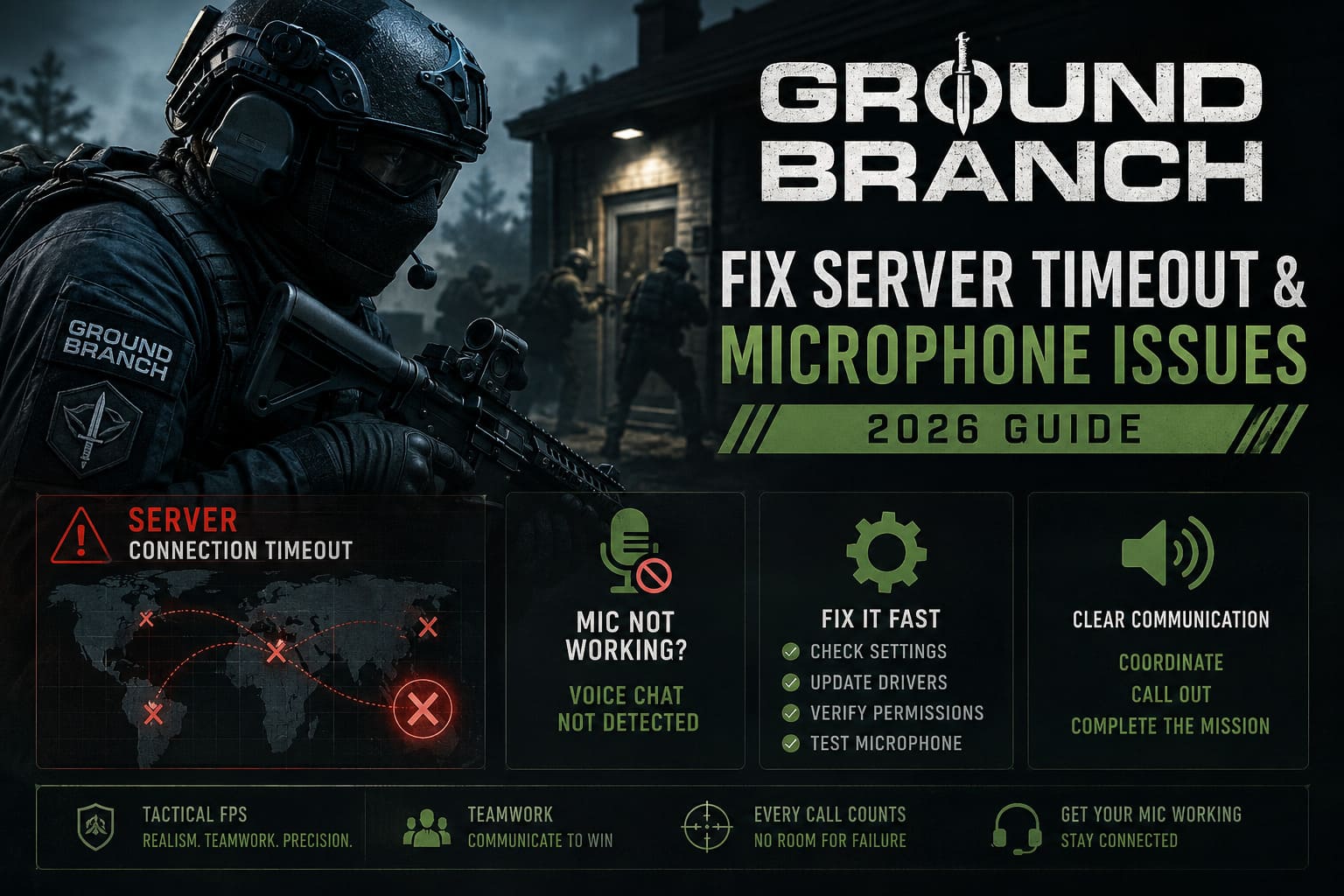
Reset the Voice Input Mode
This workaround sounds almost ridiculous, but it has worked for me multiple times.
- Open the Audio settings.
- Change Voice Input Mode to Toggle.
- Click Apply.
- Switch back to Push To Talk.
- Click Apply again.
Changing the setting twice forces the game to rewrite its voice configuration, which often restores normal functionality.
Make Sure Windows Uses the Correct Microphone
Most gaming PCs have several recording devices available at the same time. Your webcam, VR headset, monitor, USB microphone, or virtual audio software can all confuse Windows.
Ground Branch typically uses the Windows default communication device, so it’s important to disable microphones you don’t actually use.
- Open the Recording devices menu.
- Disable unused microphones.
- Set your gaming microphone as the Default Device.
- Also set it as the Default Communication Device.
Doing this removes nearly all microphone detection problems before the game even starts.
Check Steam Voice Settings
Even if Windows is configured correctly, Steam may still be listening to the wrong microphone.
Open Steam Voice Settings, manually select your preferred microphone instead of leaving it on Default, and run Steam’s built-in microphone test. If Steam can’t detect your voice correctly, Ground Branch probably won’t either.
Configure Steam Client WebHelper
This fix surprised me the first time I tried it. Several players discovered that Steam Client WebHelper sometimes routes audio through the wrong hardware device.
While Ground Branch is running, open Windows Sound Settings, navigate to App Volume and Device Preferences, locate Steam Client WebHelper, and manually assign both input and output to your gaming headset. In several cases this immediately restored in-game voice communication.
Check Windows Privacy Permissions
Windows security updates occasionally disable microphone permissions without making it obvious.
Open Settings → Privacy & Security → Microphone and confirm that both Microphone Access and Desktop App Access are enabled. If either setting is disabled, Ground Branch won’t receive any microphone input regardless of your other audio settings.
Extra Tips That Improved My Multiplayer Experience
These aren’t direct fixes for timeout errors, but they’ve definitely helped improve stability during long multiplayer sessions.
Close Unnecessary Background Software
Ground Branch already asks a lot from your system, so I avoid running unnecessary overlays or heavy applications while playing.
- Close unused RGB software.
- Disable recording programs you aren’t using.
- Reduce the number of browser tabs running in the background.
- Exit launchers that aren’t needed during gameplay.
Keep Network Drivers Updated
Windows Update doesn’t always install the newest Ethernet or Wi-Fi drivers. Visiting your motherboard or network adapter manufacturer’s website and installing the latest official drivers can noticeably improve connection stability.
Choose Ethernet Whenever Possible
If you have access to a wired connection, use it. Ground Branch rewards precision, and even minor wireless packet loss can become noticeable during intense firefights. Whenever my squad plans a long co-op session, I always switch to Ethernet because the overall experience feels much smoother.
Ground Branch 1.0 Crash on Launch Fix Steam & Low FPS Optimization Settings Guide (2026)
My Personal Experience
Before working through these troubleshooting steps, I dealt with random disconnects almost every night. Some evenings I couldn’t stay connected for more than fifteen minutes, and voice chat frequently forced our squad onto Discord instead of using the game’s immersive radio system.
After repairing Easy Anti-Cheat, clearing Steam’s cache, resetting my network configuration, and cleaning up my Windows audio settings, nearly every issue disappeared. Since then I’ve completed dozens of multiplayer operations without another timeout, and the in-game radio has worked exactly as intended.
Ground Branch 1.0 Guide: Best Weapons, Armor Mechanics, and 100% Achievement Walkthrough (2026)
Final Thoughts
Ground Branch remains one of my favorite tactical shooters because it rewards patience, communication, and teamwork instead of constant sprinting and arcade-style action. That’s exactly why technical issues stand out so much—they interrupt one of the most immersive multiplayer experiences currently available.
If you’re dealing with Server Connection Timeout errors or a Microphone Not Working problem in 2026, don’t immediately assume the servers are at fault. More often than not, the issue comes from local networking, Windows communication settings, Steam configuration, or Easy Anti-Cheat authentication.
Start with the simplest solutions first. Verify your game files, refresh your DNS, check your microphone configuration, and only move on to larger network resets if necessary. Working through these fixes methodically saves time and usually gets you back into the action much faster.
Once everything is working properly, Ground Branch reminds me why I keep coming back to tactical shooters. Every successful breach, every coordinated room clear, and every extraction earned through teamwork feels incredibly satisfying, especially when the connection is stable and your squad can hear every callout loud and clear.