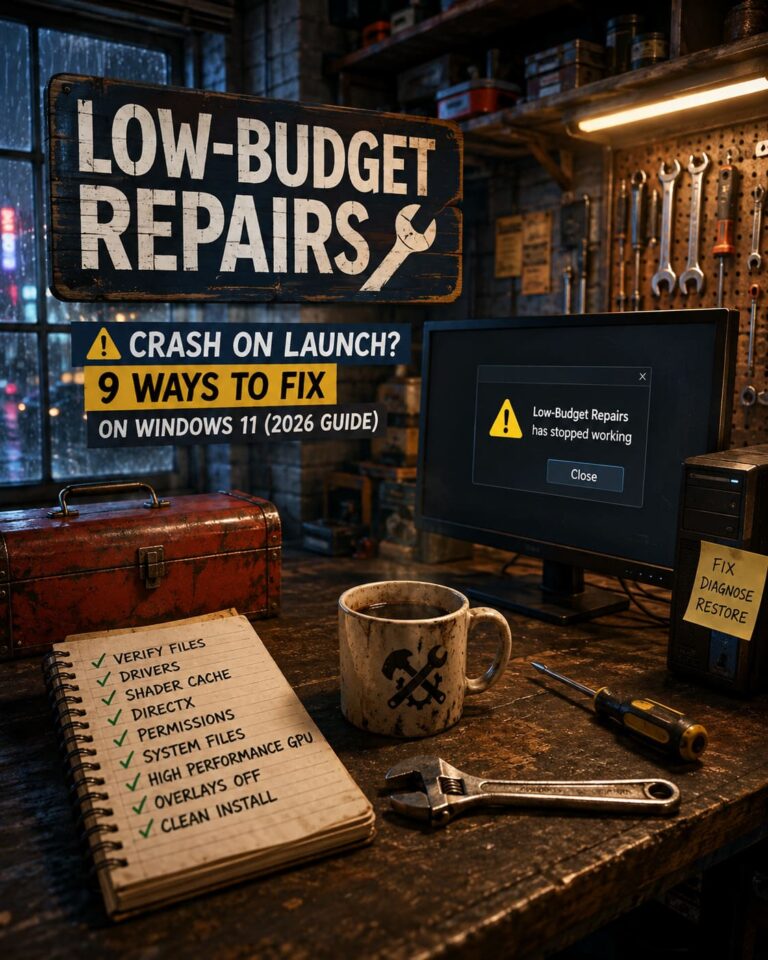
How to Fix HUNGER (Good Fun Corporation) Crash on Launch in Windows 11 (2026 Guide)
When a new multiplayer RPG catches my attention, I usually spend hours exploring every mechanic before I even think about writing guides. HUNGER immediately became one of those games. The atmosphere, brutal combat, and dark Napoleonic setting create something that feels refreshingly different from most extraction games we’ve seen recently.
But there was one problem.
Instead of jumping into the action, many players—including members of my community—were greeted with a black screen, an instant crash to desktop, or a game that simply refused to launch. I experienced some of these issues myself during early testing, and after helping dozens of viewers troubleshoot their systems, I noticed that the same solutions kept appearing over and over again.
This isn’t one of those guides filled with random “magic fixes.” These are the methods that actually make sense and have consistently solved startup problems on Windows 11.
Let’s get into it.
Why HUNGER Crashes Before It Even Starts
Early Access games are rarely perfect. Developers are still optimizing shaders, networking, memory management, and hardware compatibility. Add Windows 11, constantly evolving GPU drivers, and dozens of background applications, and you’ve got plenty of opportunities for something to go wrong.

Most launch crashes usually come down to one of these:
| Problem | Result |
|---|---|
| Corrupted game files | Crash before intro logos |
| Broken shader cache | Infinite black screen |
| Outdated Visual C++ or DirectX | Instant desktop crash |
| GPU driver conflicts | Engine fails to initialize |
| Windows security restrictions | Game closes without errors |
| Incorrect graphics assignment | Launch failure on laptops |
Fortunately, almost all of these issues are fixable without reinstalling Windows or replacing hardware.
1. Verify Your Game Files First
This is always my first recommendation, especially after a large update or patch.
Steam and Epic occasionally finish downloads with missing or corrupted files. Even a single damaged shader package can prevent Unreal Engine from loading correctly.

Steam
- Open your Library.
- Right-click HUNGER.
- Select Properties.
- Open Installed Files.
- Click Verify integrity of game files.
Epic Games Store
- Open Library.
- Click the three dots under HUNGER.
- Choose Manage.
- Select Verify.
It takes only a few minutes and has solved launch problems for plenty of players.
2. Delete the Local Shader Cache
One thing I noticed during testing is that shader cache corruption happens surprisingly often.
If the game crashed while compiling shaders once, Windows may continue loading those damaged cache files every single launch.
Here’s what I recommend.
Open Run by pressing Windows + R.
Type:
%localappdata%
Look for the HUNGER folder (or the developer folder).
Inside the Saved directory, delete:
- Pipeline cache files
- Shader cache
- Cache folder
If the crashes continue, remove the Config folder as well.
The game will rebuild everything the next time it launches.
Yes, your graphics settings will reset—but that’s a small price to pay if the game actually starts.
3. Clear Steam’s Download Cache
This sounds unrelated, but I’ve personally seen it fix stubborn launch issues after failed updates.
Steam sometimes keeps corrupted download data locally. Even verifying files may repeatedly use the same damaged cache.
To clear it:
- Open Steam Settings.
- Go to Downloads.
- Click Clear Download Cache.
- Log back into Steam.
- Launch HUNGER again.
It’s quick, painless, and worth trying.
4. Repair Visual C++ and DirectX
Modern PC games depend heavily on Microsoft’s runtime libraries.
If one of those packages becomes corrupted, the game may never even display an error message.
I always recommend reinstalling:
- Microsoft Visual C++ Redistributables (2015–2022)
- DirectX End-User Runtime
Even if they’re already installed, choose Repair instead of skipping the installation.
Then restart Windows.
This simple reboot is surprisingly important because Windows often doesn’t replace DLL files until after restarting.
5. Perform a Clean GPU Driver Installation
Updating graphics drivers through GeForce Experience or AMD Software is convenient.
Unfortunately, convenience doesn’t always mean clean.
Old driver remnants can conflict with brand-new game builds, especially during Early Access.
When I start seeing unexplained crashes across multiple games, I usually perform a completely fresh installation.
My preferred approach is:
- Download the latest driver for your GPU.
- Boot Windows into Safe Mode.
- Use Display Driver Uninstaller (DDU).
- Remove every trace of the existing driver.
- Restart Windows.
- Install the latest driver manually.
It takes a little longer than a normal update, but it eliminates years of leftover driver files that may be causing instability.
6. Force Windows to Use Your Dedicated Graphics Card
Laptop users run into this issue more often than desktop players.
Windows occasionally decides that your expensive RTX or Radeon GPU doesn’t need to be used and launches the game using integrated graphics instead.

Obviously, that doesn’t end well.
Open Graphics Settings.
Add the HUNGER executable manually.
Then choose High Performance.
This ensures Windows launches the game using your dedicated graphics card instead of integrated graphics.
If Hardware Accelerated GPU Scheduling is available on your system, I also recommend enabling it.
7. Disable Fullscreen Optimizations
I’ve lost count of how many Unreal Engine games became stable after disabling Fullscreen Optimizations.
It’s one of those Windows features that sounds great on paper but occasionally introduces compatibility problems.
Navigate to the game’s executable.
Open Properties → Compatibility.
Enable:
- Run as Administrator
- Disable Fullscreen Optimizations
If you’re still crashing immediately, try enabling Windows 10 Compatibility Mode.
It doesn’t always help—but when it does, it’s usually because Windows 11 is applying modern display optimizations that the game simply isn’t ready for.
8. Check Windows Security
Security software can sometimes become overprotective with newly released multiplayer games.
Because HUNGER is still receiving frequent updates, Windows Defender or third-party antivirus software may incorrectly block certain launch processes.
Instead of permanently disabling protection, I suggest checking whether your antivirus has quarantined any game files.
Also make sure that:
- HUNGER is allowed through Windows Firewall.
- Your antivirus exclusions include the game folder.
- Steam or Epic has full access to the installation directory.
Only disable real-time protection temporarily for testing purposes, then re-enable it afterward if that turns out to be the issue.
9. Increase Your Virtual Memory
One fix that surprised several people in my community was increasing Windows’ paging file.
If your system runs low on available memory while loading textures and shaders, Windows may terminate the process before the main menu even appears.
You can manually increase virtual memory by opening Advanced System Settings, then navigating to Performance → Advanced → Virtual Memory.
Many players use a paging file size around 1.5× their installed RAM as a starting point.
| Installed RAM | Suggested Paging File |
|---|---|
| 16 GB | ~24 GB |
| 32 GB | ~48 GB |
| 64 GB | ~96 GB |
It’s not a miracle fix, but systems with limited RAM often become much more stable after increasing available virtual memory.
HUNGER Combat Guide: Methodical Melee and Ranged Strategies (2026)
A Few Extra Tips That Are Worth Trying
Before you spend hours reinstalling Windows, check these smaller things as well:
- Close RGB software running in the background.
- Disable unnecessary overlays (Discord, Steam, GeForce Experience).
- Remove CPU or GPU overclocks temporarily.
- Install the game on an SSD instead of a hard drive.
- Restart the PC after every major troubleshooting step.
Sometimes multiple small issues combine into one frustrating launch crash.
Hunger Game 2026: Best Starter Weapons Guide – Rifle vs Pistol Meta Analysis
Final Thoughts
As someone who genuinely enjoys diving into ambitious multiplayer games from day one, I know how disappointing it is when excitement turns into troubleshooting instead of gameplay.
The good news is that HUNGER’s startup crashes usually aren’t caused by faulty hardware. In most cases, they’re the result of shader cache corruption, Windows configuration conflicts, outdated runtime components, or graphics driver issues—all things that can be fixed with a bit of patience.
If I had to recommend an order based on my own experience and the feedback from my stream community, it would look like this:
- Verify the game files.
- Delete the shader and cache folders.
- Repair Visual C++ and DirectX.
- Perform a clean GPU driver installation.
- Force Windows to use the dedicated graphics card.
- Run the game as Administrator and disable Fullscreen Optimizations.
- Check your firewall and antivirus settings.
- Increase virtual memory if crashes continue.
Early Access launches are rarely flawless, and HUNGER is no exception. The encouraging part is that the developers are actively refining the game, releasing updates, and addressing technical issues reported by the community. With each patch, overall stability should continue to improve.
Until then, these troubleshooting steps have proven to be the most reliable way to get past launch crashes and finally step into HUNGER’s dark, unforgiving world—where surviving your enemies is supposed to be the hardest part, not getting the game to open.