Cozy Grove Camp Spirit Black Screen On Launch & Save File Location: Full PC Troubleshooting Guide (2026)
When I jump into a new cozy game, I expect to spend my first evening decorating a campsite—not staring at a black screen wondering if Windows suddenly forgot how to launch games. Unfortunately, that’s exactly what happened to quite a few players after Cozy Grove: Camp Spirit arrived on PC.
I’ve spent years troubleshooting PC games, from broken indie launches to massive AAA disasters, and this one feels familiar. The good news is that the black screen issue isn’t usually caused by your hardware. In most cases it’s a startup conflict, damaged installation files, cloud synchronization problems, or Windows refusing to cooperate with fullscreen initialization.
After testing the game myself and comparing solutions shared by the community, these are the methods that consistently solve the problem. I’ll also show you exactly where your save files are stored and how to recover them if something goes wrong.
Why Cozy Grove: Camp Spirit Gets Stuck on a Black Screen
Unlike many older cozy games, Camp Spirit does a lot before you ever reach the main menu. It initializes save data, checks cloud synchronization, loads rendering settings, and prepares online services.
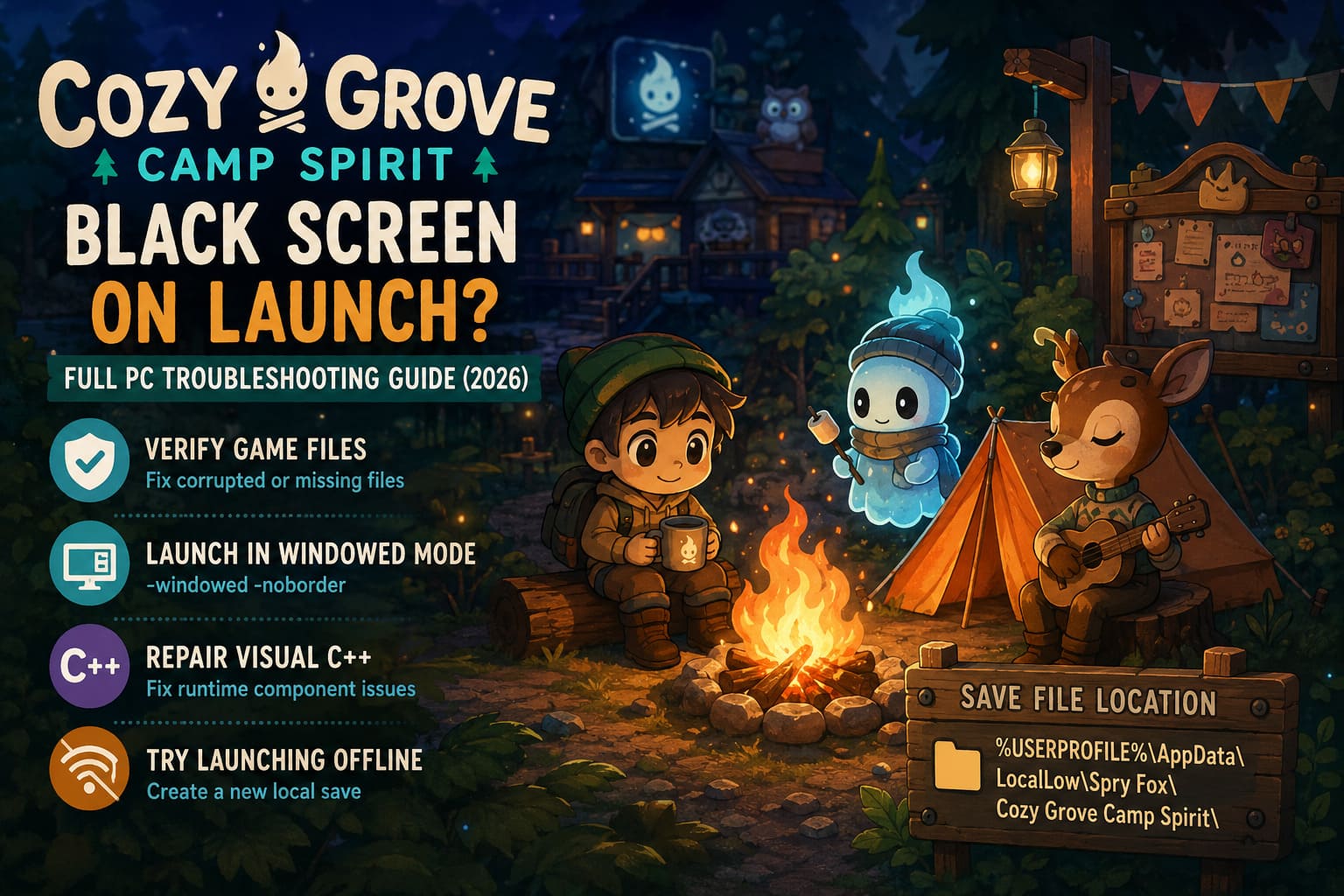
If any one of those steps fails, the game may simply display a black window forever.
From what I’ve seen, the most common causes are:
- Corrupted installation files
- Broken Visual C++ runtime components
- Cloud save conflicts
- Fullscreen resolution issues
- Graphics overlays interfering with startup
Before trying anything complicated, spend two minutes checking the basics.
Start With These Simple Checks
Make sure:
- Windows is fully updated.
- Your NVIDIA, AMD, or Intel graphics driver is current.
- Discord Overlay is disabled.
- GeForce Experience or AMD recording overlays are turned off.
- MSI Afterburner, RTSS, or similar monitoring software isn’t injecting into the game.
These utilities are fantastic most of the time, but new game launches don’t always agree with them.
Fix 1: Verify the Game Files
This is always my first recommendation because it’s also the fastest.
I’ve lost count of how many launch-day issues were caused by incomplete downloads or corrupted files.
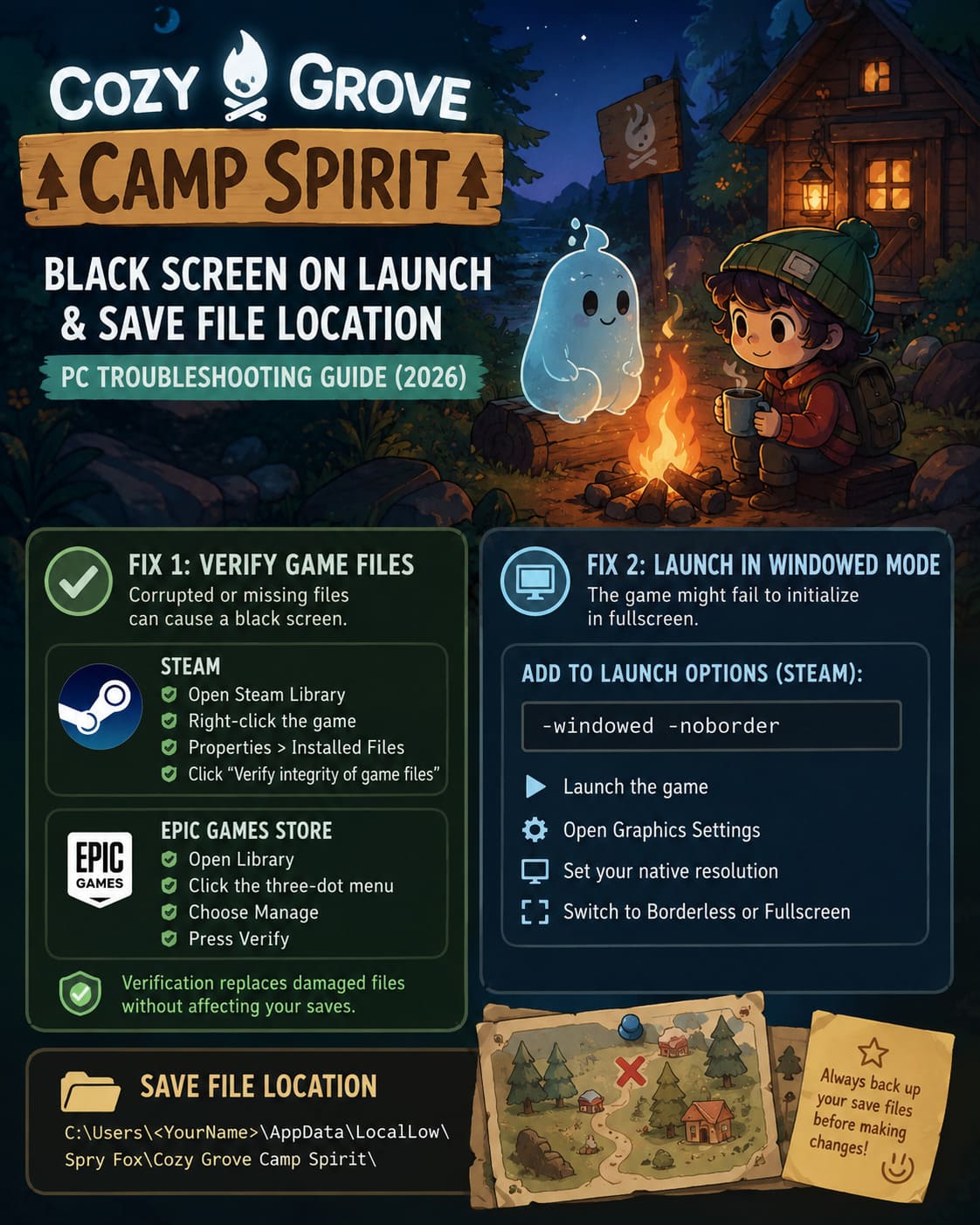
Steam
- Open Steam Library.
- Right-click Cozy Grove: Camp Spirit.
- Select Properties.
- Open Installed Files.
- Click Verify integrity of game files.
Steam will automatically replace damaged files without touching your saves.
Epic Games Store
If you’re playing through Epic:
- Open Library.
- Find the game.
- Click the three-dot menu.
- Choose Manage.
- Press Verify.
It only takes a few minutes and fixes more launch issues than people expect.
Fix 2: Launch the Game in Windowed Mode
This one surprised me.
Several players reported that the game wasn’t actually crashing—it simply couldn’t initialize fullscreen properly.
Running the game in borderless windowed mode often skips that problem entirely.
Open Steam Properties and add this to Launch Options:
-windowed -noborderLaunch the game again.
If it opens successfully:
- Enter the graphics menu.
- Select your monitor’s native resolution.
- Switch back to Borderless or Fullscreen afterward.
I’ve used this trick on dozens of PC releases over the years, and it still works remarkably often.
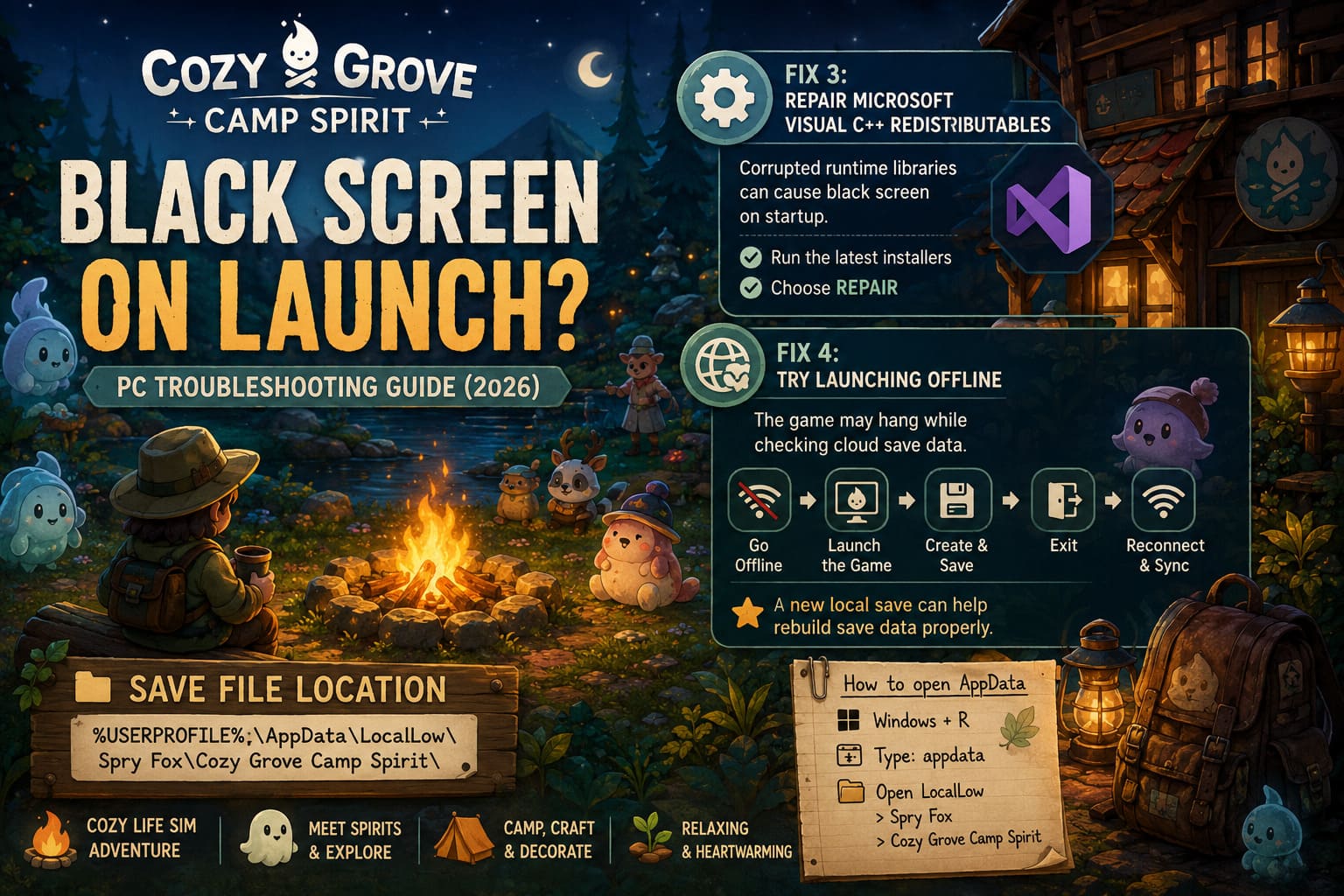
Fix 3: Repair Microsoft Visual C++ Redistributables
Many people forget these exist until something breaks.
Even modern games still rely on Microsoft’s Visual C++ runtime libraries. If those files become corrupted, the game may launch but never actually render anything.
Instead of uninstalling them, simply run the newest installers and choose Repair.
After repairing:
- Restart Windows.
- Launch the game again.
It’s a small step that solves an unexpectedly large number of startup problems.
Fix 4: Try Launching Offline
This is probably the most unusual fix—but it’s also one of the smartest.
Sometimes the game hangs while checking cloud save information.
Here’s what I’d do:
- Disconnect from the internet.
- Launch the game.
- If the menu appears, create a new save in an empty slot.
- Play for a minute.
- Save normally.
- Exit.
- Reconnect to the internet.
- Let Steam or Epic synchronize again.
Creating a fresh local profile can sometimes force the launcher to rebuild save metadata correctly.
I’ve seen nearly identical behavior in several indie games over the last few years.
Where Are Cozy Grove: Camp Spirit Save Files?
One thing I always do before experimenting with fixes is make a backup.
Seriously.
It takes less than a minute.
Your Windows save folder is located here:
%USERPROFILE%\AppData\LocalLow\Spry Fox\Cozy Grove Camp Spirit\If you’re unfamiliar with AppData:
- Press Windows + R.
- Type:
appdata- Press Enter.
- Open LocalLow.
- Open Spry Fox.
- Open Cozy Grove Camp Spirit.
That’s where your progress lives.
Understanding the Save Files
Here’s what you’ll normally find inside the folder.
| File | Purpose |
|---|---|
| cg_spirit_save.sf | Main save (Slot 1) |
| cg_spirit_save_2.sf | Save Slot 2 |
| cg_spirit_save_3.sf | Save Slot 3 |
| cg_spirit_save_bak.sf | Automatic backup |
The backup file is your best friend.
If your main save becomes corrupted after a crash or power outage, you already have a recovery point waiting.
How I Restore a Broken Save
Whenever I’m experimenting with mods or troubleshooting a game, I never touch the original save until I’ve copied everything elsewhere.
Here’s my process.
Step 1
Copy the entire save folder somewhere safe.
Desktop works perfectly.
Step 2
Delete only the damaged save.
For example:
cg_spirit_save.sfStep 3
Rename:
cg_spirit_save_bak.sfto:
cg_spirit_save.sfLaunch the game again.
If the corruption happened recently, you’ll usually only lose a small amount of progress.
Steam Cloud Can Sometimes Make Things Worse
Cloud saves are fantastic—until they aren’t.
The biggest mistake I see players make is clicking the wrong option when Steam detects conflicting saves.
Instead of rushing through the prompt, compare the timestamps carefully.
Always choose whichever save reflects your latest progress.
Another habit I’ve developed over the years is never closing games with Alt + F4, especially games that save frequently.
Instead:
- Save manually.
- Return to the main menu.
- Wait a few seconds.
- Exit normally.
It sounds old-fashioned, but it dramatically reduces save corruption.
Cozy Grove Camp Spirit Crash on Startup on Steam: How to Fix (2026 Guide)
Troubleshooting Checklist
If the black screen still refuses to disappear, work through this checklist before assuming the game itself is broken.
| Check | Status |
|---|---|
| Verified game files | ✔ |
| Updated GPU drivers | ✔ |
| Disabled overlays | ✔ |
| Repaired Visual C++ | ✔ |
| Tried windowed mode | ✔ |
| Tested offline launch | ✔ |
| Backed up saves | ✔ |
| Checked cloud conflicts | ✔ |
If every box is checked and the issue remains, it’s time to gather your save folder together with any log files the game generated and send them to Spry Fox support for further investigation.
Cozy Grove Camp Spirit Money Guide: How to Get Old Coins Fast (2026 Strategy)
My Final Thoughts
I’ve played enough PC games to know that launch week is rarely perfect, especially for smaller studios. Fortunately, Cozy Grove: Camp Spirit doesn’t appear to suffer from widespread engine failures. Most black screen cases I’ve seen have been tied to Windows configuration, cloud synchronization, or damaged startup files rather than anything permanently broken inside the game.
The encouraging part is that nearly every fix in this guide takes only a few minutes to try, and none of them require reinstalling Windows or deleting your progress. Personally, I’d begin with verifying the game files, disabling overlays, and forcing the game into windowed mode. Those three steps resolve the majority of startup issues I’ve encountered across countless PC releases.
Finally, don’t underestimate the value of backing up your saves. Cozy games are built around long-term progression, and losing weeks of carefully crafted campsites and collected memories is far more painful than spending thirty seconds copying a folder. I make manual backups before every major update, and it’s a habit that’s saved hundreds of hours of gameplay over the years.
Hopefully these fixes get you past the black screen and back where you belong—relaxing around the campfire, helping friendly spirits, and enjoying one of this year’s most charming cozy adventures instead of troubleshooting Windows.