Hololive Dreams Steam Deck Best Settings, Controller Layout, and Performance Guide (2026)
When I first launched Hololive Dreams on PC, my immediate thought was simple: this would be incredible on Steam Deck. A game that mixes rhythm mechanics, RPG progression, idol management, and theme park building practically begs to be played on a handheld. Unfortunately, the experience isn’t perfect straight out of the box.
After spending plenty of time experimenting with different configurations, reading community feedback, and tweaking Steam Deck settings, I’ve come to one conclusion—Hololive Dreams can feel fantastic on Valve’s handheld, but only if you spend a few minutes setting everything up correctly.
This guide isn’t just a list of options copied from menus. These are the settings and controller tweaks I’d actually recommend if your goal is stable gameplay, responsive rhythm stages, and decent battery life without sacrificing visual quality.
Can You Play Hololive Dreams on Steam Deck?
The answer is yes, but there’s an important catch.
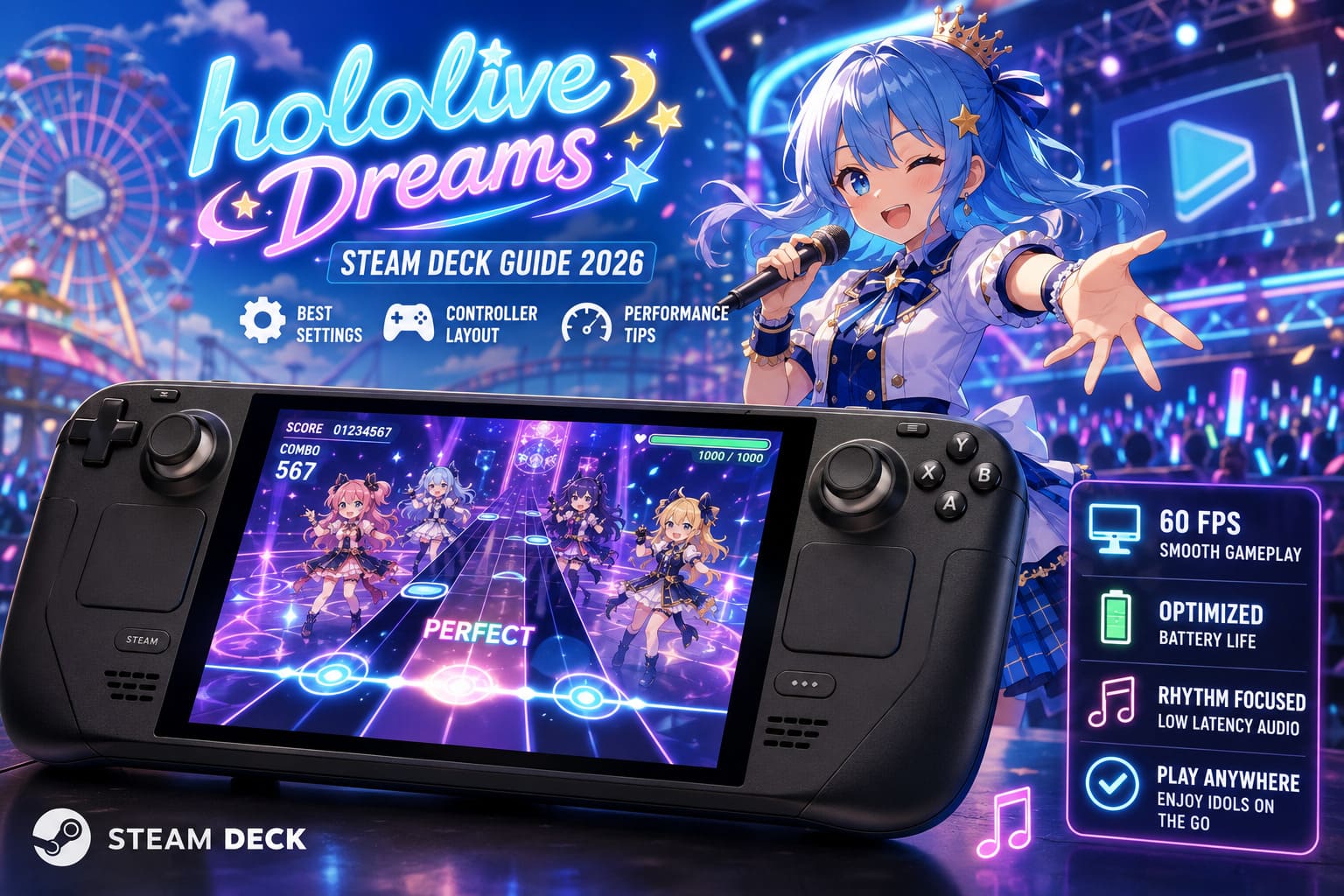
At launch, the biggest obstacle isn’t performance—it’s the game’s security system. The PC version relies on a kernel-level anti-cheat solution, which creates compatibility problems with SteamOS and Proton.
That means many players trying to install the game directly on Steam Deck may discover it simply refuses to launch.
Fortunately, there are reliable alternatives.
Option 1 — Windows on Steam Deck
If you’re already dual-booting Windows or using Windows from an external SSD, this is easily the best solution.
Running the native Windows version allows the anti-cheat to initialize correctly while giving the game full access to the hardware.
- Native performance
- No compatibility tricks
- Lowest possible input latency
- Full controller support
Option 2 — Remote Streaming
If you don’t want to leave SteamOS, streaming from your gaming PC works surprisingly well.
Using applications such as:
- Steam Remote Play
- Moonlight
- Sunshine
lets your desktop handle all rendering while the Steam Deck becomes a lightweight client.
Battery life improves dramatically, temperatures stay low, and image quality remains excellent with a stable local network.
For many players, this is honestly the easiest long-term solution.
Best Graphics Settings for Steam Deck
One mistake I see constantly is people chasing Ultra settings on a handheld.
Hololive Dreams isn’t the type of game where max shadows improve the experience.
The rhythm gameplay depends on clear visuals and consistent frame pacing—not cinematic lighting.
Here’s the configuration I’d personally use.

| Setting | Recommended |
|---|---|
| Display Mode | Fullscreen |
| Resolution | 1280×800 |
| Graphics Preset | Custom |
| Texture Quality | Medium |
| Shadows | Low |
| SSAO | Low |
| Effects | Medium |
| Volumetric Effects | Low |
| Motion Blur | Off |
| Anti-Aliasing | TAA |
This setup keeps character models looking sharp while removing the effects that usually cause sudden GPU spikes during concerts and large park scenes.
Textures don’t need to be lowered further because Steam Deck has enough shared memory to handle medium-quality assets comfortably.
Shadows and volumetric lighting, however, are among the most expensive visual effects in the game while adding very little during actual gameplay.
Steam Deck Performance Settings
The Steam Deck’s Quick Access Performance menu is just as important as the in-game graphics options.
I recommend creating a dedicated profile specifically for Hololive Dreams.
| Steam Deck Option | Value |
|---|---|
| Refresh Rate | 60 Hz |
| Frame Limit | 60 FPS |
| TDP Limit | 11 W |
| Manual GPU Clock | Disabled |
| Scaling Filter | Linear |
I’ve experimented with lower frame caps, including 45 FPS.
For slower RPG exploration, they’re acceptable.
For rhythm stages?
Not even close.
Once you start playing harder songs, every dropped frame becomes noticeable. Keeping gameplay locked at 60 FPS makes timing feel significantly more natural.
My Favorite Steam Deck Controller Layout
The default keyboard mapping clearly comes from the mobile version’s control design.
After a few songs it becomes obvious that reaching every lane comfortably isn’t ideal.
Instead, I built a layout that feels much closer to arcade rhythm games.
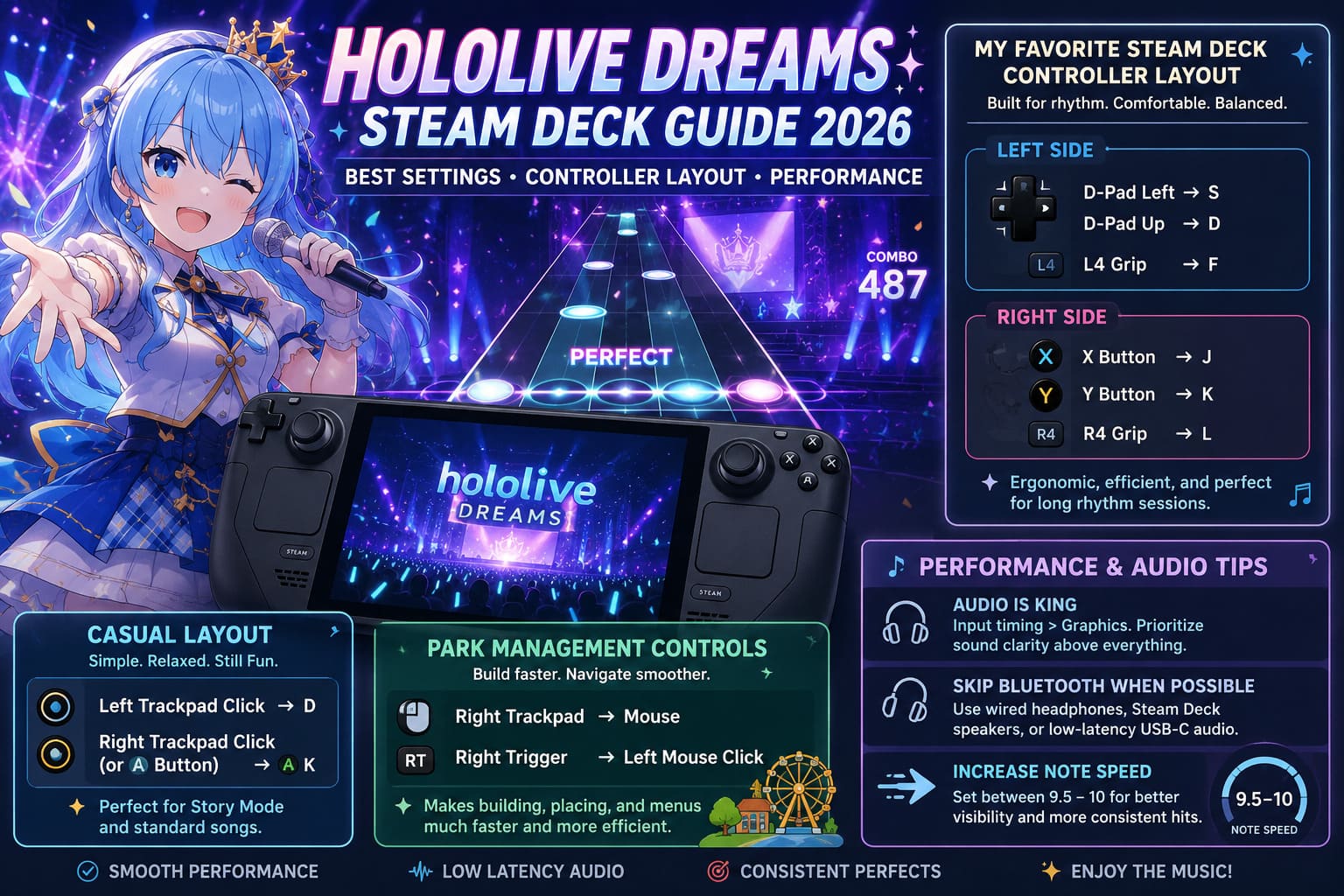
Left Side
- D-Pad Left → S
- D-Pad Up → D
- L4 Grip → F
Right Side
- X Button → J
- Y Button → K
- R4 Grip → L
The result feels surprisingly ergonomic.
Both hands stay balanced, finger movement is minimal, and long sessions become far less tiring.
A Casual Layout That Actually Works
If you’re mostly playing lower difficulties or simply want to relax, you don’t necessarily need six dedicated buttons.
One of the interesting discoveries from the community is how forgiving several note lanes are.
A simplified layout works surprisingly well.
For casual play:
- Left Trackpad Click → D
- Right Trackpad Click (or A Button) → K
Will it clear every Expert chart?
Definitely not.
Can it comfortably handle Story Mode and standard songs?
Absolutely.
Park Management Controls
Outside rhythm stages, you’ll spend a surprising amount of time building attractions, arranging decorations, and navigating menus.
These sections clearly feel designed with touch controls in mind.
Instead of constantly reaching for the touchscreen, configure:
- Right Trackpad → Mouse
- Right Trigger → Left Mouse Click
This tiny adjustment makes placing buildings and navigating menus much faster.
Honestly, after using this setup for a while, I wouldn’t go back.
Audio Is More Important Than Graphics
If there’s one thing rhythm game veterans always agree on, it’s this:
Input timing matters more than visual fidelity.
You can lower shadows.
You can lower effects.
You cannot fix delayed audio by pretending it doesn’t exist.
Skip Bluetooth When Possible
Wireless earbuds are convenient.
They’re also one of the biggest reasons players struggle with rhythm games.
Bluetooth latency—even with modern codecs—can easily introduce noticeable delay.
Whenever possible, use:
- Wired headphones
- Steam Deck speakers
- Low-latency wired USB-C audio
Your Perfect hits will immediately become much more consistent.
Increase Note Speed
This sounds backwards at first.
Faster notes should be harder, right?
Actually, increasing note speed usually makes charts easier to read.
I prefer values around:
9.5–10
The notes become more spread out instead of stacking on top of one another.
On the Steam Deck’s compact display, this dramatically improves visibility during busy songs.
Reduce Background Brightness
Concert stages look fantastic.
Sometimes they’re a little too fantastic.
Bright idol animations can compete visually with incoming notes.
Lowering lane background brightness to around 40% helps the gameplay elements stand out without ruining the overall presentation.
It’s a small adjustment that makes long play sessions noticeably easier on the eyes.
Disable Extra Voice Effects If Needed
Most modern CPUs can handle the game’s voice lines without issue.
Still, during particularly busy sequences involving multiple idols, extra voice effects may contribute to occasional micro-stutters.
If you’re chasing the smoothest possible experience, turning off unnecessary in-stage voice playback can slightly reduce CPU workload.
It’s not a miracle performance boost, but every little bit helps during demanding scenes.
Hololive Dreams Account Transfer Guide: How to Link Mobile Progress to Steam (2026)
Battery Life Expectations
Battery life naturally depends on how you’re playing.
Here’s roughly what I’ve experienced.
| Play Style | Estimated Battery |
|---|---|
| Native Windows | 2–3 hours |
| SteamOS Remote Play | 5–7 hours |
| Lower TDP Streaming | Up to 7 hours |
Streaming remains the clear winner if portability is your priority.
The Deck stays cool, fans remain quiet, and the battery lasts dramatically longer.
How to Fix Bluetooth Audio Sync Delay in hololive Dreams (2026 Mobile Guide)
Final Thoughts
After spending a lot of time with Hololive Dreams, I genuinely think it’s one of those games that feels almost made for handheld gaming—even if the launch compatibility situation says otherwise.
Yes, the anti-cheat creates an extra hurdle for Steam Deck owners, and I wish that weren’t the case. But once you get past that obstacle, the experience is surprisingly polished.
The biggest improvements don’t come from chasing the highest graphics settings. Instead, they’re the result of smart optimization: keeping shadows low, maintaining a stable 60 FPS, creating a comfortable controller layout, and making sure your audio stays perfectly synchronized with your inputs.
If I had to recommend just three things to every new Steam Deck player, they’d be simple:
- Prioritize stable frame rate over visual effects.
- Customize your controls instead of relying on the default layout.
- Avoid Bluetooth audio during rhythm gameplay whenever possible.
Do that, and Hololive Dreams transforms into exactly what I hoped it would be—a fantastic portable rhythm RPG that’s easy to pick up for a few songs and just as easy to lose an entire evening playing.