Drone Sector Steam Deck Guide: Best Performance Settings & Cloud Save Error Fix
When I first launched Drone Sector on my Steam Deck, I wasn’t expecting it to become one of those games that would keep me saying, “Just one more mission.” The combination of tactical air support, managing ground troops in real time, and carefully choosing when to unleash overwhelming firepower creates a surprisingly addictive gameplay loop.
I’ve spent hundreds of hours across military simulators, strategy games, and tactical shooters over the years, so I had a rough idea of what to expect. What surprised me wasn’t the gameplay—it was how well Drone Sector can actually run on Valve’s handheld after a few adjustments. Out of the box, though, the experience isn’t perfect. Heavy firefights can introduce noticeable frame drops, and I also ran into Steam Cloud synchronization issues after moving between my desktop PC and the Steam Deck.
After several evenings of testing different graphics combinations and experimenting with SteamOS settings, I found a setup that delivers consistently smooth gameplay without sacrificing the visual clarity needed to command your squad effectively. Here’s everything that worked for me.
Why Drone Sector Feels Great on Steam Deck
Unlike traditional first-person military shooters, Drone Sector places you in the role of a tactical commander operating advanced airborne weapons platforms. Every decision matters. You’re constantly switching targets, supporting friendly units, watching enemy movements, and balancing limited resources.
Because of this gameplay style, the game doesn’t demand lightning-fast reactions every second. Instead, it rewards clear visibility and stable performance. I’d much rather have a locked frame rate than ultra graphics with constant stuttering.
Fortunately, that’s completely achievable.
My Recommended Steam Deck Graphics Settings
After trying almost every graphics preset available, I ended up avoiding both the Lowest and Highest options.
The Low preset improved performance, but explosions looked flat and it became harder to distinguish environmental details. Meanwhile, High settings pushed the Steam Deck far harder than necessary during larger battles.
This custom setup gave me the best balance.
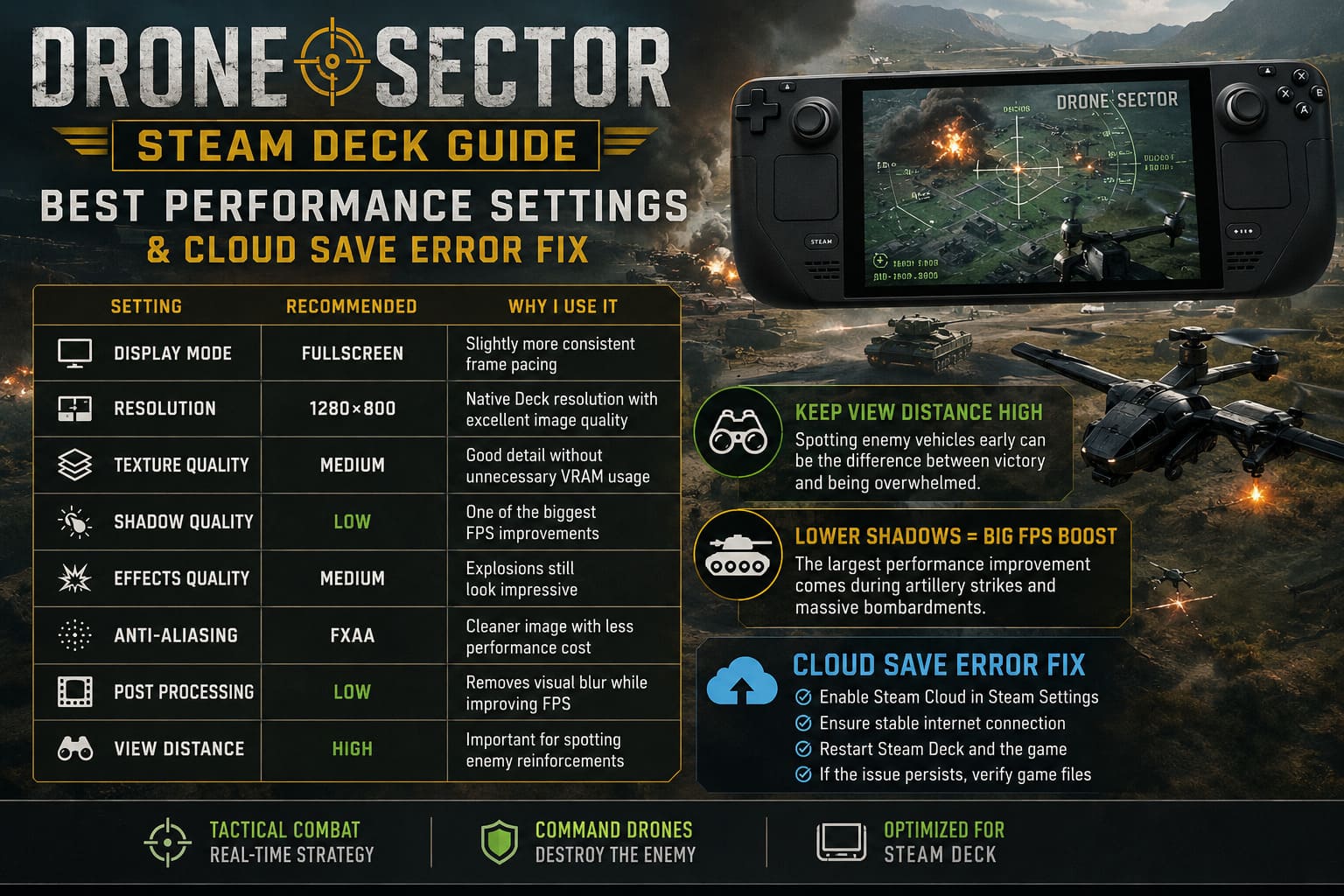
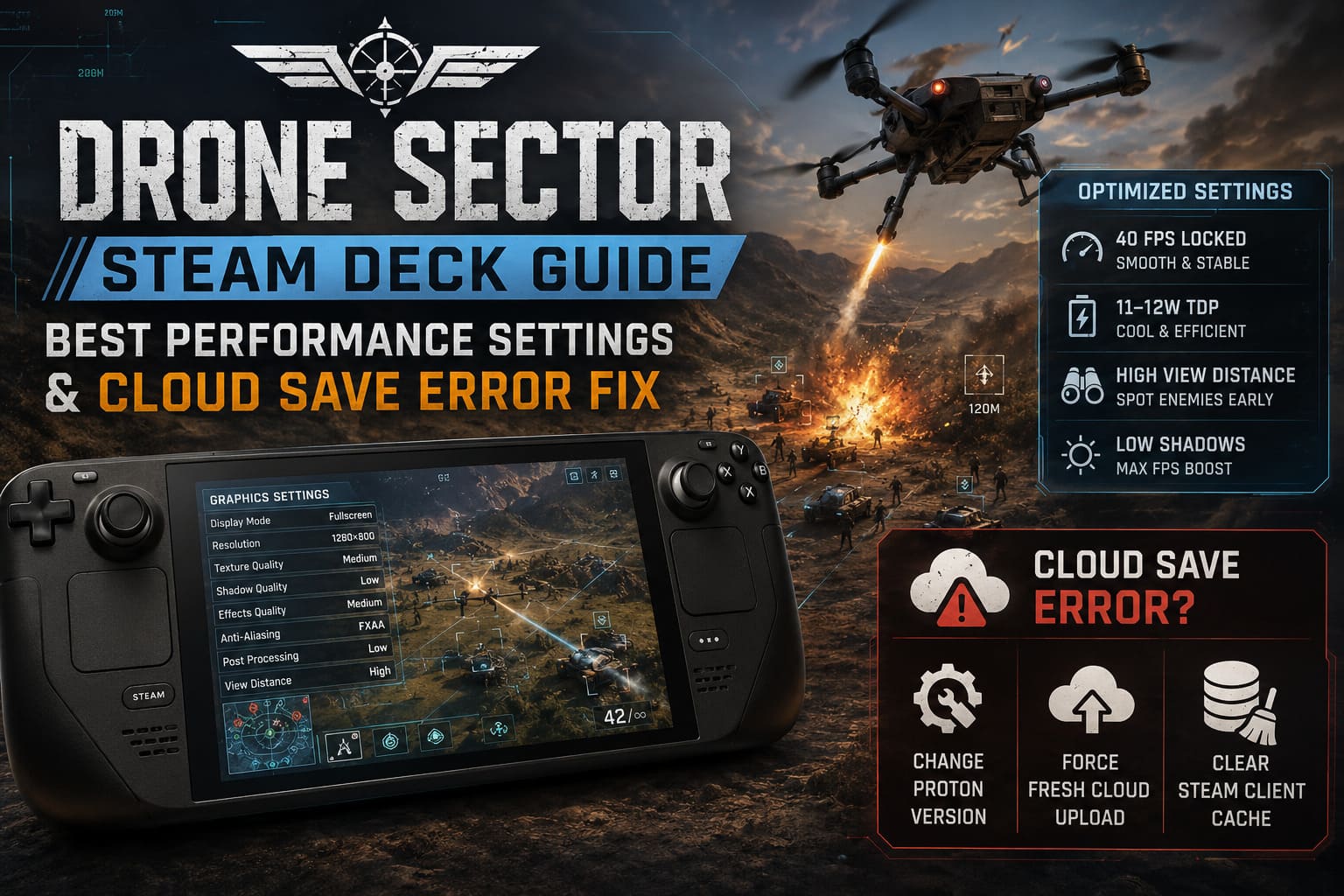
| Setting | Recommended Value | Why I Use It |
|---|---|---|
| Display Mode | Fullscreen | Slightly more consistent frame pacing |
| Resolution | 1280×800 | Native Deck resolution with excellent image quality |
| Texture Quality | Medium | Good detail without unnecessary VRAM usage |
| Shadow Quality | Low | One of the biggest FPS improvements |
| Effects Quality | Medium | Explosions still look impressive |
| Anti-Aliasing | FXAA | Cleaner image with less performance cost |
| Post Processing | Low | Removes visual blur while improving FPS |
| View Distance | High | Important for spotting enemy reinforcements |
One thing I quickly learned is that View Distance is worth keeping high. Since you’re constantly scanning the battlefield, seeing enemy vehicles before they become a threat matters far more than prettier shadows.
Lowering shadows provided the largest performance improvement during artillery strikes and large bombardments.
Steam Deck Performance Settings That Actually Help
The in-game graphics options are only part of the equation.
SteamOS offers additional controls that make a noticeable difference.
These are the settings I’ve been using:
- Frame Rate Limit: 40 FPS
- Refresh Rate: 40 Hz (LCD) or 45 FPS / 90 Hz (OLED)
- Manual TDP: around 11–12W
- Half Rate Shading: Disabled
- Scaling Filter: Default
Locking the frame rate may sound disappointing if you’re used to chasing 60 FPS, but tactical games don’t benefit nearly as much from extremely high frame rates as competitive shooters do.
Instead, a locked 40 FPS feels remarkably smooth while reducing heat, fan noise, and battery consumption.
During larger engagements involving multiple friendly squads, missile launches, and several simultaneous explosions, performance stayed far more consistent than when leaving everything uncapped.
Battery Life Expectations
Battery life obviously depends on brightness, Wi-Fi usage, and mission intensity, but I consistently noticed better endurance after lowering shadows and enabling an 11W TDP limit.
Here’s roughly what I experienced.
| Configuration | Estimated Play Time |
|---|---|
| Default Settings | Around 2 hours |
| Optimized Settings | Approximately 2.5–3 hours |
That’s a worthwhile improvement, especially if you’re traveling.
The Steam Cloud Save Error I Encountered
The biggest frustration wasn’t performance.
It was Steam Cloud.
After finishing several missions on my desktop PC, I switched to the Steam Deck expecting everything to sync automatically.
Instead, Steam displayed a Cloud Sync error.
Fortunately, this wasn’t permanent.
After testing several possible fixes, I found a few methods that reliably solved the issue.
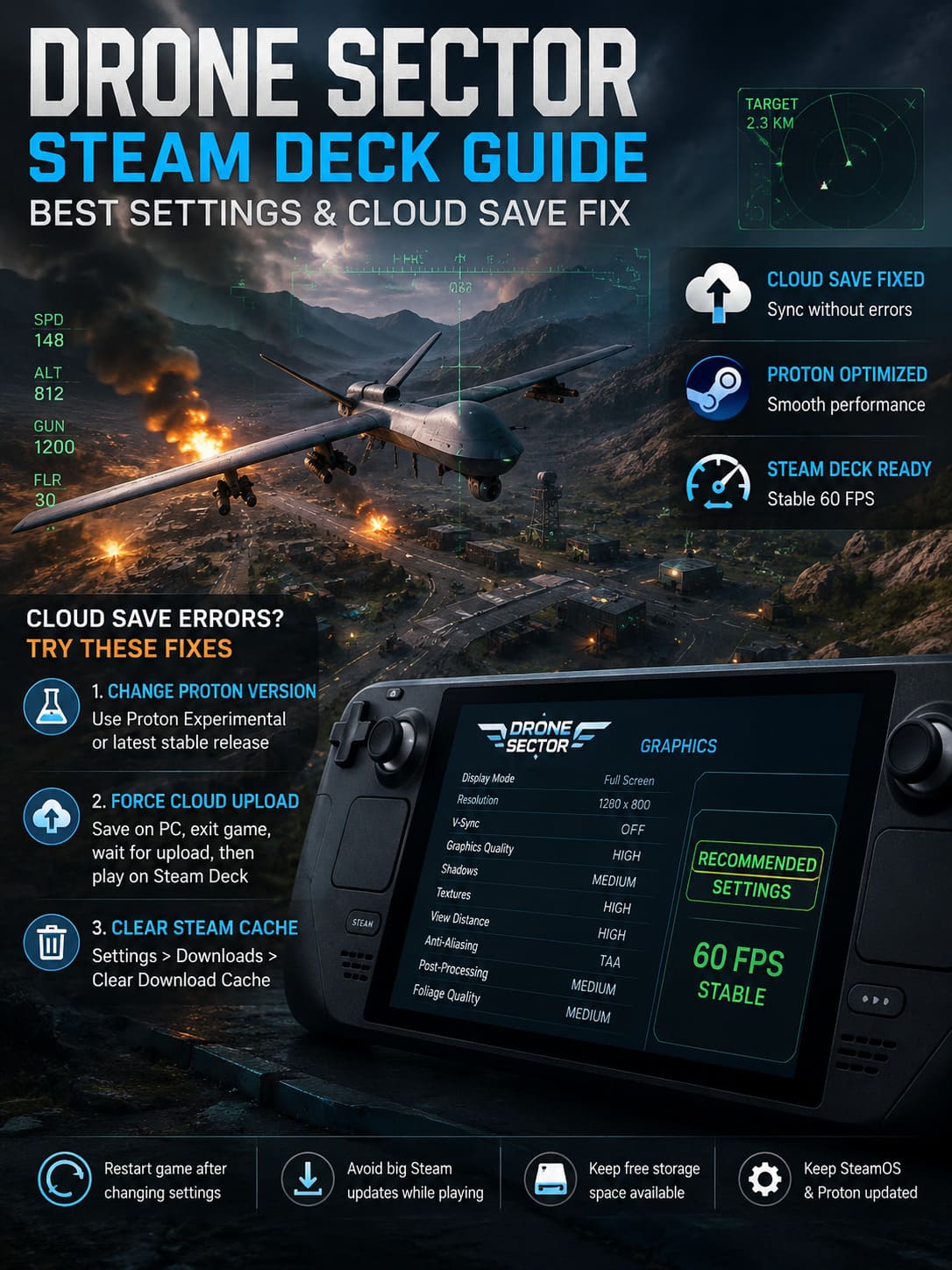
Solution 1: Change the Proton Version
This was the first thing that helped.
Sometimes SteamOS ends up using compatibility files that don’t play nicely with cloud synchronization.
Here’s what I did:
- Open your Steam Library.
- Select Drone Sector.
- Open Properties.
- Go to Compatibility.
- Enable Force the use of a specific Steam Play compatibility tool.
- Select either Proton Experimental or the newest stable Proton release.
- Restart the game.
Once Steam rebuilt the compatibility environment, cloud synchronization behaved much more consistently.
Solution 2: Force a Fresh Cloud Upload
If Steam still reports that your saves are out of sync, don’t panic.
I simply forced a new upload.
My process looked like this:
- Launch the game on my desktop.
- Play for several minutes.
- Finish a mission or create a fresh save.
- Exit the game normally.
- Wait until Steam finishes uploading.
- Turn on the Steam Deck afterward.
Doing this created a clean cloud version that the handheld downloaded without any further conflicts.
It’s a surprisingly simple fix.
Solution 3: Clear the Steam Client Cache
Steam itself occasionally causes synchronization problems.
Clearing the client cache fixed another cloud issue I encountered.
You can do this by:
- Opening Steam Settings.
- Going to the Downloads section.
- Choosing Clear Download Cache.
- Restarting Steam.
Once Steam restarted, cloud synchronization completed successfully.
A Few Extra Tips After Several Hours of Testing
These aren’t mandatory, but they noticeably improved my overall experience.
- Restart the game after changing graphics settings.
- Avoid downloading large Steam updates while playing.
- Keep at least several gigabytes of free storage available.
- Update SteamOS whenever a stable release becomes available.
I’ve found that many small performance issues on Steam Deck disappear after keeping both Proton and SteamOS fully updated.
Drone Sector Crash on Launch: How to Fix MicroProse Game Startup Issues on Steam (2026 Guide)
Is Drone Sector Worth Playing on Steam Deck?
I genuinely think so.
I’ve played plenty of tactical games that technically launch on handheld devices but feel compromised because of tiny interface elements or inconsistent performance.
Drone Sector doesn’t fall into that category.
The controls adapt surprisingly well, the interface remains readable on the 7-inch display, and once performance is tuned correctly, missions feel smooth even during chaotic combat.
Is it identical to playing on a high-end gaming PC?
Of course not.
But that’s missing the point.
Being able to command air support from the couch, on a train, or while traveling makes the Steam Deck version incredibly enjoyable.
After optimizing the graphics and resolving the cloud synchronization problem, I stopped thinking about technical issues entirely and simply focused on completing missions—which is exactly what you want from a portable gaming experience.
Final Thoughts
Drone Sector may still be in Early Access, but it’s already shaping up to be an excellent tactical military experience for Steam Deck owners. The default configuration isn’t quite ideal, yet only a handful of adjustments are needed to transform the experience.
Running native 1280×800, lowering shadow quality, limiting the frame rate to 40 FPS, and using a modest 11–12W TDP created the best balance between image quality, smooth performance, and battery life during my testing.
If Steam Cloud refuses to cooperate, switching Proton versions, forcing a fresh desktop save upload, or clearing the Steam client cache should solve the vast majority of synchronization problems.
After spending many hours with strategy games, military simulations, and handheld optimization, Drone Sector feels like one of those titles that rewards a little tweaking. Once everything is configured properly, it becomes an excellent game to enjoy on the Steam Deck—whether you’re completing a quick mission at home or taking your campaign with you on the go.