Luminary Low FPS Fix: How to Boost Performance and Stop Stuttering
Luminary (2026) is one of those games that instantly grabs your attention with its incredible visuals, massive environments, and impressive technical presentation. Refractive Entertainment clearly wanted to create a next-generation experience, and the result is a stunning open-world adventure packed with detailed locations, advanced lighting effects, realistic physics, and demanding graphical features.
However, like many ambitious PC releases, Luminary does not run perfectly on every system. Many players are reporting low FPS, sudden frame drops, unstable frame pacing, and annoying micro-stutters even while using powerful gaming PCs. Some users with high-end graphics cards are struggling to maintain smooth 60 FPS gameplay, while others experience freezes when entering new areas or during intense combat situations.
After going through community feedback, testing common optimization methods, and applying the same performance tweaks used for other demanding AAA games, this guide covers the most effective ways to improve Luminary performance. These settings changes can help you gain smoother gameplay without completely destroying the beautiful visuals that make the game special.
How to Fix Luminary DX12 Stuttering: Complete Performance Guide
Why Luminary Has Low FPS and Stuttering Problems
Before changing every graphics option randomly, it is important to understand what causes Luminary’s performance problems. The game uses advanced rendering technology that pushes multiple parts of your PC at the same time, which means even strong hardware can struggle if settings are not optimized properly.
The biggest performance killers are usually real-time global illumination, volumetric effects, detailed shadows, physics calculations, and constant asset streaming. When you move quickly through the world, Luminary loads new environments, textures, and objects in real time, which can create CPU spikes and noticeable stutters.
GPU bottlenecks usually appear as consistently low frame rates, especially when playing at 1440p or 4K resolution. CPU limitations are easier to recognize when FPS suddenly drops during large battles, crowded locations, or moments where many objects are being processed at once.
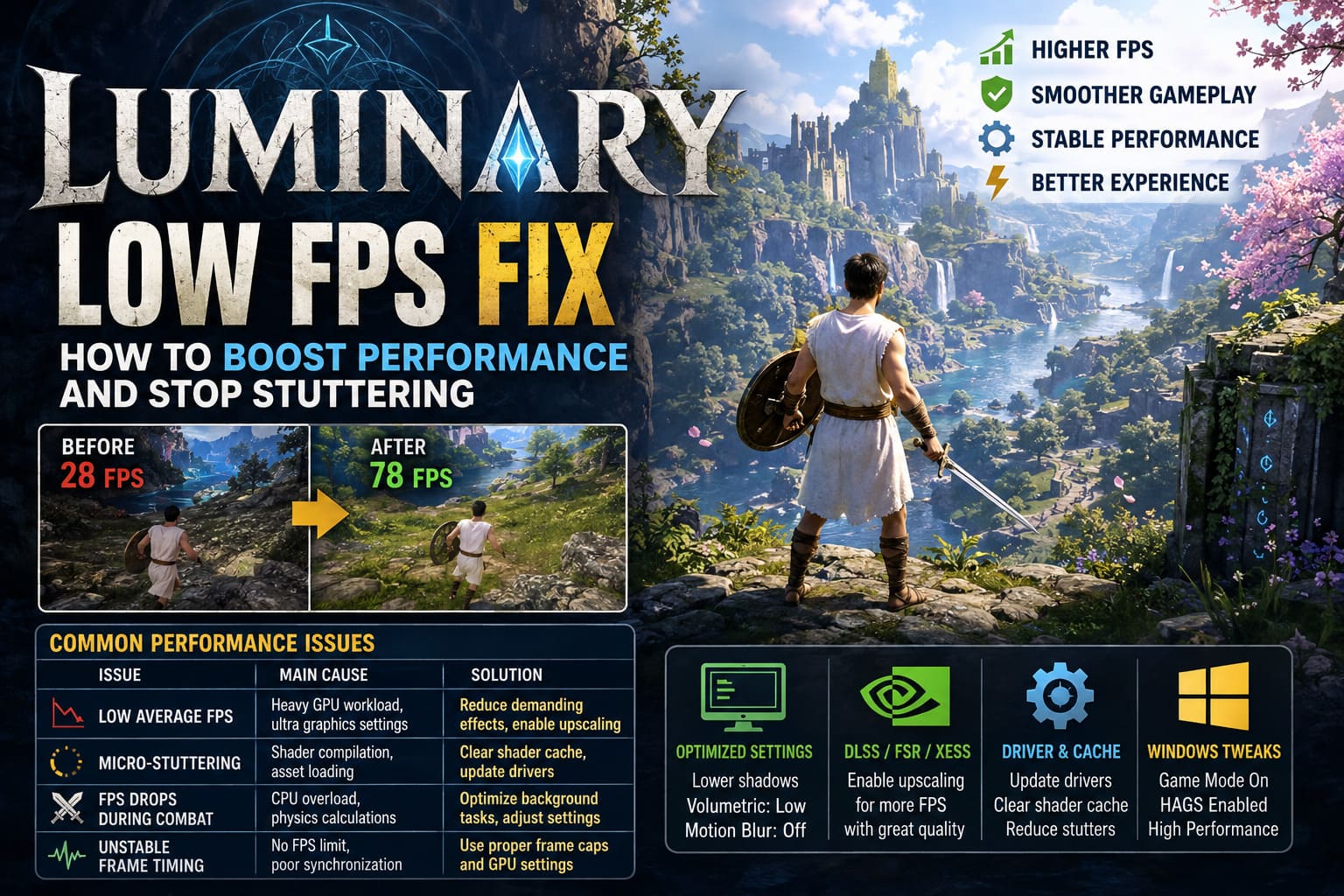
| Performance Issue | Main Cause | Recommended Solution |
| Low Average FPS | Heavy GPU workload, ultra graphics settings | Reduce demanding effects and enable upscaling |
| Micro-Stuttering | Shader compilation and asset loading | Clear shader cache and update drivers |
| FPS Drops During Combat | CPU overload and physics calculations | Optimize background tasks and game settings |
| Unstable Frame Timing | No FPS limit or poor synchronization | Use proper frame caps and GPU settings |
Best Luminary Graphics Settings for Higher FPS
The fastest way to improve Luminary performance is by adjusting the in-game graphics settings. Default presets are usually designed to showcase visuals rather than provide the best balance between quality and smooth gameplay.
Ultra settings may look incredible in screenshots, but several options consume a huge amount of hardware power while adding only small visual improvements during actual gameplay. The goal is to remove the settings that destroy performance while keeping Luminary looking sharp.
Recommended Graphics Settings
- Display Mode: Set this to Fullscreen. Borderless Window mode can sometimes introduce extra latency and slightly lower performance.
- Resolution Scale: Keep it at 100% or use DLSS, FSR, or XeSS. Avoid manually lowering resolution because it creates blurry visuals.
- Shadow Quality: Reduce from Ultra or High to Medium. Shadows are one of the biggest FPS killers in Luminary.
- Volumetric Effects: Set to Low or Medium. Fog, clouds, and atmospheric effects look great but heavily impact GPU performance.
- Ray Tracing: Disable it unless you have a powerful enthusiast-level graphics card.
- Motion Blur: Turn it Off for cleaner visuals and better responsiveness.
- Depth of Field: Disable it to remove unnecessary effects and gain a small performance improvement.
From my experience with demanding PC games, shadows and volumetric effects are almost always the first settings worth changing. They can destroy your frame rate while making only a small difference during normal gameplay.
Enable DLSS, FSR, or XeSS for Better Performance
Modern PC games are becoming increasingly difficult to run at maximum settings without AI-powered upscaling. Luminary is another example of a game where technologies like DLSS, FSR, and XeSS can completely change the experience.
NVIDIA users should enable DLSS whenever possible. The Quality mode offers an excellent balance between image clarity and performance. If your FPS is still unstable, switching to Balanced mode can provide additional frames.
Players with RTX 40-series or RTX 50-series GPUs should also enable Frame Generation if available. When configured correctly, it can make Luminary feel much smoother, especially at high resolutions.
AMD users should activate FSR and test Quality or Balanced settings. Intel GPU owners should try XeSS, which can also improve performance while maintaining good image quality.
NVIDIA Control Panel Settings for Luminary
Sometimes the game settings alone are not enough. NVIDIA Control Panel adjustments can improve stability, reduce stutters, and help your GPU maintain consistent performance.
Recommended NVIDIA Settings
- Power Management Mode: Prefer Maximum Performance
- Max Frame Rate: Match your monitor refresh rate or lock the game at 60 FPS for smoother frame pacing
- Shader Cache Size: Set to Unlimited or at least 10GB
- Low Latency Mode: Enable if you want faster input response
The shader cache option is especially useful because Luminary appears to rely heavily on shader processing. A larger cache allows your system to store more compiled data and reduces repeated shader preparation during gameplay.
AMD Adrenalin Settings for Luminary
AMD users can also improve performance by creating a dedicated Luminary profile inside Radeon Software. These changes will not magically double FPS, but they can improve consistency and reduce unnecessary GPU limitations.
- Enable Radeon Anti-Lag for improved responsiveness.
- Disable Radeon Chill unless you intentionally want FPS limits.
- Set Texture Filtering Quality to Performance.
- Keep unnecessary visual enhancement features disabled if maximum FPS is your priority.
Windows Settings to Improve Luminary Performance
Windows sometimes limits hardware performance because of power-saving features and background processes. A few system changes can help your PC dedicate more resources to Luminary.
Enable Hardware-Accelerated GPU Scheduling
- Open Windows Settings.
- Go to System → Display → Graphics.
- Enable Hardware-Accelerated GPU Scheduling.
- Restart your computer.
You should also enable Windows Game Mode. This feature helps prioritize gaming processes and reduces interference from background applications, notifications, and unnecessary system activity.
For desktop gaming PCs, open Power Options and select High Performance or Ultimate Performance mode. This prevents Windows from reducing CPU performance while playing Luminary.
Fix Luminary Stuttering by Clearing Shader Cache
One of the most common complaints from PC players is heavy stuttering during the first hours of gameplay. This usually happens because shaders are being compiled while you explore the world.
Shader compilation problems are common in modern games, especially those using advanced lighting systems. If your drivers are outdated or your shader cache becomes corrupted, these stutters can continue appearing constantly.
How to Clean Shader Cache
- Download and install the latest graphics drivers from NVIDIA, AMD, or Intel.
- If you recently changed your graphics card, perform a clean installation using DDU.
- Open Windows Disk Cleanup.
- Select DirectX Shader Cache.
- Remove the cached files and restart your PC.
- Launch Luminary and wait several minutes in the main menu before starting gameplay.
Many modern games quietly prepare shaders after launch, so giving Luminary time to complete this process can significantly reduce random freezes and performance drops.
Final Thoughts: Getting the Best Luminary Experience on PC
Luminary is an impressive technical showcase, but its default settings are not perfect for every gaming PC. The difference between poorly optimized settings and a properly tuned system can feel massive, especially on mid-range hardware.
By lowering the most demanding visual options, enabling modern upscaling technologies, adjusting GPU settings, optimizing Windows, and fixing shader cache problems, you can achieve much smoother performance without sacrificing the atmosphere that makes Luminary special.
Refractive Entertainment will likely continue improving optimization through future updates, but players do not have to wait for patches to enjoy a better experience. With the right tweaks, Luminary can finally deliver the smooth and immersive adventure that PC gamers expect.